



As you might know, Microsoft Windows is the most popular operating system out there. Thanks to its large user base, one can find a wide range of third-party products that can enhance user experience and allows completion of various tasks. Popular third-party products that you may be using with your Windows system include the following:
- Pointing devices like mouse
- Scanners and printers
- Keyboards and monitors
- Sound cards
- Graphic cards
- Networking peripherals like routers, hubs, modems, etc.
- Storage devices like external hard drives
Microsoft regularly updates its operating system to accommodate these devices and to fix any software bugs. Regular Windows updates also allow you to use the latest peripheral devices.
Nevertheless, unexpected errors can still occur at times. And when they do, dealing with them can be quite frustrating. For instance, your work can suffer if your printer is not printing properly or you are unable to establish a network connection.
One of the first things you should do when you experience problems with a peripheral device is check whether you have installed the latest driver updates. So, how can you find out which drivers need to be updated? Follow along as we answer this question in detail.
How to find out which drivers need to be updated
Many conditions could lead to a situation in which updating drivers become necessary. Two of the most common such conditions are:
Operating systems updates – Windows updates can affect your devices, so installing the latest driver updates can help keep any functional or compatibility issues at bay.
New peripherals – Are you installing a new peripheral device like a keyboard, printer, or a storage unit? If so, it is important to ensure you have the latest driver for your device. Otherwise, it might not function properly.
If a device is not working as it should, updating its drivers is often the first troubleshooting step.
How can I check for outdated drivers?
You can check for outdated drivers in different ways.
Windows Update
This is perhaps the easiest way to keep your Windows computer up-to-date. Downloading and installing the Windows updates is an important step to keep your device secure and working well.
Even when you don’t require driver updates, you should keep Windows Update active. Windows updates are divided into three categories:
- Important – These updates are released to address reliability or security issues (and hence should not be missed).
- Recommended – These updates help fix issues that are not critical in nature. While not as vital as the previous category, Microsoft recommends users to install these updates.
- Optional – These include system drivers and software updates that address minor bugs and/or improve overall performance.
Follow these steps to launch Windows Update:
- Click the Windows Start button
- Next, click Settings
- Click Update and Security
- Now, Windows Update will launch itself
- Click Check for Updates
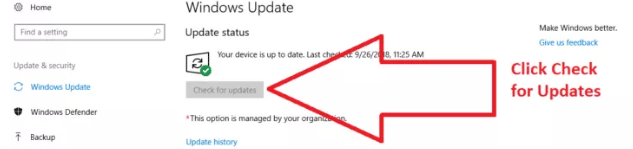
Now, the Windows Update feature will download updates meant for your version of Windows operating system. Once the update process is complete, you will likely receive a message confirming this.
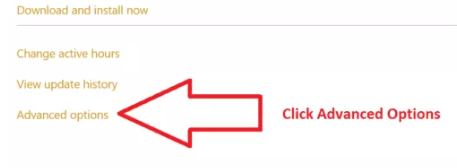
Windows Update is designed to run automatically on a regular basis. But if you want, you can customize its running as per a defined schedule. While Windows Updates runs every day, it might not install new updates daily. You can control how Windows Updates functions. To do that, first click the Advanced Options. Here you will various options for controlling Windows Updates.
Another way to control how Windows Updates work is by clicking Change Settings in the Windows Update section.
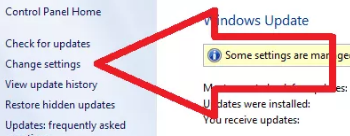
Here you will different options, including:
- Who can install updates
- Never check for Windows updates
- How you will be notified when Windows finds new updates
Keep in mind that you may need to restart your computer after Windows downloads and installs new system and software updates.
Also, remember that not every peripheral manufacturer registers its driver and software updates with Windows immediately after releasing them. Some might not even register them at all. So, when it comes to updating drivers for peripheral devices, you cannot solely depend on Windows Updates. That is why the next step is an important one.
Device Manager
Windows computers come with a utility called device manager that allows you to manage various devices installed on your computer and their drivers.
Keep in mind that this method is an option only when you are sure which device needs a driver update. Also, if you want to update device drivers of more than one device, you will have to update them one by one.
Using device manager for updating drivers requires a certain level of technical proficiency. If that doesn’t suit you, it would be best to use a driver update tool, which automatically updates all outdated drivers with a click of the mouse.
Here is how you can use device manager to update drivers:
- In the Start Search box, type run and press enter
- In the run dialog box, type devmgmt.msc and press enter
- In the Device Manager window, you will see all the installed devices. Go through the list to locate the device that requires a driver update.
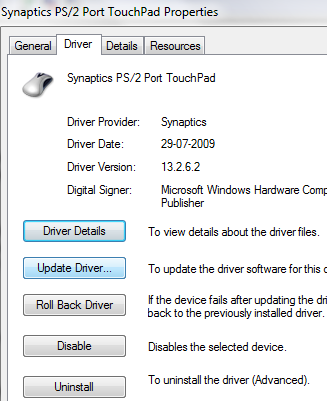
- Once you have found the right device, right-click it and click Properties
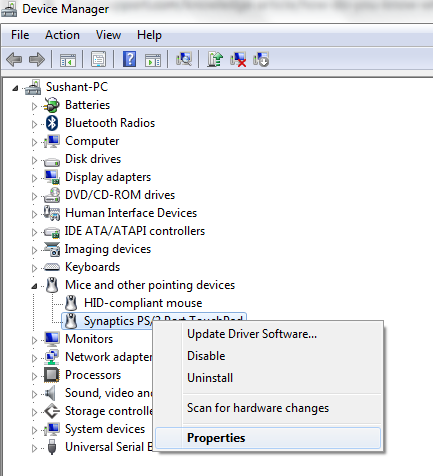
- Click the Update Driver option to install the latest driver update
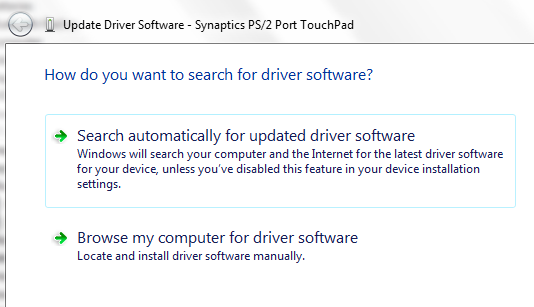
- Windows will give you two options: You can either install the driver from a driver file stored on your computer or you can let Windows search for the latest driver on the Internet
Download the latest driver from the device manufacturer’s website
Another option is to download the latest driver directly from the manufacturer’s website. Of course, to be able to do the same, you will need the following information:
- Your Windows Version
- Product type
- Model and version of the device
Once you have all the necessary details, go to the device manufacturer’s website and search for the latest driver. Make sure you download the driver that is meant for your version of Windows. For instance, if you use 32-bit Windows 7, you should only download the driver for 32-bit Windows 7 computers.
Once you have located the right driver, download it and save the file on a suitable location (your desktop). Next, open the driver file and run the executable file. Follow on-screen instructions (if any). Once the installation is complete, you may be prompted to restart Windows.
Driver Update Software
Automatic driver update tools offer many benefits, the most important ones being:
- You can update device drivers automatically
- The software scans and updates all outdated or missing drivers at one go
- The tool picks the right drivers for your device and operating system, so you won’t have to worry about installing an incorrect driver by mistake
- Automatic driver updates are 100% safe
Driver Updater is one of the best driver update tools out there. Outbyte Driver Updater will give you access to a database of over 1 million drivers. It will regularly scan your PC, suggesting new driver versions to install. Driver Updater contains drivers for a variety of Windows devices. With just one click, you can update drivers in your system.
Step 1
Click here to Install and launch the app
Step 2
Scan all devices
Step 3
Install or update drivers automatically
Leave a Reply