


What is Device Manager Error code 10
This error occurs when the device manager is unable to start a hardware device such as a printer, sound or USB device.
Error codes can be extremely frustrating if you are unable to understand what they mean and how to deal with them. Our post “Fix Windows Drivers: Device Manager Error Codes” provides an explanation of these codes and what they mean.
This article focuses on Device Manager Error Code 10 (not System Errors or specific software error codes), the error code we are talking about here usually appears as “This device cannot start. (Code 10)”
This code 10 error is basically saying that Windows, for one reason or another, cannot communicate properly with one of your programs. This communication problem is usually caused by out-of-date, missing or corrupt device drivers. Error Code 10 usually relates to communication with 1394 devices which are generally connected via a Firewire or a USB cable.
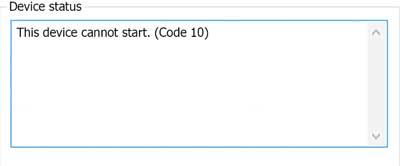
To resolve Error Code 10 first check the following:
- Reboot your computer – this is always a first step to resolving any problems, if it works – great, if not – proceed to the next step!
- Have you installed all the latest Windows Updates and patches? If not, do so now and reboot your computer
- There are 2 values in the Windows Registry that can become corrupt and lead to Device Manager error code 10 as well as other error codes. You can delete these values to check if this is the issue (don’t forget to backup before making any registry or similar changes). Click here for more information on deleting UpperFilters and LowerFilters
- Did you make any recent changes or install new hardware/ software? If you can, undo this change and reboot to see if this fixes the error, if not, read on …
Update Drivers in Device Manager
The following steps will guide you through updating your Drivers to try to fix error 10 issues. If updating the Drivers does not work you will need to move on to the next solution which involves completely uninstalling and reinstalling the Drivers.
- Select Start > All Programs > Windows Update
- Right-click on My Computer
- Click Properties > Hardware menu tab > Device Manager
- Double-click the device that is causing the error (there will be a yellow triangle with exclamation mark to the left of it)
- Right-click the specific device and select Properties
- Click on the Driver menu tab and select Update Driver
- Windows may ask for the path of the driver in which case you will need to either insert your Drivers disk (if you have it) or download the Drivers from the manufacturers website
- Restart your computer
Uninstall and reinstall Drivers
Before uninstalling or deleting Drivers, you should uninstall the device linked to the Drivers. Then uninstall and reinstall the Drivers via the Device Manager. If the stored Drivers were corrupt or out of date then this should resolve your issue with error code 10.
If you have a problem with updating or installing Device Drivers (they may be difficult to install or no longer available), you can click here to view driver update tools which will automatically update your Drivers for you. You have the option of running a Free Drivers Scan, but will have to pay a small registration fee if you wish to get automatic Driver updates.
You should also look at cleaning up your Registry – Click here to read our article on how cleaning your Registry can help speed up your PC.
Automatic driver update tools offer many benefits, the most important ones being:
- You can update device drivers automatically
- The software scans and updates all outdated or missing drivers at one go
- The tool picks the right drivers for your device and operating system, so you won’t have to worry about installing an incorrect driver by mistake
- Automatic driver updates are 100% safe
Driver Updater is one of the best driver update tools out there. Outbyte Driver Updater will give you access to a database of over 1 million drivers. It will regularly scan your PC, suggesting new driver versions to install. Driver Updater contains drivers for a variety of Windows devices. With just one click, you can update drivers in your system.
Step 1
Click here to Install and launch the app
Step 2
Scan all devices
Step 3
Install or update drivers automatically
windows 7 drivers says
While installing the driver you need to double click on the downloaded files and flllow instructions to
install the driver. Dell drivers aare set to a default folder on
you hard dive as “C:dell(driver folder).
thuê máy chủ says
The right-click context menu will also let you open the Driver’s properties. Click on Properties to open the Properties box. Select the Driver tab.
Roll back, Disable, Enable Drivers
thue may chu says
thank for share ! i successful
nanu8520 says
If it is a USB flash drive, go to Disk management, format it as FAT or NTFS then assign/change different letter (like U for ex) for the drive. For me it worked like magic. 2 sec later no conflicts in Device Manager and the drive pop up.
Jestunes says
Your information was very informative, problem my driver properties won’t let me access the update driver button. What do you do if you don’t see that? Have actually gone to device UR44 audio interface website, Steinberg.com and uninstalled and reinstalled the newest driver version, but no luck. What do I do now? Stuck and desperate for an answer. Need to record soon on a project and have never been able to get it working for 2 whole days. Please help
warren says
is this similar problem for audio device?? bec. my audio device it show error code10 i try so many ways but it didn’t work.. can you help me for this?
thanks…
DriversExpert says
could effect audio devices – have you tried the troubleshooting tips? What was the result?