Drivers.com

follow us:

facebook twitter
  • Home
  • Download Drivers
  • Drivers Help
  • PC/Mac Resources
  • Software Drivers
  • Mac Fixes and Tips
  • PC Fix Tips
  • Security/ Backup
  • Tablets & Smartphones
  • Tech News
  • Software Drivers
  • Mac Fixes and Tips
  • PC Fix Tips
  • Security/ Backup
  • Tablets & Smartphones
  • Tech News

AMD RX 580 Dropping Signal to Monitor – How to Fix?

By Susan C on February 7, 2023

AMD RX 580 Dropping Signal to Monitor – How to Fix?

The AMD RX 580 graphics card packs a punch but does not come with a prohibitive price tag. It comes with many useful features, including, but not limited to, VR technology support and faster frame rates (1440p resolution).

AMD Driver Update: How to Update Your AMD Graphics Driver 

Thanks to HDMI output capacity, the RX 580 graphics card is a great option for users looking for an awesome gaming experience. But like any other hardware, the RX 580 may also behave erratically every now and then. One of the most common (although easily resolvable) problems with it is dropping signal to the monitor.

If you are experiencing this issue, this post is all that you need. We will walk you through different solutions that can help you fix the issue once and for all.

The RX580 graphics card, like other GPUs from Radeon, uses the Radeon Adernalin application for managing drivers. The software is designed to automatically detect the hardware device being used and then select the right driver for your version of Windows. It also installs or updates the driver whenever necessary.

Network Drivers Download & Updates

But in case you are experience signal issues with RX 580, it is necessary to run some physical checks first. Only after you have done that, should you update the software.

Steps to perform physical checks

  • In case you have a HDMI- or USB-powered monitor, it is possible you might experience some issues with the RX 580 output signal.
  • Using the monitor with a dedicated power supply may give better results. The problem occurs because the monitor needs 500w input power for maintaining a seamless graphic interface.
  • In case using a dedicated power supply doesn’t help, there is a good chance the problem lies with your HDMI cable. Use another HDMI cable and check if the issue is fixed. While the HDMI cable is reliable, it may deteriorate with passage of time. In case your cable is old and worn out, using a new HDMI cable may fix the issue.

Running Software Checks

In case using a dedicated or new power supply does not resolve the “signal dropping intermittently” issue, you will have to troubleshoot software settings and device settings.

How to update Radeon Software

In case you installed Radeon software a long time ago, it may be a good idea to make sure your version is still up-to-date. Thankfully, the AMD software itself allows you to do so.

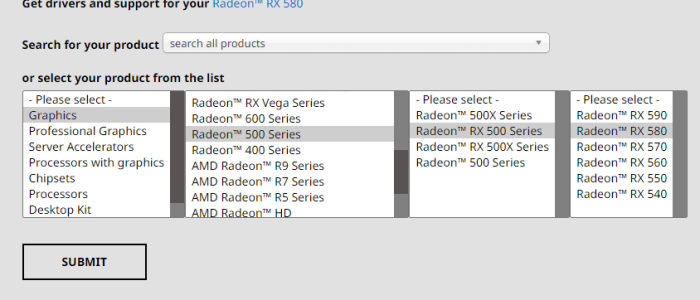
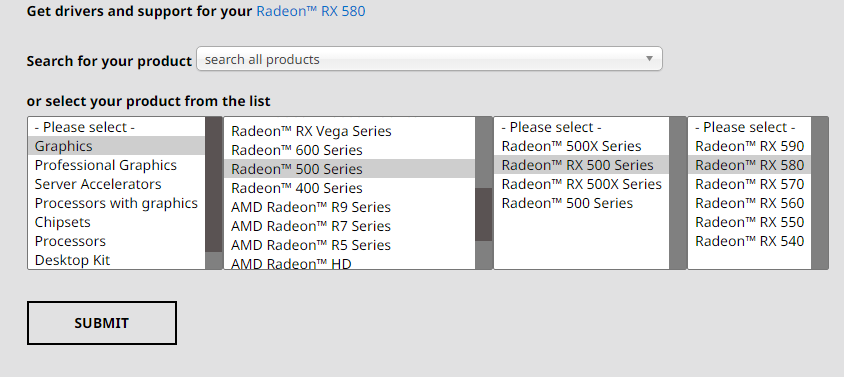
  • Go to AMD Drivers and Support
  • Select the right product and click the Submit button
update amd software drivers
  • Now click the “+” sign before the Windows version you are using (e.g. we clicked on Windows 10 64-bit) and then click the Download button
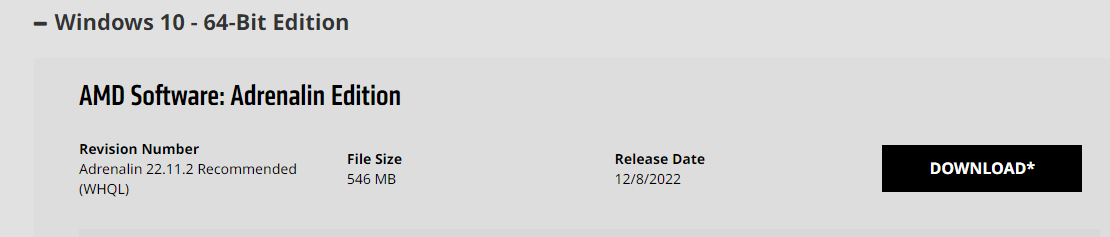
amd drivers windows 10
  • Once you have downloaded the latest version of Radeon software, locate its installer file. Those using Chrome can simply click the Up arrow shown at bottom of the page and choose “Show in folder” for locating the required file
  • Just double-click the file to launch installation
  • The default installation folder will be selected by default, but you can change it if you want. Click the Browse button to do so. Next click Install
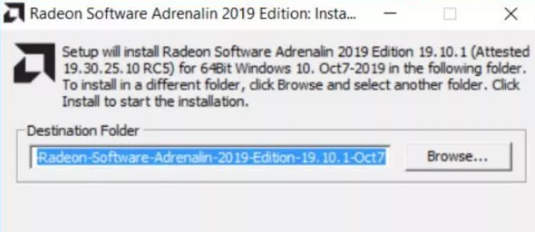
install amd drivers
  • Wait until the installer’s contents get unpacked. Progress bar allows you to track progress. Proceed only after this process is completed
  • The next window displays the End User License Agreement. You will have to accept it to proceed further. There are two options to choose from. Click “Accept and Custom Install” in case you have previously installed the settings and driver utility. If this is the first time you are installing them, then click “Accept and Express Install”
  • In case you have not installed the software earlier, it is going to connect with Radeon site to check you need updated drivers
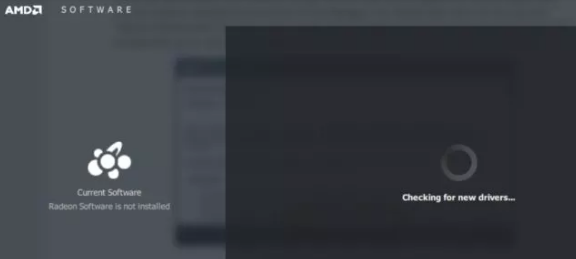
update radeon drivers
  • But in case you have earlier installed this software, it will run a search and find out the version of software you are presently using
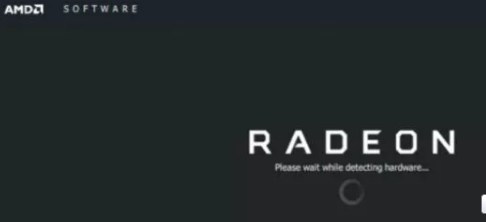
download radeon drivers
  • Once Radeon Adrenalin has finished scanning the computer, it will show the version in use and whether you need an upgrade
  • If you are using an older version, uninstall it before installing the new version.
  • To uninstall the previous version of the software, click “Uninstall Current Version”. You will now see the following three options:
    • Express Uninstall: All earlier installed components of Radeon Adrenalin will be automatically removed
    • Custom Uninstall: You can select the components that you want to remove
    • Search for Legacy Drivers: You will be taken to the support site from where you can search older drivers in case you need them
  • While the second and third options are useful in certain situations, only advanced users should use them. For other users, the Express Uninstall option is right. It makes sure you have the correct version and the “signal dropping intermittently” issue is not being caused by components installed earlier
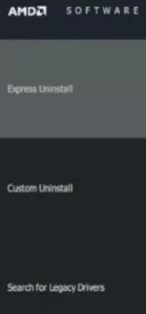
uninstall radeon drivers
  • Once previous components are uninstalled, the software will not automatically take you to Install option. Let the uninstaller complete its job and then restart the installer. To do so, double-click the installer file you had downloaded earlier
  • After restarting the installer, you can install the newest version by clicking the Install option
  • You will be taken to a new page. Click Install again
  • Wait until the installation is complete. Eligible users will get a prompt for installing Radeon ReLive. If you want, click the Skip button (far right-hand bottom corner) to skip installing Radeon ReLive

Important:  With Radeon ReLive you will be able to not only record but also live stream the gaming sessions. Even though AMD claim the software requires minimal system resources while streaming, you might want to skip installing it in case you are encountering the “signal getting dropped” issue.

  • After installation is complete, you are going to get a prompt message to restart Windows or exit the application. Restarting Windows is a better option at this stage. In case you opt to exit the software, do not forget to restart Windows before launching the game with which you originally experienced the issue

Once Windows restart, check whether the issue has resolved. If not, you can give the following troubleshooting steps a try.

Additional steps

  • Make sure that the GPU is not being over-clocked. These units eat up more power in the overclocking setting. So that may be the root cause of the issue you are facing. You can tweak the settings using AMD’s Global WattMan utility.
  • Click right hand mouse button. This will give you access to Radeon Settings
  • Click Gaming in the next screen
  • Next, click Global Settings. Now click Global WattMan
  • Before you can access WattMan utility, you will need to accept Radeon’s warning. Click the Warning button to do so
  • In case you earlier changed the fan or clock speed, you will see the option for reset. Click Reset
  • After you have reset fan, clock, and power settings to their default values, try playing the game again

Advanced Driver Update Tool For Managing PC Drivers

Automatic driver update tools offer many benefits, the most important ones being:

  • You can update device drivers automatically
  • The software scans and updates all outdated or missing drivers at one go
  • The tool picks the right drivers for your device and operating system, so you won’t have to worry about installing an incorrect driver by mistake
  • Automatic driver updates are 100% safe

Driver Updater is one of the best driver update tools out there. Outbyte Driver Updater will give you access to a database of over 1 million drivers. It will regularly scan your PC, suggesting new driver versions to install. Driver Updater contains drivers for a variety of Windows devices. With just one click, you can update drivers in your system.

Step 1
Click here to Install and launch the app

Step 2
Scan all devices

Step 3
Install or update drivers automatically
 

Start Download


Latest AMD/ ATI Radeon Drivers Available

Filed Under: PC Fix Tips Tagged With: AMD RX 580

Canon Pixma MX492 Printer Not Printing (DIY Fixes)

By Susan C on January 8, 2023

Canon Pixma MX492 Printer Not Printing (DIY Fixes)

Imagine you need to print something important but your Canon Pixma MX492 just won’t print?

That can be very frustrating but this is a common issue and something that you can fix yourself.

If your Canon Pixma MX492 Printer is not printing and you are looking for DIY solutions, this post is just for you. Follow along as we explore how to fix this problem.

Fix Canon Printer Error

Why is the Canon Pixma MX492 not Printing?

There are many reasons why the Canon printer is not working as it should. In this post, we will limit ourselves to two most common causes:

  • Your printer isn’t being detected
  • Your printer is being detected but it is not responding

After you have successfully located the reason behind the problem, then fixing the issue can be easily done. Having said that, in order to locate the problem plaguing your printer, you sometimes have to try all available fixes one by one. We recommend you try the solution that you think will most likely work and then take it up from there. With our help you should be able to resolve the issue in no time at all.

Detect the Canon MX492 Printer

In case the devices you are using are unable to detect your Canon printer, you can try a few things to fix the issue. Ensure all devices, including the Canon printer, is turned on before you try any DIY fix.

Ensure the Canon printer and devices are on the same wireless network

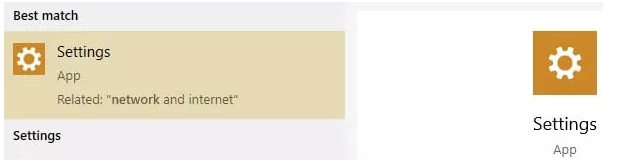
To do so, first open the Settings menu from your Start menu. Then click the Windows icon. Next, click the gear (Settings) icon to access Windows Settings

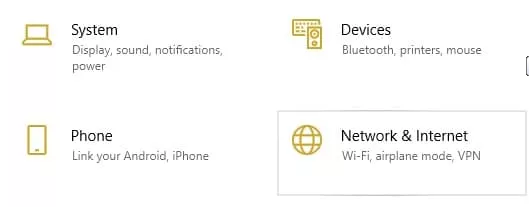
Now, click Network and Internet. Regardless of the system or devices that you have, you will be able to locate the network settings.

You will see a Status tab, which will give you relevant information regarding the network you are using.

The Network Status tells you the network to which your device is attached to. With the help of this information you can ensure that the printer is on the same network. If that is not the case, you can make adjustments.

In case the printer still doesn’t work, it would be worth the trouble to give printer sharing a try.

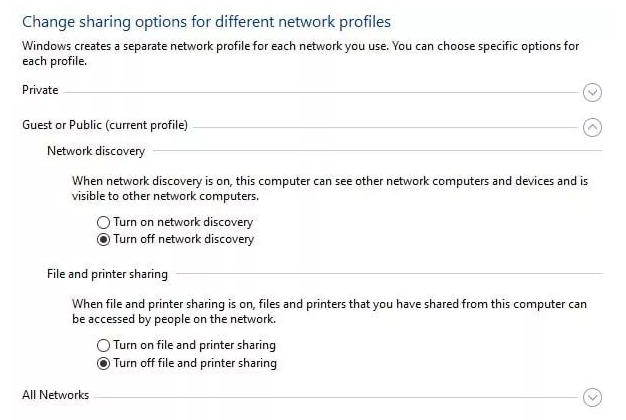
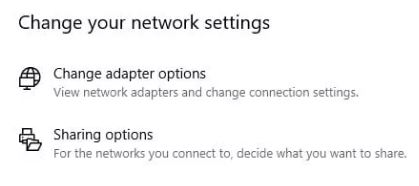
Scroll to Change Your Network Settings and click Sharing Options.

In Advanced Sharing Settings, scroll to Guest section and locate the File and Printer Sharing subheading below it

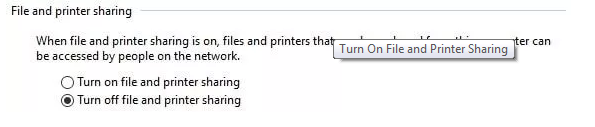
Click Turn On File and Printer Sharing. Save the changes. If the printer is still not detected, continue further.

  • Ensure the router and device are connected

It is possible that the wireless router has lost connection with your printer. First, check if both are properly connected to an electrical source. Next, turn them on.

  • Ensure the Printer is assigned the correct port

Another reason could be that your printer is not assigned the correct port. Open Settings to resolve the issue.

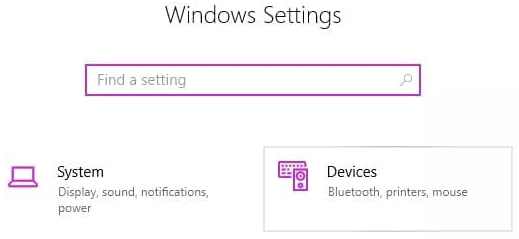
Click Devices once you are inside Windows Settings. And then click Printers & Scanners.

Now you will see all the printers and scanners attached to your computer. Select the Canon Pixma MX492 printer and click it.

Windows 10 users will see three options on the screen. Click Manage.

Another screen will open up. It will have advanced options. Below Manage Your Device, click Printer Properties. Now click Ports. Now browse through the list that appears on your screen to locate the right port. If you are using a wireless printer, the right port probably will be named as LAN followed by a number like 1, 2, 3 and so on. Check the box before the correct port and click the Apply button.

Hopefully, these simple steps are all that you would need to fix the issue. In case your printer was connected already, perform the steps listed in the following section to locate the underlying reason and to fix the problem.

Ensure Your Router and Computer are Connected

Before, we were trying to find out whether the router and printer were connected. But in case the printer is showing no response to a device, there is a good chance the device (not the printer) is not properly connected to your router and network.

Simply turn the router and your computer off and on again to fix the issue. In case your router is unplugged from its electrical source, plug it back before turning it on.

Ensure the signal strength is good

A low signal strength is another reason for a printer not printing. Thankfully, this problem has an easy fix: just move your printer near the router to give its strength a boost.

Of course, the first step is to check the signal strength. Here is what you need to do:

Go to Menu > Setup and then select Device Settings. Click OK. Now press OK an LAN Settings, as well as Confirm LAN Settings, and Print LAN Details. Your Printer will now print a page listing the printer’s configuration in detail. Your printer’s signal strength is going to shown as percentage. In case this figure is low, simply move your printer closer to the router to fix the issue.

Configure Your Computer’s Firewall

Your computer’s firewall is there to protect it from threats coming from outside, but sometimes it may prevent devices or legitimate programs from running smoothly. It is possible that in your case the firewall might be keeping the printer out. To fix the problem, you will have to change the settings so that the printer’s signal is able to bypass your computer’s firewall.

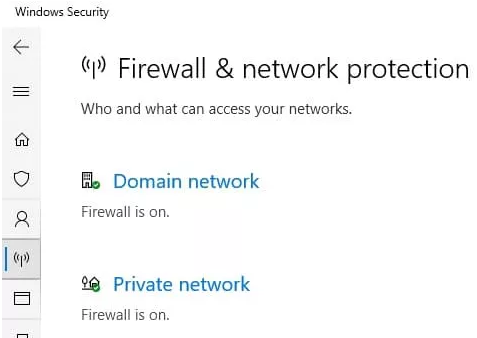
Open Windows Settings and browse to Update & Security. Click Windows Security in the pane on your left-hand side. Click the Open Windows Security button in the right-hand pane. A new window will open on your screen. Click the Firewall & Network Protection tab. If you have a Windows 10 computer, you will see an icon which shows signal being transmitted out by an antenna.

Browse through the list and click the Allow an App Through Firewall option. Another screen will appear on your screen. Click the Change Settings button. Now, check if your device is included in the list. If not, click Allow Another App.

Locate the printer you are using in the Add an App window. Once you have located it, simply add it the list of devices and apps allowed through the firewall.

Update Canon Printer Drivers

Do Not Forget to Update Canon Printer Drivers

All kinds of issues can occur because of outdated printer drivers. For this reason, it is absolutely necessary that you always update your device drivers. Updating device drivers manually, however, is not always easy. A simple (and not to mention a faster) alternative is to use a driver update tool. We recommend Driver Updater to users as it is fast, easy and 100% reliable.

Automatic driver update tools offer many benefits, the most important ones being:

  • You can update device drivers automatically
  • The software scans and updates all outdated or missing drivers at one go
  • The tool picks the right drivers for your device and operating system, so you won’t have to worry about installing an incorrect driver by mistake
  • Automatic driver updates are 100% safe

Driver Updater is one of the best driver update tools out there. Outbyte Driver Updater will give you access to a database of over 1 million drivers. It will regularly scan your PC, suggesting new driver versions to install. Driver Updater contains drivers for a variety of Windows devices. With just one click, you can update drivers in your system.

Step 1
Click here to Install and launch the app

Step 2
Scan all devices

Step 3
Install or update drivers automatically
 

Start Download


Filed Under: PC Fix Tips Tagged With: Canon Pixma MX492

Netgear A6210 Disconnecting – easy fix

By Susan C on December 7, 2022

Netgear A6210 Disconnecting – easy fix

With Netgear A6210, you get a USB solution which not only provides high speed but also extended performance and a wider range for reliable connectivity which aptly supports high-bandwidth requirements, such as:

  • Online gaming
  • Fast USB 3.0 performance
  • Good support for all standard Wi-Fi devices
  • HD video streaming (multiple sessions simultaneously)

Netgear devices are easy to use and install, and Netgear A6210 adapter is no exception. Here are some of the main features of this wireless adapter:

  • USB 2.0 compatibility
  • Setting up is a cinch, thanks to Netgear “Genie”
  • Push ‘N’ Connect single button installation provides secure connection
  • Better wireless range (thanks to high-gain antenna)
  • Flexible USB connection with laptops and easy placement for desktops
  • Beamforming+ technology provides wider range and better reliability
  • Windows OS compatible (at present doesn’t work on Mac systems)

As the above listed features clearly indicate, A6210 has a lot going for it. As such, it should be an ideal solution if you are looking for consistent, fast wireless Wi-Fi performance. However, like with most technical devices, A6210 may behave erratically every now and then. For example, a common issue with it is that it simply disconnects for no good reason at all. Generally, the adapter keeps disconnecting intermittently, which can be frustrating to say the least.

Why Does Netgear A6210 Disconnect Intermittently

The A6210 adapter can lose connection for different reasons, such as the following:

Problems with USB Port

In case the A6210 keeps dropping regularly, try a different USB port. Keep in mind that you require USB 3.0 port to run at 5GHz. In case your computer only has USB 2.0, restrict the bandwidth performance to not more than 2.4 GHz.

Ensure your USB is suitable for the bandwidth which you are trying to draw from your adapter.

Try another computer

Does the problem persist even when you switch to another USB port? If so, give another computer a try. If the adapter works fine on another computer, you can safely assume that there is no hardware problem with the adapter.

Cable issues

If you are using a cable extension with your adapter, make sure your cable is certified as USB 3.0. Otherwise, A6210 will not be able to work as USB 3.0.

In addition, avoid using longer cables. That is because there is a higher risk of voltage drop with a longer cable.

Change the power savings options for the USB:

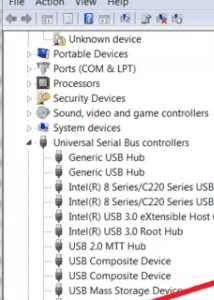
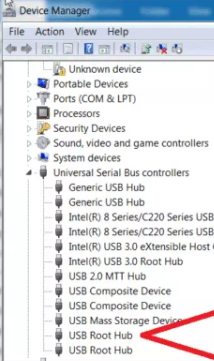
First open the Device Manager window and then click on the arrow before Universal Serial Bus controllers to view all devices under it.

USB Root Hub
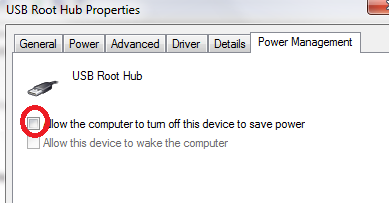
power management

Right-click USB Root Hub, click Properties, then click the Power Management tab.

Uncheck the box before “Allow the computer to turn off this device to save power” and then click the OK button.

You will likely have more than one USB root hub entry. If so, repeat this action for each one of them.

Once you have made the changes for all the devices, restart Windows.

Perform These Simple Troubleshooting Steps First

The first thing you must do is eliminate any sort of problem related to networking configuration:

Ensure the firmware used by you is of the latest type. Firmware is internal software which runs the router.

Go to the manufacturer’s site. If it has been a while since you last installed new updates, download all pending updates and install them

Also, it might be a good idea to turn off this setting for your adapter — Minimum Power Consumption.

Here is how you can do that:

  • Click the Start button, type devmgmt.msc in the Start Search box, and press the Enter key
  • In the Device Manager window, locate and expand Network adapters
  • Right-click Netgear A6210 Adapter, and then click Power Management
  • Deselect the check box before “Allow the computer to turn off this device to save power”
  • Now click Advanced and check whether the following entry is listed: Minimum Power Consumption
  • If you do see this entry and it is marked as “Enabled,” change the entry to “Disabled”
  • Click the OK button

Device Driver problem

Like other devices, the A6210 adapter needs drivers to function. However, if the required drivers are not up-to-date or if your Windows system doesn’t have the latest Windows Updates, you may encounter issues with your wireless adapter.

Manufacturers regularly release updates to fix bugs in their software and to enhance performance. Microsoft too releases updates for the Windows OS and various components.

First, ensure that your Windows system is completely up-to-date. The Windows Update is an inbuilt service that automates downloading and installing of software updates.

  • Click Start, select All Programs, and click on Windows Update
windows update
  • In the Windows Update window, click Check for Updates
check updates
  • Windows Update will automatically check if there are any new updates for your version of Windows. If it finds any updates, you can download and install them
  • Keep in mind the entire process may take a little time, especially if it has been long since you last downloaded new updates
  • You may have to restart Windows after installing new updates

Update the Netgear A6210 Driver

After you have downloaded and installed new updates, use the A6210 adapter and check whether the issue is fixed. It is possible that the problem may persist because not all manufacturers are registered with Microsoft. In that case, you will have to update the A6210 drivers yourself.

You can do this manually — through the Netgear’s website or via device manager — or you can use a reliable driver software tool for this purpose. We have listed both the manual and automatic methods, so you can pick the one that works best for you.

Updating Netgear A6210 Driver Manually

Updating the A6210 Driver from Device Manager

  • Press Windows logo key + R together to bring up the Run command
  • In Run command, type devmgmt.msc and click OK
  • In the Device Manager, go to Network Adapters category and expand it
  • Select your wireless adapter and right-click it
  • Select update driver from the list of options
  • In the next window, select Search automatically for updated driver software
Search automatically
  • Windows will search the internet to find a driver update and install it. If it does not find a driver update, you have to manually download the mouse driver and install it (which is discussed next)

Updating the A6210 Driver from Netgear Website

Open the internet browser and go to Netgear official website. Search for the latest driver for your A6210 wireless adapter. Once located, download the driver file and save it in a suitable location, like the desktop. Make sure you download the driver file that is compatible with your Windows version. For example, if you use Windows 10 32-bit computer, the driver should be for 32-bit systems.

Now, open the driver folder and double click the executable file to start the installation process. Wait until the installation is complete and then restart Windows.

Updating Netgear A6210 Driver Automatically

Automatic driver update tools offer many benefits, the most important ones being:

  • You can update device drivers automatically
  • The software scans and updates all outdated or missing drivers at one go
  • The tool picks the right drivers for your device and operating system, so you won’t have to worry about installing an incorrect driver by mistake
  • Automatic driver updates are 100% safe

Driver Updater is one of the best driver update tools out there. Outbyte Driver Updater will give you access to a database of over 1 million drivers. It will regularly scan your PC, suggesting new driver versions to install. Driver Updater contains drivers for a variety of Windows devices. With just one click, you can update drivers in your system.

Step 1
Click here to Install and launch the app

Step 2
Scan all devices

Step 3
Install or update drivers automatically
 

Start Download


Filed Under: PC Fix Tips Tagged With: netgear, Netgear A6210

  • « Previous Page
  • 1
  • …
  • 54
  • 55
  • 56
  • 57
  • 58
  • …
  • 189
  • Next Page »


  • Recent Posts
  • Popular Posts
        

Read More Posts


Read More Posts

Drivers.com Sites

  • Software Drivers
  • Drivers Ed

About Us

  • Advertise
  • About Drivers
  • Drivers Support
  • Drivers.com Privacy Policy
  • Disclaimer
  • Software Drivers
  • Mac Fixes and Tips
  • PC Fix Tips
  • Security/ Backup
  • Tablets & Smartphones
  • Tech News

© Copyright 2026 PDE Publications Ltd. End User License Agreement (EULA)