Drivers.com

follow us:

facebook twitter
  • Home
  • Download Drivers
  • Drivers Help
  • PC/Mac Resources
  • Software Drivers
  • Mac Fixes and Tips
  • PC Fix Tips
  • Security/ Backup
  • Tablets & Smartphones
  • Tech News
  • Software Drivers
  • Mac Fixes and Tips
  • PC Fix Tips
  • Security/ Backup
  • Tablets & Smartphones
  • Tech News

How to Speed Up an Old Laptop? 8 Tips

By Susan C on April 30, 2023

A slow laptop is a problem many face at some point of time or another. Thankfully, it can be easy to fix.

Tips to Speed up a Windows Computer

Here are 6 great tips to speed up your old laptop.

Tip 1 – Update To Solid State Driver

No talk about PC maintenance can be complete if it doesn’t touch upon the importance of updating to a solid state driver. If you want your computer to run faster consider upgrading to a solid-state driver (or SSD for short). With modern computers, jumping on the SSD bandwagon is pretty straightforward. You can do so without reinstalling the operating system.

Tip 2 – Free Up Space on the Hard Drive

One of the quickest ways to boost your laptop’s performance is to free up hard drive space. If your hard drive is over-cluttered, it will invariably slow your laptop’s performance. First, identify and remove those programs that you do not use and that are taking up a big chunk of hard disk space individually. Next, remove smaller files. By removing programs you do not use, you would be able to free up a lot of space, which in turn will help boost your computer’s performance.

Tip 3 – Remove Unnecessary Files

Your hard drive will likely work at its top speed till it reaches roughly 90% capacity. So if your computer has reached more than 90% capacity, its performance will likely take a hit.

Browse through your files to identify and remove those which you never use. Also consider the Disk Cleanup utility, which can remove junk files like temporary files and previous Windows installations.

It is possible that you may not be able to remove large files because you use them. In that case, investing in a sizeable external storage device is recommended.

Tip 4 – Memory Upgrade

You can clear memory only up to a certain extent. However, eventually disk space will prove insufficient to hold all your files. When you reach this point, you will have two choices: (1) buy a new laptop or (2) add a new drive to increase the storage space.

The second option is more cost-effective. It also may be the right choice for those who want to continue using their old laptop.

PC Speed Help: How to fix high CPU usage

Tip 5 – Scan for Malware and Viruses

Malware and viruses can cause all sorts of problems, including reduced performance. Scan your entire system using a reliable antivirus software. Before running a deep scan, make sure your protective software is up-to-date.

Tip 6 – Uninstall Unwanted Windows Programs

It’s easy to hoard programs and apps thinking you might need them later, but doing so is never a good approach. Keeping programs which you are not required can cause your laptop to work at a less-than-optimal speed because these programs use precious processing power and disk space.

Go through all the programs and applications installed on your system to identify those which you do not require. Then, uninstall them permanently. You can always download these programs later if you ever need them.

Tip 7 – Preventing Programs from Running at Startup

Although many programs are designed in such a way that they launch themselves automatically when Windows boots up, you may not require all of them to start automatically. Having too many apps running at startup can significantly increase the time Windows takes to start.

Which brings us to the important question – how do you decide which programs should run at startup and which not?

Essential programs, like your antivirus tool, needs to launch at startup. However, having a non-essential program, like a music app, start at launch doesn’t make much sense. Preventing all non-essential programs from launching themselves at startup can speed up the boot process.

Press Ctrl + Shift + Esc to access Task Manager. Now, click Startup. You will see all the programs that are currently starting with Windows. Remove those that you think are not necessary.

Tip 8 – Update Your Device Drivers

If you want a no-fuss approach to updating device drivers, use Driver Updater. The tool will scan your laptop and update all the outdated drivers.

Outdated drivers can cause serious problems with your PC. With Driver Updater keeping your drivers up to date is very easy. With just a few clicks, you can update all your drivers. A free trial of this Driver Update Tool means you can give it a try without a worry.

Automatic driver update tools offer many benefits, the most important ones being:

  • You can update device drivers automatically
  • The software scans and updates all outdated or missing drivers at one go
  • The tool picks the right drivers for your device and operating system, so you won’t have to worry about installing an incorrect driver by mistake
  • Automatic driver updates are 100% safe

Driver Updater is one of the best driver update tools out there. Outbyte Driver Updater will give you access to a database of over 1 million drivers. It will regularly scan your PC, suggesting new driver versions to install. Driver Updater contains drivers for a variety of Windows devices. With just one click, you can update drivers in your system.

Step 1
Click here to Install and launch the app

Step 2
Scan all devices

Step 3
Install or update drivers automatically

 

Start Download


Filed Under: PC Fix Tips Tagged With: speed up Windows

Logitech Mouse Not Working (Fixed)

By Susan C on March 30, 2023

Logitech Mouse Not Working (Fixed)

When it comes wireless mice, Logitech’s popularity is unparalleled – and for good reason. Each of Logitech’s wireless mice is not only easy to use and set up, but also very durable. All the same, like any peripheral device, you may encounter issues with your Logitech mouse from time to time. One of the most common issues is of the device failing to register with a PC. If you are facing this issue, this post is just for you. We will discuss various solutions for this error.

The Logitech mouse uses a 2.4 GHz receiver (wireless). You can encounter the “Logitech Mouse Not Working” issue if the wireless radio has lost connection with your mouse. You must reset the connection to reestablish connection with your mouse.

Logitech Drivers Download & Updates

How to Reset Logitech Mouse’s Wireless Radio Connection

Some Logitech mice have a reset button; others don’t. If your mouse has it, simply pressing it will reset the device. However, if you have a model without a reset button, like the Logitech M185 mouse, you must perform these steps instead.

Solution 1 – Access the power switch of your mouse

If you do not use the mouse for a certain time, it automatically switches itself off. Nevertheless, if there is any movement, the optical sensors automatically detect them and switch the mouse on.

Having said that, Logitech strongly recommends users to switch off their mouse if they are not using for an extended period. Even though the sensor does not hog resources, the battery life can take a hit if the mouse is not manually switched off.

In case the Logitech mouse is not switching on, it is necessary to check whether the battery has still got life in it. If it is dead, you must replace it.

  • Switch MI85 off. Now, switch it on after a few seconds have passed
  • Place the MI85 mouse on your mouse pad and move it randomly to check whether it is being recognized by your computer or not. This particular model doesn’t use LED power indicator, which means the only way for testing the power is to move the mouse a bit and look for the mouse cursor on your computer’s screen

In case the computer fails to detect any sort of movement, replacing the mouse battery might be a good idea.

  • Open battery compartment
  • Take out the battery and insert a new one. Now close the battery compartment and then turn the mouse on. Now check whether the mouse is being recognized by your computer. Replacing the battery should work in case the problem was being caused by wireless receiver

Solution 2 – Check your wireless dongle

Wireless mice, such as the M185, have a wireless dongle which is inserted in a USB slot. It is possible that your computer is no longer recognizing the wireless dongle.

  • Take the wireless dongle from USB port
  • Replace the current battery of your mouse with a new one. Switch the M185 on and then reinsert its dongle into a USB port. Now place the M185 on your mouse pad and move it randomly to check if the PC is recognizing it or not
  • If the computer is still refusing to recognize the M185, try another USB slot. Take care to insert the wireless dongle into a USB slot properly. You should gently push the dongle into a USB slot as far as it would go, but do not apply undue force. When inserted properly, the whole of the metal part is inside the slot.
  • In case the M185 is still not getting registered with your computer, it’s time to thoroughly check its software settings

Solution 3 – Check Software Settings and Device Driver

Typically, when the wireless dongle is inserted and the mouse is turned on, the computer automatically installs the required drivers, as well as software. That said, sometimes things may not go as planned, requiring your intervention.

Check Driver Updates Through Device Manager

Windows comes with a built-in utility called the device manager that allows you to check the status of all your devices and troubleshoot errors.

  • In the start search box, type run and press enter
  • In the run dialog box, type devmgmt.msc and press enter
  • Expand Mice and other pointing devices. You will see Logitech mouse under this entry
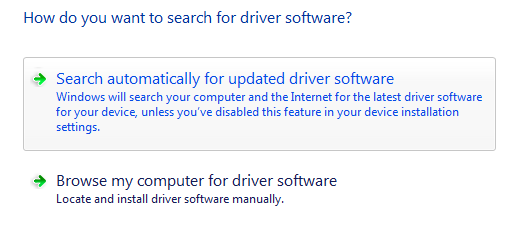
  • Right click Logitech mouse and click “Update driver”. You will be presented with two options. Click the first option.
search automatically
  • Windows will automatically search from the latest driver on the Internet. It will either issue a prompt stating that the latest driver has been installed or that your current driver is up-to-date. Click the Close button

Update Device’s Firmware Using Logitech Firmware Update Tool

In case the problem persists, you might have to update the firmware of your device using a special application.

Since device software and drivers receive updates on a regular basis from its manufacturer, ensuring the software is up-to-date is extremely important. You can download the latest Logitech Firmware Update Tool from the manufacturer’s website.

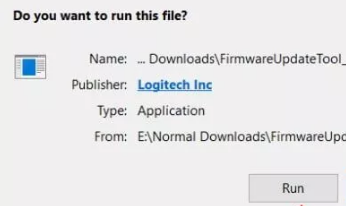
After you have downloaded the software, open the folder and double-click to launch the software. In the Open File – Security Warning window, click the Run button.

Click Run

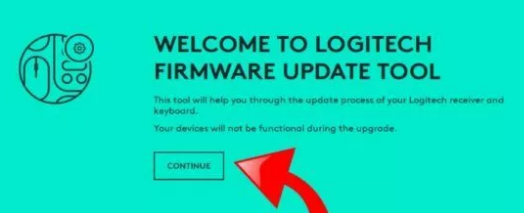
In the next window click Continue.

click continue

Your computer will be scanned for connected receivers and the software will automatically update the device.

detecting devices

In case the software is unable to detect a device, there is a strong possibility that there is something wrong with the hardware. If your mouse is still in the warranty period, you should contact Logitech Support or the retailer from where you bought the device.

Use Driver Update Tool to Manage All Drivers

Automatic driver update tools offer many benefits, the most important ones being:

  • You can update device drivers automatically
  • The software scans and updates all outdated or missing drivers at one go
  • The tool picks the right drivers for your device and operating system, so you won’t have to worry about installing an incorrect driver by mistake
  • Automatic driver updates are 100% safe

Driver Updater is one of the best driver update tools out there. Outbyte Driver Updater will give you access to a database of over 1 million drivers. It will regularly scan your PC, suggesting new driver versions to install. Driver Updater contains drivers for a variety of Windows devices. With just one click, you can update drivers in your system.

Step 1
Click here to Install and launch the app

Step 2
Scan all devices

Step 3
Install or update drivers automatically
 

Start Download


Filed Under: PC Fix Tips Tagged With: Logitech Mouse

HP Deskjet 2652 Not Printing Error (Fixed)

By Susan C on March 12, 2023

HP Deskjet 2652 Not Printing Error (Fixed)

The HP Deskjet 2652 printer is packed with a slew of advanced features, making it one of the most user-friendly printers in its price range. When it comes to home-office printers, the HP Deskjet 2652 leads the pack. An all-in-one printer, the HP Deskjet 2652 offers high-print quality and is very easy to install.

Update HP Printer Drivers

However, like any other peripheral device, the HP Deskjet 2652 printer is not immune to random errors. Once in a while, you may come across a situation in which your printer does not work as expected. Thankfully, it does not take much to get the HP Deskjet printer up and working.

If you are facing the “HP Deskjet 2652 not printer” issue, this post is just for you. In this post, we will look at various troubleshooting steps (ranging from basic to advanced) to solve this error.

HP Deskjet 2652 Printer Problems

Printer problems occur less often due to printer-related issues and more due to other issues. If your HP Deskjet 2652 won’t print, first run the following checks:

  • Ensure your printer is powered on
  • Ensure the printer is connected to your laptop
  • Make sure there is enough ink in the printer and the paper loaded is properly

Clear Printer Queue

If the above-listed basic steps do not produce the desired results then next check the printer queue.

It is possible that a document that has been sent for printing might get stuck in the printer queue, which in turn can prevent other documents from printing.

If a single document has got stuck in the print queue, restarting this print job may suffice. But if that doesn’t work, you must cancel each document in the print queue and try again.

Here are the steps to follow:

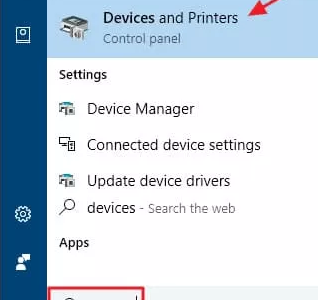
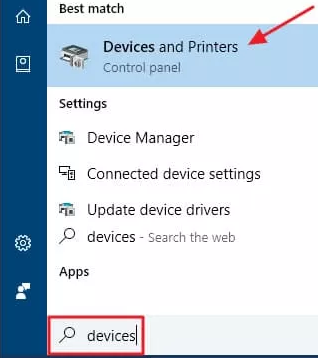
  • Click Start and then type devices in the start search box. Next, click Devices and Printers in the list that appears on the screen
devices and scanners
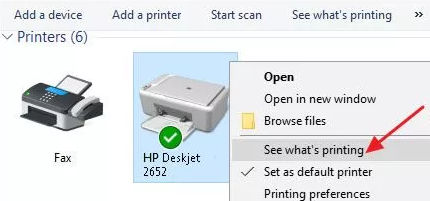
  • In the Devices and Printers window, you will see all the printers configured on your computer. Right-click HP Deskjet 2652 and select See what’s printing. Now you will be able to see the print queue
print queue
  • In case the problem is occurring because of one document and there are multiple documents in the print queue, usually it is the first document that is the culprit

Click the Submitted option to arrange the documents in such a way that the earliest document appears at the top, followed by the second-earliest document, and so on.

Right-click the document that is first in the list and click Cancel.

  • Now click the Yes button

If you have cancelled the document which was stuck, your printer should be able to print the second-earliest document.

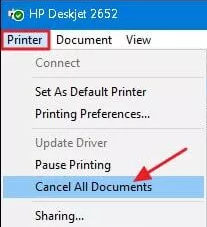
  • If, even after removing the offending document, the printer is not working, cancel the entire queue

For clearing the entire print queue, click the Printer menu and then choose Cancel all documents. Now, the entire queue will be erased. Give the print command to another document to check whether the printer is now working or not.

cancel all documents

Wireless networking issues

Try the following steps if the printer is not working.

  • Restart everything: If one device on your network is malfunctioning, it can affect all other devices on the network as well. For this reason, it is a good idea to restart all the connected devices.
  • Check your printer’s network connectivity: Try printing out a test sheet/configuration paper directly from the Deskjet 2652. Now confirm that your printer is on the same network as other devices.
  • Reconfigure the printer’s network settings: Switch off your printer first and then remove it from your network. Next, reinstall it by using original installation media.

HP Deskjet 2652 Driver problems

Outdated drivers can cause all sorts of issues, including the “HP Deskjet 2652 Not Printing” error. Thankfully, updating the printer driver is not difficult at all. You can update your HP Deskjet driver manually or automatically. While most people prefer taking the second route as it is easier, simpler, and faster, we have listed both the methods.

Manually updating the printer driver

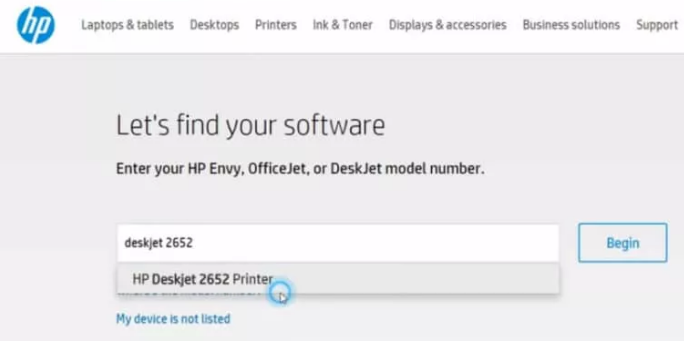
  • Browse to HP support website
  • Enter the printer model number and click Begin
HP Deskjet 2652 printer
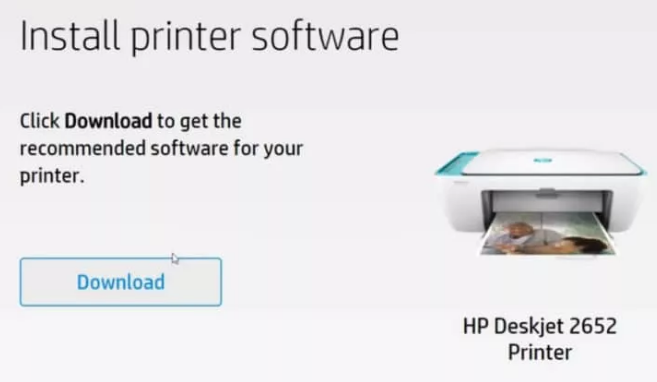
  • Click the Download button
click Download
  • Double-click the file you have downloaded to start installation
  • In the next HP Easy Start window, accept the terms and settings. Next, click Continue
  • If you are using a Wi-Fi, select the checkbox before “Enable HP Auto Wireless Connect” and then click the Continue button
  • Now the installer is going to verify the connection; wait until this step is complete
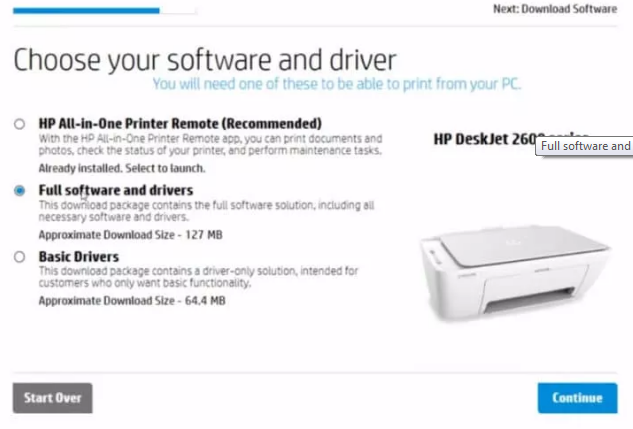
  • In the next window, you will be presented with three options. Select the second option: Full software and drivers. Next, click the Continue button
Full Driver Software
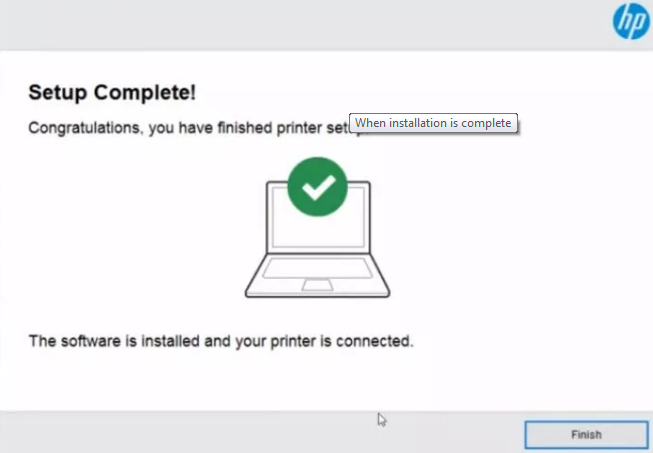
  • The selected software will now be installed; wait until the installation is complete and then restart Windows
click Finish
  • Now, check if the problem is fixed or not

 Automatically updating HP Deskjet 2652 printer driver

Automatic driver update tools offer many benefits, the most important ones being:

  • You can update device drivers automatically
  • The software scans and updates all outdated or missing drivers at one go
  • The tool picks the right drivers for your device and operating system, so you won’t have to worry about installing an incorrect driver by mistake
  • Automatic driver updates are 100% safe

Driver Updater is one of the best driver update tools out there. Outbyte Driver Updater will give you access to a database of over 1 million drivers. It will regularly scan your PC, suggesting new driver versions to install. Driver Updater contains drivers for a variety of Windows devices. With just one click, you can update drivers in your system.

Step 1
Click here to Install and launch the app

Step 2
Scan all devices

Step 3
Install or update drivers automatically
 

Start Download


Filed Under: PC Fix Tips Tagged With: HP Deskjet 2652

  • « Previous Page
  • 1
  • …
  • 53
  • 54
  • 55
  • 56
  • 57
  • …
  • 189
  • Next Page »


  • Recent Posts
  • Popular Posts
        

Read More Posts


Read More Posts

Drivers.com Sites

  • Software Drivers
  • Drivers Ed

About Us

  • Advertise
  • About Drivers
  • Drivers Support
  • Drivers.com Privacy Policy
  • Disclaimer
  • Software Drivers
  • Mac Fixes and Tips
  • PC Fix Tips
  • Security/ Backup
  • Tablets & Smartphones
  • Tech News

© Copyright 2026 PDE Publications Ltd. End User License Agreement (EULA)