

Drivers.com

follow us:

facebook twitter
  • Home
  • Download Drivers
  • Drivers Help
  • PC/Mac Resources
  • Software Drivers
  • Mac Fixes and Tips
  • PC Fix Tips
  • Security/ Backup
  • Tablets & Smartphones
  • Tech News
  • Software Drivers
  • Mac Fixes and Tips
  • PC Fix Tips
  • Security/ Backup
  • Tablets & Smartphones
  • Tech News

How Frequently Should You Clean Your Computer?

By Susan C on October 10, 2023

How Frequently Should You Clean Your Computer?

If you’re like most people, you might be using your computer for multiple activities, such as:

  • Doing office work or school work
  • Online shopping
  • Entertainment and video streaming
  • Banking
  • Email and social media
  • Gaming

According to a research, an average person spends close to 3 hours working on a computer or browsing the internet on a computer. Given that we use computers so often, shouldn’t we clean it more frequently?

If you find yourself wondering how often you should clean your computer, this post is just for you. We have put together this guide to help you find out about everything you need to know about cleaning your computer.

How Frequently Should We Clean our Computer?
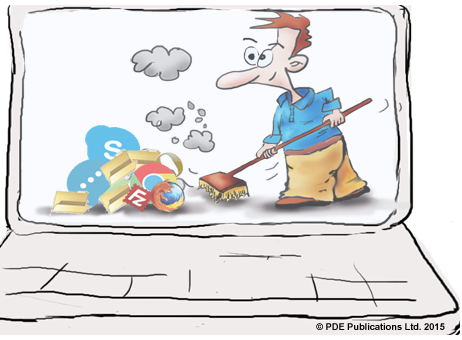
There’s more to cleaning your PC than wiping the dust off your keyboard. Your keyboard is not the only hardware device that can collect dust. Many other peripheral devices and internal devices are prone to collecting dust, and if they are not cleaned on a regular basis, they can stop working properly or even become a fire hazard.

Here’s the list of parts of your computer that can collect dust and as such should be cleaned regularly:

  • Motherboard
  • Hard drives
  • Fans and filters
  • Graphics/video card
  • Heat sinks

How to Clean Your Computer Efficiently and Quickly

When it comes to cleaning a computer, nothing works better than a can of compressed air. With it, you can get rid of dirt and dust out of crevices that are hard to reach.

How to clean a keyboard
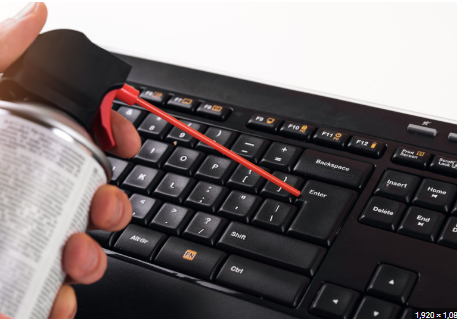
It may be no great surprise that your keyboard can get dirty really quickly. There are a number of things that can get under the keys. Over time, this build up under your keyboard can damage the keys.

Here are some things that can collect under the keys:

  • Body oils
  • Dust
  • Germs
  • Crumbs
  • Spills

It is now possible to buy keyboards that are dishwasher safe. In case you have such a keyboard, simply toss it to give it a thorough clean (of course, you must follow the manufacturer instructions).

But what if your keyboard is not dishwasher safe?

If so, you must clean it manually, which is not that difficult, but spills of tea, coffee, or other liquids might prove to be an exception.

Things you need:

  • Microfiber cloth
  • Compressed air
  • Cotton swabs
  • Isopropyl alcohol

If you are dealing with spills, it would be a good idea to keep a thin blade or a slotted screwdriver (small) handy. You may need them for removing key caps.

Tips for cleaning the keyboard

First things first, unplug your keyboard. If you have a wireless keyboard or are using a laptop, turn the device off.

Now, turning your keyboard upside down, give it a few shakes. Laptop users should shake gently. A few shakes will remove any crumbs or larger particles under the keys.

For stubborn debris, using the compressed air can blow the air between the keys. Don’t forget to spray from multiple angles and make sure the nozzle is at least half an inch from the keys.

After thoroughly spraying the keys, shake the keyboard a few times once again.

In case you still see contaminants like dust, use a small brush to clean the keyboard.

Handling considerable build-ups of dirt on the keyboard

In case the keys have a substantial build-up which needs a much forceful cleaning, consider using cotton swabs that have been dampened with isopropyl alcohol for cleaning around and beneath the each key.

Cleaning a mechanical keyboard

In case you have a mechanical keyboard, you can deep clean it by following the steps shared below:

  • Remove the key caps gently. You can do so by prying each cap gently using a thin blade or a tiny screwdriver. (Note: Don’t forget to take your keyboard’s picture first. You can refer it to make sure you insert each key in the right place)
  • Soak the keys in a mixture made of water and dish soap or any other mild detergent.
  • Next, wipe the keys using a clean cloth and let them dry out.
  • Once the keys have dried out completely, push them gently back into their place.

How to handle liquid spills on your keyboard

If unfortunately you have spilled something on your laptop’s keyboard, immediately turn the system off. This will help avoid or minimize electronic damage.

Next, remove the laptop’s battery (if possible) and turn the device upside-down. This will help drain out the spilled liquid. You can use a hair dryer to dry the keyboard thoroughly. Alternately, you can let the laptop sit idle until it dries out on its own. Using a cotton bud dab the keys to remove any liquid that may still be there and then restart the laptop.

How to clean LCD screen of your computer

When it comes to cleaning LCD screens, there are a few special considerations that you should keep in mind. Compared to glass monitors, LCD screens offer much better resolutions, but they require special care while cleaning.

Do not ever use an abrasive cloth or a paper towel to clean an LCD screen. Ammonia-based solutions and alcohol are also a big no-no.

Now that you know what you shouldn’t do, let’s see the right way to clean an LCD screen:

  • Turn off the laptop or desktop
  • Unplug the monitor from the desktop (if you are using a desktop)
  • Take a soft cloth, make sure it perfectly clean, and then gently wipe the screen from top to bottom and side to side (Avoid swirling or circular motions)

If your LCD screen has fingerprints or smudges, we recommend using only a microfiber cloth.

If you are dealing with more stubborn grime, mix liquid soap with a light detergent and then dampen the microfiber cloth lightly and gently wipe the screen with it. Once the screen has thoroughly dried, restart the laptop or monitor.

Tips for keeping your computer healthy

Your computer is no different from other electronic devices in the sense that it generates heat when running. In order to cool the various components and boost their longevity, most systems have an in-built fan. However, as the fan pulls the air into the system to cool things down, dust, animal hair, human hair, and other particles enter the system. Over time these elements build up and can prevent your computer from running efficiently. That’s why you must regularly clean your computer to keep it in good condition.

How to deep clean your computer

Deep cleaning your computer is not especially difficult. Here’s what you need to do:

  • Turn off your computer and unplug it
  • Disconnect various peripherals such as keyboards and monitors
  • Open your computer’s case
  • Using a can of compressed air, remove the dust collected on the internal components, including the fans
  • Make sure you clean the internal components in an area that’s pretty well-ventilated. You might stir up a considerable amount of dust, so you don’t want to do deep cleaning in an enclosed space
  • Once you have cleaned the internal components using a can of compressed air, take a soft brush or some cotton balls and remove dust from the surfaces of the fans, graphic cards, CPU, and the computer case. These parts usually get contaminated the most and it is a good idea to give them a thorough cleaning
  • When cleaning the fan blades, keep them stationary by inserting a small screw driver or pencil while you brush off the dust
  • Using the can of compressed air, also clean the RAM slots, the area around the CPU, the space around the heat sinks, and other parts. Refrain from using a standard vacuum cleaner to clean the inside of a computer. That’s because the plastic nozzle on a standard vacuum cleaner can build up static, which can severely damage your computer.
  • After you have cleaned the internal components, close the computer’s case, plug it in, connect the various peripherals, and power on the system.

How often Should I Clean my PC?

Cleaning the computer regularly helps prolong its life. Most experts recommend giving your PC a deep clean once every 3 to 6 months.

Driver Maintenance is Crucial As Well

It’s not just the internal components and peripheral devices that require regular maintenance. Your device drivers also require some maintenance.

Keeping your device drivers up-to-date helps your computer function at its optimal level and boosts security. Latest drivers also allow you to fully leverage your hardware devices.

While it is possible to update drivers manually, there’s a much simpler and faster way. We recommend using a driver update tool.

Automatic driver update tools offer many benefits, the most important ones being:

  • You can update device drivers automatically
  • The software scans and updates all outdated or missing drivers at one go
  • The tool picks the right drivers for your device and operating system, so you won’t have to worry about installing an incorrect driver by mistake
  • Automatic driver updates are 100% safe

Driver Updater is one of the best driver update tools out there. Outbyte Driver Updater will give you access to a database of over 1 million drivers. It will regularly scan your PC, suggesting new driver versions to install. Driver Updater contains drivers for a variety of Windows devices. With just one click, you can update drivers in your system.

Step 1
Click here to Install and launch the app

Step 2
Scan all devices

Step 3
Install or update drivers automatically

 

Start Download


Filed Under: PC Fix Tips Tagged With: clean pc

How Safe are Automatic Updates?

By Susan C on October 4, 2023

How Safe are Automatic Updates?

Keeping your Windows computer up-to-date not only boosts your system’s performance but also improves security. Updating your computer includes not just the installed applications;but also any additional software installed by you.

Some of the things you must regularly update are:

  • Operating system – This includes Windows updates
  • Applications – Database programs, office functions, games, photo editors, multimedia applications—you should check all of them for new updates.
  • Antivirus or spyware programs – You should be extra watchful for new updates relating to antivirus applications. This is because these applications are constant targets of cyber attacks, and a compromised security software tool can lead to all sorts of problems, including data theft.
  • Drivers – Drivers are software programs that allow you to use hardware devices, like the graphics card, printer, sound card, and more.

Device drivers are very important for the smooth functioning of your computer. Drivers can be difficult to keep up to date. That’s because:

  • Drivers are unique for each device and manufacturer
  • There are numerous drivers on a given system
  • Finding the latest update for every driver installed on your computer and installing them can be confusing and time-consuming
  • There are many details you must check if you are manually downloading new driver updates. For example, apart from knowing the manufacturer of a hardware component, say the printer, you must know what version of Windows you are using, whether your operating system is 32-bit or 64-bit, and the software release. Typically, to locate the new driver updates on a manufacturer website, you require most or all these pieces of information.

Having said all this, software updates are very important, and you simply can’t afford to ignore them. Software updates are particularly important whenever you add a new peripheral device, such as a printer or a graphic card, to your computer. This is because in most cases old drivers are not likely to support the new piece of hardware. And even when they do, they may fail to unlock all the functionalities of the new hardware devices.

Automatic driver updates make it easier to download and new install updates. What’s more, you can update all the device drivers in one go, with just a few mouse clicks.

Nevertheless, many Windows users wonder: Is it safe to use automatic driver updates?

Of course, automatic driver updates are 100% safe. Here’s what you need to know about automatic driver update.

Is Updating Drivers Yourself a Good Option?

Of course, if you want, you can always update device drivers manually. Once you have done that, then you can use an automatic driver update tool to update those drivers for which you were not able to find an update.

At this point, you might be wondering: How can I be sure that a particular update is not appropriate?

The answer is simple: If the update is inaccurate, the relevant hardware device will not be recognized by Windows. In this situation, updating the driver depends on what version of Windows you’re using.

Driver Updates for Windows 7

Are you running Windows 7? If so, keep in mind that vendors are no longer issuing driver or software updates are Windows 7. However, that doesn’t mean you cannot apply the latest drivers and updates to your Windows 7 system. But if you do, you will likely not experience any additional enhancements.

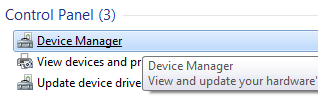
Like other Windows versions, Windows 7 makes updating drivers easy. You can use the built-in application called Device Manager for this purpose.

Here’s how to go about updating drivers using Device Manager in Windows 7:

  • Press Start
  • Type Device Manager in the Start Search box
type device manager
  • Click Device Manager in the results to open the Device Manager window
click device manager
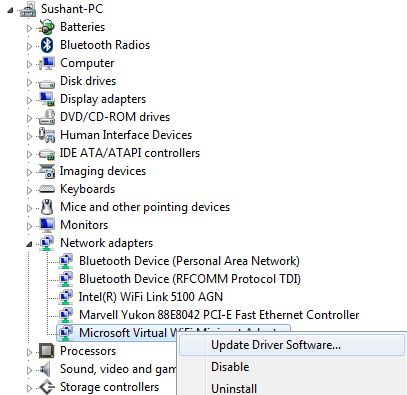
  • You will see all the devices installed on your computer
  • Select the hardware device that is giving you trouble and then right-click it. Next, click Update driver software
  • In the next screen, you will two options. One option will be to search the internet to locate the latest driver. The other option will be to locate the correct driver on your computer. In case your device is having issues, chances are the appropriate driver is not installed. Therefore, select the option that lets you search the internet to locate the correct driver
  • Windows will automatically search the latest driver on the internet

If you are using Windows 10 instead of Windows 7, the steps are pretty much the same. First, type “Settings” in the start search box and select Devices. Alternately, you can start by clicking the settings icon and then click Devices in the list of options.

All the available devices will appear in a list form. Click a device to expand it and right-click to update device driver.

One great thing about Windows 10 is that it provides an easy way to use Windows Update for checking and installing updates.

  • Click the Settings icon or type Settings in the start search box
  • Click Update and Security
  • Choose Windows Update. Next, click Check for Updates
  • Windows Update will check on its own if something is outdated or missing

Repeat the above-mentioned steps for each outdated or missing driver. The other option is to let Windows Update perform this search. Regardless of which option you choose, you should monitor not only search results but also software downloads as well as the installation process.

If you don’t want to go through such a lengthy process to update drivers, rest easy because automatic driver tools are available. You can use one such tool to update your drivers with just a few mouse clicks.

Benefits of using an automatic driver update tool

Automatic driver update tools offer many benefits, the most important ones being:

  • You can update device drivers automatically
  • The software scans and updates all outdated or missing drivers at one go
  • The tool picks the right drivers for your device and operating system, so you won’t have to worry about installing an incorrect driver by mistake
  • Automatic driver updates are 100% safe

Driver Updater is one of the best driver update tools out there. Outbyte Driver Updater will give you access to a database of over 1 million drivers. It will regularly scan your PC, suggesting new driver versions to install. Driver Updater contains drivers for a variety of Windows devices. With just one click, you can update drivers in your system.

Step 1
Click here to Install and launch the app

Step 2
Scan all devices

Step 3
Install or update drivers automatically
 

Start Download


Filed Under: PC Fix Tips Tagged With: automatic driver updates

Advanced Touchpad Functionality is Not Working

By Susan C on August 25, 2023

There are touchpads and then there are advanced touchpads. The former is basically a point and click device. The latter, in contrast, offers many possibilities. For example, it’s common for an advanced touchpad to come with tab-switching and zooming in and out functions.[

Advanced Touchpad Functions

Regardless of the exact functionalities built into a touchpad, the goal is always the same—to improve the productivity as much as possible.

Some of the common functionalities in an advanced touchpad include:

  • Double-tap to turn off the touchpad
  • Double-tap to turn it on
  • Place two fingers on your touchpad and slide vertically or horizontally to scroll
  • Place two fingers and stretch out or pinch in to zoom out or in
  • Tap three fingers to open Cortana
  • Tapping four fingers will open the action center

How can you fix the Windows trackpad?

The first thing you must check is whether you have accidentally disabled the touchpad or not.

To do so, simply press the associated function key (Fn key). If you are not sure about which key you should press, look for one with the same icon or a similar icon as the one shown below:

When you press the associated Fn key, Windows will show whether the touchpad is active or not.

If the touchpad is active but you are unable to access the advanced functions, it’s time to look under the hood (read: go through the hardware settings).

How to Access Touchpad Settings (Windows 10)

  • Press the Windows key
  • Type settings in the start search box and press Enter
  • Click the top result in the best match list
  • In the Settings window, locate and click Devices
  • In the list appearing in the left pane, locate and click Touchpad

Once you have opened the settings window for the touchpad, there are many things you can do:

  • Tap the sensitivity settings which include Low, Medium, or High Sensitivity or Most Sensitive
  • You can watch a help video to learn how you can make use of Windows Gestures
  • Obtain additional information on the touchpad from Windows Support
  • Change the advance settings
  • Give feedback to Microsoft

How to Change the Touchpad’s Advanced Settings

Click Additional settings (under Related Settings) to make changes the advanced settings of your touchpad.

Now the touchpad’s mouse properties window will open, which will look something like this:

This screen tells you whether the touchpad status is disabled or enabled. Other information displayed includes the port assignment of your device and its Synaptics version. Keep in mind that certain changes (like modifying scheme settings) are going to change not only touchpad settings but also USB mouse settings.

If the trackpad is disabled, activate it by clicking on Enable.

You could change the clip tray behavior settings as well. This in turn would influence the way the trackpad’s icon behaves.

  • In the Tray icon field, selecting the first option (Remove tray icon…) would hide your device from clip tray
  • Selecting the second option would make your device visible as a static icon
  • When you select the third option, the trackpad will display any activities performed in clip tray

The third setting (Animated tray icon…) could help you fix certain failures which might be there. For example, in case only one device function is faulty (like right click operation), you could test every function and check if the input is being registered by the device. Because touchpads are basically pressure-sensitive pads, there’s always a possibility that different parts (or sections) of it fail individually.

Settings You Can Access Through Mouse Properties Window

Mouse properties window includes many different settings. With the help of these settings, it is possible to adjust the behavior of your mouse according to your specific needs.

Buttons Tab

This tab lets you change how you operate the mouse, i.e. right-handed device or left-handed device.

Pointers Tab

Through this setting, one can not only customize their mouse pointer but also enable shadow tracking.

Pointer Options Tab

This tab allows you to:

  • Make changes to the pointer speed
  • Hide or show pointer when you type
  • Enhance pointer precision
  • Show location pointer as you hold down CTRL

Hardware Tab

All the mouse devices (which include touchpad) that are connected to your Windows computer can be seen in this tab. Click a device and then click its properties to access hardware device properties. In case your touchpad isn’t responding, go to Device Properties window, choose driver, and then select Update Driver.

You will get two options to choose from. The first option allows Windows to automatically search for the latest driver both on your PC and the Internet. The second option lets Windows search the latest driver on the computer. Use the second option in case you already have downloaded the latest driver from its manufacturer’s site.

After the driver has been updated, you can select Settings and then from the Mouse properties customize the touchpad settings as per your unique requirements.

Always keep your drivers up to date

Automatic driver update tools offer many benefits, the most important ones being:

  • You can update device drivers automatically
  • The software scans and updates all outdated or missing drivers at one go
  • The tool picks the right drivers for your device and operating system, so you won’t have to worry about installing an incorrect driver by mistake
  • Automatic driver updates are 100% safe

Driver Updater is one of the best driver update tools out there. Outbyte Driver Updater will give you access to a database of over 1 million drivers. It will regularly scan your PC, suggesting new driver versions to install. Driver Updater contains drivers for a variety of Windows devices. With just one click, you can update drivers in your system.

Step 1
Click here to Install and launch the app

Step 2
Scan all devices

Step 3
Install or update drivers automatically
 

Start Download


Filed Under: PC Fix Tips Tagged With: touchpad

  • « Previous Page
  • 1
  • …
  • 51
  • 52
  • 53
  • 54
  • 55
  • …
  • 189
  • Next Page »


  • Recent Posts
  • Popular Posts
        

Read More Posts


Read More Posts

Drivers.com Sites

  • Software Drivers
  • Drivers Ed

About Us

  • Advertise
  • About Drivers
  • Drivers Support
  • Drivers.com Privacy Policy
  • Disclaimer
  • Software Drivers
  • Mac Fixes and Tips
  • PC Fix Tips
  • Security/ Backup
  • Tablets & Smartphones
  • Tech News

© Copyright 2026 PDE Publications Ltd. End User License Agreement (EULA)