Drivers.com

follow us:

facebook twitter
  • Home
  • Download Drivers
  • Drivers Help
  • PC/Mac Resources
  • Software Drivers
  • Mac Fixes and Tips
  • PC Fix Tips
  • Security/ Backup
  • Tablets & Smartphones
  • Tech News
  • Software Drivers
  • Mac Fixes and Tips
  • PC Fix Tips
  • Security/ Backup
  • Tablets & Smartphones
  • Tech News

Why You Need To Disable Avast and How To Do It

By Susan C on October 21, 2023

Even if you follow best security practices, you need specialized antivirus software to keep your computer protected. This software protects your computer against virus, malware, and attacks from cyber-criminals. It looks at data – files, applications, software, webpages—passing over a network to your device.

The antivirus software searches for cyber-threats and also monitors how programs are behaving. If the antivirus software detects malicious code or suspicious behavior it will remove or block it as swiftly as possible. Because of the multitude of constantly-emerging cyber threats, having an antivirus software tool is a must. Without it, you are at a high risk of picking up a virus or malware, which can lead to data or financial loss or both.

Given how important it is to have a security software, like Avast, you might be wondering: Why would I ever want to disable it even temporarily?

To understand the answer to this question, it is important to understand how antivirus software like Avast work.

How does AV software work?

As you may know, all antivirus software tools scan files, programs, and actions on a computer. Some of them do this more comprehensively than others. Some also hog more computer resources than other protective tools. In case you are unable to perform a certain action, the blame may lie with an overzealous antivirus software program.

At times, antivirus software might raise red flags for certain genuine actions, like installing drivers that place files in system areas or installing applications that edit the registry. That’s because these behaviors may look similar to those exhibited by malware software.

Like other antivirus software, Avast can sometimes prevent you from performing certain actions. It is in such situations that you may consider temporarily disabling it so that you can perform the desired action.

Steps for disabling Avast

The easiest way to disable Avast antivirus in Windows 10 is to right-click the Avast icon (you will see it in the system tray) and then click Avast shields control.

Next, select for how long you want to disable the Avast antivirus software and then confirm your selection.

Of course, if you want, you can disable the software permanently, but that is not recommended, unless you wish to give another antivirus software a try.

Device Drivers are also important for Windows security

In terms of Windows security it is also important to keep your Drivers up-to-date. A number of problems occur primarily because of missing, outdated, or corrupted device drivers.

Driver updates not only enhance the functionality of concerned hardware devices but also plug in any security gaps present in the software. If you don’t update device drivers, these gaps can be exploited and compromise the security of your computer and data.

How to update device drivers

You can update device drivers manually or automatically. Many people prefer the latter since it is not only easier and faster but also less complicated.

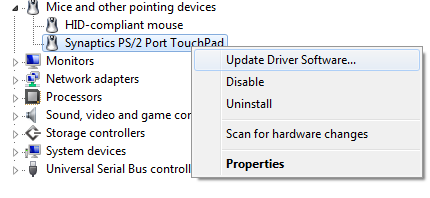
To update drivers manually, you need to access Device Manager, an inbuilt utility that allows you to update device drivers. Open Device Manager and then right-click the concerned hardware device and click Update Driver Software. You will be presented with two options: Let the windows search for the latest driver on your computer and the internet or let it search for the latest driver only on your computer. In most cases, selecting the first option is a better choice.

In many instances, you can also manually update device drivers by directly downloading the latest driver from the manufacturer website. If you are taking this route, make sure you install only those drivers that are compatible with your version of Windows. For example, Windows 10 32-bit users should download drivers designed for 32-bit systems, not 64-bit systems.

Outdated drivers can cause serious problems with your PC. With Driver Updater keeping your drivers up to date is very easy. With just a few clicks, you can update all your drivers. A free trial of this Driver Update Tool means you can give it a try without a worry.

Updating Drivers Automatically

Automatic driver update tools offer many benefits, the most important ones being:

  • You can update device drivers automatically
  • The software scans and updates all outdated or missing drivers at one go
  • The tool picks the right drivers for your device and operating system, so you won’t have to worry about installing an incorrect driver by mistake
  • Automatic driver updates are 100% safe

Driver Updater is one of the best driver update tools out there. Outbyte Driver Updater will give you access to a database of over 1 million drivers. It will regularly scan your PC, suggesting new driver versions to install. Driver Updater contains drivers for a variety of Windows devices. With just one click, you can update drivers in your system.

Step 1
Click here to Install and launch the app

Step 2
Scan all devices

Step 3
Install or update drivers automatically
 

Start Download


Filed Under: PC Fix Tips Tagged With: Disable Avast

All You Need to Know about Internet Download Manager

By Susan C on October 11, 2023

If you are like most people, you probably would want the best download speeds possible while downloading files and other stuff over the internet.

But if you rely on your web browser’s download manager, you may fail to get the most optimal speeds. That’s because downloading files like video, music, drivers, and programs, using a web browser’s download manager is generally not the fastest.

Another problem with this method that you can’t pause the download process if it breaks. For this reason download big files using a web browser is not recommended.

Thankfully, there’s no dearth of download managers, with Internet Download Manager being the most popular option.

Internet Download Manager – An Introduction

So, what is Internet Download Manager? More importantly, is it right for you? Let’s find out.

The Internet Download Manager (IDM for short) is what is called a shareware software. In simpler terms, it means it is available free of charge for a certain period.

IDM boasts many great features, including the following:

  • It can download files and programs with a single click
  • A range of apps and browsers are supported
  • It has an in-built antivirus check
  • It supports drag-and-drop interface
  • Different proxy server types are supported
  • Users can download many files simultaneously
  • Its installation is easy and quick
  • It features advanced browser integration
  • Increase download speeds by up to 5 times
  • You can schedule downloads as per your convenience
  • You can customize the interface as per your liking
  • You can set download limits

Browser Integration

Right now IDM is only available for Windows operating system. For Windows users, the biggest attraction of IDM is its seamless integration with almost all of the popular web browsers.

Copy a link from the web browser and if IDM supports that file, it will automatically fetch it.

With IDM, you can download the said file at a faster speed. Accelerated downloading works particularly well for video and music files.

So, if you want a software tool for downloading videos from sources such as YouTube, IDM can be a great option.

Organize the Downloads

With IDM, you can organize your downloads in a single place, making it easier for you keep a track on them. That’s because IDM allows you to collect as well as store all the download links.

For power users who very frequently download multiple large files from the internet, the ability to keep the downloads organized in one place is a big advantage.

IDM’s main window shows a list of all files downloaded by you. As a user, you can organize these files however you like.

Flexible Downloads

With IDM, you get accelerated downloading speeds. That’s because this software downloads stuff in multiple streams instead of a standard single stream.

Another advantage is that if, for some reason, the downloading process gets interrupted, you can the IDM resume it exactly from the point it got broken. This is something you can’t do with a web browser. If you are using a web browser and the download process gets broken, then you must start again, which can quite irritating, not to mention time-consuming, in the case of big files. Also, with IDM it is possible to download many files simultaneously. But that’s not all. You can set the number of files you want IDM to download at one go.

Tips for Using IDM

The main interface displays different control buttons.

If you want to download a new file, first click Add URL. Then paste this link to the file which you want to download.

  • To start downloading, simply click Start/Resume
  • If you delay the downloading a particular file, hit Pause button
  • To suspend the downloading of a particular file or all files press Stop/Stop All
  • Set when you want to start or stop the download process

Filed Under: PC Fix Tips Tagged With: Internet Download Manager

Checking for and Completing Dell Software Updates Made Easy

By Susan C on October 10, 2023

Checking for and Completing Dell Software Updates Made Easy

Dell is a top PC brand known for its high quality. To ensure your Dell computer stays secure and performs well, it is crucial to keep the software updated. Dell regularly releases important software updates that can optimize your computer’s performance.

We have put together this guide to help you learn everything you need to know about how to update Dell software and why it is important for you regularly update device drivers.

Dell Update – An Introduction

Dell computers include a program called Dell Update which allows the device to receive software updates. Dell Update allows Dell users to manage many crucial updates they need to keep their computer in peak condition and install the newest security patches.

Can Dell Update help you update your device drivers automatically?

Well, not necessarily. However, Dell Update offers you a way to get some updated automatically.

Keep in mind Dell Update is not going to detect all types of important updates. For this reason, it is a good idea to augment your PC with more robust software.

How Can You Check for Dell Updates?

Here are the steps you need to perform to check for Dell updates.

  • Open the Dell Support page
  • Enter your PC details
  • From the list of details, select those you want to install

As you can see, manually downloading and installing updates can be time-consuming and a bit tedious, particularly if you want to install many updates. Moreover, you must figure out on your own which updates you need and will have to check for updates on a regular basis.

With a proprietary tool such as Dell Update, it is possible to customize the settings. Doing so allows you accept only critical or recommended updates.

Dell Update gives you the freedom to select only those updates that you need or want. Plus you can choose which segments you want to receive update notifications for.

Even though it is generally a good idea to download all the recommended updates, you can opt to install only those updates that are critical. However, one update type that you shouldn’t ignore is driver updates.

How Can I Install Dell Drivers?

Device drivers allow you to unlock the functionalities of hardware. Without the right driver, a hardware piece, like a printer, won’t run properly. It’s not just missing drivers that can cause problems; outdated drivers can create many issues as well. They can lead to performance-related issues and can also prove to be a security risk. For these reasons, it is important you keep drivers up-to-date at all times.

This brings us to the all-important question:

How can you update device drivers?

The easiest way to update drivers is by using a reliable driver update tool.  What’s wrong with updating drivers manually?

Well, there’s nothing wrong with updating drivers manually, but many users might find the process too technical, even lengthy. On the other hand, a driver update tool, such as Driver Updater, can update all your device drivers with a few mouse clicks.

All the same, we are listing the steps for both methods, so that you can pick the one with which you are more comfortable.

Updating device drivers manually

Windows computers come with a built-in utility called the Device Manager that allows you to update drivers (and do a lot of other things).

Here’s how you can use the Device Manager utility to manually update drivers.

  • Click the Start button and type Device Manager in the start search box
type device manager
  • Click Device Manager in the list of search results
  • Expand the hardware device whose driver you want to update (e.g. if you want to update the video graphics card driver, expand the entry “Sound, video, and game controllers)
  • Right-click your hardware device and click Update Driver Software
  • In the next window, you will see two options. In most cases, you should select the first option “Search automatically for updated driver software.” Now Windows will automatically search for the right driver on your computer and the internet
  • Follow the screen prompts
  • If asked, restart your computer after installing the right driver

Repeat the steps for each device whose driver you need to update.

How to update drivers automatically

Automatic driver update tools offer many benefits, the most important ones being:

  • You can update device drivers automatically
  • The software scans and updates all outdated or missing drivers at one go
  • The tool picks the right drivers for your device and operating system, so you won’t have to worry about installing an incorrect driver by mistake
  • Automatic driver updates are 100% safe

Driver Updater is one of the best driver update tools out there. Outbyte Driver Updater will give you access to a database of over 1 million drivers. It will regularly scan your PC, suggesting new driver versions to install. Driver Updater contains drivers for a variety of Windows devices. With just one click, you can update drivers in your system.

Step 1
Click here to Install and launch the app

Step 2
Scan all devices

Step 3
Install or update drivers automatically
 

Start Download


Filed Under: Software Drivers Tagged With: Dell Software Update

  • « Previous Page
  • 1
  • …
  • 50
  • 51
  • 52
  • 53
  • 54
  • …
  • 189
  • Next Page »


  • Recent Posts
  • Popular Posts
        

Read More Posts


Read More Posts

Drivers.com Sites

  • Software Drivers
  • Drivers Ed

About Us

  • Advertise
  • About Drivers
  • Drivers Support
  • Drivers.com Privacy Policy
  • Disclaimer
  • Software Drivers
  • Mac Fixes and Tips
  • PC Fix Tips
  • Security/ Backup
  • Tablets & Smartphones
  • Tech News

© Copyright 2026 PDE Publications Ltd. End User License Agreement (EULA)