
Drivers.com

follow us:

facebook twitter
  • Home
  • Download Drivers
  • Drivers Help
  • PC/Mac Resources
  • Software Drivers
  • Mac Fixes and Tips
  • PC Fix Tips
  • Security/ Backup
  • Tablets & Smartphones
  • Tech News
  • Software Drivers
  • Mac Fixes and Tips
  • PC Fix Tips
  • Security/ Backup
  • Tablets & Smartphones
  • Tech News

Has Your PC Been Hacked? What To Do Next?

By Susan C on December 14, 2023

Has Your PC Been Hacked? What To Do Next?

The fear of being hacked is one of the greatest fears of the modern time. And it’s not hard to guess why. Hacking costs people (and businesses) a lot of money every year.

Of course, prevention is better than cure, but sometimes even after following the best cyber safety practices—not opening unsolicited emails, reading reviews before downloading stuff from the internet, and using a robust antivirus software tool—your computer might get hacked.

So, the question is: What next? What should you do if you find out that you have been hacked? And how can one be 100% certain that their PC’s security has been breached?

Keep reading to find out the answers to these questions and much more.

How to Determine If Your PC Has Been Hacked

Hacking attempts range from obvious to very subtle, but there are some signs that point towards a comprised PC.

Erratic PC Performance

Has your computer become suddenly slow? Is your computer frequently freezing up?

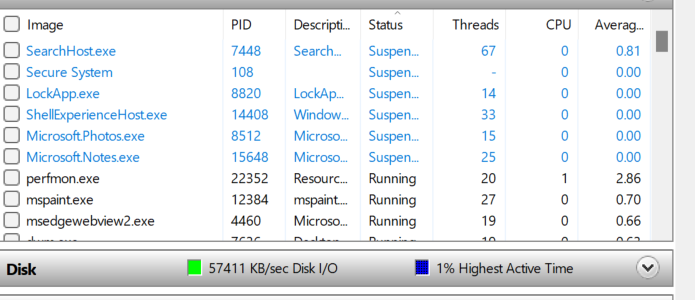
Slow or erratic computer performance can be attributed to several reasons, but malware infection is the number one culprit. The next time your Windows computer seems painstakingly slow, perform these steps to find out what processes are causing the problem.

You can do so by performing the following steps (for Windows 10 and 11 users):

  • Go to the taskbar’s Search box
  • Type Resource Monitor and then click the best match
  • In the Resource Monitor window you can check what processes are running and the amount of system resources each one of them is using

If you see a suspicious-looking process hogging the CPU, it would be worth investigating the matter further. The easiest way to do so is by running a full system scan using an advanced and reliable antivirus software tool. But before you run the scan, make sure your security software is up to date.

Popups Dialogs

Most computer users (if not all of them) are no strangers to popup ads. While browsing, it’s common to come across them.

Just as a side note, some popup ads that you encounter when you browse websites could be phishing scams. So be careful of what you click on. However, right now we are not talking about these popup ads. Instead, we are referring to random popup ads that appear on your screen, sometimes even when you’re offline, imitating a legitimate service or application. Regardless of the message, these benign-looking-but-actually-very-dangerous popup dialogs is the same: to lure you in sharing your personal information.

Suspicious Email Activity

Certain email activities, such as your contacts claiming they are receiving strange emails from you which you had never sent, are a sure-shot sign of a hacked email account.

Appearance of Unknown Applications

Malware programs are notorious for installing applications on a compromised PC without the consent or knowledge of the user. So, if you see applications that you never installed, you have every reason to be suspicious.

What to Do If You Find Out You Have Been Hacked?

Start with damage control immediately. First, isolate your computer by disconnecting it from the net. Next, perform the steps discussed below.

Change Your Passwords

In case you believe one or multiple accounts have been breached, reset their passwords without any delay. To be on the safer side, we recommend resetting all your passwords.

And if previously you used a single password for multiple accounts, it’s time you correct the mistake. Having a unique password for each account means a single point of failure will not compromise all your accounts.

Run a System Scan

The next step is to immediately remove harmful programs or malware. Open your antivirus software and run a full system scan. If the software finds any dubious program or malware, it will recommend quarantining or deleting it. Do so without any delay and then restart your PC.

While you are cleaning your PC, it is a smart idea to open the Add & Remove features app and uninstalling any program that seems suspicious or that you don’t recall installing. You can access the Add & Remove features app from the taskbar’s Search function.

Check your latest banking Statement

It’s no secret that malware programs are designed to steal your money. Therefore, if you found malware on your PC, access your banking statements and check for any discrepancies. You can do so by directly calling the bank or downloading the statements from a safe device or machine.

How to Avoid Getting Hacked

As said earlier, when it comes to cyber security, precaution is better than cure. Follow these best practices to keep your data safe.

Use Strong Passwords

This is a no-brainer. Easy-to-guess passcodes or passwords are like locking your home when you go out but keeping the windows open. Avoid using your name or birth date in your passwords.

Don’t Share Personal Information

Let’s say someone walks up to you while you are outdoors and asks you to share your banking details or other sensitive data. Would you share them? Of course, not. So then why would you share personal data online with those whom you don’t know?

The internet world is filled with dubious characters who will go to any limit to get their hands on your personal data, like pretending that they represent your bank or any other service you frequently use. They may contact you through online chat, email, pop-ups, and other ways to convince you to voluntarily share sensitive data, including account passwords. Ignore such requests and block such persons immediately. Always remember that legitimate sources will never ask you to share your passwords.

Be Cautious While Surfing the Internet

Avoid clicking on popup ads, as they are frequently spyware. If you want to buy something online, directly go to the store’s official website instead.

Downloading software from dubious sources or downloading suspicious software is another big no-no. The easiest way to find whether a source or software is genuine is to check its online reviews.

Keep Your System and Software Up to Date

Keeping the system and software up to date ensures your computer will performs at its optimal or near-optimal level. No less importantly, it also helps you keep safe against intrusion.

System updates include security and other patches. Downloading and installing updates can help seal up known security vulnerabilities. Certain software, like device drivers, also often release fixes for known issues, which you should always install.

Keep Your Device Drivers Up to Date

Old device drivers can not only cause performance-related issues and errors but also pose a security risk. For these reasons, you should always keep your device drivers up to date.

You can update drivers manually (via the Device Manager utility) or automatically, using a reliable tool such as Driver Updater. This software updates all your device drivers automatically.

Always keep your Drivers up to date

Automatic driver update tools offer many benefits, the most important ones being:

  • You can update device drivers automatically
  • The software scans and updates all outdated or missing drivers at one go
  • The tool picks the right drivers for your device and operating system, so you won’t have to worry about installing an incorrect driver by mistake
  • Automatic driver updates are 100% safe

Driver Updater is one of the best driver update tools out there. Outbyte Driver Updater will give you access to a database of over 1 million drivers. It will regularly scan your PC, suggesting new driver versions to install. Driver Updater contains drivers for a variety of Windows devices. With just one click, you can update drivers in your system.

Step 1
Click here to Install and launch the app

Step 2
Scan all devices

Step 3
Install or update drivers automatically


Start Download


Filed Under: Security/ Backup Tagged With: Cyber security

How to Keep Yourself Cyber Safe

By Susan C on December 11, 2023

The Internet has made our life easier in many ways but there’s a flip side. Being connected to the wider world through the web has increased our risk of cyber attacks. This post shares tips to help yourself keep cyber safe.

Five Most Common Cyber Security Threats

A cyber attack, in simpler terms, is an attempt by hackers or cyber-criminals to access a computer system or network to steal, alter, destroy, or expose information. The most common types of cyber security threats are:

Malware

This is perhaps the most common type of cyber security threats. Malware refers to any code or program designed with the purpose of harming a computer or network. There are many subsets of malware such as ransomware, spyware, trojans, viruses, keyloggers, etc.

The trojan virus infiltrates a system by disguising itself as a genuine software or program. Ransomware works by blocking your access to data stored on your computer. It then asks you to pay money to regain access to it. Spyware, on the other hand, steals your confidential data, while adware shows advertising content on your screen. Keylogger, in contrast, collect every keystroke you type for the purpose of stealing your passwords and other confidential data.

Phishing

In a phishing attack, a cybercriminal uses email, social media, phone, SMS, or social engineering techniques for enticing unsuspecting users to share personal information, like bank account details. It may also involve enticing users to download a malicious file on their computer or phone.

Man-in-the-middle attack

This type of cyberattack occurs when a cyber attacker puts himself between two entities, generally a user and an application (like a web page). The threat actor first intercepts the communication between the two parties, and then controls the entire conversation and uses the stolen data for malicious purposes. Such attacks pose a very serious threat, since cyber attackers can capture your personal data (such as bank account details or credit card information).

Spoofing

In this type of cyberattack, an entity pretends to be something they are not in an attempt to win our confidence and gain access to our systems and steal sensitive data or money. Spoofing attacks in the cyber world come in different forms, including email spoofing, extension spoofing, website spoofing, IP spoofing, extension spoofing, and facial spoofing.

Denial-of-Service (DOS)

This type of cyber attacks involve flooding a system or network with so many requests that it cannot handle any or some of the legitimate requests received from its intended users. For example, an attacker may flood a bank’s website with numerous log-in requests, forcing it to deny access to its legitimate users.

Tell-tale Signs of Malware Infection

Even if you strictly follow all the rules of cyber security—keeping your system up-to-date, avoiding suspicious links, never opening unsolicited emails, and using a robust antimalware tool—it is still possible that your computer might get infected with malware. But how can you tell? Here are some tell-tale signs of malware infection.

Slow System

Has your system suddenly started running slowly, even when you are not using any resource-hogging application? If so, this could be a sign of malware infection.

Unexpected Crashes

If you are getting the much annoying blue screen of death, especially repeatedly, your computer might be infected.

Unexplained folder or file changes

Are you seeing different icons for some files or have some files gone missing from your computer? If so, this could point toward a malware infection. Your operating system is not going to make changes likes these on its own, unless there’s some technical issue or a virus infection.

Strange popup ads

Is your screen being flooded with popup ads, even when you are not online? In that case, your computer might be infected with spyware. Unexpected images appearing on your screen—for instance pornographic images replacing harmless images—is another tell-tale sign of malware infection.

Diminished hard disk space

If you are noticing unexplained decrease in storage space, your computer may be infected with self-replicating virus or worm (also known as the disk bomb). These malware programs are designed to multiply themselves rapidly, hogging the disk space and causing all sorts of problems.

Browser redirects or homepage changing randomly

Many a time, signs of malware infection are immediately apparent in your web browser. For instance, in case your homepage is changing randomly for no rhyme or reason, you should check your computer for malware infection. Such changes are usually happen after you accidently click a malicious pop-up window or link. Another common symptom of malware infection is your web traffic getting redirected to unsafe websites, created for the sole purpose of stealing unsuspecting users’ personal data.

Unable to download an antivirus program or update an existing one

Certain malware programs are programmed in such a way to avoid detection. These malicious files can prevent an infected computer from downloading a new antivirus program or update an existing one.

Erratic email

In case your emails aren’t sent or others are receiving strange-looking emails from your address that you didn’t send, there’s a strong chance that your PC has been infected (or someone has stolen your email account login details).

Fake virus alerts

Another red flag for a malware infection is the appearance of fake virus alerts, stating that your computer is under attack. This happens when a malware program enters your computer and shows itself as a fake security program. It will likely offer to fix the so-called infections in exchange of either personal information or money.

Opening and closing of programs without your consent

Does it look like your system has got a mind of its own? Is it opening and closing programs randomly without your consent? This could happen due to a malware infection. Such behavior is not only very annoying but it is also a sure-shot sign that your computer’s security has been breached.

How to protect yourself from cyber attacks

Now that you know what a cyber attack is, the most common types of cyber attack, and tell-tale signs of data breach, it’s time to look at the best ways to shield ourselves against them. Here are some tips that can go a long way in ensuring your cyber security:

Use multi-factor authentication

In a multi-factor authentication set-up, an additional confirmation is required over and above the account password. For example, if you turn on the multi-factor authentication for your online banking, in addition to the password, you will need to provide another authentication, which could be a one-time password received via SMS or email, to log in. As you may guess, putting an additional layer of security in place prevents cyber criminals from stealing your data or money or both even if they manage to collect your login details.

Go for harder-to-guess passwords

This one is no brainer. Using “1 2 3 4” for your password or credit card (or debit card) PIN is a complete no-no, as is using your name along with your birth date. Always use complex passwords, which do not include any personal information (a name, birth date, etc.) that others may guess easily.

Don’t use unsecured networks for logging into sensitive accounts

Yes, that means the network at your favorite cafe or hotel or on the plane.

Answer security questions creatively

You know those security questions about your favorite writer or pet, mother’s maiden name, father’s middle name? Well, answering these questions can help improve the security of the account in question, but there’s no rule that prevents you being creative while answering. For example, you can put your best friend’s name in the answer to the question “what is your favorite pet?” Answering all the security questions the same way can make it easier for hackers to access different accounts if they manage to crack the code for one.

Don’t download software before reading reviews

Since some free software contain spyware, always check the online reviews before installing a new software. If there are more positive reviews than negative reviews, you can rest easy in knowledge that the app is a genuine one. Also, as much as possible, download new apps only from their official websites.

Beware of unsolicited emails (especially those with links or attachments)

More often than not, unsolicited emails are fraudulent. Legitimate businesses generally do not send unsolicited emails with attachment.

If you receive an email from an unknown sender, look out for file types such as .exe or .zip. Hackers frequently use these file extensions to install rogue programs or applications. You can either ignore such emails or contact the sender directly to confirm whether they have indeed sent you the email. Whatever you do, but do not click on the attachment included in an unsolicited email.

Update your drivers regularly

Hackers may exploit security vulnerabilities in outdated device drivers to slip malware in to your computer. Therefore, don’t forget to regularly update your device drivers.

You can manually update your device drivers, but you need a little bit of technical knowledge to do so. Also, the manual process of updating drivers can be time-consuming. For these reasons, we recommend using a reliable driver update tool.

Automatic driver update tools offer many benefits, the most important ones being:

  • You can update device drivers automatically
  • The software scans and updates all outdated or missing drivers at one go
  • The tool picks the right drivers for your device and operating system, so you won’t have to worry about installing an incorrect driver by mistake
  • Automatic driver updates are 100% safe

Driver Updater is one of the best driver update tools out there. Outbyte Driver Updater will give you access to a database of over 1 million drivers. It will regularly scan your PC, suggesting new driver versions to install. Driver Updater contains drivers for a variety of Windows devices. With just one click, you can update drivers in your system.

Step 1
Click here to Install and launch the app

Step 2
Scan all devices

Step 3
Install or update drivers automatically


Start Download


Filed Under: PC Fix Tips Tagged With: cyber safety

How to Protect Your Computer Against Spyware

By Susan C on November 30, 2023

Spyware is a malicious type of software designed to enter your system without your knowledge. Once it infiltrates your system, it gathers your data and sends it to third-parties without your consent. Legitimate software can also use spyware to gather your data only for advertising and other commercial purposes. Malicious spyware, however, has only one goal: to profit from data stolen from you.

Whether fraud or legitimate, spyware can lead to data breaches and misuse of personal data. Additionally, spyware can cause a significant lag in your computer’s performance. We’ve prepared this guide to help you understand what spyware do, why they are dangerous, how to protect your computer against them.

What is Spyware?

One thing is common to all spyware: they peek into your data and computer activity. Because some trusted applications and services use tracking tools that are spyware-like, the spyware word is usually used for malicious applications.

Malicious spyware installs itself on your device without your consent. Here are the various actions spyware takes on a device.

  • Infiltrates: Spyware enters your computer via a malicious website, file attachment, or application install package.
  • Monitors and captures data: Once installed, the spyware monitors and captures data via screen captures, keystrokes, and other tracking codes.
  • Transmits stolen data: Lastly, the spyware transmits the stolen data to the malware author or sell it to interested parties.

Spyware may gather data pertaining to your online purchases or habits, but it can also be designed to gather more confidential data. Examples of data that spyware can collect include the following:

  • Login details (usernames and passwords)
  • Credit card details
  • Account PINs
  • Keyboard strokes
  • Browsing habits
  • Emails

How Spyware Infiltrates Your Computer (and Other Devices)

Spyware, like other malware programs, install themselves on devices stealthily. For instance, bundled software packages are often used to spread spyware. When you install the intended software, spyware install itself without your knowledge or consent. Spyware may also enter your computer when you visit dubious websites. Spyware may also infiltrate your computer via attachments. Keep in mind that not all bundled spyware install them discreetly. Sometimes, a software program will refer to the use of spyware in its license agreement, but without actually using that specific term. By making the user install the complete software bundle in order to have access to the desired application or program, users unknowingly and voluntarily infect themselves.

Note: Spyware is not the same as computer viruses. Even though both are malicious programs that hide inside your device without your consent, virus replicates and infects other files on your computer. Spyware does not replicate.

Different types of Spyware

Here are the most common types of spyware:

Adware

Adware is most common threat faced by both consumers and businesses. When an infected computer connects to the internet, Adware starts flooding the screen with numerous popup ads. Additionally, adware may enable attackers to gather information regarding your browser history and sell it on dark web.

Keylogger

If you think of adware more as a nuisance than threat, there’s nothing benign about keylogger. It is designed to record the keystrokes on your computer. Just imaging the amount of data hackers can access—your search history, email activity, system credentials, browser history, and more. They can use this information to steal your data or money or sell it on the dark web.

Trojans

Trojans get their name from the fact that they infiltrate a computer by disguising themselves as genuine programs and are designed to give hackers backdoor access to your control. Once attackers have this access, they can steal your data or infect more dangerous malware into your system.

Why Spyware is Dangerous?

Now that you know the different types of spyware, it’s time you understand the problems they can use.

Identity Fraud

One of the biggest threats of spyware is that they can steal your personal information, such as email accounts, browsing history, online banking passwords, and log in details for your social media accounts, and use all of this information for identity theft. Additionally, if the malware author has access to your online banking details and credit card details, they can sell those details to a third-party or steal your money themselves.

Computer Damages

Spyware, especially those which are poorly-designed, can drain your computer’s resources and cause all sort of performance-related issues. Over time, their hogging of computer resources can lead to frequent overheating or system crashes.

Disrupt the browsing experience

Many spyware are designed to alter certain computer’s settings, change your home page, and deliver unwanted websites in the browser. These websites can lead you toward potentially fraudulent or harmful websites. Spyware can also lead to popup advertisements, even when you are offline.

How to spot an infection

Because spyware can alter the security settings of your computer, spotting them can at times be tricky. Watch out for the red flags mentioned below. If you see any of them, it’s possible your system is infected:

  • Sudden appearance of pop-up ads
  • Sudden and significant drop in your computer’s performance
  • Frequent system crashes
  • Significant increase in CPU usage
  • Your homepage has changed or you are frequently auto-directed when online
  • Your security software is not functioning properly

Tips for preventing spyware infection

Like with many things in life, when it comes to protecting yourself against spyware, prevention is better than cure. You will need to be more careful when you are online and invest in reputable protection software.

Following these tips can help reduce your risk of spyware infection significantly.

Install a security software tool with spyware protection

An advanced antivirus tool with dedicated spyware protection will stop malware including spyware before it infiltrates your computer. Make sure your software can do real-time monitoring and don’t forget to update it on a regular basis.

Don’t click on unsolicited ads

Not all online advertisements contain spyware, but many of them do. You can significantly reduce the chances of infection not clicking on online ads. While browsing if you come across something that you want to buy, purchase it directly from the official website or a reputable website.

Don’t download software before reading reviews

Want to install an app? Before you click the ‘download’ button, google it to check its reviews. If there are more positive reviews than negative reviews, you can rest easy in knowledge that the app is a genuine one. Also, as much as possible, download new apps only from their official websites.

Adjust the security settings of your browser

Every browser has a number of security settings which you can use to determine how your data will be used. Depending on your preferences, you can share only some information, disable cookies completely, or enable them only for specific websites. After you have set the desired settings, monitor them on a regular basis to ensure there are no unauthorized changes.

Browse smartly

You should not open an unsolicited email attachment or click on a link included in an unsolicited email.

Install a firewall

A firewall can block risky websites, reducing your risk of being infected with spyware.

Tips for removing Spyware

In case you suspect your computer’s security has been breached, immediately disconnect your device from the internet. As said earlier, spyware transmits your data over the internet, so disconnecting your computer from the internet will immediately stop this process. Next, run a full system scan using your antivirus software and remove the malware.

Updating Drivers Automatically

Automatic driver update tools offer many benefits, the most important ones being:

  • You can update device drivers automatically
  • The software scans and updates all outdated or missing drivers at one go
  • The tool picks the right drivers for your device and operating system, so you won’t have to worry about installing an incorrect driver by mistake
  • Automatic driver updates are 100% safe

Driver Updater is one of the best driver update tools out there. Outbyte Driver Updater will give you access to a database of over 1 million drivers. It will regularly scan your PC, suggesting new driver versions to install. Driver Updater contains drivers for a variety of Windows devices. With just one click, you can update drivers in your system.

Step 1
Click here to Install and launch the app

Step 2
Scan all devices

Step 3
Install or update drivers automatically


Start Download


Filed Under: Security/ Backup Tagged With: spyware protection

  • « Previous Page
  • 1
  • …
  • 48
  • 49
  • 50
  • 51
  • 52
  • …
  • 189
  • Next Page »


  • Recent Posts
  • Popular Posts
        

Read More Posts


Read More Posts

Drivers.com Sites

  • Software Drivers
  • Drivers Ed

About Us

  • Advertise
  • About Drivers
  • Drivers Support
  • Drivers.com Privacy Policy
  • Disclaimer
  • Software Drivers
  • Mac Fixes and Tips
  • PC Fix Tips
  • Security/ Backup
  • Tablets & Smartphones
  • Tech News

© Copyright 2026 PDE Publications Ltd. End User License Agreement (EULA)