Drivers.com

follow us:

facebook twitter
  • Home
  • Download Drivers
  • Drivers Help
  • PC/Mac Resources
  • Software Drivers
  • Mac Fixes and Tips
  • PC Fix Tips
  • Security/ Backup
  • Tablets & Smartphones
  • Tech News
  • Software Drivers
  • Mac Fixes and Tips
  • PC Fix Tips
  • Security/ Backup
  • Tablets & Smartphones
  • Tech News

How to fix common issues with the HP OfficeJet Pro 8025e Printer

By Susan C on January 30, 2024

When it comes to all-in-one printers, the HP OfficeJet Pro 8025e is right up there with all the top-rated printers. It offers a wide range of features, including automatic two-sided printing and voice-activated printing. Nonetheless, like any other hardware device, the HP OfficeJet Pro 8025e is not completely immune to performance-related issues. But worry not, because we have you covered.

This post shows how you can troubleshoot common issues with your HP printer on your own.

Let’s dive right in.

Issue One: Paper Jams

Without a doubt, paper jams are the most common issue users encounter. Thankfully, in most instances, it doesn’t take much to fix the problem. Paper jams can occur due to any number of reasons, including using an incorrect paper type or size.

Here’s how you can fix the issue:

  • Turn the printer off
  • Unplug it from its power source
  • Make sure the paper tray is correctly aligned
  • Also ensure the paper guide are set to the right paper size
  • Using a lint-free cloth and rubbing alcohol, gently clean your printer’s paper feed roller
  • Plug in the printer and power it on

Issue Two: Low-quality prints

Low-quality prints is also an issue that users may experience every now and then. But this is not something to lose sleep over. The issue is more often than not caused by issues faulty printer settings, clogged ink nozzles, or low levels of ink.

Perform these steps to fix the issue:

  • First check the level of ink. If it is low, replace the cartridges
  • Using HP printer’s cleaning function clean ink nozzles
  • Print using high-quality paper
  • Tweak the settings of your printer to ensure they are right for the kind of image or document you want to print

Issue Three: Connectivity issues

This is another common issue faced by HP Pro 8025e users. Connectivity related issues occur mostly due to factors such as incorrect printer settings and outdated printer drivers.

Here’s how you can fix the issue:

  • Make sure the printer is connecting to the correct network
  • Restart your printer, computer, and router
  • If the problem persists, move your printer closer to your router as this may help improve the signal strength
  • If the problem still persists, update the printer drivers (see the steps below if you are not sure how to do this)

You can update your HP printer driver manually or automatically. The automatic method, which involves using an advanced driver update tool, is the preferred choice of most computer users, and it is easy to understand why. A driver update tool, such as Driver Updater, allows you to update your device drivers in just a few mouse clicks. In contrast, manual methods, such as updating drivers via the Device Manager or from HP official website, are not only time-consuming but also require some level of technical proficiency.

We have listed both the manual and automatic ways of updating the HP OfficeJet Pro 8025e printer drivers. Pick the one that you like the best.

Updating HP Printer Driver Manually

As mentioned previously, you can update HP OfficeJet Pro 8025e printer drivers manually either using the Device Manager (a built-in utility in Windows computers that allows users to manage hardware devices and their components, such as drivers) or the HP official website.

Device Manager

Perform the following steps:

  • Press Win + R
  • In the run dialog box, type devmgmt.msc and press Enter
  • You will see all the hardware devices in this window; locate your HP printer, right-click it, and select Properties
  • Click Update Driver
  • Select “search automatically for updated driver software” in the next window
  • Windows will now automatically locate the latest driver and install it

HP Official Website

  • Go to HP support page
  • Enter your product name in the Search box and press Enter
  • Now select your model in the search results and then choose your operating system
  • Click Update
  • Select Installation Software
  • Click Download
  • Once the download process is complete, double-click the installation file and follow on-screen instructions
  • You may have to restart Windows after the installation is complete

Update HP Printer Driver Automatically

Don’t want to go through all the hassle involved in updating drivers manually? Then use the Driver Updater tool. It will automatically update your HP Printer driver (and other device drivers) in a jiffy.

Automatic driver update tools offer many benefits, the most important ones being:

  • You can update device drivers automatically
  • The software scans and updates all outdated or missing drivers at one go
  • The tool picks the right drivers for your device and operating system, so you won’t have to worry about installing an incorrect driver by mistake
  • Automatic driver updates are 100% safe

Driver Updater is one of the best driver update tools out there. Outbyte Driver Updater will give you access to a database of over 1 million drivers. It will regularly scan your PC, suggesting new driver versions to install. Driver Updater contains drivers for a variety of Windows devices. With just one click, you can update drivers in your system.

Step 1
Click here to Install and launch the app

Step 2
Scan all devices

Step 3
Install or update drivers automatically
 

Start Download


Filed Under: PC Fix Tips Tagged With: HP Printer issues

How to Update HP OfficeJet Pro 8025e Printer Driver

By Susan C on January 30, 2024

HP OfficeJet Pro 8025e users who have upgraded to Win 11 may have to also update their printer driver to ensure the printer continues to work like before. You can update the printer drivers in more ways than one, but none is easier or faster than using a reliable driver update tool. In this post, we have listed the steps for all the common methods of updating the HP OfficeJet Pro 8025e printer driver.

Note: The first two methods are manual ways of updating a HP driver. If you would rather use an automatic method, go straight to the third method.

Method 1 – Download drivers from HP website

You can find the latest drivers for OfficeJet Pro 8025e on HP website. Download the drivers from there and install them manually.

Here are the various steps you need to perform.

Step 1 – Check the current driver version

First check the version of the current HP driver installed on your PC.

  • In the Search box in the taskbar, type device manager and press Enter
  • In the Device Manager window, locate the HP printer you are using and then right click it and select Properties
  • Click the Driver tab
  • You will see the driver version here. Note down this detail

Step 2 – Download the newest driver from HP website

  • Go to HP support page
  • In the search box, type HP OfficeJet Pro 8025e
  • Click Search
  • Various search results may appear; select the model you are using
  • Now select your operating system from the drop-down menu
  • Click Update
  • Select Installation Software
  • Click Download
  • Save the downloaded file in a suitable location. Once the downloading is complete, double-click the installation file to install the latest driver
  • Follow on-screen prompts and wait for the installation to complete. Restart Windows if needed

Method 2 – Perform a driver update via Device Manager

You can also manually update your HP printer driver (or for that matter, any other device driver) using Device Manager, a built-in utility that allows you to manage the various hardware devices and their components.

  • In the Search box in the taskbar, type device manager and press Enter
  • In the Device Manager window, locate the HP printer you are using and then right click it and select Properties
  • Click the Driver tab
  • Click Update Driver
  • In the next window, you’ll see two options; select “search automatically for updated driver software”
  • Windows will now search the latest driver for your HP OfficeJet printer and install it
  • If asked, restart Windows when the installation process is complete

Method 3 – Update HP printer driver automatically

The first two methods require a bit of technical knowledge. They are also a tad-consuming. If you want an easier, quicker way to update your HP printer driver, consider using a reliable driver update software, such as Driver Updater. It can update your HP OfficeJet Pro 8025e printer driver and other drivers with just a couple of clicks.

Automatic driver update tools offer many benefits, the most important ones being:

  • You can update device drivers automatically
  • The software scans and updates all outdated or missing drivers at one go
  • The tool picks the right drivers for your device and operating system, so you won’t have to worry about installing an incorrect driver by mistake
  • Automatic driver updates are 100% safe

Driver Updater is one of the best driver update tools out there. Outbyte Driver Updater will give you access to a database of over 1 million drivers. It will regularly scan your PC, suggesting new driver versions to install. Driver Updater contains drivers for a variety of Windows devices. With just one click, you can update drivers in your system.

Step 1
Click here to Install and launch the app

Step 2
Scan all devices

Step 3
Install or update drivers automatically
 

Start Download


Filed Under: Software Drivers Tagged With: HP OfficeJet Pro 8025e printer driver

Uninstalling a Problematic Nvidia Graphics Driver in Win 10 Made Easy

By Susan C on January 30, 2024

Uninstalling a Problematic Nvidia Graphics Driver in Win 10 Made Easy

Ask any ordinary user if uninstalling drivers is an easy task, and the answer you’re likely to get is “no”. Uninstalling a driver manually is often time-consuming and requires a bit of technical knowledge. That’s as may be, there are times when uninstalling a problematic driver is the only way to fix an issue.

In this post, we will show you two different ways in which you can manually uninstall an old or problematic Nvidia driver on Windows (with relatively ease). In addition, we will talk about the benefits of using a reliable driver update tool for updating device drivers.

So let’s get started.

How to uninstall a problematic Nvidia graphics driver manually on Windows 10

You can manually uninstall a Nvidia driver (or for that matter, any other device driver) using Device Manager, a built-in utility that allows you to manage the various hardware devices and their components. The other method of uninstalling a Nvidia graphic driver is using Control Panel.

Before we discuss both these methods, a few words of caution:

  • Make sure you uninstall the exact driver you wanted to. Before uninstalling a driver, check its version and name. Uninstalling a wrong driver can cause all sorts of issues, including system crash, blue screen, and device not working
  • It’s always a good idea to create a system restore point before uninstalling a driver. This way you will be able to revert to old driver if uninstalling it causes any unexpected issues

Uninstalling a Nvidia Driver via Device Manager

Before we look at the steps you need to perform to uninstall a driver via device manager, let’s first understand what drivers are and when you may need to uninstall them.

Think of drivers as a communication bridge between your system and a device, such as a graphics card. Drivers ensure these two things can communicate with each other. Some 3rd party software also need a driver to guarantee seamless user experience. Examples include computer games like Earthfall, FIFA 19, and Forza Horizon.

You might be wondering: If drivers are so important, why would anyone ever want to uninstall them?

There are several good reasons to uninstall a driver. Let’s say you have have just removed a device or software from the system because you no longer need it. In this case, it will be a good idea to uninstall its driver as well. You may also need to uninstall a driver if it is old or incompatible with your device.

Keep in mind that unused, outdated, or corrupt drivers may trigger all sorts of problems, including blue screen, crashes, system freezing, etc. So it is important to promptly uninstall a driver you no longer need.

The most popular method for uninstalling a driver manually, including NVIDIA Graphics Driver, is via the Device Manager. Here are the steps for that.

  • Press Windows key + R to launch the Run dialog box/li>
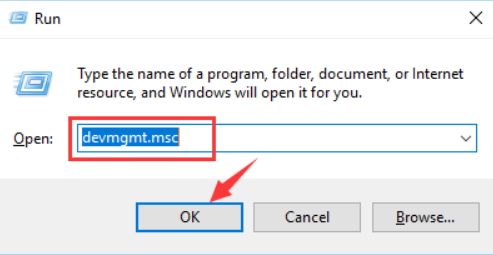
  • Now type devmgmt.msc and click the OK button
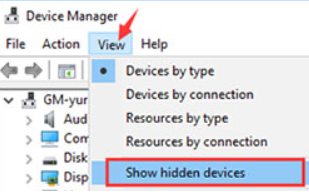
  • In the Device Manager window, click the View tab, and select Show hidden devices
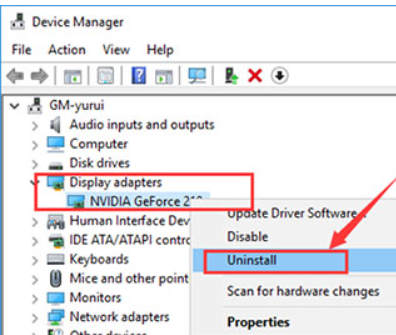
  • Now all the devices being used on your computer will appear. Browse through the list until you see Display adapters. Next, expand it and right click NVIDIA graphics card
  • Select Uninstall
  • You will be asked to confirm your action. Make sure the checkbox against “Delete the driver software for this device” is selected and then click the OK button
  • Restart Windows if prompted

Uninstalling NVIDIA Graphics Card Driver via Control Panel

Here are the steps you need to perform:

  • Press Windows Key + X and then select Control Panel
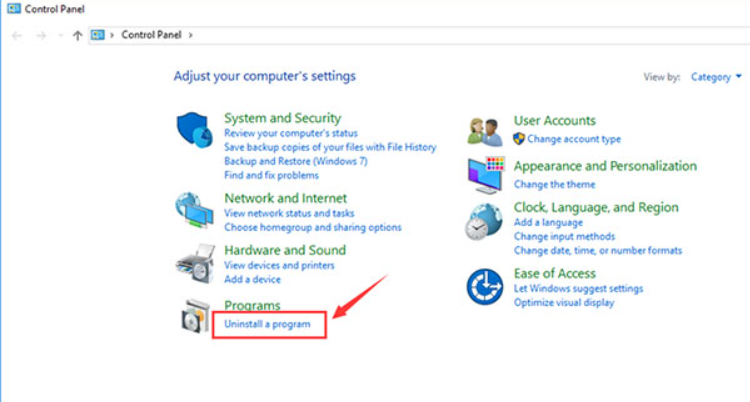
  • Click Uninstall a program
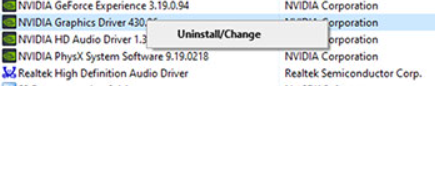
  • All the installed programs will appear on your screen. Browse through the list until you see Nvidia graphics cards. Right click it and select Uninstall
  • Windows will now uninstall the driver. Restart Windows after the uninstalling is complete if prompted

Well, that’s just about it on how to uninstall a NVIDIA graphics card driver manually. Before we leave you, a few words of advice. It is important that you keep your drivers up to date all the time. That’s because outdated drivers can not only cause errors and performance-related issues but also pose a security risk.

The easiest way to update your drivers is by using a reliable automatic driver update tool, such as Driver Updater.

Automatic driver update tools offer many benefits, the most important ones being:

  • You can update device drivers automatically
  • The software scans and updates all outdated or missing drivers at one go
  • The tool picks the right drivers for your device and operating system, so you won’t have to worry about installing an incorrect driver by mistake
  • Automatic driver updates are 100% safe

Driver Updater is one of the best driver update tools out there. Outbyte Driver Updater will give you access to a database of over 1 million drivers. It will regularly scan your PC, suggesting new driver versions to install. Driver Updater contains drivers for a variety of Windows devices. With just one click, you can update drivers in your system.

Step 1
Click here to Install and launch the app

Step 2
Scan all devices

Step 3
Install or update drivers automatically
 

Start Download


Filed Under: Software Drivers Tagged With: Uninstall Nvidia driver

  • « Previous Page
  • 1
  • …
  • 46
  • 47
  • 48
  • 49
  • 50
  • …
  • 189
  • Next Page »


  • Recent Posts
  • Popular Posts
        

Read More Posts


Read More Posts

Drivers.com Sites

  • Software Drivers
  • Drivers Ed

About Us

  • Advertise
  • About Drivers
  • Drivers Support
  • Drivers.com Privacy Policy
  • Disclaimer
  • Software Drivers
  • Mac Fixes and Tips
  • PC Fix Tips
  • Security/ Backup
  • Tablets & Smartphones
  • Tech News

© Copyright 2026 PDE Publications Ltd. End User License Agreement (EULA)