
Drivers.com

follow us:

facebook twitter
  • Home
  • Download Drivers
  • Drivers Help
  • PC/Mac Resources
  • Software Drivers
  • Mac Fixes and Tips
  • PC Fix Tips
  • Security/ Backup
  • Tablets & Smartphones
  • Tech News
  • Software Drivers
  • Mac Fixes and Tips
  • PC Fix Tips
  • Security/ Backup
  • Tablets & Smartphones
  • Tech News

NVIDIA Performance Issue in Windows 11 (Solved)

By Susan C on March 8, 2024

If you are an avid gamer, you would know how important it is to keep your graphics card drivers up to date. Latest drivers usually mean improved stability and better always. However, this is not always the case. For instance, you may find yourself up against high CPU usage after a bad driver update. Or the new driver may lead to compatibility issues with other software and programs. In these situations, rolling back the driver (which basically means installing the previous version of the driver) could help fix the underlying issue.

If you’re a Windows 11 user and facing issues with your NVIDIA graphics card such as high CPU usage and compatibility problems, you’ve come to the right place. In this post, we’ll show you how to successfully roll back NVIDIA drivers on Windows 11 to fix such issues once and for all.

So, let’s dive right in.

Check the version of NVIDIA driver you are using

Before you revert to the older driver version, check which version is currently installed. Follow these steps to check this information:

  • Press Win + R
  • Type devmgmt.msc in run dialog box
  • In the device manager window, expand Display Adapters
  • Double-click NVIDIA device
  • You’ll see the Driver Version in the Driver tab
  • Note down this version (as you may need this information later)

Roll Back to the Previous Version

To roll back to previous NVIDIA driver version, follow these steps:

  • Press Win + R
  • Type devmgmt.msc in the run dialog box
  • Select your NVIDIA device
  • Right-click it and click Properties
  • Click the Drivers tab
  • Now click the Roll Back Driver button to revert to the previous version
  • Follow on-screen prompts

The high CPU usage and compatibility issues with other software and programs may occur after a NVIDIA driver update, it is always recommended to use the latest driver. Besides unlocking resolution graphics and increased FPS, keeping your NVIDIA graphics card up to date can improve your PC’s performance. The easiest way to update your NVIDIA graphics card driver is by using Driver Update.

Automatic driver update tools offer many benefits, the most important ones being:

  • You can update device drivers automatically
  • The software scans and updates all outdated or missing drivers at one go
  • The tool picks the right drivers for your device and operating system, so you won’t have to worry about installing an incorrect driver by mistake
  • Automatic driver updates are 100% safe

Driver Updater is one of the best driver update tools out there. Outbyte Driver Updater will give you access to a database of over 1 million drivers. It will regularly scan your PC, suggesting new driver versions to install. Driver Updater contains drivers for a variety of Windows devices. With just one click, you can update drivers in your system.

Step 1
Click here to Install and launch the app

Step 2
Scan all devices

Step 3
Install or update drivers automatically
 

Start Download


Filed Under: PC Fix Tips Tagged With: NVIDIA driver issue

Beginners Guide to 3-Monitor Setup

By Susan C on March 8, 2024

Beginners Guide to 3-Monitor Setup

Two’s company, three’s a crowd, so they say. But when it comes to improving productivity at work and boosting your multitasking skills, three monitors is not one too many. Multiple monitors can boost your efficiency can make your workload seem less heavy than if you work with a single monitor. And if you are an avid gamer, a 3-monitor set up can rocket your gaming experience to a whole new level.

Now, you may be wondering, “That’s all well and good, but setting up a 3-monitor display is not exactly a walk in the park.”

Well, a walk in the park it may not be, but neither it is as difficult as a Greek puzzle. In this post, we’ll walk you through each and every step of setting a 3-monitor setup. These instructions are the only thing you need to complete the setup on your own. So, what do you say, shall we get started?

Step 1 – Prepare for a 3-monitor setup

The first step is to check whether your PC can support multiple monitors, and if it can, then you must gather necessary equipment and cables.

  • Check PC requirements

Your graphic card must be able to support three monitors. Check the specification of your PC for compatibility.

  • Get the required equipment and cables

The next step is to gather the necessary things. Apart from three monitors—we recommend you use identical monitors to ensure a uniform display—you’ll need video cables (DisplayPort, DVI, or HDMI cables for connecting the monitors to the system), monitor stands, surge protectors and power strips.

Step 2 – Pick the best location

Once you’ve all the equipment you need, it’s time to pick the best location for a 3-monitor setup.

Make sure the distance between you and the monitors is optimal, and the same goes for the angel at which you’ll view the screens.

Another important thing to consider is the lighting. Position the monitors in such a way as to minimize the impact of artificial and natural light sources.

Step 3 – Set up the Monitors

Now let’s get the monitors connected physically and configure them.

Plug in your monitors

  • Connect video cables the available video outputs of your PC
  • Connect the power cables to all three monitors and plug them into a power source

Configure Settings

  • Power your monitors on
  • Open the monitor menu
  • Adjust settings like contrast, brightness, and color as needed
  • Align the monitors in your desired configuration and adjust their height and angle for maximum comfort

Configure the 3-monitor setup

Follow these steps to configure your computer to start using all 3 monitors.

  • Right click anywhere on your desktop
  • Choose Display settings
  • Your computer should be able to detect all three connected monitors
  • Decide if you would like extend the desktop across these three monitors or duplicate the display
  • Choose the right resolution for all monitors and select between portrait or landscape orientation as required
  • Determine which of the three monitors will be the primary display (the system notifications and taskbar will appear here); the remaining two monitors will be your secondary display

Calibrate the 3-monitor setup

This is an important step since calibrating the monitors ensures accurate and consistent colors across the three screens. Some monitors have an in-built calibration tool, which you can use to make basic adjustments. If your monitors don’t have this tool, you may want to consider using a 3rd party software tool. You may also need a 3rd party software tool for advanced calibration.

Basic 3-monitor setup troubleshooting

One you’ve put the 3-monitor setup in place, hopefully it will work seamlessly. But if you encounter some issues down the line, these tips could prove handy.

  • No Signal: First, check the cable connections. Next, check whether your monitors are turned on or not.
  • Color Issues: Recalibrate the monitors to ensure there are no color profile conflicts.
  • Incorrect Resolution: Open the display settings and adjust your resolution settings.

If the problem persists, consider updating your graphic card driver. Outdated or missing graphic card driver can lead to display (and other) issues.

Updating Graphics Card Driver

You can update the graphic card driver manually or automatically. The latter is simpler, easier, and faster than the manual method, but we are sharing the steps for both, so you can pick the one that you like better.

Updating Graphics Card Manually

Follow these steps:

  • Press Win + R
  • Type devmgmt.msc in the Run dialogue box and press Enter
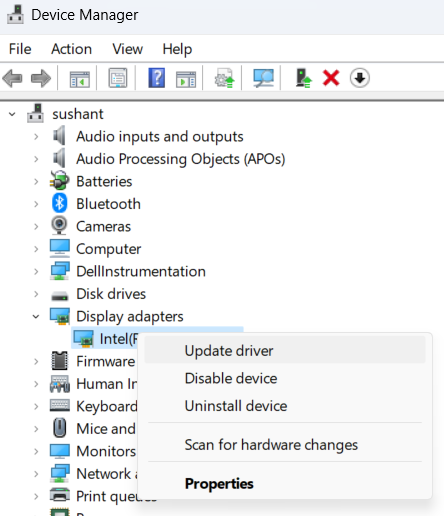
  • In the Device Manager window, expand Display adapters
  • Right-click your graphic card, and click Update Driver

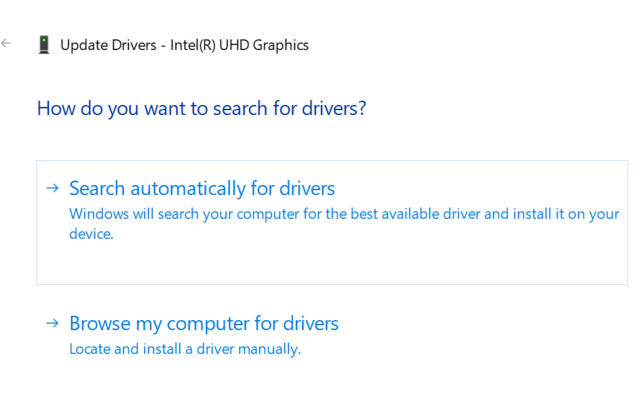
  • You’ll see two options in the next screen; Select the first option (Search automatically for drivers)

  • Windows will automagically search the computer for the latest driver and install it
  • You may have to restart Windows after the new driver is installed

In case Windows is unable to locate the latest driver, go to the graphic card manufacturer’s website and search for the latest driver for your graphic card model. Next, download the driver file and launch the installer.

Updating Graphics Card Automatically

If you don’t want to jump through hoops to get the latest graphics card driver, consider using a reliable driver update tool, like Driver Updater. It can update your graphics card driver (and other device drivers) with just a few mouse clicks.

Automatic driver update tools offer many benefits, the most important ones being:

  • You can update device drivers automatically
  • The software scans and updates all outdated or missing drivers at one go
  • The tool picks the right drivers for your device and operating system, so you won’t have to worry about installing an incorrect driver by mistake
  • Automatic driver updates are 100% safe

Driver Updater is one of the best driver update tools out there. Outbyte Driver Updater will give you access to a database of over 1 million drivers. It will regularly scan your PC, suggesting new driver versions to install. Driver Updater contains drivers for a variety of Windows devices. With just one click, you can update drivers in your system.

Step 1
Click here to Install and launch the app

Step 2
Scan all devices

Step 3
Install or update drivers automatically
 

Start Download


Filed Under: PC Fix Tips Tagged With: 3 monitors

Setting Up Your HP Printer is Easy with 123 HP

By Susan C on February 19, 2024

123.HP.com is priceless resource for all HP printer users. It offers free support for:

  • Setting up your HP printer
  • Installing your HP printer
  • Troubleshooting various printer issues and errors

And the best part? This support is completely free, easy to access, and simple to use.

In this post, we’ll discuss everything you need to know about 123.HP.com, including how you can use it to set up and install your HP printer and troubleshoot issues.

In addition, we’ll discuss why using a reliable driver update tool for keeping your printer drivers up to date is a smart decision.

How to get started with 123.HP

As said before, 123.HP is very easy to use. Here’s how you can get started:

  • Open your web browser and go to 123.hp.com
  • Next, type the name of your HP printer. For instance, if you use HP OfficeJet Pro 8025e, type this and click Next
  • Now, decide if you want to continue with computer or a mobile device. For computer, you will have to install HP Smart

123.HP offers comprehensive support for HP printers

123.HP.com provides comprehensive support for every HP printer model, including the following:

  • HP Envy Pro Series
  • HP LaserJet Series
  • HP OfficeJet Pro Series
  • HP OfficeJet Series
  • HP LaserJet Series

How to complete printer setup with 123.HP

Most HP users use 123.HP.com to complete their printer’s setup. If this is what you want to do too, complete the following steps:

  • Select “Setup” from the displayed menu
  • Enter the model number of the HP printer you are using. Not sure what model number you are using? Don’t worry, you can find this information in the printer user manual or on the printer itself
  • Now simply follow the setup process listed on the website. You’ll likely have to download the necessary drivers and software first. You’ll also be asked to connect the HP printer to your network or computer and configure its printer settings
  • Once the setup process is complete, your printer will be ready for use. In case, you are facing some problem printing documents with your HP printer, continue reading (in the next section, we have listed some basic troubleshooting steps)

123 HP Makes Troubleshooting Printer Issues Easy

Printers, like any other hardware devices, may throw up an error every now and then. Thankfully, as an HP user, in 123 HP you have a friend you can count. It can help you fix various common HP printer issues, such as:

  • Printer is not connecting with Wi-Fi: Printer not connecting to Wi-Fi is a common issue that HP printer users face. With the help of 123.HP, you can quickly resolve this issue. The resolution typically involves resetting the HP printer, installing driver and firmware updates, and checking the network settings.
  • HP printer is not printing: This can happen due to a number of reasons. 123.HP can make it easier for you to pinpoint the exact cause and then offer solutions, like clearing up the printer queue or updating the printer driver.
  • Paper jams: With the help of 123.HP, you can correctly remove jammed paper and align the paper tray to ensure this issue doesn’t resurface.

123.HP can help you download latest printer drivers

To set up your printer and keep it running, you need the latest printer drivers. You can easily download the latest driver for your HP printer from 123.HP.com.

Here’s what you need to do:

  • Now open your web browser and visit 123.hp.com/setup
  • Select the operating system you use from the list
  • Next, choose the relevant drivers for your HP printer
  • Click Download
  • Follow on-screen prompts to start the download process
  • After the download process is complete, open the download folder
  • Ensure the printer is turned on and connected to your Windows computer
  • Click the driver setup file to launch the setup
  • Click Install and follow on-screen prompts
  • Restart Windows after completing the installation, if asked

Driver Updater is Alternative to 123.HP for Updating Printer Drivers

123.HP is a useful resource for all HP users, but when it comes to updating printer drivers, an advanced driver update software like Driver Updater can be a better option. That’s because it allows you to update your HP printer driver (and all other device drivers, like graphics card driver) automatically.

Automatic driver update tools offer many benefits, the most important ones being:

  • You can update device drivers automatically
  • The software scans and updates all outdated or missing drivers at one go
  • The tool picks the right drivers for your device and operating system, so you won’t have to worry about installing an incorrect driver by mistake
  • Automatic driver updates are 100% safe

Driver Updater is one of the best driver update tools out there. Outbyte Driver Updater will give you access to a database of over 1 million drivers. It will regularly scan your PC, suggesting new driver versions to install. Driver Updater contains drivers for a variety of Windows devices. With just one click, you can update drivers in your system.

Step 1
Click here to Install and launch the app

Step 2
Scan all devices

Step 3
Install or update drivers automatically
 

Start Download


Filed Under: PC Fix Tips Tagged With: 123 HP

  • « Previous Page
  • 1
  • …
  • 44
  • 45
  • 46
  • 47
  • 48
  • …
  • 189
  • Next Page »


  • Recent Posts
  • Popular Posts
        

Read More Posts


Read More Posts

Drivers.com Sites

  • Software Drivers
  • Drivers Ed

About Us

  • Advertise
  • About Drivers
  • Drivers Support
  • Drivers.com Privacy Policy
  • Disclaimer
  • Software Drivers
  • Mac Fixes and Tips
  • PC Fix Tips
  • Security/ Backup
  • Tablets & Smartphones
  • Tech News

© Copyright 2026 PDE Publications Ltd. End User License Agreement (EULA)