Drivers.com

follow us:

facebook twitter
  • Home
  • Download Drivers
  • Drivers Help
  • PC/Mac Resources
  • Software Drivers
  • Mac Fixes and Tips
  • PC Fix Tips
  • Security/ Backup
  • Tablets & Smartphones
  • Tech News
  • Software Drivers
  • Mac Fixes and Tips
  • PC Fix Tips
  • Security/ Backup
  • Tablets & Smartphones
  • Tech News

How to connect AirPods to PC

By Susan C on April 26, 2024

Want to connect the AirPods to your PC, but not sure how to go about doing it? Don’t worry because we have got you covered.

In this post, we’ll show you how to connect your AirPods to a PC. We will also discuss how to troubleshoot issues related to outdated drivers.

So, let’s get started.

Can You Use AirPods on Your PC?

AirPods are wireless Bluetooth earbuds designed by Apple. AirPods are not only compatible with Apple products such as Mac computers but also with Windows PCs.

Here’s how you can connect the AirPods to your PC:

  • First, place your AirPod into its charging case
  • Next, open its lid
  • There’s a setup button on your AirPod’s charging case. Press it till there’s a white blinking light
  • Now follow the prompts that show up on your screen to finish pairing of the AirPods with your PC

That’s it. This is all you have to do to connect the AirPods to your PC. While this is a fairly easy process, occasionally issues may crop up that you’ll need to troubleshoot.

AirPods Microphone Isn’t Working When Paired with a Windows Computer

Sometimes, the standard Bluetooth Driver fails to work with AirPods microphone input. In order to solve this issue, consider getting a different Bluetooth driver. In case yours is a custom-built PC and you use a Bluetooth dongle, additional software may be required. A generic Bluetooth driver may not work in this situation.

DriverUpdater provides you with the latest drivers, and it will automatically deploy them immediately after you connect your AirPods.

Automatic driver update tools offer many benefits, the most important ones being:

  • You can update device drivers automatically
  • The software scans and updates all outdated or missing drivers at one go
  • The tool picks the right drivers for your device and operating system, so you won’t have to worry about installing an incorrect driver by mistake
  • Automatic driver updates are 100% safe

Driver Updater is one of the best driver update tools out there. Outbyte Driver Updater will give you access to a database of over 1 million drivers. It will regularly scan your PC, suggesting new driver versions to install. Driver Updater contains drivers for a variety of Windows devices. With just one click, you can update drivers in your system.

Step 1
Click here to Install and launch the app

Step 2
Scan all devices

Step 3
Install or update drivers automatically
 

Start Download


Filed Under: PC Fix Tips Tagged With: AirPod pairing

Comprehensive Guide to Corsair K55 Driver Updates

By Susan C on April 15, 2024

Comprehensive Guide to Corsair K55 Driver Updates

The Corsair K55 is one of the best non-mechanical RGB gaming keyboards out there. It’s reasonably priced, has no fewer than 120 keys, and lets you create macros without using a software utility. Given all this, it’s no wonder it’s a top choice for those looking for an affordably-priced RGB keyboard with a lot of inputs. But to keep your gaming keyboard functioning at its optimal level, you must check regularly for the latest driver update.

Now you might be wondering: How will I know it’s time to perform a driver update? Even though Windows comes with utility called Device Manager that allows you to manage all the hardware on your computer and update their drivers, navigating through it is hardly easy. Moreover, if you are not careful, you can easily download outdated or incorrect drivers. This will only make matters worse, instead of improving it.

In this post, we’ll dig deeper into how you can streamline the process of updating drivers and answer the most common questions users ask related to Corsair K55 driver updates. But there’s one thing that you must always keep in mind and that is the aim is to keep your Corsair keyboard in top shape. When it comes to gaming, updating drivers is essential for enhancing the digital experience.

Benefits of keeping your Corsair K55 driver up-to-date

Before we discuss how to perform Corsair K55 driver update, let’s understand why updating device drivers is important. Keeping your hardware up-to-date can enhance your typing or gaming experience, unlock new features, fix known bugs, and improve the interface between a peripheral device and your computer.

Updating the Corsair K55 drivers is like putting new life into your keyboard. Some of the benefits you’ll enjoy after completing the driver update process are:

  • Optimal Performance: Updating the keyboard drivers regularly ensures the keyboard responds accurately and quickly. This, in turn, promises great user experience, regardless of whether you use the keyboard for gaming or typing.
  • Unlocks New Features: Often driver updates come with new enhancements or features. Updating the drivers could provide you with more customization options or improved synchronization.
  • Irons out bugs: Regardless of how robust a hardware device is, issues related to the software interface can occur. Driver update can help fix these issues, so it’s important you update device drivers regularly.
  • Security strengthening: Driver updates also help patch known vulnerabilities, protecting your system from unwanted intrusions.

Checking the driver version of Corsair K55

Before performing a driver update for the Corsair K55 keyboard, you must check whether it needs an update or not.

How can you do that?

Go to the Device Manager, where you can find your keyboard’s current driver version. Here are the steps you need to perform:

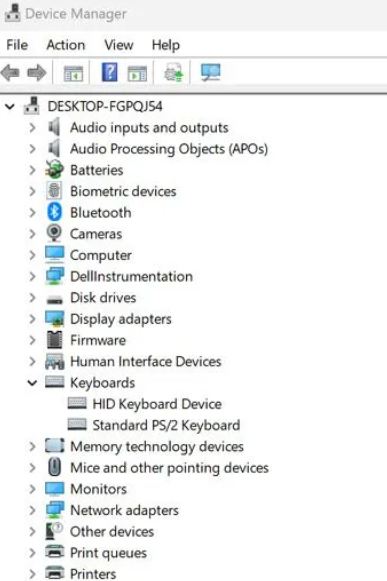
Step 1 – Open Device Manager

  • Click the Start menu
  • Type Device Manager
  • Choose Device Manager in the search results that Windows show
  • Now Device Manager window will open

Step 2 – Locate the Corsair Keyboard

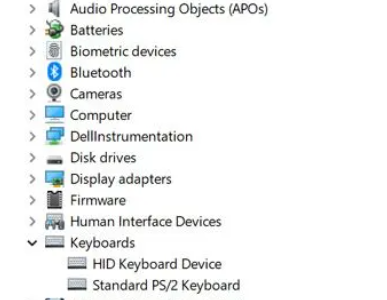
  • Browse through the list of hardware devices shown in Device Manager until you see “Keyboards”
  • Click Keyboards to see all the keyboard devices that are connected to your Windows system

Step 3 – Check the Keyboard Properties

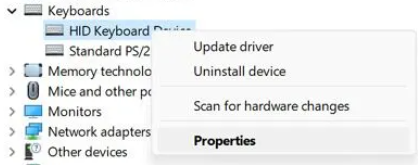
  • Right-click Corsair K55
  • Select Properties

Step 4 – Check Driver Details

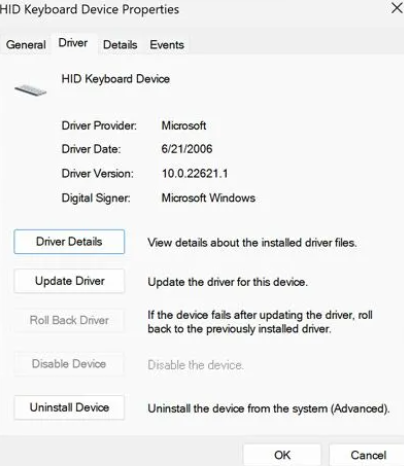
  • In the Properties window, click the Driver tab (second one from left)
  • You will see all the relevant details pertaining the driver here, including the version number of the driver

  • Write down the driver version. You will need this information to check whether your current Corsair K55 driver is the latest one or not

Do You Need to Perform a Driver Update?

To confirm whether you need to update the Corsair K55 driver, first visit the manufacturer’s website. Next, check the driver version on the website that is available for download.

Is this driver version newer than the one you have? If so, you need to update your keyboard’s driver.

Is the driver version on the manufacturer’s website older than your one? If so, you don’t need to update the driver.

If you need to update the Corsair K55 keyboard driver, keep in mind there are two ways to go about it. You can update the driver manually or automatically using a reliable driver update tool. Most people prefer the latter, since it is faster and simpler and doesn’t require any technical knowledge. However, we have discussed both the methods below (the automatic update method is discussed towards the end of the article), so you can pick the one you like the most.

How to update the Corsair K55 driver manually

Updating the Corsair K55 driver ensures the keyboard works efficiently and correctly. If you have an older driver version, a driver update is necessary. Follow the steps shown below to update the Corsair keyboard driver manually.

Pre-Update Checklist:

  • Make sure the keyboard is properly connected to your computer
  • If you have any applications running which might interfere with driver update process, close them before proceeding with the update
  • Create a system restore point, so that if you have issues with the new driver, you can restore Windows to a previous state

Performing the Manual Update

  • Go to the Corsair website
  • Navigate to its Support page by clicking the Support tab
  • Search for the latest drivers for the version of Corsair keyboard you are using (which in this case is K55 RGB)
  • Select the latest driver and download it
  • Once the download process is complete, extract this file (typically it has .zip format) to a suitable location on your PC
  • Double-click the driver setup file (one with .exe extension) to launch the installation process
  • Follow the instructions on your screen
  • Restart Windows

Troubleshooting Tips for Common Corsair K55 RGB Issues

Even though the Corsair K55 keyboard is considered one of the best in the business in its price range, like any other device, it isn’t completely immune to performance or other issues. Shared below are some of the most common problems users have reported with the K55 RGB, along with DIY troubleshooting tips for fixing them.

Unresponsive Keyboard or Keys

What you should do if some of the keys become unresponsive? Or the entire keyboard stops responding? Outdated drivers is the most common of such issues. Other common cause include hardware malfunctions and software conflicts.

  • Make sure they keyboard is properly connected to a USB port (the keyboard should be connected directly to a USB port and not through a hub)
  • Restart the PC (this can help fix temporary software conflicts or glitches)
  • In case certain keys have stopped responding, check whether there is any physical obstruction, like debris or dust
  • Update your keyboard driver or firmware

Lighting Issues

This keyboard has dynamic RGB lighting. If it is malfunctioning, try these fixes.

  • Using the Corsair Utility Engine software, reset the lighting settings of your keyboard
  • Ensure the Corsair Utility Engine software is up-to-date

Keyboard Chatter

Mechanical keyboards such as Corsair K55 occasionally have a problem that is known as “chatter”, in which one or more keys repeat keystrokes multiple times very rapidly even when pressed only once. This problem is usually due to signal interference or hardware issues.

  • Test your keyboard on another PC to check whether the problem is with the system or the keyboard
  • Thoroughly clean the affected keys, as this will remove debris which may cause keyboard chatter
  • If the issue persists, contact Corsair Support since your keyboard may require replacement or servicing

Software & Compatibility Issues

Sometimes, issue occur due to software-related problems, such as misconfiguration or incompatibility

CUE Software is Not Able to Detect Keyboard

You cannot customize the K55 experience without CUE software. However, it is possible that your computer may not recognize it. In that case, perform the following troubleshooting steps:

  • Uninstall the CUE software and download the latest version of CUE software from the Corsair website and install it
  • Check the cable and USB port for connectivity issues or signs of wear and tear

Macro Key Problems

If the macro keys are acting up, perform the following troubleshooting steps:

  • Make sure macros are properly configured within CUE software
  • Create a new profile and once again set up the macros to check if the problem persists

Driver Conflicts

You can experience different keyboard malfunctions due to driver conflicts, particularly after you install a new software or perform an OS update.

With the help of these troubleshooting tips, you can often fix issues yourself. However, if you continue to experience the problem after performing all the steps listed above, consider contacting Corsair customer support.

Updating Device Drivers Automatically

If you would rather streamline the driver update process, use a reputable and driver update software. We recommend you give DriverUpdater a try because it is super-fast, reliable, and rich in features.

Automatic driver update tools offer many benefits, the most important ones being:

  • You can update device drivers automatically
  • The software scans and updates all outdated or missing drivers at one go
  • The tool picks the right drivers for your device and operating system, so you won’t have to worry about installing an incorrect driver by mistake
  • Automatic driver updates are 100% safe

Driver Updater is one of the best driver update tools out there. Outbyte Driver Updater will give you access to a database of over 1 million drivers. It will regularly scan your PC, suggesting new driver versions to install. Driver Updater contains drivers for a variety of Windows devices. With just one click, you can update drivers in your system.

Step 1
Click here to Install and launch the app

Step 2
Scan all devices

Step 3
Install or update drivers automatically
 

Start Download


Filed Under: PC Fix Tips Tagged With: Corsair K55 drivers

Razer Basilisk V3 Pro: What You Need to Know

By Susan C on March 22, 2024

If you’re an avid gamer and are looking for an all-purpose gaming mouse that’s reliable, fast, and comfortable, the Razer Basilisk V3 Pro could be a good option. It is the wireless successor of the hugely popular Razer Basilisk V3 and offers all the features its predecessor had and some more. With an ergonomic design, 11 programmable buttons, and a dual-mode tilt wheel, the V3 Pro is perfect for both work and play.

In this post, we’ll walk you through some of the main features of the Razer Basilisk V3 Pro, answer some of the most common questions users ask with regard to this device, and explain why you must keep your mouse drivers up to date (and show you how you can do this without breaking a sweat).

Main Features

Innovative Scroll Wheel: The V3 Pro gaming mouse features an innovative scroll wheel, which offers tactile feedback. This can give you a noticeable edge in competitive gaming environments. In addition, the scroll wheel gives you a choice of two settings: “smart-reel” and “scroll acceleration.” The latter lets you scroll faster, while the former enables free-spin scrolling if you flick the scroll wheel quickly.

11 Programmable Buttons: This gaming mouse features 11 programmable buttons with a range of inputs, such as keyboard functions, mouse functions, macros, and Windows shortcuts.

Multiple Connectivity Options: With the V3 Pro, you get 3 connectivity options: 2.4GHz wireless (low-latency), wired (USB-C), and Bluetooth.

Impressive Aesthetics: When it comes to looking good, the V3 Pro is second to none. Thirteen customizable lighting zones (11 underglow zones, one in the logo on the palm rest, and one in its scroll wheel), sharp lines, and ergonomic design means this is one gaming mice that looks just as good as it performs.

Great Control Features: The V3 Pro offers endless customization options, from cool lighting patterns to macro programming.

Great Compatibility. Thanks to native software integrations, the V3 Pro works seamlessly well on Windows. That said, Mac users can also use it, though they may not be able to enjoy some advanced customization features.

Frequently Asked Questions (FAQs)

Is the Razer Basilisk V3 Pro worth the cost?

The Basilisk V3 Pro is a great gaming mouse, but like all good things in life, it doesn’t come cheap. If you want a wireless gaming mouse that is customizable, comfortable, and packed with bright, eye-catching RGB lighting, it is definitely worth the cost.

Is the Razer Basilisk V3 Pro an all-purpose gaming mouse?

Yes, it is one of the best all-purpose gaming mouse in its price range. However, just because it is a gaming mouse doesn’t mean you can’t use it for office or school work.

Is the V3 Pro better than Basilisk Ultimate?

As far as the layout and design are concerned, there’s not much to choose between the two. But the V3 boasts an upgraded sensor, so you can say it has a little edge over the Basilisk Ultimate.

Comparative Reviews

Rtings.com Perspective: Considered as one of the leading review websites, Rtings.com has given an impressive rating (8.5/10) to Basilisk V3 Pro. According to them, this mouse is a top-of-the-line option for gamers looking for an all-purpose gaming mouse. They were impressed by its build quality, RGB lighting, build-in rubberized side grips, and a tactile/free-spin tilt wheel.

Tom’s Hardware Analysis: Known for their unbiased, detailed reviews, Tom’s Hardware is just as impressed with the V3 Pro as Rtings.com. They have given it 4 out of 5 stars and praised its connectivity, DPI optical sensor, responsiveness and precision. In their review, they touched upon Basilisk V3 Pro’s customizability features and ergonomic design.

Keeping Drivers Up to date

Whether you use the Basilisk V3 Pro for gaming or everyday use, it’s important to ensure its drivers are up to date. Outdated drivers can cause performance-related issues, besides other problems. The fastest and simplest way to update your mouse drivers (and other device drivers, for that matter) is to use an advanced and reliable driver update tool. We recommend DriverUpdater because it is the best driver update tool out there.

Automatic driver update tools offer many benefits, the most important ones being:

  • You can update device drivers automatically
  • The software scans and updates all outdated or missing drivers at one go
  • The tool picks the right drivers for your device and operating system, so you won’t have to worry about installing an incorrect driver by mistake
  • Automatic driver updates are 100% safe

Driver Updater is one of the best driver update tools out there. Outbyte Driver Updater will give you access to a database of over 1 million drivers. It will regularly scan your PC, suggesting new driver versions to install. Driver Updater contains drivers for a variety of Windows devices. With just one click, you can update drivers in your system.

Step 1
Click here to Install and launch the app

Step 2
Scan all devices

Step 3
Install or update drivers automatically
 

Start Download


Filed Under: PC Fix Tips Tagged With: Razer Basilisk V3 Pro

  • « Previous Page
  • 1
  • …
  • 42
  • 43
  • 44
  • 45
  • 46
  • …
  • 189
  • Next Page »


  • Recent Posts
  • Popular Posts
        

Read More Posts


Read More Posts

Drivers.com Sites

  • Software Drivers
  • Drivers Ed

About Us

  • Advertise
  • About Drivers
  • Drivers Support
  • Drivers.com Privacy Policy
  • Disclaimer
  • Software Drivers
  • Mac Fixes and Tips
  • PC Fix Tips
  • Security/ Backup
  • Tablets & Smartphones
  • Tech News

© Copyright 2026 PDE Publications Ltd. End User License Agreement (EULA)