Drivers.com

follow us:

facebook twitter
  • Home
  • Download Drivers
  • Drivers Help
  • PC/Mac Resources
  • Software Drivers
  • Mac Fixes and Tips
  • PC Fix Tips
  • Security/ Backup
  • Tablets & Smartphones
  • Tech News
  • Software Drivers
  • Mac Fixes and Tips
  • PC Fix Tips
  • Security/ Backup
  • Tablets & Smartphones
  • Tech News

HP OfficeJet Pro 9025e Printer: Features and Ratings

By Susan C on February 19, 2024

Looking to buy a new printer but not sure which one to pick?

HP OfficeJet Pro 9025e could be an option. HP is a brand that needs no introduction and its OfficeJet series has models that are ideal for someone who needs wireless and automatic two-sided printing. Within its OfficeJet series the Pro 9025e printer is perhaps the most advanced, but is it right for you? By the time you finish reading this article, we promise you’ll know the answer for sure.

In this post, we’ll discuss the main features of this printer. We’ll also walk you through its online ratings on various review websites. Lastly, we’ll share a pro tip to help you get the best out of your HP printer.

So, let’s dive right in.

HP OfficeJet Pro 9025e Printer: Key Features

Pro 9025e is an outstanding printer, thanks to features such as:

  • Wireless printing: Printing documents have never been easier! With Pro 9025e, you can print them from anywhere in the room using either a tablet or smartphone.
  • Large touchscreen display: The printer not only boasts an intuitive interface but it also has a large touchscreen display. Thanks to the latter, you can easily and quickly navigate through various settings.
  • Automatic two-sided printing: This printer can automatically print on both sides of the paper, saving you not only time but also paper.

Apart from these, the HP Pro 9025e printer comes packed with useful features such as:

  • Compatibility with different operating systems
  • Fast print speed
  • High paper capacity

All in all, the Pro 9025e printer includes many advanced features, making it a perfect choice for home-offices and small businesses.

How Users and Experts Have Rated HP Pro 9025e Printer?

By and large, HP Pro 9025e online ratings are positive. Most users and experts are happy with its performance.

  • PCMag: It gives 4 out of 5 stars to HP Pro 9025e, claiming it prints good-looking photos and text and a low cost per page. Small offices with moderate copy and print needs should find it to their liking.
  • TechRadar: It also gives 4 out of 5 stars, declaring it an excellent all-rounder printer with a wide array of attractive features, like fast printing speeds, a big ADF tray, and large paper handling capacity.

Now, that you know the key features of HP Pro 9025e and its online ratings, you should be able to objectively decide if it’s a right fit for you. Keep in mind that regardless of which printer you buy, it is important you keep the printer driver updated.

Why it is Necessary to Update the Printer Driver?

Updating the printer driver, helps fix bugs and issues, improves performance, and ensures compatibility. Long story short, if you want your HP printer to work smoothly, always use the latest printer driver.

At this point, you might be wondering: How can I update my printer driver?

Well, don’t sweat because an advanced driver update tool can take care of that. We recommend you give Driver Updater a try. It will update your printer (and other) drivers automatically in less than a few minutes.

Automatic driver update tools offer many benefits, the most important ones being:

  • You can update device drivers automatically
  • The software scans and updates all outdated or missing drivers at one go
  • The tool picks the right drivers for your device and operating system, so you won’t have to worry about installing an incorrect driver by mistake
  • Automatic driver updates are 100% safe

Driver Updater is one of the best driver update tools out there. Outbyte Driver Updater will give you access to a database of over 1 million drivers. It will regularly scan your PC, suggesting new driver versions to install. Driver Updater contains drivers for a variety of Windows devices. With just one click, you can update drivers in your system.

Step 1
Click here to Install and launch the app

Step 2
Scan all devices

Step 3
Install or update drivers automatically
 

Start Download


Filed Under: Tech News Tagged With: HP OfficeJet Pro 9025e printer

HP Printer Won’t Print (Solved)

By Susan C on February 19, 2024

HP Printer Won’t Print (Solved)

One of the most common issues HP printer users report is the “HP printer won’t print” issue. In this post, we’ll discuss why this error occurs and more importantly how you can resolve it on your own.

So, let’s get started.

Why Does the HP Printer Won’t Print Issue Occur?

This issue can occur due to many reasons, ranging from faulty connections, outdated or missing drivers to incorrect Windows configurations and more.

How to Resolve the HP Printer Won’t Print Issue?

Shared below are 5 solutions to this issue. We recommend you try them in the order they are listed.

Solution One: Check the Status of Your HP Printer

Here’s what you need to do:

  • First, check whether the HP printer has paper in the tray. If there’s enough paper, then the next step is to make sure it is not jammed or stuck. In case one or more paper sheets are jammed or stuck in the printer’s paper feed, visit the HP website or speak to an HP representative to find out the most efficient way to remove them. This is important because the last thing you would want is to ruin the printer’s paper feeder or internal motor while removing stuck or jammed paper sheets.
  • If there’s no issue with the paper sheets in the paper tray, check whether there’s enough ink.

In case you find that the HP printer needs servicing, we recommend contacting HP customer support.

Solution Two: Cancel All Pending Printer Jobs

Sometimes, a print request doesn’t go through because other print jobs are stuck in the print queue. The solution is to clear the print queue, so that newer jobs can be completed.

Here’s what you must do:

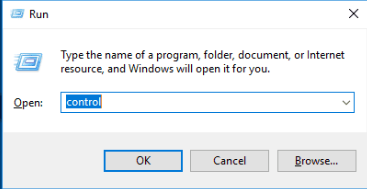
  • Press Windows + R keys simultaneously
  • In the Run dialogue box, type control panel and press the OK button

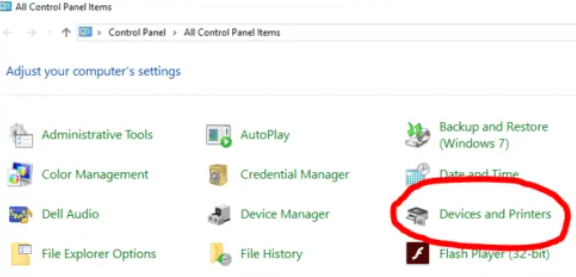
  • Locate and click “Devices and Printers” in the control panel window

click devices and printers

  • All the printing devices installed on your computer will appear. Find the HP printer with which you are facing a problem
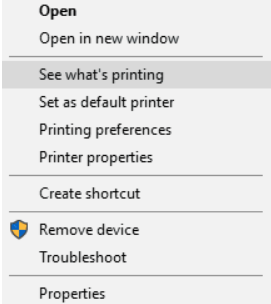
  • Right-click the problematic printer and choose “See what’s printing”

  • Click the “Printer” menu and then choose “Open as Administrator”
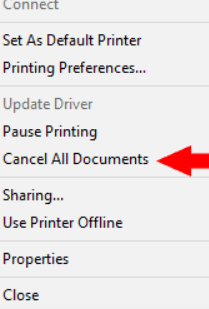
  • Again, click the “Printer” menu and this time choose “Cancel All Documents”

  • Click the Yes button in the confirmation dialogue box that appears on your screen
  • Now, try to print a job again and check if there’s an issue. If there is, try the solutions listed below

Solution Three: Set the HP Printer as Your Default Printer

It is possible that your HP printer is not printing simply because it is not receiving a print request. This can happen when the printer in question is not set as the default printer.

Here’s how you can check whether the HP printer is set as the default printer, and if it is not, how you can make it the default printer.

  • Press Windows + R keys simultaneously
  • In the Run dialogue box, type control panel and press the OK button
  • Locate and click “Devices and Printers” in the control panel window
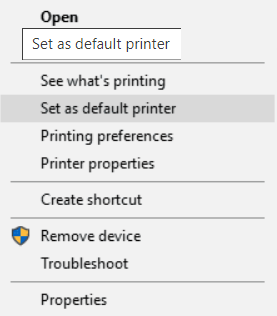
  • Locate your HP printer, right-click it, and choose “Set as default printer”

  • Click Yes if you see a pop-up window asking you to confirm your decision
  • Now you will be able to see a green tick mark next to your HP printer, which confirms that it is now your default printer
  • Try printing a page now, and if the problem persists, move on to the next solution

Solution Four: Basic Printer Troubleshooting

Make sure your printer is powered on and connected to your Windows PC or laptop. If the lights at the front of the HP printer are not on, this means your printer is not powered on. In that case, unplug the printer and plug it back again. Next, press your printer’s power button to turn it on.

If the printer is powered on but still not printing, ensure it is connected to Windows. If you are using a wired printer, make sure there’s no issue with the printer cable.

Solution Five: Update the Printer Driver

If none of the above methods work, there’s a good chance there’s some problem with the printer driver. Either your printer driver is outdated, missing, or faulty. In all of these cases, installing the latest printer driver will do the trick.

So, the big question is: How can you get the latest HP printer driver?

You can update the HP printer in two ways: manually and automatically. We recommend the latter because not only it is simple and quick, but it also doesn’t require any technical knowledge. Simply use a reliable driver update tool, such as Driver Updater. It will automatically install the latest HP printer driver. All you have to do is click the mouse a few times. Sounds cool, eh?

Automatic driver update tools offer many benefits, the most important ones being:

  • You can update device drivers automatically
  • The software scans and updates all outdated or missing drivers at one go
  • The tool picks the right drivers for your device and operating system, so you won’t have to worry about installing an incorrect driver by mistake
  • Automatic driver updates are 100% safe

Driver Updater is one of the best driver update tools out there. Outbyte Driver Updater will give you access to a database of over 1 million drivers. It will regularly scan your PC, suggesting new driver versions to install. Driver Updater contains drivers for a variety of Windows devices. With just one click, you can update drivers in your system.

Step 1
Click here to Install and launch the app

Step 2
Scan all devices

Step 3
Install or update drivers automatically
 

Start Download


Filed Under: PC Fix Tips Tagged With: HP won't print

Common Problems with HP OfficeJet Pro 9025e Printer and Their Fixes

By Susan C on February 12, 2024

In the list of most reliable and versatile printers, the HP OfficeJet Pro 9025e printer reigns supreme. It is easy to set up and use and comes with many advanced features, so it’s no surprise that users have awarded it positive ratings on many review websites. That said, the Pro 9025e, just like any hardware device, is not completely immune to issues. Thankfully, most of these issues can be easily fixed, and in this post we’ll show how to fix its 5 most common problems. In addition, we’ll share a pro tip to ensure your printer performs at its optimal level.

So, let’s dive right in.

Issue #1: Pro 9025e doesn’t connect to Wi-Fi

This is one issue that many users have complained of at least once. If your Pro 9025e Printer is not connecting to Wi-Fi, more often than not, the issue is due the following three reasons:

  • Faulty network settings
  • Weak signal of your Wi-Fi
  • Outdated or corrupt printer drivers

The first thing you should do if you are facing this issue is check the Wi-Fi signal. If you don’t see any problem with that, try moving the printer nearer to where Wi-Fi router is installed.

Is the problem persisting? Then verify your printer’s network settings and make sure they matches the settings of your Wi-Fi.

In case neither of these two solutions work, you can safely assume the problem is due to an outdated or faulty driver. The easiest way to fix the issue is to use a reliable driver update tool to automatically update the printer driver. We recommend Driver Updater since it is super-fast and can update outdated drivers with just a few mouse clicks. Check the last section of this post to find out the other benefits of this amazing tool and how you can download it.

Issue #2 – The Pro 9025e is printing slowly or not printing at all

This is another common issue and usually occurs when the ink levels are low or the printhead is clogged. Sometimes, outdated drivers could also cause this error.

Now, let’s look at the solutions:

  • Check the level of ink and replace the cartridge if required
  • If this doesn’t work, clean your printer’s printhead
  • If you are still getting the problem, update the printer driver using Driver Updater

Issue #3 – Paper Jams

Paper jams can occur when you use a wrong type of or dirty paper, the paper feed roller is damaged, or the paper tray is misaligned.

You can fix this problem by following these steps:

  • Turn the printer off
  • Then unplug it from its power source
  • Remove jammed paper carefully
  • Using a clean, soft cloth clean the printer’s paper feed roller
  • Lastly ensure the paper tray is not overloaded or misaligned

Issue #4 – Poor print quality

You can encounter this issue if the levels of ink are low, the printer head is clogged, or the printer settings are incorrect.

You can promptly fix the issue by:

  • Replacing the ink cartridges if there’s insufficient ink
  • Cleaning the printer head to dust off debris or remove clogging
  • Ensuring the printer settings match the document settings

Issue #5 – The computer is not recognizing your HP printer

Faulty printer settings and corrupt or outdated printer drivers are the two most common reasons why this particular problem occurs.

To fix it, follow these steps in the order they are listed.

  • Make sure your HP printer is properly connected to your Windows computer via a USB cable
  • Open the printer settings and make sure they are correct
  • If the problem still persists, update your printer driver

Pro Tip: Use Driver Updater to keep your HP Printer in top shape

As you can see, most of these issues have a common reason: outdated or faulty driver. For this reason, keeping your printer driver up to date is crucial for a smooth performance. While you can update the printer driver manually by downloading the latest driver from the manufacturer’s website or using the Device Manager utility, the manual method is time-consuming and requires some level of technical knowledge. A much simpler way is to use an advanced driver update tool, such as Driver Updater.

Automatic driver update tools offer many benefits, the most important ones being:

  • You can update device drivers automatically
  • The software scans and updates all outdated or missing drivers at one go
  • The tool picks the right drivers for your device and operating system, so you won’t have to worry about installing an incorrect driver by mistake
  • Automatic driver updates are 100% safe

Driver Updater is one of the best driver update tools out there. Outbyte Driver Updater will give you access to a database of over 1 million drivers. It will regularly scan your PC, suggesting new driver versions to install. Driver Updater contains drivers for a variety of Windows devices. With just one click, you can update drivers in your system.

Step 1
Click here to Install and launch the app

Step 2
Scan all devices

Step 3
Install or update drivers automatically
 

Start Download


Filed Under: PC Fix Tips Tagged With: HP OfficeJet Pro 9025e printer

  • « Previous Page
  • 1
  • …
  • 45
  • 46
  • 47
  • 48
  • 49
  • …
  • 189
  • Next Page »


  • Recent Posts
  • Popular Posts
        

Read More Posts


Read More Posts

Drivers.com Sites

  • Software Drivers
  • Drivers Ed

About Us

  • Advertise
  • About Drivers
  • Drivers Support
  • Drivers.com Privacy Policy
  • Disclaimer
  • Software Drivers
  • Mac Fixes and Tips
  • PC Fix Tips
  • Security/ Backup
  • Tablets & Smartphones
  • Tech News

© Copyright 2026 PDE Publications Ltd. End User License Agreement (EULA)