Drivers.com

follow us:

facebook twitter
  • Home
  • Download Drivers
  • Drivers Help
  • PC/Mac Resources
  • Software Drivers
  • Mac Fixes and Tips
  • PC Fix Tips
  • Security/ Backup
  • Tablets & Smartphones
  • Tech News
  • Software Drivers
  • Mac Fixes and Tips
  • PC Fix Tips
  • Security/ Backup
  • Tablets & Smartphones
  • Tech News

How to roll back NVIDIA drivers in Windows 10

By Susan C on January 12, 2024

How to roll back NVIDIA drivers in Windows 10

More often than not, new graphics driver means improved stability and better performance. However, sometimes issues may occur after a recent update, in which case rolling back your NVIDIA drivers could be a smart move. This simple solution could restore your PC to its working condition.  

So, when does it makes sense to roll back your NVIDIA drivers? More importantly, how to roll back the drivers?  

Following a recent update if you are facings issues with the GPU, such as intermittent failures when you try to run certain games, Blue Screens when you launch games, or much slower Frames Rate per Second, then it is generally a good idea to roll back the drivers. Doing so will restore your PC to its earlier working condition.  

As to how to roll back the NVIDIA drivers, here’s everything you need to know: 

Using Windows Device Manager to Roll Back NVIDIA Driver 

An extension of the Microsoft Management Console, the Windows Device Manager allows users to view and control all the hardware devices attached to their computer. If you manage the drivers with the help of NVIDIA’s GeForce Experience, you will likely have better results when you roll the drivers back via Device Manager.  

Here are the steps you need to perform: 

  • In the Search bar located in the taskbar, type Device Manager 
  • Among the results appearing on your screen, choose the top result 
  • Once the Device Manager window opens, scroll down until you see the Display Adapters entry. Click the arrow beside it to expand the entry 
  • All the currently installed GPUs will be listed. Highlight your NVIDIA device, and right-click it 
  • Click Properties  
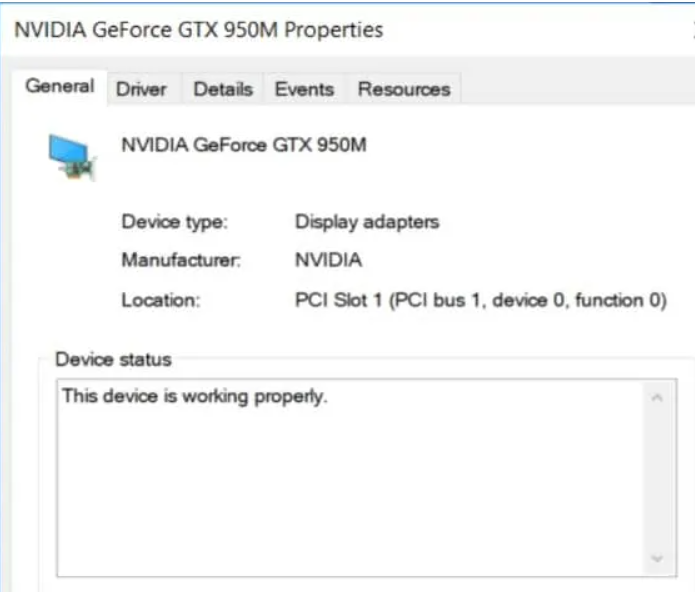
  • Under the General tab of the Device Properties window, you can find information such as the Device Status, driver details, and additional information about its settings 
  • Click the Drivers tab to roll back the driver 
  • Click the Drivers tab will give you access to various options, including Roll Back Driver. Clicking it allows you to revert to the previously installed driver 
  • Click the Roll Back Driver Button 
  • In the next window, you’ll be asked why you are rolling back. Your answer could help ensure better service to other users in the future. From the list that appears on your screen, select the most relevant option 
  • Click the Yes button to roll back the NVIDIA driver 
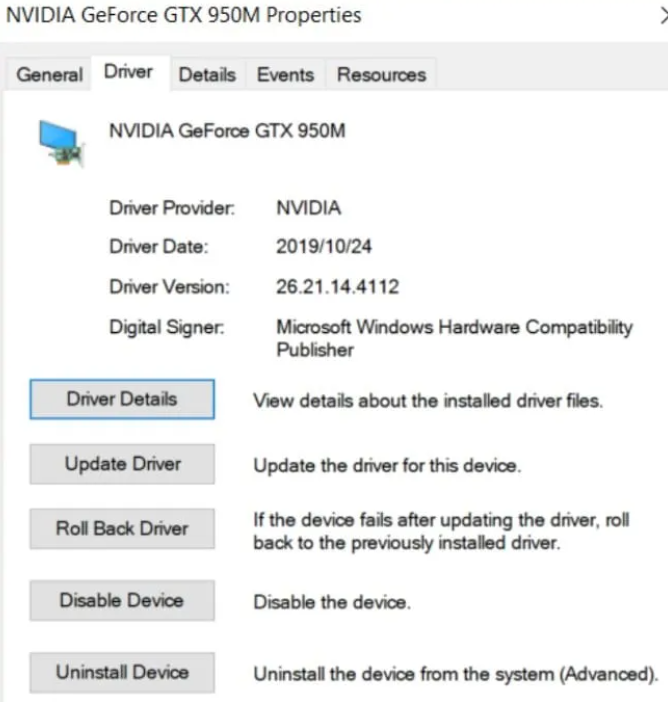
  • Now Windows is going to remove the present driver and install the previous one. While this process is running, your access to Driver Properties window will be restricted. Once Windows has completed the roll-back process, you will see the previous version of the driver will be displayed in the Driver tab

Important: The option to roll back will no longer be available once you have restored the previous version.  

 What to do if there’s no option to roll back? 

If there’s no roll back option, you probably performed a clean install of the latest drivers. In this case, you will have to uninstall the new version and download the older version manually from NVIDIA website.  

To uninstall the existing NVIDIA driver, perform the following steps: 

  • In the Taskbar Search box, type Control Panel 
  • Next click Programs and Features 
  • Select NVIDIA Graphics Driver and click Uninstall 
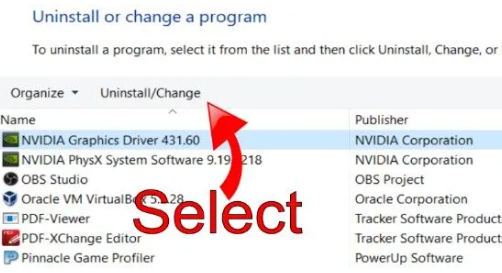
  • This will launch NVIDIA Uninstaller from where you can uninstall the driver 
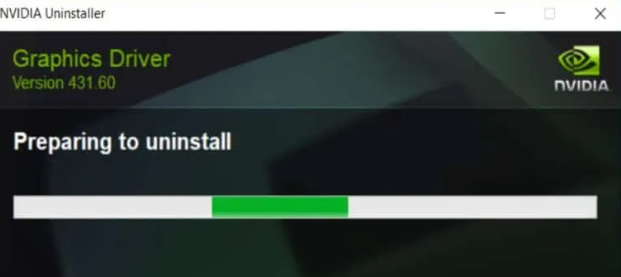
  • The program will ask you to confirm that you wish to uninstall the NVIDIA driver. Click Uninstall 
  • Wait until the uninstallation process is complete 
  • Restart Windows once it is complete 
  • Now open your web browser and go to NVIDIA’s website 
  • Locate older drivers for your NVIDIA device model 
  • Select the appropriate driver and download it 
  • Once the download is complete, double-click the file to install the driver 
  • This will open the NVIDIA installer. Select NVIDIA Graphics Driver option and click the Agree and Continue button 
  • Wait until the installation process is complete. Then click the Close button 

 Manage Your NVIDIA Drivers (And Other Drivers) With a Driver Update Tool

Automatic driver update tools offer many benefits, the most important ones being:

  • You can update device drivers automatically
  • The software scans and updates all outdated or missing drivers at one go
  • The tool picks the right drivers for your device and operating system, so you won’t have to worry about installing an incorrect driver by mistake
  • Automatic driver updates are 100% safe

Driver Updater is one of the best driver update tools out there. Outbyte Driver Updater will give you access to a database of over 1 million drivers. It will regularly scan your PC, suggesting new driver versions to install. Driver Updater contains drivers for a variety of Windows devices. With just one click, you can update drivers in your system.

Step 1
Click here to Install and launch the app

Step 2
Scan all devices

Step 3
Install or update drivers automatically


Start Download


Filed Under: PC Fix Tips Tagged With: Rollback Nvidia driver

Tips For Connecting a PS4 Controller

By Susan C on January 8, 2024

With a PS4 controller, you can enjoy all your favorite games. But for that, there’s one small thing that needs to be done: connecting the controller to the console. Need help with it? This post is all you need.

In this post, we’ll discuss the steps for connecting a PS4 controller to a console. Additionally, we’ll also discuss the steps one need needs to perform to sync the controller without a USB cable. Sounds good? Let’s get started then.

Connecting a controller using a USB

You need a USB 2.0 Micro-B cable for connecting a PS4 controller to your console.

Here are the steps you need to perform:

  • Press the console’s power button to turn it on
  • Now plug the small end of your USB cable into the port located at the top of your controller. The other end goes into one of the ports located at the front
  • Press the PlayStation button and hold it for 2-3 seconds

That’s it. Your controller by now should be connected to the console.

Connecting PS4 Controller Wirelessly

After you have synced one wired controller with your PC, you can add more controllers wirelessly. To connect a PS4 controller wirelessly, follow these steps:

  • Go to the PS4 menu and select Settings (an icon which pretty much looks like a small briefcase)
  • On the Settings page, select Devices
  • Next, choose Bluetooth Devices
  • Simultaneously press the PS and SHARE buttons on the PS4 controller that you want to pair. Hold these buttons down for roughly 4-5 seconds
  • You’ll now be able to see the new controller as one of the names in the list. Select it to connect to your console

Connecting a DualShock PS4 controller to your PC

Although these controllers are designed specifically for PlayStation, it is possible to use them with computer games. As a matter of fact, with a little bit of tweaking, it is possible to use any controller with a PC.

Coming back to using a DualShock controller with your PC, the first thing you must do is to ensure that it is able to seamlessly communicate with your system. The simplest way to do this is by installing DS4Window—an open-source gamepad input mapper that allows you to connect a DualShock 3 or 4 and DualSense 5 controller to a Windows PC.

Here are the steps you need to perform:

  • Go to DS4Windows website and download the software
  • Right-click the zip file and extract the files
  • Click DS4Windows.exe to launch the setup
  • The first time the program is launched, it will ask you to specify exactly where you want the profile and settings to be saved. Choose AppData
  • Next, you’ll be asked to install DS4 Driver. Click Install
  • Those with Windows 8 or above can start connecting the controller to their PC. But if you are using Win 7 or an older version, you will likely need to first install a 360 Driver

Next, connect your controller to the PC. You can do this in two ways: using a USB or wirelessly (via Bluetooth)

Using a USB

Plug in the small end of your USB cable into the port located at the top of your controller. The other end goes into one of the ports located at the front.

Bluetooth

Turn off the PS4 controller and then simultaneously press the PS and Share buttons and hold them down till the light bar double flashes.

Now, access your PC’s Bluetooth Menu.

  • Select Add Bluetooth or other devices
  • Choose Bluetooth
  • Choose DualShock4 controller
  • You will now be able to connect the controller to your PC

Always keep your Drivers up to date

Automatic driver update tools offer many benefits, the most important ones being:

  • You can update device drivers automatically
  • The software scans and updates all outdated or missing drivers at one go
  • The tool picks the right drivers for your device and operating system, so you won’t have to worry about installing an incorrect driver by mistake
  • Automatic driver updates are 100% safe

Driver Updater is one of the best driver update tools out there. Outbyte Driver Updater will give you access to a database of over 1 million drivers. It will regularly scan your PC, suggesting new driver versions to install. Driver Updater contains drivers for a variety of Windows devices. With just one click, you can update drivers in your system.

Step 1
Click here to Install and launch the app

Step 2
Scan all devices

Step 3
Install or update drivers automatically


Start Download


Filed Under: PC Fix Tips Tagged With: PS4 Controller

Connecting PS4 Controller to PC Made Easy

By Susan C on December 30, 2023

It’s possible to play some computer games using a keyboard and mouse. However, once you have given a PlayStation controller a shot, it is highly unlikely that you would want to revert to the old ways. That is because a PlayStation controller is so much more fun!

In case you have not frequently used PlayStation before, you might be wondering: “Can you connect its controller to your PC rather than to a PS console?

Of course, you can do that. However, when connecting a PS controller to a PC, it’s important to keep in mind several steps. You will need to perform that before you can enjoy your favorite games.

In this how-to guide, we provide you with all the information you need to connect a PS4 controller to your PC.

Connecting PS4 controller to a PC made easy

There is not one but as many as four ways of connecting a PS4 controller to a computer. They are: 

  • Connecting via a USB
  • Connecting via Bluetooth
  • Playing on Stream
  • Using a DualShock 4 wireless controller

Method 1 – Connecting via a USB

There is no simpler way of connecting a PS4 controller to a PC than using a USB cable. All you need is a USB cable that has a USB-C or USB-A on one end and a micro plug on the other end. This method typically works seamlessly with Windows 10 and newer versions. Your PC will likely recognize the device automatically once you plug the USB cord in.

Method 2 – Connecting via Bluetooth

Want to connect a PS4 controller wirelessly? If so, there are two ways to do this. Both are discussed below.

Since PS controllers are Bluetooth-enabled, you should have no difficulty connecting it to your PC. 

Step 1: Go to Settings, click Bluetooth & Devices, select Turn on your PC’s Bluetooth, and click Add Bluetooth/Add device.

Step 2: First gently press and then hold the PS and Share buttons. Wait until your computer detects the controller. Next, choose the device and pair it.

Method 3 – Using a Wireless Adapter

If there’s no built-in Bluetooth in your PC, a wireless adapter could be an option. First, install the adapter on your computer. This is an easy process, requiring no more than plugging the wireless adapter into a USB 2.0 port. Once you have installed the adapter, simply follow the Step 1 and 2 shared above to detect the PS4 controller and pair it.

Method 4 – Play on Steam 

Do you have a Steam account? In that case, you can play Steam games using a PS controller rather than using a mouse and keyboard.

Step 1: Go to Steam app and open it. Next, turn Big Picture Mode on. Now click Settings | Controller | Controller Settings | Check the PS Configuration Support box.

Step 2: Using USB cord, plug the controller into a PC. Next, wait until Steam detects the controller. Finally, choose the device to pair it.

Method 5 – Using DualShock 4 Controller

After setting up a PlayStation on a TV, it can be quite a hassle to unplug it and follow one of the methods listed above whenever you want to play games. Using a DualShock 4 controller can help you avoid all of that. 

Don’t forget to update device drivers

Now that you know how to connect PS4 controller to your PC, you can enjoy awesome gaming experience. But there’ an additional thing you need to keep in mind. You must keep your PS4 drivers up to date. That’s because outdated controller drivers can not only impact your gaming experience but also pose a serious security risk.

How can I update controller drivers?

Updating Drivers Automatically

Automatic driver update tools offer many benefits, the most important ones being:

  • You can update device drivers automatically
  • The software scans and updates all outdated or missing drivers at one go
  • The tool picks the right drivers for your device and operating system, so you won’t have to worry about installing an incorrect driver by mistake
  • Automatic driver updates are 100% safe

Driver Updater is one of the best driver update tools out there. Outbyte Driver Updater will give you access to a database of over 1 million drivers. It will regularly scan your PC, suggesting new driver versions to install. Driver Updater contains drivers for a variety of Windows devices. With just one click, you can update drivers in your system.

Step 1
Click here to Install and launch the app

Step 2
Scan all devices

Step 3
Install or update drivers automatically


Start Download


Filed Under: PC Fix Tips Tagged With: connect ps4 controller

  • « Previous Page
  • 1
  • …
  • 47
  • 48
  • 49
  • 50
  • 51
  • …
  • 189
  • Next Page »


  • Recent Posts
  • Popular Posts
        

Read More Posts


Read More Posts

Drivers.com Sites

  • Software Drivers
  • Drivers Ed

About Us

  • Advertise
  • About Drivers
  • Drivers Support
  • Drivers.com Privacy Policy
  • Disclaimer
  • Software Drivers
  • Mac Fixes and Tips
  • PC Fix Tips
  • Security/ Backup
  • Tablets & Smartphones
  • Tech News

© Copyright 2026 PDE Publications Ltd. End User License Agreement (EULA)