Drivers.com

follow us:

facebook twitter
  • Home
  • Download Drivers
  • Drivers Help
  • PC/Mac Resources
  • Software Drivers
  • Mac Fixes and Tips
  • PC Fix Tips
  • Security/ Backup
  • Tablets & Smartphones
  • Tech News
  • Software Drivers
  • Mac Fixes and Tips
  • PC Fix Tips
  • Security/ Backup
  • Tablets & Smartphones
  • Tech News

How to Spot a Phishing Email

By Susan C on November 13, 2023

As a computer user you are very likely to come across, or be the subject of, a phishing attack.

What is Phishing?

Every year numerous people lose money or give away valuable information as a result of phishing attacks. These attacks are largely carried out via email. Cyber criminals don’t discriminate when it comes to targeting people with phishing attacks. If you are not careful, then you could well become fall victim to one of these attacks.

Despite advances in technology (and because of these advances), phishing attacks are more widespread than ever before. Some sobering facts about phishing attacks:

  • On an average, a computer user gets as many as 16 malicious emails every month
  • Phishing is a billion dollar industry
  • More than three out of four companies have experienced a phishing attack
  • 97% of computer users don’t know how to identify a phishing email
  • Phishing is as serious a threat to individuals as it is to businesses

As with many things in life, when it comes to phishing attacks, prevention is better than cure. Understanding how this type of cyber scam works and knowing its warning signs can help you identify a phishing email.

In this post, we will discuss everything you need to know about phishing, so that you will be able to spot a phishing email from a mile off if and when it lands in your inbox.

How to recognise a Phishing email?

Phishing gets its name from fishing, because just like a fishing enthusiast uses a hook to catch a fish, a phisher uses email to steal your personal information.

This is how a phishing attack works:

The phisher masquerades as a trusted source which helps convince a user to open an email, click the embedded link to a phishing website, and enter their personal information (like credit card details). Once an unsuspecting user shares their financial information, the phisher steals it.

Another way phishing attacks work is that hackers trick computer users into downloading seemingly innocuous files, which are actually ransomware or malware.

Ransomware is a malicious piece of software that encrypts all files on a system. Once this is done, the user cannot access these files and the hacker then demands a payment for decrypting the files. Malware can also potentially steal sensitive data stored on infected computers.

Not all phishing attacks are the same; some are more sophisticated than others.

Here are the 4 most common phishing attacks.

Deceptive Phishing

Deceptive phishing is the most common and the least sophisticated of all email phishing scams. Employing a “spray and pray” approach, they involve sending mass emails to millions of computer users.

Such emails frequently have messages along the lines of “You’ve won a lottery,” “You’ve inherited millions of dollars from so-and-so person”, “Urgent message from your bank.” The subject matter of these emails varies, but their goal is the same: to trick users into clicking on the embedded link and subsequently sharing their financial information.

Generally, these emails involve a fake webpage, which looks very similar to the website of the company or organisation they are purporting to be.

For example, scammers may send a mass email telling users that there is some problem with their PayPal account, and to fix it, they must click the link below. The link takes them to a fake PayPal webpage, where they are asked to login. However, once the user logs in, their data is stolen.

At times, hackers send blank emails containing a malicious attachment. These emails have a subject line which says something like “download”, “print”, or “scan”. Once a user downloads the malicious attachment, all their files are encrypted and then must pay a ransom to get the files decrypted.

Spear Phishing

Spear phishing is different from deceptive phishing in the sense that it involves a greater level of personalization. Hackers customize malicious emails with names and other details to convince the recipient that the email is authentic. Despite the difference, the goal of spear phishing is the same as of deceptive phishing: to coax unsuspecting users into sharing their personal information or downloading a dangerous file.

For example, hackers might masquerade as your bank or any other business you are likely to trust, and ask you to click the embedded link to fix a problem. Once you click the link, you will be asked to log in into your bank account or share your personal information. These emails usually target businesses but they can also target individuals.

Dropbox Phishing

At times, hackers target people who use a specific service or a company. For instance phishers frequently target Dropbox users, given Dropbox’s huge popularity.

For instance, in one such Dropbox phishing attack, users were sent an email stating that they have received a file but it is too big to be delivered as an email attachment. To get that file, the users must click the link mentioned in the email. As you may guess, the link took users not to the genuine Dropbox login page but to a fake one from where hackers stole the login details of those who clicked the link.

Google Docs Phishing

Google Docs is another hugely popular service making it a frequent target for phishers. The strategy is pretty much the same. Hackers will send an email with a link to a fake Google account log-in webpage. Once the user clicks the link and enters their login details, hackers steal it.

How to Spot a Phishing Email

If you are wondering who is at risk of a phishing email attack, then the answer is simple: Everyone who uses email. Phishers target individuals and businesses alike.

Protect yourself against phishing attacks with these simple tips:

Don’t assume an email is from the name in the ‘sender’ field

The most common ploy used by hackers is to spoof email’s display name. A phisher will impersonate as a well-known business by using its name along with an unmatched domain name.

For instance, a hacker may send a name that displays the name of a prominent business like “Bank of America” but the domain name will be a different one. The email will look genuine to unsuspecting users. Therefore, always check if the displayed name is same as the email address displayed in the “from” field of email header. If it is not, you can safely assume the email is not genuine and consequently you should not click the attached link or download any attachments.

Check if the URL has a misleading domain name

Let’s assume you receive an email from this address: Google.Infocenter.com

Can you tell who owns this domain name?

If you said Google, you’re wrong.

In a domain name, the last part is what matters, not the ones before that. So, in the above example, the mail was sent by an unknown company called Infocenter and not Google.

Hackers often target users by combining using the name of a well-known company in their domain name. Therefore, always check the last name of a domain name to find out who has sent you the email. If the last part of a domain name is something you have not heard of, don’t open the email. It is likely to be a phishing scam.

Always check a link before clicking it

The thing about domain names is that they cannot be faked. So what hackers do is they disguise a link using a link shortening service. Therefore, if you receive an unsolicited email with a shortened link, do not open it.

Another popular Phishing strategy is to encode a URL to hide its true destination. For instance, the encoded letter “A” reads as %41.

An encoded link will read something like this: http%2F%3A%2Ftiny.cc%4F712b542bca

Even at a first glance, this links appears strange. If you see an unusual looking link or one with a few ‘%’ characters in it, don’t click it. It is likely to be a phishing scam.

Hackers also often hide a harmful link inside text. If you receive such a link, first hover your mouse over the hyperlinked text. Doing so will show you the actual link.

The email has an unsolicited attachment

More often than not, unsolicited emails are fraudulent. Legitimate businesses generally do not send unsolicited emails with attachments.

If you receive an email from an unknown sender, look out for file types such as .exe or .zip. Hackers frequently use these file extensions to install rogue programs or applications. You can either ignore such emails or contact the sender directly to confirm whether they have indeed sent you the email. Do this by looking up the website of the company and contacting them directly using their email listed there. Whatever you do, but do not click on the attachment included in an unsolicited email.

You are being asked to send money

If an email asks you to send money for covering any sort of expenses, taxes, or fees, it is a sure sign of a scam. Phishers, after all, are after only thing – your money. If they are contacting you, they are going to ask for it sooner or later. Never act on an email that asks for money.

You are being asked for personal information

If an email asks for your personal information, such as the details of your bank account or your credit number, then this is also very likely to be a scam. Phishers need your personal information in order to steal money from you, and that’s why sometimes instead asking for money directly they ask for your personal information.

Keep in mind that your bank will never ask you to provide such information for the simple reason that they already have them. Nor would government agencies or reputable companies ask you to disclose confidential information over email.

The emails issues a threat or makes an unrealistic offer

Phishers often try to steal money by promising a monetary reward or scaring the recipient in some way. For example, you may receive an email supposedly from your bank  stating that your bank account will be seized if you do not immediately submit the enclosed form (which will ask you to disclose personal information).

Obviously, any such email is a scam because banks do not seize or close accounts just like that.

Similarly, if you receive an email claiming you have won a reward and to get that you need to disclose pay a small fee or share your personal information, you can rest assured that it is a scam.

A common threat is one that claims that your keystrokes have been monitored and they have hacked your webcam and been watching you and sites that you have visited. Even though they are likely to have your name and some password used somewhere, this is a Phishing scam. Your data has likely been in a data leak from some website and sold on to various sources to carry out Phishing attacks such as this.

How to Protect Yourself from Phishing

Use a reputable security software to protect your computer. Make sure you update the software regularly to protect yourself against new security threats. Most security software (if not all) automatically download and install new updates, provided you do not deselect the automatic update feature.

Protect your accounts by turning multi-factor authentication on

Many accounts today offer extra security by requiring two or more credentials to log in. When you select multi-factor authentication, it is harder for phishers to log in into your account even if they get your username and password.

Protect your data by backing up

Make regular backups of your data, either on your computer, an external hard drive, or in the cloud.

Keep your device drivers updated

Hackers may exploit security vulnerabilities in outdated device drivers to slip in malware in your system. For this reason, it is important that you regularly update your device drivers.

You can manually update your device drivers using a built-in utility called the Device Manager. However, keep in mind that to do so, you need a little bit of technical knowledge. Also, the manual process of updating drivers can be time-consuming. A better approach for many is to use a reliable driver update tool.

Updating Drivers Automatically

Automatic driver update tools offer many benefits, the most important ones being:

  • You can update device drivers automatically
  • The software scans and updates all outdated or missing drivers at one go
  • The tool picks the right drivers for your device and operating system, so you won’t have to worry about installing an incorrect driver by mistake
  • Automatic driver updates are 100% safe

Driver Updater is one of the best driver update tools out there. Outbyte Driver Updater will give you access to a database of over 1 million drivers. It will regularly scan your PC, suggesting new driver versions to install. Driver Updater contains drivers for a variety of Windows devices. With just one click, you can update drivers in your system.

Step 1
Click here to Install and launch the app

Step 2
Scan all devices

Step 3
Install or update drivers automatically
 

Start Download


Filed Under: PC Fix Tips Tagged With: phishing email

How to Use Windows Defender to Block Unwanted Programs

By Susan C on November 6, 2023

How to Use Windows Defender to Block Unwanted Programs

Unwanted programs are more than a nuisance. They pose a huge security risk and can hog your computer resources. Viruses, rootkits, and malware are just a few programs that can compromise system security by accessing and stealing data and transmitting it. While not all unwanted applications are a security risk, they can perform a number of undesirable actions to disrupt your computer’s performance. Some of the common undesirable actions unwanted applications can perform include:

  • Automatically installing themselves
  • Displaying unwanted and unneeded pop-ups on your screen
  • Displaying messages requesting payments for programs which do not improve your computer’s security or performance or both in any meaningful way

Thankfully, Windows Defender—an antivirus software component of Microsoft Windows—helps you keep your computer free from unneeded applications and programs. In this post, we’ll show you how you can optimize Windows Defender and keep unwanted applications away.

Blocking Unwanted Programs Using Windows Defender

A signature-based anti-malware system, Windows Defender helps you defend your computer against unwanted applications and programs like viruses, malware, potentially unwanted applications (PUAs). Windows Defender includes a browser control, firewall, device driver protection, virus protection, and folder protection. It is important that you keep it turned on all the times.

How to Turn Virus and Threat Protection On

Computer viruses can infiltrate unprotected systems, installing unwanted programs for executing malicious code. To keep your system protected, ensure that Windows Defender Antivirus in not turned off. Verifying the status of virus protection offered by Windows Defender is very easy. Here’s what you need to do:

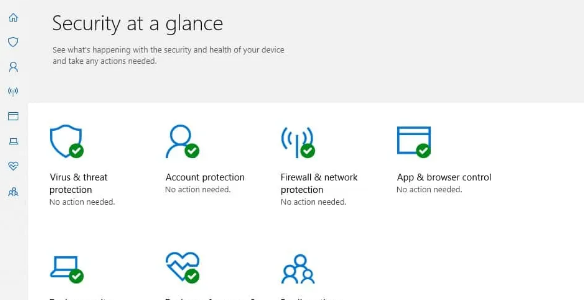
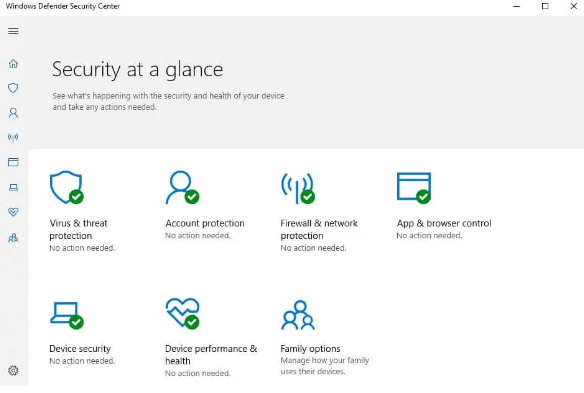
  • Click Start, type Windows Defender, and then click Windows Defender or Windows Defender Security Center
  • Click Virus and threat protection
Windows defender security center
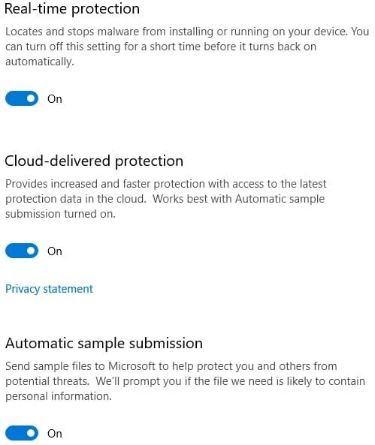
  • In case the protection settings are turned off, turn on the following three settings: Real-time protection, Cloud-delivered protection, and Automatic sample submission

Turn on the Firewall Protection

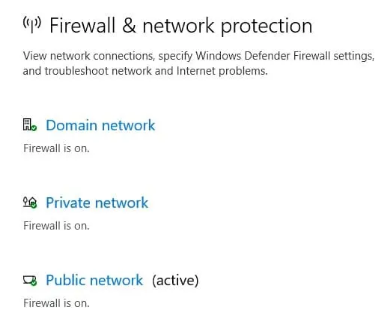
Once you have checked whether Virus and threat protection settings are turned on or not, it’s time to look at the Firewall settings. When the Firewall is turned on, Windows Defender refuses connections with illegitimate sources, thereby protecting your system from unwanted programs.

Turning the Firewall on is easy, as the following steps show:

  • Launch Windows Defender
  • Click Firewall and network protection
  • Make sure the following features are turned on: Domain network, Public network, and Private network

Turn Browser Control On

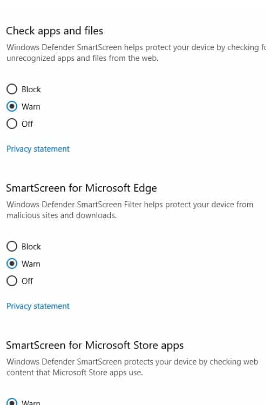
The Browser Control feature of Windows Defender does two things. First, it warns you against unrecognized browser apps. Secondly, it blocks unwanted apps that try to install themselves automatically.

Here’s how you can check whether Browser Control is turned on or not:

  • Open Windows Defender
  • Click App and Browser Control
  • Make sure these features are either set to Warn or Block: SmartScreen for Microsoft Store apps, SmartScreen for Microsoft Edge, Check apps and files
app & browser

Windows Defender Makes Protecting Folders Easy

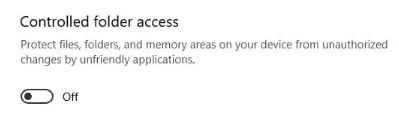
Another great feature of Windows Defender is that it ensures that unwanted programs won’t be able to make changes to your files. If you want to protect your files, make sure the Controlled folder access is turned on. Here’s how to do so:

  • Open Windows Defender
  • Click Virus and threat protection
  • Browse to Ransomware protection
  • Turn Controlled folder access On
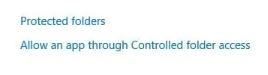
  • Select Protected folders and then do as the on-screen instructions tell you to make a folder protected
protected folders

Windows Defender Can Even Protect Your Device Drivers

Outdated device drivers can be a potential security risk. Hackers can exploit the vulnerabilities in outdated drivers and breach your system. Windows Defender has two features—Secure Boot and Core Isolation—that keep your devices safe. Nonetheless, it would be a good idea to ensure your device drivers are up-to-date all the time, as this will minimize the risk and improve the overall performance of your computer.

First, let’s look at how you can enable Core Isolation and Secure Boot, and then we’ll discuss the best way to keep device drivers updated.

Enabling Core Isolation

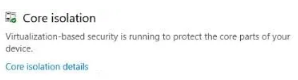
Core Isolation isolates malware-infected computer processes from the system and devices. You can enable it by following these steps:

  • Open Windows Defender
  • Navigate to Device security
  • Click Core Isolation Details
  • Turn the settings On to protect specific processes from malware

Enabling Secure Boot

Rootkits, which can hide keyloggers which capture your keystrokes without your permission, are perhaps the most dangerous of all viruses. By hiding keyloggers, rootkits make it easier for cyber-criminals to steal sensitive information, such as your credit card details. Because rootkits start before Windows boots, they are effectively able to bypass logins.

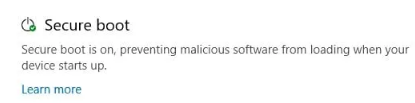
Secure Boot, a key feature included in Windows Defender, helps protect your computer against these malicious programs. However, it can help only if you keep it turned on. To check whether Secure Boot is turned on or not, perform the following steps:

  • Open Windows Defender
  • Click Device Security
  • Make sure Secure Boot is turned on
Secure Boot

In the event of Secure Boot being turned off, you must change computer bios settings at start-up. Here’s how you can do that:

  • Go to Start and search for Recovery Options
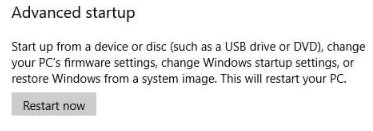
  • Under the Advanced Startup section, click the Restart now button
Restart Now
  • Alternatively, you can access the BIOS menu by pressing F1, F12, or F2 (the exact key you need to press varies from manufacturer to manufacturer)
  • Browse to Secure Boot and then enable it

How to run Windows Defender Scans

Once you turn on Windows Defender (and keep it on), it offers automatic, real-time protection. Moreover, it lets you scan and update whenever you want, thereby making is easy to keep the device up to date.

With Windows Defender, you can view the threat history and run quick scans from the same screen.

  • Open Windows Defender
  • Click Virus and threat protection
  • Threat history will display various results, including unwanted programs presently running on your device, programs which were identified as threats but were granted permission to run, quarantined threats, and the time of last scan
  • To run a quick scan, click scan now
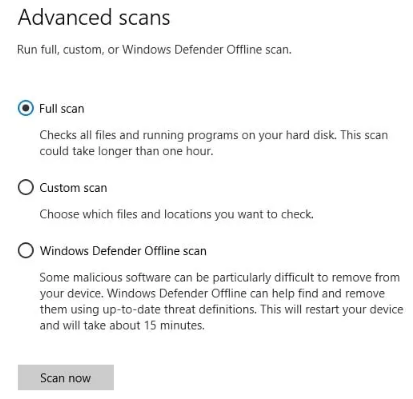
  • If you want more options for running a scan, click Run a new advanced scan. You can choose from the following three options: Full (all the files will be scanned), Custom (lets you decide which files and folders you want to be scanned), and Windows Defender Offline (Windows Defender will run a scan without being connected to the net, but it will use the newest definitions)

It is Important to Update Windows Defender Definitions

Using the latest security updates is just as important as using the correct settings. While Windows Defender does its absolute best to ensure files and permissions are up to date, you can also manually check to see if they are current.

Here are the steps you need to perform:

  • Open Windows Defender
  • Click Virus and threat protection
  • Click Virus and threat protection updates
  • Click the Check for updates button to download new definitions

Windows Defender is Good, But Make Sure You Also Update Device Drivers!

Having a robust anti-malware system is vital to keep your computer and data safe. However, it’s no less important to regularly update device drivers since outdated device drivers can lead to various problems.

Which brings us to the all-important question: How to update device drivers?

There are two ways to do this. You can update device drivers either manually or automatically. Most people prefer the automatic method, since it’s quicker and requires little technical knowledge.

Always keep your Drivers up to date

Automatic driver update tools offer many benefits, the most important ones being:

  • You can update device drivers automatically
  • The software scans and updates all outdated or missing drivers at one go
  • The tool picks the right drivers for your device and operating system, so you won’t have to worry about installing an incorrect driver by mistake
  • Automatic driver updates are 100% safe

Driver Updater is one of the best driver update tools out there. Outbyte Driver Updater will give you access to a database of over 1 million drivers. It will regularly scan your PC, suggesting new driver versions to install. Driver Updater contains drivers for a variety of Windows devices. With just one click, you can update drivers in your system.

Step 1
Click here to Install and launch the app

Step 2
Scan all devices

Step 3
Install or update drivers automatically
 

Start Download


Filed Under: PC Fix Tips Tagged With: Windows Defender

Is Your Computer Infected With a Virus?

By Susan C on November 3, 2023

Is Your Computer Infected With a Virus?

For a computer user, nothing is more frightening and stressful than having your device infected with a virus. Apart from displaying errors and causing all sorts of issues, viruses can damage your data and compromise your security. To make matters worse, they are pretty good at hiding themselves and running quietly in the background, so much so that sometimes users are not aware that their device is infected until several months after the fact.

In this post, we will provide detailed instructions regarding how to quickly and efficiently detect a computer virus and, more importantly, how to ensure your PC remains adequately protected against them in the future.

Why It Is Crucial You Protect Your Computer Against a Virus

Computer viruses cause widespread destruction, leading to great amounts of not only data loss but also potential financial loss. To put things into perspective, consider this data: Cyber-crime is expected to cost no less than 8 Trillion Dollars annually in 2023, according a report.

Computer Viruses Come in Different Flavors

There are different types of computer viruses out there, some more dangerous and sophisticated than others. The following are widely regarded as the major types of computer virus.

Boot Viruses

These viruses get their name from their habit of launching themselves up every time you boot your computer. Boot viruses are rarely easy to deal with and getting your computer free of them can be a difficult task.

Time Bomb Virus

These viruses can be particularly difficult to detect simply because they don’t take effect until a predetermined date and time – hence the name “time bomb” virus.

Worm Virus

When it comes to sophistication, worm viruses lead the pack. They work by replicating themselves automatically. A worm virus’s main goal is to ensure it gets distributed as widely as possible.

How To Find Out If Your Computer is Infected with a virus

How can you be 100% sure your computer is infected with virus? Unless your computer is infected by a crude variety of computer viruses, identifying them without running an advanced antivirus program can be challenging.

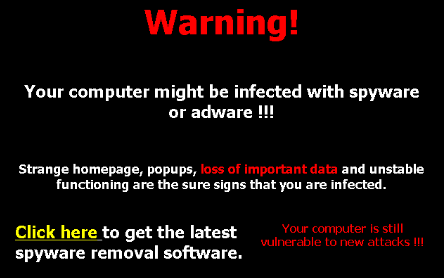
Sometimes, you may find a message like the one shown below displayed on your screen. If you do, you can be sure that your device is infected.

fake virus msg

Other common tell-tale signs include getting frequent screen pop-ups suddenly or getting sent to an incorrect website when browsing. Apart from these, the following signs indicate that your PC might be infected with a computer virus.

Flashing warnings and slow performance

Has your PC suddenly become a lot slower? If so, there’s a good chance it is infected. Likewise, if you are getting random warning messages on your computer, you are likely have a computer virus. Typically, these messages either say that your PC is infected or your data has been stolen or ask for money to restore your data.

Unexplained file or folder changes

If some files have gone missing or some files are showing different icons, you are likely have a computer virus. Your computer will not make these changes on its own, unless there’s a technical problem or problems from a malware program.

Not able to download antivirus programs or updates for such programs

Some computer viruses are programmed in such a way to maximize their chances of going undetected. Often such viruses are programmed to make it difficult for the average user to download a new antivirus program or download updates for an existing antivirus program. If you are unable to download updates for your antivirus program or are trying to download some new security software without success, your PC is likely infected and that virus is likely defending itself.

Pop up ads for websites you don’t visit

If you are getting pop-up ads for websites you generally don’t visit, chances are you have a computer virus. Another sign is the appearance of unexpected images on your screen. For instance, you might see pornographic images replace benign images or suddenly pop up on your screen.

Sudden shortage of hard disk space

Are you suddenly facing lack of space on your hard disk? If so, your PC might have self-replicating worms or viruses, which also go by the name of disk bombs. These malicious programs can create problems by quickly multiplying themselves, rapidly occupying increasing amounts of hard disk space. Frequently, these files the virus injects in your hard drive stay invisible in default file-browsing settings.

My Computer Has A Virus? What Should I Do?

If you believe your PC is infected with a virus, act promptly to remove it. Being infected with virus can be frustrating and very worrying. But there’s no need for you to panic, as we provide you with step-by-step instructions on how to remove computer viruses.

Run a full-system scan

The first thing you should do if you suspect your PC is infected to run a full-system scan. Before you do so, it would be best to update your antivirus software if you have disabled the automatic updates feature. Also, once you have got rid of the virus, make sure you run full-system scans on a regular basis.

Restore to an earlier back-up

Sometimes, infected or virus files are able to avoid deletion. If that’s the case, try to restore the system to an earlier back-up before the present issue came to light. Once you have done that, run a full-system scan to see whether the same issue persists.

Delete temporary files

The next step is to delete temporary files. Doing so is fairly easy, though the exact steps vary depending on which operating system you use (such as macOS or Windows).

Use the Safe Mode feature

If you are unable to delete temporary files, try to boot Windows in Safe Mode. Since in this mode certain programs are not loaded, you can fix the problem without any interruption.

Reinstall your operating system

Try this solution only if everything else fails. Keep in mind that reinstalling the operating system can result in the loss of important data. For this reason, it might be better to visit the local computer repair shop and have a trained professional do the necessary rather than taking matters in your hand.

Outdated Device Drivers Can Be A Security Risk

Hackers often use flaws in outdated device drivers to inject viruses (or other malware) that can go undetected or resist deletion, even after you reinstall Windows. For this reason, it is important that you regularly update your device drivers.

Apart from being a security risk, outdated device drivers can lead to frequent software and hardware conflicts, causing malfunctions and errors. They can also impact your PC’s performance.

Updating outdated device drivers is very important. Thankfully, it doesn’t take much to keep your device drivers updated. The easiest and quickest way is to use a reliable device driver tool. Of course, you can also update device drivers manually, but the manual method might not suit everyone as it requires a certain degree of technical knowledge and is time consuming.

For this reason, we recommend Windows users to use an advanced driver update tool to keep their device drivers up-to-date.

Updating Drivers Automatically

Automatic driver update tools offer many benefits, the most important ones being:

  • You can update device drivers automatically
  • The software scans and updates all outdated or missing drivers at one go
  • The tool picks the right drivers for your device and operating system, so you won’t have to worry about installing an incorrect driver by mistake
  • Automatic driver updates are 100% safe

Driver Updater is one of the best driver update tools out there. Outbyte Driver Updater will give you access to a database of over 1 million drivers. It will regularly scan your PC, suggesting new driver versions to install. Driver Updater contains drivers for a variety of Windows devices. With just one click, you can update drivers in your system.

Step 1
Click here to Install and launch the app

Step 2
Scan all devices

Step 3
Install or update drivers automatically
 

Start Download


Filed Under: PC Fix Tips Tagged With: computer virus

  • « Previous Page
  • 1
  • …
  • 49
  • 50
  • 51
  • 52
  • 53
  • …
  • 189
  • Next Page »


  • Recent Posts
  • Popular Posts
        

Read More Posts


Read More Posts

Drivers.com Sites

  • Software Drivers
  • Drivers Ed

About Us

  • Advertise
  • About Drivers
  • Drivers Support
  • Drivers.com Privacy Policy
  • Disclaimer
  • Software Drivers
  • Mac Fixes and Tips
  • PC Fix Tips
  • Security/ Backup
  • Tablets & Smartphones
  • Tech News

© Copyright 2026 PDE Publications Ltd. End User License Agreement (EULA)