
Drivers.com

follow us:

facebook twitter
  • Home
  • Download Drivers
  • Drivers Help
  • PC/Mac Resources
  • Software Drivers
  • Mac Fixes and Tips
  • PC Fix Tips
  • Security/ Backup
  • Tablets & Smartphones
  • Tech News
  • Software Drivers
  • Mac Fixes and Tips
  • PC Fix Tips
  • Security/ Backup
  • Tablets & Smartphones
  • Tech News

Will Updating Device Drivers Improve Computer Performance?

By Susan C on July 11, 2023

Will Updating Device Drivers Improve Computer Performance?

Is your computer not working as fast as it used to? Is it hanging or even freezing when trying to complete certain tasks?

If so, perhaps it’s time for you to update your device drivers.

Old drivers can seriously impact the performance of your computer, and keeping your drivers up-to-date is a vital part of maintaining your device computer in tip-top shape.

It’s a common practice for computer users to defer updating drivers until a problem occurs and this can lead to serious issues with your computer. That’s because many driver updates e.g. driver updates for video drivers—often include performance updates. Not installing these updates mean the concerned device’s performance will be less than optimal.

What are Computer Drivers and why do I need to update them?

One question that many computer users ask is, Can updating drivers improve computer performance?

The answer is a resounding YES.

To understand why this is so, it is necessary to understand what drivers are and what they do.

An operating system and software cannot communicate with a piece of hardware on their own. They need a middleman, someone who can help them communicate with installed hardware. A device driver is this middleman.

Each piece of hardware has its own driver, which allows the operating system and other software to communicate with that driver.

Driver updates, among other things, fix bugs within the concerned software, including security tweaks, contain performance enhancements, and, most importantly, improve the communication between a hardware device and the operating system and other software.

Device drivers often get installed automatically whenever you plug in a new device, like a mouse or printer. This is perhaps the reason why computer users often don’t pay much attention to them. In instances when drivers are not automatically installed, the user must install them manually.

Different Driver Types

Broadly speaking, drivers can be divided in two categories.

  • Drivers for peripheral devices (e.g. printer drivers)
  • Drivers for hardware devices (e.g. graphics card drivers)

Drivers for hardware devices (think video card drivers, network drivers, sound drivers, etc.) make hardware installation easier, besides ensuring compatibility. However, some drivers (like those linked to top-of-the-line graphics cards that one commonly finds in gaming laptops) are periodically updated mainly to boost performance rather than simplify installation or ensure compatibility.

Peripheral device drivers power peripheral devices like external drives, cameras, music players, microphones, printers, etc. These drivers ensure that your computer and peripheral devices function together seamlessly by efficiently moving data to and fro between them.

When should I update my Drivers?

There is not one but two answers to this question. That is so because drivers too are of two types, as discussed in the previous section.

Drivers for hardware devices should be updated on a regular basis, which basically means whenever a new driver update is released. Doing so is crucial for your computer’s performance. This is especially true for video drivers because not installing the latest updates for them significantly impact your computer’s or laptop’s performance. If you are into gaming, this is one consideration you might not want to take lightly.

In contrast, drivers for peripheral devices do not impact your computer’s overall performance. That means it’s okay to update them only when you a problem or issue crops up.

Where Can I Find Drivers for my PC?

There are many places where you can find drivers. However, not all of these places are reputable. Downloading a driver from a dubious source could do more harm than good.

The first thing you should do if you are searching for a driver update online is to ensure that the source you have selected is trusted. Ideally, you should only use the manufacturer’s website or a reputable 3rd party vendor.

When it comes to driver updates, some of the primary sources are as follows:

  • Hardware or device’s manufacturer website. Generally, these websites include a driver download section. You can find drivers matching your operating system and hardware or software specifications here.
  • Because Windows uses far more drivers than Mac systems, it has a sizeable collection of various generic drivers. You can download generic drivers for devices and hardware from the Microsoft website.
  • The CD or DVD which was included with the device in question. Simply insert the disc in your computer’s CD or DVD drive to reload drivers.
  • Third-party vendors

Consider Automatic Driver Updates

Did you know that software tools can automatically update all the drivers on your computer in minutes?

These software tools scan your computer and automatically update all outdated drivers.

But there’s one important thing: Not all driver update tools are the same. Only a few are genuinely fast, accurate, and effective; others are either mediocre or simply a pain in the neck, hogging your computer resources and updating drivers at random.

If a fast, no-hassle computer experience is what you want, opt for a reliable driver update software tool. We recommend Driver Updater which is a trusted and monitored tool.

How to Update Drivers Manually

Want to update device drivers manually? If so, this section is just for you.

Windows computers include a utility called Device Manager, which lets you update device drivers, among other things.

We have shown you the steps to update the mouse driver, but these same steps can be used for updating drivers of other devices or hardware.

Here’s what you need to do to update a device driver manually using Device Manager.

  • Click the Windows icon, type run in the Start Search box and press Enter
  • In the run dialog box, type devmgmt.msc and press Enter. This will open the Device Manager window
  • Expand Mice and other pointing devices
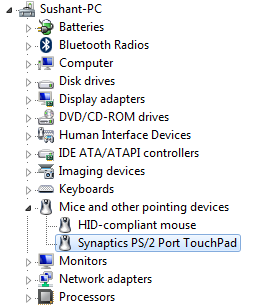
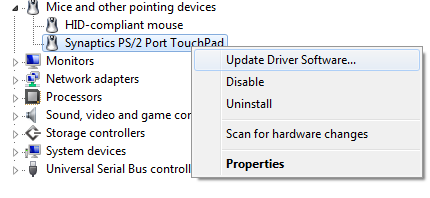
  • Select your mouse, right-click it, and click Update Driver Software
  • Select the first option that you see in the Update Driver Software dialog box
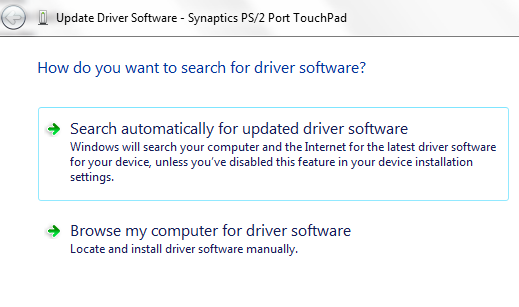
  • Wait for Windows to locate the driver and download and install it
  • If you are prompted to restart the computer after installation is complete, do so

Of course, you download the latest driver from the manufacturer website directly, without using Device Manager.

Just a word of caution: When downloading a driver from a manufacturer website or a third-party vendor, make sure the selected driver is compatible with your operating system. If you are using a Windows 10 32 bit system, select a driver that is designed for 32-bit systems. Likewise, those using a Windows 64-bit computer should choose drivers designed for 64-bit systems.

Updating Device Drivers Equals Better Performance

Coming back to the main question: Do out-of-date drivers impact performance?

Yes, they can. Outdated drivers can be have a big impact on your computer’s performance. They can also become a cause of more serious problems.

So, what is the easiest way to update device drivers?

The simplest and quickest way to update device drivers is by using a reliable and fast driver update tool.

With Driver Updater keeping your drivers up to date is very easy. With just a few clicks, you can update all your drivers. A free trial of this Driver Update Tool means you can give it a try without a worry.

Download using the link below and get your Driver problems fixed.

Start Download

Filed Under: PC Fix Tips Tagged With: Update Drivers

What Should You Do If the Acer Trackpad Isn’t Working?

By Susan C on June 12, 2023

When your Acer touchpad stops working, it can be difficult to navigate your PC. Advanced users may be able to work using quick keys and shortcuts but others may need to use an external mouse.

How Can You Update the Acer Touchpad?

It may indeed be more convenient to fix the Acer trackpad than to replace it entirely. Depending on the issue, there are various troubleshooting steps that can be taken to resolve the problem.  While some problems are simple to fix, others could necessitate taking the PC to a service or repair facility.

Update Acer Drivers

Check if the Acer Touchpad is Turned Off?

Many laptops come equipped with a shortcut or on/off switch to disable the touchpad when it’s not needed. This can be particularly helpful for users who prefer to use an external mouse or who find that the touchpad interferes with their typing.

You can use another laptop or a desktop to find the hotkey for the specific model you are using. That said, most of the newer Acer models use function keys for disabling the trackpad.

Look at the Function (FN) keys to check whether one of them has the trackpad look-alike icon. Before you try anything else, hit this key (or simultaneously press Function Key and related F-key) and check whether the trackpad is responding or not.

In case this doesn’t work, move on to the next step.

Restart the Acer Laptop

Complicated software may limit functionality in case the drivers are old.  There’s a chance that you are dealing with the “missing driver” issue if you’ve recently modified your software, formatted your system, or installed new software.

To resolve this issue, try restarting your PC first. This should reload all the necessary software for the trackpad to work. Most modern Acer computers have a “plug-n-play” Acer driver that should work to some degree, even if it limits functionality. Although rare, BIOS may revert to a safer configuration, and when it does that, the trackpad could get disabled. So boot into the BIOS (upon restart you will likely see a message stating “Press F9 for booting into BIOS”. Please note that the exact key that must be pressed to enter BIOS may vary from one model to another) and check whether trackpad is marked as disabled in the BIOS settings.

Update the Acer Driver Automatically

Automatic driver update tools offer many benefits, the most important ones being:

  • You can update device drivers automatically
  • The software scans and updates all outdated or missing drivers at one go
  • The tool picks the right drivers for your device and operating system, so you won’t have to worry about installing an incorrect driver by mistake
  • Automatic driver updates are 100% safe

Driver Updater is one of the best driver update tools out there. Outbyte Driver Updater will give you access to a database of over 1 million drivers. It will regularly scan your PC, suggesting new driver versions to install. Driver Updater contains drivers for a variety of Windows devices. With just one click, you can update drivers in your system.

Step 1
Click here to Install and launch the app

Step 2
Scan all devices

Step 3
Install or update drivers automatically


Start Download


Have a Technician Inspect Your Trackpad

Is the problem still persisting? If so, the trackpad might be broken. However, this is not something you can check yourself. Therefore, take your device to the nearest repair center. Alternatively, you can contact Acer. Unfortunately, there is no way for you to check this yourself.

In case the laptop is under warranty or some extended care plan, the cost of repairs might be covered fully or partially. However, if your touchpad is completely broken, you will likely find that using an external USB mouse is cheaper.  Another option is to get a new wireless trackpad.

Filed Under: PC Fix Tips Tagged With: Acer Trackpad

Laptop Keyboard Not Working? [Fixed]

By Susan C on May 23, 2023

Laptop Keyboard Not Working? [Fixed]

What should you do when your laptop keyboard stops working? What’s the easiest, fastest, and cheapest way to fix your keyboard?

Keep reading to find out the answers to these questions.

How to diagnose and fix a keyboard which is not working?

There are some situations where fixing an unresponsive laptop keyboard on your own is just not possible. In these scenarios, getting it repaired by a professional or replacing it is the only way out. But it is equally true that in many situations, a laptop keyboard can be fixed with a few simple steps. Therefore, before sending an SOS to your local computer repair technician, try the steps listed below.

Restart your computer

We have said this before and we will say it again: Restarting your computer or laptop if you are facing minor issues should be the first line of action. Shut down your laptop by pressing the power button and then press the power button again to restart it. If your laptop is unresponsive, use this method to restart it rather than pressing the ‘restart’ option in the Start menu.

Laptop battery power

Insufficient battery power can cause the laptop keyboard to freeze up. Power off your laptop, then connect it to AC power, and power it on. If your keyboard is working without a hitch after the restart, chances are your battery is faulty.

Clean your keyboard

In case only some of the keys on the keyboard are not responding, try cleaning your laptop.

Connect a USB keyboard

This step can help you check whether the problem is related to the OS or not. Connect a USB keyboard to your laptop and see if it is working normally. In case it does, that means your laptop has no problem in recognizing key functions. That means this problem is related to the Operating System.

Installed Software

Have you recently installed new software (particularly graphics or games software)? If so, it is possible that the new driver software might be incompatible with the keyboard hardware. Uninstall the software to check if that’s the case or not.

System driver

If you are using a Windows system, a problematic keyboard driver can be the root cause. Open the Device Manager window by typing devmgmt.msc in the Start Search box. In the Device Manager window, check if there’s a yellow exclamation point against the keyboards section. If there is, that means there might be a problem with the driver in question. Right-click the keyboard and click the Uninstall option. Once the windows have uninstalled the faulty driver, restart windows. Upon restart, the system should automatically load the standard driver, which in turn would restore normal keyboard functions.

If the steps shared above fail to work, the problems with your laptop keyboard might still be a driver-related issue.

Keep your drivers updated

Using the most updated device drivers can help improve your laptop’s performance, enhance security, and fix issues such as “laptop keyboard not working”. The easiest, not to say the fastest, way to keep your drivers up-to-date is by using a reliable driver update tool.

Benefits of using an automatic driver update tool

Automatic driver update tools offer many benefits, the most important ones being:

  • You can update device drivers automatically
  • The software scans and updates all outdated or missing drivers at one go
  • The tool picks the right drivers for your device and operating system, so you won’t have to worry about installing an incorrect driver by mistake
  • Automatic driver updates are 100% safe

Driver Updater is one of the best driver update tools out there. Outbyte Driver Updater will give you access to a database of over 1 million drivers. It will regularly scan your PC, suggesting new driver versions to install. Driver Updater contains drivers for a variety of Windows devices. With just one click, you can update drivers in your system.

Step 1
Click here to Install and launch the app

Step 2
Scan all devices

Step 3
Install or update drivers automatically


Start Download


Filed Under: PC Fix Tips Tagged With: keyboard issues

  • « Previous Page
  • 1
  • …
  • 52
  • 53
  • 54
  • 55
  • 56
  • …
  • 189
  • Next Page »


  • Recent Posts
  • Popular Posts
        

Read More Posts


Read More Posts

Drivers.com Sites

  • Software Drivers
  • Drivers Ed

About Us

  • Advertise
  • About Drivers
  • Drivers Support
  • Drivers.com Privacy Policy
  • Disclaimer
  • Software Drivers
  • Mac Fixes and Tips
  • PC Fix Tips
  • Security/ Backup
  • Tablets & Smartphones
  • Tech News

© Copyright 2026 PDE Publications Ltd. End User License Agreement (EULA)