
Drivers.com

follow us:

facebook twitter
  • Home
  • Download Drivers
  • Drivers Help
  • PC/Mac Resources
  • Software Drivers
  • Mac Fixes and Tips
  • PC Fix Tips
  • Security/ Backup
  • Tablets & Smartphones
  • Tech News
  • Software Drivers
  • Mac Fixes and Tips
  • PC Fix Tips
  • Security/ Backup
  • Tablets & Smartphones
  • Tech News

How to fix Canon Printer Error Codes

By Susan C on October 8, 2022

How to fix Canon Printer Error Codes

Printer error codes can be tricky to fix, and Canon printer error codes are no different. But that doesn’t mean you can’t fix them yourself.

If your Canon printer has ink, paper and is connected properly, it should work. If that is not the case, the underlying issue can be a little technical. Having said that, you do not need to call your local computer technician when you encounter a printer error.

In this article, we discuss some steps that can help resolve Canon printer errors. But avoid performing any steps that will void your printer’s warranty. You can go through the warranty terms in the printer manual that came with the device.

Fix Canon Printer Error

What causes Canon Printer Error Codes?

Canon printer errors can occur for any number of reasons. In most cases, when your printer is not working properly, you will see an error code with a description regarding why the error has occurred.

Most printer errors can be traced back to one of these things:

  • Your Canon printer’s settings are incompatible with the document you are printing
  • The printer paper that you are using is of the wrong type
  • The loading bay is jammed
  • The printer doesn’t have sufficient ink
  • Printer drivers are outdated, corrupt, or missing

How to fix Canon Printer Error Codes

Here is what you need to know to get your printer up and running if it is not behaving as it should.

Step 1 – Note down the Canon printer error code

A printer error is usually accompanied with an error code – this code can be a string of numbers or it may be alphanumerical.

The first thing you should do is check the error code you are getting in the owner’s manual. If you do not have a paper manual, you can go online and search for it on Canon’s official website.

The manual lists various Canon error codes, their causes, and the steps you need to perform to fix them. Here is an example:

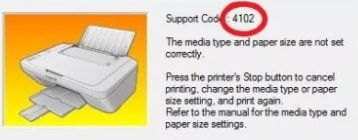
canon Error Code 4102

Go through the list and locate the error code you are seeing. Once you have done that, check its cause and the fix for the particular error. For example, the error code shown in the first example is 4102. The manual has the following information about this particular error code.

Error 4102 description - cannot perform printing

Step 2 – Inspect the error’s source

There are various types of printer errors. In this post we will focus on three common types of errors: (1) printer setting errors (2) paper jam errors and (3) ink cartridges errors.

For printer setting errors:

  • Press Windows key + the R key to launch the run dialog box
  • Type control panel in the run dialog box and press the OK button or hit the enter key
  • In the control panel window, locate and click Devices and Printers. Now, locate Hardware and Sounds. Below this tab, you will see two tabs, one of which will be View devices and printers. Click on this.
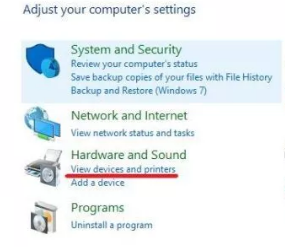
View devices and printers
  • Devices installed or attached to your computer will appear in the Devices and Printers window. Browse through the list to locate your printer. Once you have done that, right-click it and then select the Printing Preferences option

Now, you will be able to see the default settings for the Canon printer you are using. Changes these settings to match the document that you are printing. If the printer settings do not match the type of printer paper you are using or its dimensions, an error code may appear on your screen.
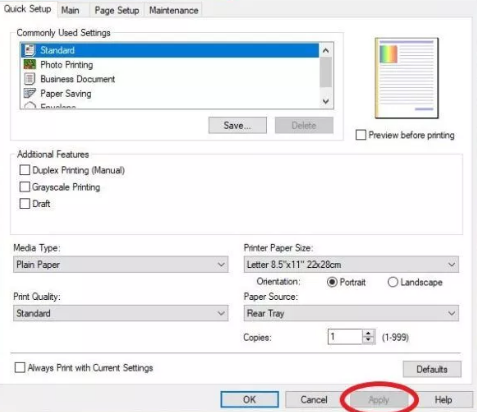
canon printer printing preferences


For paper jams

Torn or crumpled pages are the most common causes of paper jams, which are very easy to locate and fix. A paper jam occurs within the cartridge access door, which is located on the front side, or within the printer’s loading bay, located at the back.

For ink cartridges

Open the printer settings to find the level of cartridge ink or the type of cartridge you are using.

  • Press Windows key + the R key to launch the run dialog box
  • Type control panel in the run dialog box and press the OK button or hit the enter key
  • In the control panel window, locate and click Hardware and Sound
  • Now click Devices and Printers
  • Right-click your printer and then select Printer properties

In the printer properties box, first click the Maintenance tab. Next, click View Printer Status. A tiny box will pop on your screen, listing the printer cartridge ink levels and other information. Because the printer shown in the above example is offline, the pop-up window is not showing the cartridge ink levels. Otherwise, it displays this piece of information.
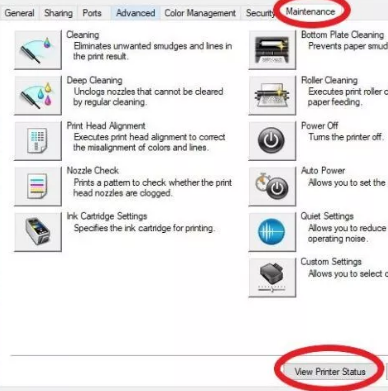
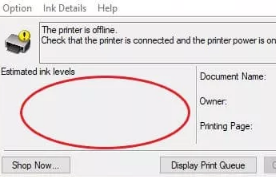
canon Printer Status
Ink level canon printer

Step 3 – Fix Canon Error Codes

Now, that we have looked at how to locate the correct places for fixing error codes, let’s see how to fix them.

For printer settings:

You may need to alter one or more of the followings:

  • The paper type
  • The paper size
  • Print Quality
  • The paper source
  • The media type

Once you have made the necessary changes, click the Apply button and then click OK.
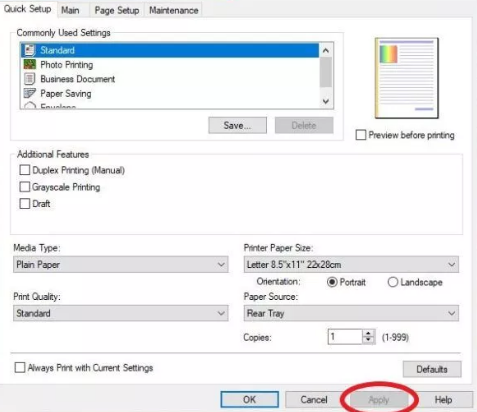
canon printer settings

For paper jams:

Unplug your Canon printer and then open the ink tray to remove a jammed paper. While you are at it, also check the paper tray at the back. Gently pull out any paper lodged in it.

For ink cartridges:

If the ink level is low, you will need to replenish it. Here are the steps to follow:

  • Turn on your Canon printer
  • Open its front cover. This will open the paper output tray
  • Remove any paper in the cassette
  • Now open paper output cover
  • When you do this, the ink cartridge holder is going to move into replacement position. Avoid touching the holder till it stops
  • Next, push down the ink cartridge till you hear a clicking sound
  • remove the print cartridge
  • Insert the new cartridge (after you have removed its protective layer) into your cartridge holder and push it in till it firmly snaps into place

How incorrect Drivers Can Trigger Canon Printer Errors

Incompatible printer drivers can cause all sorts of issues. So, make sure you always use the correct driver with your Canon printer.

Printer drivers serve as a bridge between your computer or laptop and printer, allowing them to seamlessly communicate with each other. If the printer is outdated, your printer will likely not work properly. Outdated printer drivers may also cause error codes like the ones shown above to crop up.

How do I update my Canon printer driver?

You can update Canon printer drivers manually or automatically. The manual method is time-consuming a little technical. First, note down the model number of your printer and then browse to Canon’s official website and locate the latest driver for your printer. Once you have done that, download the printer file and save it in a suitable location, like your desktop. Finally, double click the executable file to launch the installation process and follow the onscreen instructions, if any. If all these steps sounds like way too much hassle, use a driver update software such as Driver Updater.

How do I update printer drivers automatically?

Outdated drivers can cause serious problems with your PC. With Driver Updater keeping your drivers up to date is very easy. With just a few clicks, you can update all your drivers. A free trial of this Driver Update Tool means you can give it a try without a worry.

Automatic driver update tools offer many benefits, the most important ones being:

  • You can update device drivers automatically
  • The software scans and updates all outdated or missing drivers at one go
  • The tool picks the right drivers for your device and operating system, so you won’t have to worry about installing an incorrect driver by mistake
  • Automatic driver updates are 100% safe

Driver Updater is one of the best driver update tools out there. Outbyte Driver Updater will give you access to a database of over 1 million drivers. It will regularly scan your PC, suggesting new driver versions to install. Driver Updater contains drivers for a variety of Windows devices. With just one click, you can update drivers in your system.

Step 1
Click here to Install and launch the app

Step 2
Scan all devices

Step 3
Install or update drivers automatically

 

Start Download


Fix Canon Printer Error

Filed Under: PC Fix Tips Tagged With: Canon Printer Errors

How to Disable Avast

By Susan C on September 10, 2022

How to Disable Avast

An antivirus program is a must-have for every computer user. Without it, your device will be open to malicious attacks by hackers and you risk losing personal information. AV antivirus (AV software) is one of the most popular protective programs out there. Millions of users trust and for good reasons. It is reliable and light. That said, there are times when you may want to temporarily disable it.

In this post we will show how to disable Avast. So, let’s dig in.

Why Would You Want To Disable Avast

Why You Need To Disable Avast and How To Do It

Like other antivirus programs, AV software safeguards your computer from harmful programs. The internet is flooded with lots of malware—virus, worms, phishing attacks—that are only waiting for one opportunity to enter your PC and wreak havoc.

Even if you follow all the recommended security practices, you need a dedicated anti-malware program on your machine to scan files on a regular basis.

However, at times, antivirus software can impede genuine programs. For instance, the AV software may throw a red flag when you are installing a legitimate software. When that happens, you will not be able to install the program until you disable the AV software. In this situation, as well as other situations similar to this on, you will need to temporarily disable the overzealous Avast program to be able to finish the desired job.

How Do You Disable Avast Service?

In situations like the one discussed above, you might wonder: How to disable AV software in Windows 10?

Here is what you need to do.

First, right-click the Avast icon (it will be present in the system tray) and then choose Avast shields control. Next, you can select for how long you want to disable the Avast service. Once you have selected the duration, simply confirm the selection.

If you want, you can disable AV software permanently, but we do not recommend this, unless you want to use another antivirus software instead. Without a protective shield, your compute will be open to various malicious programs, which can have serious ramifications.

Keep in mind that these steps are for Windows 10. If you have an older version, the steps may slightly vary.

Device Drivers are important for security

If you are serious about keeping your computer secure, you must take care of the device drivers. Specifically speaking, you must keep them up-to-date.

Many computer-related issues can be traced back to outdated, corrupt, or missing drivers. Outdated drivers can not only prevent the software in question from working as intended but they can also compromise your system’s security.

For instance, you install a device whose manufacturer releases a driver update to plug-in a security gap present in the original set-up. If you do not update this device’s driver, the security lapse can be exploited by malware programs to enter your system and steal confidential data.

How to Update Drivers

Speaking of updating device drivers, the best way to do so is by using a reliable driver update software. Of course, you can manually update them as well, but it is not only a time-consuming process but also a little complicated one. All the same, we have discussed both options below, so that you can pick the one that works best for you.

Updating the Drivers Manually

You can manually update drivers via the Device Manager or by downloading the latest drivers from the manufacturer’s website.

Updating Drivers via the Device Manager

Device Manager is an in-built utility that allows you to view and control the attached hardware and update its drivers.

  • Press Windows logo key + R together to bring up the Run command
  • In Run command, type devmgmt.msc and click OK
  • In the Device Manager, go to hardware whose driver you want to update and right click it
  • Select update driver from the list of options
  • In the next window, select Search automatically for updated driver software
  • Follow on-screen prompts

Updating Drivers through the manufacturer’s website

Go to the manufacturer’s website and download the latest driver for the model and make of your device.

Before you download the driver file, make sure it is meant for your PC type. That is, those using Windows 10 32-bit should download the driver file designed for 32-bit Windows 10 PCs. Likewise, if you use Windows 64-bit, download the driver file that corresponds to for 64-bit Windows.

Save the driver file in a suitable location, like your desktop. Next open Device Manager and browse to the hardware in question. Next, right click the hardware device and select Update driver. You will be presented with two options. The first option is to allow Windows to search for the latest driver, while the second option is to locate the downloaded driver yourself. You must select the second option and locate the driver file saved on the desktop. Now, just follow the on-screen prompts to complete the process.

How to update device drivers automatically

You can update device drivers automatically by using a fast driver update software tool like Driver Updater.

Outdated drivers can cause serious problems with your PC. With Driver Updater keeping your drivers up to date is very easy. With just a few clicks, you can update all your drivers. A free trial of this Driver Update Tool means you can give it a try without a worry.

Automatic driver update tools offer many benefits, the most important ones being:

  • You can update device drivers automatically
  • The software scans and updates all outdated or missing drivers at one go
  • The tool picks the right drivers for your device and operating system, so you won’t have to worry about installing an incorrect driver by mistake
  • Automatic driver updates are 100% safe

Driver Updater is one of the best driver update tools out there. Outbyte Driver Updater will give you access to a database of over 1 million drivers. It will regularly scan your PC, suggesting new driver versions to install. Driver Updater contains drivers for a variety of Windows devices. With just one click, you can update drivers in your system.

Step 1
Click here to Install and launch the app

Step 2
Scan all devices

Step 3
Install or update drivers automatically


Start Download


Filed Under: PC Fix Tips Tagged With: Disable Avast

How Do I Install my HP Officejet 6500a Printer Without a Disc?

By Susan C on August 15, 2022

The HP Officejet 6500a is an all-in-one printer, copier and scanner. It comes with many advanced features that make it one of the top options in this category. For small office and home printing needs, this device is more than sufficient.

With duplex printing and WiFi connectivity features, the HP Officejet 6500a is nothing short of a workhorse. It is common for users to not keep the installation disc after installing a printer, and what is more, many new devices come without disc drives. Therefore, you might struggle to add the HP Officejet 6500a printer without the installation disc, but do not worry because we have you covered.

Download HP Drivers

Even if you do not have the installation disc that was included with your printer, it is possible to install the device drivers as well as other software with the help of the steps mentioned in this post. But keep in mind you will require internet connectivity. That is because you need to download the drivers and software from HP website. That said, if the device on which you want install the software and drivers does not have internet connectivity, you can download the files on another device, transfer them to a USB drive, and then copy them to your first device.

How to Install Officejet 6500a Software and Drivers from Internet

All printer manufacturers, including HP, provide the drivers and software for their devices on their support website. Keep in mind that if you have an older model printer, it is important that you regularly update the software with new security patches to ensure its smooth functioning.

Downloading the Software from HP Support Website

The first thing you need to do is visit the HP support site. Then, you must locate the latest drivers for your printer model. HP has different websites for various regions, so the best thing would be to use Google for finding support pages meant for your location.

  • Launch a web browser, type HP 6500a Support in the search bar, and then press the Enter key
  • Most likely the first search result should be the link to the relevant support website. Click the link.
  • You will be taken to the exact support webpage for the HP 6500a printer. You will find the latest software, product updates, and printer diagnostic tool on this page.

If you have never visited this website before, first you must accept HP’s Cookie Policy. You will also need to close the information banners. And then you will be able to see the download section, from where you can easily download drivers and software that you need.

  • Browse through the list to see all available downloads
  • Next, decide the software that you need. Apart from the Basic Drivers package, HP offers a Special Edition Full Feature Software.

To know the contents of a software package, simply click on it. For example, with the Special Edition Software (Full Feature), you get optional software in addition to the all the drivers for your printer. On the other hand, the Basic package only includes the relevant driver for the HP 6500a printer.

Note: The HP Support website also allows you to download Universal Fax driver, which is a firmware update related to HP printer as well as HP ePrint software. A Utility Diagnostic Tool is also there that can help you in troubleshooting issues or errors.

  • HP recommends users to download the Special Edition Full Feature, but if you want, you can select the Basic Driver package. In this guide, we will be using the Special Edition Full Feature. Click the Download link that appears on the screen to start the download process.
  • After you have clicked the link, you will be taken to the download page and you can see where the file has been stored on your device.
  • Let the download process complete. Once the file has been completely downloaded, click the Up Arrow and select Show in Folder
  • Now you can start installing the software

How to Install HP Officejet 6500a Printer Software

  • First, double-click the downloaded file
  • Most likely a security warning message will pop up on your screen. That is because you have downloaded the software file from Internet. Click the Run button since you know this is a safe file. This will launch the installer
  • Wait till the package is completely extracted. You can see the progress on your screen
  • A prompt message will pop up on your screen once the package has been completely extracted. The message will tell you to click Allow in case you Windows shows any security prompts while the installation is in progress
  • Before you proceed with installation, it is necessary to choose the software that you want to be included. If you want, you can click the Next button straightaway to install all included software. That said, it is better select only those applications that you need. This you can do by clicking the Customize Software Selections button
  • If you have chosen to customize software selection, in the next window unselect software programs that you do not need before you click next
  • Click the Next button
  • In the next screen, you will see various agreements. Although you have the option of not selecting the 6500 as your default printer, to move ahead with the installation you must accept the agreements.
  • Click the Next button
  • Wait for the installation to complete
  • Choose what type of connection you wish to use. Your options include USB, wired network, or Wi-Fi. After you have picked your option, click the Next button

You must turn the 6500a printer on and ensure it is connected to LAN or WiFi or directly to your computer through a USB cable before you click next.

Important: In case you choose to connect the printer using a USB cable, you will see a prompt message that says some services will not be available. You must connect the printer either via LAN or WiFi to use those services.

  • Click the Yes button if you do not want these services

That is it! Now you can use your 6500a printer with your PC.

Use Driver Update Software to avoid Manual Software Installation

Outdated drivers can cause serious problems with your PC. With Driver Updater keeping your drivers up to date is very easy. With just a few clicks, you can update all your drivers. A free trial of this Driver Update Tool means you can give it a try without commitment.

Automatic driver update tools offer many benefits, the most important ones being:

  • You can update device drivers automatically
  • The software scans and updates all outdated or missing drivers at one go
  • The tool picks the right drivers for your device and operating system, so you won’t have to worry about installing an incorrect driver by mistake
  • Automatic driver updates are 100% safe

Driver Updater is one of the best driver update tools out there. Outbyte Driver Updater will give you access to a database of over 1 million drivers. It will regularly scan your PC, suggesting new driver versions to install. Driver Updater contains drivers for a variety of Windows devices. With just one click, you can update drivers in your system.

Step 1
Click here to Install and launch the app

Step 2
Scan all devices

Step 3
Install or update drivers automatically


Start Download


Filed Under: PC Fix Tips Tagged With: HP Officejet 6500a

  • « Previous Page
  • 1
  • …
  • 56
  • 57
  • 58
  • 59
  • 60
  • …
  • 189
  • Next Page »


  • Recent Posts
  • Popular Posts
        

Read More Posts


Read More Posts

Drivers.com Sites

  • Software Drivers
  • Drivers Ed

About Us

  • Advertise
  • About Drivers
  • Drivers Support
  • Drivers.com Privacy Policy
  • Disclaimer
  • Software Drivers
  • Mac Fixes and Tips
  • PC Fix Tips
  • Security/ Backup
  • Tablets & Smartphones
  • Tech News

© Copyright 2026 PDE Publications Ltd. End User License Agreement (EULA)