Drivers.com

follow us:

facebook twitter
  • Home
  • Download Drivers
  • Drivers Help
  • PC/Mac Resources
  • Software Drivers
  • Mac Fixes and Tips
  • PC Fix Tips
  • Security/ Backup
  • Tablets & Smartphones
  • Tech News
  • Software Drivers
  • Mac Fixes and Tips
  • PC Fix Tips
  • Security/ Backup
  • Tablets & Smartphones
  • Tech News

How to burn Windows ISO to USB?

By Susan C on October 6, 2021

How to burn Windows ISO to USB?

If you want to install Windows on your PC or laptop, you will need Windows OS Setup. Microsoft offers Windows OS setup in ISO format. You can download the ISO file for free and burn the ISO file on DVD. Today, most laptops do not have CD/DVD drives that make things difficult. The solution to this problem is to install Windows from a USB drive.

Instead of burning the ISO file to DVD, you can burn the ISO file to a USB drive. Here we have discussed detailed steps of how to burn Windows ISO to USB step by step.

Things you will need

You will need a Windows 10 ISO file (that you can get from the Microsoft website) and an empty USB drive. If you want to install Windows 32-bit edition, a 4GB drive will suffice. If you want to install Windows 64-bit edition, you will need a larger capacity USB drive- 8GB or larger. Make sure the USB drive you plan to use does not have any important files as all contents from the USB. The contents of the USB will get deleted/overwritten when you burn ISO to USB. Here are the detailed steps.

Step One- Download MediaCreation Tool

  • Go to the Microsoft website and download the MediaCreation tool

  • Accept Licensing terms to proceed
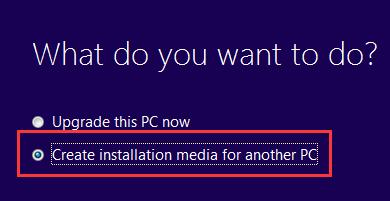
  • Select Create installation media for another PC.
  • In the next screen, select desired Language, Edition, and Architecture of the Windows OS you want to install.
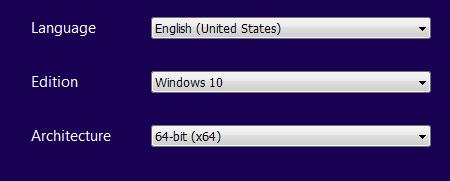
  • Click Next
  • Select ISO file and click Next
  • You will be prompted to select the download location. Navigate to the desired partition or folder on your PC and click Save. The download file is named Windows by default. You can change it as per your preferences before clicking Save.
  • The download starts instantly and you have to wait until the download completes.

Step Two – Download and install Windows USB/DVD Download Tool.

Go to the Microsoft website and download the Windows USB/DVD download tool. Alternatively, you can also download the Windows USB driver update tool.

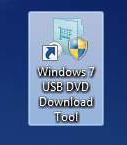
  • Install the software on your PC. After the software is successfully installed, you will see a shortcut for software on the desktop.
  • Plug-in USB drive
  • Double-click on the USB/DVD download tool shortcut to launch the application
  • Click Browse and navigate to the folder where you saved the Windows ISO file and select the ISO file

  • Click Next
  • Click USB device

  • Select the USB drive from the drop-down list
  • Click Begin Copying

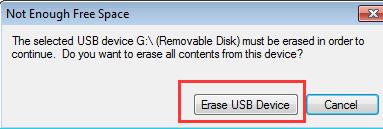
  • Next, click Erase USB device

  • Click Yes to confirm

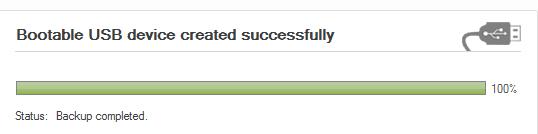
The process will take some time to complete. After the process is completed you will have a bootable USB that can be used to install Windows on any PC.
Filed Under: PC Fix Tips Tagged With: Windows ISO to USB

“Windows 10 cannot connect to this network” error [Fixed]

By Susan C on October 2, 2021

“Windows 10 cannot connect to this network” error [Fixed]

Are you getting the Windows 10 cannot connect to this network error?

You are not alone. This is a common error reported by many users. So, what causes it? Well, there is no one fixed answer. The error can occur because of a number of reasons. All the same, it usually doesn’t take much to fix it.

In this post, we have discussed several solutions to this problem. You don’t have to try each and every solution; instead, start with the first one in the list and work your way down until the issue is fixed.

Solution One – Forget the network and reconnect to the network

Forgetting a network is helpful when you are facing problems connecting to a network. It erases all network settings saved by your computer. You have to enter credentials of the network to connect again. Here are the steps to follow.

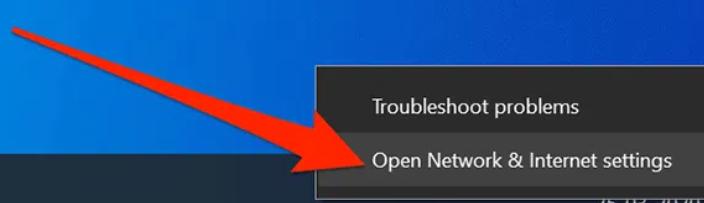
  • Go to system tray and right-click in network icon
  • Click Open Network & Internet settings
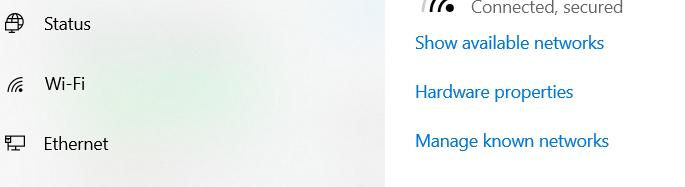
  • In the left-side bar, click on Wi-Fi to see your wireless adapters
  • Next click on Manage known networks
  • In the next screen, click on the problematic Wi-Fi network and click Forget
  • The Wi-Fi network will be removed from known networks
  • To reconnect to the network, scan networks like you normally do and click Connect
  • Enter password when prompted

 Solution Two- Toggle the Airplane Mode On & Off

This trick is used by smartphone users when they face network connectivity issues on their devices.  This trick might also work on Windows 10. When you turn On the Airplane Mode in Windows 10, the device will disconnect from all networks. When you turn off the Airplane mode, you have to connect to the available networks.

  • Go to system tray and click the network icon
  • Click Airplane Mode to activate. The tile will turn blue which indicates Airplane Mode is ON
  • Wait for some time
  • Click Airplane Mode to deactivate. The tile will turn grey which indicates the Airplane Mode is Off.
  • Now try connecting to the network. If you are still getting “Windows 10 cannot connect to this network” go to next solution.

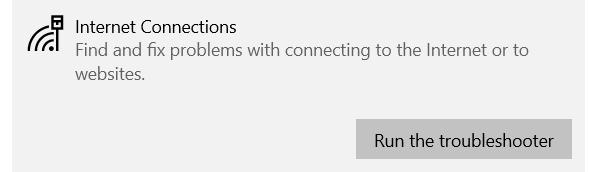
Solution Three – Run Network Troubleshooter

Windows 10 features an in-built network troubleshooter. It can fix any underlying problems related to network connectivity. Here are the steps to run network troubleshooter.

  • Click Start -> Settings (wrench icon)
  • In the Settings screen, click Update and Security
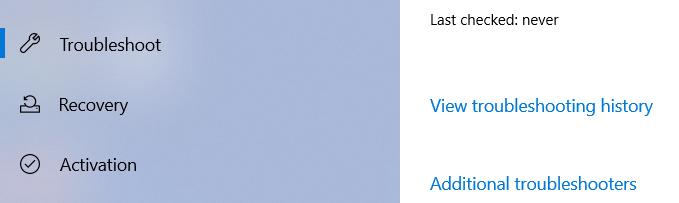
  • In the left side bar, click Troubleshoot
  • In the right hand section, find and click additional troubleshooters
  • In the next screen, click Internet connections -> Run the troubleshooter
  • Wait for the troubleshooter to complete operation.

Solution Four – Disable IPv6 on your PC

Many computers work just fine with IPv4 and they don’t need IPv6 to connect to the Internet. Many users were able to resolve the “Windows 10 cannot connect to this network” error by disabling IPv6 and it could help you too. Here are the steps to follow.

  • Go to system tray and right-click network icon
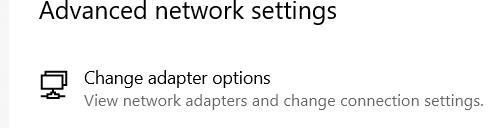
  • In the network settings screen, click change adapter options under Advanced Network settings
  • In the next screen, you will see icons of different network adapters. Right-click on problematic Internet adapter and select Properties
  • In the Properties window, look for Internet Protocol version 6 (IPv6) and uncheck the corresponding box. This will prevent computer from using IPv6

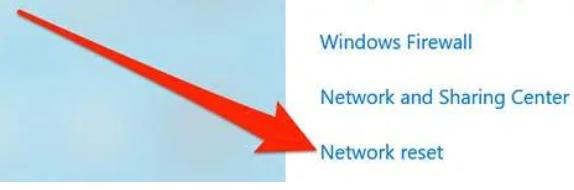
Solution Five – Reset your network settings

Sometimes improper configuration of the network can also lead to errors like “Windows 10 cannot connect to this network”. Resetting network settings will set things right that may resolve the error. Here are the steps to follow.

  • Open Settings
  • Click Network and Internet
  • Click Status in the left side bar
  • Scroll down the window and click Network Reset option
  • In the next screen, click Reset now

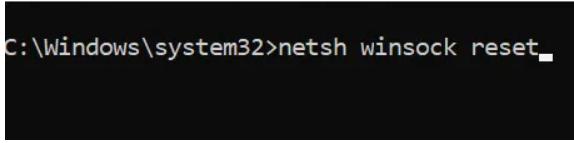
Solution Six – Run network command in Command Prompt

The “Windows 10 cannot connect to this network” could be due to wrong IP settings. Windows offers a few networking commands that can fix this problem. Here are the steps to follow.

  • Click Start and type cmd in search bar
  • In the search results, right-click Command prompt and select Run as administrator
  • In the command window prompt, type the following command one after another. Press enter after typing command and wait for the command process to complete. Then type next command in the list
  • netsh winsock reset
  • netsh int ip reset
  • ipconfig /release
  • ipconfig /renew
  • ipconfig /flushdns

After you have run all networking commands, reboot PC and try connecting to network.

Solution Seven – Modify network adapter settings

Many users were able to resolve the error by disabling 802.11d. Here are the steps to follow.

  • Press Windows logo key and X simultaneously on your keyboard
  • Click Settings from the menu
  • Select Network and Internet
  • In the right hand pane, click Change adapter options

  • Locate your wireless adapter and right-click it.
  • Select Properties from the menu
  • In the Wi-Fi properties window, click Configure button
  • Click Advanced tab
  • From the Property list box, select 802.11d
  • From the value drop down list, select Enabled
  • Click OK to save changes

Solution Eight – Check the connection security type used by router and computer

The router offers security types like PA2-PSK (AES) or WPA-PSK (AES) to protect your wireless data.  Both router and computer should use same connection security type. “The Windows 10 cannot connect to this network error”could be due to different connection security type used by router and computer

  • Access router interface and check wireless settings. Note down the connection security type
  • Right-click network connection in the system tray
  • Select Open Network & Internet settings.
  • Select Network and Sharing Center
  • In the next window, click wireless network icon
  • Next, click wireless properties
  • In the properties window, go to Security tab
  • Check the connection security type. Make sure it matches the router.

Solution Nine – Disable 802.1 1n mode of your network adapter

802.11n uses MIMO (multiple input / multiple output) technology and a wider radio frequency channel. It is used to increase network reliability, increase wireless local area network speed, and extend wireless range. You can often resolve this error by disabling 802.1 1n mode in network adapter. Here are steps to follow.

  • Click Start and type Device Manager in search bar
  • Click Device Manager from the search results. This will open Device Manager
  • In the Device Manager window, go to Network adapters and expand it
  • Right-click on your network adapter and click Properties
  • In the Properties window, go to Advanced tab
  • In the property list box, click 802.11n Mode
  • In the Value drop-down box, select Disabled

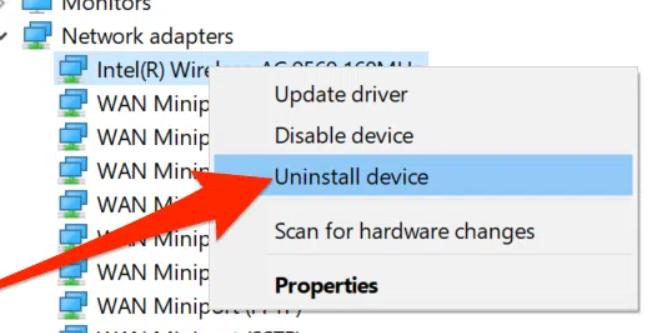
Solution Ten – Uninstall your network adapter

There is a possibility the Windows 10 cannot connect to this network error is related to drivers. In that case, you need to uninstall your network adapter and reboot your PC. After reboot, Windows will identify missing drivers for the network adapter. It will install right network adapter drivers automatically. Here are the steps to follow.

  • Open Device Manager
  • Go to Network adapters section and expand it
  • Right-click your network adapter and click Uninstall
  • After the network adapter is uninstalled, restart your PC

Solution  Eleven – Update Network Adapter drivers

The problem could be related to outdated network adapter drivers. You can update drivers manually or use a Driver Update Tool to update network drivers automatically. Here we have shared both methods to update network adapter drivers

Update drivers manually

  • Open Device Manager
  • Go to Network Adapters, expand it and right-click your network adapter
  • Click Update Software
  • Click Browse my computer for driver software.
  • Click Let me pick from a list of device drivers on my computer.
  • Ensure the Show compatible hardware option is not checked.
  • Find your network adapter manufacturer and select the driver you wish to install
  • After installing the driver, restart your computer

Update Drivers Automatically

If you don’t want to spend your precious time updating drivers manually or lack the technical knowledge needed to work with Device Manager, we recommend you use a driver update utility.

The software will update your network and other outdated drivers and keep them up-to-date.

Step 1
Click here to Install and launch the app

Step 2
Scan all devices

Step 3
Install or update drivers automatically

Solution Twelve  – Reset Router

In many cases, the problem lies in the router. If none of the above solutions work for you, the last resort is resetting the router. Refer to the router documentation to find out the steps to reset your router.

Filed Under: PC Fix Tips Tagged With: Network Issue

Err_Ssl_Protocol_Error in Chrome Solved (5 Simple Solutions)

By Susan C on October 2, 2021

Err_Ssl_Protocol_Error in Chrome Solved (5 Simple Solutions)

If you have been using Chrome for some time, you might have encountered errors such as: the Err_Ssl_Protocol_Error message or This site can’t provide a secure connection.

These are common SSL errors, which thankfully are not very difficult to resolve. However, one frustrating aspect of SSL error is that it’s not always easy to pinpoint the exact cause.

We recommend you give these solutions a try if you are up against the aforementioned error. You don’t have to try all the given solutions; instead start with the first one in the list and work your way down until you are able to resolve the issue for good.

Solution One – Check your system date and time

If your computer’s clock is set to the wrong date and time, you will experience problems while accessing secure websites and Chrome will throw an error message. The easiest solution is checking the time and data shown at the bottom right corner of the taskbar. If you see the date and time displayed are incorrect, you need to set the clock and date to show the right time. Here are the steps to change the date and time.

  • Click the clock in the taskbar
  • In the pop-up, click Change date and time settings
  • In the Date and time window, click Change date and time
  • Set the right date and time and click OK

Solution Two- Check the firewall settings

Many times you may accidentally block a website through the firewall. If the site is entered in the block list, you will get the Err_Ssl_Protocol_Error message. Here are the steps to check your firewall settings

  • Click Start – > Control Panel
  • Click System and Security
  • Click Windows firewall
  • On the left side of the Windows Firewall panel, click Allow a program or feature through Windows Firewall. The Allowed Programs panel will appear.
  • Select Google Chrome and click Change Settings
  • Make sure Google Chrome is allowed to access websites on Private and Public networks. Both boxes should be ticked.

Solution Three – Disable QUIC protocol

QUIC stands for Quick UDP Internet Connections. It provides a TLS/SSL equivalent connection to Google’s servers. QUIC is enabled by default in Chrome. Many users were able to resolve the error by disabling QUIC. Here are the steps to disable it.

  • Launch Chrome
  • Copy chrome: //flags/#enable-quic and paste it into the address bars and hit enter.
  • Go to the first entry Experimental QUIC protocol and select Disabled from the drop-down list
  • Restart Chrome

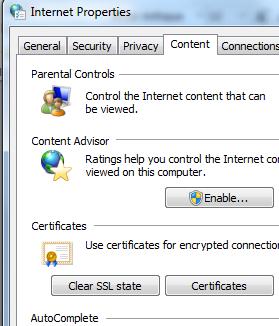
Solution Four – Clear SSL state

The Secure Sockets Layer manages secure connections to the web. The proofs of identities called “Certificates” get stored in your computer’s memory until you clear the SSL state. Here are the steps to clear the SSL state

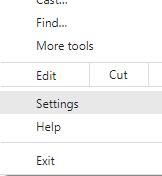
  • Open Google Chrome and click the three dots you see just below the X (close) button.
  • Next click on Settings.

  • Scroll down the page and open Advanced Settings.
  • Search for proxy settings in the search bar or scroll down to find it
  • A window named ‘Internet Properties’ will open up.
  • Go to the Content window and click on the Clear SSL State Button.

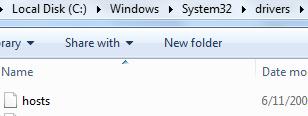
Solution Five – Remove system hosts file

The system hosts file is one of the crucial system resources that address network nodes in a computer network. It is also an important part of the operating system’s IP implementation. The system hosts file might be affected which is causing Err_Ssl_Protocol_Error. Removing it can help resolve the error. Here are the steps to follow.

  • Press the Windows logo key and R simultaneously on the keyboard. It will bring up the Run command
  • In the Run command box, type C:\Windows\System32\drivers\etc and hit Enter on the keyboard

  • Right-click hosts and select Delete

Restart your Chrome to see if you the issue is resolved.

Filed Under: PC Fix Tips Tagged With: Err_Ssl_Protocol_

  • « Previous Page
  • 1
  • …
  • 64
  • 65
  • 66
  • 67
  • 68
  • …
  • 189
  • Next Page »


  • Recent Posts
  • Popular Posts
        

Read More Posts


Read More Posts

Drivers.com Sites

  • Software Drivers
  • Drivers Ed

About Us

  • Advertise
  • About Drivers
  • Drivers Support
  • Drivers.com Privacy Policy
  • Disclaimer
  • Software Drivers
  • Mac Fixes and Tips
  • PC Fix Tips
  • Security/ Backup
  • Tablets & Smartphones
  • Tech News

© Copyright 2026 PDE Publications Ltd. End User License Agreement (EULA)