Drivers.com

follow us:

facebook twitter
  • Home
  • Download Drivers
  • Drivers Help
  • PC/Mac Resources
  • Software Drivers
  • Mac Fixes and Tips
  • PC Fix Tips
  • Security/ Backup
  • Tablets & Smartphones
  • Tech News
  • Software Drivers
  • Mac Fixes and Tips
  • PC Fix Tips
  • Security/ Backup
  • Tablets & Smartphones
  • Tech News

Plugin is not supported error (Fixed)

By Susan C on April 9, 2021

Plugin is not supported error (Fixed)

You may come across the following error when you try to open a website using Google Chrome:

this plug-in is not supported

When this error message appears, the content of the webpage you are trying to open fail to load. While an annoying issue, it isn’t a serious one. You can easily resolve the problem yourself. In this post, we’ll show you three simple, DIY fixes for this issue.

Solution 1 – Install the latest Adobe Flash Player

You can receive this error if Adobe Flash Player is not installed on your computer or outdated. In either situation, Google Chrome will fail to load the plugin in the normal manner.

You can visit the Adobe website and download the latest version of Flash Player and install it. Once you’ve installed the software, don’t forget to reboot Windows.

Solution 2 – Clear the browsing data

Another reason behind the titled error is corrupt browsing data. Google Chrome may fail to load some plugins in that case. For this reason, we recommend you to clean the data. Many users were able to fix the error by doing so, and there’s every chance you may be able to fix the problem as well.

Here are the steps to follow:

  • On the Google Chrome, press Ctrl + Shift + Delete together
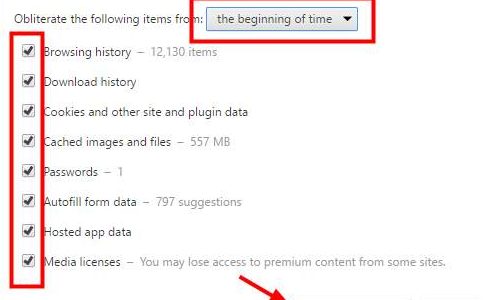
  •  Select the beginning of time in the drop down menu next to Obliterate the following item from. Next, select all the listed items and then click Clear browsing data
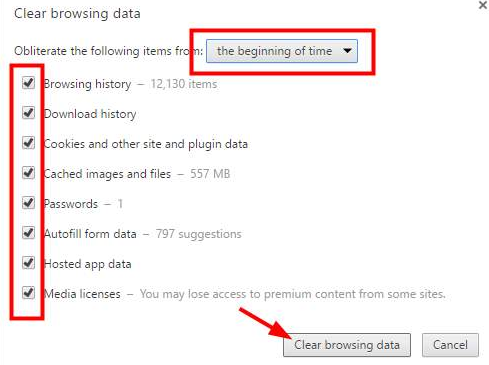
clear browsing data

Solution 3 – Try another browser

From the version 45 onward, Google Chrome stopped support for NPAPI. This is an interface which Java plugin uses. For this reason, your Chrome may not be supporting the Java plugin. In case the content which is blocked needs the Java plugin, you may want to consider using a different web browser like Internet Explorer.


Filed Under: Software Drivers Tagged With: Adobe Flash

Google Certificate Error Fixed (3 DIY Solutions)

By Susan C on March 27, 2021

Google Certificate Error Fixed (3 DIY Solutions)

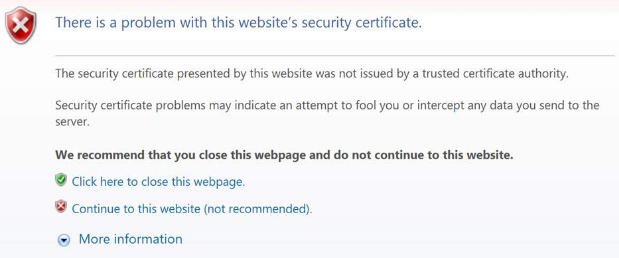
When users try to reach Google, they sometimes get the following certificate error.

Google Certificate Error

According to the web browser being used, the certificate of the site can’t be trusted. For obvious reasons, this issue is annoying; you can no longer access Google due to the said error.

Which begs the question: How can you fix it?

Fortunately, it doesn’t take much to get rid of this pesty error. In this post, we’ll discuss the following three solutions:

  • Update your computer’s date and time
  • Turn the certificate revocation settings off
  • Reinstall the web browser

You can simply start with the first solution and try the next one and so on until you’re able to fix the problem.

Solution 1 – Update your computer’s date and time

Sometimes, the certificate error occurs due to incorrect date and time on the computer. To correct this issue, here are the steps you must follow:

  • Press Windows key and R key simultaneously on your keyboard
  • In the run dialog box, type control and then press the Enter key or hit the OK button
  • In the control panel window, change the View by setting to Large icons
  • Now click Date and Time
  • In the Date and Time box, click Internet Time
  • Now click Change settings
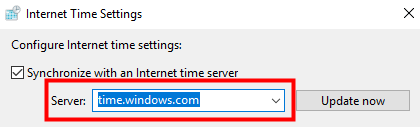
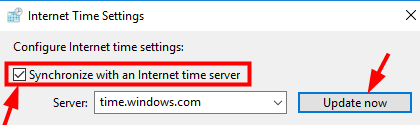
  • Ensure the box before Synchronize with an internet server is checked. Click the Update now Next click OK

internet time settings

In case you encounter an error when you try updating the time, you can change to a different server. Now update again

  • Click the OK button
  • Now reopen the Google website and see if the issue is fixed

Solution 2 – Turn the certificate revocation settings off

When the certificate revocation settings are set as enabled, then also you may get this error. Here are the steps for turning these settings off:

  • Press Windows key and R key simultaneously on your keyboard
  • In the run dialog box, type control and then press the Enter key or hit the OK button
  • In the control panel window, change the View by setting to Large icons
  • Click Internet Options
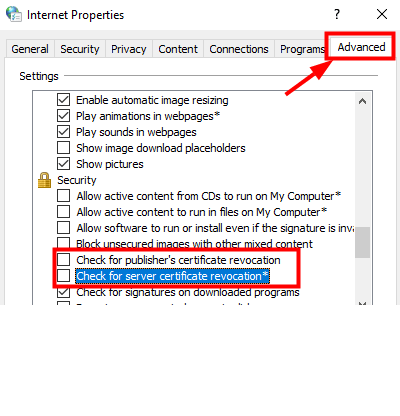
  • In the Internet Properties box, uncheck the box before Check for publisher’s certificate revocation. Now check the box before Check for server certificate revocation

  • Click OK
  • Now open the internet browser and see if you can open Google

Solution 3 – Reinstall the web browser

You may also receive this error if there are some issues with the internet browser. If the above two steps didn’t work, reinstalling the newest version of the web browser may prove worth your while.

Here are the steps to follow:

  • Press Windows key and R key simultaneously on your keyboard
  • In the run dialog box, type control and then press the Enter key or hit the OK button
  • In the control panel window, change the View by setting to Large icons
  • Click Programs and Features
  • Right click the web browser and then click Uninstall

Uninstall Google

  • Follow the onscreen instructions to uninstall the web browser
  • Now go to the official website of your web browser (in case you are unable to do so from your computer, use any other PC or laptop). Now locate and download the latest version of your web browser and install it
  • Launch the web browser and check if the error has got fixed

We hope one of these three solutions will hit the mark for you. Leave us a comment to tell us which one of these worked for you or to share a solution not included here.

Filed Under: PC Fix Tips Tagged With: Google Error

USB Controller Driver Issue (Fixed)

By Susan C on March 19, 2021

USB Controller Driver Issue (Fixed)

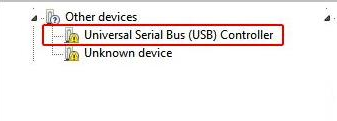
If you notice a yellow exclamation mark beside Universal Serial Bus (USB) Controller, it means only one thing – your device driver is not installed properly. When this happens, your Windows computer will not be able to recognize the USB device.

In this post, we’ve listed two solutions to this problem. You can try either first.

Solution 1 – Uninstall the Device Driver

Here are the steps you need to follow:

  • In the Device Manager window, right-click Universal Serial Bus (USB) Controller and then select Uninstall
  • You may get a message asking you to confirm your action. If you do, select the box before Delete the driver software for this device. Then click OK
  • Reboot Windows and now check whether the device driver is now installed correctly

Solution 2 – Update the Chipset Driver

You can update the chipset driver manually or automatically.

To update it manually, note down your PC model as well as your operating system version.

The PC model will be listed on your PC, while you can find the version of Windows you are using by performing these steps:

  • Click Start > Settings > System > About
  • Under Device specifications > System type, check the version you are running – 32 bit or 64 bit

Once you have the relevant information, go to your PC manufacturer’s website and then download the latest drivers. Make sure you download a chipset driver that’s appropriate for you version of Windows. That is, if you use 32-bit Windows, download the latest chipset driver for 32-bit PCs. Likewise, users with 64-Windows should go for a driver meant for 64-bit.

If you don’t have the time, expertise, or inclination to perform all these steps, consider using a Driver Update Tool to automatically update the chipset driver.

Automatic driver update tools offer many benefits, the most important ones being:

  • You can update device drivers automatically
  • The software scans and updates all outdated or missing drivers at one go
  • The tool picks the right drivers for your device and operating system, so you won’t have to worry about installing an incorrect driver by mistake
  • Automatic driver updates are 100% safe

Driver Updater is one of the best driver update tools out there. Outbyte Driver Updater will give you access to a database of over 1 million drivers. It will regularly scan your PC, suggesting new driver versions to install. Driver Updater contains drivers for a variety of Windows devices. With just one click, you can update drivers in your system.

Step 1
Click here to Install and launch the app

Step 2
Scan all devices

Step 3
Install or update drivers automatically


Start Download


Filed Under: PC Fix Tips Tagged With: USB driver

  • « Previous Page
  • 1
  • …
  • 72
  • 73
  • 74
  • 75
  • 76
  • …
  • 189
  • Next Page »


  • Recent Posts
  • Popular Posts
        

Read More Posts


Read More Posts

Drivers.com Sites

  • Software Drivers
  • Drivers Ed

About Us

  • Advertise
  • About Drivers
  • Drivers Support
  • Drivers.com Privacy Policy
  • Disclaimer
  • Software Drivers
  • Mac Fixes and Tips
  • PC Fix Tips
  • Security/ Backup
  • Tablets & Smartphones
  • Tech News

© Copyright 2026 PDE Publications Ltd. End User License Agreement (EULA)