


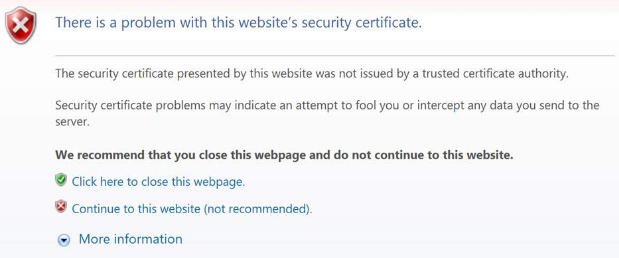
When users try to reach Google, they sometimes get the following certificate error.
According to the web browser being used, the certificate of the site can’t be trusted. For obvious reasons, this issue is annoying; you can no longer access Google due to the said error.
Which begs the question: How can you fix it?
Fortunately, it doesn’t take much to get rid of this pesty error. In this post, we’ll discuss the following three solutions:
- Update your computer’s date and time
- Turn the certificate revocation settings off
- Reinstall the web browser
You can simply start with the first solution and try the next one and so on until you’re able to fix the problem.
Solution 1 – Update your computer’s date and time
Sometimes, the certificate error occurs due to incorrect date and time on the computer. To correct this issue, here are the steps you must follow:
- Press Windows key and R key simultaneously on your keyboard
- In the run dialog box, type control and then press the Enter key or hit the OK button
- In the control panel window, change the View by setting to Large icons
- Now click Date and Time
- In the Date and Time box, click Internet Time
- Now click Change settings
- Ensure the box before Synchronize with an internet server is checked. Click the Update now Next click OK
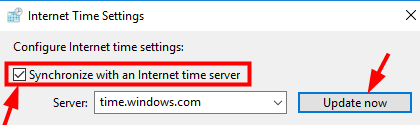
In case you encounter an error when you try updating the time, you can change to a different server. Now update again
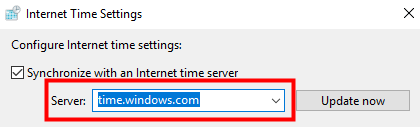
- Click the OK button
- Now reopen the Google website and see if the issue is fixed
Solution 2 – Turn the certificate revocation settings off
When the certificate revocation settings are set as enabled, then also you may get this error. Here are the steps for turning these settings off:
- Press Windows key and R key simultaneously on your keyboard
- In the run dialog box, type control and then press the Enter key or hit the OK button
- In the control panel window, change the View by setting to Large icons
- Click Internet Options
- In the Internet Properties box, uncheck the box before Check for publisher’s certificate revocation. Now check the box before Check for server certificate revocation
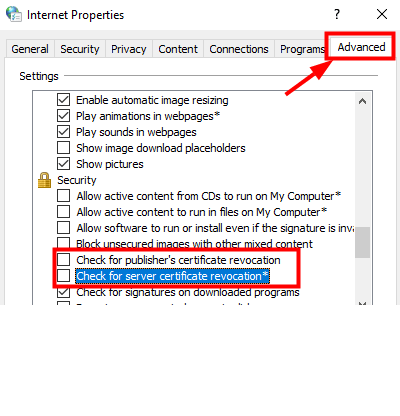
- Click OK
- Now open the internet browser and see if you can open Google
Solution 3 – Reinstall the web browser
You may also receive this error if there are some issues with the internet browser. If the above two steps didn’t work, reinstalling the newest version of the web browser may prove worth your while.
Here are the steps to follow:
- Press Windows key and R key simultaneously on your keyboard
- In the run dialog box, type control and then press the Enter key or hit the OK button
- In the control panel window, change the View by setting to Large icons
- Click Programs and Features
- Right click the web browser and then click Uninstall

- Follow the onscreen instructions to uninstall the web browser
- Now go to the official website of your web browser (in case you are unable to do so from your computer, use any other PC or laptop). Now locate and download the latest version of your web browser and install it
- Launch the web browser and check if the error has got fixed
We hope one of these three solutions will hit the mark for you. Leave us a comment to tell us which one of these worked for you or to share a solution not included here.