


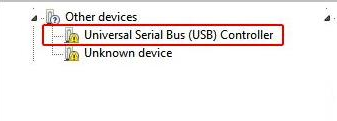
If you notice a yellow exclamation mark beside Universal Serial Bus (USB) Controller, it means only one thing – your device driver is not installed properly. When this happens, your Windows computer will not be able to recognize the USB device.
In this post, we’ve listed two solutions to this problem. You can try either first.
Solution 1 – Uninstall the Device Driver
Here are the steps you need to follow:
- In the Device Manager window, right-click Universal Serial Bus (USB) Controller and then select Uninstall
- You may get a message asking you to confirm your action. If you do, select the box before Delete the driver software for this device. Then click OK
- Reboot Windows and now check whether the device driver is now installed correctly
Solution 2 – Update the Chipset Driver
You can update the chipset driver manually or automatically.
To update it manually, note down your PC model as well as your operating system version.
The PC model will be listed on your PC, while you can find the version of Windows you are using by performing these steps:
- Click Start > Settings > System > About
- Under Device specifications > System type, check the version you are running – 32 bit or 64 bit
Once you have the relevant information, go to your PC manufacturer’s website and then download the latest drivers. Make sure you download a chipset driver that’s appropriate for you version of Windows. That is, if you use 32-bit Windows, download the latest chipset driver for 32-bit PCs. Likewise, users with 64-Windows should go for a driver meant for 64-bit.
If you don’t have the time, expertise, or inclination to perform all these steps, consider using a Driver Update Tool to automatically update the chipset driver.
Automatic driver update tools offer many benefits, the most important ones being:
- You can update device drivers automatically
- The software scans and updates all outdated or missing drivers at one go
- The tool picks the right drivers for your device and operating system, so you won’t have to worry about installing an incorrect driver by mistake
- Automatic driver updates are 100% safe
Driver Updater is one of the best driver update tools out there. Outbyte Driver Updater will give you access to a database of over 1 million drivers. It will regularly scan your PC, suggesting new driver versions to install. Driver Updater contains drivers for a variety of Windows devices. With just one click, you can update drivers in your system.
Step 1
Click here to Install and launch the app
Step 2
Scan all devices
Step 3
Install or update drivers automatically
Leave a Reply