![Unknown USB Device (Device Descriptor Request Failed) [4 DIY Solutions]](https://www.drivers.com/wp-content/uploads/2021/04/USB-driver-error.png)
Plugged in an external USB drive only to find your computer isn’t recognizing it? And when you open the Device Manager window, you see the following error: Unknown USB Device (Device Description Request Failed).
You’re not alone. This is a fairly common error. Thankfully, it is also relatively easy to fix. In this post, we’ll discuss four DIY solutions.
But before we look at them, let’s first check out why this error occurs in the first place.
Why Does Unknown USB Device Error occur?
You’ll see a yellow triangle on the USB device in the Device Manager window.
Often, this problem arises due to hardware issues. Therefore, we recommend you follow these simple instructions first.
- Try connecting the device on a different USB port. This can help your whether a broken port is the root cause or not.
- Try connecting the device to another PC. This can help you check if the problem lies with the external device itself.
In case the problem lies with neither the device nor the USB device, you should give the following solutions a try. Of course, there’s no need for you to try all of these solutions. Simply start from the first one, and if that doesn’t work, move on to the next one in the list and so on.
First Solution – Remove Power Supply
If the issue is triggered by Power Supply, you’ll be able to resolve the issue by following these steps:
- Remove your power supply plug from the computer
- Now, re-plug the power supply
- Restart Windows and now connect your external device to the USB port
Second Solution – Uninstall the USB driver
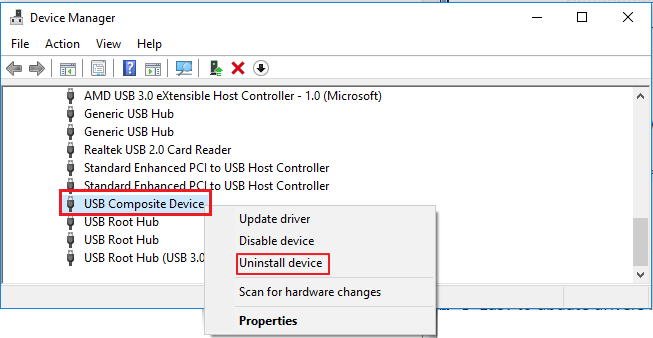
If the previous solution didn’t fix the issue, try uninstalling the USB driver. Here are the steps to follow:
- Open Device Manager
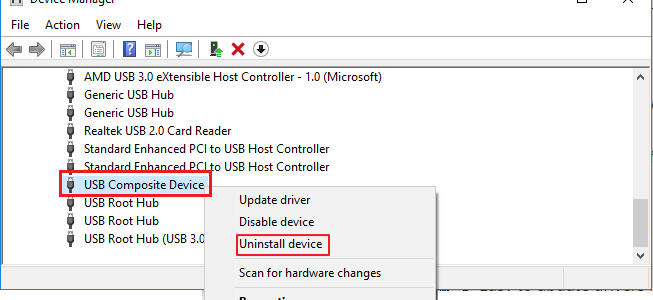
- Expand category Universal Serial Bus Controllers. Next, identify the USB device not recognized by Windows
- Right-click the device and click Uninstall
- Let the un-installation process finish. Then restart your computer. Windows will automatically reinstall the driver.
Third Solution – Update Your USB driver
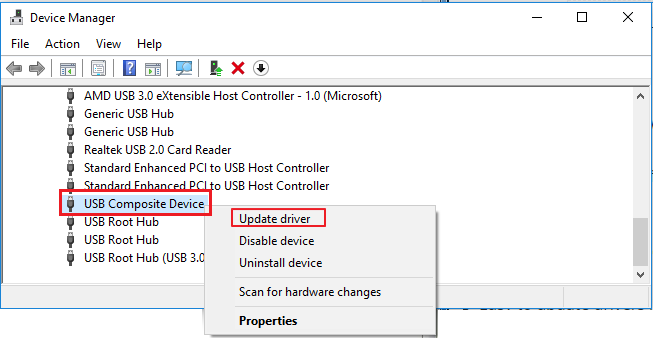
A faulty or outdated USB driver could also cause this error. That’s why it is necessary that you update your USB driver. The easiest way to do so is by using a reliable driver update tool.
Automatic driver update tools offer many benefits, the most important ones being:
- You can update device drivers automatically
- The software scans and updates all outdated or missing drivers at one go
- The tool picks the right drivers for your device and operating system, so you won’t have to worry about installing an incorrect driver by mistake
- Automatic driver updates are 100% safe
Driver Updater is one of the best driver update tools out there. Outbyte Driver Updater will give you access to a database of over 1 million drivers. It will regularly scan your PC, suggesting new driver versions to install. Driver Updater contains drivers for a variety of Windows devices. With just one click, you can update drivers in your system.
Step 1
Click here to Install and launch the app
Step 2
Scan all devices
Step 3
Install or update drivers automatically
Fourth Solution – Disable Fast Startup
In case Windows boots up too quickly, it may fail to detect the external device before the booting is complete. For this reason, it’s a good idea to disable the fast boot option.
Here’re the steps you need to follow:
- On your keyboard, press Windows key + R key simultaneously
- In the Run dialog box, type control and then click the OK button
- Now in the Control Panel window, set View by to Large icons
- Click Power Options
- Click Choose what the power buttons do (This option will be visible in the left pane)
- Now, click Change settings that are currently unavailable
- Now go to Shutdown settings. Here uncheck the box before Turn on fast startup (recommended). Now click Save changes button
- Reboot Windows and check if the issue is fixed or not