


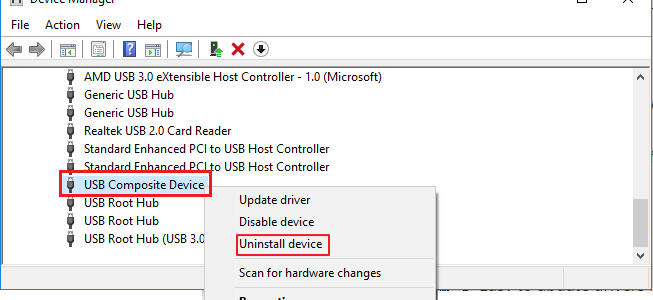
If USB devices are not working on your computer, you should check the USB Composite device driver in Device Manager. If you see a yellow exclamation mark near USB Composite Device entry, it means the right driver for the device is missing.
An easy solution to this issue is to get new drivers. You can do this manually or automatically. Here we have provided steps to both methods.
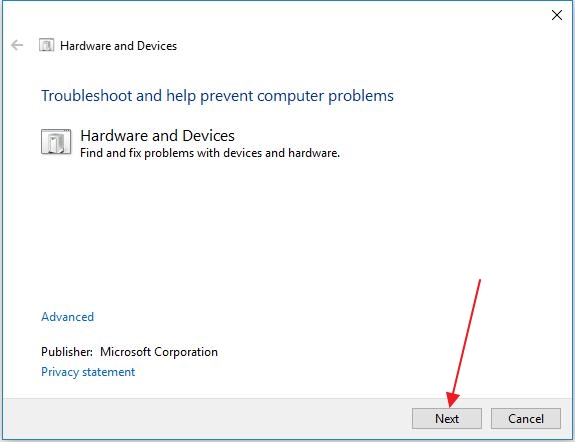
Before you go ahead and update drivers, we suggest you to run the Hardware and Devices troubleshooter to isolate the issue.
Run Hardware and Devices troubleshooter
- Press Windows key + R to bring up Run command
- In Run command window, type control panel and click OK
- In the search bar of Control Panel window, type troubleshooting
- Click on Troubleshooting
- Click Hardware and Devices
- Follow the on-screen instructions to run the troubleshooter
How to manually update USB Composite Device driver?
- Hold down Windows logo key and press R key on the keyboard. It will invoke the Run command tool
- In Run command box, type devmgmt.msc and click OK
- In the Device Manager window, go to Universal Serial Bus Controllers category and expand it
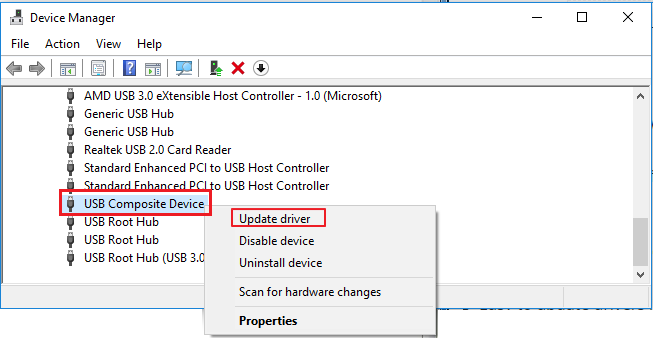
- Locate USB Composite device entry in the list and right-click on it
- Click Update Driver software
- In the next window, select the first option that says Search automatically…..
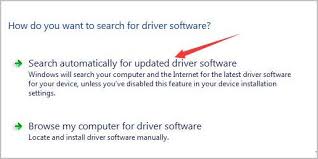
- Wait while Windows search for driver updates
- Follow instructions to install driver updates
If the above method did not work for you, perform the troubleshooting steps given below.
- Right-click on USB Composite device and select Uninstall device
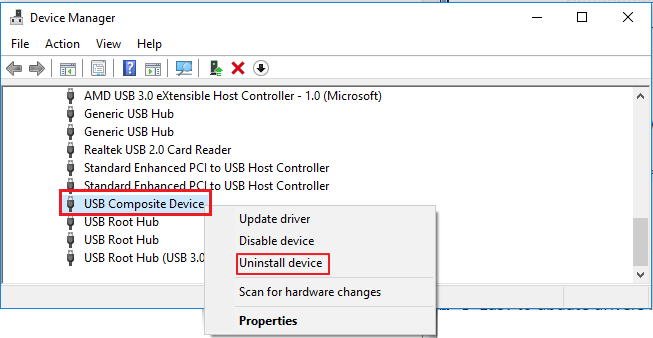
- If you are prompted for permission by User Account Control, click Yes
- After the uninstallation is complete
- Restart your PC
- Windows will identify missing drivers and install drivers for USB Composite device
How to update driver for USB Composite Device automatically?
Automatic driver update tools offer many benefits, the most important ones being:
- You can update device drivers automatically
- The software scans and updates all outdated or missing drivers at one go
- The tool picks the right drivers for your device and operating system, so you won’t have to worry about installing an incorrect driver by mistake
- Automatic driver updates are 100% safe
Driver Updater is one of the best driver update tools out there. Outbyte Driver Updater will give you access to a database of over 1 million drivers. It will regularly scan your PC, suggesting new driver versions to install. Driver Updater contains drivers for a variety of Windows devices. With just one click, you can update drivers in your system.
Step 1
Click here to Install and launch the app
Step 2
Scan all devices
Step 3
Install or update drivers automatically
Leave a Reply