Drivers.com

follow us:

facebook twitter
  • Home
  • Download Drivers
  • Drivers Help
  • PC/Mac Resources
  • Software Drivers
  • Mac Fixes and Tips
  • PC Fix Tips
  • Security/ Backup
  • Tablets & Smartphones
  • Tech News
  • Software Drivers
  • Mac Fixes and Tips
  • PC Fix Tips
  • Security/ Backup
  • Tablets & Smartphones
  • Tech News

Resources by Tag

windows update issue

Windows 7 Will Not Download Updates (5 DIY Fixes)

Windows 7 Will Not Download Updates (5 DIY Fixes)

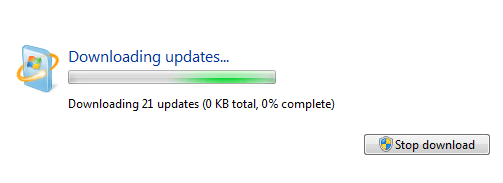
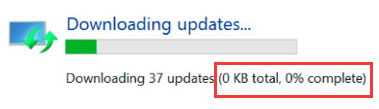
The Windows Update feature, while an immensely important one, can be a source of pain sometimes. Users have complained that at times Windows Update simply stalls at 0% when downloading and refuses to budge forward.

Are you encountering this issue as well? The good news is that you can relax because in this we’ll show you five simple fixes to resolve this problem for once and for all.

Solution #1 – Run Troubleshooter

The good thing about Windows operating system is that it usually includes a troubleshooter, which can prove handy when in distress. You can use the inbuilt troubleshooter in Windows 7 to flick off this pesty error.

Here are the steps to follow:

  • Click the Start menu. Next, type “troubleshoot” in the start search bar. Click Troubleshooting in the displayed results.
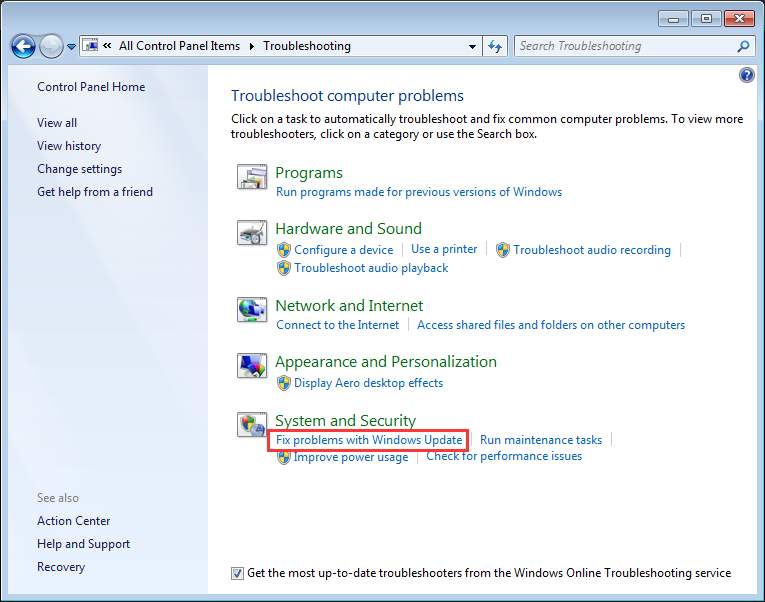
  • Navigate to the System and Security section inside the Troubleshooting window, click Fix problems Windows Update
  • Click the Next button in the Windows Update window

Solution #2 – Reset Windows Update Service

This is the built-in service that allows Windows users to use Windows Update. In case you encounter a problem with Windows Update, we recommend you can reset this service to check if that does the job.

Here are the steps to follow:

  • Simultaneously press Windows key + R key on the keyboard. In the Run dialog box, type msc and then click the OK button
  • In the Services window, browse through the list on your right to locate Windows Update Single-click on this service and then click Restart in left pane.
  • Wait for the restart of Windows Update to complete

Solution #3 – Update Windows Update Agent

An inbuilt agent program, Windows Update Agent helps identify updates that your computer requires and then download them. Many users have reported they were able to fix Windows Updates not downloading issue by updating Windows Update Agent, so it’s definitely worth a try.

You first need to download and install the program and then update it. You can download it from Microsoft website.

Important: You need to have Service Pack 1 (SP1) installed on your Windows 7 computer before you can update Windows Agent. Refer to the Microsoft official guide for downloading and installing Windows 7 Service Pack 1.

Once you have Windows 7 SP1, perform the following steps:

  • Go to Microsoft support website
  • Click Stand-alone packages for Windows 7 SP1 and Windows Server 2008 R2 SP1. Now choose the installation package that is appropriate for your Windows operating system and then download it and save it to a suitable location on your computer
  • Now open this file and follow onscreen instructions to complete installation
  • Once the program has been installed, reboot Windows. Check if the problem is fixed

Solution #4 – Download Updates Manually

What if Windows Update isn’t able to download these Updates? What should you do then?

It is very much possible download updates manually and install them. This way you can keep your Windows 7 system up-to-date and fix the titled error.

Here are the steps to follow:

  • Click the Start menu
  • Type “update” in the start search bar
  • Now click Windows Update in the displayed results
  • Choose updates available. Windows will now show you a list of updates that are available for download
  • Go through the list and check the update code (You should look for code starting with KB) of Windows updates you need to download
  • Now head to Windows Download Center and look for the code you need
  • In the search results, you may see multiple Downloads Click the result that you need to download
  • Now click the Download button to start the downloading process and save the downloaded file in an appropriate location on your PC
  • Once the download process is complete, open the file and follow the instructions on your screen to complete the installation process

This way you can install all important system updates one by one. For sure, installing multiple updates manually is likely to require a lot of time, but the tradeoff is that it can fix the titled error and ensure the smooth functioning of your Windows computer.

Solution #5 – Perform a clean boot

In case the problem persists in spite of completing the proposed solutions above, check if any particular is interfering with Windows Update.

You will need to perform a clean boot to do that. This basically means starting Windows with as few drivers and startup programs as possible. This way you can locate the application that is triggering the issue.

Here are the steps to follow:

  • Simultaneously press Windows key and R key on your keyboard
  • In the run dialog box, type msconfig and then press the OK button
  • In the System Configuration box, click the General tab. The default setting here is Normal startup. What you need to do is choose Selective startup and unselect the checkbox in the front of Load startup items
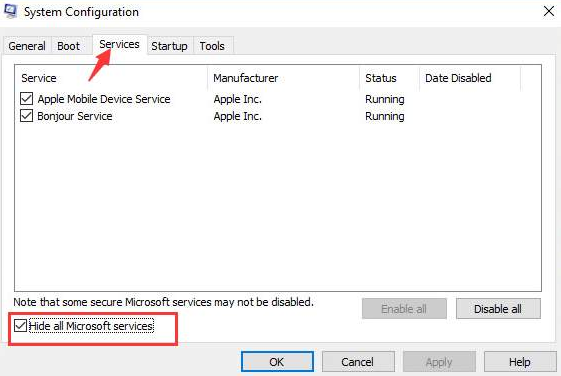
  • Now click the Service tab (third from left)
  • Select the box in the front of Hide all Microsoft services. Now click Disable all (It is necessary that you first hide all Microsoft services and then click the Disable all button. Otherwise, you may disable some secure services, which in turn can trigger unexpected and severe consequences.)
  • Click the OK button
  • Reboot Windows. Now your system will boot into clean boot state. Once Windows has booted, check if you are able to download updates the normal way, that is, through Windows Update. In case you are, use the steps listed above to enable the services separately, that is, one by one. This will help you identify the application that is causing the problem. Once you have identified the application that’s at fault, you can either uninstall or disable it.

Important: Once you have finished troubleshooting, don’t forget to restore the original System Configuration settings.


Filed Under: PC Fix Tips Tagged With: windows update issue

Windows update stuck at 0 (Solved)

Windows update stuck at 0 (Solved)

Windows update is a useful feature that allows you to automatically download the latest updates. However, sometimes this feature can throw up an unexpected error. For instance, many users complain of “Windows Update not working” issue from time to time.

downloading updates

If you’re looking for a way to fix “Windows Update stuck at 0” issue, this post is all you need. We’ll show you how to solve this error in Windows 10, 8, & 7.

Solution 1 – Wait for some time

Sometimes, the update process picks up the pace itself, without any help from you. So, if this is the first time you are seeing this error, the smart thing to do is to be a little patient. However, if doing nothing doesn’t work, try the next solution.

Solution 2 – Disable non-Microsoft services

Here are the steps to follow:

  • Press the Windows key and R key simultaneously
  • In the run dialog box, type msconfig and then press the Enter key
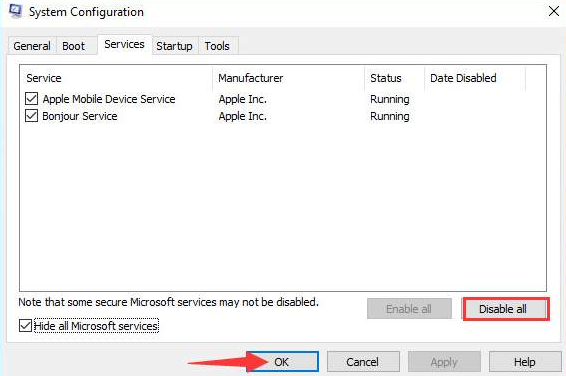
  • Click the Services tab and then select Hide all Microsoft Services
system configuration
  • Click Disable all and then click the OK button
disable system configration
  • Reboot Windows so that the changes can take effect
  • Now run Windows Update again and check if updates are getting downloaded

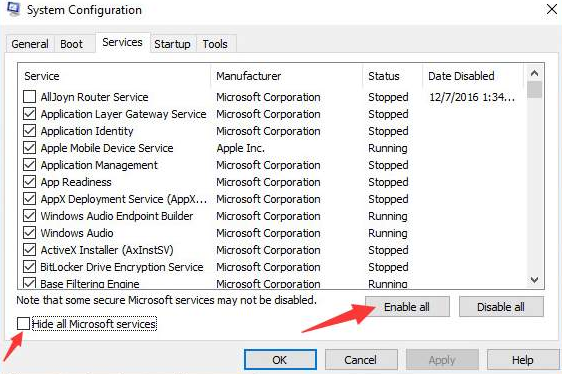
Once Windows have downloaded the latest updates, you can open the System Configuration box again (by following the above steps), and enable all services that you had previously disabled.

To do so, uncheck the box before Hide all Microsoft services and then click the Enable all button.

system configuration services

Solution 3 – Turn Windows firewall off temporarily

It is possible that Windows Firewall may be blocking the download. Therefore, temporarily turn it off and check if that does the trick.

Here are the steps to follow:

  • Open Control Panel
  • Set View by as Small icons using the drop-down menu
  • Click Windows Firewall
  • Choose Turn Windows Firewall on or off
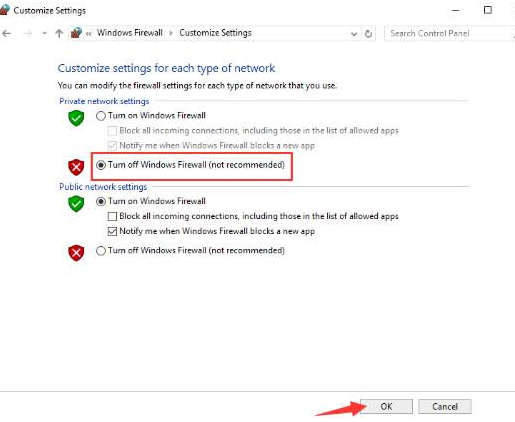
  • Choose Turn off  Windows Firewall (not recommended)
customise settings
  • Click the OK button

Now check if you are able to download Windows Updates. If so, after the download process is complete, enable Windows Firewall once again.

Solution 4 – Run a virus scan

A virus infection can cause all sorts of issues, including the titled one. Therefore, run a boot time scan to check your system for malware infection. In case any malicious programs are detected, the antimalware software will automatically suggest a suitable action. We recommend you to follow the recommendations made by your protective software.

Solution 5 – Stop and then restart Windows Update service

Here are the steps to follow:

  • Press Windows key and R key simultaneously
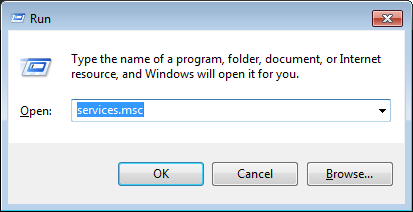
  • In the run dialog box, type services.msc and then click OK
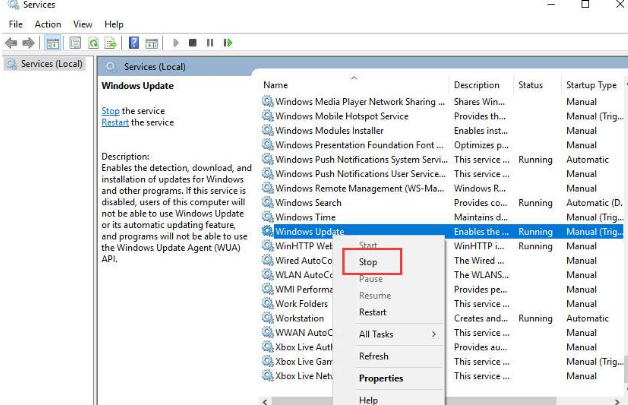
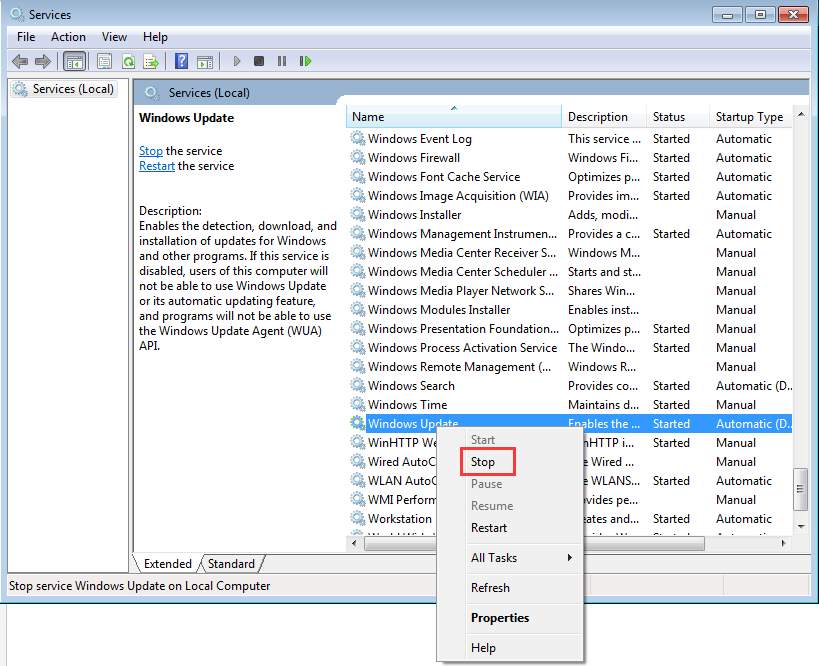
  • Browse through the list in the right pane until you locate Windows Update service. Right-click it and then click Stop
windows update
  • Now browse to the following location and delete all content you find here
  • Again right-click Windows Update service and then select Start

Now try downloading Windows Updates again. We hope one of these solutions would work for you.

Filed Under: Software Drivers Tagged With: windows update issue

Windows Update Error 80072EE2

Windows Update Error 80072EE2

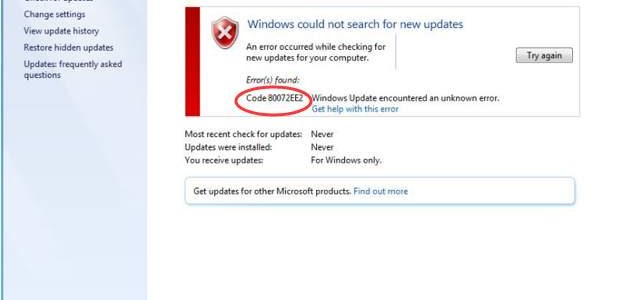
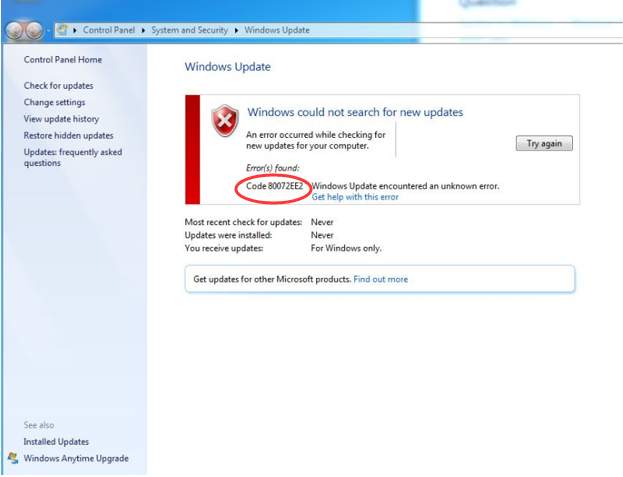
Microsoft offers regular updates to make Windows more secure and fix any bugs that affect the performance of the Windows system. Though Windows updates are designed to run smooth, there is no guarantee that this will be the case. Many Windows users have encountered error 80072EE2 while attempting to update Windows. Look at the reference image shown below.

error image

We have provided you with two simple fixes that can resolve the Windows update error 80072EE2 and update Windows without any hiccups. Here are the solutions you need to try.

Solution One – Run Windows Update Troubleshooter

Windows has an inbuilt update troubleshooter that can fix issues related to Windows updates. When you run the Window update troubleshooter, it will detect any problems in updating Windows and resolve the issue. Here are the steps you need to follow.

  • Click Start and type Control Panel in the search box
  • Click Control Panel from the list of results
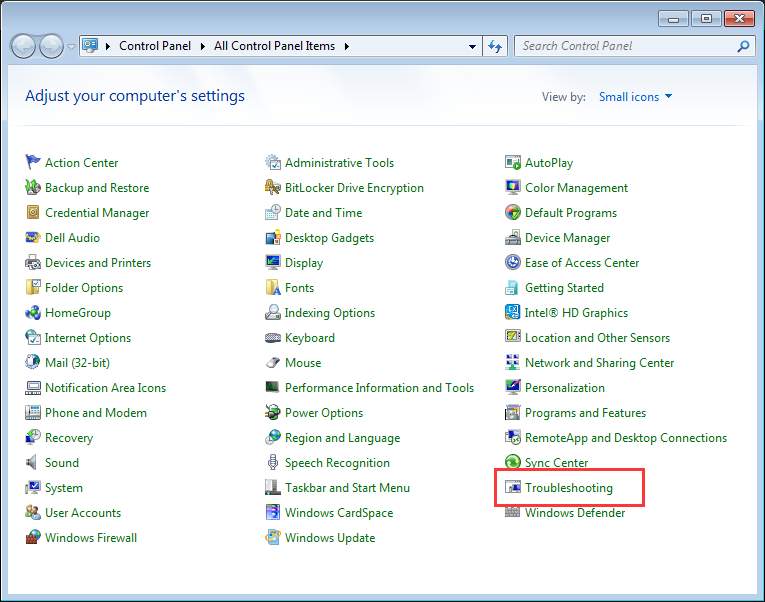
  • In the control panel window, scroll down and click Troubleshooting
troubleshooting
  • Under System and Security, click Fix problems with Windows Update
Fix problems
  • Click Next
click next
  • You should see Windows Update Troubleshooter launched on the screen. The troubleshooter will detect problems and fix them
detecting problems
  • If the Windows Update Troubleshooter is not able to fix the Windows update error 80072EE2, try the next solution.

Solution Two – Delete problematic Windows update content and registry keys

 Corrupt Windows updates files and registry keys could be the reason behind Windows update error 80072EE2. To resolve this problem, you need to delete problematic Windows update content and registry keys.

Deleting wrong registry keys can cause a serious problem that can make Windows unstable or even non-bootable in some cases. We recommend to backup registry before making any changes.

Here are the steps to make registry backup.

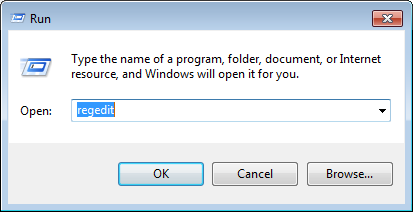
  • Click Start and type regedit in the search box
regedit
  • Click Registry Editor from the list of results
  • In the Registry Editor window, click File -> Export
registry export
  • Type an appropriate name for the Registry backup and click Save
save registry backup

Now that you have backed up Registry, you can go ahead and perform the troubleshooting steps given below

  • Press Windows logo key and R simultaneously on the keyboard to bring up the Run command console
  • In the Run command box, type msc and click OK
services
  • Find Windows Update service. Right-click on it and click Stop on the context menu
stop windows update
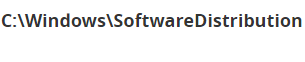
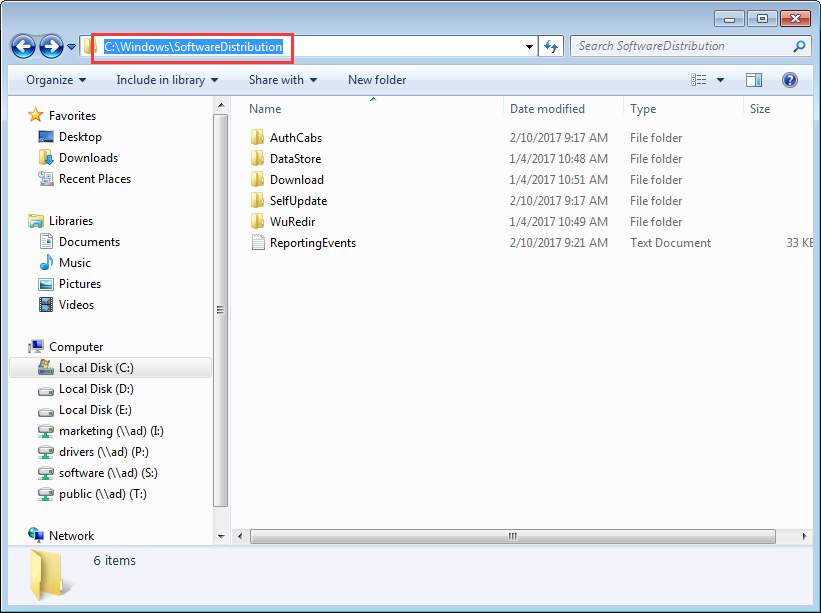
  • Open C:\Windows\SoftwareDistribution folder and delete all contents in the folder
Software distribution folder
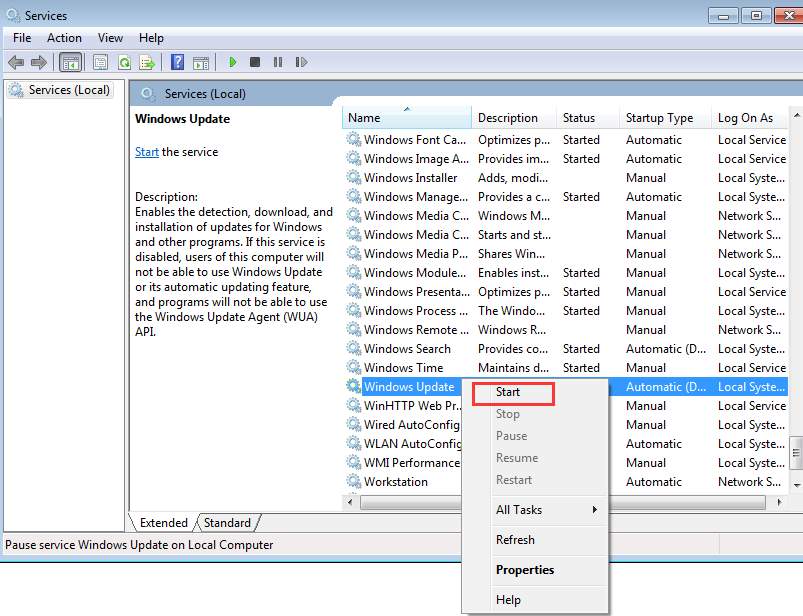
  • Come back to the Services window and right-click on Windows Update Service and click Start on the context menu
start windows update
  • Open Registry Editor. You can refer the steps given above to open the Registry Editor
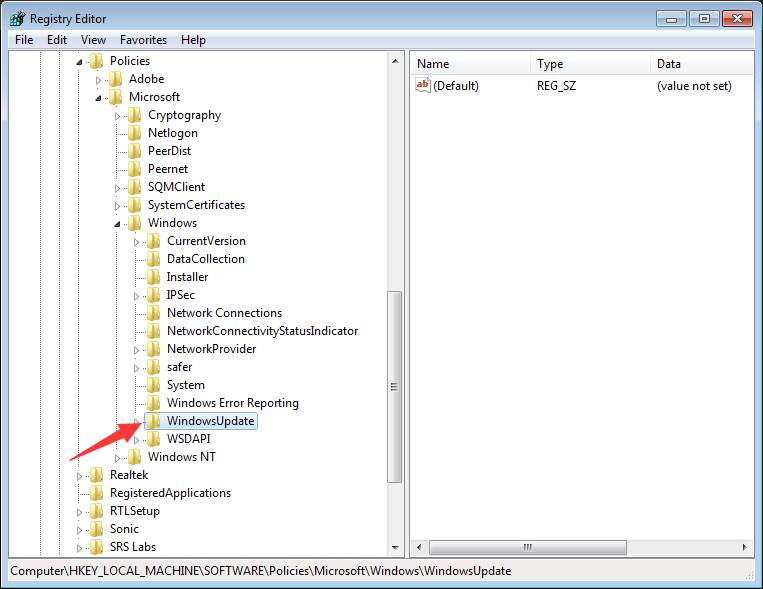
  • In Registry Editor, navigate to HKEY_LOCAL_MACHINE\SOFTWARE\Policies\Microsoft\Windows\WindowsUpdate.
registry windows update
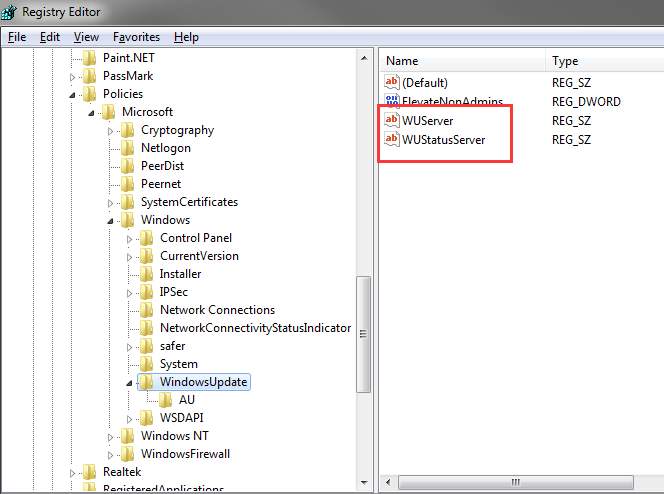
  • In the right-pane, you will find keys WUServer and WUStatusServer
registry wuserver
  • Right-click on each key and click Delete
  • Go back to Services window and see if the Windows Update Service is started.
  • If the Windows Service is stopped, right-click on it and click Start
Registry Errors: Causes and Solution

Filed Under: PC Fix Tips Tagged With: windows update issue


  • Recent Posts
  • Popular Posts
        

Read More Posts


Read More Posts

Drivers.com Sites

  • Software Drivers
  • Drivers Ed

About Us

  • Advertise
  • About Drivers
  • Drivers Support
  • Drivers.com Privacy Policy
  • Disclaimer
  • Software Drivers
  • Mac Fixes and Tips
  • PC Fix Tips
  • Security/ Backup
  • Tablets & Smartphones
  • Tech News

© Copyright 2026 PDE Publications Ltd. End User License Agreement (EULA)