


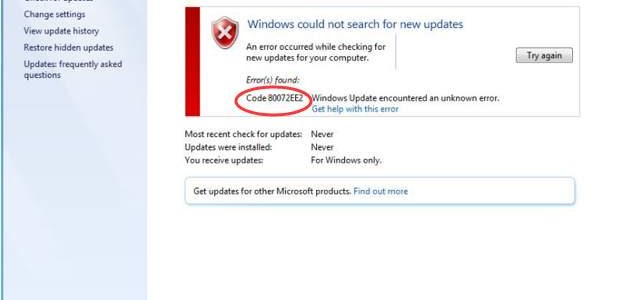
Microsoft offers regular updates to make Windows more secure and fix any bugs that affect the performance of the Windows system. Though Windows updates are designed to run smooth, there is no guarantee that this will be the case. Many Windows users have encountered error 80072EE2 while attempting to update Windows. Look at the reference image shown below.
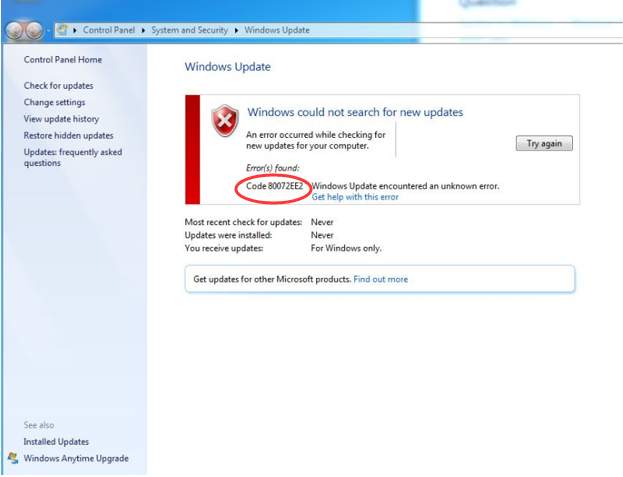
We have provided you with two simple fixes that can resolve the Windows update error 80072EE2 and update Windows without any hiccups. Here are the solutions you need to try.
Solution One – Run Windows Update Troubleshooter
Windows has an inbuilt update troubleshooter that can fix issues related to Windows updates. When you run the Window update troubleshooter, it will detect any problems in updating Windows and resolve the issue. Here are the steps you need to follow.
- Click Start and type Control Panel in the search box
- Click Control Panel from the list of results
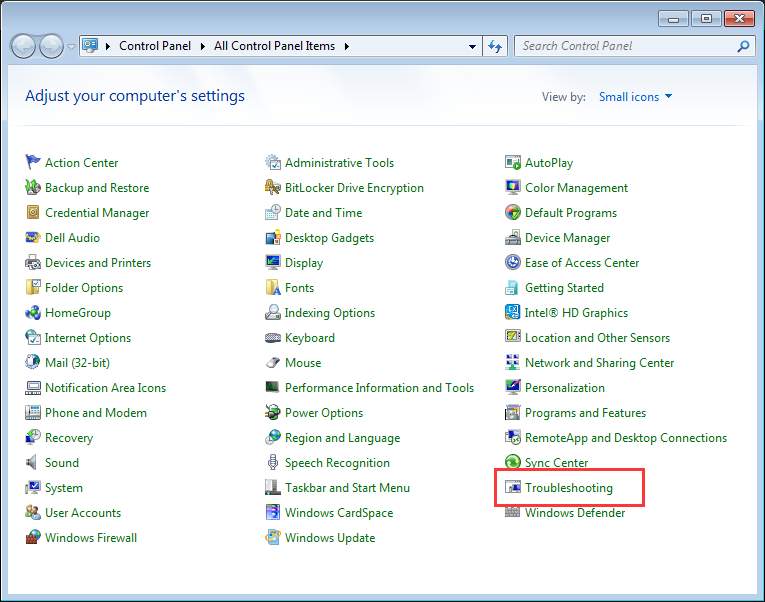
- In the control panel window, scroll down and click Troubleshooting
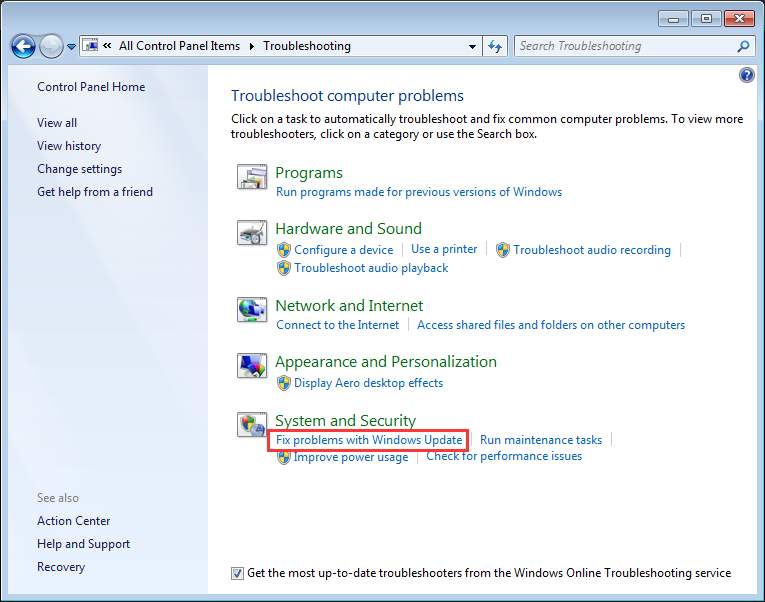
- Under System and Security, click Fix problems with Windows Update
- Click Next

- You should see Windows Update Troubleshooter launched on the screen. The troubleshooter will detect problems and fix them

- If the Windows Update Troubleshooter is not able to fix the Windows update error 80072EE2, try the next solution.
Solution Two – Delete problematic Windows update content and registry keys
Corrupt Windows updates files and registry keys could be the reason behind Windows update error 80072EE2. To resolve this problem, you need to delete problematic Windows update content and registry keys.
Deleting wrong registry keys can cause a serious problem that can make Windows unstable or even non-bootable in some cases. We recommend to backup registry before making any changes.
Here are the steps to make registry backup.
- Click Start and type regedit in the search box
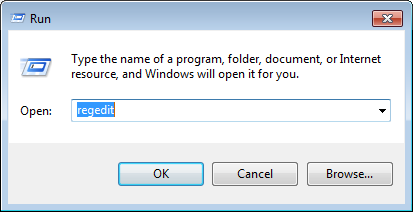
- Click Registry Editor from the list of results
- In the Registry Editor window, click File -> Export

- Type an appropriate name for the Registry backup and click Save

Now that you have backed up Registry, you can go ahead and perform the troubleshooting steps given below
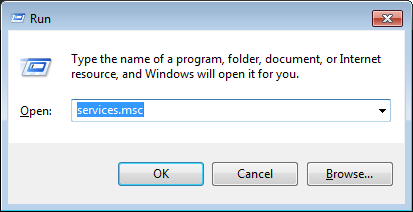
- Press Windows logo key and R simultaneously on the keyboard to bring up the Run command console
- In the Run command box, type msc and click OK
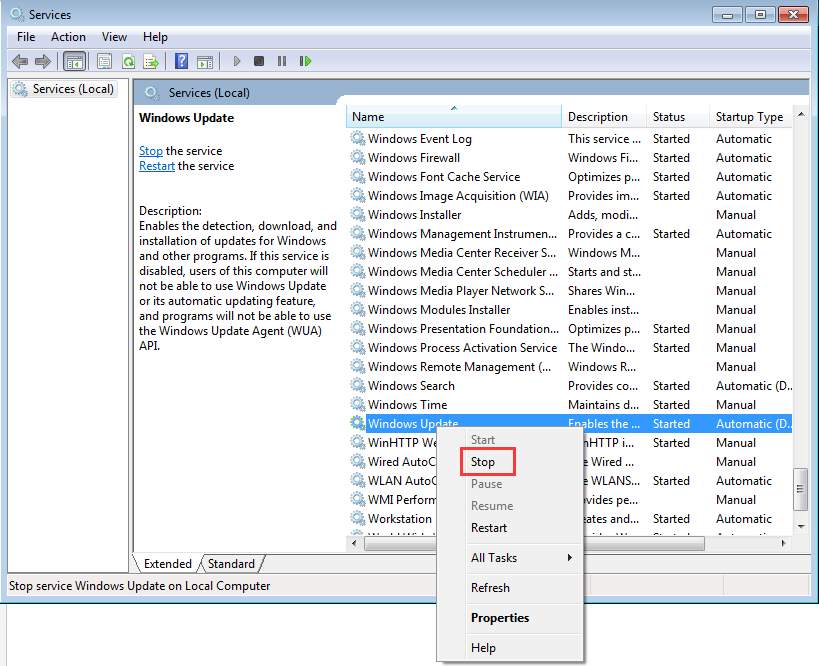
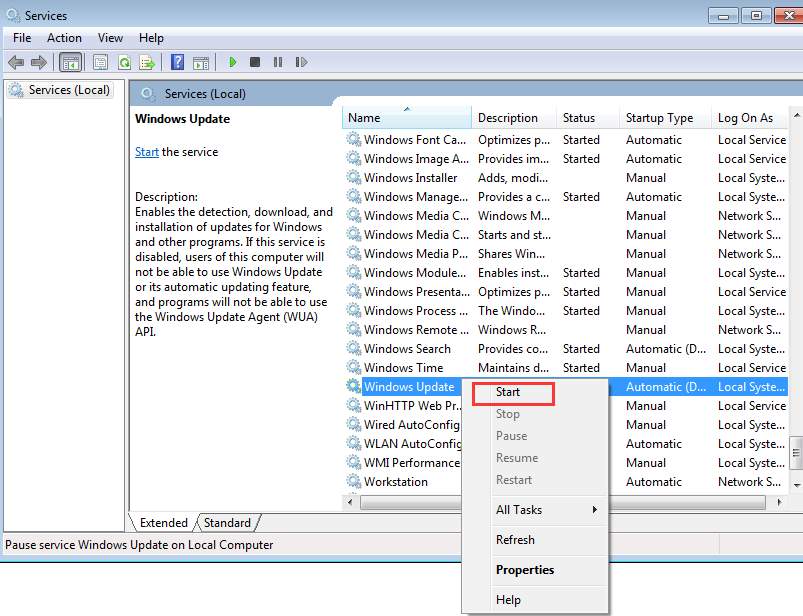
- Find Windows Update service. Right-click on it and click Stop on the context menu
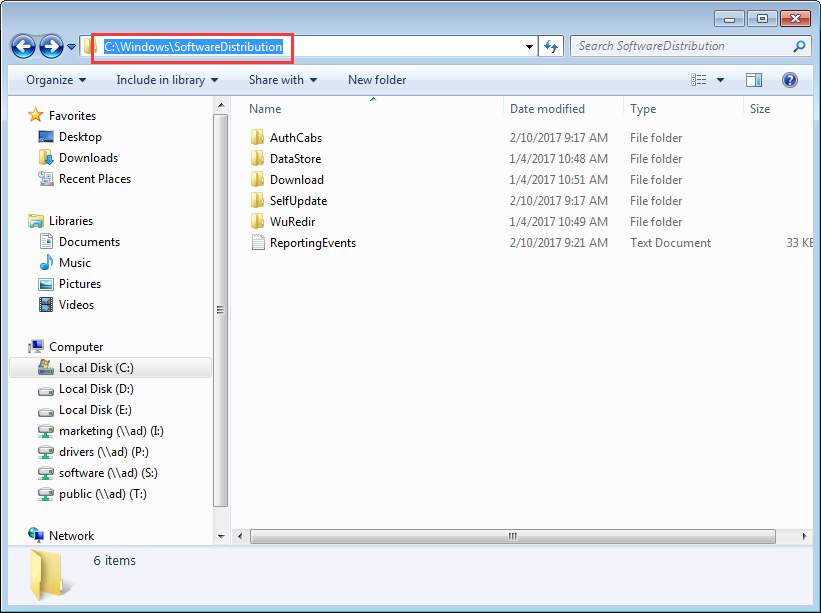
- Open C:\Windows\SoftwareDistribution folder and delete all contents in the folder
- Come back to the Services window and right-click on Windows Update Service and click Start on the context menu
- Open Registry Editor. You can refer the steps given above to open the Registry Editor
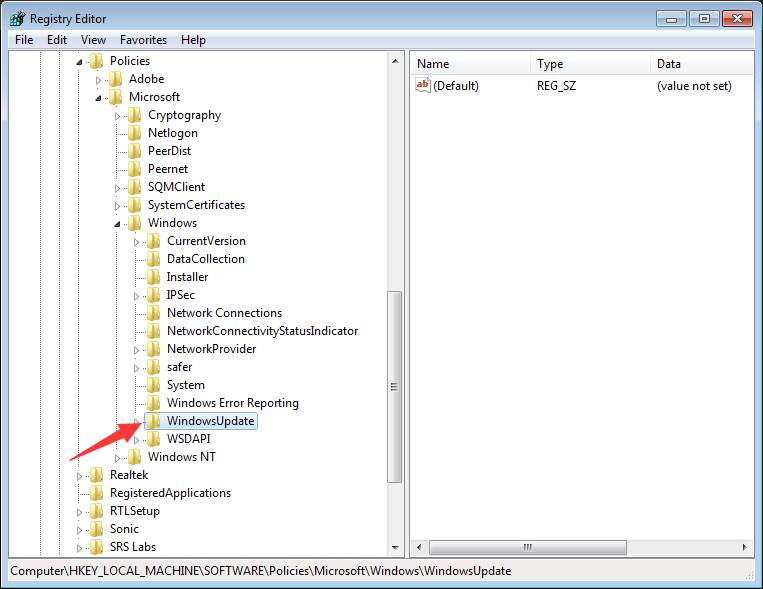
- In Registry Editor, navigate to HKEY_LOCAL_MACHINE\SOFTWARE\Policies\Microsoft\Windows\WindowsUpdate.
- In the right-pane, you will find keys WUServer and WUStatusServer
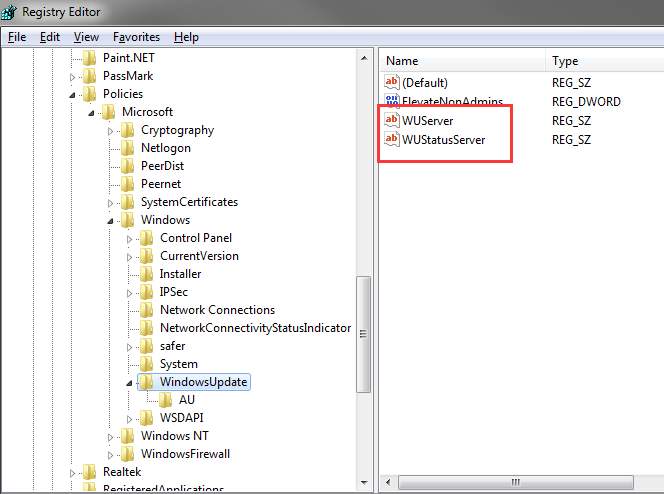
- Right-click on each key and click Delete
- Go back to Services window and see if the Windows Update Service is started.
- If the Windows Service is stopped, right-click on it and click Start
Leave a Reply