


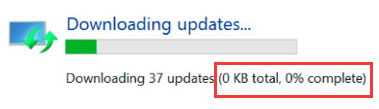
Windows update is a useful feature that allows you to automatically download the latest updates. However, sometimes this feature can throw up an unexpected error. For instance, many users complain of “Windows Update not working” issue from time to time.
If you’re looking for a way to fix “Windows Update stuck at 0” issue, this post is all you need. We’ll show you how to solve this error in Windows 10, 8, & 7.
Solution 1 – Wait for some time
Sometimes, the update process picks up the pace itself, without any help from you. So, if this is the first time you are seeing this error, the smart thing to do is to be a little patient. However, if doing nothing doesn’t work, try the next solution.
Solution 2 – Disable non-Microsoft services
Here are the steps to follow:
- Press the Windows key and R key simultaneously
- In the run dialog box, type msconfig and then press the Enter key
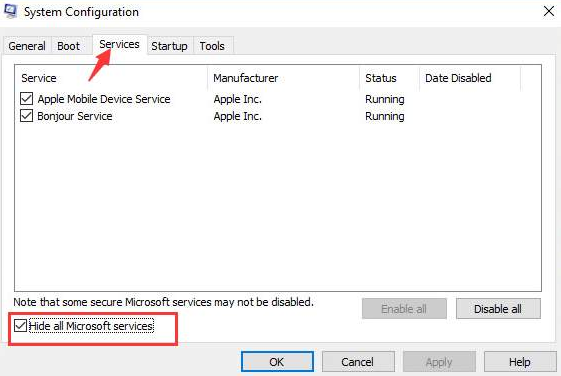
- Click the Services tab and then select Hide all Microsoft Services
- Click Disable all and then click the OK button
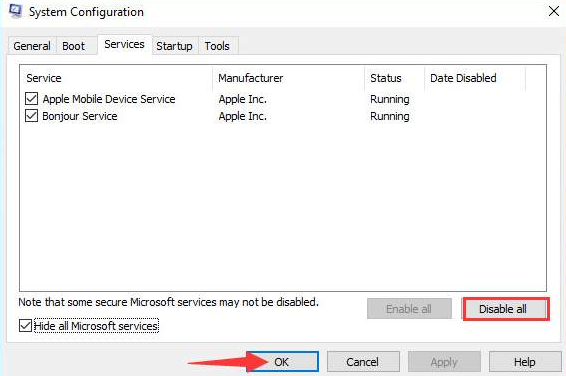
- Reboot Windows so that the changes can take effect
- Now run Windows Update again and check if updates are getting downloaded
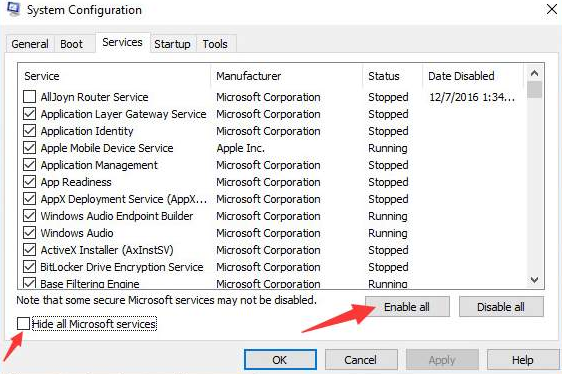
Once Windows have downloaded the latest updates, you can open the System Configuration box again (by following the above steps), and enable all services that you had previously disabled.
To do so, uncheck the box before Hide all Microsoft services and then click the Enable all button.
Solution 3 – Turn Windows firewall off temporarily
It is possible that Windows Firewall may be blocking the download. Therefore, temporarily turn it off and check if that does the trick.
Here are the steps to follow:
- Open Control Panel
- Set View by as Small icons using the drop-down menu
- Click Windows Firewall
- Choose Turn Windows Firewall on or off
- Choose Turn off Windows Firewall (not recommended)
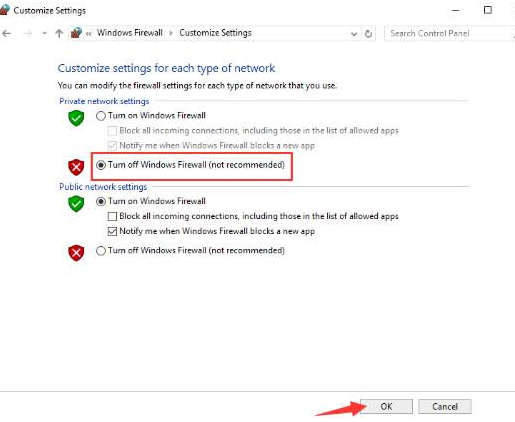
- Click the OK button
Now check if you are able to download Windows Updates. If so, after the download process is complete, enable Windows Firewall once again.
Solution 4 – Run a virus scan
A virus infection can cause all sorts of issues, including the titled one. Therefore, run a boot time scan to check your system for malware infection. In case any malicious programs are detected, the antimalware software will automatically suggest a suitable action. We recommend you to follow the recommendations made by your protective software.
Solution 5 – Stop and then restart Windows Update service
Here are the steps to follow:
- Press Windows key and R key simultaneously
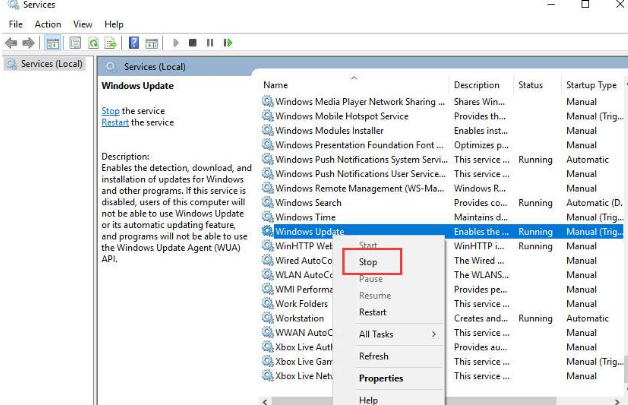
- In the run dialog box, type services.msc and then click OK
- Browse through the list in the right pane until you locate Windows Update service. Right-click it and then click Stop
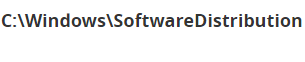
- Now browse to the following location and delete all content you find here
- Again right-click Windows Update service and then select Start
Now try downloading Windows Updates again. We hope one of these solutions would work for you.
Leave a Reply