Drivers.com

follow us:

facebook twitter
  • Home
  • Download Drivers
  • Drivers Help
  • PC/Mac Resources
  • Software Drivers
  • Mac Fixes and Tips
  • PC Fix Tips
  • Security/ Backup
  • Tablets & Smartphones
  • Tech News
  • Software Drivers
  • Mac Fixes and Tips
  • PC Fix Tips
  • Security/ Backup
  • Tablets & Smartphones
  • Tech News

“IPv6 connectivity No Internet Access” issue in Windows 10[Fixed]

By Susan C on February 14, 2021

IPv6 stands for Internet Protocol version 6. Since the invention of the Internet, there have been a lot of technical changes. The IPV6 is the latest version of Internet Protocol which is intended to supplement and eventually replace IPv4. Many businesses have already shifted to IPv6 while some are still using old IPv4.

Since the number of Internet services is increasing every day there was a risk of IPv4 getting oversubscribed? Hence IPv6 was created. Many users have encountered IPv6 Connectivity: No Internet access” error and they cannot access the Internet. If you have encountered a similar issue, there is nothing to worry about as we have shared a few solutions that could help you resolve the issue.

Solution One – Run Internet Connections Troubleshooter

Windows 10 comes with an in-built Internet connections troubleshooter. It is designed to diagnose and fix common issues related to Internet connectivity. It might not fix all problems related to Internet connections but it is a good place to start with when your Device encounters problems in Internet connections. Here are the steps to run the Internet Connections troubleshooter.

  • Click Start – > Settings (gear icon)
  • In the Settings window go to search functions and type troubleshoot
  • Select troubleshooting from the list that populates
  • In the Troubleshoot window, locate Internet Connections and click run the troubleshooter option under it.
  • Windows will run Internet Connections Troubleshooter
  • Wait for the tool to diagnose and fix issues.

After the troubleshooter has completed its operation, check whether you can access the Internet. If you get the IPv6 connectivity no Internet access error, move to the next solution.

Solution Two – Reset TCP/IP and Winsock

Winsock is short for Windows Socket API. It determines how windows network software should access the Internet. There is a possibility of some misconfiguration in Winsock. A Winsock reset will bring back things to normal. Here are the steps to follow.

  • Click Start
  • Type cmd in Cortana search and hit Enter on the keyboard
  • Right-click Command prompt in the search results and click Run as administrator
  • In the command prompt window, type netsh winsock reset catalog.
  • Press Enter to execute the command

The above command will reset the Winsock entries to installation defaults. Now you have to reset TCP/IP.

TCP/IP is short for Transmission Control Protocol/Internet Protocol. It is a set of standard rules that allows computers to communicate on a network like the Internet. Here are the steps to reset TCP/IP.

  • In the command prompt window, type netsh int ip reset, and press Enter on the keyboard.

Now check whether your computer can access the Internet. If the IPv6 connection issue persists, move to the next solution.

Solution Three – Release and Renew IP configuration settings

Every computer needs a unique IP to access the Internet. There is a possibility the IP configuration settings have become corrupt which is causing the Internet connection issues. Releasing and renewing IP configuration will set IP configuration to default and also fix minor glitches and errors.

  • Open command prompt with administrative rights
  • In the command prompt window, type the following commands and press Enter after each command for its execution. Wait for the first command operation to complete before typing the second command in the list.
  • ipconfig /release
  • ipconfig /renew
  • After executing both commands, close the command prompt window.

Check whether you can access the Internet. If the issue persists, move to the next solution.

Solution Four – Disable IP helper service

Windows 10 comes with an Internet Protocol IP helper service that enables applications to retrieve network information of the local computer. It also helps modify the network configuration information. Since this service is related to Internet connections, we need to ensure the IP helper service is the cause of the problem.

Here we have discussed steps to disable the IP helper service. If the Internet connectivity comes back after disabling the IP helper service, you can conclude the IP helper service is the root cause of the “IPv6 connectivity with no network access” issue. Here are the steps to follow.

  • Click Start
  • Type services. msc in Cortana search and hit Enter on the keyboard
  • In the Services window, locate and right-click IP helper service
  • Click Properties
  • In the IP helper properties window, go to the Service Status section
  • Click Stop
  • No go to the Startup Type section and select Disabled from the drop-down list
  • Click Apply -> Ok
  • Close all windows

Now check whether the Internet connectivity issue has been resolved. If you still get the IPv6 connectivity no network access error, move to the next solution

Solution Five- Temporarily disable antivirus software

According to windows experts, 3rd party antivirus software can block Internet connectivity. To make sure the 3rd party anti-virus is not at fault, disable the antivirus software temporarily and see if it helps. Most anti-virus software provides options like disable anti-virus protection disable anti-virus for 10 minutes, disable anti-virus till the next boot.

Check your anti-virus software documentation to know the right options. Disable the anti-virus software and check Internet connectivity. If the problem is resolved, you can uninstall the 3rd party anti-virus software and use Windows defender instead. When you uninstall the 3rd party anti-virus software you will get an option to turn on Windows Defender.

Use Windows Defender

Windows Defender is a part of in-built security tools in Windows 10. The anti-virus is robust and can protect your computer from various Internet threats. Here are the steps to turn on Windows Defender on your Windows 10 computer.

  • Click Start – > Settings
  • In the Settings window, click Update and Security
  • In the Update and Security window, click windows defender in the left column
  • In the right column, go to Real-time protection and turn it on
  • Windows Defender will automatically prompt you to update. Do so right away as the Windows defender needs to update virus definitions to protect your computer.
  • When the window with Update option populates on the screen, click Update

Solution Six – Disable IPv6

Since nothing has worked until now, you have an option of disabling IPv6 which will force the computer to use IPv4 and the Internet connectivity might get restored. Here are the steps to follow.

  • Click Start -> Settings (gear icon)
  • In the Settings window, click Network & Internet
  • In the Network and Ethernet settings window, select the connection type. In our case, it is a wired connection hence we have chosen Ethernet in the left pane
  • In the right pane, click Change adapter options
  • In the Network Connections window, right-click your Internet connection and click Properties
  • In the Ethernet Properties window, go to the box with a list of items and checkboxes.
  • Scroll down the options to locate Internet Protocol Version 6
  • Uncheck the box
  • Click OK to save changes
  • Close all windows and restart the computer

Check whether Internet access is available. If the issue persists, move to the next solution

Solution Seven – Update Drivers

If none of these solutions have worked for you, you should update your network adapter drivers. The easiest way to do that is by using a driver software tool. We recommend you use a Driver Update Tool.

Automatic driver update tools offer many benefits, the most important ones being:

  • You can update device drivers automatically
  • The software scans and updates all outdated or missing drivers at one go
  • The tool picks the right drivers for your device and operating system, so you won’t have to worry about installing an incorrect driver by mistake
  • Automatic driver updates are 100% safe

Driver Updater is one of the best driver update tools out there. Outbyte Driver Updater will give you access to a database of over 1 million drivers. It will regularly scan your PC, suggesting new driver versions to install. Driver Updater contains drivers for a variety of Windows devices. With just one click, you can update drivers in your system.

Step 1
Click here to Install and launch the app

Step 2
Scan all devices

Step 3
Install or update drivers automatically


Start Download


Filed Under: PC Fix Tips

Graphics card not detected issue [Fixed]

By Susan C on February 14, 2021

Graphics card not detected issue [Fixed]

Graphics card is an important component of your computer. It is responsible for rendering images on your monitor.  Many users have complained of Windows not detecting their NVIDIA graphics card. If you are facing a similar issue, we have discussed few solutions that could help resolve the issue.

There are different scenarios in which graphics card not detected issue can occur, like the following:

  • Graphics card not detected in laptop– In this scenario, Windows uses onboard graphics. An easy solution to this problem is to force Windows to use dedicated graphics.
  • NVIDIA GPU not detected in Windows 10 – there is a possibility the NVIDIA graphics card is not firmly seated in the slot. Make sure the graphics card is firmly seated in the slot and the graphics drivers are up to date.
  • Graphics card not detected in Device Manager– there is a possibility no compatible drivers are installed. Install latest NVIDIA graphics driver
  • NVIDIA graphics card not detected after update – In that case, you need to roll back the update that could resolve the issue

Now that we have discussed different scenarios for the error, let’s take a look at some solutions.

Solution One- Check whether the graphics card is enabled/disabled

If the NVIDIA graphics card is disabled, Windows will be forced to use onboard graphics. A simple solution to this problem is enabling the NVIDIA graphics card through Device Manager. Here are the steps to follow.

  • Press Windows key + X to open the Quick Access Menu
  • Click Device Manager from the list
  • In the Device Manager window, expand the Display Adapters section
  • Right-click NVIDIA graphics card in the list
  • Click Enable

If there is no enable option, it means the NVIDIA graphics card is already enabled.

According to Windows experts, you need to also ensure NVIDIA graphics is enabled in BIOS. Here are the steps to follow.

  • Restart your computer

Press the BIOS key to access BIOS settings.  The BIOS access keys are different for devices. Here is the list of BIOS keys by Manufacturer

  • Dell – F2 or F12
  • Lenovo – F2 or Fn + F2
  • ASUS- DEL for motherboards and F2 for all PCs
  • Gigabyte – DEL or F2
  • ACER- F2 or DEL
  • ASRock- F2 or DEL
  • HP- F10

If your device manufacturer is not on the list, check product documentation to find out the BIOS key. Press the BIOS key when you see the first device configuration screen. When you enter the BIOS, follow these steps

  • Go to Chipset and look for dGPU configuration
  • Find the dGPU features and enable it
  • Save BIOS settings and exit BIOS

If your computer has both discrete graphics and integrated graphics, Windows cannot detect graphics cars unless it is enabled in BIOS.  Many users have reported they were able to resolve the graphics card not detected issue after enabling the dGPU feature in BIOS.  If you find accessing the BIOS and making changes a difficult task, we have shared an easy option for you in the next solution.

Solution Two- Use Command prompt to fix the issue

  • Press Windows key + X to bring up the Quick Access menu
  • Click Command Prompt(Admin) from the list
  • In the command prompt window, type the following and press Enter

  • Close the command prompt and install the NVIDIA graphics card manually

Solution Three – Install the latest NVIDIA graphic card drivers

  • Click Start -> Settings(gear icon)
  • In the Settings app, go to the App section
  • In the App list, locate NVIDIA drivers software and uninstall them one by one
  • Click the NVIDIA software and click Uninstall
  • Follow on-screen instructions to uninstall the driver.

After uninstalling all NVIDIA drivers, you need to go to the NVIDIA website and download the latest drivers for your device.  When installing NVIDIA drivers, select the Fresh Install option. Alternatively, you can use the automatic driver download tool to download and install the latest graphics drivers for your device.

If you do not find an NVIDIA graphics card under the Display adapters section, follow these steps

  • In the Device Manager window, click the View option
  • Click Show Hidden Devices
  • Now go to the Other Devices section and expand it
  • You may not see the NVIDIA device name here. The graphics card could be listed as video controllers or unknown devices. It will have a yellow exclamation mark beside it.
  • Right-click unknown device and click Uninstall
  • After the device is uninstalled, close Device Manager and all windows
  • Restart your PC. Windows will install drivers for the graphics card. Alternatively, you can install NVIDIA graphic card drivers manually.

In most cases, installing the latest NVIDIA drivers will resolve the issue

Solution Four – Restore BIOS settings to default

There is a possibility some changes in BIOS settings are preventing graphics card detection. In that scenario, you can reset BIOS settings to default which will revert the settings. To do this, enter the BIOS settings and look for an option like Load factory default setting or something similar. Save BIOS settings and exit BIOS.

After restarting the PC, check whether the graphics card is detected. If the issue persists, move to the next solution.

Solution Five- Update BIOS

Many users were able to resolve the “graphics card not detected” issue after updating BIOS. Go to the device manufacturer website and download the latest BIOS update and install it.  If you haven’t updated BIOS earlier or find the process difficult, take assistance from the technician.

Solution Seven – Uninstall recent updates

 If you feel the “graphics card not detected” issue cropped up after installing Windows update, you can roll back the update to resolve the issue. Here are the steps to follow.

  • Open Settings app
  • Click Update & Security
  • Click Windows Update in left column
  • Click update history in the right column
  • Click Uninstall updates
  • Select the update you want to remove
  • Click Uninstall

Filed Under: PC Fix Tips Tagged With: NVIDIA graphics driver

HD Audio background process high CPU usage problem [Fixed]

By Susan C on February 8, 2021

HD Audio background process high CPU usage problem [Fixed]

Windows operating system has several processes running in the background, which actually is quite a normal thing. Generally, these background processes are designed to consume fewer resources, and usually you don’t even notice them, unless they start hogging system resources. When that happens, the system invariably slows down.

One background process that at times can cause your system to slow down at times is ravbg64.exe. If you are facing a similar issue on your computer and looking for solutions, this post is just for you.

What is ravbg64.exe?

Many users think ravbg64.exe is a virus, but it isn’t. This background process is related to Realtek software which manages sound on your computer.

Ravbg64.exe is essential when you run applications like Skype or Realtek sound controllers. The ravbg64.exe connects the users with these applications and allows seamless connection between the audio drivers and communication applications.  

You will see the ravbg64.exe process in Task Manager. The process name also appears in messages when you launch applications like Skype.

Now that you know it is not a virus but an essential background process, you should not terminate it, as that will not resolve the issue. If you want to fix the issue of high CPU usage by ravbg64.exe, you need to try the solutions given below.

Realtek HD Audio Drivers

Solution One – Update Realtek drivers

Many users have reported updating Realtek drivers have helped them resolve the issue. Here are the steps to update Realtek drivers.

  • Press Windows Key + R to invoke Run window
  • In the run window, type devmgmt.msc and click OK
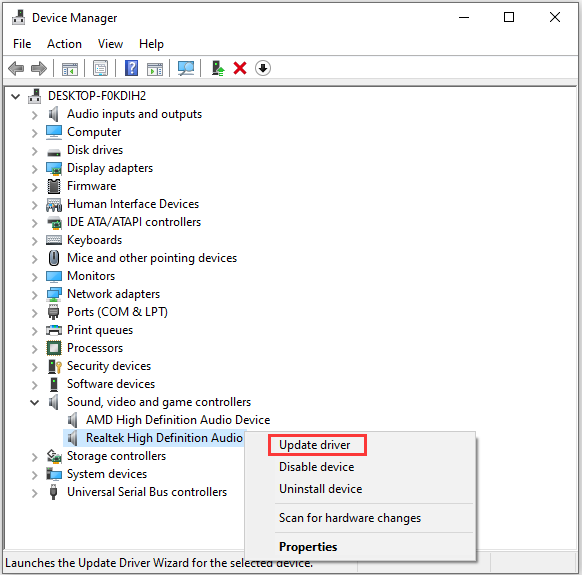
  • In the Device Manager window, double-click Sound, video, and game controllers to expand the list
  • Right-click Realtek Audio driver and click Update driver.
  • In the pop-up window, click  Search automatically for updated driver software
  • Follow the instructions to complete the process.
  • Close all windows
  • Restart the computer

After starting the computer, open the Task Manager and check the CPU usage of the ravbg64.exe process.

A much easier, simpler and faster way to update the realtek driver is by using an advanced driver update tool.

Automatic driver update tools offer many benefits, the most important ones being:

  • You can update device drivers automatically
  • The software scans and updates all outdated or missing drivers at one go
  • The tool picks the right drivers for your device and operating system, so you won’t have to worry about installing an incorrect driver by mistake
  • Automatic driver updates are 100% safe

Driver Updater is one of the best driver update tools out there. Outbyte Driver Updater will give you access to a database of over 1 million drivers. It will regularly scan your PC, suggesting new driver versions to install. Driver Updater contains drivers for a variety of Windows devices. With just one click, you can update drivers in your system.

Step 1
Click here to Install and launch the app

Step 2
Scan all devices

Step 3
Install or update drivers automatically


Start Download


Solution Two- Disable and Enable Realtek Audio Programs

This solution has worked for many users and it may also work for you.  Here we have shared steps to disable/enable Realtek audio programs via Device Manager. Here are the steps to disable Realtek audio programs.

  • Launch Run window and type msconfig in the box
  • Hit Enter on the keyboard to enter System Configuration
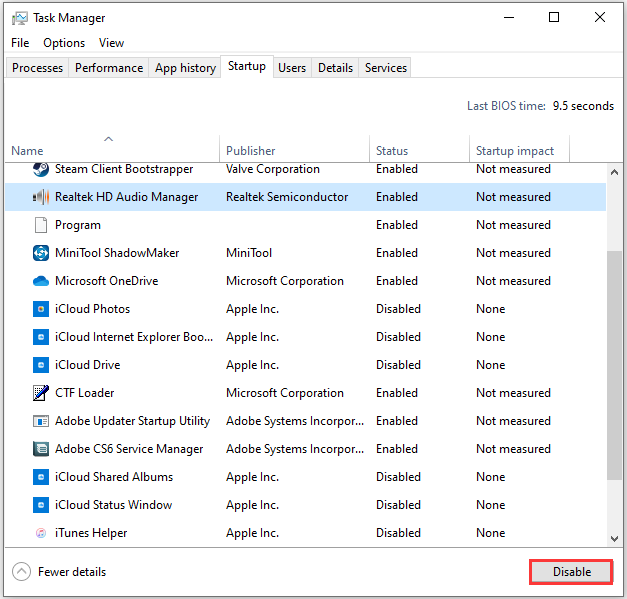
  • Under the Startup, click Open Task Manager
  • Find Realtek audio items in the list,  select the first Realtek item in the list and click Disable option that is located at the bottom right end of the box
  • Do this for all Realtek audio items in the list 
  • After disabling all Realtek items in the list go to the first Realtek item in the list and select it.
  • This time you need to click the Enable option that is located at the bottom right end of the box.
  • Close all windows

Launch Task Manager and check the CPU usage of the ravbg64.exe process. If the problem persists, move to the next solution

Solution Three – Add Registry Keys

According to Windows experts, issues like high-CPU usage by the ravbg64.exe process can occur when the SRS Labs and APO Registry keys are missing. An easy solution to this problem is adding these keys manually. Here are the steps to follow.

In the Run window, type regedit and click OK to open Registry Editor

Note- Wrong registry changes can make Windows OS unstable.  To be on the safer side, back up the registry before making any changes. Here are the steps to follow

  • Click File > Export
  • Select All in the Export range
  • Save the file.

Now that you have created a backup of the registry, you can proceed to add registry keys. Here are the steps to follow.

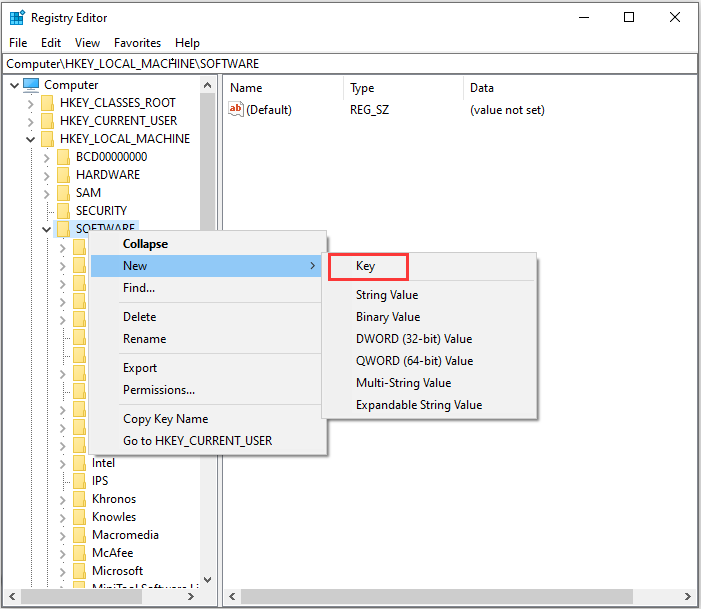
  • In the Registry Editor window, navigate to HKEY_LOCAL_MACHINE\SOFTWARE.
  • Right-click SOFTWARE and select New -> Key
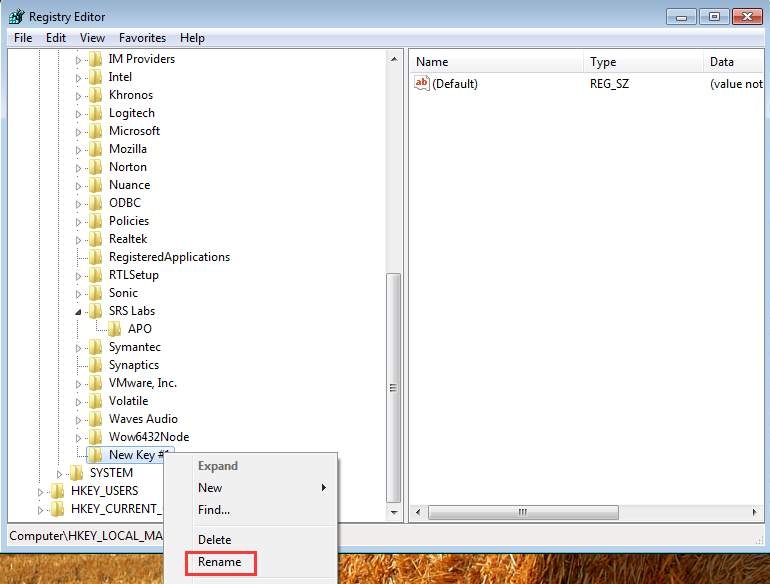
  • Name the new key as  SRS Labs
  • Add a sub-key to it and name it as APO
  • Close Registry Editor
  • Close all windows and restart the computer

Open Task Manager and check the CPU usage of the ravbg64.exe process. Like most users, you would see the CPU Usage of ravbg64.exe is normal after the registry changes.

Filed Under: PC Fix Tips Tagged With: Update Realtek Driver

  • « Previous Page
  • 1
  • …
  • 75
  • 76
  • 77
  • 78
  • 79
  • …
  • 189
  • Next Page »


  • Recent Posts
  • Popular Posts
        

Read More Posts


Read More Posts

Drivers.com Sites

  • Software Drivers
  • Drivers Ed

About Us

  • Advertise
  • About Drivers
  • Drivers Support
  • Drivers.com Privacy Policy
  • Disclaimer
  • Software Drivers
  • Mac Fixes and Tips
  • PC Fix Tips
  • Security/ Backup
  • Tablets & Smartphones
  • Tech News

© Copyright 2026 PDE Publications Ltd. End User License Agreement (EULA)