



Windows operating system has several processes running in the background, which actually is quite a normal thing. Generally, these background processes are designed to consume fewer resources, and usually you don’t even notice them, unless they start hogging system resources. When that happens, the system invariably slows down.
One background process that at times can cause your system to slow down at times is ravbg64.exe. If you are facing a similar issue on your computer and looking for solutions, this post is just for you.
What is ravbg64.exe?
Many users think ravbg64.exe is a virus, but it isn’t. This background process is related to Realtek software which manages sound on your computer.
Ravbg64.exe is essential when you run applications like Skype or Realtek sound controllers. The ravbg64.exe connects the users with these applications and allows seamless connection between the audio drivers and communication applications.
You will see the ravbg64.exe process in Task Manager. The process name also appears in messages when you launch applications like Skype.
Now that you know it is not a virus but an essential background process, you should not terminate it, as that will not resolve the issue. If you want to fix the issue of high CPU usage by ravbg64.exe, you need to try the solutions given below.
Solution One – Update Realtek drivers
Many users have reported updating Realtek drivers have helped them resolve the issue. Here are the steps to update Realtek drivers.
- Press Windows Key + R to invoke Run window
- In the run window, type devmgmt.msc and click OK
- In the Device Manager window, double-click Sound, video, and game controllers to expand the list
- Right-click Realtek Audio driver and click Update driver.
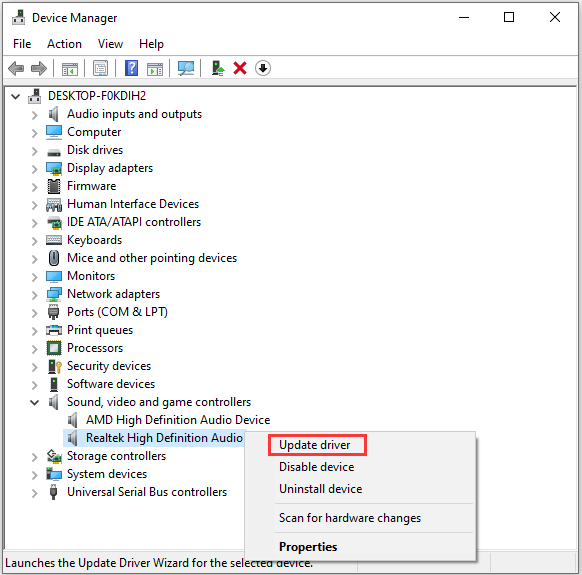
- In the pop-up window, click Search automatically for updated driver software
- Follow the instructions to complete the process.
- Close all windows
- Restart the computer
After starting the computer, open the Task Manager and check the CPU usage of the ravbg64.exe process.
A much easier, simpler and faster way to update the realtek driver is by using an advanced driver update tool.
Automatic driver update tools offer many benefits, the most important ones being:
- You can update device drivers automatically
- The software scans and updates all outdated or missing drivers at one go
- The tool picks the right drivers for your device and operating system, so you won’t have to worry about installing an incorrect driver by mistake
- Automatic driver updates are 100% safe
Driver Updater is one of the best driver update tools out there. Outbyte Driver Updater will give you access to a database of over 1 million drivers. It will regularly scan your PC, suggesting new driver versions to install. Driver Updater contains drivers for a variety of Windows devices. With just one click, you can update drivers in your system.
Step 1
Click here to Install and launch the app
Step 2
Scan all devices
Step 3
Install or update drivers automatically
Solution Two- Disable and Enable Realtek Audio Programs
This solution has worked for many users and it may also work for you. Here we have shared steps to disable/enable Realtek audio programs via Device Manager. Here are the steps to disable Realtek audio programs.
- Launch Run window and type msconfig in the box
- Hit Enter on the keyboard to enter System Configuration
- Under the Startup, click Open Task Manager
- Find Realtek audio items in the list, select the first Realtek item in the list and click Disable option that is located at the bottom right end of the box
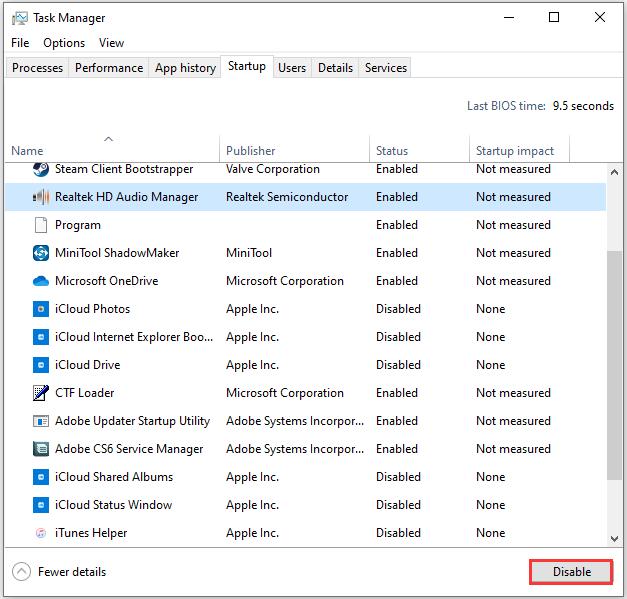
- Do this for all Realtek audio items in the list
- After disabling all Realtek items in the list go to the first Realtek item in the list and select it.
- This time you need to click the Enable option that is located at the bottom right end of the box.
- Close all windows
Launch Task Manager and check the CPU usage of the ravbg64.exe process. If the problem persists, move to the next solution
Solution Three – Add Registry Keys
According to Windows experts, issues like high-CPU usage by the ravbg64.exe process can occur when the SRS Labs and APO Registry keys are missing. An easy solution to this problem is adding these keys manually. Here are the steps to follow.
In the Run window, type regedit and click OK to open Registry Editor
Note- Wrong registry changes can make Windows OS unstable. To be on the safer side, back up the registry before making any changes. Here are the steps to follow
- Click File > Export
- Select All in the Export range
- Save the file.
Now that you have created a backup of the registry, you can proceed to add registry keys. Here are the steps to follow.
- In the Registry Editor window, navigate to HKEY_LOCAL_MACHINE\SOFTWARE.
- Right-click SOFTWARE and select New -> Key
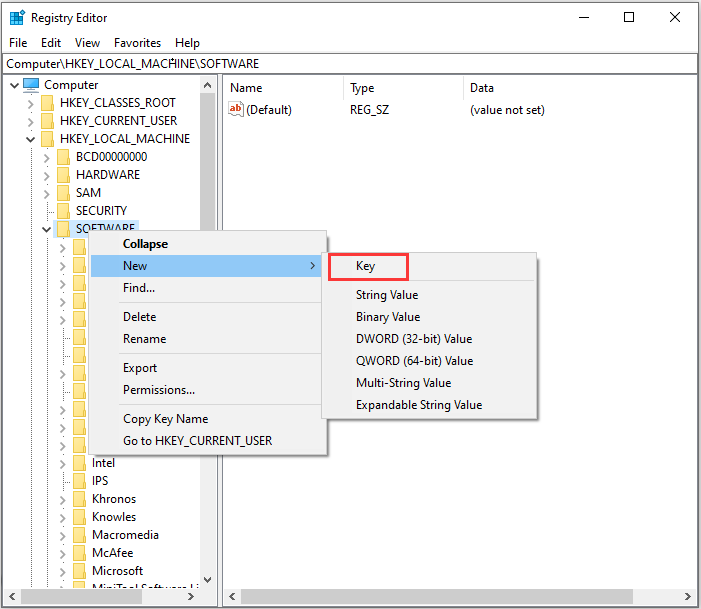
- Name the new key as SRS Labs
- Add a sub-key to it and name it as APO
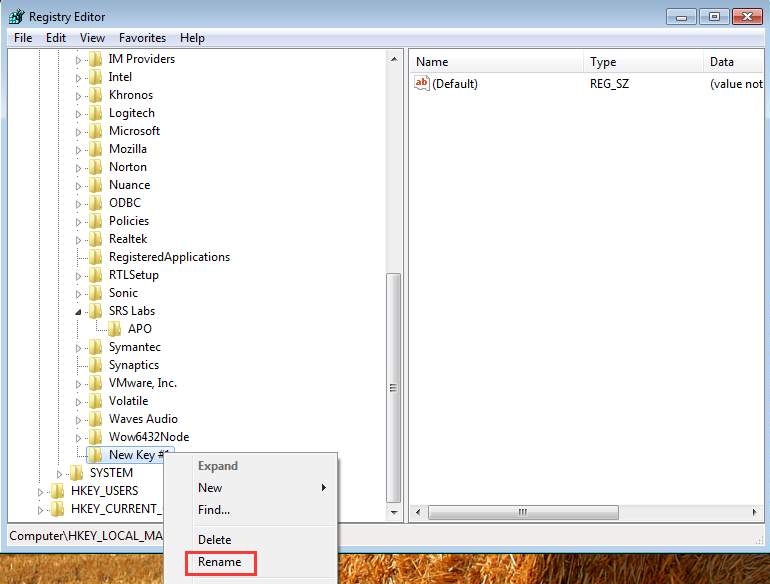
- Close Registry Editor
- Close all windows and restart the computer
Open Task Manager and check the CPU usage of the ravbg64.exe process. Like most users, you would see the CPU Usage of ravbg64.exe is normal after the registry changes.