


![igdkmd64.sys Windows 10 BSOD error [Fixed]](https://www.drivers.com/wp-content/uploads/2021/02/delete-driver-software.png)
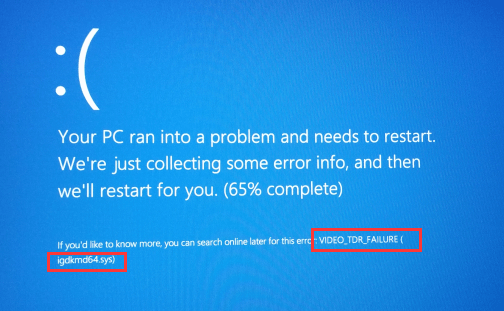
A blue screen of death error is not new to Windows users. BSODs indicate a fatal error that leads to a system crash. The BSOD error is generally accompanied by an error code and an error message that mentions the name of the component. Many users have reported an igdkmd64.sys BSOD error with an error code VIDEO TDR FAILURE.
What is igdkmd64.sys BSOD error?
IGDKMd64 stands for Intel Graphics Driver Kernel Mode 64-bit. So there is doubt the error is related to the Intel graphics driver. Igdkmd64.sys is a Windows driver that allows your computer to interact with hardware and connected devices.
Intel provides the igdkmd64.sys driver on an OEM basis and laptop manufacturers using Intel graphics chipset. Several problems with this driver have been discovered including a VIDEO TDR FAILURE. If you have been getting this error and looking for solutions, you have reached the right page. Here we have discussed some easy to follow solutions that could help resolve the error.
Solution One – Run SFC
SFC is short for System File Checker. It is an in-built maintenance tool that can detect and fix problems in system files. Here are the steps to run the system file checker tool in Windows 10
- Click Start button
- In Cortana search, type cmd
- From the results, right-click Command Prompt and select Run as administrator
- When the system displays the User Account Control Menu prompt, click Yes
- When you see a blinking cursor appears in the command window, type SFC /scannow
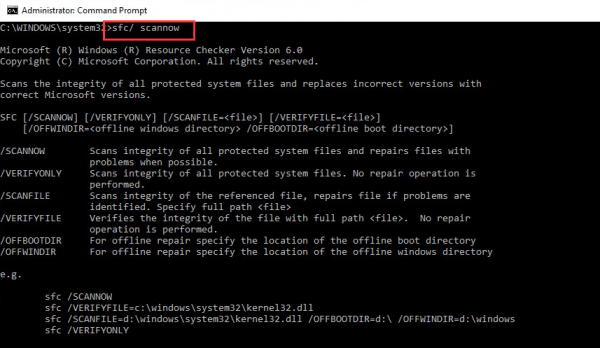
- Hit the Enter key on the keyboard.
The System File Checker tool will scan system files for corruption and replace the corrupted files with goods cached versions. The scan will take time. After the SFC scan is complete, use the computer normally and see if you get igdkmd64.sys BSOD error. If the error persists, move to the next solution
Solution Two- Roll back graphics driver
Many users have complained they started experiencing igdkmd64.sys BSOD error after updating the graphics driver. If that is true in your case, there is an easy solution available. All you need to do is roll back the graphic driver by following the steps given below. Rolling back the driver will reinstall the older Intel graphics drivers that worked well.
- Click Start
- Type Device Manager in Cortana search
- Click Device Manager from the list of search results.
- In the Device Manager window, go to the Display adapter section and expand it
- Right-click Intel graphics and click Properties
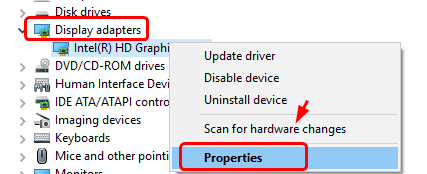
- In the Properties window, go to the Driver tab
- Click Rollback driver
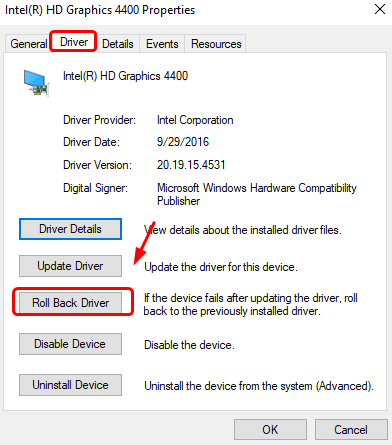
- Restart your computer.
If you see the option – Roll back driver is not available (grayed out), move to the next solution
Solution Three- Disable Intel Graphics Driver
If your computer has more than one graphics card (integrated Intel chip and dedicated graphics chip), it could cause conflict and lead to errors like igdkmd64.sys BSOD error. In that scenario, you can disable the Intel graphics driver and see if it helps. Here are the steps to follow.
- Open Device Manager
- Go to the Display adapter section and expand it
- Right-click Intel graphics
- From the menu, click Disable device
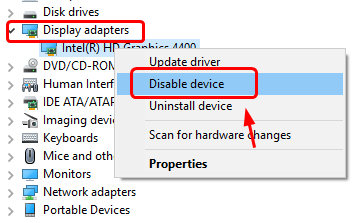
- Restart your computer
Check whether the problem is resolved. If the error persists, you need to uninstall the graphics driver completely. Here are the steps to follow.
- Right-click Intel graphics and click Uninstall device
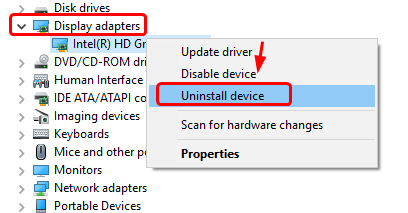
- Windows will show a confirmation dialog. Tick the option that says Delete the driver software
- Click Uninstall.
After the Intel display driver has been uninstalled, restart your computer and check whether igdkmd64.sys BSOD error has been resolved. If the error persists, move to the next solution.
Solution Four – Update Intel graphics driver
You need to go to your laptop manufacturer’s website and check whether there is an update for the Intel graphics driver. If you are a desktop user, you need to go to the Intel website and check whether Intel has offered any graphics driver update. If there is a driver update available, download and install it.
A much easier way to install the graphics card driver is by using a reliable driver update software.
Automatic driver update tools offer many benefits, the most important ones being:
- You can update device drivers automatically
- The software scans and updates all outdated or missing drivers at one go
- The tool picks the right drivers for your device and operating system, so you won’t have to worry about installing an incorrect driver by mistake
- Automatic driver updates are 100% safe
Driver Updater is one of the best driver update tools out there. Outbyte Driver Updater will give you access to a database of over 1 million drivers. It will regularly scan your PC, suggesting new driver versions to install. Driver Updater contains drivers for a variety of Windows devices. With just one click, you can update drivers in your system.
Step 1
Click here to Install and launch the app
Step 2
Scan all devices
Step 3
Install or update drivers automatically