Drivers.com

follow us:

facebook twitter
  • Home
  • Download Drivers
  • Drivers Help
  • PC/Mac Resources
  • Software Drivers
  • Mac Fixes and Tips
  • PC Fix Tips
  • Security/ Backup
  • Tablets & Smartphones
  • Tech News
  • Software Drivers
  • Mac Fixes and Tips
  • PC Fix Tips
  • Security/ Backup
  • Tablets & Smartphones
  • Tech News

Xbox One Mic issue fixed

By Susan C on December 19, 2020

Xbox One Mic issue fixed

No matter which console you play on, the built-in mic lends depth and drama to your gameplay. The mic is an essential feature in Xbox One which is used by gamers for voice chat.  Many users have complained of their Xbox One mic not working.  When users encounter such an issue, they are not able to hear the other person’s voice or the other person is not able to hear their voice. If you experience Xbox one mic issue, you can try the solutions given below and get the mic working again.

Solution One – Perform basic checks

When you find your Xbox one mic is not working, first perform basic troubleshooting steps, such as:

  • Check the connections

Make sure the mic is connected to the controller and the controller is connected to the Xbox console. If you cannot confirm the mic or controller connections are not seated firmly, remove the cables and reconnect the microphone and controller. After reconnecting the controller to the console, sync the controller to the console.

  • Ensure the mic is not muted

The headset comes with a mute button that allows you to disable the mic temporarily. The mute button is located at the headset control panel where volume buttons are located. Make sure the mute button on the mic adapter is not muted.  The next step is checking the mic settings on your Xbox One. If the mic volume is set to zero, the other person would not be able to hear you. Here are the steps to correct audio settings on Xbox One.

With the headset attached, press the glowing Xbox button

  • Go to the System tab
  • Choose Audio
  • Adjust the Mic monitoring option. Slide the bar to the right to raise the mic volume level. To decrease the microphone volume level, slide the bar to the left.  Make sure the microphone volume level slider is not positioned to the extreme left. 
  • Check the cables

Even slight damage to the cables can render the mic useless. Hence, you need to inspect the connecting cables between the mic and the controller and the controller and console for any signs of damage.  If you find the cables are not in good condition, get them replaced.

If you do not find any problem after performing basic troubleshooting, the problem might be lying somewhere else.  Proceed to the next solution below and check if it helps resolve the Xbox one mic not working issue.

Solution Two- Check Xbox profile settings

Microsoft provides several parental controls, privacy, and safety settings through Xbox profile settings. The Xbox profile settings can restrict your voice communication. Hence, you need to make sure the Xbox profile settings are not preventing the normal functioning of the microphone.

If you have a child account set up for Xbox one, you need to log into your parent account to change Xbox profile settings. Here are the steps to follow.

  • On your Xbox controller, press the illuminated Xbox button
  • On the settings screen, select All Settings
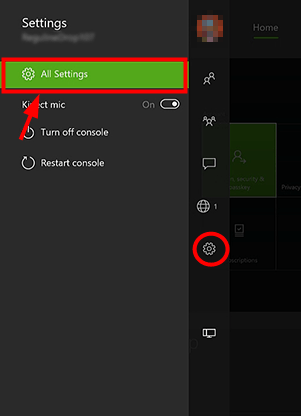
xbox settings
  • In the next window, select Account
  • In the right-hand pane, select Privacy & Online Safety
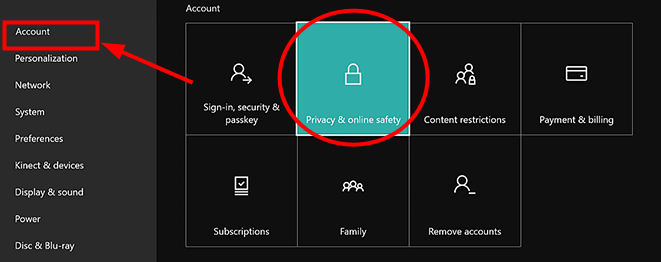
xbox settings privacy account
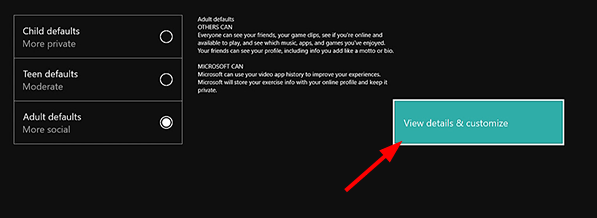
  • Choose View details …. option
xbox settings voice and text
  • Choose Communicate  with voice and text
  • Unblock or unmute the persons you are looking to chat with
  • Now try chatting with the friends who are unmuted to see if the Xbox One mic works.

Solution Three- Restart  Xbox One console

Many times the microphone not working issue is related to malfunctioning of the Xbox One console. To rule out this possibility, restart your Xbox One and check if the mic issue is fixed. Here are the steps to follow.

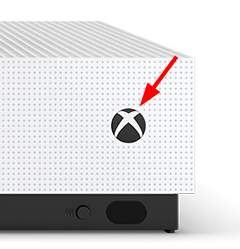
  • On your Xbox One console, press the Xbox button and continue holding it until the console switches off. It might take 10 seconds to turn off the console completely.
xbox button image
  • Unplug the power cable of the Xbox One console from the socket and leave it aside for 10 seconds. This will reset the power supply connection to Xbox One.
  • Plug the power cable of Xbox one in the wall socket
  • Press the Xbox button on the console and switch it on
  • Now  check if the mic works

If none of the above solutions has worked for you, you can draw a conclusion the problem lies with the headset, controller, or console. Since it is a hardware related problem, you need to take it for repairs or get a replacement after a fault is detected.

Filed Under: PC Fix Tips Tagged With: Xbox mic

iPhone is disabled – connect to iTunes error (Resolved)

By Susan C on December 12, 2020

iPhone is disabled – connect to iTunes error (Resolved)

Apple hardware has some unique capabilities and the iPhone is credited with having a strong security system. Nowadays, the smartphone has become an extension of a computer and holds lots of sensitive data.  iPhone users have to enter a passcode every time to access the apps and data on the phone. If any person enters the wrong passcode consistently, the iPhone gets locked.

In most cases, the phone can be unlocked after 60 minutes by entering the right passcode. In some scenarios, you see a message iPhone is disabled connect to iTunes. If you are seeing this message on your iPhone you have a bigger problem. However, stop worrying as we have shared three different methods that can help you get access to your iPhone.

Why your iPhone is disabled?

You may wonder why you are seeing this message. The answer is you might have keyed in the wrong passcode too many times. If you haven’t done it, maybe your kids or some other person has tried to access the phone and entered the wrong passcode repeatedly. Your iPhone has robust security measures to prevent any hacking attempts and the error is one good example. When you get this message, you cannot unlock your iPhone by connecting to your computer/Mac.  The only way out is by connecting to iTunes or iCloud.  Now let’s look at how to restore your iPhone.   

Important Things you should know

The solution to enable your iPhone is divided into two stages. In the first stage, you erase your iPhone through iCloud or iTunes. The next step involved restoring from iTunes or iCloud

Solution One- Use iCloud to Wipe-Off iPhone

This option is only available to iPhone users who have activated Find My iPhone in the iPhone settings. If you haven’t, this solution won’t work for you.  This option allows you to erase all data and enable your iPhone. However, your iPhone should be connected to the Internet for this option to work. Here are the steps to follow.

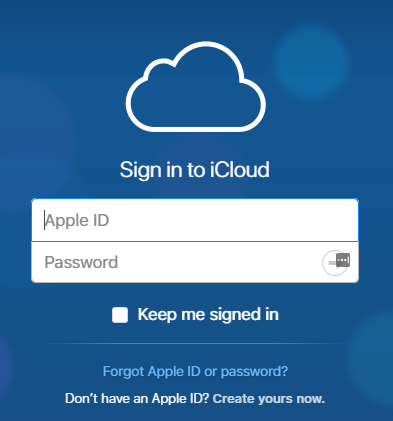
  • Go to iCloud.com/find

<insert-idci-sign icloud>

  • Access your cloud account with the right Apple ID
  • Restore from iCloud Backup
  • Tap All Devices
  • Choose the iPhone you want to wipe off
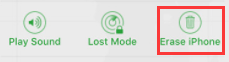
  • Tap on “Erase iPhone”


  • Now that your iPhone is wiped off completely, you can set it up.

Restore your iPhone through iCloud

After your iPhone is set up, you can choose to restore the iCloud back backup.  Here are the steps to follow.

  • Go to Settings-> Settings > General > Reset,
  • Tap “Erase all content and setting
  • Tap Restore from iCloud Backup
  • This option will only work if you have created an iPhone backup in iCloud.
  • Access your iCloud account with your apple id
  • Select backup you want to restore

<insert-idci-restore>

  • You will see a progress bar. Wait for the process to complete

Solution Two- Use iTunes to Wipe-Off iPhone

  • Connect iPhone to PC/Macintosh using a USB/Lightning cable
  • Make sure the computer has iTunes(latest version) installed
  • Launch iTunes

Force your iPhone in recovery mode by following these steps

  • Press and quickly release the Volume Down button
  • Press and hold the Slide button until you see the Recovery mode
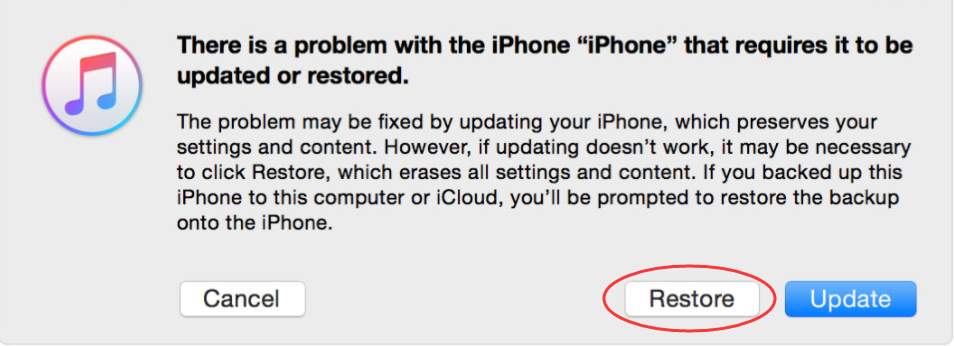
  • When the dialog box like the one below appears on the screen, choose Restore
  • iTunes will download software to your iPhone
  • When the process is completed, you can  go ahead and set-up your iPhone

Restore your iPhone through iTunes

This method will only work if you have backed your iPhone using iTunes. Here are the steps to follow.

  • Connect your iPhone to computer/Macintosh with iTunes latest version installed
  • Launch iTunes
  • In iTunes, choose your phone
  • On your iPhone, select Restore from iTunes backup
  • In the backup section, choose Restore backup
  • Wait for the process to complete.

Are you experiencing an issue where your iPhone screen is black but the device is on?

We hope one of these solutions would have worked for you. Do let us know which one by leaving a comment. And in case you know a solution that wasn’t covered here, share that too. Thanks!

Filed Under: PC Fix Tips Tagged With: iphone error

How to sync PS4 controller?

By Susan C on December 7, 2020

If you want to play games on PS4, you need the PS4 controller to work flawlessly.  When you turn on the PlayStation 4, the PS4 controller should automatically connect to it.  If your PS4 controller is not syncing with the game console, you may feel your day is ruined.

Many PlayStation users have complained about PS4 controller syncing/connection issues. We have discussed a few solutions that will demonstrate how to sync the PS4 controller especially when the controller does not connect automatically.

Solution One- Connect the PS4 controller with a USB cable

Though the PS4 controller is intended to connect to the PS4 console wirelessly, it does provide you an option of a wired connection. Sony recommends a USB connection between the console and the PS4 controller to sort out any syncing issues. Here are the steps to follow.

  • Switch of the PlayStation 4 game console
  • Connect the PlayStation 4 and the PS4 controller with a USB cable
  • Start the PlayStation 4
  • On your PS4 controller, press and hold the PlayStation button at the center. This step will prompt the PS4 controller to fix any sync issue

If the above steps do not work, try these steps

  • Go to PlayStation 4 console settings
  • Choose Devices
  • Select Bluetooth Devices
  • You will see a list of paired Bluetooth devices
  • Select the DualShock Controller in the list and tap Forget Device
  • Repeat the above steps for all DualShock Controller in the list
  • Exit Settings Menu
  • On your PS4 controller, press and hold the PlayStation button to sync the controller.

See if the PS4 controller syncing issue is resolved. If the above solution does not work, try the next solution

Solution Two- Reset the PS4 controller

There is a possibility the settings of the PS4 controller are corrupt.  In that resetting, the PS4 controller can help. Here are the steps to follow.

  • Switch off the PS4 and unplug it
  • On the PS4 controller locate the reset button in a tiny hole. The reset button is located near the L2 shoulder button at the backside.

(Note- Avoid using a sharp tool to press the reset button as it may damage the button)

  • Get a small tool to push the reset button in the hole. You need to press and hold the reset button with the tool for at least 3-5 seconds.
  • Switch on the PlayStation 4 console
  • Connect the console and PS4 controller with a USB cable
  • On the PS4 controller, press the PlayStation button located at the center for a few seconds
  • If the light bar on the PS4 controller turns blue, it indicates the PS4 controller is synced and ready for use.

If resetting the PS4 controller has not helped, the last resort is resetting the PlayStation 4 game console.

Solution Three – Reset PlayStation 4

Sometimes the settings of the PlayStation 4 and the controller are messed up to an extent that nothing seems to work. In that case, resetting the PlayStation 4 completely will erase all settings and allow you to start afresh. Here are the steps to follow.

  • On your PlayStation 4 console, press and hold the Power button. When you hear a second beep release the power button
  • Unplug the PS4 controller that does not sync with the console.
  • Also, unplug the power cable from PlayStation 4
  • Leave the PlayStation 4 console and the controller for 4-5 minutes. Don’t press any button on any devices during these 5 minutes.
  • Plug the power cable to the PlayStation 4
  • Connect the PS4 controller
  • Switch on the PlayStation 4

Check whether the PS4 controller syncing issue is resolved

Filed Under: PC Fix Tips Tagged With: sync PS4 controller

  • « Previous Page
  • 1
  • …
  • 80
  • 81
  • 82
  • 83
  • 84
  • …
  • 189
  • Next Page »


  • Recent Posts
  • Popular Posts
        

Read More Posts


Read More Posts

Drivers.com Sites

  • Software Drivers
  • Drivers Ed

About Us

  • Advertise
  • About Drivers
  • Drivers Support
  • Drivers.com Privacy Policy
  • Disclaimer
  • Software Drivers
  • Mac Fixes and Tips
  • PC Fix Tips
  • Security/ Backup
  • Tablets & Smartphones
  • Tech News

© Copyright 2026 PDE Publications Ltd. End User License Agreement (EULA)