Drivers.com

follow us:

facebook twitter
  • Home
  • Download Drivers
  • Drivers Help
  • PC/Mac Resources
  • Software Drivers
  • Mac Fixes and Tips
  • PC Fix Tips
  • Security/ Backup
  • Tablets & Smartphones
  • Tech News
  • Software Drivers
  • Mac Fixes and Tips
  • PC Fix Tips
  • Security/ Backup
  • Tablets & Smartphones
  • Tech News

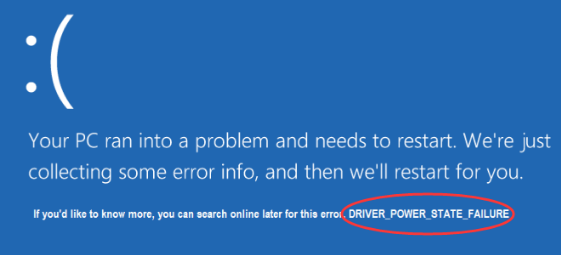
Driver Power State Failure Windows 10 (Six Solutions)

By Susan C on November 19, 2020

Driver Power State Failure Windows 10 (Six Solutions)

The Driver Power State Failure usually occurs because of bad drivers or incompatible hardware. In certain cases, the issue could crop up due to faulty power settings.

Thankfully, it doesn’t take much to resolve the error. In this post we’ve included six solutions. Of course, there’s no need for you to try them all; start with the first one and work your way down till you are able to fix the problem.

Solution 1 – Remove external hardware

Sometimes external hardware devices such as printer, USB driver, scanner, etc. can trigger errors if they are not working in the proper manner. To rule out this possibility, you should disconnect the external hardware devices and then reboot Windows.

In case Windows runs without an issue after the removal of hardware devices, it means one of these devices is causing the issue. To identify the culprit, reinstall one external device at a time and check if the error reoccurs.

In case the error appears even after the removal of peripherals, move on to the next step.

Solution 2 – Uninstall the faulty driver

Go to Device Manager and check if there’s a yellow exclamation mark against a device. That would mean the device driver is corrupted or missing. To fix the issue, you will have to uninstall the problematic driver.

Here are the steps to follow:

  • If you are unable to boot windows normally, boot it in safe mode
  • Press the Windows logo key and R and then press the OK button
  • In the run dialog box, type devmgmt.msc
  • Expand the category to locate the device having a yellow exclamation mark (In case you don’t see any exclamation mark, skip this solution and try solution 4 instead)
  • Right-click device and choose Uninstall device
  • Reboot Windows

Now check the problem is solved.

Solution 3 – Update Your Device Drivers

Many computer errors occur due to outdated drivers. Therefore, we recommend you to make sure your drivers are up-to-date. You can update device drivers manually, but keep in mind the manual process is not only time consuming but also tedious and a bit complicated.

If you don’t have the time or inclination to spend a lot of time manually updating device drivers, consider using a device driver update tool.

Updating Drivers Automatically

Automatic driver update tools offer many benefits, the most important ones being:

  • You can update device drivers automatically
  • The software scans and updates all outdated or missing drivers at one go
  • The tool picks the right drivers for your device and operating system, so you won’t have to worry about installing an incorrect driver by mistake
  • Automatic driver updates are 100% safe

Driver Updater is one of the best driver update tools out there. Outbyte Driver Updater will give you access to a database of over 1 million drivers. It will regularly scan your PC, suggesting new driver versions to install. Driver Updater contains drivers for a variety of Windows devices. With just one click, you can update drivers in your system.

Step 1
Click here to Install and launch the app

Step 2
Scan all devices

Step 3
Install or update drivers automatically


Start Download


Solution 4 – Turn off Power Saving

Power setting issues may also cause this error. Therefore, change the power setting and check if that fixes the issue.

Here are the steps to follow:

  • If you are unable to boot windows normally, boot it in safe mode
  • Press Windows key and R key simultaneously to launch the run dialog box
  • Type control panel and press Enter
  • Set View by to small icons and then choose Power Options
  • Make sure Balanced (recommended) is chosen and then click Change plan settings
  • Select Change advanced power settings
  • First expand Wireless Adapter Settings and then expand Power Saving Mode. Now select Maximum Performance from the drop-down menu
  • Now first expand PCI Express and then expand Link State Power Management. Now select Maximum Performance from the drop-down menu
  • Click the Apply button
  • Click the OK button
  • Restart Windows

Solution 5 – Uninstall Your Antivirus Software

Sometimes, third-party software like an antivirus tool may cause blue screen of death errors. Therefore, temporarily uninstall the third-party antivirus program and check if that fixes the error. If it does, you should consider using another third-party antivirus program or the built-in protection tool called Windows Defender. Alternately, you can contact the antivirus tool’s manufacturer ask them for a solution (if they have one).

Solution 6 – Refresh Windows 10 PC

In case the above solutions don’t work, refresh Windows 10. Here are the steps to follow:

  • Point your mouse to the upper-right corner of the screen, move the mouse pointer down, and then first click Settings and then Change PC Settings
  • Click Update & Recovery
  • Click Recovery
  • Click Get Started under Refresh your PC without affecting your files
  • Follow onscreen instructions

In most cases, once you start refreshing your PC, the system will finish on its own. But in case some files are missing, Windows may ask you to insert recovery media.

Once the process is complete, check if the problem is solved.
Filed Under: PC Fix Tips

Dell Audio Driver Download & Update Easily

By Susan C on November 15, 2020

Dell Audio Driver Download & Update Easily

Your sound card can’t function properly without the right kind of audio driver. It’s important to use the latest version of the audio driver as that helps improve your PC’s performance.

In this post, we will show you how to update your Dell Audio Driver in 3 simple steps. You can pick any of these steps, depending on your preferences.

Method 1 – Update Dell Audio Driver via Device Manager

  • Press the Windows key and R key at the same time
  • In the run dialog box, type devmgmt.msc and press Enter
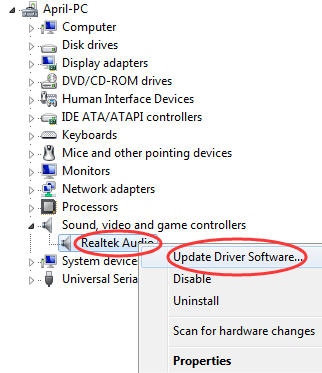
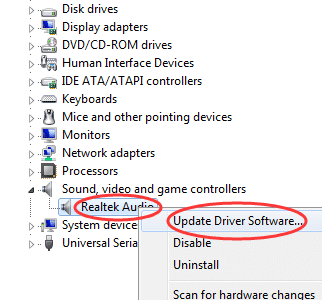
  • In the Device Manager window, scroll the list until you see Sound, video and game controllers. Now expand this list, right-click the appropriate device, and then click Update Driver Software
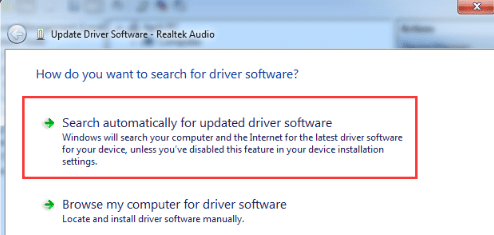
  • In the Update Driver Software window, click Search automatically for updated driver software
  • Once the device driver has been installed, reboot Windows

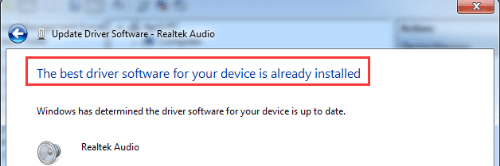
Important: In case you already had the latest driver, you will see a message in the Update Driver Software window stating “The best driver software for your device is already installed”. In that case, there’s nothing more you need to do.

Method 2 – Download Dell Audio Driver from Dell’s Website

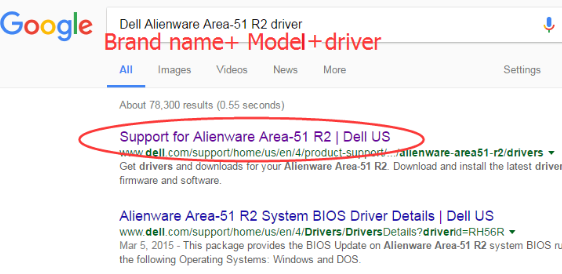
Note down the device whose driver you have to update. To demonstrate the steps, we are going to search for the latest driver for Dell Alienware Area 51 R2.   

Here are the steps to follow:

  • Open Google (or any other search engine you prefer), type “Brand Name + Mode + Drivers) and then press the Enter key. Next, click the official Dell website in the search engine results
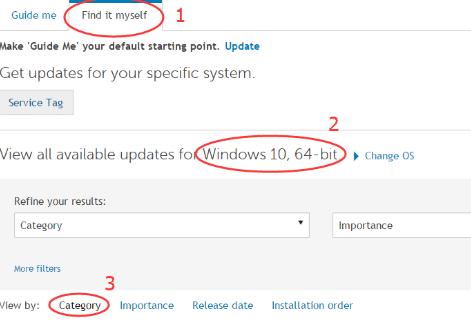
  • Click Find it myself on Drivers & downloads page on the Dell website. Next, choose your Windows OS and set the View by as Category
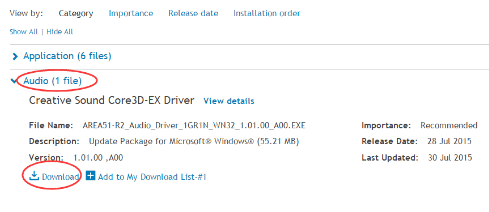
  • Find the latest driver update and then click the Download button
  • Save the driver file on your desktop and launch the installation process
  • Once you have installed the driver, reboot Windows

Method 3 – Download & Update Dell Audio Driver Using Driver Update Software

Automatic driver update tools offer many benefits, the most important ones being:

  • You can update device drivers automatically
  • The software scans and updates all outdated or missing drivers at one go
  • The tool picks the right drivers for your device and operating system, so you won’t have to worry about installing an incorrect driver by mistake
  • Automatic driver updates are 100% safe

Driver Updater is one of the best driver update tools out there. Outbyte Driver Updater will give you access to a database of over 1 million drivers. It will regularly scan your PC, suggesting new driver versions to install. Driver Updater contains drivers for a variety of Windows devices. With just one click, you can update drivers in your system.

Step 1
Click here to Install and launch the app

Step 2
Scan all devices

Step 3
Install or update drivers automatically


Start Download


Filed Under: PC Fix Tips Tagged With: Dell Audio Driver

No Audio Output Device Is Installed Windows 10 (Fixed)

By Susan C on November 11, 2020

No Audio Output Device Is Installed Windows 10 (Fixed)

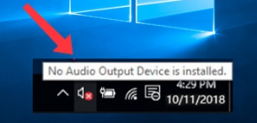
A red “x” mark on the sound icon in the taskbar means you Windows computer will not play sound.

This is a fairly common error and the good news is that easy to resolve. Typically, the error occurs when:

  • Windows has disabled the audio device
  • Windows doesn’t have the newest device driver

In case you get this error (along with the message that No Audio Output Device is Installed), chances are the issue is the result of either of the two issues listed above.

In this post, we will discuss three solutions for this problem. You don’t have to try all of them. You can start with the first solution and work your way down until you are able to resolve the issue.

Solution 1 – Update Audio Device Drivers Automatically

Did you know you can update device drivers automatically in less than two minutes with an advanced driver update tool?

Automatic driver update tools offer many benefits, the most important ones being:

  • You can update device drivers automatically
  • The software scans and updates all outdated or missing drivers at one go
  • The tool picks the right drivers for your device and operating system, so you won’t have to worry about installing an incorrect driver by mistake
  • Automatic driver updates are 100% safe

Driver Updater is one of the best driver update tools out there. Outbyte Driver Updater will give you access to a database of over 1 million drivers. It will regularly scan your PC, suggesting new driver versions to install. Driver Updater contains drivers for a variety of Windows devices. With just one click, you can update drivers in your system.

Step 1
Click here to Install and launch the app

Step 2
Scan all devices

Step 3
Install or update drivers automatically


Start Download


Solution 2 – Manually Uninstall & Reinstall the Device Driver

In case you don’t want to use a driver update software tool, we recommend you try this solution.

Here’s what you need to do.

  • Press the Windows key + R key at the same time
  • Type devmgmt.msc in the run dialog box and press Enter
  • Locate and expand Sound, video and game controllers
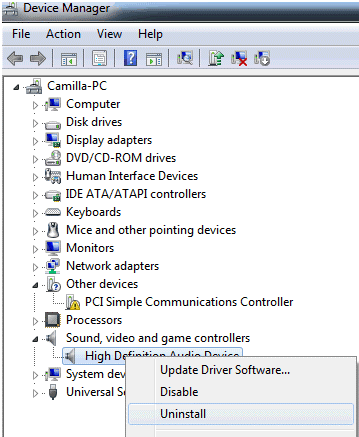
  • Right-click the device you are using and click Uninstall
  • Reboot Windows

Upon restart, Windows should automatically the driver for your sound device.

Solution 3 – Re-enable the Device

Here are the steps to follow.

Note: The exact steps may vary depending on the version of Windows you are using.

  • Press the Windows key + R key at the same time
  • Type devmgmt.msc in the run dialog box and press Enter
  • Locate Sound, video and game controllers

If you can’t see this category, perform the steps shared ahead. If you can see the category, go to the last step.  

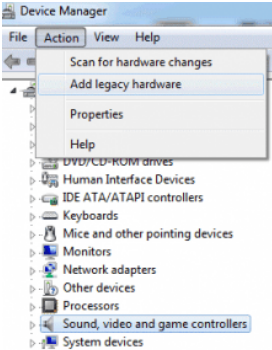
  • Click Action and choose Add legacy hardware. Then click Action again
  • Click the Next button
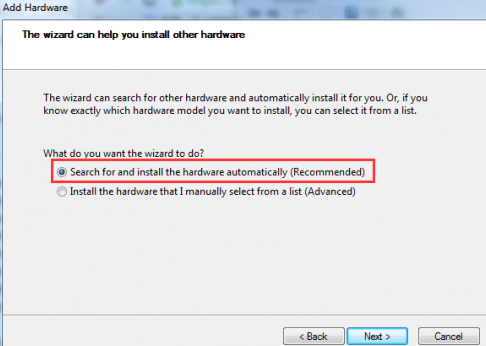
  • Click Search for and install hardware automatically (Recommended)
  • Click the Next button in case the wizard says it can’t find new hardware
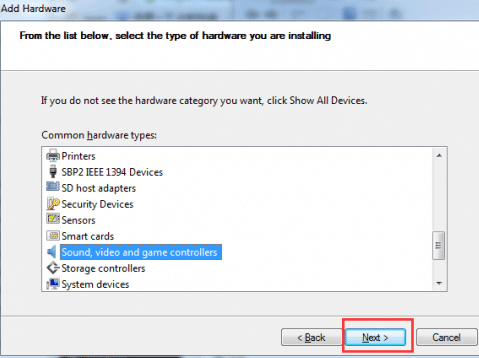
  • A list of hardware types will appear on your screen. Browse through it until you can locate Sound, video and game controllers. Click the Next button
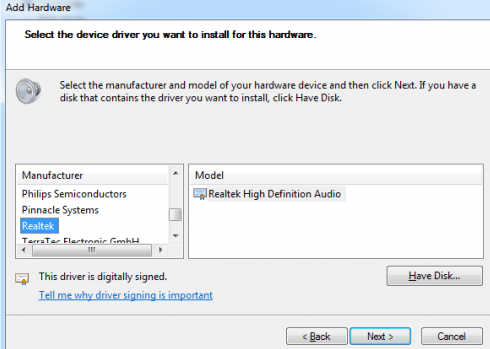
  • Choose your sound card’s manufacturer and model
  • Click the Next button
  • Click Next. Windows will now install the device. Once installation is complete, click Finish

Now perform this last step:

  • Expand Sound, video and game controllers. Then right-click the audio device and click Enable.

Filed Under: PC Fix Tips Tagged With: Sound Driver Error

  • « Previous Page
  • 1
  • …
  • 82
  • 83
  • 84
  • 85
  • 86
  • …
  • 189
  • Next Page »


  • Recent Posts
  • Popular Posts
        

Read More Posts


Read More Posts

Drivers.com Sites

  • Software Drivers
  • Drivers Ed

About Us

  • Advertise
  • About Drivers
  • Drivers Support
  • Drivers.com Privacy Policy
  • Disclaimer
  • Software Drivers
  • Mac Fixes and Tips
  • PC Fix Tips
  • Security/ Backup
  • Tablets & Smartphones
  • Tech News

© Copyright 2026 PDE Publications Ltd. End User License Agreement (EULA)