


Many PS4 users have complained of getting the CE-34878-0 error in PS4 in the middle of a game. Are you also getting the error shown below:
If yes, this post is just for you. In this post, we’ll look at not one but 7 ways to solve this error once and for all.
- Update the game software
- Restart the PS4 firmware
- Update the PS4 system software
- Initialize your PS4
- Put the original HDD
- Disconnect PS4 camera
- Call the Sony Support
Why are you getting the error code CE-34878-0?
This error is amongst the most common ones appearing in PS4. Sometimes this error is displayed as CE-36329-3.
The error appears when the applications or games crash. Typically, system software problems or corrupted PS4 data causes this error.
Try the solutions in the order they appear below to get rid of CE-34878-0 error.
Solution 1 – Update the game software
Unknown bugs in the game you are playing can cause this error. For this reason, we recommend you update the game by installing the newest patches available.
You can update the game software in the following three ways:
- Method 1 – Check for Updates using the PS4 settings
- Method 2 – Reinstall the game
- Method 3 – Reinsert the disc
Method 1 – Check for Updates
Use the following steps to check for updates for a game.
- Highlight the application/game that you want to update on PS4 home-screen
- Next click the Options button and then click Check for updates
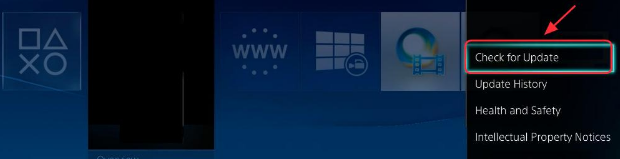
- Now just follow the wizard and download available updates. Next install those updates
- Restart PS4
Method 2 – Reinstall the game in PS4
If the first step didn’t work, uninstall and then reinstall the game. Here are the steps to follow:
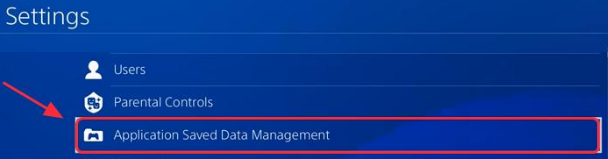
- Go to PS4 Settings
- Then click Application Saved Data Management
- Choose Saved Data in System Storage in case you want to save the game in the PS4 system. Else, click Saved Data on USB Storage Device if you are using a USB drive
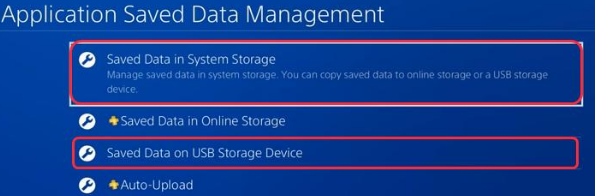
- Now follow the onscreen instructions
- Browse to PS4 Settings. Click System Storage Management and then click Applications
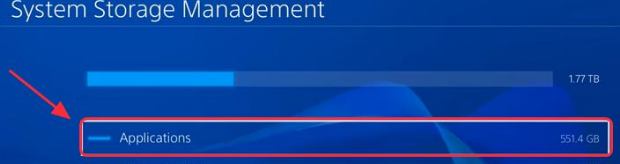
- Locate the game with which you are getting the problem. Highlight this game
- Click the Options button
- Choose Delete
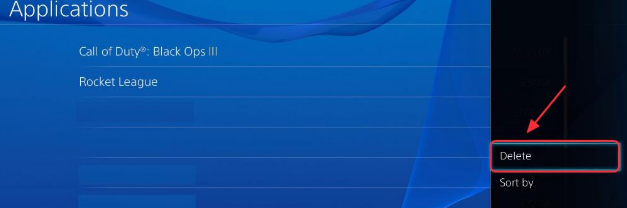
- Restart PS4
- Reinstall the game. Check if the issue is sorted
Method 3 – Re-insert the disc
In case you are playing PS4 games on the disc, you should use this option.
- Uninstall the game that you want to update from your hard drive
- Power cycle the PS4 to turn it off completely
- Now re-insert the disc
- Reinstall your game and its updates
- Launch your game now and check if things are working correctly now
Solution 2 – Restart the PS4 Firmware
Faulty hardware can cause this problem. Therefore, try restarting PS4 controller and the PS4 console to see if it reconnects and work.
- Completely power off the PS4 console
- Next, completely power off the PS4 controller
- Reboot the PS4 console
- Reboot the PS4 controller
- Now open the game and check if the error is fixed
Solution 3 – Update the PS4 System Software
System crashes concerning PlayStation can lead to this error. That’s why updating system software can help.
Here are the steps to follow:
- Connect the PS4 to Internet
- In PS4 Settings, click System Software Update
- In case new updates are available, select them (If you have the newest version of PS4 installed, this message will not appear on your screen and you can move on to the next solution)
- Download the updates. Wait for them to get downloaded
- Go to Notifications on the PS4 home-screen. Click Downloads
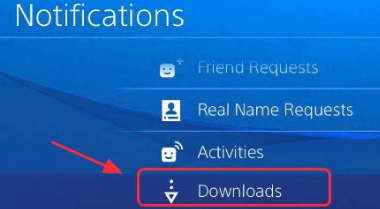
- Follow the onscreen instructions (if any) to install updates
- Now check if the game is working fine
Solution 4 – Initialize Your PS4
Many users have said that this method worked for them. Therefore, it’s definitely worth a try. Initialization removes data that’s saved on system storage. Additionally, it also removes all users, as well as their data.
Note: When you do initialization, all information and settings saved in the PS4 system gets irrevocably removed. That is, you can’t retrieve the removed information. For this reason, make sure you don’t remove any important data. Also, before you begin initialization, backup the data either to a USB driver or PS plus. Furthermore, don’t power off the PS4 system while it is being initialized. Doing that may damage the system.
- Go to PS4 Settings and then select Initialization. Next, select Initialize PS4
- Click Full
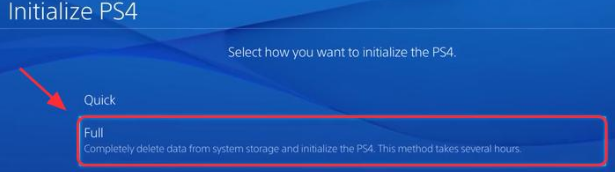
- Now follow onscreen instructions
- After initialization is finished, restore the backup data. Reinstall games and applications
- Now check if the game is working now
Solution 5 – Put the original HDD
In case you have recently upgraded the HDD (hard disc drive), that might have an impact on the performance of the game. Therefore, it is recommended that you try installing the original HDD back in the PS4. However, before reinstalling the original HDD, back up your data saved in PS4.
Note: You require either an exFAT-formatted or a FAT32 USB drive. Also ensure there’s plenty of space in your USB drive. In case space is limited, you may opt to not make a backup of the Application Data.
- Insert your USB storage device
- Go to PS4 settings. Click System. Then select Back Up and Restore
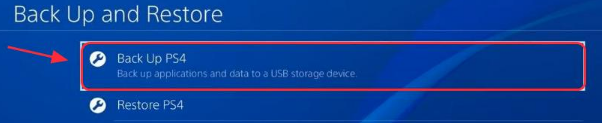
- Now confirm the data that you want to back up. In case you don’t back up applications, you will have to reinstall or download them in case you restore with the current back up.
- Select a name for the backup. Highlight Back Up and then click X button
- The process will take a few minutes, so be patient
- After backup is created, install the original HDD
- Let the installation process complete. Check if the issue is fixed
Solution 6 – Disconnect PS4 Camera
If you have connected the PS4 camera to PS4, try disconnecting it.
Here are the steps to follow:
- In PS4 Settings, click Devices and then click Turn off Device
- Pick the camera you want to turn off. Now power cycle PS4
- In PS4 Settings, select User and then select Login Settings
- Unselect Enable Face Recognition
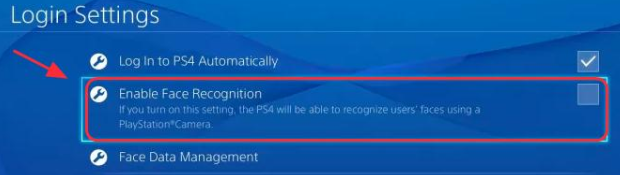
- Run the game again and check if the error is fixed
Solution 7 – Call Sony Support
In case the problem persists, you should consider contacting Sony for support. You may have to send the PS4 for repair. In case your PS4 is in warranty period, you may get a new replacement.
Leave a Reply