
Drivers.com

follow us:

facebook twitter
  • Home
  • Download Drivers
  • Drivers Help
  • PC/Mac Resources
  • Software Drivers
  • Mac Fixes and Tips
  • PC Fix Tips
  • Security/ Backup
  • Tablets & Smartphones
  • Tech News
  • Software Drivers
  • Mac Fixes and Tips
  • PC Fix Tips
  • Security/ Backup
  • Tablets & Smartphones
  • Tech News

PCI Data Acquisition and Signal Processing Controller Missing in Windows 10 (Fixed)

By Susan C on June 2, 2020

PCI Data Acquisition and Signal Processing Controller Missing in Windows 10 (Fixed)

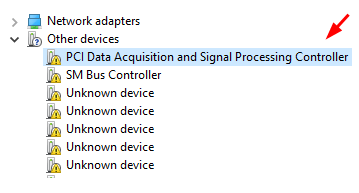
If PCI Data Acquisition and Signal Processing Controller is present under Other Devices and has a yellow exclamation mark beside it, it shows there is a problem with the network driver.

This is one problem that many users have reported recently. If you are facing this problem too, this post is just for you.

So what does this PCI error mean?

It usually signifies there’s something wrong with the network connection. But don’t worry as it doesn’t take much to solve the issue.

The first thing you should do when you come across a yellow exclamation mark in the device manager is to update device drivers. We recommend you to install drivers only from genuine resources. One such resource is the manufacturer support website for your PC or laptop .

  • Browse to the support site and then search for drivers for your laptop by searching in the software or drivers section
  • You are likely to see a number of drivers; pay attention to chipset driver and network card driver
  • Select the appropriate operating system
  • Finally, click the Download button
  • Once the download process is complete, install drivers one by one
  • Reboot Windows for the changes to take effect

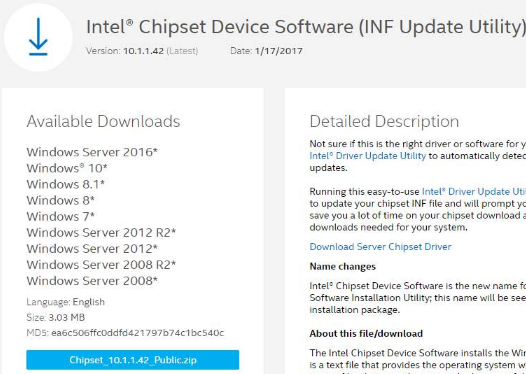
Sometimes, the chipset driver is in form of .inf file. This may pose some problems for certain users, but don’t worry we will show exactly how to install such drivers. The driver software we’re using for demonstration is Intel Chipset Device Software.

Note:  It is very much possible that your chipset driver may have a completely different name. That’s ok. PC manufacturers often customize intel chipset in order to have it meet the specifications of their computers. In case you don’t wish to give up any customized feature, we recommend you download chipset from your computer manufacturer.

  • Download the relevant chipset driver for your computer and save it in a suitable location
  • Press Win + R keys simultaneously to launch the run dialog box
  • Type devmgmt.msc and then press Enter
  • In the Device Manager window, locate and double-click PCI data Acquisition and Signal Processing Controller. You will find it under Other devices category
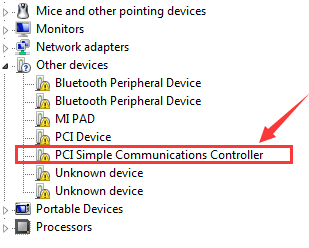
  • Click the Driver tab
  • Click Update Driver
  • Select the second option in the list – Browse my computer for driver software
  • Navigate to the location where you have stored the driver file and then click Next
  • Wait for the chipset driver to get installed
  • Restart PC (if required)

In case you don’t want to go through the whole process described above, you could consider getting a reliable driver update tool to do this for you.

Automatic driver update tools offer many benefits, the most important ones being:

  • You can update device drivers automatically
  • The software scans and updates all outdated or missing drivers at one go
  • The tool picks the right drivers for your device and operating system, so you won’t have to worry about installing an incorrect driver by mistake
  • Automatic driver updates are 100% safe

Driver Updater is one of the best driver update tools out there. Outbyte Driver Updater will give you access to a database of over 1 million drivers. It will regularly scan your PC, suggesting new driver versions to install. Driver Updater contains drivers for a variety of Windows devices. With just one click, you can update drivers in your system.

Step 1
Click here to Install and launch the app

Step 2
Scan all devices

Step 3
Install or update drivers automatically
 

Start Download


Filed Under: PC Fix Tips

Zoom Connection Problems (and solutions)

By Susan C on May 30, 2020

Zoom Connection Problems (and solutions)

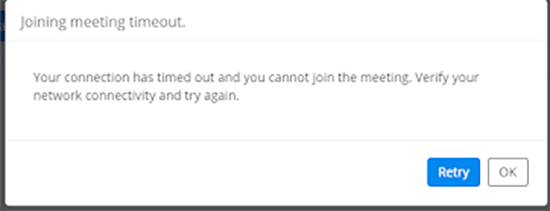
Are you getting the “Network error, please try again” error message with your Zoom app? Is your app staying in the “connecting” mode without moving forward? Do you get the “Can’t connect to our service, please check the network connection and try again” error message?If your Zoom error message is not covered here, see our post on Zoom error messages and solutions.

zoom timeout

If you answer yes to any of the above then you should read on to help find the solutions.

Most Zoom connection problems are typically related to firewall settings, network connection, or web security gateway settings.

Zoom connection error – fix 1

To fix Zoom connection errors the first thing to do is open a browser window and see if you can connect to https://zoom.us. This is to ensure the network connection is working. If you cannot connect then check other websites, if you are having a problem with connecting to websites then your problem is network/ wifi connection.

Zoom connection error – fix 2

The next step is to change the settings in your antivirus software to add “zoom.us” to trusted applications. The exact steps you must take depends on the protection software you are using.

Below we have set out the steps for the Kaspersky Antivirus software.

  • Open Kaspersky by clicking the red K icon in your system tray. Alternately, you can use the start menu for accessing the software’s user interface.
  • Click the Settings tab. Then click Antivirus protection > Web Antivirus > Settings
  • Now click the Add button. Then enter “zoom.us” > click OK

If you are still having problems getting Zoom to connect, exit Kaspersky by right-clicking its icon in the system tray and clicking exit. Now relaunch Kaspersky and check again if the Zoom app is working.

If you are looking for an alternative to Zoom, see our post on the top 9 alternative videoconferencing applications to Zoom.

Filed Under: PC Fix Tips Tagged With: connection problems, zoom, Zoom connection problem

Zoom Error Messages and Their Solutions

By Susan C on May 21, 2020

Here are some common Zoom error messages and their fixes.

While Installing Zoom

Error 3000

This error occurs when the Zoom Installer fails to overwrite an existing file because of some running process.

Fix Zoom Error

Download Zoom Client Installer manually. Next, install it and check if the problem is fixed. If not, reboot your computer. Now, check again.

Error 0 in Zoom

This error can occur because of any of these three reasons:

  • When you upgrade to Version 1.0 from 0.9
  • When there’s a broken source link to Zoom installer package
  • When your antivirus software tool (for example, AVG) puts the files downloaded by Zoom installer into quarantine

Fixes

You can resolve the issue by:

  • Downloading Zoom Client Installer manually. Next, install it and check if the problem is fixed.
  • In case the problem has not been fixed, you need to get the installer.txt located at c:/users/username/AppData/Roaming/Zoom. Next, raise a ticket with this file.

Error 10002

This problem occurs when:

  • There’s no space left in the target disk
  • When your antivirus software tool (for example, AVG) puts the files downloaded by Zoom installer in quarantine

Fixes

To resolve the issue, try these solutions:

  • Check the disc space for required space
  • Downloading Zoom Client Installer manually. Next, install it and check if the problem is fixed.
  • In case the problem has not been fixed, you need to get the installer.txt located at c:/users/username/AppData/Roaming/Zoom. Next, raise a ticket with this file.

Error 13003

This problem occurs when:

  • New apps could not be installed because of user’s permission
  • There’s a conflict with device drivers. Faulty or outdated drivers can cause conflict-related problems with other apps and programs. For this reason, use a reliable driver update tool to avoid errors related to driver issues.

Automatic driver update tools offer many benefits, the most important ones being:

  • You can update device drivers automatically
  • The software scans and updates all outdated or missing drivers at one go
  • The tool picks the right drivers for your device and operating system, so you won’t have to worry about installing an incorrect driver by mistake
  • Automatic driver updates are 100% safe

Driver Updater is one of the best driver update tools out there. Outbyte Driver Updater will give you access to a database of over 1 million drivers. It will regularly scan your PC, suggesting new driver versions to install. Driver Updater contains drivers for a variety of Windows devices. With just one click, you can update drivers in your system.

Step 1
Click here to Install and launch the app

Step 2
Scan all devices

Step 3
Install or update drivers automatically


Start Download


While trying to connect to Zoom

Errors 5004, 5003, and 5000

Here are some potential solutions to these errors:

  • If you are using a network which has a proxy or a firewall, get in touch with your network administrator and ask him/her to take a look at the Firewall and Proxy settings
  • Your antivirus software program, such as AVG or McAfee Web Protection may be preventing your device from establishing a connection with Zoom. Temporarily disable the antivirus program and then check
  • Check the internet connection

Filed Under: PC Fix Tips Tagged With: zoom error

  • « Previous Page
  • 1
  • …
  • 92
  • 93
  • 94
  • 95
  • 96
  • …
  • 189
  • Next Page »


  • Recent Posts
  • Popular Posts
        

Read More Posts


Read More Posts

Drivers.com Sites

  • Software Drivers
  • Drivers Ed

About Us

  • Advertise
  • About Drivers
  • Drivers Support
  • Drivers.com Privacy Policy
  • Disclaimer
  • Software Drivers
  • Mac Fixes and Tips
  • PC Fix Tips
  • Security/ Backup
  • Tablets & Smartphones
  • Tech News

© Copyright 2026 PDE Publications Ltd. End User License Agreement (EULA)