Drivers.com

follow us:

facebook twitter
  • Home
  • Download Drivers
  • Drivers Help
  • PC/Mac Resources
  • Software Drivers
  • Mac Fixes and Tips
  • PC Fix Tips
  • Security/ Backup
  • Tablets & Smartphones
  • Tech News
  • Software Drivers
  • Mac Fixes and Tips
  • PC Fix Tips
  • Security/ Backup
  • Tablets & Smartphones
  • Tech News

Intel high definition audio driver not working in windows 10 (Fixed)

By Susan C on April 19, 2020

Intel high definition audio driver not working in windows 10 (Fixed)

Many users have reported audio issues such as no sound coming through HDMI, after installing the latest Windows update. Are you experiencing this problem?

If yes, then read this post to get help on how to get the sound back.

To fix the problem, you need the correct Intel HD audio driver. So the next question is, how can you get the correct audio driver?

Well, there are three ways to fix this error. In this post, we look at all of them.
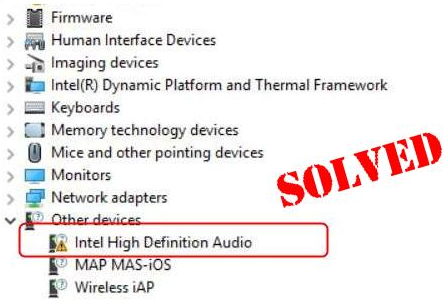
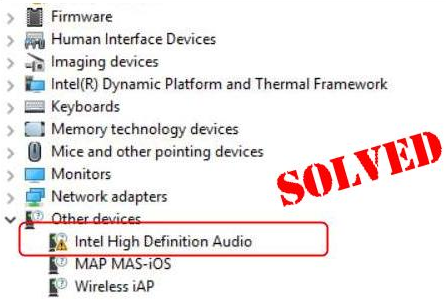
Intel HD audio driver may refer to the audio controller driver on your PC or Intel Display audio driver.

You can update the Intel HD audio driver automatically. This is the most recommended method, as it is not only the easiest but also the fastest and the most accurate. Alternately, you can manually download and install the driver or choose to roll back the driver.

Now, let’s look the steps for each of these.

Solution 1 – Update Intel HD audio driver automatically

Automatic driver update tools offer many benefits, the most important ones being:

  • You can update device drivers automatically
  • The software scans and updates all outdated or missing drivers at one go
  • The tool picks the right drivers for your device and operating system, so you won’t have to worry about installing an incorrect driver by mistake
  • Automatic driver updates are 100% safe

Driver Updater is one of the best driver update tools out there. Outbyte Driver Updater will give you access to a database of over 1 million drivers. It will regularly scan your PC, suggesting new driver versions to install. Driver Updater contains drivers for a variety of Windows devices. With just one click, you can update drivers in your system.

Step 1
Click here to Install and launch the app

Step 2
Scan all devices

Step 3
Install or update drivers automatically


Start Download


Solution 2 – Download & Install the driver manually

You can manually download the Intel HD audio driver from the manufacturer’s website. Alternatively, you can download the drivers from the website of your PC or laptop brand.

In this post, we detail the steps for downloading the driver from Intel’s website. You need to download the graphics card driver, since Intel bundles the audio driver with its graphics driver.

Here are the steps to follow:

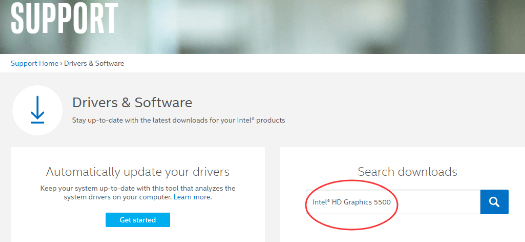
  • Open your internet browser and browse to download center
  • Now type the model number of your Intel HD Graphics. For instance, we have used Intel HD Graphics 5500 in this example
  • Choose the relevant operating system
  • Select the latest version (usually, it is the first entry)
  • Click on the .exe file to kickstart the download process
  • Once you’ve downloaded the file, double-click it to install it
  • Reboot Windows

Note: In case you don’t know which model you’re using, perform the steps listed below

  • Right-click anywhere on the desktop and choose Display Settings
  • Now click Advanced display settings
  • Select Display adapter properties
  • You’ll see the graphics model number within Adapter Type section under the Adapter tab

Once you know the graphics card model, search for it on Intel’s download center and download it.

Solution 3 – Roll back the driver

In case the issue didn’t resolve after updating the driver, you may want to roll back the driver, as this has worked for some users.

Here are the steps to follow:

  • Press Win + R keys simultaneously
  • Type devmgmt.msc in the run dialog box and press Enter
  • In the Device Manager window, expand System devices. Now in the list that appears, search for your audio program, which could be either Intel High Definition Audio Controller or Smart Sound Technology Audio Controller
  • Right-click the relevant program and click the Driver tab. Select Roll back driver
  • Restart Windows
  • Now the problem should be solved

Leave a comment below to tell us which of these solutions worked for you.
Filed Under: PC Fix Tips Tagged With: Intel audio driver

Skype can’t connect issue (8 Solutions)

By Susan C on April 14, 2020

Skype has definitely made our lives easier. We can use it to connect with our family and friends, as well as with our clients. However, like any other software, Skype can be prone to errors from time to time.

A common error that many Skype users have reported receiving is, “Skype can’t connect.”

It doesn’t take much to get rid of this error, and we’ll show you all the solutions below.

Solution 1 – Check Skype Heartbeat

This is the first thing you should do. There’s a good chance that the problem is not at your end, but at Skype’s. Check the status of Skype by:

  • Open Skype and then click Help. Now click Heartbeat
  • In the newly-opened webpage, you can detect the system status of this app. In case anything is amiss, you’ll see a message on this page
  • If there’s a message regarding some issue with the connection, the only thing you can do is wait for technicians to fix it at their end

Solution 2 – Scan the PC for Malware

Another possible cause could be malware infection. Precisely for this reason, before attempting other solutions it’s important you rule out this possibility. We recommend running a full virus scan using either Windows Defender, the default protection software in Windows 10, or any other anti-malware software of your choice.

Solution 3 – Update Skype

An outdated version of Skype can lead to all kinds of problems, including this error. Here’s how you can keep Skype up-to-date.  

Visit the official website of Skype and download the latest Skype version. (It is important that you download the app only from its official website, and not any other site.)

Next, launch the Skype installer and follow onscreen instructions.

Solution 4 – Update Windows

If the error persists, the problem could be with your Windows 10, not Skype. Make sure Windows is up to date.

  • Press Win + I and then click Update and Security. Next click Check for updates
  • Let the latest updates come through
  • Once Windows has installed all the recent updates, restart the computer
  • Launch Skype and see if it’s now running fine

Solution 5 – Update Network Adapter Drivers

You may receive the aforementioned error if your network drivers are old or corrupt. To fix the problem, update the drivers. You can do this manually or automatically. We’ll discuss both the methods, so you can decide for yourself which one is more suitable.

Updating Network Adapter Drivers Manually

Perform the following steps:

  • Press Windows logo key + R together to bring up the Run command
  • In Run command, type devmgmt.msc and click OK
  • In the Device Manager, expand Network Adapters
  • Select the Network Adapter you’re using and right-click it
  • Select update driver from the list of options
  • In the next window, select Search automatically for updated driver software.
  • Windows will search the internet to find a driver update and install it. If it does not find a driver update, you have to manually download the mouse driver and install it.
  • Open Internet browser
  • Go to the Network Adapater manufacturer’s website
  • Go to the Download section and select your product
  • Download mouse driver compatible with your OS version(Windows 7/8/8.1/10)
  • Double-click on the driver setup file to install the driver
  • Restart your computer

Updating Network Adapter Drivers Automatically

Automatic driver update tools offer many benefits, the most important ones being:

  • You can update device drivers automatically
  • The software scans and updates all outdated or missing drivers at one go
  • The tool picks the right drivers for your device and operating system, so you won’t have to worry about installing an incorrect driver by mistake
  • Automatic driver updates are 100% safe

Driver Updater is one of the best driver update tools out there. Outbyte Driver Updater will give you access to a database of over 1 million drivers. It will regularly scan your PC, suggesting new driver versions to install. Driver Updater contains drivers for a variety of Windows devices. With just one click, you can update drivers in your system.

Step 1
Click here to Install and launch the app

Step 2
Scan all devices

Step 3
Install or update drivers automatically


Start Download


Solution 6 – Configure the Firewall

Some users have complained that in their case the Firewall has lead to the listed error. Here’s how you can tweak the Firewall’s settings:

  • Close the Skype app (Ensure the app is not running in background, so make use of Task Manager to close its processes)
  • Open the Firewall
  • Search Skype in the list of installed apps
  • Select Allow Skype to connect to Internet
  • Click Save
  • Restart the Skype app

Solution 7 – Reinstall Skype

If the issue persists, perhaps its best to get a fresh install of the app. Before uninstalling and reinstalling it, you might want to take a backup of the Skype history.

  • Press Win + R
  • In the run dialog box, type %appdata%\Skype
  • Click the OK button
  • Copy “Your Skype Name” folder and My Skype Received Files folder
  • Move these two to another location

Now uninstall Skype.

  • Press Win + R
  • In the run dialog box, type “appwiz.cpl” and press Enter
  • Click Programs and Features
  • Locate and right-click Skype and select Uninstall
  • Follow the onscreen instructions
  • Open Windows Explorer and browse to C:\Program Files
  • Locate the Skype folder as well as SkypePM folder
  • Select and Delete these two folders

It’s best that you uninstall Skype completely, which entails deleting its entries from Windows Registry as well. However, keep in mind, Windows Registry has zero tolerance to mistakes, so perform these steps exactly as shown below. Also, it won’t hurt a bit to take a backup of your registry first. Better safe than sorry.

To take registry backup, perform the following steps:

  • Press Win + R keys
  • Type regedit in the run dialog box and press Enter
  • Select the key you want to backup
  • Click File and then choose Export
  • In the Export Registry File Dialog box, choose the location where you want to save the backup file, and then give the backup file a desired name
  • Finally click the Save button

Once you’ve backed up registry, edit the Registry.

  • Press Win + R keys
  • Type regedit in the run dialog box and press Enter
  • Click Edit | Find and then type Skype in the box and click Find Next
  • Right-click the search results and select Delete

Now go to the official website of Skype. Download the latest version for your Windows computer.

Once you have installed Skype afresh, it’s to get your Skype history.

  • Quit Skype
  • Press Win + R keys
  • In the run dialog box, type %appdata%\skype in the Run dialog box and then press Enter
  • Place “Your Skype Name” folder and the My Skype Received Files folder here

Solution 8 – Configure Connection Settings for Skype

In case you’re using a proxy server, you can get rid of this error by configuring the Skype connection.

Here’s what you need to do.

  • Open Skype and then click Tools | Options | Advanced | Connection
  • Here you need to specify the precise proxy option. Feed in its Host as well as Port details. Enter user proxy username along with the password
  • Select Enable proxy authentication
  • Click Save
  • Exit Skype (use Task Manager to ensure the app is not running in the background)
  • Finally restart Skype

Filed Under: PC Fix Tips

System Using 100% Disk Fixed (15 Solutions)

By Susan C on April 6, 2020

System Using 100% Disk Fixed (15 Solutions)

Recently, many Windows users have reported experiencing an issue in which their disk utilization shows as 100%. This in turn leads to lagging and a severe drop in the system’s performance.

Are you experiencing the same issue?

If yes, you’re at the right place. In this post we’ll discuss 14 different solutions. So let’s dive straight in.

100% Disk Usage Windows 10

Solution #1 – Run Disk Check

Most commonly, this issue shows up when you’re trying to search for a file or program using Windows Search or complete any action that puts the drive under a bit of strain.

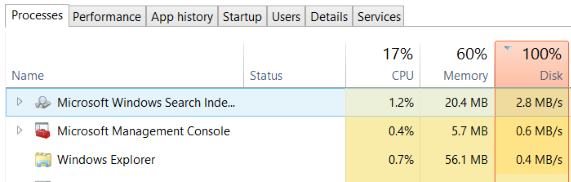
To ensure the ‘computer slowdown’ is because of 100% disk usage, press Ctrl+Alt+Del when you experience a problem. Next, choose Task Manager.

Look at the Disk column in the Processes tab. If there’s a problem with drive performance, you’re likely to find disk usage at 100% and this whole entry shaded in red.  

The issue can occur because of some problem in certain sectors on the HDD, but the good news is that the built-in disk check tool can easily fix it.

Open the Windows Explorer window and choose This PC. Next, check the hard drive and right-click the C drive and click Properties. Look for the Tools tab here and click Check under Error checking.

Click Scan drive in the next window and wait for the scan to complete. Finally, restart Windows.

Solution #2 – Check the Anti-Virus Software

Before proceeding further, it’s important to rule out malware infection. Run a thorough virus scan using your security tool. However, do remember a full scan may take more time than usual since you’re drive is already under a heavy load.

In case the scan reports some threats, follow the security tool’s recommendations and then restart Windows.

Solution #3 – Disable Windows Search

This issue could also be occurring because of some problem with Windows Search. Specifically speaking, a bug may put the Windows Search in Windows 10 in a “search loop”. This in turn puts substantially more load on the system drive.

To put an end to it, as well as prevent it from reoccurring until you reboot Windows, perform the following steps:

  • Click the Start button and type cmd
  • Next right click and choose Run as administrator
  • In the Command Prompt window, type the following and press the Enter key

If you want to disable Windows Search permanently, press the Windows key + R key. In the run dialog box, type services.msc and click the OK button. Next, in the Services window, locate and double-click Windows Search and set the Startup type (under the General tab) as Disabled. Finally, Click the OK button and then click Apply.

Your Windows 10 system should start performing considerably faster after you disable Windows Service. If that’s not the case, move on to the next solution.

Solution #4 – Disable Superfetch Service

According to some users, the Superfetch Service is the main culprit. You can stop this service by performing these steps:

  • Click the Start button and type cmd
  • Next right click and choose Run as administrator
  • In the Command Prompt window, type the following and press Enter

It is a good idea to run Check Disk after performing these steps. To do that, simply type the following command and press Enter.

(Image)

You’ll have to reboot windows for this action to be completed. Therefore, close all applications and save any important work.

Solution #5 – Disable Flash

Another common cause for 100% hard disk usage is flash, especially among users who prefer to use Chrome. For this reason, we recommend you should do away with it.

Here are the steps you need to complete.

  • Open Chrome browser
  • Click Menu (the three dots on top right-hand corner). Now click Settings and then click Show advanced settings
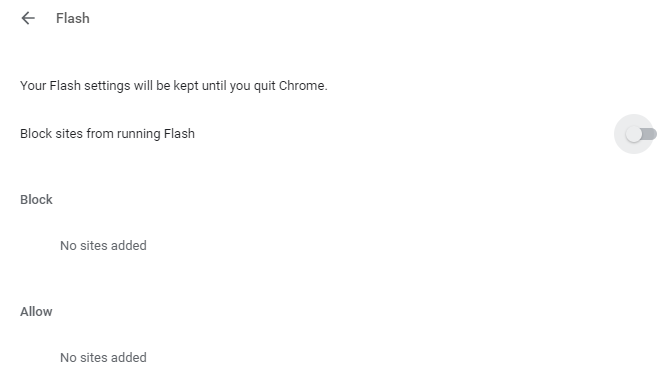
  • Under the Privacy section click Content Settings. Find Flash here and set the corresponding toggle to Block sites from running Flash
  • Now click Back

Close the browser window and relaunch Chrome. Your HDD performance should be much better now. If not, move on the next solution.

Solution #6 – Use another browser

It is possible the real culprit is not Flash—but your browser itself, particularly if you run Chrome. In that case, the obvious workaround is to dump Google Chrome and sidle over to another browser.

Which one? That’s up to you entirely. Many users report that the built-in Microsoft Edge is a worthy replacement to Chrome, so you may want to give it a go.

Solution #7 – Update device drivers

Outdated SATA drivers can also cause the aforementioned problem. Chances are your Windows 10 pc uses SATA connections for SSDs, optical drives, and hard drivers. Disk usage problem can creep up in case this driver is not the outdated.

You can fix the issue by updating the SATA drivers.

How to do that? Well, there are two ways to go about this, manually or automatically. The first method requires a fair amount of technical knowledge and patience. If you’re short on either, we recommend going the automatic way.

Update SATA drivers manually

Here are the steps to follow:

  • Simultaneously press Win+X to open Power Menu. Now click Device Manager
  • Locate and expand Storage controllers. Now find the correct controller. In you can’t seem identify which is the correct one, update both controllers
  • Right-click a controller and click Update driver
  • Choose the option “Browse my computer for driver software”. Next select “Let me pick from a list of available drivers on my computer”. Now select the Standard AHCI Controller, and follow onscreen instructions (if any)

Restart Windows and check if your disk’s performance improves. If it doesn’t, go to the manufacturer’s website and locate for the latest driver. Next, download the driver file and double-click it to launch the installer. Follow onscreen instructions and reboot Windows after installation is complete.

Update SATA drivers automatically

Automatic driver update tools offer many benefits, the most important ones being:

  • You can update device drivers automatically
  • The software scans and updates all outdated or missing drivers at one go
  • The tool picks the right drivers for your device and operating system, so you won’t have to worry about installing an incorrect driver by mistake
  • Automatic driver updates are 100% safe

Driver Updater is one of the best driver update tools out there. Outbyte Driver Updater will give you access to a database of over 1 million drivers. It will regularly scan your PC, suggesting new driver versions to install. Driver Updater contains drivers for a variety of Windows devices. With just one click, you can update drivers in your system.

Step 1
Click here to Install and launch the app

Step 2
Scan all devices

Step 3
Install or update drivers automatically


Start Download


Solution #8 – Disable Antivirus Software

Sometimes, a protective software tool can trigger high disk usage issue. Therefore, it’s worth disabling your antivirus program temporarily to rule out this possibility. If disabling does the trick, you’d need to contact the vendor for solution. In case help is not forthcoming, worry not. Use Microsoft’s Windows Defender, which comes pre-built in Windows 10, instead.

Solution #9 – Reset Virtual Memory

A part of your hard drive, virtual memory lends a helping hand to your computer’s physical memory—aka RAM—when it’s under the pump. When there’s not enough RAM to complete an action, Windows resorts to storing files, albeit temporarily, in virtual memory. And when it needs those files, it simply swaps them back to RAM.

All the same, you may encounter high disk usage issue when virtual memory is set an unreasonable amount. To fix the problem, reset it. Here’s how you can do that.

  • Press Win + Pause/Break keys simultaneously. Then click Advanced system settings in the panel on your left-hand side
  • Click Advanced. Next click the Settings tab
  • Click the Advanced tab and click the Change button (listed under the section marked Virtual memory)
  • Ensure the box before “Automatically manage paging file size for all drives” is unselected. Next select the system drive and set the Initial as well as Maximum size for virtual memory.
  • Next click the Set button and then click OK

Initial size – If you’re not sure how much the initial size should be, just enter the recommended value.

Maximum size – Set the maximum size to 1.5 times of your actual RAM. For instance if you’re using 2GB (2,048 MB) RAM, this value should not exceed 3,072 MB.

Not sure how much RAM you’re using? Type msinfo32.exe in the Start Search box and press Enter. In the System Information window, you can find RAM in Installed Physical Memory (RAM).

Once you’ve set virtual memory’s values, it’s time to remove temporary files. To do so, press Win + R keys simultaneously and then type temp in the run dialog box and press Enter. This will take you to the Temp folder. Simply select all the listed files and delete them.

Solution #10 – Disable Windows Update Service

Some users reported that in their case the issue was occurring because of Windows Update Service and disabling it did the trick.

Here’s how you can disable Windows Update Service:

  • Click the Start button, type run, and press Enter
  • In the run dialog box, type services.msc and then press Enter
  • In the Services window, located Windows Update in the right pane and double-click it
  • In the Properties window, set the Startup type as Disabled, and click Stop and then OK

Solution #11 – Change File Explorer Options

Here are the steps to follow:

  • Open File Explorer and then click the View tab
  • Click Options and then click the Search tab
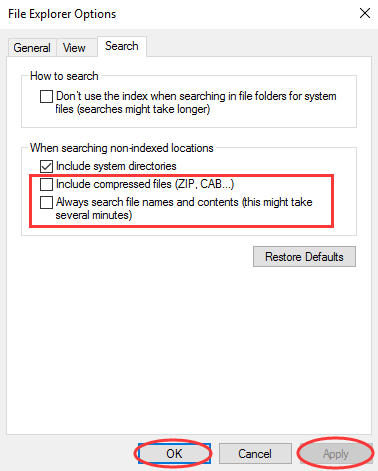
  • Unselect the second and third options under When searching non-indexed locations, that is, Include compressed file and Always search file names…
  • Click the Apply button and then click OK

Solution #12 – Check Skype Impact

At times Skype can eat disk resources and lead to 100% disk usage. To disable Skype OTT resource requirement, first check whether the software is running or not. Simply look at the System Tray (a bunch of icons located in bottom right-hand corner). If you see its icon there, right-click it and click Quit.

Next, type run in the start search box and press Enter. Now type the following command in the run dialog box and press Enter.

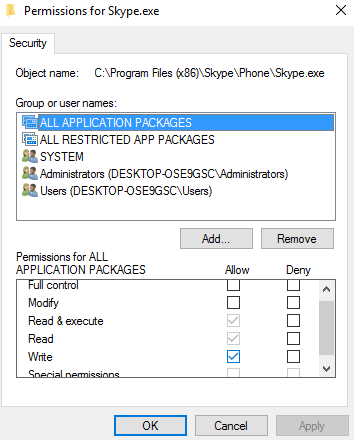
Right-click Skype.exe file and choose Properties. Click Edit in the Security tab and then choose All Application Packages. Tick the box next to Write in the Allow Column and click Apply and then OK.

Solution #13 – Fix PCI-Express Firmware Bug

It’s no secret that some drivers cause problems in Windows 10. A case in point is StorAHCl.sys driver, which has been linked to high disk usage. This driver has a firmware bug and that’s why it can sometimes cause problems.

If you’ve not been able to fix the titled issue so far, fix this driver. However, first check whether you have this driver or not.

  • Press Win + R keys to launch the Run box
  • Type devmgmt.msc and then press Enter
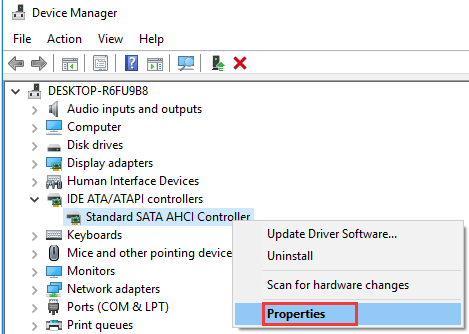
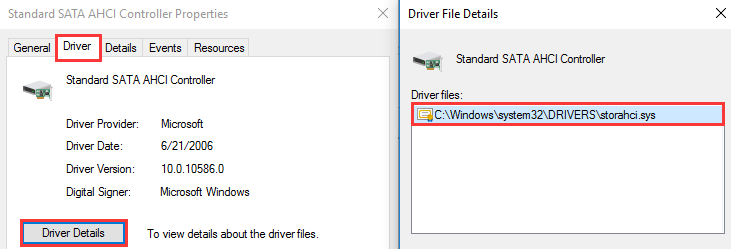
  • Expand IDE ATA/ATAPI Controllers, and then right-click Standard SATA AHCI Controller and click Properties
  • Click the Driver tab and then click Driver Details
  • In case you see storahci.sys in the list, it means you’ve got the said driver

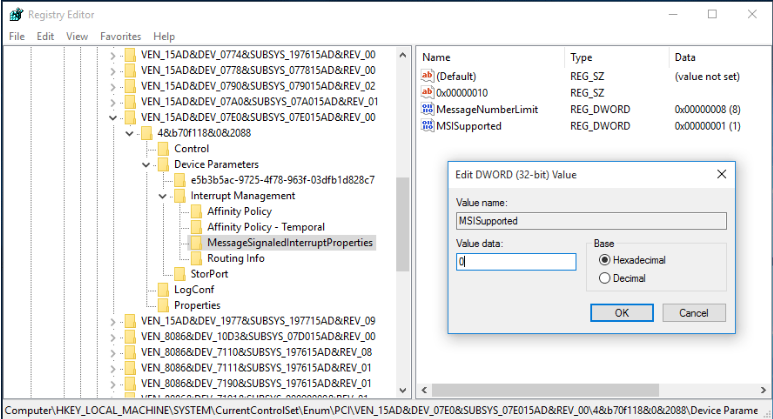
Now you got to disable MSI for the controller in the Windows Registry. Here are the steps to follow.

  • Click the Details tab in the Properties window. Choose Device instance path from the first drop-down menu below (below Property).
  • Press Win + R keys to call out the Run dialog box
  • Type regedit and press Enter
  • Browse to HKEY_LOCAL_MACHINE\System\CurrentControlSet\Enum\PCI\<AHCI Controller>\Device Parameters\Interrupt Management\MessageSignaledInterruptProperties. Change the MSISupported key value to “0” from “1”

Solution #14 – Activate High Performance Mode

You can also try changing the Windows power settings as this has worked for more than a few users. Research shows 100% disk usage issue is more likely to occur in case of standard power modes. However, changing to high performance mode can help fix the issue.

That said, remember that your computer will now consume more power.  All the same, most modern processor can handle the extra load without breaking a sweat. The same, however, can’t be said for replacement laptops and notebooks.

Here’s how you can turn to high performance.

  • Press Win + X and then select Power Options
  • Click Additional power settings, choose High performance, and click OK

In case you don’t see this option, create a custom plan by clicking Create a power plan. Next, select High Performance and write the name of this plan.

Solution #15 – Clear the Steam Cache

In some cases, the problem is related to Steam. You can fix the issue by clearing its cache. However, first you need to close Steam, which may not prove that straightforward as it is likely to hang when you try to close it. However, you can use the Windows Task Manager to do the necessary.

Next, press Win + R to open the run dialog box. Now type the following command and press Enter.

A dialog box will open on your screen. Click the OK button, and the steam cache will be cleared.

Your games and saves will not be deleted, so you don’t have to worry about losing them.

We hope one of these 15 solutions would have worked for you. Leave us a comment below to tell us which solution did the trick for you or if you have any questions.

Filed Under: PC Fix Tips Tagged With: 100% disk usage

  • « Previous Page
  • 1
  • …
  • 94
  • 95
  • 96
  • 97
  • 98
  • …
  • 189
  • Next Page »


  • Recent Posts
  • Popular Posts
        

Read More Posts


Read More Posts

Drivers.com Sites

  • Software Drivers
  • Drivers Ed

About Us

  • Advertise
  • About Drivers
  • Drivers Support
  • Drivers.com Privacy Policy
  • Disclaimer
  • Software Drivers
  • Mac Fixes and Tips
  • PC Fix Tips
  • Security/ Backup
  • Tablets & Smartphones
  • Tech News

© Copyright 2026 PDE Publications Ltd. End User License Agreement (EULA)