Drivers.com

follow us:

facebook twitter
  • Home
  • Download Drivers
  • Drivers Help
  • PC/Mac Resources
  • Software Drivers
  • Mac Fixes and Tips
  • PC Fix Tips
  • Security/ Backup
  • Tablets & Smartphones
  • Tech News
  • Software Drivers
  • Mac Fixes and Tips
  • PC Fix Tips
  • Security/ Backup
  • Tablets & Smartphones
  • Tech News

Nvlddmkm Sys BSOD Windows 10 Error (Solved)

By Susan C on March 30, 2020

Nvlddmkm Sys BSOD Windows 10 Error (Solved)

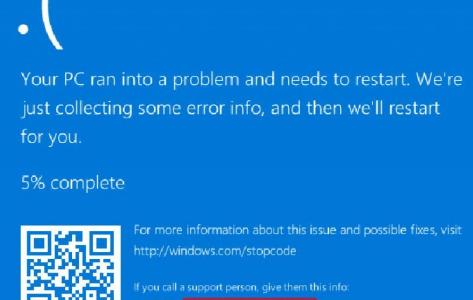
Windows is a user-friendly operating system, but it has its share of problems, perhaps none scarier than BSOD errors. A blue screen of death (BSOD) error can disrupt your work and cause you to lose any unsaved data.

Nvlddmkm Sys BSOD Windows 10 error

Here we help you to solve this BSOD error. The VIDEO_TDR_Failure (nvlddmkm.sys) error is associated with NVIDIA graphics card. You can resolve it using any of these solutions:

  • Reinstall NVIDIA graphics card
  • Programs or Drivers conflict check
  • Run chkdsk and memtest tests

Since it’s impossible to tell beforehand which one of these will work you, we recommend you try the solutions in the order they appear below.

However, first we will explain what this error is all about.

How to Update Nvidia Drivers in Windows 10

What’s Video_TDR_Failure?

TDE denotes three Windows components: Timeout, Detection, and Recovery.

It resets the GPU or driver in case of a long delay to help prevent BSODs. In case the issue repeats itself several times in a succession, a BSOD occurs.

Solution 1 – Reinstall NVIDIA graphics card

First, boot into safe mode—a diagnostic mode of Windows that helps us troubleshoot problems with drivers and programs.

To enter safe mode in Windows 10, perform the following steps:

  • Press the Windows key and I key at the same time
  • Click Update & Security
  • Now select Recovery | Advanced startup | Restart
  • In the Choose an option screen, click Troubleshoot
  • Next click Advanced Options and then select Startup Settings. Finally click Restart
  • Select F4 or 4 to reboot in Safe Mode

Once you’re in Safe Mode, perform the following steps to reinstall NVIDIA graphics card

  • Press the Windows key + R key at the same time
  • In the run dialog box, type devmgmt.msc and then click the OK button
  • In the Device Manager window, click and expand Display adapters. Your NVIDIA graphics card will be present here. Right-click it and uninstall the graphics card. (Ensure you select “Delete the driver software for this device” option as well)
  • After completing the un-installation process, go to NVIDIA website and download and install the NVIDIA graphics card. Make sure the card you select is compatible with your version of Windows
  • After successfully installing the graphics card, reboot Windows.

Check if your PC has recovered from the BSOD error. If not, perform these additional steps.

  • Open File Explorer from the taskbar. Go to Local Disk: (C)
  • Now locate the file nvlddmkm.sys in System32Drivers and rename it to nvlddmkm.sys.old
  • Now browse to NVIDIA directory (the usual path is C: drvganVidia or C: Nvidia). Next locate the file nvlddmkm.sys_ and then copy it and paste it to the Desktop directory
  • Press the Windows key + R key at the same time
  • Enter expand.exe nvlddmkm.sy_ nvlddmkm.sys and then hit the Enter key
  • Again browse to C:drive. Copy the nvlddmkm.sys file you recently created
  • Now go to C: WindowsSystem32Drivers and paste this file there
  • Reboot Windows

Does reinstalling NVIDIA graphics card fixes the BSOD error? If yes, the next thing you must ensure is that you keep your graphic card driver up-to-date all the time.

How can you keep drivers updated?

There are two ways to update drivers, manually and automatically. The latter is not only more convenient, it also doesn’t require any sort of technical knowledge. However, we’ve listed both methods below, so you can decide which way you want to go.

Updating NVIDIA Graphics Driver Manually

Go to NVIDIA’s website and download the latest driver available for your graphics card. In case you’re not sure which NVIDIA Graphics car you’re using, perform these steps:

  • In the Start Search box, type run to launch the run dialog box
  • Now type dxdiag and press the OK button
  • Click the Display tab in the DirectX Diagnostic Tool
  • You can see the information related to your graphics card in the Device section

Once you’ve found the latest driver for your graphics card, download it and save the driver file in a suitable location. Next, double-click the driver file—the one with .exe extension—and follow the onscreen instructions to complete installation. Finally, reboot Windows.

Updating NVIDIA Graphics Driver Automatically

Automatic driver update tools offer many benefits, the most important ones being:

  • You can update device drivers automatically
  • The software scans and updates all outdated or missing drivers at one go
  • The tool picks the right drivers for your device and operating system, so you won’t have to worry about installing an incorrect driver by mistake
  • Automatic driver updates are 100% safe

Driver Updater is one of the best driver update tools out there. Outbyte Driver Updater will give you access to a database of over 1 million drivers. It will regularly scan your PC, suggesting new driver versions to install. Driver Updater contains drivers for a variety of Windows devices. With just one click, you can update drivers in your system.

Step 1
Click here to Install and launch the app

Step 2
Scan all devices

Step 3
Install or update drivers automatically


Start Download


Solution 2 – Programs or drivers conflict check

It is possible that a recently-installed program or driver might be conflicting with your NVIDIA graphics card and causing the said error. Therefore, uninstall any such programs or drivers and check if that fixes the problem.

Some users have reported that a driver conflict with a webcam, especially Logitech webcam, triggers this error. Therefore, it’s worth removing the external webcam, if you’re using one, and uninstalling its drivers. If the problem persists, reinstall the webcam and its drivers and move on to the next solution.

Solution 3 – Run chkdsk and memtest Tests

BSOD errors often occur because of a faulty or corrupted RAM or hard drive. Consider running these two tests to check whether RAM or hard disk is in good condition.

The first test you need to run is for the disk. If there are any errors on the disk, this test will identify and fix them.

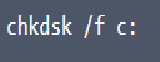
Launch command prompt, and then click the YES button in the next screen. Now in the command prompt window, type chkdsk /f c:  and press Enter.

Next type Y to restart Windows.

Your hard drive will be checked for errors upon restart.

If the error persists, we recommend you check RAM for errors. Open the run dialog box and type “mdsched.exe” and press the OK button. You’ll be presented with two options, select either.

Solution 4 – Exclude nvlddmkm.sys from scans

When an antivirus program includes this file in its scans, it is possible that Windows may stop working when a scan is running because of BSOD issue. That’s why, we recommend you don’t include the said file in antivirus scans.

Let’s take a look at how to do this.

We’ll discuss the steps for Windows Defender. If you use any third-party protection software, the actual steps may differ.

  • Click the Start menu. Next, type Windows Defender in the start search box
  • Right-click Windows Defender, and then select the option Run as Administrator
  • Click Yes
  • In the top right-hand corner, click the Settings icon
  • Now select Add an exclusion and then click Exclude a file
  • Open the drivers folder (located at C:\Windows\System32\drivers
  • Select nvlddmkm.sys and click the Exclude this file button
  • Reboot Windows

The error should be fixed now. If it isn’t, try the next solution.

Solution 5 – Check Windows Update

Windows release updates on a regular interval. You may be putting your Windows system at a risk by not installing these updates. Security patches released by Microsoft help keep malware at bay and your data, software, or system safe.

We recommend you to run automatic update as this will minimize issues with your Windows computer. If you use a Microsoft driver for the graphic card, it’s worth checking if a new update has been released for the latter.

Here’s how you can check for update in Windows 10.

  • Open Window Settings and then click Update & Security
  • Click Windows Update
  • Click Check for updates
  • If you see a new update for your graphic card, install it
  • Reboot Windows

Solution 6 – Change Windows theme

Some users have reported that they were able to solve the issue by Changing Windows theme, so give this a try.

Here’s how you can put on a new theme.

  • Right-click anywhere on Desktop
  • Select Properties
  • Select Windows 7 Basic (under Basic and High Contrast Themes)
  • Restart Windows

Solution 7 – Uninstall Intel Dynamic Platform and Thermal Framework

This software helps you control fan speed and CPU performance to achieve better consistency during gaming. However, sometimes uninstalling the software solves the problem.

Here’s how you can uninstall Intel Dynamic Platform and Thermal Framework.

  • In the start search box type run
  • In the run dialog box type appwiz.cpl and then press Enter
  • In the list of programs, locate and right-click Intel Dynamic Platform & Thermal Framework and then select Uninstall
  • Windows will now remove this program. Wait for uninstallation to complete
  • Reboot Windows

Solution 8 – Disable Windows 10 Fast Startup

You have a new option in Windows—Fast Startup. It helps your computer start up faster after a shutdown.

Some users have reported that they were able to fix the problem by disabling Fast Startup. You should also give it a go. Here are the steps.

  • In the start search box type run and press Enter
  • In the run dialog box type control panel and press the OK button
  • Use the drop-down menu next to View by and select Category
  • Click Hardware and Sound
  • Click Power Options
  • Select Choose what the power buttons do
  • Click Change settings that are currently unavailable
  • Unselect Turn on fast startup (recommended)
  • Click the Save changes button
  • Reboot Windows

Filed Under: PC Fix Tips Tagged With: Nvlddmkm.sys

Windows stop code memory management issue (Fixed)

By Susan C on March 24, 2020

Windows stop code memory management issue (Fixed)

No one likes Blue Screen of Death (BSOD) errors. Windows users dread them more than anything else—and for good reason.

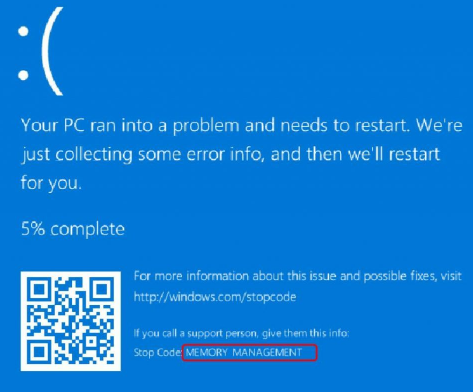
BSOD error like “a memory management” error—shown below—can greatly disrupt your work.

So the question is, how do you fix this “memory management” issue? Is it even something that you can easily fix yourself?

Well, the answer is “Yes.” While this “memory management” error is as stubborn as BSOD errors come, you can fix them—regardless of your level of technical proficiency—provided you’re willing to try all the solutions shared below in the order they appear.

Memory Management – What is it and what is its purpose

Some process has to manage memory usage in your PC or laptop and memory management is that process. Its sole purpose is to keep track of every single byte of memory.

When you launch programs, it is memory management that decides how much memory each launched program gets. Likewise, when you shut down a program, memory management frees up the memory that program was using earlier, and if needed, assign it to others.

Memory management is obviously an important process and when it crashes, a memory management error message will appear on your screen.

What causes memory management errors?

More often as not, memory management errors shows up because of one of these reasons:

  • software conflict or hardware conflict
  • faulty or outdated video driver
  • disk errors
  • virus infection
  • faulty memory

Now let’s look at the solutions.

Solution 1 – Update your video driver

One of the most common causes of this BSOD error is an incorrect or outdated video card driver. To fix the issue, you must update the video card driver.

There are two ways you can go about updating your device drivers – update drivers manually or update them automatically.

What’s the difference between the two? Let’s check out.

Updating video card driver manually

This process can be tedious and time-consuming but if you wish to download and install drivers manually, then it certainly is possible to do so.

First, you must know what kind of video card you’re using. If you’re unsure, perform these steps:

  • Right-click on the desktop area and select Display Settings
  • Now in the box that appears choose Advanced Display Settings
  • Select Display Adapter properties
  • You’ll be able to see the relevant details pertaining to your graphics card in the Adapter tab

Once you know the brand of video card installed on your Windows 10 computer, go to the video card manufacturer’s website. Next, locate the latest available driver, and then download it.

Make sure you download the driver that’s for your PC. For instance, Windows 10 32-bit users must download a driver that works for 32-bit PCs. Similarly, those using a 64-bit Windows 10 need a driver compatible with 64-bit PCs.

Now that you have saved the driver file on your computer, double-click it to install the driver, and follow onscreen instructions (if any). You may have to reboot Windows after installation is complete.

Updating video card driver automatically

Automatic driver update tools offer many benefits, the most important ones being:

  • You can update device drivers automatically
  • The software scans and updates all outdated or missing drivers at one go
  • The tool picks the right drivers for your device and operating system, so you won’t have to worry about installing an incorrect driver by mistake
  • Automatic driver updates are 100% safe

Driver Updater is one of the best driver update tools out there. Outbyte Driver Updater will give you access to a database of over 1 million drivers. It will regularly scan your PC, suggesting new driver versions to install. Driver Updater contains drivers for a variety of Windows devices. With just one click, you can update drivers in your system.

Step 1
Click here to Install and launch the app

Step 2
Scan all devices

Step 3
Install or update drivers automatically


Start Download


Solution 2 – Perform a disk check

If there’s a problem with NTFS volume, the chances of a BSOD increase manifold. Here are the steps you need to perform to fix the issue.

  • Press the Windows logo key on your keyboard and then press the S key. Now in the Start Search box, type cmd
  • Next right-click on Command Prompt. Next, choose Run as administrator
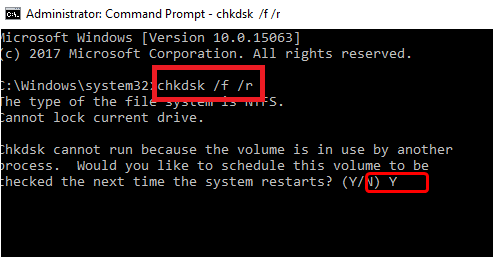
  • In the Command Prompt window, type chkdsk /f /r and then press the Enter key
  • You need to press Y when you are asked the question “Would you like to schedule this volume to be checked next time the system restarts?”
  • Exit Command Prompt and then reboot

Solution 3 – Run SFC

The System File Checker is another tool that you can use to solve the “memory management” issue. While CHKDSK scans the entire drive for issues, SFC limits itself to Windows system files.

Here are the steps to follow to run SFC.

  • Press the Windows logo key on your keyboard and then press the S key. Now in the Start Search box, type cmd
  • Next right-click on Command Prompt. Next, choose Run as administrator
  • In the Command Prompt window, type sfc /scannow and then press Enter

Solution 4 – Run a virus scan

Sometimes, a virus infection may lead to “memory management” error. If you haven’t run a virus scan in a long time you should do so now. If you’re not using any third-party antivirus program, make sure Windows Defender, which is preinstalled in Windows 10, is turned on.

Solution 5 – Run Windows memory diagnostic test

Another common cause is a problem with the computer’s RAM, which stands for random access memory. You don’t have to do anything special to test the RAM; simply make use of the diagnostic tool that comes preinstalled in Windows.

Here are the steps to follow:

  • Press the Windows logo key and R key simultaneously. This will launch the Run dialog box
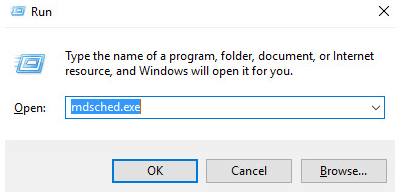
  • Type mdsched.exe in the Run dialog box, and then press Enter
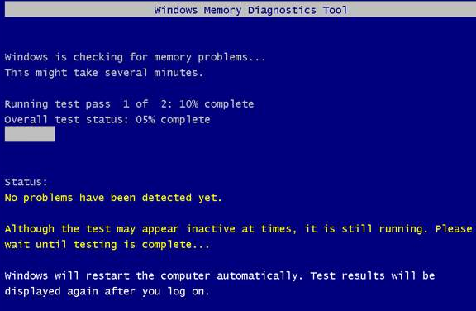
  • We recommend you select the first option flashing on your screen, that is, Restart now and check for problems (recommended). However, if you want, you can also select the second option Check for problems the next time I start my computer
  • The Windows Memory Diagnostic Tool will launch itself now. If it finds any errors, it will list them. In case no error shows up, you can safely assume your RAM is in good health

Solution 6 – Check any recently installed software and hardware

Did you install any new software or hardware? It is possible that it may be conflicting with some other program and triggering the aforementioned error. The best thing to do is uninstall any recently installed software or hardware and then check if the error vanishes. If yes, you should consider permanently uninstalling that software or hardware.

Solution 7 – Reset Windows 10

If nothing else has worked, you can try resetting Windows 10. This is the last resort, so don’t go trying it before you’ve exhausted other options.

Resetting Windows 10 will replace the existing system files with a new set. This in turn resolves—at least theoretically—any lingering issues associated with memory management.

To reset Windows, perform the following steps.

Note: Make sure you back up all important files before resetting Windows

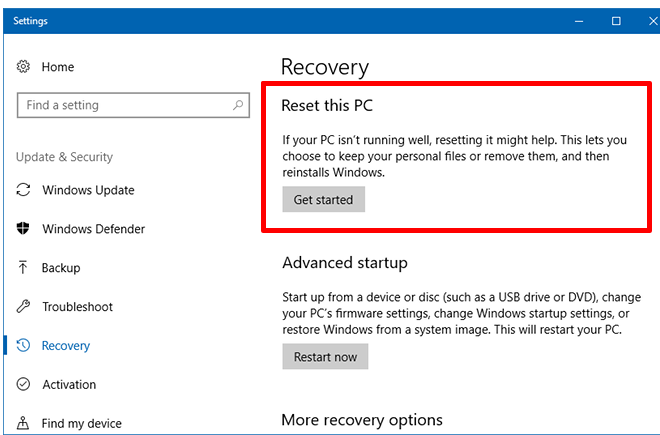
  • Go to Settings
  • Click Update and Security and then select Recovery
  • Click the Get Started button under Reset this PC
  • When Windows restart, you may choose either of these two options: Keep my files or Remove everything

Filed Under: PC Fix Tips Tagged With: memory management error

Backspace Not Working (Resolved)

By Susan C on March 16, 2020

A seemingly simple issue such as backspace not working can be very frustrating.

However, you can fix the “backspace not working issue” on your own – and we’ll show you how to go about it.

Solution 1 – Turn off the Filter Keys and the Sticky Keys feature

Windows operating system has some two accessibility functions, such as Filter Keys and Sticky Keys. While the former tells your keyboard to not pay attention to your designated or brief keystrokes, the latter lets you a key at a time for shortcuts.

However, sometimes you can see this error if both are enabled. Turning them off can help get the backspace key working again.

Here are the steps to follow to turn off Filter Keys and Sticky Keys.

  • In the Start Search box, type ease. Next, select Ease of Access keyboard settings.
  • Ensure the two said keys are turned off here
  • Now check if the backspace key is working

Solution 2 – Reinstall the keyboard

If, for some reason, the connection between Windows and the keyboard has become corrupt, you can get the listed error. In such a case, reinstalling the keyboard can do the trick.

Here are the steps to follow:

  • Type run in the Start Search box and press Enter
  • In the Run dialog box, type devmgmt.msc and then click the OK button
  • Expand the keyboard section and then right-click the correct device and select Uninstall device
  • Reboot Windows to check if things are back to normal

Solution 3 – Update the keyboard driver

An outdated keyboard driver can trigger all sorts of errors including this one. So if things have not yet improved, try updating your keyboard driver.

With help of a reliable driver update tool you can update your keyboard and all other drivers quickly and easily.

Automatic driver update tools offer many benefits, the most important ones being:

  • You can update device drivers automatically
  • The software scans and updates all outdated or missing drivers at one go
  • The tool picks the right drivers for your device and operating system, so you won’t have to worry about installing an incorrect driver by mistake
  • Automatic driver updates are 100% safe

Driver Updater is one of the best driver update tools out there. Outbyte Driver Updater will give you access to a database of over 1 million drivers. It will regularly scan your PC, suggesting new driver versions to install. Driver Updater contains drivers for a variety of Windows devices. With just one click, you can update drivers in your system.

Step 1
Click here to Install and launch the app

Step 2
Scan all devices

Step 3
Install or update drivers automatically


Start Download


Filed Under: PC Fix Tips Tagged With: backspace not working

  • « Previous Page
  • 1
  • …
  • 95
  • 96
  • 97
  • 98
  • 99
  • …
  • 189
  • Next Page »


  • Recent Posts
  • Popular Posts
        

Read More Posts


Read More Posts

Drivers.com Sites

  • Software Drivers
  • Drivers Ed

About Us

  • Advertise
  • About Drivers
  • Drivers Support
  • Drivers.com Privacy Policy
  • Disclaimer
  • Software Drivers
  • Mac Fixes and Tips
  • PC Fix Tips
  • Security/ Backup
  • Tablets & Smartphones
  • Tech News

© Copyright 2026 PDE Publications Ltd. End User License Agreement (EULA)