Drivers.com

follow us:

facebook twitter
  • Home
  • Download Drivers
  • Drivers Help
  • PC/Mac Resources
  • Software Drivers
  • Mac Fixes and Tips
  • PC Fix Tips
  • Security/ Backup
  • Tablets & Smartphones
  • Tech News
  • Software Drivers
  • Mac Fixes and Tips
  • PC Fix Tips
  • Security/ Backup
  • Tablets & Smartphones
  • Tech News

Resources by Tag

memory management error

Windows stop code memory management issue (Fixed)

Windows stop code memory management issue (Fixed)

No one likes Blue Screen of Death (BSOD) errors. Windows users dread them more than anything else—and for good reason.

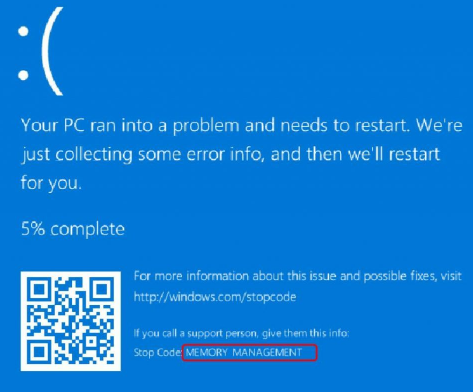
BSOD error like “a memory management” error—shown below—can greatly disrupt your work.
So the question is, how do you fix this “memory management” issue? Is it even something that you can easily fix yourself?

Well, the answer is “Yes.” While this “memory management” error is as stubborn as BSOD errors come, you can fix them—regardless of your level of technical proficiency—provided you’re willing to try all the solutions shared below in the order they appear.

Memory Management – What is it and what is its purpose

Some process has to manage memory usage in your PC or laptop and memory management is that process. Its sole purpose is to keep track of every single byte of memory.

When you launch programs, it is memory management that decides how much memory each launched program gets. Likewise, when you shut down a program, memory management frees up the memory that program was using earlier, and if needed, assign it to others.

Memory management is obviously an important process and when it crashes, a memory management error message will appear on your screen.

What causes memory management errors?

More often as not, memory management errors shows up because of one of these reasons:

  • software conflict or hardware conflict
  • faulty or outdated video driver
  • disk errors
  • virus infection
  • faulty memory

Now let’s look at the solutions.

Solution 1 – Update your video driver

One of the most common causes of this BSOD error is an incorrect or outdated video card driver. To fix the issue, you must update the video card driver.

There are two ways you can go about updating your device drivers – update drivers manually or update them automatically.

What’s the difference between the two? Let’s check out.

Updating video card driver manually

This process can be tedious and time-consuming but if you wish to download and install drivers manually, then it certainly is possible to do so.

First, you must know what kind of video card you’re using. If you’re unsure, perform these steps:

  • Right-click on the desktop area and select Display Settings
  • Now in the box that appears choose Advanced Display Settings
  • Select Display Adapter properties
  • You’ll be able to see the relevant details pertaining to your graphics card in the Adapter tab

Once you know the brand of video card installed on your Windows 10 computer, go to the video card manufacturer’s website. Next, locate the latest available driver, and then download it.

Make sure you download the driver that’s for your PC. For instance, Windows 10 32-bit users must download a driver that works for 32-bit PCs. Similarly, those using a 64-bit Windows 10 need a driver compatible with 64-bit PCs.

Now that you have saved the driver file on your computer, double-click it to install the driver, and follow onscreen instructions (if any). You may have to reboot Windows after installation is complete.

Updating video card driver automatically

Automatic driver update tools offer many benefits, the most important ones being:

  • You can update device drivers automatically
  • The software scans and updates all outdated or missing drivers at one go
  • The tool picks the right drivers for your device and operating system, so you won’t have to worry about installing an incorrect driver by mistake
  • Automatic driver updates are 100% safe

Driver Updater is one of the best driver update tools out there. Outbyte Driver Updater will give you access to a database of over 1 million drivers. It will regularly scan your PC, suggesting new driver versions to install. Driver Updater contains drivers for a variety of Windows devices. With just one click, you can update drivers in your system.

Step 1
Click here to Install and launch the app

Step 2
Scan all devices

Step 3
Install or update drivers automatically


Start Download


Solution 2 – Perform a disk check

If there’s a problem with NTFS volume, the chances of a BSOD increase manifold. Here are the steps you need to perform to fix the issue.

  • Press the Windows logo key on your keyboard and then press the S key. Now in the Start Search box, type cmd
  • Next right-click on Command Prompt. Next, choose Run as administrator
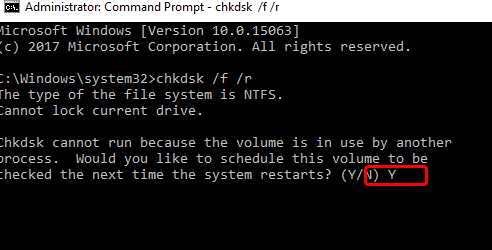
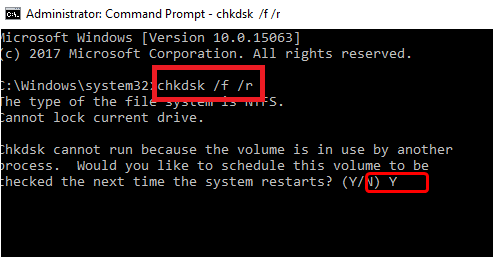
  • In the Command Prompt window, type chkdsk /f /r and then press the Enter key
  • You need to press Y when you are asked the question “Would you like to schedule this volume to be checked next time the system restarts?”
  • Exit Command Prompt and then reboot

Solution 3 – Run SFC

The System File Checker is another tool that you can use to solve the “memory management” issue. While CHKDSK scans the entire drive for issues, SFC limits itself to Windows system files.

Here are the steps to follow to run SFC.

  • Press the Windows logo key on your keyboard and then press the S key. Now in the Start Search box, type cmd
  • Next right-click on Command Prompt. Next, choose Run as administrator
  • In the Command Prompt window, type sfc /scannow and then press Enter

Solution 4 – Run a virus scan

Sometimes, a virus infection may lead to “memory management” error. If you haven’t run a virus scan in a long time you should do so now. If you’re not using any third-party antivirus program, make sure Windows Defender, which is preinstalled in Windows 10, is turned on.

Solution 5 – Run Windows memory diagnostic test

Another common cause is a problem with the computer’s RAM, which stands for random access memory. You don’t have to do anything special to test the RAM; simply make use of the diagnostic tool that comes preinstalled in Windows.

Here are the steps to follow:

  • Press the Windows logo key and R key simultaneously. This will launch the Run dialog box
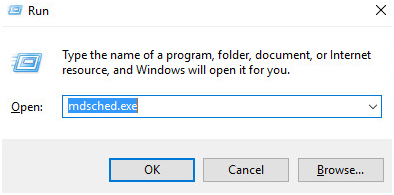
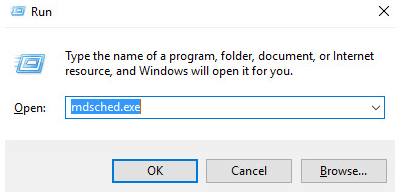
  • Type mdsched.exe in the Run dialog box, and then press Enter
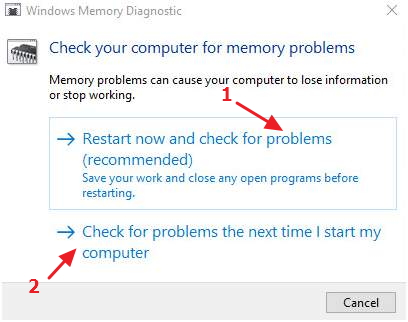
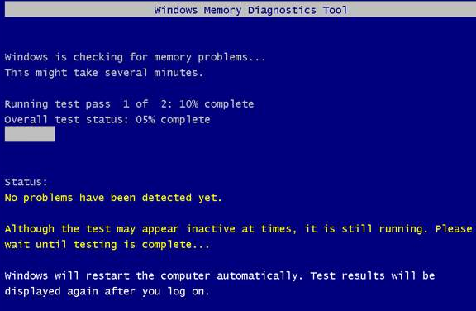
  • We recommend you select the first option flashing on your screen, that is, Restart now and check for problems (recommended). However, if you want, you can also select the second option Check for problems the next time I start my computer
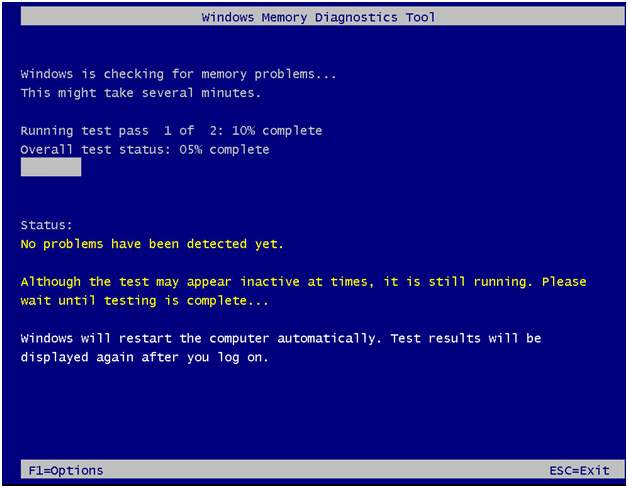
  • The Windows Memory Diagnostic Tool will launch itself now. If it finds any errors, it will list them. In case no error shows up, you can safely assume your RAM is in good health
Solution 6 – Check any recently installed software and hardware

Did you install any new software or hardware? It is possible that it may be conflicting with some other program and triggering the aforementioned error. The best thing to do is uninstall any recently installed software or hardware and then check if the error vanishes. If yes, you should consider permanently uninstalling that software or hardware.

Solution 7 – Reset Windows 10

If nothing else has worked, you can try resetting Windows 10. This is the last resort, so don’t go trying it before you’ve exhausted other options.

Resetting Windows 10 will replace the existing system files with a new set. This in turn resolves—at least theoretically—any lingering issues associated with memory management.

To reset Windows, perform the following steps.

Note: Make sure you back up all important files before resetting Windows

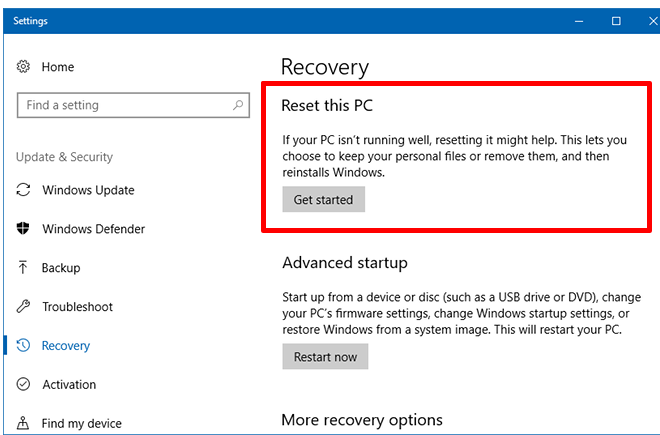
  • Go to Settings
  • Click Update and Security and then select Recovery
  • Click the Get Started button under Reset this PC
  • When Windows restart, you may choose either of these two options: Keep my files or Remove everything
Filed Under: PC Fix Tips Tagged With: memory management error

Memory Management BSOD Error on Windows 10

Memory Management BSOD Error on Windows 10

If your computer is throwing BSOD with memory management error, this post is exactly for you.

The BSOD Windows Management error affects a Windows system badly and can cause abrupt shutdown and reboots. With that said, there’s no need to let frustration spoil your mood when you encounter the dreaded BSOD error.

Dreaded though BSOD errors are, they are usually not difficult to resolve. This is the case with memory management BSOD too.

We have provided 5 do-it-yourself solutions to memory management BSOD. Of course, you don’t need to try all of them; start with the first one and move on to the next one and so on until the error goes away.

However, first you might want to understand what memory management error is all about.

What is memory management error?

As the name suggests, the memory management is related to allocation of memory. Every Windows processes and programs that you run have memory requirements.

Windows allocates memory to processes and programs. When you close any program, it frees up memory space, which is then made available to other program or process.

Like any other process, memory management can crash. When that happens, the system cannot function normally.  The result is the system throws up BSOD memory management error and reboots to recover from the error.

What causes Memory management error?

There can be several reasons behind the BSOD Memory management error. Some of the reasons are

  • Hardware or software conflicts
  • Disk errors
  • Virus infection
  • Faulty video driver
  • Faulty RAM

Now that you have adequate knowledge about BSOD Memory management error, let’s look at the solutions available to fix the issue.

Solution One – Update video drivers

One of the causes of memory management error is outdated or corrupt video card driver. To fix this issue, you need to update video card driver. You can either update driver manually or use driver update software which would update video driver automatically.

Manual Driver Update

To update drivers manually, you need to be familiar with Device Manager, an inbuilt utility in Windows that allows you to install or uninstall device drivers, among other things.

Here are the steps to update video drivers manually using Device Manager.

  • Go to device manufacturer website or video card manufacturer website
  • The driver file is available in different formats- ZIP, EXE, SYS, and other formats. Download the driver file in zip format
  • Unzip the file to a designated folder
  • Click Start and type Device Manager in Cortana search box
  • Click Device Manager from the list of results
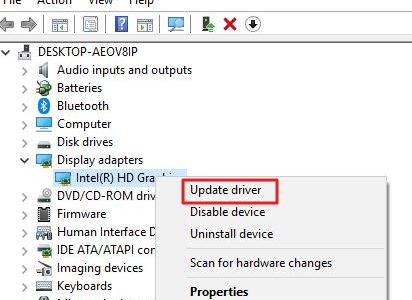
  • In the Device Manager window, go to Display adapters and expand it
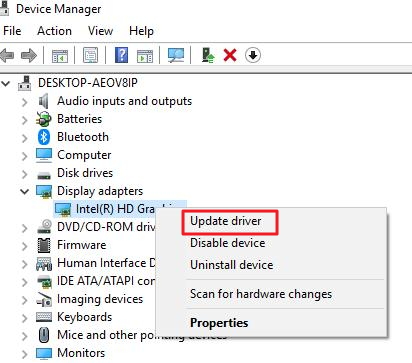
  • Right-click video card and click Update Driver
update driver
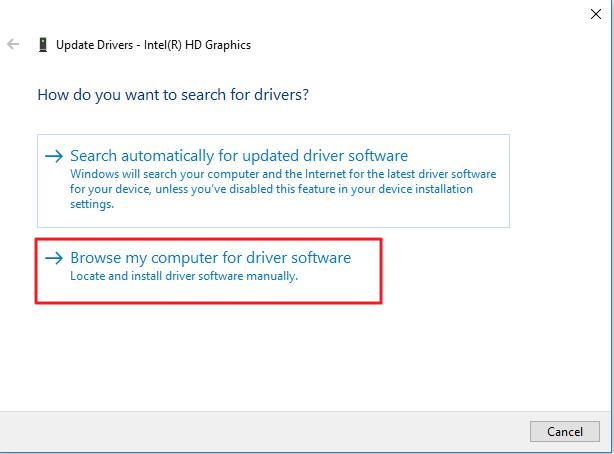
  • Click Browse my computer for driver software.
browse driver software
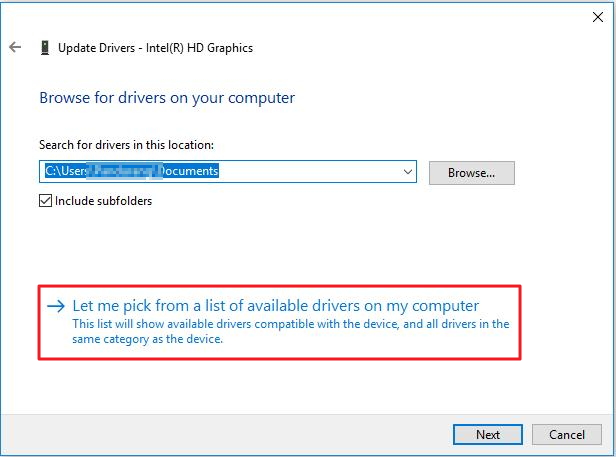
  • Click Let me pick from a list of device drivers on my computer
choose driver
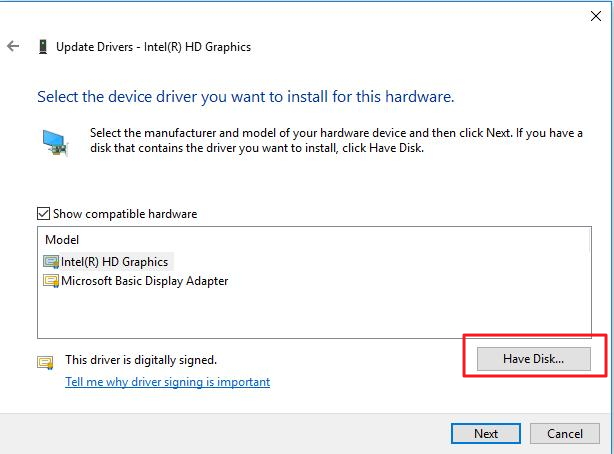
  • Click Have Disk
click have disk
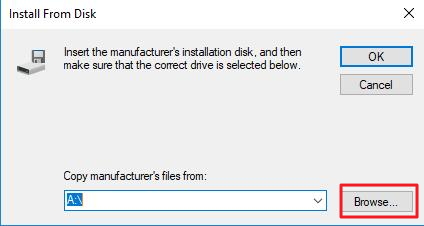
  • Click Browse
click browse
  • Access the designated folder where the video card driver is stored
  • Select the driver file
  • Click Open and then Click OK
  • Click Next
  • Windows will install the video card driver. After the video card driver is installed successfully, restart the computer

Automatic Driver Update

Updating driver using a driver software tool is a good option.

Automatic driver update tools offer many benefits, the most important ones being:

  • You can update device drivers automatically
  • The software scans and updates all outdated or missing drivers at one go
  • The tool picks the right drivers for your device and operating system, so you won’t have to worry about installing an incorrect driver by mistake
  • Automatic driver updates are 100% safe

Driver Updater is one of the best driver update tools out there. Outbyte Driver Updater will give you access to a database of over 1 million drivers. It will regularly scan your PC, suggesting new driver versions to install. Driver Updater contains drivers for a variety of Windows devices. With just one click, you can update drivers in your system.

Step 1
Click here to Install and launch the app

Step 2
Scan all devices

Step 3
Install or update drivers automatically


Start Download


Solution Two- Run Check Disk

The Windows system might also throw up BSOD memory management error on the screen if the NTFS volume is corrupt. To resolve this problem, you need to fix NTFS file system errors by running Check Disk. Here are the steps to follow.

  • Press Windows key + S simultaneously on the keyboard to bring up Cortana search
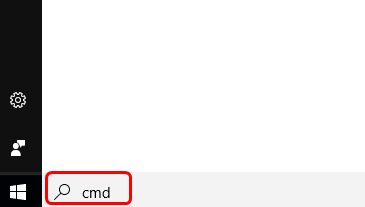
  • In the search box, type cmd and click OK
cmd
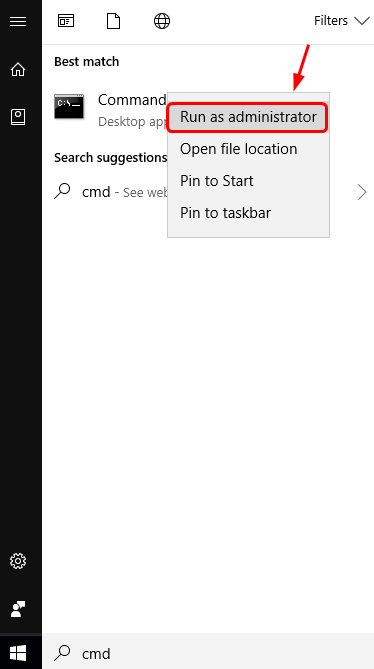
  • Right-click Command Prompt from the list of results and select Run as administrator
run as admin
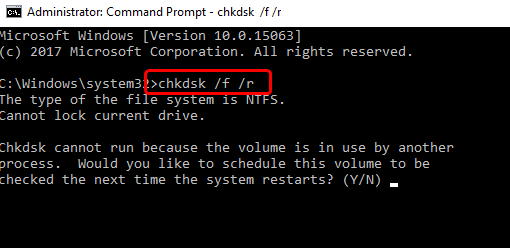
  • In the command prompt window, type chkdsk /f /r, and press Enter on your keyboard.
chkdsk
  • When the system asks “Would you like to schedule this volume to be checked next time the system restarts?”, press Y on the keyboard
system restart Yes
  • Close the command prompt window and restart your computer.
  • When the computer reboots, Windows will run the check disk program to fix any errors with NTFS volume.
  • Use your computer for some time and see if the error is generated. If the issue persists, try next solution.

Solution Three-Run Windows memory diagnostic test

When your computer shows memory management errors, there is a possibility there is some problem with physical RAM installed in your computer. To rule out this possibility, you can run Windows memory diagnostic tool to check physical RAM for any faults.

Here are the steps to follow.

  • Press Windows key + R simultaneously on the keyboard to bring up the Run command console
  • In the Run command window, type mdsched.exe and click OK
mdsched
  • Windows will provide two options – Restart now and check for problems (recommended)or Check for problems the next time I start my computer
memory check options
  • If you want to run Windows memory diagnostic tool immediately, select Restart now and check for problems (recommended) else select Check for problems the next time I start my computer
  • When the Windows runs Windows memory diagnostic tool, you will see the progress and also see errors that Windows memory diagnostic tool may encounter.
memory tool running
  • When the Windows memory diagnostic test is completed, the computer reboots and you can see the test results when you log on

If the Windows memory diagnostic test results show no errors, you can conclude the physical RAM is in good condition. You need to move to next solution to resolve the issue.

Solution Four- Check newly installed hardware and software

Try to recall any changes you made to the system after which BSOD memory management error started appearing.

Have you recently installed any new hardware or software? There is a possibility the newly installed hardware or software is not compatible with your system, which in turn might be causing the memory management error.

You should remove any newly installed hardware and also uninstall any new software and see if the issue is resolved. If the issue still persists, you need to try next solution.

Solution Five- Scan your system for virus infection

Though very rare, a virus infection can be the reason behind BSOD memory management error. If you haven’t scanned your system for virus infection recently, do it now.

If you don’t have any 3rd party anti-virus installed, you can use the built-in Windows Defender to scan your system and get rid of virus infections if any.

We are sure you would be able to resolve the error using one of these methods. Do let us know which solution worked for you by leaving a comment. Thanks!

Filed Under: PC Fix Tips Tagged With: memory management error


  • Recent Posts
  • Popular Posts
        

Read More Posts


Read More Posts

Drivers.com Sites

  • Software Drivers
  • Drivers Ed

About Us

  • Advertise
  • About Drivers
  • Drivers Support
  • Drivers.com Privacy Policy
  • Disclaimer
  • Software Drivers
  • Mac Fixes and Tips
  • PC Fix Tips
  • Security/ Backup
  • Tablets & Smartphones
  • Tech News

© Copyright 2026 PDE Publications Ltd. End User License Agreement (EULA)