Drivers.com

follow us:

facebook twitter
  • Home
  • Download Drivers
  • Drivers Help
  • PC/Mac Resources
  • Software Drivers
  • Mac Fixes and Tips
  • PC Fix Tips
  • Security/ Backup
  • Tablets & Smartphones
  • Tech News
  • Software Drivers
  • Mac Fixes and Tips
  • PC Fix Tips
  • Security/ Backup
  • Tablets & Smartphones
  • Tech News

8 Tips for Zoom Safety and Privacy

By Susan C on May 18, 2020

Zoom is by far the most popular video conferencing service right now. From office meetings to yoga classes, people are using Zoom in different ways to stay productive and retain some normalcy in their otherwise currently restricted lives because of the Covid-19 virus outbreak.

Thanks to its ease of use and competitive pricing, Zoom has quickly risen to popularity—but that doesn’t mean it is completely safe. No app is, and therefore the onus is on you to take the necessary steps to keep yourself secure on Zoom.

How can you do that?

This post is a good starting point. We will discuss 8 tips for Zoom safety and privacy.  

Protect your account

Look, here’s the thing. Your Zoom account is like any other account, and so you should apply the basic account protection here as well. Namely, make sure your password is strong and unique—a combination of letters, numbers, and special characters that is hard to guess.

Using a two-factor authentication is strongly recommended, as it adds an extra layer of protection. It can prove to be the difference between a compromised and a safe account in case your Zoom account data leaks. While so far Zoom has done a good job of keeping account data safe, things like this have happened in the past. Therefore, enabling an extra layer of protection makes a lot of sense.

Last but not the least—and this one is specific to Zoom only—protect your personal meeting ID. Once you complete registration, you will receive a Personal Meeting ID. Try not to make it public.

Since Zoom lets users create public meetings using their Personal Meeting IDs, one can easily leak it if one gets careless. If you do leak your Personal Meeting ID, anyone privy to it can join all meetings you host. Therefore, share it carefully.

Be wary of links

When you create a Zoom meeting, you can invite the participants by copying a URL generated by Zoom. However, this is hardly the safest way to invite people or enter a meeting.

Why? Glad you asked.

One of the most common tricks used by online scammers to dupe people is to send out a malicious link in an email. When the recipient clicks it, either he or she is encouraged to share their confidential information or a malware takes control of their computer and steal personal information.

When you create a meeting on Zoom, you have the option of inviting people by sending out a link which starts with https://zoom.us/ and then is followed by a string of letters and numbers.

However, there is another, much safer of inviting participants.

Instead of using the link that appears on your screen when you create a Zoom meeting, note down the meeting ID and the password. Next, list this information in an email, add a personal note to it, and then send out the email to the participants. They can use this shared information to join the meeting via the Zoom app or through Zoom official website. 

Download the Zoom app from the official website

Do you know the number of malicious files using the names of other popular video conference services has grown rapidly in the last two months?

Hackers are trying to use the rapidly-growing popularity of Zoom and other similar services to their advantage by disguising malware as online videoconferencing clients.

Precisely for this reason, you should always—we repeat always—download Zoom from its official website: zoom.us. If you want the videoconferencing client for your android phone or iPhone, visit Google Play or the App Store.  

Don’t share your conference links on social media

If you are organizing an online public event, you may want to use social media to share the link to it. However, that is not a good idea at all.

Ever heard of terms like Zoombombing or Zoom-bombing or Zoom raiding?

Well, they all refer to a situation when an uninvited person joins a Zoom meeting, usually with the intention of disrupting it. 

Which brings us to the question: How do these people learn about upcoming events? You guessed it right—social media.  Therefore, avoid publicly posting links to your Zoom meetings. In case you still want to do that, ensure you don’t turn on the option Use Personal Meeting ID.

Use a password for your every meeting

Protecting your meetings with passwords remain the most effective way to ensure only those people who have been invited can attend it. Some time back, Zoom enabled password protection by default, which is definitely a smart move. However, remember your Zoom account password and the meeting password are two different things. Furthermore, the meeting password—much like the meeting link—should not be posted on social media. Else, trolls may get a free hand to disrupt your meetings.

Enable the Waiting Room option

Waiting Room is another option that lets you control your meetings. Recently, Zoom enabled it by default, and we recommend you let it stay that way.

When this option is checked, all participants must wait in a “virtual waiting room” till the meeting host approves each one of them separately. As you may guess, this gives the host more control over who joins their meeting, even if an individual who wasn’t invited managed to somehow get hold of the meeting password. Also, the meeting host, if they want, can kick out an unwanted person from their meeting into the “virtual waiting room.”

Choose the web client as much as possible

In the absence of a reliable security advanced, the Zoom app—like other apps in the market—remains vulnerable. Precisely for this reason, more than anything else, we recommend you stick with its web client as much as possible.

The web client doesn’t enjoy the same permissions as an installed app. Given this, if it gets compromised, the harm will be much less than compared to a compromise Zoom app.

But what if it’s not possible to use the web client?

In that scenario, try installing the app on a secondary laptop or phone, that is, a device that has little personal information of yours. While this may sound a bit paranoid, it’s better to take precautions now than repent later.

Don’t believe Zoom’s end-to-end encryption claim

In addition to its impressive feature set and competitive pricing, Zoom gained popularity on account of its claim of end-to-end encryption, which means any communication between you and other person is encrypted in such a way that only you two can decipher it, not others.

Sounds impressive—but this is almost impossible to achieve, as pointed out by many security researchers. Unwillingly Zoom also acknowledged that, stating that by the other end they meant the Zoom server, not the person on the other side.

This means even though video is encrypted, it is encrypted only till the Zoom server. Therefore, Zoom employees have access to the data. Law enforcement groups may also access it. Your text chats, however, are literally encrypted end-to-end.  

Final Words

Self-isolation is boring. It is also be lonely at times. The good part is we have apps such as Zoom that allows us to work and do so many other things—like enjoy our daily Yoga classes—remotely. Imagine current lock-down happening before broadband or videoconferencing!

We’re thankful apps like Zoom exist. All you have got to do is use it safely, which you now know how to.
Filed Under: Tech News Tagged With: Zoom safety

System Restore Not Working (Fixed)

By Susan C on May 11, 2020

System Restore Not Working (Fixed)

Windows come with many useful features. One such feature is System Restore. It allows you to restore your settings to an earlier point, a feature that can come in handy while fixing a range of errors or issues.

But what if System Restore is itself the problem? What do you do when System Restore is not working?

Annoying as this issue is, the good news is that you easily fix it. Here are some solutions to this problem. You don’t have to try all of these solutions; start with the first one and work your way down, until the issue is fixed.  

Solution 1 – Check if System Restore is enabled

Here are the steps to follow:

  • Press Win + R keys simultaneously to launch the run dialog box
  • Type gpedit.msc here and press the OK button or hit Enter
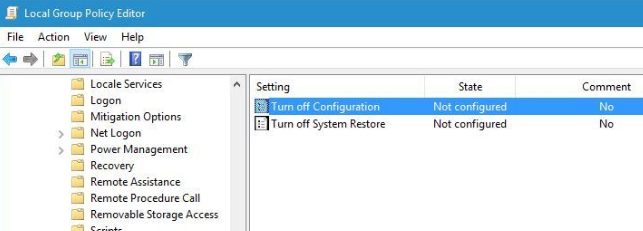
  • In the Local Group Policy Editor window, go to Computer Configuration | Administrative Templates | System | System Restore. Double-click Turn off Configuration in the right panel
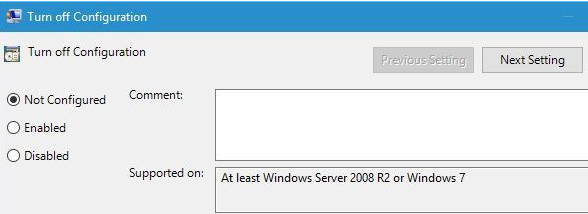
  • Check Not Configured and click OK
  • Double-click Turn off System Restore in the right pane. Check Not Configured and Click OK

Solution 2 – Try to create a restore point manually

In case you’re not able to set a restore point the normal way, you may want to set a restore point manually. Here are the steps to follow.

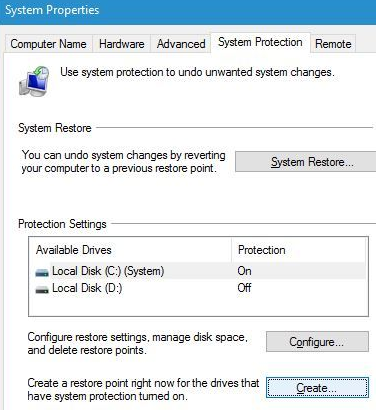
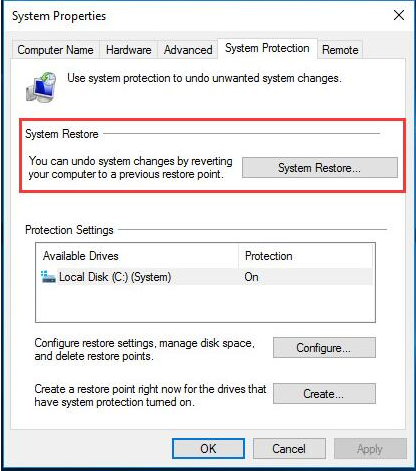
  • Press Win + S. Now type create a restore point, and select create a restore point in the search results
  • Now a System Properties box will open. Under the System Protection tab, click the Create button. Type in the name of this restore point.
  • Now check if this restore point was created. If yes, you can manually create restore points in future

Solution 3 – Temporarily disable the antivirus program

In some case, the culprit is the antivirus program. Sometimes your antivirus program may conflict with other programs, causing all sorts of issues. Therefore, we recommend you to temporarily disable any third-party antivirus program that you may be using. Now check if doing so resolves the problem with System Restore. If yes, contact the antivirus program’s manufacturer and ask them for a solution. Else, you can chuck away this protection tool, and use another one in its place. One good option is the inbuilt Windows Defender.

Solution 4 – Try running System Restore in Safe Mode

If the error persists, boot Windows in the Safe Mode and check if you are able to create a restore point that way.

To launch the Safe Mode, follow these steps:

  • Open Start Menu
  • Click the Power button
  • Hold the Shift key on the keyboard and then click Restart
  • When Windows reboots, select Troubleshoot | Advanced Options | Startup Settings and then click Restart
  • When Windows restarts again, you need to press F5 to choose Safe Mode with Networking
  • Now you will be able to access Safe Mode. Try performing System Restore now

Solution 5 – Ensure the disk usage space is set to at least 300MB

Here are the steps to follow:

  • In the search box in Start menu, type system restore
  • Select create a resort point in the search results list
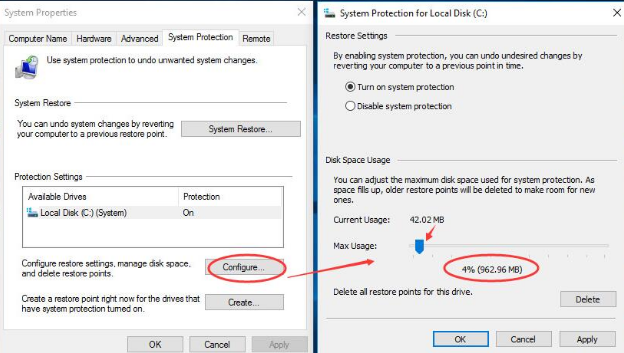
  • In the System Properties dialog box, click the Configure button under the System Protection tab
  • Now move the slider to configure the max usage to at least 300MB
  • Finally click the OK button

Solution 6 – Check if Services are running properly

If there’s some problem with certain services, System Restore may not function properly. This is because it depends on certain services.

  • Press Win + R keys simultaneously
  • In the run dialog box, type services.msc and then click the OK button
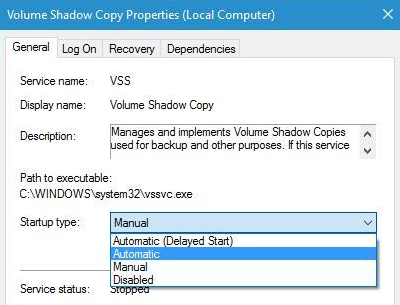
  • You need to check of these specific services: System Restore Service, Volume Shadow Copy, Microsoft Software Shadow Copy Provider Service and Task Scheduler
  • You need to double-click each of the listed services and ensure that their Startup type is configured to Automatic. Also ensure Services status is configured to Running
  • Click the Apply button and then OK in each case to save the changes. Once you’ve made the necessary changes, reboot Windows

Solution 7 – Check the hard drive for errors

Corrupted folders and files on the hard drive can cause issues with System Restore at times. For this reason, we recommend you check hard drive for corrupted files and fix them.

Here’s all that you need to do.

  • Press Win + X simultaneously. Now in the search results, select command prompt with admin rights
  • In the command prompt window, type chkdsk /f/r X: and press Enter. Note: (In place of X, use the letter that denotes a hard drive partition on your computer)
  • Wait for the process to complete. This may take some time, so try this solution when you have some time on hand. Restart Windows once the process is complete

Solution 9 – Run Sfc scan

In case Windows 10 is corrupted, it is recommended you run sfc scan. Here are the steps to follow.

  • Press Win + X keys simultaneously and choose command prompt with admin rights
  • Next type sfc /scannow in command prompt and press Enter
  • Wait till the process is complete

Solution 10 – Tweak Windows registry

If nothing else works, you may want to try this last solution. However, since it involves modifying the Windows registry, we recommend you proceed only if you are confident about making changes to registry. Also, make sure you make a registry backup before you change anything. A backup can come in handy if some unexpected error or issue crops up because of the changes made.

Here are the steps to follow.

  • Press Win + R simultaneously to open the run dialog box
  • Type regedit and press Enter
  • In the Registry Editor, browse to KEY_LOCAL_MACHINE\SOFTWARE\Microsoft\Windows NT\CurrentVersion\Schedule\TaskCache
  • You should first back up this registry key. Right-click TaskCache and choose Export
  • Give a name to the backup file and select a suitable location to save it. Next click the Save button
  • Now go to HKEY_LOCAL_MACHINE\SOFTWARE\Microsoft\Windows NT\CurrentVersion\Schedule\TaskCache\Tree\Microsoft\Windows
  • Right-click Windows key and then click Delete
  • Confirm your action by pressing Yes
  • Restart Windows

Filed Under: PC Fix Tips Tagged With: System Restore Issue

DHCP is not Enabled for WiFi (10 Solutions)

By Susan C on May 2, 2020

DHCP is not Enabled for WiFi (10 Solutions)

There’s no denying the fact that WiFi has opened up a number of new opportunities and has become an essential part of our lives. All the same, just like everything else, it is vulnerable to issues.

At times users may encounter the error ‘DHCP is not enabled for wireless network connection’. If you are receiving this error, you will not be able to connect to the internet.

However, the good news is that you can easily resolve this error on your own, of course with a little help from us. Before we check out the solutions, let’s see what DHCP exactly is.

DHCP Explained

The term DHCP is a short form for Dynamic Host Configuration Protocol. It is the standardized protocol for assigning reusable IPs in a network. In a nutshell, DHCP is a reliable and safe way of letting you communicate on a network.

Common Causes Behind the DHCP is not Enabled Error

You can get the titled issue for a number of reasons, the most commons being the following:

  • Software conflicts
  • Network issues
  • Faulty or outdated drivers
  • Malware
  • Incorrect settings

How to Resolve the DHCP is not Enabled Error

Here are some common solutions for this error.

Solution 1 – Use Network Troubleshooter

Windows come with an inbuilt tool for repairing network problems, and it goes by the name of Network Troubleshooter. If you are getting the said error, the first thing you should do is run this troubleshooter.

Here are the steps to follow:

  • Simultaneously press Win + R keys to launch the run dialog box
  • Now type ncpa.cpl and press the Enter key
  • In the Network Connections window, locate the Wi-Fi connection you are using, right-click it, and choose Diagnose
  • Run the Network Troubleshooter. The following message will appear: DHCP is not enabled for wireless network connection
  • Choose Try These Repairs as an Administrator. Click Apply this Fix
  • Lastly, reboot windows and see if your connection is now restored

Solution 2 – Configure the network adapter settings

Often, the issue occurs from wrong adapter settings. Tweaking them is likely to do the trick.

Here are the steps to follow.

  • Right-click the Internet icon on your desktop
  • Click Open Network and Sharing Center
  • You will see the option called ‘Change adapter settings’ in the left pane. Click it
  • Now locate the wireless network connection you are using, right-click it and select Properties
  • Double-click Internet Protocol Version 4 (TCP/IPv4)
  • Select Obtain an IP address automatically
  • Select Obtain DNS server address automatically
  • Now click OK
  • Click OK again in the Wi-Fi Properties window
  • Restart Windows and see if now you are able to access the net

Solution 3 – Turn the DHCP client on

Another reason behind the titled error could be a disabled DHCP client server. Enabling it may help fix the problem once and for all.

Here are the steps to follow.

  • Simultaneously press Win + R keys
  • In the run dialog box, type services.msc and click the OK button
  • Locate and double click DHCP client (browse through the list of services to find it)
  • Set the startup type of this service to Automatic
  • Click the Apply button and then click OK
  • Restart Windows and check if the issue is resolved

Solution 4 – Look at Windows Firewall

Windows Firewall might be configured to block the DHCP client. To ensure this is not the case, disable the firewall.

Here are the steps to follow.

  • Simultaneously press Win + X keys
  • Now choose Control Panel
  • Go to the System and Security window and then click Windows Firewall
  • Go to the left pane. Here you will find Turn Windows Firewall on or off. Click it
  • Choose Turn off Windows Firewall
  • Reboot your computer

If now you are able to access the internet, you can safely assume the problem was arising from Windows Firewall, and you must configure it to not stop the DHCP protocol. This you can do by creating an exception.

Here are the steps to follow.

In Windows 10/8/8.1

  • Open the Start menu
  • Click Settings
  • In the Settings menu find the Find a Settings search area
  • Now type Firewall. Among the search results, choose Firewall
  • Go to the left pane in the Windows Firewall window
  • Click Allow an App or Feature through Windows Firewall
  • Click Change Settings in the Allowed Apps window
  • Locate the DHCP service you use. Now check its box to prevent the Firewall from stopping the DHCP client from communicating through Windows Firewall

In Windows 7

  • Go to the Start menu. Open Control Panel
  • Go to System and Security
  • Proceed to Allow a Program through Windows Firewall
  • Here check the box before DHCP
  • Save the changes
  • Restart Windows

Solution 5 – Reinstall the network driver

If the error persists, it is possible that your network driver is faulty. For this reason, we recommend reinstalling the network driver.

Here are the steps to follow.

  • Simultaneously press Win + R
  • In the run dialog box, type devmgmt.msc and then click the OK button
  • In the Device Manager window, locate and double-click Network adapters. Now right-click the Wi-Fi adapter and then select Uninstall device. Win 7 & 8 users, on the other hand, need to click Uninstall
  • Tick the box before Delete the driver software for this device. Next click Uninstall. Win 7 & 8 users need to click OK
  • Now download the latest driver from another computer with working Internet. Transfer the driver file to a USB
  • Plug the USB drive into your computer. Install the latest driver
  • Restart Windows

Solution 6 – Update the network driver

If the above-mentioned solution fails to fix the issue, try updating the network driver.

You can do this manually or automatically. The latter is not only easier but also much faster and more accurate. All the same, we have discussed both the methods here, so that you can decide for yourself which one is best for you.

Update Network Driver Manually

Here are the steps to follow:

  • Simultaneously press Win + R
  • In the run dialog box, type devmgmt.msc
  • In the Device Manager window, locate and double-click Network adapter
  • Now note down the model number and make of your Wi-Fi adapter
  • Go to the manufacturer’s website and download the latest driver for your Wi-Fi adapter
  • Save the driver file on your desktop. Launch the driver file if it is an executable file (.exe) and follow onscreen instructions
  • If the driver file is a nonexecutable file, you will have to install the driver from the Device Manager
  • Go to Device Manager, double-click Network adapter, right-click your Wi-Fi adapter and then click Update Driver
  • Select the Browse my computer for driver software option
  • Click the Browse button. Navigate to the location where you saved the driver file and select it
  • Click Next and follow onscreen instructions
  • Reboot Windows

Update Network Driver Automatically

Automatic driver update tools offer many benefits, the most important ones being:

  • You can update device drivers automatically
  • The software scans and updates all outdated or missing drivers at one go
  • The tool picks the right drivers for your device and operating system, so you won’t have to worry about installing an incorrect driver by mistake
  • Automatic driver updates are 100% safe

Driver Updater is one of the best driver update tools out there. Outbyte Driver Updater will give you access to a database of over 1 million drivers. It will regularly scan your PC, suggesting new driver versions to install. Driver Updater contains drivers for a variety of Windows devices. With just one click, you can update drivers in your system.

Step 1
Click here to Install and launch the app

Step 2
Scan all devices

Step 3
Install or update drivers automatically


Start Download


Solution 7 – Temporarily disable the antivirus software

If you’re using a third-party antivirus software, try disabling it temporarily. Now check if the error is fixed. If it is, you will need to switch to another antivirus software.

Solution 8 – Disable Proxy

This is another effective method to fix the titled error.

  • Simultaneously press Win + R
  • In the run dialog box, type inetcpl.cpl and then click OK
  • In the Internet Properties dialog box, go to Connections and then click LAN settings
  • Now locate the Use a Proxy Server for LAN option and unselect it
  • Next check automatically detect settings
  • Finally click OK
  • Restart Windows and check if the error is fixed

Solution 9 – Scan Windows for malware

If nothing else has worked, it may be worth the while to scan the computer for malware infection. Malware can cause all kinds of issues, including the titled error. We recommend you run a boot scan as it is more thorough.

Solution 10 – Reset Winsock

If nothing else has worked, we recommend you perform these steps.

  • Simultaneously press Win + X keys
  • Select command prompt. You need to select one with administrator rights
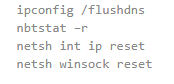
  • Now you need to type the following commands and press Enter after each one
  • Wait until the reset process is complete. Once that is done, close command prompt
  • Now check your internet connection

We hope one of these ten solutions would have worked for you.

Filed Under: PC Fix Tips Tagged With: DHCP issue

  • « Previous Page
  • 1
  • …
  • 93
  • 94
  • 95
  • 96
  • 97
  • …
  • 189
  • Next Page »


  • Recent Posts
  • Popular Posts
        

Read More Posts


Read More Posts

Drivers.com Sites

  • Software Drivers
  • Drivers Ed

About Us

  • Advertise
  • About Drivers
  • Drivers Support
  • Drivers.com Privacy Policy
  • Disclaimer
  • Software Drivers
  • Mac Fixes and Tips
  • PC Fix Tips
  • Security/ Backup
  • Tablets & Smartphones
  • Tech News

© Copyright 2026 PDE Publications Ltd. End User License Agreement (EULA)