


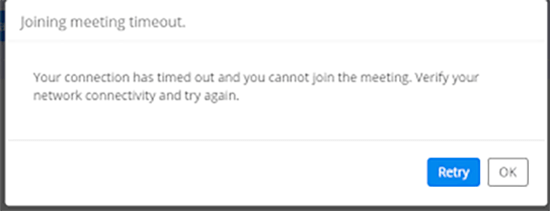
Are you getting the “Network error, please try again” error message with your Zoom app? Is your app staying in the “connecting” mode without moving forward? Do you get the “Can’t connect to our service, please check the network connection and try again” error message?If your Zoom error message is not covered here, see our post on Zoom error messages and solutions.
If you answer yes to any of the above then you should read on to help find the solutions.
Most Zoom connection problems are typically related to firewall settings, network connection, or web security gateway settings.
Zoom connection error – fix 1
To fix Zoom connection errors the first thing to do is open a browser window and see if you can connect to https://zoom.us. This is to ensure the network connection is working. If you cannot connect then check other websites, if you are having a problem with connecting to websites then your problem is network/ wifi connection.
Zoom connection error – fix 2
The next step is to change the settings in your antivirus software to add “zoom.us” to trusted applications. The exact steps you must take depends on the protection software you are using.
Below we have set out the steps for the Kaspersky Antivirus software.
- Open Kaspersky by clicking the red K icon in your system tray. Alternately, you can use the start menu for accessing the software’s user interface.
- Click the Settings tab. Then click Antivirus protection > Web Antivirus > Settings
- Now click the Add button. Then enter “zoom.us” > click OK
If you are still having problems getting Zoom to connect, exit Kaspersky by right-clicking its icon in the system tray and clicking exit. Now relaunch Kaspersky and check again if the Zoom app is working.
If you are looking for an alternative to Zoom, see our post on the top 9 alternative videoconferencing applications to Zoom.