“Blue Screen of Death” (BSOD) errors can be very irritating. BSOD errors are usually caused by faulty memory, malfunctioning hardware, power supply issues, hardware running beyond specified limits, and many more reasons. If neglected, these errors can reduce the lifespan of your PC. Here we have discussed the “PFN list error” BSOD that continues to annoy Windows users.
PFN stands for Page Frame Number. The PFN database contains the list of files that represents the physical memory of your Windows system. It contains the index number of the files. The PFN file is needed by the Windows OS to determine the locations of the memory files on your system. If the PFN list is corrupt, Windows cannot complete important processes and throws a PFN List Corrupt blue screen error. Here we have offered some easy to follow solutions that might fix the issue.
Solution One – Run BSOD troubleshooter
The BSOD troubleshooter is part of in-built troubleshooting tools in Windows OS. Let’s see if the BSOD troubleshooter can resolve the PFN list corrupt error. Here are the steps to follow.
- Open the Control Panel(icons view)
- Click on the Troubleshooting icon
- Click View all link on the top left side of the window
- Right-click on Blue Screen and select Run as admin
- Click the Advanced link in the window
- Check the box Apply repairs automatically
- Click Next
The BSOD troubleshooter tool will detect problems that lead to Blue Screen Errors.
If it finds any problems, it will list them and then you have to follow the instructions to resolve the issue.
If it does not find any problems, click View detailed information to see the troubleshooting report. In this scenario, you need to continue to Solution Two in the list.
Solution Two – Run DISM
DISM stands for Deployment Image Servicing and Management. It is part of in-built maintenance tools in Windows. According to experts, you need to run the DISM tool before running the SFC tool. The DISM tool uses the Windows update feature to fix any corruption. Here are the steps to run the DISM tool.
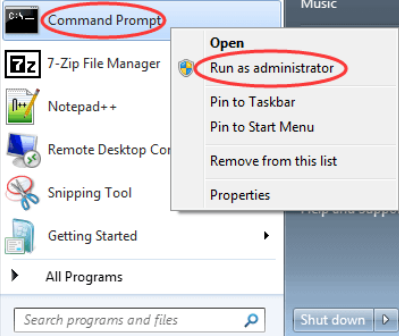
- Click Start
- Type Command prompt in the search box and right-click on the top result
- Select Run as administrator
- In the command prompt window, type the following command and then press Enter
The tool will check for any data corruption that requires fixing. We recommend you also run the advanced scan and repair option. In the command prompt window, type the following command and press Enter

Windows will connect to the Update server and download any files needed to fix the corruption. If the above solution does not fix the PFN list corrupt issue, you need to run the SFC scan.
Solution Three – Run System File Checker
The Blue Screen error can be a result of a corrupt system file. SFC stands for System File Checker. The SFC scan is also a part of in-built troubleshooting tools. It checks the integrity of the system files and replaces any corrupted files with a cached copy located in the compressed folder:

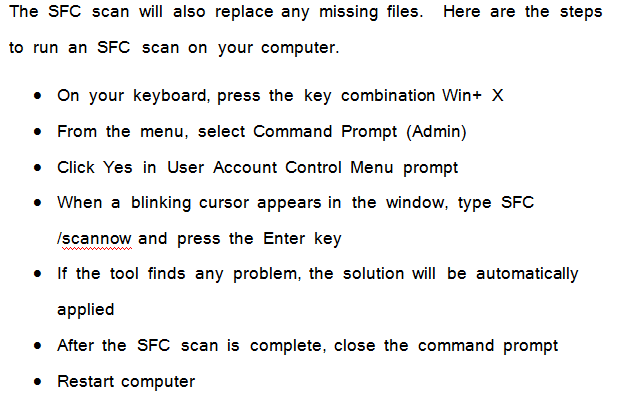
The SFC tool starts checking the integrity of system files. Wait for the operation to complete. If the “PFN List Corrupt” error is not resolved, proceed to Solution Three in the list.
The hard drive develops bad sectors over time which may lead to BSOD errors like PFN list corruption. Windows offers a CHKDSK tool that can find and fix hard drive errors. Here are the steps to follow.
- Click start
- Search for command prompt and select the top-most result from the list
- Launch command prompt with admin rights
- In the command prompt window, type the following command and press Enter

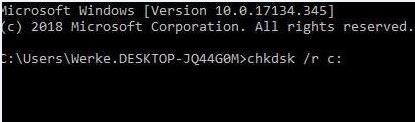
- Wait for the process to complete
If the solution does not work for you, proceed to the next solution in the list.
Solution Five- Check RAM
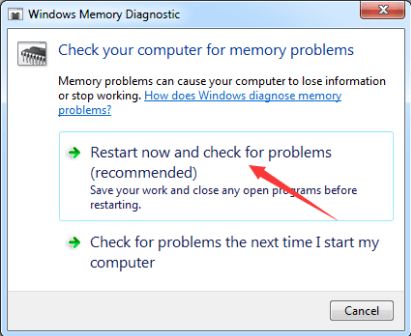
Since the PFN list error is related to memory, you need to ensure the RAM is not faulty. Windows provides you with a memory check tool that can find problems with RAM. Here are the steps to run the Windows Memory Diagnostic Tool.
- Close all programs before following the steps given below
- To invoke Run box, type Windows+R key combination
- In the Run command box, type mdsched.exe
- Click OK.
- Select the recommended option – Restart Now
- Windows will restart and you will see the Windows Memory Diagnostic tool running
- Wait for the process to complete.
If the diagnostic tools find any errors, it will show them on the screen. If no problems with memory are found, reboot the computer after the test and see if the error is resolved.
Solution Six- Disable Microsoft One Drive
Cloud storage has become popular and Microsoft One Drive has become part of Microsoft Essentials. According to experts, Microsoft One Drive could cause the PFN list corrupt issue might lead to BSOD errors like PFN list corrupt. Here are the steps to disable Microsoft One Drive
- Press key combination Windows + S to access group policy
- Choose Edit Group policy
- In the Local Group Policy editor window, navigate the following
- Local Computer Policy > Computer Configuration > Administrative Templates > Windows Components > OneDrive.
- In the right pane, find Prevent the usage of OneDrive for file storage and double-click on it.
- In the window titled” Prevent the usage of OneDrive for file storage”, select Enabled
- Click Apply > OK to save settings and exit window
This will disable Microsoft OneDrive. Check whether the PFN List Corrupt is resolved. If the issue persists, proceed to the next solution.
Solution Seven- Update Drivers
Corrupt drivers can be the reason behind the PFN list corrupt error. In that case, you need to update all system drivers and see if it helps. If you have an assembled desktop, you need to go to the motherboard manufacturer website and download the latest drivers for your system.
If you have a branded desktop/laptop, you need to go to the device manufacturer website, download the latest drivers for your model, and install them.
Automatic driver update tools offer many benefits, the most important ones being:
- You can update device drivers automatically
- The software scans and updates all outdated or missing drivers at one go
- The tool picks the right drivers for your device and operating system, so you won’t have to worry about installing an incorrect driver by mistake
- Automatic driver updates are 100% safe
Driver Updater is one of the best driver update tools out there. Outbyte Driver Updater will give you access to a database of over 1 million drivers. It will regularly scan your PC, suggesting new driver versions to install. Driver Updater contains drivers for a variety of Windows devices. With just one click, you can update drivers in your system.
Step 1
Click here to Install and launch the app
Step 2
Scan all devices
Step 3
Install or update drivers automatically