Drivers.com

follow us:

facebook twitter
  • Home
  • Download Drivers
  • Drivers Help
  • PC/Mac Resources
  • Software Drivers
  • Mac Fixes and Tips
  • PC Fix Tips
  • Security/ Backup
  • Tablets & Smartphones
  • Tech News
  • Software Drivers
  • Mac Fixes and Tips
  • PC Fix Tips
  • Security/ Backup
  • Tablets & Smartphones
  • Tech News

Fix wsappx High Disk & CPU Usage Issue

By Susan C on October 6, 2018

Fix wsappx High Disk & CPU Usage Issue

Is your Windows 10 running very slowly, even when you’re not running many programs?

If yes, check the Task Manager before hitting the panic button. Chances are that a process might be hogging disk and CPU resources.

One process labelled by many Windows 10 users as a frequent troublemaker is wsappx. While a genuine process, it is guilty of using up a lot of system resources for no apparent reason.
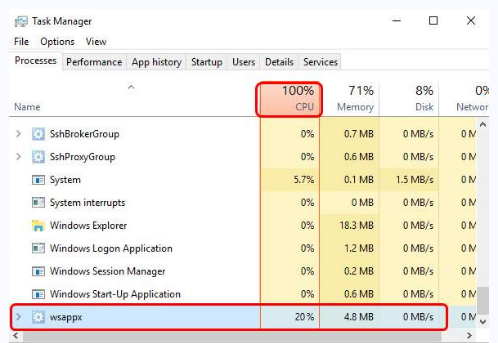
wsappx-high-cpu-issue

Is this what’s happening in your case? Do you see wsappx consuming very high disk and CPU resources?

We’ve listed several solutions to fix wsappx high disk and CPU usage once and for all. But before we look at the solutions, let’s first understand what wsappx is.

100% Disk Usage Windows 10

Wsappx – What is it?

Wsappx is a genuine windows process—and not a malware. It is an important component of Win 10. Windows store relies on it, as does Universal Windows Platform.

To put it simply, the wsappx process is chiefly used to operate, install, delete and update apps present in Windows Store. What this basically means is once you’re through with updating or installing apps in Windows store, you can safely disable it to free up disk space and CPU resources.

Fix wsappx High Disk & CPU Usage Issue

When the disk usage or CPU usage is reported at 100% or close to it, your system will either become very slow or freeze up—and quite naturally so. If one process hogs all the resources, other processes will have very little to work with. And that’s why the end result is an unresponsive computer.

As said above, high disk and CPU usage issue because of wsappx is pretty common. It can be resolved fairly easily, too. However, unfortunately there’s no one absolute solution which works for all.

If you find yourself up against this irritating issue, don’t worry as we have provided 6 solutions that have worked for other users.

  • Disable Windows Store
  • Update Device Drivers
  • Increase Virtual Memory
  • Perform a Virus Scan
  • Run a Disk Check
  • Troubleshoot in a Clean Boot State

You don’t need to try all these methods. Start with the first one in this list, and if it fails to resolve the issue, move on to the next one in the list and so on and so forth. (And of course, do let us know which of these worked for you!)

Solution 1 – Disable Windows Store

There are two ways to disable windows store: using Group Policy Editor and Registry Editor. The steps for each of the methods are discussed below.

Disabling Windows Store through Group Policy Editor

Here are the steps to follow:

  • Press Windows Key and R simultaneously to open the Run dialog box. Here type ‘gpedit.msc’ and then press the OK button. This will open the Local Group Policy Editor Window on your computer.
  • Next, click ‘Computer Configuration’ and then choose ‘Administrative Templates’
  • Next click ‘Windows Components’. Now choose ‘Store’
  • In the right pane, locate ‘Turn Off Store application’ setting
  • Click the Enable option
  • Finally select the Apply button

Disabling Windows Store through Register Editor

Not all Windows versions have the Group Policy Editor. If that’s true for your computer as well, don’t worry as you can disable Windows Store through Registry Editor.

Note: Making changes in Registry Editor is recommended only when you’re comfortable using it and have first made a back-up copy. Creating a back-up copy allows you to restore the Registry to its prior condition in case if the changes made by you lead to unforeseen errors or if you make wrong changes.

Here are the steps to backup registry.

  • In the start search box, type ‘regedit’ and press Enter
  • If the User Account Control window pops-up, click the Yes button
  • Right-click Computer in the left-pane and select Export
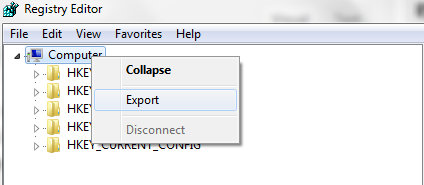
registry-backup
  • In the Export Registry file window, give a desired name to the file (such as registry backup 06.10.2018) and then click the Save button

Once you’ve created a backup, perform the steps below to disable Windows Store

  • In the left-pane, browse to HKEY_LOCAL_MACHINE\SOFTWARE\Policies\Microsoft\WindowsStore key
  • Now you must create new DWORD value in Windows Store Key. Give the new value the name of RemoveWindowsStore. Set the value as 1.
  • Now restart Windows

You can also use this workaround: HKLM system\CurrentControlSet\Services AppXSvc
Key start dword value =4

Disabling of Windows Store means that you can no longer install 3rd party apps or update them. In case you try to launch the app, you’ll get the following error message on your screen.

Windows Store isn’t available on this PC. Contact your system administrator for more information.

Several applications require Windows Store apps. Examples include Movies and TV, Mail, Calculator, OneNote, and Photos. In case you require these apps, you are advised against disabling Windows Store.

Instead try out other solutions in this post.

Solution 2 – Update Device Drivers

Did you know that often high CPU usage issues occur because of faulty or incompatible drivers?

Precisely for this reason, we recommend update your device drivers. The simplest—and the fastest—way to do this is by using a reliable and user-friendly driver update tool.

Automatic driver update tools offer many benefits, the most important ones being:

  • You can update device drivers automatically
  • The software scans and updates all outdated or missing drivers at one go
  • The tool picks the right drivers for your device and operating system, so you won’t have to worry about installing an incorrect driver by mistake
  • Automatic driver updates are 100% safe

Driver Updater is one of the best driver update tools out there. Outbyte Driver Updater will give you access to a database of over 1 million drivers. It will regularly scan your PC, suggesting new driver versions to install. Driver Updater contains drivers for a variety of Windows devices. With just one click, you can update drivers in your system.

Step 1
Click here to Install and launch the app

Step 2
Scan all devices

Step 3
Install or update drivers automatically


Start Download


Solution 3 – Increase Virtual Memory

Some users have been able to solve the issue by increasing virtual memory. We recommend you try the same, too.

Here are the steps to follow.
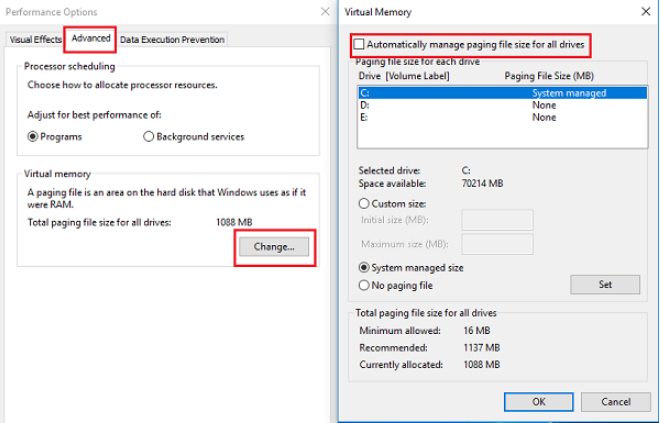
increase-virtual-memory
  • In search bar, type ‘performance’ and press Enter
  • Click ‘Adjust Appearance vs. Performance in Windows’
  • Click ‘Advanced’ tab (it is one of the several tabs at the top of the window)
  • Click ‘Virtual Memory’
  • Click ‘Change’
  • De-select the checkbox against ‘Automatically manage paging file size for all drives’
  • Now choose the drive on which you’ve the Windows installed (usually it is the ‘C’ drive) and then click ‘Custom size’
  • Here set ‘Initial Size’ same as your RAM (Note: Set the size in MB). Now set the ‘Maximum Size’ as two times the Initial Size
  • Finally click the ‘Set’ button and then the ‘OK’ button and reboot Windows

Solution 4 – Complete a Virus Scan

It is possible that malware or virus infection might be the root cause of the high CPU usage issue. In case you’ve not scanned your system for virus for some time now, do it right away.

We recommend you to do a complete system scan. In case the scan reports any suspicious programs, remove or quarantine them without delay and then restart Windows.

If the problem still persists, move on to the next solution.

Solution 5 – Complete a Disk Check

Disk check is recommended to all those who’ve just started receiving the wsappx High Disk & CPU Usage Issue.

However, bear in mind that disk check takes some time to complete. If you run it, you may not be able to use your computer for a while. In case you need to use your computer immediately, you may be better off skipping this step for the time being. Try other steps first and if they fail to fix the issue, run a disk check after you complete your present work.

Here are the steps to run Disk Check.

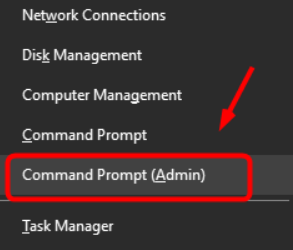
  • Press Windows Key + X
  • Now select Command Prompt (Admin)
command prompt
  • If the User Account Control prompt window shows up on your screen, click Yes
  • In the command prompt window, type this command

check-disk
  • Now press Enter and type Y so that Windows runs disk check when the computer restarts
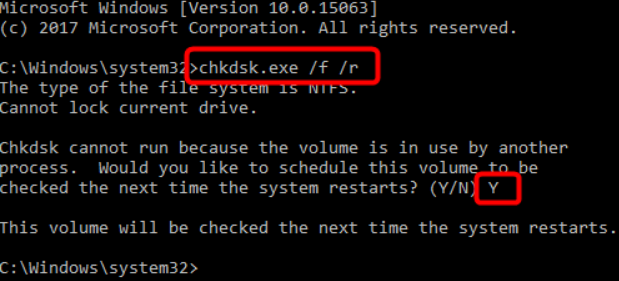
run check disk

Solution 6 – Perform a Clean Boot State

In case the problem still persists, as a last resort, do a clean boot. When you perform a clean boot, Windows runs just the essential startup programs and driver sets. This in turn will allow you to isolate the problematic startup program manually if the issue is being caused by one of the startup programs.

Here are the steps to perform a clean boot state.

  • Click Windows Key and R simultaneously to launch the run dialog box
  • Type msconfig and then press enter
  • In the System Configuration window, select Selective startup (the third and last option)
  • Uncheck the box before Load Startup Items and select the boxes before Use Original boot configuration and Load System Services
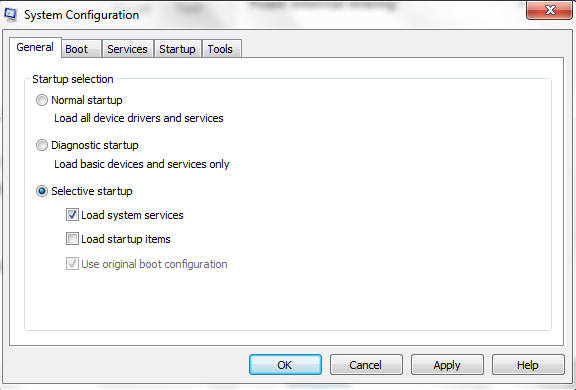
selective-startup
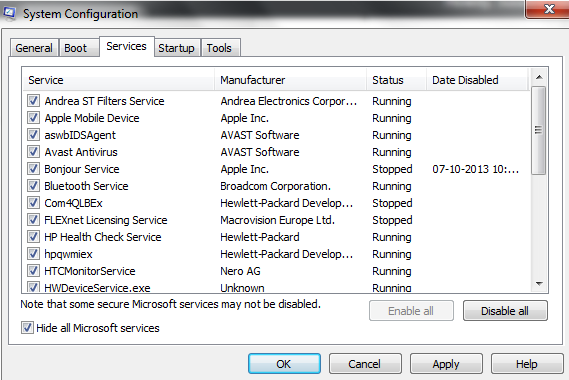
  • Now click Services tab on the top
  • Select the box against Hide all Microsoft services on the bottom left corner
hide-microsoft-services
  • Click the Apply button and then click the OK button
  • Restart Windows to put it into a Clean Boot State

Check if the issue is resolved

When Windows restarts, you need to check whether the wsappx high CPU usage is solved or not. If yes, it means that the error is occurring because of a background service or program.

Now you’ll need to check what’s causing the issue—a background service or a background program. Go to the “Find the underlying cause of the issue” section to locate the answer.

On the other hand, if the problem recurs upon restart, you can infer that the underlying cause is not a background service or program. This means that troubleshooting in clean boot will not resolve the issue. In that case, go to “Restart Windows in Normal Startup Mode” section.

Find the underlying cause of the issue

Step 1 – Launch System Configuration

  • In the start search box, type msconfig and press Enter

Step 2 – Click each listed service item individually to find the culprit service

  • In the System Configuration window, click Services
  • Ensure the check box before Hide all Microsoft Services is deselected
  • Now select the first service and restart windows
  • If the problem persists, it means this service is not the root cause. So select the next service item and restart windows and check if the problem persists. Continue to do so until you’re able to locate the service that’s causing the problem.
  • If you’ve been able to locate the problematic service, contact the program manufacturer for a solution or deselect it as a startup service
  • In case you have selected each service item individually but the problem still persisted, it means that Windows startup services are not the root cause of the problem. In that case, go to the next step.

Step 3 – Select each Startup item individually

Now do the same with startup items. That is, select each startup item separately and each time restart windows. Once you’ve identified the problematic startup item contact the program manufacturer for a solution or deselect it as a startup program.

Restart Windows in Normal Startup Mode

To go back to the normal startup mode, perform the steps given below.

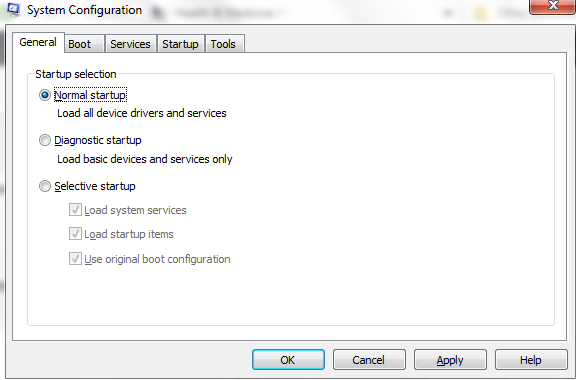
  1. Type msconfig in the start search box and press Enter
  2. Click the General tab on the top
  3. Now select Normal Startup – load all device drivers and services
normal-startup
  1. Click OK
  2. Restart Windows

Filed Under: PC Fix Tips Tagged With: wsappx CPU Usage

How to Reinstall Realtek HD Audio Manager

By Susan C on October 6, 2018

How to Reinstall Realtek HD Audio Manager
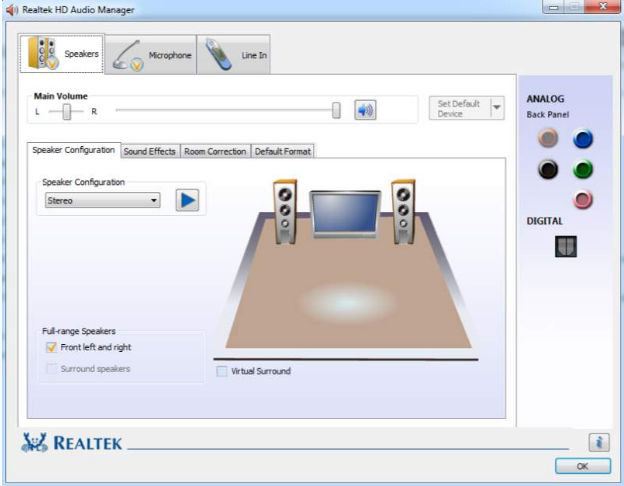
Realtek HD Audio Manager

When you install Realtek Audio Driver on your pc, Realtek HD Audio Manager gets automatically installed. You can use this application to tweak sound settings as you like to customize the sound experience.

However at times, you may find that Realtek HD Audio Manager is missing for no reason. When this happens, there’s a strong chance your Realtek audio driver has become corrupt.

Fix Realtek Audio Drivers for Windows

The good news is that the “Realtek HD Audio Manager Missing” issue is not a serious one. You can resolve it easily by reinstalling the Realtek audio driver.

Read on to learn how to reinstall Realtek audio driver.

Downloading Realtek Audio Driver

You can download this driver in two ways.

  • Manually – To download Realtek audio driver or any other driver for that matter, you need some basic computer skills. Along with it, you also need some patience as manual downloading process can be time-consuming.
  • Automatically (Recommended) – We recommend this method simply because it allows you to update the Realtek audio driver in less than 2 minutes and with far less effort.

Downloading Realtek Audio Driver Manually

First you’ll need to know your system version. If you don’t know this, simply perform the steps below.

  • Press Windows Key + R to launch the run dialog box
  • Type ‘winver’ in the box and press Enter
  • The necessary information will be displayed on your screen

Once you’ve gathered the required information, go to the official Realtek website and search for the latest drivers for your windows version. Once you’ve found the drivers, download and install them.

Downloading Realtek Audio Driver Automatically

As you can see, the manual option is time-consuming and a little technical. A more straightforward and quick approach is to use a reliable and accurate driver update software tool.

Automatic driver update tools offer many benefits, the most important ones being:

  • You can update device drivers automatically
  • The software scans and updates all outdated or missing drivers at one go
  • The tool picks the right drivers for your device and operating system, so you won’t have to worry about installing an incorrect driver by mistake
  • Automatic driver updates are 100% safe

Driver Updater is one of the best driver update tools out there. Outbyte Driver Updater will give you access to a database of over 1 million drivers. It will regularly scan your PC, suggesting new driver versions to install. Driver Updater contains drivers for a variety of Windows devices. With just one click, you can update drivers in your system.

Step 1
Click here to Install and launch the app

Step 2
Scan all devices

Step 3
Install or update drivers automatically


Start Download


Filed Under: PC Fix Tips Tagged With: Reinstall Realtek Audio Manager

[Fixed] Video TDR Failure (atikmpag.sys) on Windows 10

By Susan C on October 5, 2018

[Fixed] Video TDR Failure (atikmpag.sys) on Windows 10
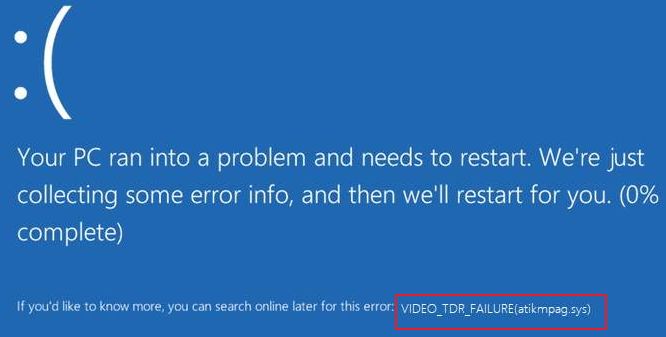
atikmpag.sys-error

Blue Screen of Death error is one of those things that you never want to see on your computer screen, particularly when you’re doing something important. However, Windows can throw these types of errors when you least expect it.

One such error is atikmpag.sys or Video TDR Failure error.

Users who have recently updated their Windows 10 have complained of a recurring Video_TDR_Failure error that makes it impossible for them to work on their computer.

While an irritating error, atikmpag.sys issue can be resolved fairly easily. So if you are facing a similar problem, don’t worry as it won’t take much to get your computer up and running again.

In this post, we have offered four easy solutions that could fix the issue. Before looking at the solutions, let’s try to know more about this error.

What is a Video_TDR_Failure error?

You are more likely to get the Video_TDR_Failure error if your computer has an ATI or AMD graphics processing unit.

When this blue screen of death error occurs, your system crashes and you lose all unsaved work. There can be various reasons for this error but often the problem lies with drivers.

Over the years, GPUs have become more capable of handling complex graphics rendering on the screen. Today, a large number of users enjoy high definition multimedia content on the video that also includes playing multimedia games and computer simulations.

The genuine atikmpag.sys file is a software component of ATI graphics card manufactured by AMD. The atikmpag.sys is a kernel driver that gets installed with ATI graphics cards. Since it is a kernel driver, it directly works with the Windows operating system and needs a very stable environment to function.

(Note- Some users may see atikmpag.sys instead of atikmdag.sys in the ( ) after the Video_TDR failure error. There is not much difference in both files and you can follow the solutions given here confidently.)

You don’t need to perform all the solutions given in this post. Start with the first in the list, and if doesn’t work, move on to the next one and so on, until the problem is fixed. And of course, we would love to hear from you which of these solutions worked for you.

Solution One – Reinstall drivers in Safe Mode

There is a possibility the AMD graphic drivers are corrupt. A simple solution to this problem is uninstalling AMD graphics drivers and installing latest AMD GPU drivers.

AMD Driver Download & Update

Here are the steps to follow.

  • Boot your computer in Safe Mode
  • Press Windows logo key and R to bring up Run window
  • In the Run window, type devmgmt.msc and hit Enter on the keyboard
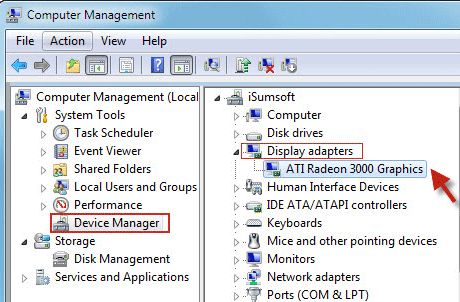
  • In the Device Manager window, go to the Display Adapter category and expand it
ati graphics driver
  • right-click AMD display adapter and select Uninstall
  • when asked for confirmation, click OK
  • Reboot your computer in Normal Mode
  • Install latest Intel chipset driver for your PC
  • Reboot your PC again
  • Go to the AMD website
  • Select your product from the list and download latest drivers for your Windows operating system
  • After downloading latest AMD graphic drivers, install them
  • Reboot your computer and check whether the issue is resolved.

If the issue persists, move to next solution

Solution Two- Use an older version of AMD graphic drivers

Many times the latest graphics drivers may not be the best for your Windows computer. It is possible that the newer graphics drivers might have compatibility issue with your version of Windows, which in turn might be the root cause of the BSOD error.

A simple solution to this problem is using an older version of AMD graphics driver that worked well on your computer.

Here are the steps to follow.

  • Open Device Manager. You can refer to steps given in Solution One
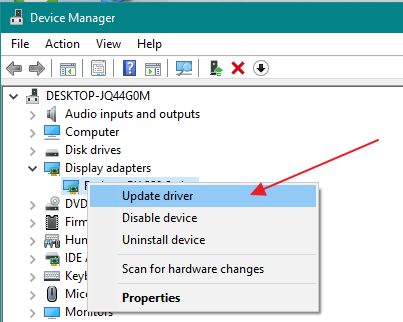
  • Right-click on AMD Display adapter and select Update Driver software.
update amd driver
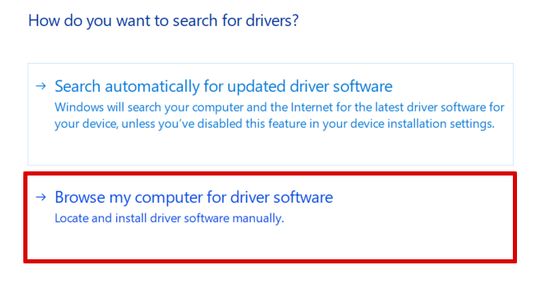
  • In the next window, select Browser my computer for driver software.
browse computer for driver
  • In the next window, select Let me pick from a list of device drivers in my computer
  • Under Model, you need to select an older version of AMD driver. You can know about the older version by looking at the version dates
  • Click Next and wait for the process to complete
  • Restart your computer and see if the issue is resolved.

If the issue is resolved, you need to prevent Windows from updating ATI drivers again. Here are the steps to follow.

For Windows 10

  • Open browser and download Microsoft’s Show or hide updates troubleshooter
  • After downloading the troubleshooter, run it
  • To run the troubleshooter, open wushowhide. diagcab, and select Next
  • Uncheck the AMD drivers to be installed
  • Reboot your computer

For Windows 8/8.1

  • Go to Control Panel
  • Click Windows updates -> Optional/Pending updates
  • right-click and select Hide

If the issue is not resolved, move to next solution

Solution Three – Replace ATIKMPAG.SYS

Since the Video_TDR_Failure error mentions the ATIKMPAG.SYS file, there is a possibility the driver is corrupt. To resolve this problem, you need to replace the current ATIKMPAG.SYS file with a fresh copy. Remember you need to replace all files with ATIKMPAG.SYS name. Here are the steps to follow.

  • Open Windows Explorer
  • Navigate to C:\Windows\System32\drivers
  • Find the atikmpag.sys (or atikmdag.sys) file.
  • Rename it as atikmpag.sys.old (or atikmdag.sys.old)
  • Navigate to ATI folder – C:\ATI
  • find the atikmdag.sy_ or atikmpag.sy_. file
  • Copy the file to the desktop
  • Press Windows logo key and X simultaneously on the keyboard to open the Context menu
  • Select Command Prompt(admin) from the list
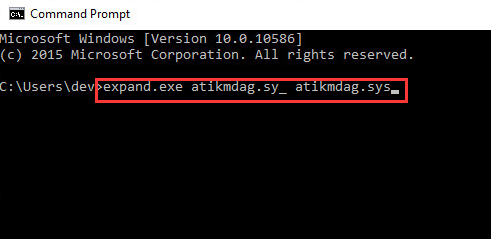
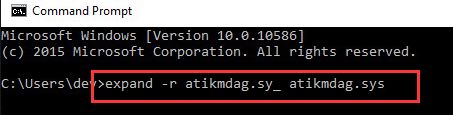
  • In the command prompt window, type following commands and hit Enter on the keyboard after typing each command. Wait for the command operation to complete before typing next command.
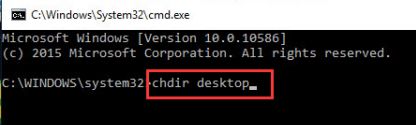
  • chdir desktop
chdir desktop
  • exe atikmdag.sy_ atikmdag.sys
expand atikmdag.sy

or

  • expand -r atikmdag.sy_ atikmdag.sys
r atikmdag.sy
  • Now copy the atikmdag.sys(or atikmdag.sys) to C:\Windows\System32\Drivers
  • Restart your computer and see if the problem is resolved

Solution Four – Update Chipset and AMD graphics drivers

Last but not the least, update chipset and AMD graphics drivers. You can do this manually, but do remember that the process might be time-consuming. If you want to update your drivers quickly, we recommend you use a Driver Update Tool.

Automatic driver update tools offer many benefits, the most important ones being:

  • You can update device drivers automatically
  • The software scans and updates all outdated or missing drivers at one go
  • The tool picks the right drivers for your device and operating system, so you won’t have to worry about installing an incorrect driver by mistake
  • Automatic driver updates are 100% safe

Driver Updater is one of the best driver update tools out there. Outbyte Driver Updater will give you access to a database of over 1 million drivers. It will regularly scan your PC, suggesting new driver versions to install. Driver Updater contains drivers for a variety of Windows devices. With just one click, you can update drivers in your system.

Step 1
Click here to Install and launch the app

Step 2
Scan all devices

Step 3
Install or update drivers automatically


Start Download


Filed Under: PC Fix Tips Tagged With: atikmpag.sys error

  • « Previous Page
  • 1
  • …
  • 144
  • 145
  • 146
  • 147
  • 148
  • …
  • 189
  • Next Page »


  • Recent Posts
  • Popular Posts
        

Read More Posts


Read More Posts

Drivers.com Sites

  • Software Drivers
  • Drivers Ed

About Us

  • Advertise
  • About Drivers
  • Drivers Support
  • Drivers.com Privacy Policy
  • Disclaimer
  • Software Drivers
  • Mac Fixes and Tips
  • PC Fix Tips
  • Security/ Backup
  • Tablets & Smartphones
  • Tech News

© Copyright 2026 PDE Publications Ltd. End User License Agreement (EULA)