Drivers.com

follow us:

facebook twitter
  • Home
  • Download Drivers
  • Drivers Help
  • PC/Mac Resources
  • Software Drivers
  • Mac Fixes and Tips
  • PC Fix Tips
  • Security/ Backup
  • Tablets & Smartphones
  • Tech News
  • Software Drivers
  • Mac Fixes and Tips
  • PC Fix Tips
  • Security/ Backup
  • Tablets & Smartphones
  • Tech News

dxgkrnl.sys Blue Screen of Death error on Windows

By Susan C on September 20, 2018

dxgkrnl.sys Blue Screen of Death error on Windows
dxgkrnl.sys-BSOD-error

A Blue Screen of Death error is always a very worrying sight. When it occurs, Windows crashes and you lose all unsaved work forever.

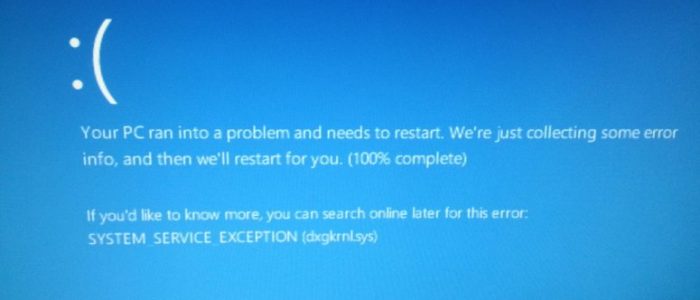
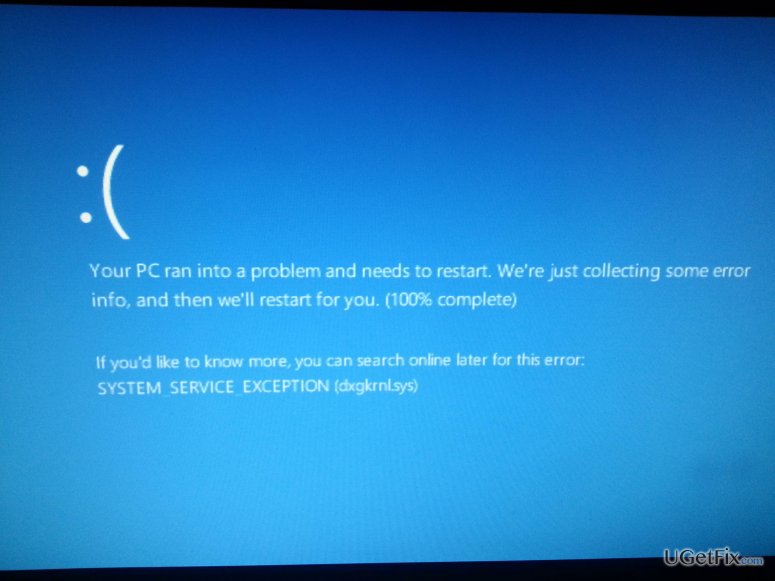
Many Windows users have reported receiving the error BSOD SYSTEM_SERVICE_EXCEPTION (dxgkrnl.sys). If you are looking for solutions to this BSOD (blue screen of death), then read on.

In this post, you will find several solutions that could resolve the issue. However, before we look at the solutions, let’s learn more about this error and its possible causes.

What is the dxgkrnl.sys BSOD error?

The dxgkrnl.sys is a Microsoft DirectX system driver file and the process is known as DirectX Graphics Kernel. The original version of the file is safe but you cannot ignore the possibility of a malware disguising as dxgkrnl.sys file to avoid visual detection.

The original location of Dxgkrnl.sys file is C:\Windows\System32\drivers folder. If you find Dxgkrnl.sys named file in another folder, it might be a malware or virus. Some of the best practices to avoid Dxgkrnl.sys BSOD errors are keeping your system clean and healthy.

This means scanning your system for malware, keeping Windows updated, and uninstalling programs that you don’t need. Now, let’s look at the solutions.

Solution 1 to dxgkrnl.sys error – Install all pending Windows updates

Dxgkrnl.sys is an integral component of the Windows system which gets updated with Windows updates. You need to install all pending Windows updates and keep you Windows updated to the latest version and to avoid dxgkrnl.sys related errors. Here are the steps to follow in order to do this:

  • Press Windows logo key and X simultaneously on the keyboard to bring up the Context menu
  • Select Settings
  • In the Settings window, click Update & Security
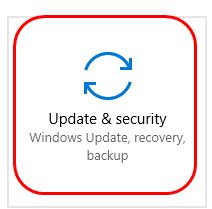
update & security
  • In the next window, click Check for updates
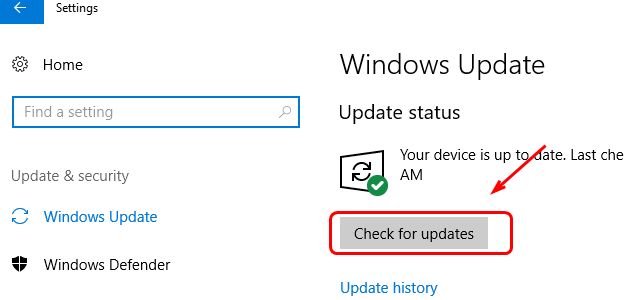
check updates
  • If you see any available updates, download and install them
  • Restart your computer to let the changes take effect

Use your computer as normal and see if the error is generated again. If the problem is not resolved, move on to next solution.

Solution 2 to dxgkrnl.sys error – Disable SLI

This solution is applicable to users who have an NVIDIA graphics card installed on their computer. NVIDIA graphics settings include an SLI feature  that allows for the use of two graphics cards for better performance.

For various reasons, the SLI feature does not work well in Windows 10 and that could be the cause of the SYSTEM_SERVICE_EXCEPTION (dxgkrnl.sys) BSOD error. A simple solution to this problem is disabling the SLI feature and see if it helps fix the issue. Here are the steps to follow in order to do this:

  • Open the NVIDIA control panel. You can access the NVIDIA control panel by double-clicking on its icon in the bottom right corner of the task bar
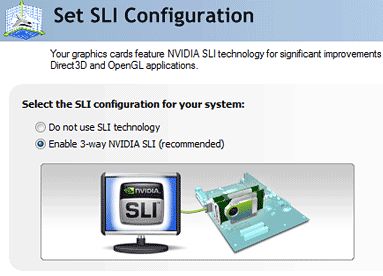
  • Navigate to 3D Settings and click Set SLI Configuration
  • Click Do Not Use SLI Technology
disable SLI
  • Click Apply to save changes
  • Close all windows

Now use your computer and see if the SYSTEM_SERVICE_EXCEPTION (dxgkrnl.sys) BSOD error is generated. If you still encounter the BSOD ((dxgkrnl.sys) error, move on to the next solution.

Solution 3 to dxgkrnl.sys error – turn off NVIDIA Surround

This solution is also applicable to users who have an NVIDIA graphics card installed on their computer. NVIDIA offers 3D Surround that enables the user to combine multiple monitors (up to 5) for the immersive gaming experience.

Many users have reported NVIDIA Surround causing problems in Windows 10 which then results in BSOD errors. You need to turn off the NVIDIA Surround feature and see if this fixes the issue. Here are the steps to follow to do this:

  • Right-click on your Desktop and open NVIDIA Control Panel
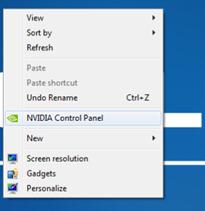
nvidia control panel
  • Go to the navigation pane in your left and expand 3D Settings
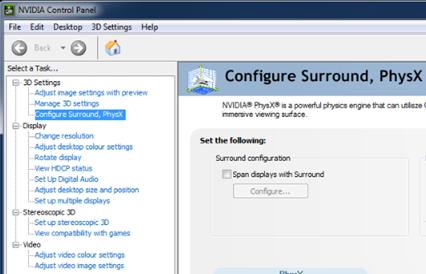
  • Click Configure Surround, PhysX
configure surround
  • Under Surround configuration, uncheck the option – Span displays with Surround
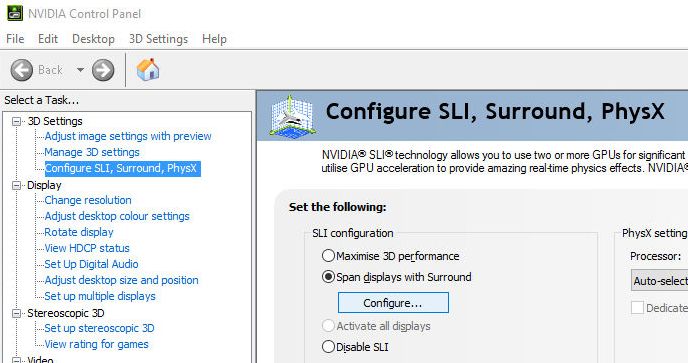
displays with surround
  • Click Apply and then OK to close NVIDIA Control Panel

Use your computer as normal and see if the SYSTEM_SERVICE_EXCEPTION (dxgkrnl.sys) BSOD error is generated. If the problem remains unresolved, move on to next solution below.

Solution 4 to dxgkrnl.sys error – run SFC scan

There is the possibility that some system files have become corrupt and that this is causing the SYSTEM_SERVICE_EXCEPTION (dxgkrnl.sys) BSOD error. Windows has an in-built tool known as System File Checker that checks the integrity of system files and replaces corrupt files with good cached versions. The SFC commands needs to be executed from the elevated command prompt. Here are the steps to follow in order to do this.

  • On your keyboard, press the Windows logo key and X  at the same time to bring up the black context menu
  • Click Command Prompt (admin) from the list
  • In the command prompt window, type SFC /scannow and hit the Enter key on your keyboard
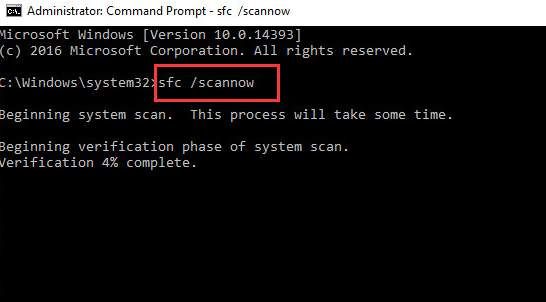
sfc-scanow
  • You will see the System File Checker tool running in the command prompt window. Wait for the program to finish its operation

Check whether you are getting the (dxgkrnl.sys) BSOD error. If the problem persists, move on to the next solution.

Solution 5 to dxgkrnl.sys error – run DISM commands

There is the possibility that SFC was not able to restore all corrupt system files and hence the issue remains unresolved. Windows has a DISM software tool that can fix system files errors that the SFC tool was unable to fix.

DISM is short for Deployment Image Servicing and Management. It is a command-line tool that is used to service Windows setup, Windows images, and the Windows Recovery environment. You need to use the use the//ScanHealth and //RestoreHealth commands to scan the windows image for corruption and perform repairs automatically. Here are the steps you need to follow to do this.

  • Press Windows logo key + R simultaneously on the keyboard to bring up the Run command console
  • In the Run command box, type cmd and click OK

In the list of results, right-click cmd and select Run as administrator

  • In the command prompt window, type the following commands. Wait for first command operation to complete before typing next command
  • Dism /Online /Cleanup-Image /ScanHealth
  • Dism /Online /Cleanup-Image /RestoreHealth
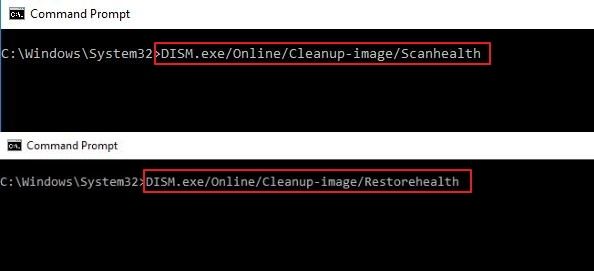
DISM

(Note- DISM commands can take around 10-15 minutes to complete as it also checks the registry for any corruption. You need to be patient and wait for the command operation to complete before performing the next step)

  • Close command prompt window

Solution 6 to dxgkrnl.sys error – run the Blue Screen Troubleshooter

Fixing the Blue Screen of Death error has never been easy so Microsoft now offer a Blue Screen Troubleshooter that could help fix the problem for you. Here are the steps to run the Blue Screen Troubleshooter.

  • Click Start
  • Click Settings – (the gear icon that appears in the left pane)
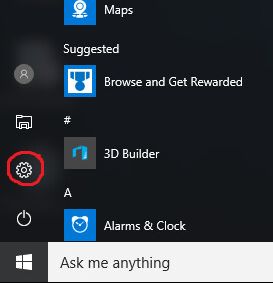
settings
  • In the Settings window, click Update & Security
  • In the Update & Security window, click the Troubleshoot option in the left pane
  • In the right pane, look for the Blue Screen option and click the Run the troubleshooter button that appears below the option
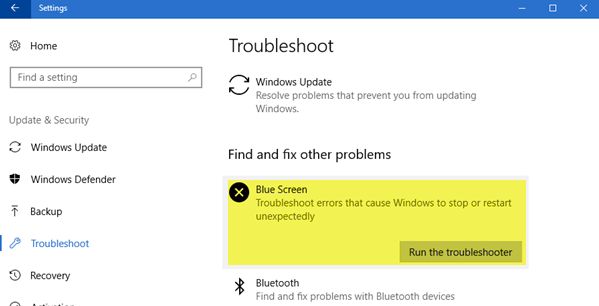
win10-BSOD-troubleshooter
  • Follow the on-screen instructions to help the blue Screen troubleshooter fix the problem

Check whether the issue has been resolved. If you still get the SYSTEM_SERVICE_EXCEPTION (dxgkrnl.sys) BSOD error, move on to the next solution.

Solution 7 to dxgkrnl.sys error – update graphics driver

Another potential reason for seeing this error is outdated graphics drivers. Several users have reported that they were able to fix the problem by updating their graphics driver.

There are two ways to update your graphics drivers – manually and automatically. The automatic driver update option offers two main advantages. Manually updating drivers can take time and resources while an automatic driver update tool can update not only your graphics drivers but also other outdated drivers in a matter of minutes.

Also sometimes you might download wrong drivers when you take the manual route. This happens more when you have to search for relevant drivers over the Internet. With the automatic driver update option, there is no such risk.

Automatic driver update tools offer many benefits, the most important ones being:

  • You can update device drivers automatically
  • The software scans and updates all outdated or missing drivers at one go
  • The tool picks the right drivers for your device and operating system, so you won’t have to worry about installing an incorrect driver by mistake
  • Automatic driver updates are 100% safe

Driver Updater is one of the best driver update tools out there. Outbyte Driver Updater will give you access to a database of over 1 million drivers. It will regularly scan your PC, suggesting new driver versions to install. Driver Updater contains drivers for a variety of Windows devices. With just one click, you can update drivers in your system.

Step 1
Click here to Install and launch the app

Step 2
Scan all devices

Step 3
Install or update drivers automatically


Start Download


Solution 8 to dxgkrnl.sys error – check for hardware failure

If none of the above solutions have worked for you, there is the possibility that the problem is with your hardware, RAM or another system component. In cases such as this you will need to take the PC to a repair store and get it checked.
Filed Under: PC Fix Tips Tagged With: dxgkrnl.sys BSOD

Wi-Fi connected but no Internet problem in Windows 10

By Susan C on September 20, 2018

Wi-Fi connected but no Internet problem in Windows 10

Sometimes your PC is connected to Wi-Fi but you cannot surf the Internet. This problem has been reported by many Windows 10 users and we have provided solutions that could fix the issue. There are two different scenarios for such Internet connectivity problem.

  • None of the devices connected to Wi-Fi can surf the Internet
  • All devices except PC can surf the Internet

Now let’s look at the solutions for each scenario.

Case 1 – None of the devices connected to Wi-Fi can surf the Internet

If something of this kind happens, the problem lies in the Internet connection and the networking devices. To resolve the issue you should perform troubleshooting steps to fix the problem in networking devices like modem and router. Here are the steps to follow.

Solution– Restart Modem and Router

  • Switch off the modem and router
  • Unplug the power chord of both devices from the electrical socket
  • Wait for some time
  • Plug-in the power chord back of the modem first in the electrical socket.
  • Wait for the lights on the modem to stabilize
  • Now, Plug-in the power chord back of the router
  • Wait for some time until the Internet connection light starts blinking on the router
  • Connect your PC or other devices to the Wi-Fi network and see if you can surf the Internet

If you are still not able to surf the Internet you need to contact your ISP and inform about the problem.

Case 2 – All devices except PC can surf the Internet

Since other devices can access websites and your PC can’t, you can draw a conclusion the problem lies in your PC. Here are some solutions that could fix the issue.

Solution One – Delete Temporary files

  • Press Windows logo key and X simultaneously on the keyboard to access the Context Menu(black)
  • Select File Explorer from the list
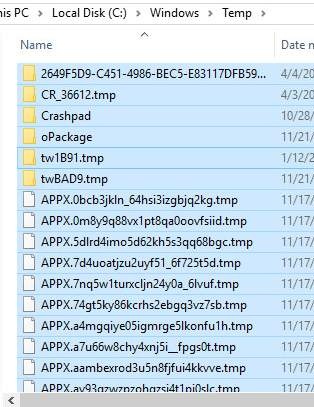
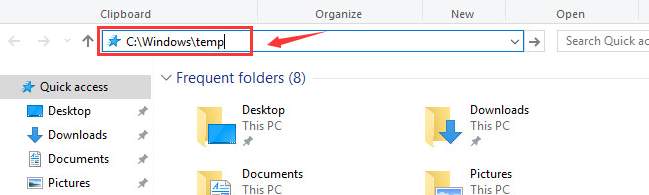
  • In the File Explorer address bar, type C:\Windows\temp and hit enter on the keyboard
windows temp folder
  • If you are prompted for administrator permission to access the folder, click Continue
access temp
  • When the Temp folder opens, press Ctrl+A on the keyboard to select all contents in the folder
temp delete
  • Press the Delete button on the keyboard
  • Now connect your PC to Wi-Fi and see if you can surf the Internet.

If the problem is not resolved, move to next solution.

Solution Two- Change DNS settings

DNS settings play an important role in your ability to surf the Internet. The computer and the servers don’t understand the website name you type in the address bar. The DNS server converts the websites names into IP addresses which are then used to find and load the website in your browser.

If there is some problem with DNS settings, you might not be able to surf the Internet. A simple solution to this problem is – Change DNS settings. Here are the steps to follow.

  • Go to Desktop
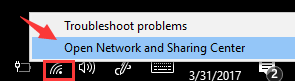
  • right-click on the Wi-Fi icon or network icon that appears on the bottom right-corner of the task bar
open network and sharing
  • Select Networking and Sharing Center
  • In the Networking and Sharing Center window, select Change adapter settings in the left pane
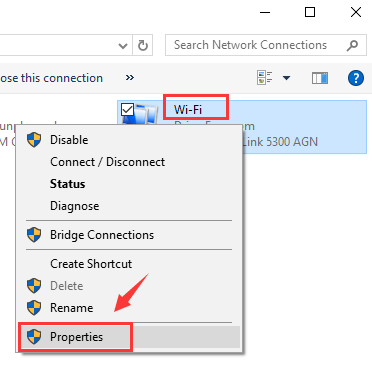
  • In the next window, right-click on your Wi-Fi connection
wi-fi properties
  • Select Properties
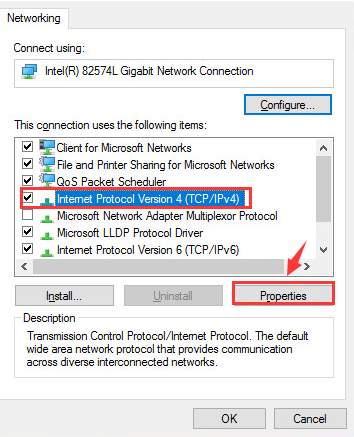
  • In the Wireless Network connection properties window, select Internet Protocol Version 4(IPv4)
IPV4 properties
  • click Properties
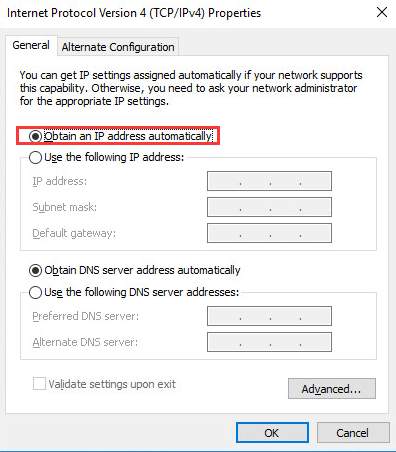
  • In the Internet Protocol Version 4(IPv4) properties window, go to the General tab
  • Click the option Obtain an IP address automatically
obtain ip auto
  • Next click the option Obtain DNS server addresses automatically
  • Click Ok

See if you are able to surf the Internet.

  • Go to Internet Protocol Version 4(IPv4) properties window, go to the General tab
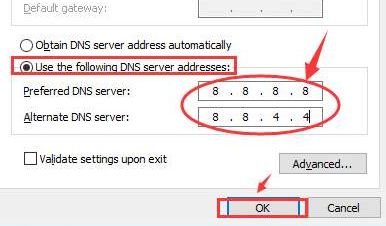
  • Now click the option Use the following DNS server addresses
use following DNS
  • Enter the following DNS server addresses
  • Preferred DNS server: 8. 8. 8. 8
  • Alternate DNS server: 8. 8. 4. 4
  • After you have entered DNS server addresses, click Ok
  • close all windows

Launch the browser and try to visit any website to see if the problem has been resolved. If you still can’t surf the Internet, move to next solution.

Solution Three- Run Networking commands

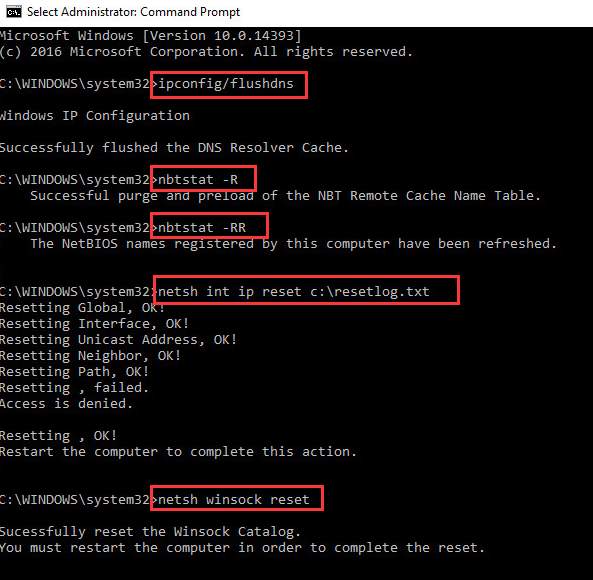
You cannot ignore the possibility of some networking problem that might be the cause of this issue. Windows offers several networking commands that resolve various network related problems. You need to execute these commands through an elevated command prompt window. Here are the steps to follow.

  • Click Start and type cmd in Cortana search box
  • right-click on command prompt from the list of results and select Run as administrator
  • In the command prompt, type following commands one after another. Press Enter on the keyboard after typing each command. Wait for the command operation to complete before typing next command in the line
  • ipconfig/flushdns
  • nbtstat –R
  • nbtstat –RR
  • netsh int ip reset c:\resetlog.txt
  • netsh winsock reset
networking commands
  • After all, commands are successfully executed, close command prompt window
  • Reboot the computer to let changes take effect

After rebooting the computer, perform steps given below

  • right-click on the Wi-Fi icon or network icon that appears on the bottom right-corner of the task bar
  • Select Networking and Sharing Center
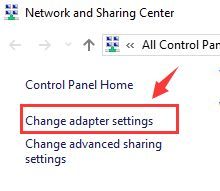
  • In the Networking and Sharing Center window, select Change adapter settings in the left pane
change adapter settings
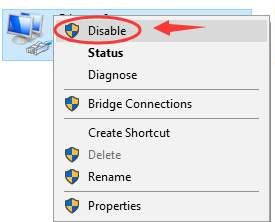
  • In the next window, right-click on your Wi-Fi connection
  • Select Disable
wifi disable
  • Wait for some time
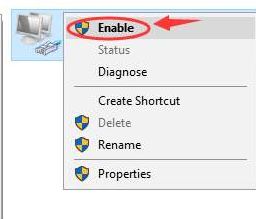
  • Again right-click on your Wi-Fi connection
  • Select Enable
wifi enable

Try to open a website to check whether the problem has been resolved. If the problem persists, move to next solution.

Solution Four – Update Drivers

You can get this error if your drivers are outdated or corrupt. Updating your network drivers can help you fix the issue.

You can update drivers manually, but this approach is not only time-consuming but also less than perfect. Therefore, we recommend you to use a driver update software program.

Automatic driver update tools offer many benefits, the most important ones being:

  • You can update device drivers automatically
  • The software scans and updates all outdated or missing drivers at one go
  • The tool picks the right drivers for your device and operating system, so you won’t have to worry about installing an incorrect driver by mistake
  • Automatic driver updates are 100% safe

Driver Updater is one of the best driver update tools out there. Outbyte Driver Updater will give you access to a database of over 1 million drivers. It will regularly scan your PC, suggesting new driver versions to install. Driver Updater contains drivers for a variety of Windows devices. With just one click, you can update drivers in your system.

Step 1
Click here to Install and launch the app

Step 2
Scan all devices

Step 3
Install or update drivers automatically


Start Download


Solution Five- Make changes to McAfee settings

This solution is given specifically for McAfee users. If you have anti-virus software installed, do not perform steps in the solution. Many McAfee users have complained of inability to connect to the Internet after installing/upgrading McAfee security suite in their computer. Here are the steps you need to follow to resolve the issue.

Step One

  • Double-click M shield icon in the system tray(bottom right corner of the task bar)
  • Click Web and Email Protection.
  • Click Firewall link.
  • In the Firewall options window, make sure the Firewall is On.
  • Click Program Permissions drawer.
  • Scroll through the list and make note of any program rules or exception you may have created, especially block rules.
  • Allow outbound access to any application that needs network connectivity
  • You need to specifically allow programs like
  • exe- Internet Explorer
  • exe- Google Chrome
  • exe- Microsoft Edge browser (This is a Windows 10 default browser.)
  • exe- Mozilla Firefox
  • exe- Printer Spooler Subsystem (This allows you to print to a network printer.)
  • exe- Microsoft Outlook (This is an email client.)
  • exe- Microsoft Outlook Express (This is an email client.)

(Note- none of the applications above should appear in the blocked list)

Step Two

  • Click Restore defaults
  • After you have clicked Restore defaults, the Security Center might prompt for an application or network permissions. Click Confirm or Yes when prompted.

Try opening a website to check whether you are able to surf the Web. If the problem remains unresolved, follow the steps given below

Step Three

  • Double-click M shield icon in the system tray(bottom right corner of the task bar)
  • Click Web and Email Protection.
  • Click Firewall link.
  • In the Firewall options window, click Turn Off button.
  • the security status will change from green to red, don’t panic. this is normal.

Try opening a website to check whether you are able to surf the Web. If the problem is resolved the cause of the issue is the McAfee security program. In that case, you can uninstall the McAfee program and install another good anti-virus program. You can also contact McAfee customer service or tech support and explain the problem and seek a solution.

Filed Under: PC Fix Tips Tagged With: Win 10 Internet Problem

“This plugin is not supported” error in Chrome

By Susan C on September 17, 2018

“This plugin is not supported” error in Chrome
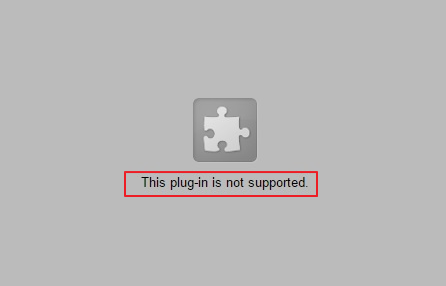
plugin-not-supported-error

“This plugin is not supported” error in Chrome appears when you try to access a website with media content like videos. When you get this error, the media fails to load. This error is not generated on every website (with media) you visit but on specific sites.

This can be an annoying thing, as you are not able to view videos you might want to watch. However, there’s nothing to worry about as we have provided some easy solutions that can fix the issue. But first let’s look at the error in detail and the solutions.

Why are you getting “This plugin is not supported” error in Chrome?

There can be several reasons for this error. One of the reasons is Google has discontinued its support for NPAPI plugins and the website you are trying to visit might be using some NPAPI plugins to show the video.

For your information, Google has embraced HTML5 for its flagship browser, and that is the reason that Chrome browser no longer supports Active-X plugins, Java, or Silverlight. Though many websites have embraced HTML5, there are many older websites that still need specific plug-ins to display video content.

You are more likely to get “This plugin is not supported” error when you try to visit such older websites. However, this may not be the only reason for the error. Now let’s look at the solutions.

This posts show you 5 solutions to “this plugin is not supported” error that have worked for other users. We’re sure at least one of these will work for you. Start with the first solution and then work your way down till the problem is fixed.

Solution One – Enable Flash Player in Chrome

Chrome still supports Flash plug-ins but the support for the plug-in might be disabled. A simple solution to this problem is enabling Flash plug-in Chrome. When you enable flash plug-in, websites that need it will be able to load content, and you would be able to watch videos on these website.

Here are the steps to follow.

  • Open Chrome browser
  • In the address bar, type chrome://settings/content and hit enter on the keyboard
  • In the Settings window, you can see Chrome browser has blocked Flash content
flash setting chrome
  • Click on the > icon to open Flash settings
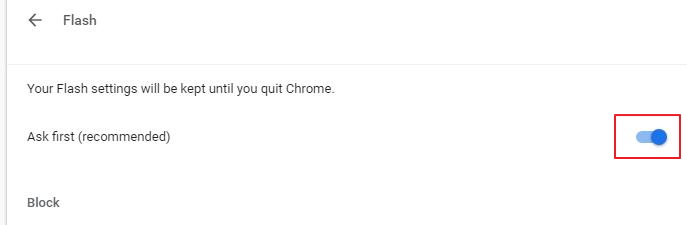
  • In the Flash settings tab, click the toggle switch to enable Flash. When the Flash is enabled, you can see the setting changes to ask first (recommended)
flash enabled
  • Close Settings tab

Try to open the website which gave out “This plugin is not supported” error. If the problem persists, you need to update Flash player. Here are the steps to follow.

  • Open Chrome
  • Go to Adobe Flash player website
  • Download latest Flash player for windows and install it on your computer

Once the Flash player is updated, open the website which gave out “This plugin is not supported” error. If the problem persists, you need move to next solution.

Solution Two – Delete browsing data

As you surf the Internet, data from sites you visit gets stored on your computer. Over the time the data volume can grow to enormous size and it may prevent loading of some plugins. There is a possibility you are getting the “This plugin is not supported” error because the browsing data has become corrupt.

One simple solution to this problem is deleting browsing data and sees if it helps in resolving the error. Here are the steps to follow.

  • Open Chrome
  • Click three vertical dots that appear on the top right hand corner of the URL bar
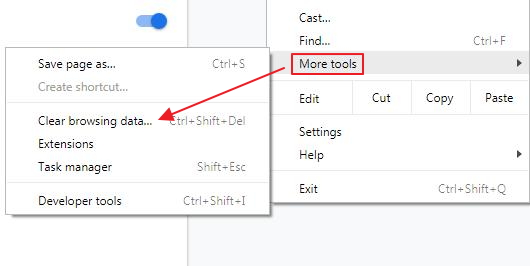
  • Click More tools
clear browsing data
  • Click Clear browsing data
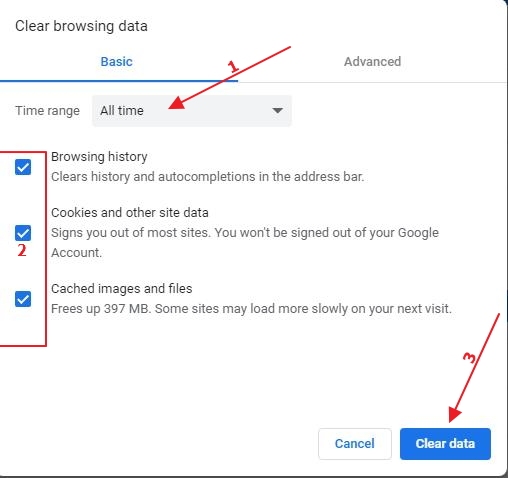
  • In the Clear browsing data, go to the Basic tab and make the following choices
  • In the time range field – select All time from the drop-down list
  • Make sure the following options are checked- Browsing history, Cookies, and other site data, and Cached image and files
clear data
  • Now click Clear data

Open the website where you encountered “This plugin is not supported” error and check whether the issue is resolved. If the problem persists, move to next solution.

Solution Three – Add NoPlugin extension to Google Chrome

The NoPlugin extension allows you to play multimedia content without the plugins (Flash, Java, and ActiveX). It works by converting the plug-in code to HTML5 and helps in rendering video on the screen. Here are the steps to follow

  • Open Chrome
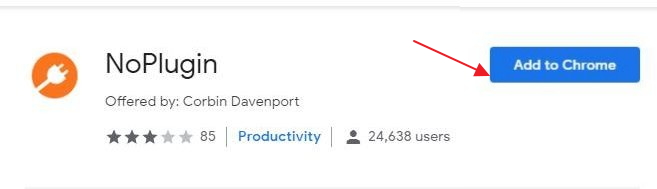
  • Go to NoPlugin page in Chrome Web Store
noplugin extension
  • Click Add to Chrome
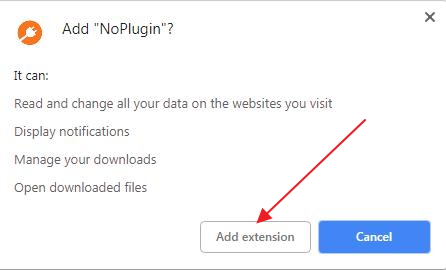
  • you will see a pop-up related to plugin extension, click Add extension
add extension
  • When the NoPlugin extension is installed, restart your Chrome browser

Try to load the webpage where you get the “This plugin is not supported” error and see if the media is loaded. If the problem persists, move to next solution

Solution Four – Update Google Chrome

The NoPlugin extension won’t work properly if the Chrome browser is outdated. Hence, you need to update the Chrome browser and see if the issue gets resolved. Here are the steps to follow.

  • Open Chrome
  • Click three vertical dots that appear on the top right hand corner of the URL bar
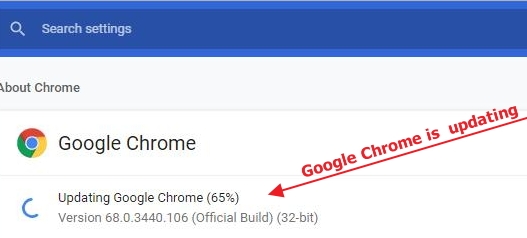
  • Click Help and then click About Google Chrome
update google chrome
  • If the updates are available, the updating of the Chrome begins automatically when you are on this page.
  • Wait for the updating process to complete
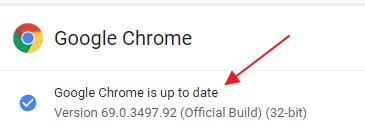
  • if the Chrome is up to date, you will see a message like the one shown in image below
google chrome updated

Try to visit the webpage where you get the “This plugin is not supported” error and see if the media is loaded. If the problem persists, move to next solution

Solution Five – Use another browser

If none of the solutions has helped you, the only way to see the media (video) from the webpage is to use another browser. You can use the Internet Explorer (Windows 7) or Edge browser (Windows 10) to visit the webpage.  You can also use Firefox if you want.

Filed Under: PC Fix Tips Tagged With: chrome plugin error

  • « Previous Page
  • 1
  • …
  • 146
  • 147
  • 148
  • 149
  • 150
  • …
  • 189
  • Next Page »


  • Recent Posts
  • Popular Posts
        

Read More Posts


Read More Posts

Drivers.com Sites

  • Software Drivers
  • Drivers Ed

About Us

  • Advertise
  • About Drivers
  • Drivers Support
  • Drivers.com Privacy Policy
  • Disclaimer
  • Software Drivers
  • Mac Fixes and Tips
  • PC Fix Tips
  • Security/ Backup
  • Tablets & Smartphones
  • Tech News

© Copyright 2026 PDE Publications Ltd. End User License Agreement (EULA)