Drivers.com

follow us:

facebook twitter
  • Home
  • Download Drivers
  • Drivers Help
  • PC/Mac Resources
  • Software Drivers
  • Mac Fixes and Tips
  • PC Fix Tips
  • Security/ Backup
  • Tablets & Smartphones
  • Tech News
  • Software Drivers
  • Mac Fixes and Tips
  • PC Fix Tips
  • Security/ Backup
  • Tablets & Smartphones
  • Tech News

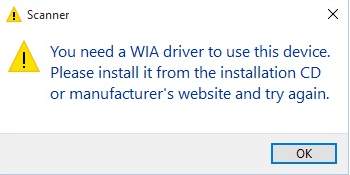
You don’t have WIA driver to use this device” Scanner Driver Error

By Susan C on September 26, 2018

You don’t have WIA driver to use this device” Scanner Driver Error
WIA-driver-error

Are you not able to use the scanner with your Windows computer? Are you getting a WIA driver missing error when using a scanner? If the answer is yes, this post is for you. It shows two simple solutions to fix the WIA driver error.

What is WIA?

WIA stands for Windows Image Acquisition or Windows Image Architecture. It is a proprietary Microsoft driver model and application programming interface that enable the graphics program to communicate with imaging devices like scanners.

If you are getting this error, it means there is no WIA driver installed in your Windows system. A simple solution is installing the WIA driver. Let’s get started.

Solution One – Install WIA driver manually

to install the driver manually, you will need the driver CD that is provided with the scanner. Put the driver CD in the DVD drive and install WIA driver. Its that simple.
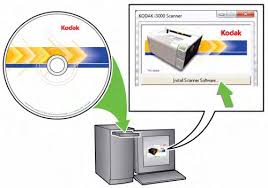
Kodak driver CD

if you don’t have driver CD, you have the option of downloading the required drivers from the device manufacturer website. Some of the popular scanner manufacturers are  Kodak, HP, Canon and many more. here are the steps to follow.

(Note – here we have shown step to download drivers for Kodak scanner. Use this steps for reference purpose only. We have SCANMATE i940 Scanner for which we are downloading drivers)

  • Open browser
  • Go to device manufacturer website
  • Look for search option on website and type scanner model number.
  • Look for a section like Driver and Downloads or anything similar
  • Once you reach the driver downloads section, choose your windows OS
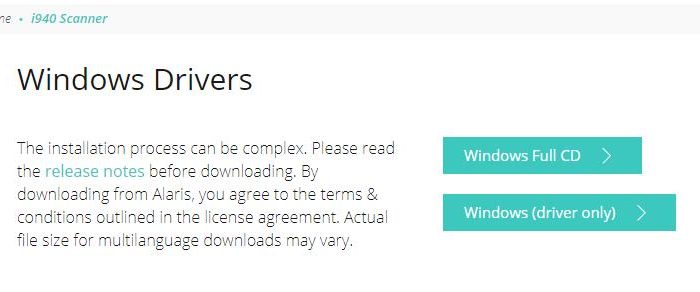
  • We get two options – the first option is the Download Windows Full It contains WIA driver and scanner software
  • The second option is the Windows driver only.
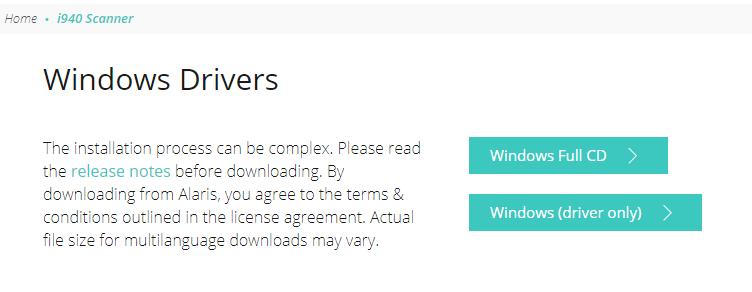
wia driver
  • We clicked on Windows driver only and the download started
  • Since the file is in exe format, double-click on the file to install WIA driver
  • After the WIA driver is installed successfully, reboot Windows

Now try opening scanner program to check whether the issue has been resolved. If the problem persists, move to next solution

Solution Two – Download and install WIA driver automatically

Installing drivers manually is often time-consuming. Worse, at times you might install an incompatible driver or not find the right driver. It’s much better to use a reliable driver update tool to update your drivers including the WIA driver.

Automatic driver update tools offer many benefits, the most important ones being:

  • You can update device drivers automatically
  • The software scans and updates all outdated or missing drivers at one go
  • The tool picks the right drivers for your device and operating system, so you won’t have to worry about installing an incorrect driver by mistake
  • Automatic driver updates are 100% safe

Driver Updater is one of the best driver update tools out there. Outbyte Driver Updater will give you access to a database of over 1 million drivers. It will regularly scan your PC, suggesting new driver versions to install. Driver Updater contains drivers for a variety of Windows devices. With just one click, you can update drivers in your system.

Step 1
Click here to Install and launch the app

Step 2
Scan all devices

Step 3
Install or update drivers automatically
 

Start Download


Filed Under: PC Fix Tips Tagged With: WIA driver error

How to install Marvell Avastar Wireless-AC Network Controller Driver on Surface tablet/laptop?

By Susan C on September 25, 2018

How to install Marvell Avastar Wireless-AC Network Controller Driver on Surface tablet/laptop?
marvell wireless driver

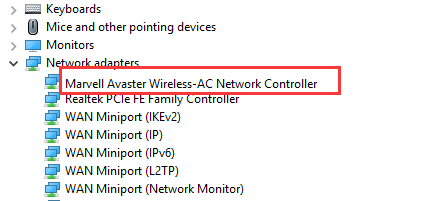
If you are facing problems connecting to the Internet on your Surface tablet, it is more likely there are some problems with the Marvell Avastar Wireless-AC Network Controller driver. It is the main wireless interface driver in your Microsoft Surface tablet that is used to connect to wireless networks.

Surface tablet only features Wireless connectivity and there is no Ethernet port. Therefore, you won’t be able to access the Internet on your Surface tablet until the wireless connectivity issue is resolved. If you are facing a similar problem with your Surface tablet, you are in right place. Here we have discussed a few solutions to resolve wireless connectivity issue in the Surface tablet.

We have offered two options- update drivers manually and update automatically. You are free to choose any solution to resolve the issue. Let’s get started.

Solution – Update wireless drivers manually on Surface

In this solution, you will be performing all steps like downloading and installing wireless drivers from the Internet manually. If you are not comfortable or want an easy option, we suggest you go to Solution Two and follow the steps given there. For users who want to do update drivers manually, here are the steps to follow.

(Note- since wireless Internet functionality of the Surface tablet is not working, you need to connect the Surface tablet to the Internet through a wired connection. The surface tablet does not have an Ethernet port, the Docking station features an Ethernet port that can be used for a wired connection)

In this solution, we have discussed two scenarios-

  • Your Surface tablet is able to connect to the Internet through a wired connection
  • Your surface tablet is not able to connect to the Internet through a wired connection

Case 1 – Your Surface tablet is able to connect to the Internet through a wired connection

If your Surface tablet is able to connect to the Internet through the wired connection you can download the wireless drivers directly to the Surface tablet and resolve the wireless issue. Here are the steps to follow.

Before downloading drivers

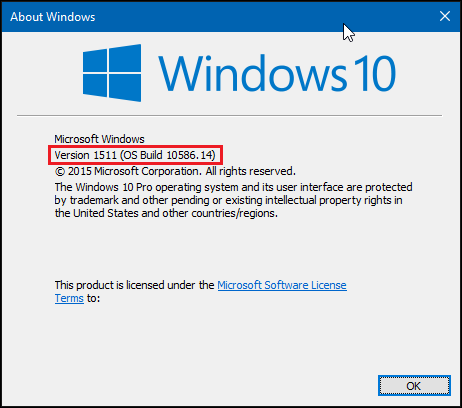
As you know Windows 10 has different versions and the version number changes after major Windows updates. You need to know the Windows 10 version number installed on your Surface tablet. Here are the steps to follow.

  • Click Start
  • Click Settings(gear icon)
  • Click System
  • Click About and locate the OS Build number
windows 10 build number

Step One – Download Drivers

  • Open a browser and go to the Microsoft Surface tablet website to download wireless drivers
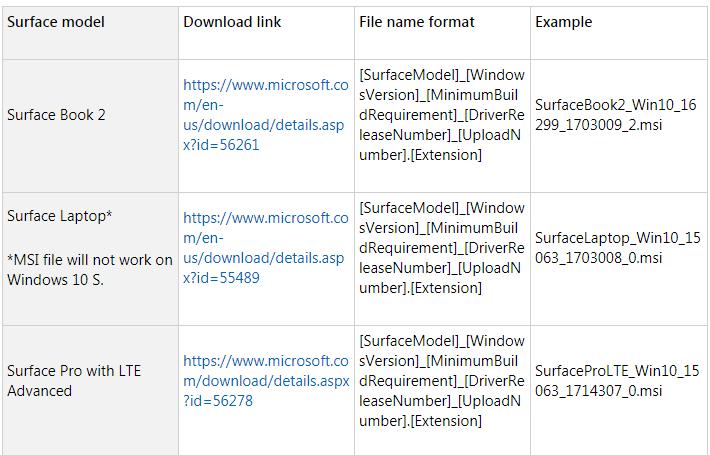
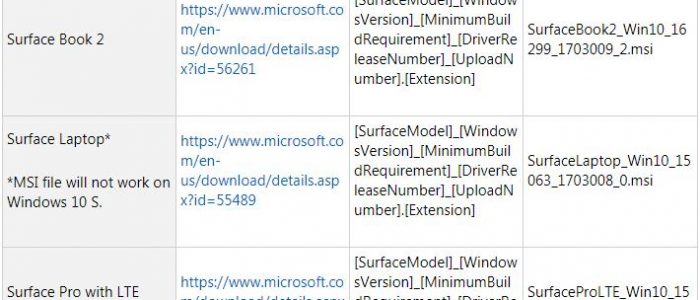
  • Look for your Surface model and click on the right download link to download the wireless The driver file would have Surface model number mentioned at the start in the name.
surface drivers list
  • A new tab opens, click Download
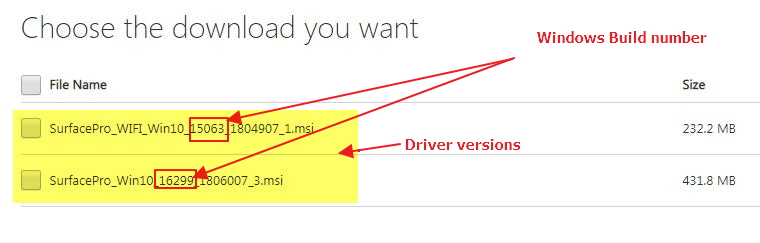
  • In the next page, you will see two options which are different versions of the driver for the same Surface model. The different versions mentioned in the name are actually Windows 10 version installed on your surface.
driver version
  • For example, in the above image, you can see two driver files
  • msi
  • msi.

In the first driver file, the 15063 number is the version number. In the second driver file, the number 16299 is the Windows 10 version number. You need to download the driver that is specifically recommended for your Windows 10 version on your Surface laptop.

  • Place a checkmark for the driver file you want to download and click Next
  • the drive file download starts automatically

Step Two- Extract the file

After you have downloaded the file, you need to extract the file and install the wireless driver. Here are the steps to follow

  • right-click on the driver file or Press and hold and select Extract All
  • Select Extract
  • On your Surface tablet, follow this folder path to reach wireless drivers. Select Drivers-> Network-> Wi-Fi
  • At the top of the ribbon, select View and select the File Name Extensions check box
  • right-click or press and hold the INF file
  • Select Install
  • When the installing of the wireless driver is completed, select OK
  • Restart your Surface tablet
  • After installing the wireless driver, you can delete the folders and the contents to free drive space

Case 2 – Your Surface tablet is not able to connect to the Internet through a wired connection

Since your Surface is not able to connect to the Internet, you need to perform the Step One and Step Two on your PC and then transfer the extracted file to Surface tablet and then perform the last 5 steps of the “Step Two- Extract the file” on the Surface tablet.

Solution Two – Update drivers using a Driver Update Tool

Automatic driver update tools offer many benefits, the most important ones being:

  • You can update device drivers automatically
  • The software scans and updates all outdated or missing drivers at one go
  • The tool picks the right drivers for your device and operating system, so you won’t have to worry about installing an incorrect driver by mistake
  • Automatic driver updates are 100% safe

Driver Updater is one of the best driver update tools out there. Outbyte Driver Updater will give you access to a database of over 1 million drivers. It will regularly scan your PC, suggesting new driver versions to install. Driver Updater contains drivers for a variety of Windows devices. With just one click, you can update drivers in your system.

Step 1
Click here to Install and launch the app

Step 2
Scan all devices

Step 3
Install or update drivers automatically
 

Start Download


Filed Under: PC Fix Tips Tagged With: install Marvell Avastar

Realtek High Definition Audio Driver Issue for Windows 10

By Susan C on September 25, 2018

Realtek High Definition Audio Driver Issue for Windows 10

Many Windows 10 users have complained about various sound problems after installing updates. One of the sound related complaints is there is no sound. This issue can be quite frustrating. Most of the times such sound issue occurs when drivers are not compatible with Windows 10 or sound drivers are missing altogether.

If you are facing a similar problem, don’t worry as we have provided 3 solutions that could fix the issue. Let’s get started

Realtek HD Audio Drivers

Step 1- Check sound drivers

Before you proceed to update drivers or make any changes to sound settings, you need to ensure the cause of the “no sound” issue is related to drivers. It’s quite easy to find out. All you need to do is open Device Manager and look for any problems with the sound driver.

Based on your findings, you can then proceed to choose the right solution to fix the issue. There are three probabilities when you check the sound drivers in Device Manger.

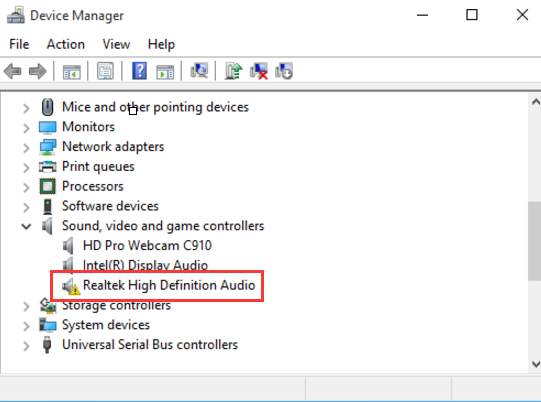
  • If you see a yellow exclamation mark besides the Realtek HD Audio, it means the drivers are incompatible or outdated. A simple solution to this problem is updating sound drivers
  • If you see a red cross besides the Realtek HD Audio, it means the drivers are missing. A simple solution to this problem is installing the right sound drivers
  • If you see there is no indicative sign besides Realtek HD Audio, you need to update drivers to see if it resolves the issue

Step 2 – Update Drivers

Here are the steps you need to follow

  • Press Windows logo key and R simultaneously to bring up the Run command console.
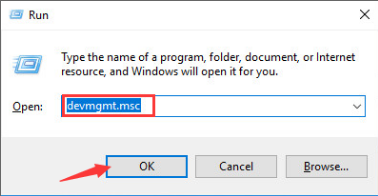
  • In the Run command box, type devmgmt.msc and hit Enter on keyboard
devmgmt
  • In the Device Manager window, go to Sound, video and game controllers and expand it
realtek audio-driver
  • Look for any signs like a yellow exclamation mark or a red cross besides Realtek High Definition Audio
  • If you see the yellow exclamation mark, go to Solution One.
  • If you see a red cross, go to Solution Two

Solution One – Updating Realtek sound driver through Device Manager

  • Open Device Manager and go to go to Sound, video and game controllers and expand it
  • right-click Realtek High Definition Audio and choose Update Driver Software
  • In the next window, click Browse My Computer for Driver Software.
  • Under Let me pick from a list of device drivers on my computer, select Install High Definition Audio Device.
  • Once you have completed the above steps, repeat steps 1-4, and then install the latest Realtek High Definition Audio Version.

Play any audio file and see if you can hear the sound. If the problem still persists, move to Solution Four

Solution Two – Download and install sound drivers from Realtek website

  • Open browser and go to Realtek portal
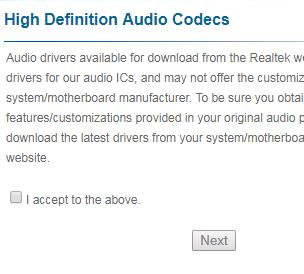
realtek website
  • Click the box – I accept to the above and click Next
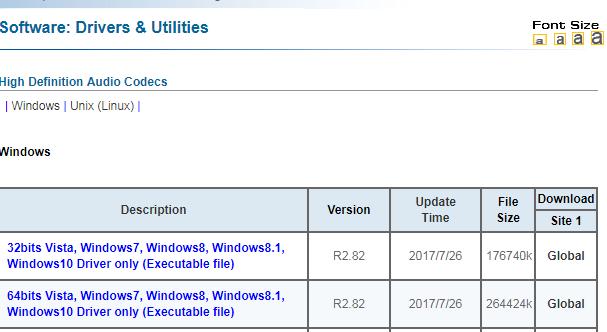
  • You can see the Realtek website offers different options for downloading sound drivers. If you have 32-bit Windows 10, download 32-bit sound drivers and if you have 64-bit sound drivers, download 64-bit sound drivers
realtek driver
  • The sound drivers are downloaded as an exe After the file is downloaded, double-click on the exe file to start the installation
  • Follow any instructions that appear on the screen  to install Realtek HD sound drivers

Open media player and play any audio or video file to check whether sound issue is resolved. If the problem persists, move to next solution.

Solution Three – Update sound drivers with Driver Update Tool

Automatic driver update tools offer many benefits, the most important ones being:

  • You can update device drivers automatically
  • The software scans and updates all outdated or missing drivers at one go
  • The tool picks the right drivers for your device and operating system, so you won’t have to worry about installing an incorrect driver by mistake
  • Automatic driver updates are 100% safe

Driver Updater is one of the best driver update tools out there. Outbyte Driver Updater will give you access to a database of over 1 million drivers. It will regularly scan your PC, suggesting new driver versions to install. Driver Updater contains drivers for a variety of Windows devices. With just one click, you can update drivers in your system.

Step 1
Click here to Install and launch the app

Step 2
Scan all devices

Step 3
Install or update drivers automatically
 

Start Download


Filed Under: PC Fix Tips Tagged With: Realtek Driver

  • « Previous Page
  • 1
  • …
  • 145
  • 146
  • 147
  • 148
  • 149
  • …
  • 189
  • Next Page »


  • Recent Posts
  • Popular Posts
        

Read More Posts


Read More Posts

Drivers.com Sites

  • Software Drivers
  • Drivers Ed

About Us

  • Advertise
  • About Drivers
  • Drivers Support
  • Drivers.com Privacy Policy
  • Disclaimer
  • Software Drivers
  • Mac Fixes and Tips
  • PC Fix Tips
  • Security/ Backup
  • Tablets & Smartphones
  • Tech News

© Copyright 2026 PDE Publications Ltd. End User License Agreement (EULA)