Drivers.com

follow us:

facebook twitter
  • Home
  • Download Drivers
  • Drivers Help
  • PC/Mac Resources
  • Software Drivers
  • Mac Fixes and Tips
  • PC Fix Tips
  • Security/ Backup
  • Tablets & Smartphones
  • Tech News
  • Software Drivers
  • Mac Fixes and Tips
  • PC Fix Tips
  • Security/ Backup
  • Tablets & Smartphones
  • Tech News

“Wacom tablet driver not found” error in Windows

By Susan C on September 17, 2018

“Wacom tablet driver not found” error in Windows

Wacom tablet is a popular device used by graphic designers to draw by hand and then capture the image in digital form. Since the tablet does not have its own display, you need to connect it to your PC in order to view the digital image you create.

wacom-driver-not-found-error image

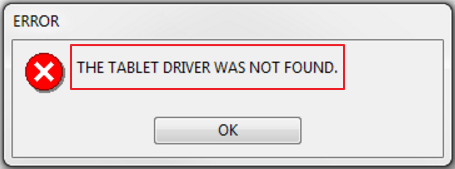
Many users have complained about an error “Wacom tablet driver not found” which results in Windows not able to identify the Wacom tablet. As a result they cannot use the Wacom tablet with the computer until the issue gets resolved.

If you are facing a similar problem, don’t worry as we have provided simple solutions that could fix the issue.

Solution One – Check Wacom tablet service

Wacom tablet service is an important software component in Window that manages the input and output for the Wacom tablet. For the Wacom tablet to work effortlessly, the Wacom tablet service should be running on Windows.

There is a possibility the Wacom tablet service is stopped or disabled which might be causing the error. A simple solution to this problem is restarting the Wacom tablet service.

Here are the steps you need to follow:

  • Close the drawing program you use with Wacom tablet
  • Click Start and type services in the search box
  • Select Services from the list of results
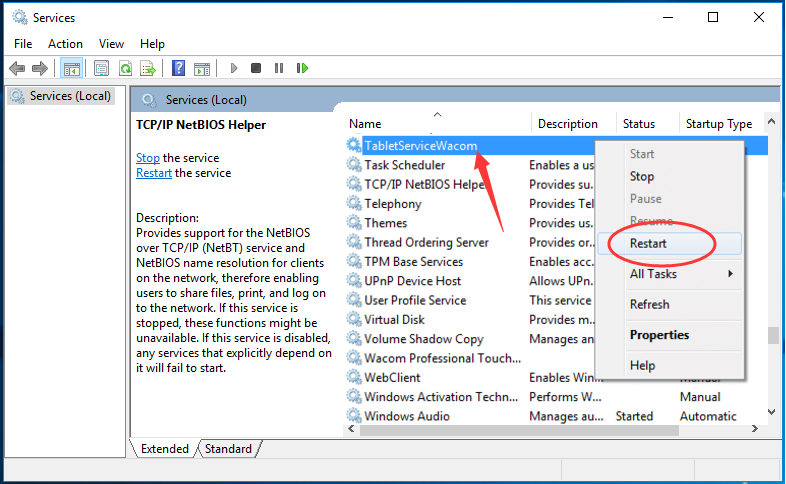
  • In the Services window, select TabletServiceWacom and right-click on it
tabletservicewacom
  • Select Restart from the menu

Once the service is restarted, reopen your drawing program and everything with your Wacom tablet should work. Try connecting your Wacom tablet to your Windows PC and check whether the connecting issue is resolved. If the problem persists, try next solution.

If this solution has worked for you, you might want to ensure you don’t encounter this error again. For this you need to change the Startup type for TabletServiceWacom. Here are the steps to follow.

  • Select TabletServiceWacom and right-click on it
  • This time select Properties from the menu
  • In the Wacom Tablet Service properties window, go to the General tab
  • In the Startup type field, select Manual from the drop-down list
  • Click Apply and then Click Ok
  • close all windows

Since the Startup type of TabletServiceWacom is set to Manual, you would need to start the TabletServiceWacom  by following the steps given above.  A simple solution to this problem is create a bat file that contains NET START “TabletServiceWacom” and place it in Startup folder. Here are the steps to follow.

  • Open a text file and type the following – NET START “TabletServiceWacom”
  • Save the text file with any name but make sure the extension of file is .bat. For example Wacomstart.bat
  • Place the file in following folder – C:\Users\YourUserProfile\AppData\Roaming\Microsoft\Windows\Start Menu\Programs\Startup

Solution Two – Install the Wacom driver as Admin user

One of the causes behind the error could be the Wacom driver was not installed by an Admin user and Windows might be blocking the Wacom driver due to lack of adequate rights. In such scenario, login as Admin user and then install the Wacom driver seems to be the only solution.

Here are the steps to follow.

  • Unplug Wacom tablet from the computer
  • Click Start-> Control Panel -> Programs and features
  • In the next window, right-click the Wacom tablet program and select Uninstall
  • When prompted for confirmation, select Yes
  • Wait for the program uninstallation to complete.
  • Click Start and type device manager in search box
  • Select Device Manager from the list of results
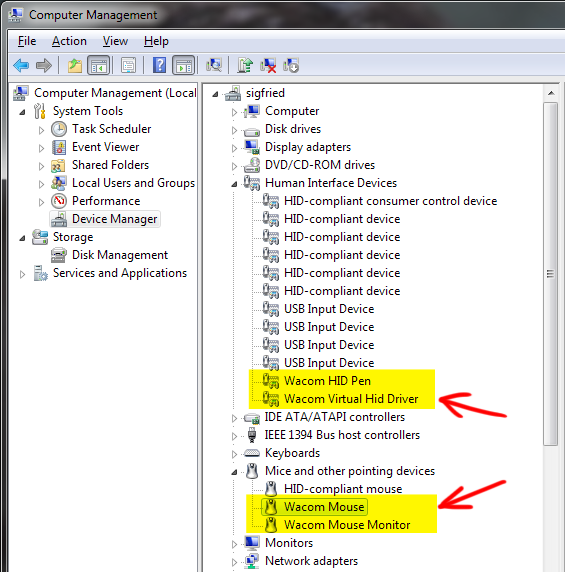
  • In the Device Manager window, go to Human Interface Devices category and expand it
Device Manager
  • Look for Wacom entries in the list. The most common Wacom entries in this category are Wacom HID Pen, Wacom Virtual Hid Driver.
  • right-click on first Wacom entry and select Uninstall
  • Repeat the above step for all Wacom entries in the category. You need to uninstall all Wacom devices entries from Device Manager
  • Now go to Mice and other pointing devices category and expand it.
  • Look for Wacom entries in the list. The most common Wacom entries in this category are Device Manager are Wacom Mouse, Wacom Mouse Monitor.
  • right-click on first Wacom entry and select Uninstall
  • Repeat the above step for all Wacom entries in the category. You need to uninstall all Wacom devices entries from Device Manager
  • After you have uninstalled all traces of Wacom device from Device Manager, reboot your computer
  • Open a browser and go to Wacom drivers site
  • Download Windows driver from the website
  • Wait for the file to download completely
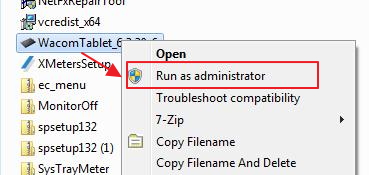
  • Once the file is downloaded, right-click on the setup file and select Run as administrator
run as admin
  • follow on-screen instructions to install the Wacom driver
  • After the driver is successfully installed, connect Wacom tablet to your computer and open the drawing program

In most cases, the “Wacom tablet driver not found” error would be resolved. However, if the problem persists, move to next solution.

Solution Three – Update Drivers

Outdated drivers can also cause this problem. If nothing else has worked, it will be worth the while to update your drivers. We recommend you use a driver update tool for this purpose, as such tools make it super easy to update all outdated drivers on your computer.

Automatic driver update tools offer many benefits, the most important ones being:

  • You can update device drivers automatically
  • The software scans and updates all outdated or missing drivers at one go
  • The tool picks the right drivers for your device and operating system, so you won’t have to worry about installing an incorrect driver by mistake
  • Automatic driver updates are 100% safe

Driver Updater is one of the best driver update tools out there. Outbyte Driver Updater will give you access to a database of over 1 million drivers. It will regularly scan your PC, suggesting new driver versions to install. Driver Updater contains drivers for a variety of Windows devices. With just one click, you can update drivers in your system.

Step 1
Click here to Install and launch the app

Step 2
Scan all devices

Step 3
Install or update drivers automatically
 

Start Download


Filed Under: PC Fix Tips Tagged With: Wacom tablet error

How to make YouTube videos load faster?

By Susan C on September 15, 2018

How to make YouTube videos load faster?

YouTube buffering is not a new issue for Internet users and things have not changed much, either. However, there can be several reasons for the “YouTube is slow” issue.

Some of the reasons could be slow speed of your internet connection, overloading of the portal (youtube.com) or browser issues.

In this post, we have provided some solutions that could fix the YouTube slow speed issue.

Before proceeding to solutions, here are few checks that you need to consider.

Before trying solutions

Firstly you need to check your internet connection is steady and the Internet connection is not slow. On an average, you need 5 to 6 mbps Internet connection speed to watch HD quality videos. Though you might have a 5-6 mbps internet connection, there is no guarantee your computer is receiving all Internet bandwidth.

In many cases, the Internet bandwidth is shared between devices connected to your Wi-Fi network and the average Internet speed that your computer is receiving can be much lower than your actual Internet connection speed.

You need to also check there is not any outage which could create a problem for your internet connection. Once you have confirmed there is no problem with your Internet connection, you can proceed to the solutions given below.

Solution One – Make a small change in the URL

No one knows why this tricks exactly works, but many users have found this trick useful. So you should try it to and see if the slow YouTube issue is resolved. Here are the steps to follow

  • Play YouTube video in the browser
  • Replace www in the URL with ca

For example – https://www.youtube.com/watch?v=mPJCZl6UVM8 to https://ca.youtube.com/watch?v=mPJCZl6UVM8

Solution Two – Change the default video quality setting

There is no way to know the exact reason for YouTube buffering. However, playing the video at a lower resolution might reduce YouTube buffering and you can enjoy stutter free playback experience when watching YouTube videos.

The default video quality setting of YouTube is dynamic and depends on the quality of the Internet connection. It may also change if the quality of the Internet connection improves or degrades. However, a user can change the video quality of any video he/she is watching on YouTube.

If you are experiencing buffering issues while playing a certain YouTube video, you can lower the video quality setting to reduce buffering. Here are the steps to follow.

  • Play any YouTube video you want in the browser
  • Click the gear icon that appears on the right corner of the player

gear icon

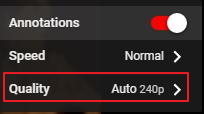
  • Click Quality

quality

  • Select any lower video resolution than what appeared in Auto resolution.

video resolution

Note – In our case, the auto resolution was 240p so we need to select 144p which is the only lower resolution available for the video we played. The highest and lowest video resolution is different for every YouTube video.

  • If you have more than one lower quality, select it one after another and see if the video buffering vanishes.

If the steps in this solution did not resolve the slow YouTube issue, move to next solution

Solution Three – Clear Browser Cache and temporary files

When you load a webpage or any YouTube video for the first time, your browser stores it in cache so that it can load the video faster next time. This may work well if you want to repeatedly see the video but not if you want to watch a new video on YouTube

Over time the size of the cache and temporary files grows to big proportion and slows down the browser. If you have not cleared browser cache and temporary files for a long time, it could be the reason behind YouTube being so slow.

Clear the browser cache and temporary files and check whether YouTube speed has improved. Follow these steps to clear browser cache

For Google Chrome

  • Launch Chrome
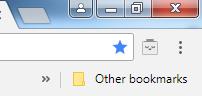
  • To access Chrome settings, click the three vertical dots that appear at the right corner of the address bar

chrome settings

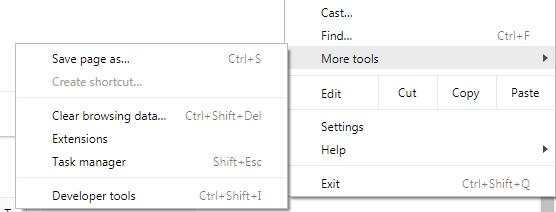
  • In the dropdown menu, click More tools and then click Clear browsing data

chrome more tools

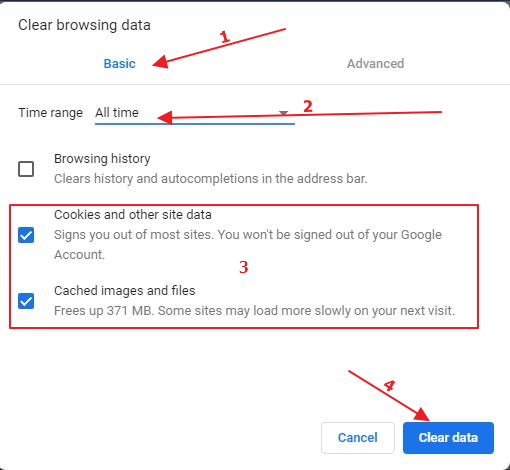
  • In the Clear browsing data window, go to the Basic tab
  • clear browsing data
  • In Time range, select All time
  • Check mark following options – Cookies and other site data and Cached images and files
  • Click Clear data

 For Firefox

  • Launch Firefox
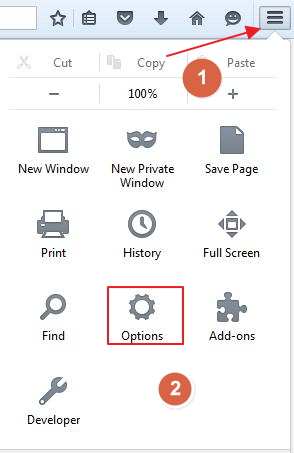
  • To access Firefox settings, click the three horizontal lines that appear at the right corner of the address bar
  • In the dropdown menu, click Options

firefox options

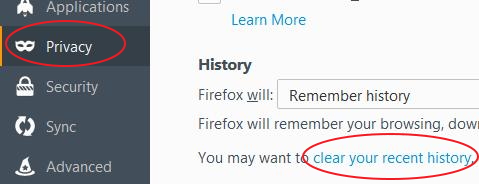
  • In the Settings window, click Privacy in the left pane
  • click clear your recent history in the right pane

firefox clear history

  • In the Clear Recent history window, select Everything for Time range to clear
  • Check mark following options – Browsing and download history, cache, offline website data
  • Click Clear now

Solution Four – Update Flash

This solution is for select Firefox users. If you are using Firefox versions 36, 37, 38, 39, your browser might be using Flash to play YouTube videos.

From Firefox version 40 onwards, HTML5 is the default player for YouTube videos. To update flash player on your computer, visit Adobe website and install the newest version of Flash player.

In Chrome, HTML5 is the default video player for YouTube. If you are using other browsers other than Chrome or Firefox, you need to check if the browser version installed on your computes uses Flash or HTML5 player for YouTube website.

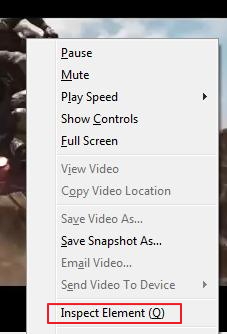
A simple way to check this is right click the YouTube video player in your browser and select Inspect Element from the menu

firefox inspect element

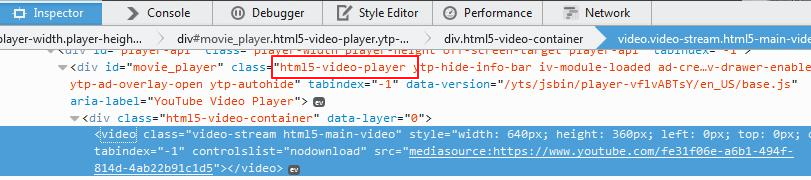
You will see the code for the page which also mentions player.  Here we have presented result for FireFox browser.

firefox html5

Solution Five – Block CDN IP addresses used by YouTube

Majority of the YouTube content you watch in your browser is delivered by Content Delivery Networks. YouTube uses a CDN network closest to the user location to deliver the content faster and help the user get the best possible experience.

Also, different CDNs server might be storing different cached videos. YouTube buffering might be the result of the CDN server experiencing high traffic.

Some ISP’s limit the connection between you and these CDNs which affect the YouTube loading speed. Blocking the IP addresses of these CDNs can resolve the problem.

When you block CDNs IP addresses your browser/network skips CDS and video actually starts buffering from YouTube server itself. Here are the steps to follow.

  • Click Start
  • Type cmd in the search bar
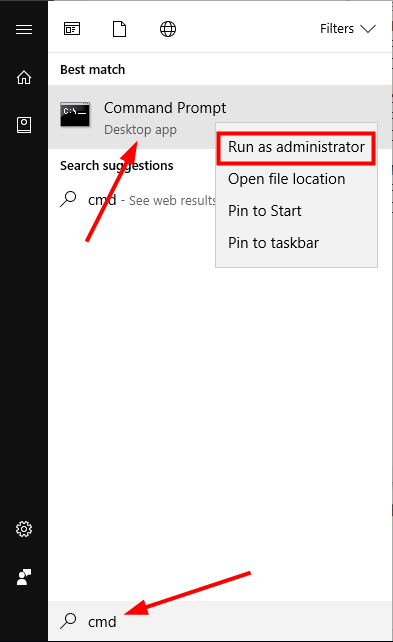
  • Right-click cmd from the list of results and select Run as administrator
  • In the command prompt window, type the command given below hit Enter on the keyboard

netsh command

  • netsh advfirewall firewall add rule name=”YouTubeTweak” dir=in action=block remoteip=173.194.55.0/24,206.111.0.0/16 enable=yes
  • Wait for command operation to complete
  • Close the command prompt window
  • To enable access to CDNs again, open command prompt with administrator rights and type following command in command prompt window and press Enter
  • netsh advfirewall firewall delete rule name=”YouTubeTweak”

Open any YouTube video in the browser and see if the speed problem is resolved. If this solution does not resolve slow YouTube issue, move to next solution

Solution Six – Use VPN

Since YouTube content uses loads of data, some ISP’s may be throttling your Internet connection without you knowing it. When you use VPN, all incoming and outgoing traffic is masked by encryption, it would be hard for ISP to know which websites you are visiting and it might not limit your internet connection.

There are several free and paid VPN services. Select a good VPN service and start using it to reduce or eliminate YouTube buffering issues.

Filed Under: PC Fix Tips Tagged With: YouTube Slow

Steam error – Could Not Connect to Steam Network

By Susan C on September 13, 2018

Steam error – Could Not Connect to Steam Network
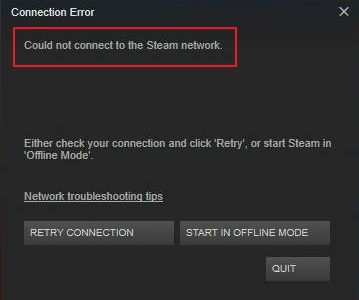
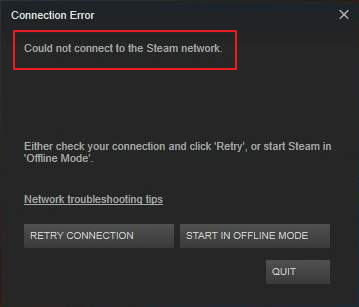
could-not-connect-to-steam-network-error

Steam is an online gaming platform that is very popular with gamers. However, sometimes, like with every other game, you might encounter an error with it.

Many users have complained of an error that says “Steam is having trouble connecting to the Steam servers”  or “Unable to connect to Steam network”. If you are getting this error, it means your Steam client was not able to connect to Steam network and you can’t participate in online gaming.

In this post, we’ll discuss four solutions that could help resolve the issue.

Solution One- Change Steam Client’s Internet Protocol

The steam client uses the UDP (User Datagram Protocol) protocol to transmit and receive data from the Steam server. You can try using TCP internet protocol which is more reliable but slower than UDP. Here are the steps to follow.

  • Press Windows logo key and R simultaneously on the keyboard to launch Run command console
  • In the Run command box, type taskmgr and hit Enter on the keyboard
  • In the Task Manager window, go to Processes tab and select the Steam related process and click End task
  • Repeat the above step to find all Steam related process like Steam Client bootstrapper (32-bit), Steam Client Webhelper (32-bit), Steam client service (32-bit) and end all tasks.
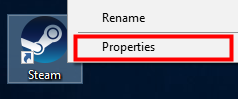
  • If you have a exe shortcut on the desktop, right-click on it and select Properties
steam properties
  • If you don’t have a exe shortcut on the desktop, you have to create one before performing next troubleshooting steps. To create a shortcut, follow the steps given below
  • Open Run command box again
  • In the Run command box, type C:\Program Files (x86)\Steam and hit Enter on the keyboard
  • (Note- If you have installed Steam client in a different folder, you need to navigate to the folder before performing the steps given below)
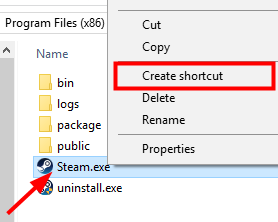
  • When the Steam installation folder opens, locate the exe file and right-click on it
  • Select Create Shortcut from the menu
steam.exe create shortcut
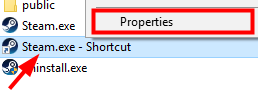
  • Once the shortcut is created in the folder, right-click Steam.exe shortcut and select Properties
Steam shortcut properties
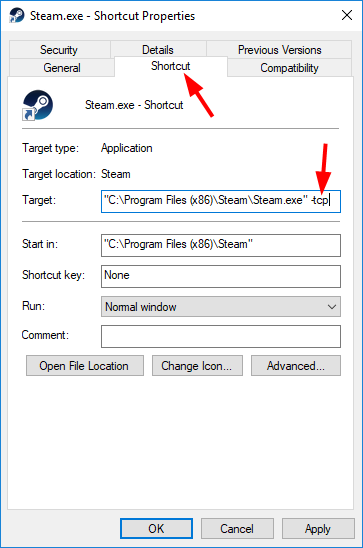
  • In the Steam.exe Shortcut Properties dialog box, go to Shortcut tab
  • In the Target field, type –tcp at the end. After typing tcp at the end, the value in the target field should look like the image given below.
steam.exe-tcp
  • Click Apply and then click OK
  • Close all windows

Launch Steam client on your computer and see if it is able to connect to Steam servers. If the connection error persists, move to next solution.

Solution Two- Troubleshoot your Internet connection

You cannot rule out the possibility of some problem with your Internet connection. You can perform some checks to ensure the Internet connection is not the cause of the connecting issue for Steam client.

Check the modem and router and see if they are working as intended. Launch the browser and try surfing the Internet. Are you experiencing any problem visiting websites? Or Is the Internet connection too slow?

If you have made changes to network settings recently, revert the settings and see if Steam Client is able to connect to Steam servers.

If you do not find any problem with your Internet connection, perform the troubleshooting steps given below.

  • Press Windows logo key and R simultaneously on the keyboard to launch Run command console
  • In the Run command box, type cmd and click OK
cmd run as admin
  • Right-click on command prompt from the results and select Run as administrator
  • In the command prompt window, type following commands and hit Enter on the keyboard after typing each command. Wait for the command operation to complete before typing next command in the list
  • ipconfig /release
  • ipconfig /all
  • ipconfig /flushdns
  • ipconfig /renew
  • netsh int ip set dns
  • netsh winsock reset
  • After you have executed all commands given above, close command prompt window

Launch Steam client and check whether the connection issue is resolved. If the problem persists, move to next solution.

Solution Three –Reinstall Steam client

There is a possibility some of the Steam files are corrupt that is causing a connecting problem. In such scenario, you need to uninstall the Steam program completely and then reinstall it again. But before that, you would like to backup games that you have downloaded. Here are the steps to follow

Steps to backup downloaded Steam games

  • Open the Steam installation folder – C:\Program Files (x86)\Steam
  • In the Steam folder, locate the folder named Steamapps and move the folder contents to a safe place in your computer.
steamapps

Steps to uninstall Steam program

  • Click Start -> Control Panel
  • In the Control Panel, click Programs and features
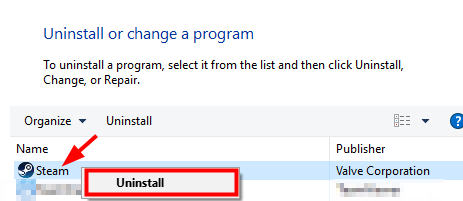
  • In the next window, select the Steam program in the list and right-click on it
  • Select Uninstall
steam uninstall
  • Follow –on screen instructions to uninstall the Steam program completely
  • After the Steam program is uninstalled, reboot your computer. This is necessary as some files can be only deleted at next system restart
  • After rebooting your computer, install the Steam program with recommended settings

Launch the Steam program and check whether the Steam client can connect to the Steam server. If the Steam connection problem is not resolved, move to next solution

Solution Four – Update Network Drivers

You can get this error if your network drivers are outdated. The simplest way to fix this issue is to update your drivers using a reliable and fast driver update tool.

Automatic driver update tools offer many benefits, the most important ones being:

  • You can update device drivers automatically
  • The software scans and updates all outdated or missing drivers at one go
  • The tool picks the right drivers for your device and operating system, so you won’t have to worry about installing an incorrect driver by mistake
  • Automatic driver updates are 100% safe

Driver Updater is one of the best driver update tools out there. Outbyte Driver Updater will give you access to a database of over 1 million drivers. It will regularly scan your PC, suggesting new driver versions to install. Driver Updater contains drivers for a variety of Windows devices. With just one click, you can update drivers in your system.

Step 1
Click here to Install and launch the app

Step 2
Scan all devices

Step 3
Install or update drivers automatically
 

Start Download


Filed Under: PC Fix Tips Tagged With: Steam Error

  • « Previous Page
  • 1
  • …
  • 147
  • 148
  • 149
  • 150
  • 151
  • …
  • 189
  • Next Page »


  • Recent Posts
  • Popular Posts
        

Read More Posts


Read More Posts

Drivers.com Sites

  • Software Drivers
  • Drivers Ed

About Us

  • Advertise
  • About Drivers
  • Drivers Support
  • Drivers.com Privacy Policy
  • Disclaimer
  • Software Drivers
  • Mac Fixes and Tips
  • PC Fix Tips
  • Security/ Backup
  • Tablets & Smartphones
  • Tech News

© Copyright 2026 PDE Publications Ltd. End User License Agreement (EULA)