Drivers.com

follow us:

facebook twitter
  • Home
  • Download Drivers
  • Drivers Help
  • PC/Mac Resources
  • Software Drivers
  • Mac Fixes and Tips
  • PC Fix Tips
  • Security/ Backup
  • Tablets & Smartphones
  • Tech News
  • Software Drivers
  • Mac Fixes and Tips
  • PC Fix Tips
  • Security/ Backup
  • Tablets & Smartphones
  • Tech News

Generic PnP monitor issue in Windows 7, 8.1 and 10

By Susan C on September 7, 2018

Generic PnP monitor issue in Windows 7, 8.1 and 10

Windows updates do not always go as planned and many unexpected problems crop up. One of the problems that many users have encountered is display driver goes missing and the Device Manager shows a generic PnP monitor. Let’s see more about this problem in detail.

What is Generic PnP and why does it matter?

Generic PnP monitor means your computer is using generic drivers for the display attached. Though it may not seem a problem, it does have some drawbacks.

If you are accessing video streaming websites like Netflix, watching HD movies or playing games, you might see the screen freeze with a constant tone. Also, Generic Plug n Play monitor supports a maximum resolution of 1024 x 768 even when the native resolution supported by your monitor may be higher (1080 p or higher).

The reason for this problem is your computer is not using monitor drivers (particular to the model) that you had installed. Instead, it is using generic drivers and your display is categorized as Plug n Play monitor with no access to additional settings. That means you would not be able to set the resolution of the screen nor the refresh rate, which is important for gaming or video streaming.

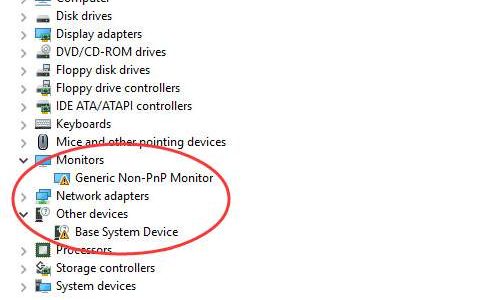
If you check the Device Manager, you would see a yellow exclamation mark beside the generic PnP monitor entry indicating the right driver for the monitor is not installed.

Now let’s look at the solutions to resolve this issue.
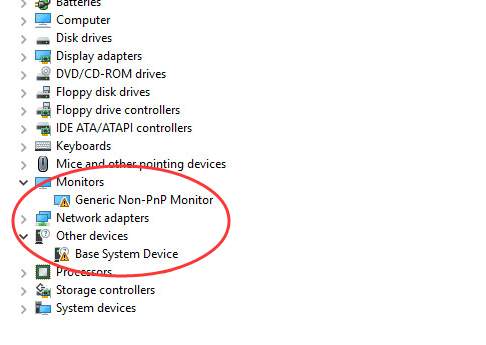
generic pnp monitor

We have provided you with two solutions that could fix the generic PnP monitor issue. You don’t need to try both solutions.

The best way to start is to perform the troubleshooting steps in Solution One. If it does not resolve the issue, only then move to Solution two.

Solution One- Update Driver through Device Manager

  • Press Windows logo key and R simultaneously on the keyboard to bring up the Run command console
  • In Run command box, type devmgmt.msc and click OK
  • In the Device Manager window, go to Monitors category and expand it
  • right-click Generic PnP monitor and choose Update Driver Software
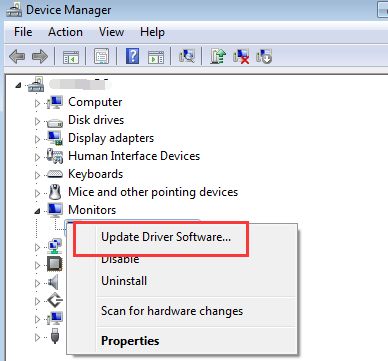
update driver software
  • In the next window, click Search automatically for updated driver software
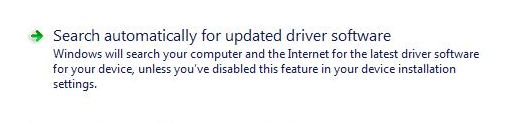
search automatically driver

Windows will now search for drive online. In most cases, Windows fails to find the right driver. In that case, you need to try another way to update display drivers.

  • Go to Monitors category again and right-click Generic PnP monitor
  • Click Update Driver Software
  • In the next window, click Browse my computer for driver software

browse my computer
  • Click Let me pick from the list of device drivers on my computer
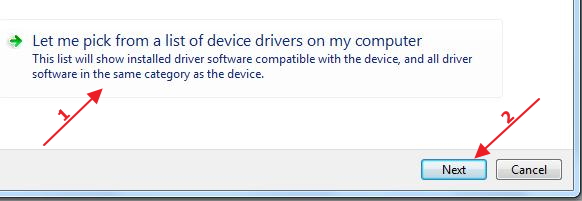
let me pick
  • See whether Show compatible hardware option is checked. If there is check in the box, click the box to uncheck
  • Now you can see a list of manufacturers in left pane and Models in the left pane
  • Select the display manufacturer and then select the right native resolution supported by the display
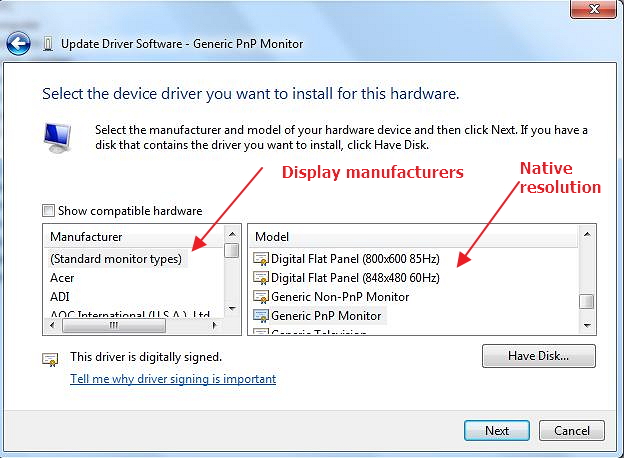
display models
  • Click Next and follow on-screen instructions to install display drivers
  • Close all windows

If this method of updating driver does not work for you, move to the next solution.

Solution Two- Use Driver Update Tool to update display drivers

Automatic driver update tools offer many benefits, the most important ones being:

  • You can update device drivers automatically
  • The software scans and updates all outdated or missing drivers at one go
  • The tool picks the right drivers for your device and operating system, so you won’t have to worry about installing an incorrect driver by mistake
  • Automatic driver updates are 100% safe

Driver Updater is one of the best driver update tools out there. Outbyte Driver Updater will give you access to a database of over 1 million drivers. It will regularly scan your PC, suggesting new driver versions to install. Driver Updater contains drivers for a variety of Windows devices. With just one click, you can update drivers in your system.

Step 1
Click here to Install and launch the app

Step 2
Scan all devices

Step 3
Install or update drivers automatically
 

Start Download


Filed Under: PC Fix Tips Tagged With: generic monitor issue

How to use DualShock3 (PS3) controller on PS4

By Susan C on September 4, 2018

How to use DualShock3 (PS3) controller on PS4

If you have both PS3 and PS4 consoles, you might be wondering if the PS3 controller can be used with PS4.

Many times we get used to older things so much so that even when we get better or advanced things our love and preference stays with the older thing. Same things happen with many gamers and they want the PS3 controller to work with PS4 console.

Though PS4 controller is more advanced than its predecessor, you need time to get used it. Many gamers feel it would be great if they could connect PS3 controller to PS4 and enjoy latest games which the new console has to offer.

If you want the same thing, this post is for you.

Can you use PS3 controller with PS4 console?

The official answer is No—but don’t lose heart.

The Sony PlayStation website and gaming forums clearly mentions that the PS3 and PS4 are two different devices and the DualShock PS3 controller is not compatible with PS4.

However, don’t worry as there are workarounds that makes this possible.

The DualShock PS4 controller used with PS4 is much more advanced than its predecessor (the PS3 controller). One of the big differences is touch screen. Also, PS4 console has several advanced features incorporated which are needed to play latest games on PS4.

Despite all this negative thumping, we can surely help you to get the PS3 controller work with PS4 console.

How to use DualShock PS3 controller on PS4?

We have mentioned about workarounds that can make this possible.

You need to use a controller converter device to achieve this feat.  When PS4 was launched, many gaming and technology companies searched for ways in which old hardware (PS3 controller) can be used with new PS4.

Their efforts bore fruit in the form of controller converter or adapter. The controller adapter is a device that allows you to use your favorite controllers on any gaming console.

One of the advantages of using controller adapter is you can use any of your old controller and need not spend money on buying new controllers.

There are several controllers’ adapters available online. You can buy any controller that you like or that fits in your budget.

Before selecting any controller converter, make sure it works with PS3 controller and PS4 console.  Here we have discussed two popular controller converters – Brook and CronusMAX Plus, both can help you use PS3 controller with PS4 console.

Method One – Use CronusMax Plus as Controller Converter

A CronusMax plus Controller Converter can allow you to use PS3 controller with PS4 console. You can purchase CronusMax Plus online and get started. After you have purchased the CronusMax Plus, you need to download Cronus Pro and install it on your computer.

If you are not sure about how to install the software on your computer, you can read the manual available at their website.

After you have completed the installation, you will need to configure the Cronus Pro software so that it can work with the CronusMax Plus connector converter.

Here are the steps you need to follow.

Step One= Unpair DualShock4 from the PS4

Before you pair the PS3/DualShock3 controller with PS4, you need to unpair the DualShock4 that is earlier wirelessly paired with PS4. Here are the steps to follow.

  • Connect the DualShock4 to CronusMax Plus with the mini-USB cable.
  • Now connect the CronusMax Plus to the PS4 Console
  • Power on the PS4 console
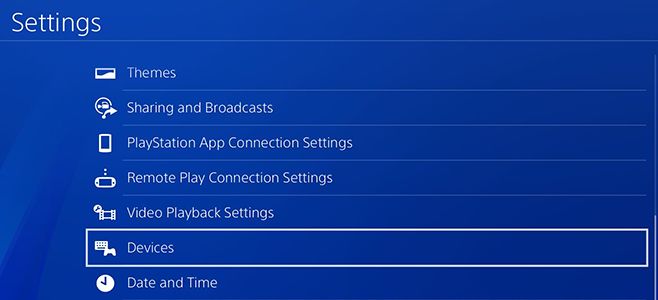
  • On the PS4 console, select – Settings
PS4 settings
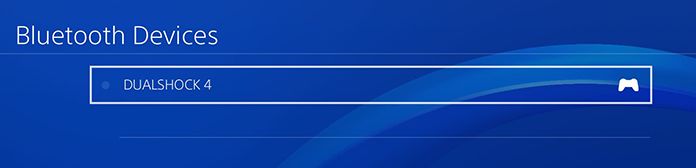
  • Select Devices-> Bluetooth devices
PS4 devices
  • Select the DualShock4 controller from the list
PS4 DS4
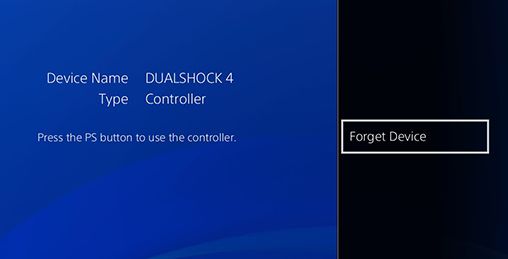
  • Select Forget Device from the right-hand pane
DS4 forget device
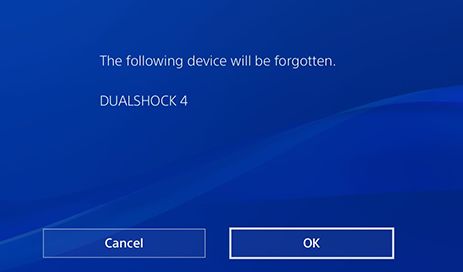
  • In the next screen, select OK

<DS4 OK

Now that you have unpaired the DualShock4 from the PS4 controller, you can go ahead with the process of pairing DualShock3 with PS4 console through CronusMax Plus.

Step Two – Prepare CronusMax Plus for PS4 console and DualShock3 controller connection

  • Use the mini-cable provided to connect the CronuxMax Plus adapter to your PC. Some USB 3.0 ports (blue colored) do not work well with the connector adapter, so we recommend connecting the mini-cable to one of the USB 2.0 port.
  • Now launch Cronus PRO software on your computer and click in following order – Tools -> Options
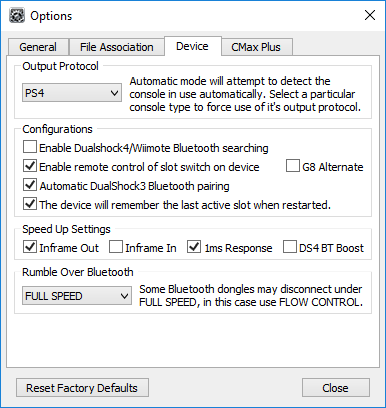
  • In the Options window, go to Device tab
  • In the Output Protocol, select PS4
output protocol
  • In the Configurations section, check mark following options
  • Enable remote control of slot on each device
  • Automatic DualShock3 Bluetooth pairing
  • The device will remember the last active slot when restarted
  • In the Speed Up Settings section, check mark following options- Inframe out and 1ms Response
  • After you have made recommended settings above, click Close
  • In the Options window, go to CMax Plus
  • In the CMax Plus configuration section, put a check mark for the option Enable PS4 Partial Crossover support.
  • Click Close to close the options window

Step Three – Pairing DualShock3 controller with CronusMax Plus

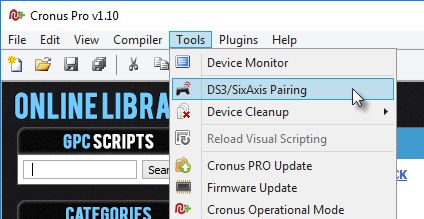
  • Open Cronus Pro and click Tools
  • In Tools menu, select DS3/SixAxis pairing
DS3-Sixaxis pairing
  • Now take the Bluetooth USB adapter that is provided with CronusMax Plus and insert the Bluetooth USB adapter into input port of CronusMax Plus
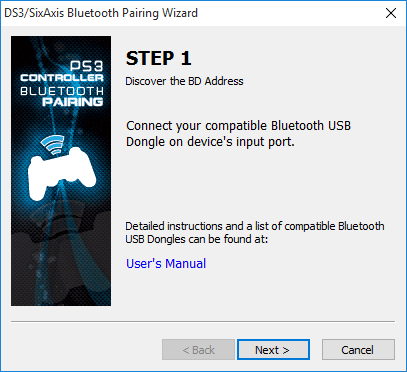
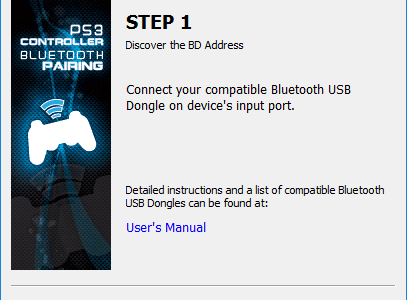
  • You will now see a DS3/SixAxis Bluetooth pairing wizard appear on your computer screen
  • In Step 1, click Next to continue
DS3 pairing step 1
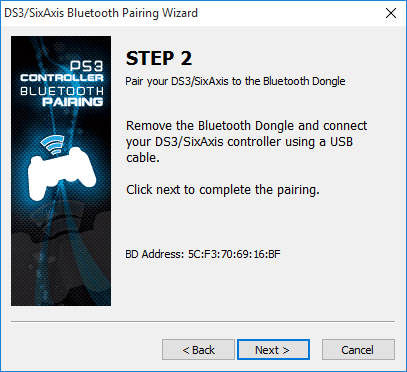
  • When the Step 2 of DS3/SixAxis Bluetooth pairing wizard appears on the screen, do the following
ds3 pairing step 2
  • Remove the Bluetooth USB adapter from the CronusMax Plus input port and connect your DualShock3 controller to CronusMax Plus using a mini-USB cable
  • Click Next
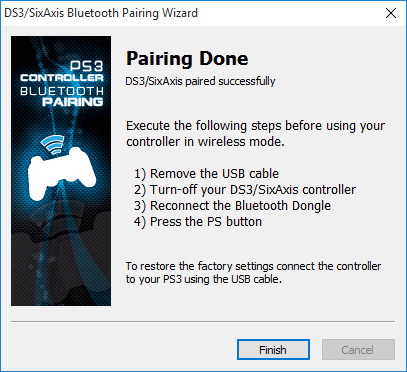
  • The pairing is now complete and the CronusMax Plus has paired the Bluetooth USB adapter with your DualShock3 controller. Click Finish to close window.
pairing done finish
  • Now you need to disconnect the DualShock3 controller from the CronusMax Plus adapter by unplugging the mini-USB cable that connects them
  • You can also remove CronusMax Plus from your computer

Step Four – Connecting DualShock3 controller to PS4

  • Connect the CronusMax Plus into one of the USB ports on your PS4 console.
  • After the CronusMax Plus is connected to PS4 console, you should see spinning standby animation in the LED panel of CronusMax Plus
  • Now connect the Bluetooth USB adapter to the input port of CronusMax Plus connector
  • Switch on the DualShock3 controller by pressing PS button
  • After few seconds the LED panel of the CronusMax Plus should go from spinning standby animation to a number (0 or any other number which depends on the slot it is connected to). This indicates the DualShock3 is connected to PS4 console and you can enjoy games.

Note- since we have used the PS4 Partial crossover support, the PS4 console will check the controller after every 10 minutes. You will receive a disconnecting and reconnecting messages during the game but don’t worry these messages won’t interrupt your gaming and the games will run smoothly.

Solution Two- Use Brook connector converter

Brook is another connector converter that would help you connect DualShock3 connector to PS4. In comparison to CronusMax Plus, it is a relatively simple device that needs fewer configuration steps to work.

Here are the steps to follow.

  • Insert the Brook connector converter into one of the USB ports of PS4 console.
  • Now using a mini- USB cable connect the DualShock3 connector and Brook Connector
  • You would see the LED1 on the DualShock3 blinking that indicates the connection is complete
  • you can remove the mini USB cable connecting the DualShock3 connector and Brook connector
  • Now try playing games using DualShock3 connector

If you are looking to play your Playstation 4 on a Mac or PC then view our article here.

Filed Under: PC Fix Tips Tagged With: PS3 controller on PS4

Windows 7 updates not downloading

By Susan C on September 2, 2018

Windows 7 updates not downloading

While Windows 7 is not a new operating system anymore, many choose to stick with it because they are either so comfortable with it that they don’t want to change their operating system or reluctant to learn the ways of a new operating system.

Like newer Windows versions, Windows 7, too, has its share of problems. For instance, sometimes the updates stall for no good reason.

Microsoft regularly releases updates to fix issues with and improve performance of its operating system. However, when the feature that is supposed to resolve issues and better performance starts giving problem, it can be rather frustrating.

That said, you don’t need to worry about the Windows 7 updates not downloading issue because in this post we have provided several solutions to it.

Start with the first troubleshooting step and move to the next one and so on until you’re able to fix the issue. We also recommend you to leave us a comment telling us which of these solutions worked for you.

However, before we look at the solutions, let’s learn a bit more about this error.

The Error Message

A very useful feature, Windows Update can prove problematic sometimes. Windows 7 users have frequently complained about not able to download Windows Update.

What happens is the Update feature simply stands still at 0% while the download process is on and refuses to move any further.

You’re likely to encounter the following error message when this happens.

Win-7-updates-not-downloading

There are several ways to fix this issue. In this post, we’ve discussed the following six solutions:

  • Run Troubleshooter
  • Download Windows updates manually
  • Reset Windows Update Service
  • Update Windows Update Agent
  • Turn off Windows Firewall
  • Do a Clean Boot

Solution #1 – Run Troubleshooter

Did you know that Windows 7 come with an inbuilt troubleshooter which can assist you in fixing issues on your Windows system?

This tool can assist you in fixing this issue, too.

To use the inbuilt troubleshooter, perform these steps:

  • Click the Windows icon in your taskbar, type “troubleshoot” in start search box and then press Enter
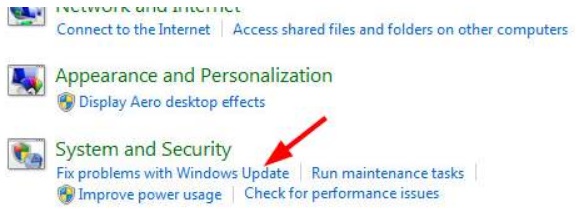
  • Scroll down the window until you see System and Security Click Fix problems with Windows Update (the first entry below the heading)
system and security
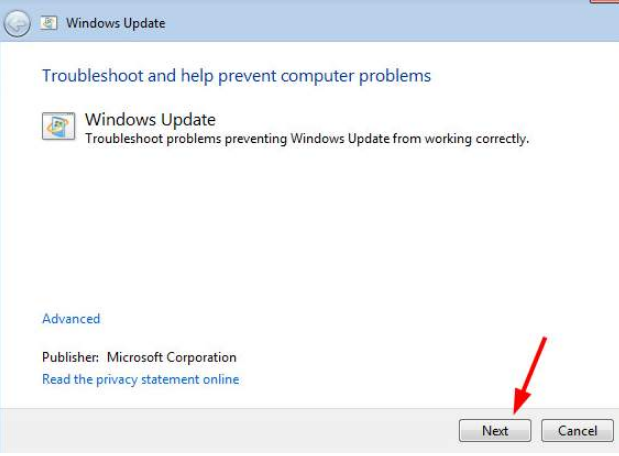
  • A Windows Update window will appear on your screen. Press the Next Windows will try to detect the problem. Just follow the onscreen instructions to resolve the issue.
click Next

Solution #2 – Download Windows Update Manually

You can choose to download the updates manually if the Windows Update feature is not working. Of course, the manual procedure is a little time-consuming but thankfully not much technical.

As it is important to keep your download and install at least the important updates to keep your Windows 7 safe and healthy, you are recommended to update the system manually when the automatic option is not working.

Here are the steps you need to perform.

  • Click the Windows icon in the taskbar
  • In the Start Search bar type “Windows update” and then press Enter
  • Click updates available
  • Now all the available updates will appear on your screen
  • Just note the code of the update that you wish to download (Update codes start with “KB”)
  • Now click this link to go to Windows Download Center, click on the search icon (magnifying glass) on your right hand side, and type the noted update code in the search box and press Enter
  • Locate Downloads category, and then under this category, select the result that you want to download
  • Finally click Download
  • Once you’ve downloaded the required update, browse to its location and double-click the update to install it
  • Follow the instructions on your screen to install this update

In this way, you can choose to install all relevant system updates. Of course, the method is time-consuming, but that’s not too high a price to pay to keep your system in top health when automatic update feature is not working.

Solution #3 – Reset Windows Update Service

An important system service, Windows Update service allows you to use the Windows Update feature. Resetting Windows Update service can help fix issues problems with Windows Update feature.

This solution has worked for many users who found themselves up against this irritating problem, and it may work for you as well. As this solution is a fairly easy one, it’s definitely worth a shot.

  • Click the Windows icon on your taskbar, type “run” in the search box and press Enter.
  • In the run dialog box, write “services.msc”. Now press Enter or the OK button.
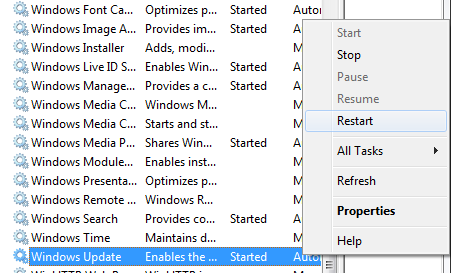
  • The Services window will open on your screen. All the services are listed under the Name column. Browse through the list to locate Windows Update. Right-click it and then click Restart.
Restart Windows Update service
  • The Windows Update service will restart now. This will not take more than a couple of seconds.

Solution #4 – Update Windows Update Agent

Windows Update Agent (its short form is WUA) is an important agent program which works along with Windows Server Update Service to download important updates automatically from Microsoft.

If you’re struggling with the aforementioned problem, you may find Microsoft Windows Update Agent useful.

Go to the Microsoft website to download and install it. Once you’ve have it on your system, update it to see if it resolves the issue.

Note – You will need to have Service Pack 1 installed on your computer before you update the Windows Update agent. For more information on how to update the Windows Update, refer this Microsoft support page.

To install Service Pack 1, follow these steps:

  • Log on to this Microsoft Support Page
  • Scroll down to the Manually download the Windows Update Agent from the Microsoft Download Center section
  • Select the second option, Stand-alone packages for Windows 7 SP1 and Windows Server 2008 R2 SP1 to see all installation packages under it.
  • Choose and download the package that’s appropriate for your Windows 7 system
  • Browse to the location where you’ve saved this file and double-click it for installing it
  • Follow the instructions on your screen to complete installation
  • Once the installation is complete, reboot your pc

Check if the issue is resolved. If not, go to the next solution.

Solution #5 – Turn off Windows Firewall

Many Windows users have reported the cause of error in their case was none other than Windows Firewall, and they were able to fix the issue by disabling it.

Note: After you’ve installed the latest Windows Update, you should turn on the firewall to ensure your pc or laptop remains safe from malware and hackers.

  • Click the Windows icon in the taskbar, type control panel in the start search box and then press Enter
  • Scroll down until you see Windows Firewall
  • Click it
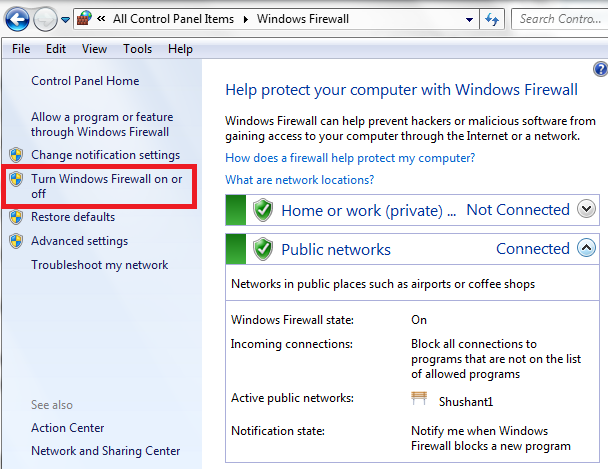
  • Click Turn Windows Firewall on or off (in the left-hand side pane)
Win Firewall
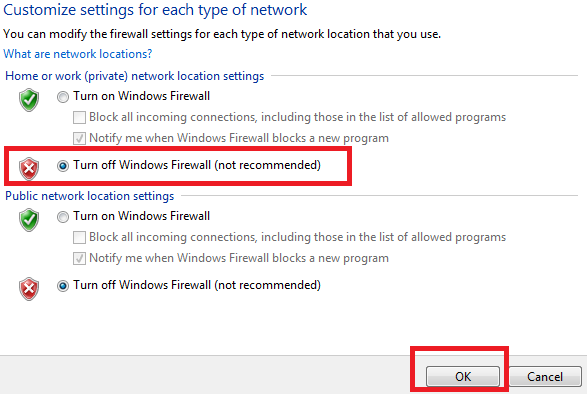
  • Select Turn off Windows Firewall (not recommended)
turn off firewall
  • Click OK

Solution #6 – Clean Boot

If nothing else works for you, a clean boot might help.

In Clean boot, the Windows starts with only the bare minimum startup programs and drivers. With this method, you can locate the application that’s causing this error.

  • Click the Windows icon in the taskbar, type run and press Enter
  • In the run dialog box, write msconfig and press OK
  • Click the General tab (the first one)
  • By default, Normal startup option is selected. What you need to do is choose Selected startup (the third option) and under it deselct the second option, Load startup items
selective startup
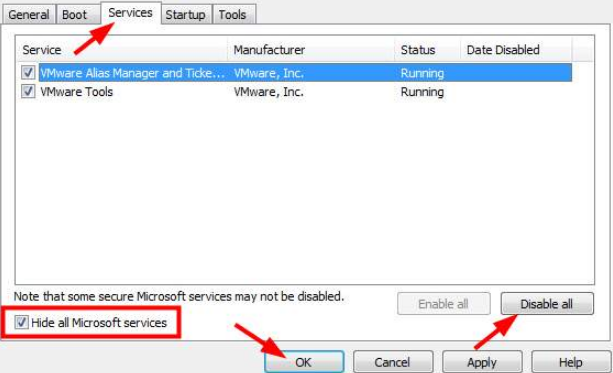
  • Now click the Services tab
  • Select Hide all Microsoft services (located at the bottom left-hand corner)
  • Now click Disable all

Note – It is important that you first hide Microsoft Services (by ticking the box next to it) and click Disable all. Otherwise, certain secure services might get disabled, which in turn might lead to unexpectedly serious consequences.

  • Click Apply and then OK
Hide services
  • Reboot Windows

Now see if you’re able to download Windows updates. In case you’re able to, click the Services tab in the System Configuration window and enable the listed services one at a time. This will help you locate the culprit application.

Once you’ve identified the culprit application, you can choose to either uninstall it or disable it. If you need that application, in its place use another alternative.

After you’ve solved the problem, revert to original settings.

Filed Under: PC Fix Tips

  • « Previous Page
  • 1
  • …
  • 149
  • 150
  • 151
  • 152
  • 153
  • …
  • 189
  • Next Page »


  • Recent Posts
  • Popular Posts
        

Read More Posts


Read More Posts

Drivers.com Sites

  • Software Drivers
  • Drivers Ed

About Us

  • Advertise
  • About Drivers
  • Drivers Support
  • Drivers.com Privacy Policy
  • Disclaimer
  • Software Drivers
  • Mac Fixes and Tips
  • PC Fix Tips
  • Security/ Backup
  • Tablets & Smartphones
  • Tech News

© Copyright 2026 PDE Publications Ltd. End User License Agreement (EULA)