Drivers.com

follow us:

facebook twitter
  • Home
  • Download Drivers
  • Drivers Help
  • PC/Mac Resources
  • Software Drivers
  • Mac Fixes and Tips
  • PC Fix Tips
  • Security/ Backup
  • Tablets & Smartphones
  • Tech News
  • Software Drivers
  • Mac Fixes and Tips
  • PC Fix Tips
  • Security/ Backup
  • Tablets & Smartphones
  • Tech News

Spacebar not working issue in Windows 10

By Susan C on August 31, 2018

Spacebar not working issue in Windows 10

The Spacebar is one of the most important keys on your computer’s keyboard. If the spacebar is not working, you are bound to face a lot of inconveniences. That’s why it is important to get it working again.  Here we have provided four simple solutions to fix “spacebar not working” issue.

You are not required to try every solution given in this post. Start with the first solution, and if it does not resolve spacebar issue, move to next solution and so on. Let’s get started.

Solution One – Disable Sticky keys

“Sticky keys” is an accessibility feature in Windows that causes the modifier keys to remain active even after they are pressed and released. The feature is useful when you create new key shortcuts. However, this feature might cause problems as well and the Sticky keys feature might be the cause behind “the spacebar not working” issue. To fix the issue, follow these steps:

  • On your keyboard, press Windows logo key and me simultaneously on the keyboard to open the Settings window
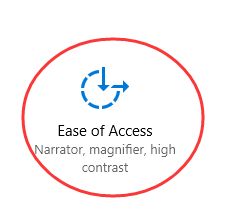
  • In the Settings window, click Ease of Access
ease of access
  • In the next window, look for keyboard option in the left pane and click on it
  • Now, on the right-hand side, look for Sticky keys and click the toggle switch to turn off the feature.
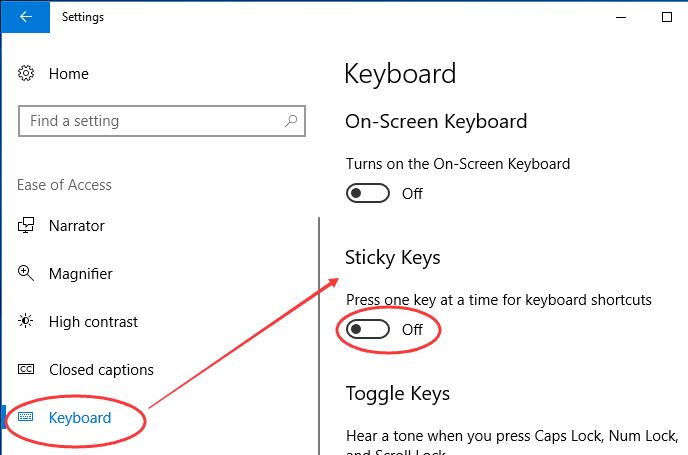
sticky keys

Note – the toggle switch color changes from blue to grey which indicates the Sticky keys feature is disabled.

Open Word application to check whether the spacebar is working. If the problem remains unresolved, move to next solution.

Solution Two- Roll-back keyboard driver

Follow these steps to roll-back the keyboard driver

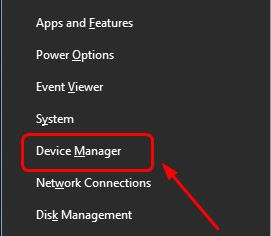
  • On your keyboard, press Windows logo key and X simultaneously on the keyboard. This will open the quick-access menu
  • Select Device Manager from the menu
Device Manager
  • In the Device Manager window, go to Keyboards category and click on the > sign to expand the category
  • Right-click keyboard device and choose Properties
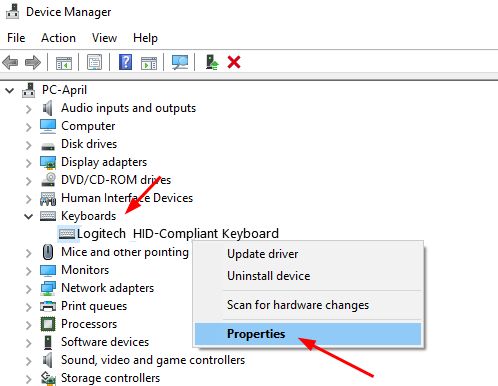
keyboard properties
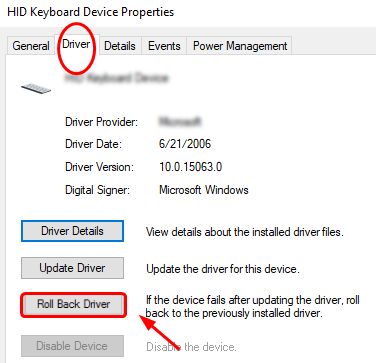
  • In the Keyboard device properties window, go to Driver tab
  • Click Roll-back driver option
roll-back driver

Windows will roll-back the driver to an earlier version. If you see the Roll-back option disabled, it means there is no other version of keyboard driver installed on your computer.

In that case, you will have to download an earlier version of the keyboard driver from the device manufacturer website.

The driver version is shown in the Keyboard device properties window, write the information somewhere and use it when searching for an older version of keyboard driver. If you find this procedure lengthy and confusing, you need to move directly to Solution four.

If the spacebar not working issue is not resolved even after following the above steps, you need to move to next solution.

Solution Three – Uninstall and Reinstall Keyboard driver

The procedure discussed here is also known as clean-install in which you have to uninstall the keyboard driver before installing a new keyboard driver. Here are the steps to follow.

  • Open Device Manager following the steps given in Solution Two
  • Go to Keyboard category and expand it
  • Right-click on keyboard device in the list and select uninstall device
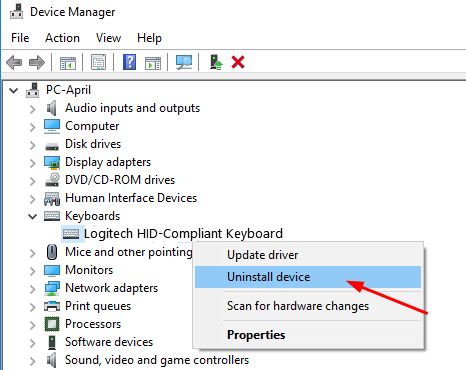
uninstall device
  • After the keyboard is uninstalled, reboot computer
  • Windows 10 will recognize missing keyboard driver during boot and install right keyboard driver from its database

Open any application where you can test the working of spacebar. If the spacebar issue persists, move to next solution

Solution four – Update Keyboard driver automatically

Manually updating drivers can sometimes prove tricky, besides time-consuming. On the other hand, driver update software tools can update your keyboard driver and other outdated drivers very quickly and easily.

Updating Drivers Automatically

Automatic driver update tools offer many benefits, the most important ones being:

  • You can update device drivers automatically
  • The software scans and updates all outdated or missing drivers at one go
  • The tool picks the right drivers for your device and operating system, so you won’t have to worry about installing an incorrect driver by mistake
  • Automatic driver updates are 100% safe

Driver Updater is one of the best driver update tools out there. Outbyte Driver Updater will give you access to a database of over 1 million drivers. It will regularly scan your PC, suggesting new driver versions to install. Driver Updater contains drivers for a variety of Windows devices. With just one click, you can update drivers in your system.

Step 1
Click here to Install and launch the app

Step 2
Scan all devices

Step 3
Install or update drivers automatically
 

Start Download


Filed Under: PC Fix Tips Tagged With: Spacebar not working

“Page Fault in Nonpaged Area” BSOD in Windows 10

By Susan C on August 31, 2018

“Page Fault in Nonpaged Area” BSOD in Windows 10
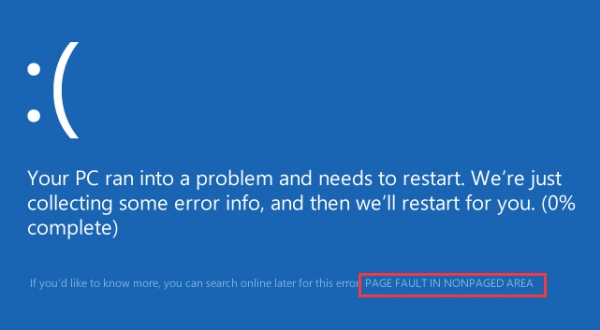
page-fault-nonpage-area-error

No one likes Blue Screen of Death (BSOD) errors because often they appear suddenly on the screen when you are in the middle of something. While Windows 10 is quite an advanced operating system, it too can throw a BSOD error when you’re least expecting it.

In this post, we will discuss one such BSOD  error which usually comes with the message “Page Fault in Nonpaged Area”.

Many Windows 10 users have reported receiving this BSOD.   If you are troubled by similar error, stop worrying as you can fix the error easily by following the instructions given in this post.

Before we look at the solutions, let’s try to know more about this error.

What does “Page Fault in Nonpaged Area” error mean?

The Non-paged area is a critical part of Windows operating system. Windows needs several files stored in RAM and page file for running. Some files which are needed most are stored in a non-paged area of the RAM.

Windows operating system throws up “Page Fault in Nonpaged Area” error on the screen when it is not able to find the file it needs in the memory. One of the root causes of this error is a problem with RAM, but you cannot rule out the possibility of other causes as well. Now, let’s look at the solutions.

Here we have provided five solutions that could resolve the issue. You are not required to try all five solutions. The best approach to resolve this issue is to start with the first solution, and if it does not work, move to the next solution and so on.

Solution One- Check RAM and hard disk for faults

As mentioned above the main cause of the error could be a problem with RAM. Windows has an inbuilt memory diagnostic tool that scans memory for possible problems and also tests the RAM in your computer. Here are the steps you need to follow.

Step One – Run Memory Diagnostic Tool

  • Click Start and type memory in the search bar
  • From the list of results, select Windows memory diagnostic
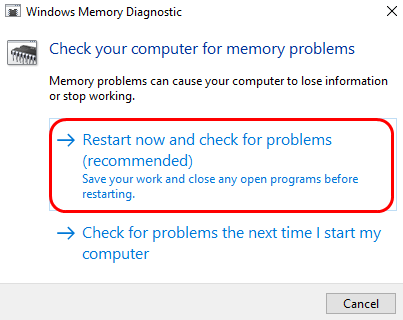
  • In the Windows memory diagnostic pop-up, you can see two options – 1) Restart now and check for problems(recommended) and 2) Check for problems next time I start my computer
memory diagnostic
  • If you select 1st option, the computer would restart immediately and scan the memory before booting. If you select the 2nd option, the computer will run the memory diagnostic tool at next boot.
  • You can choose between any two options. Here we have selected the 1st option that allows fixing the error at earliest. Make sure you save all work before the computer shuts down.
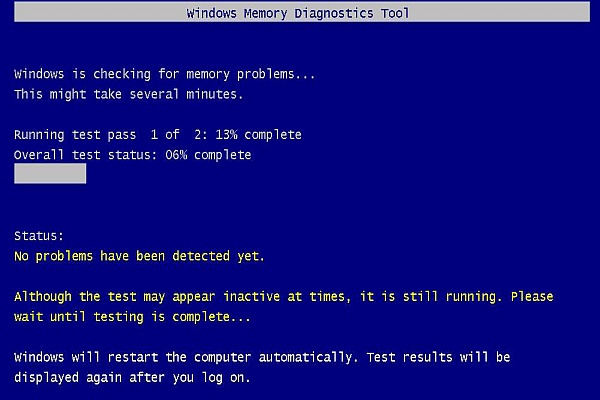
  • Wait for Windows to shut down normally and reboot. The memory diagnostic tool is automatically launched when the computer restarts
memory scan running
  • Wait for the memory diagnostic tool to complete its operation. The diagnostic tool may take several minutes to check the memory completely
  • After the memory scan is completed, the computer will reboot automatically. If the memory diagnostic tool reports any errors, you should replace the RAM module

If the memory diagnostic does not find any problems with memory, you can conclude the RAM is the not the cause of the “Page Fault in Nonpaged Area” error. You need to proceed to Step 2 to check the hard disk for errors.

Step Two- Run Check disk

There is a possibility that the NTFS volume might be corrupted  which is preventing Windows from accessing files needed to run the operating system normally. Windows features a disk check and repair tool known as Chkdsk  which checks the file system and file system metadata of a volume for physical and logical errors.

Chkdsk is a command-line tool and you need to open an elevated command prompt (with admin rights) to run Chkdsk. Here are the steps to follow.

  • Click Start and type cmd prompt in the Cortana search box
  • Right-click on Command prompt from the list of results and select Run as administrator
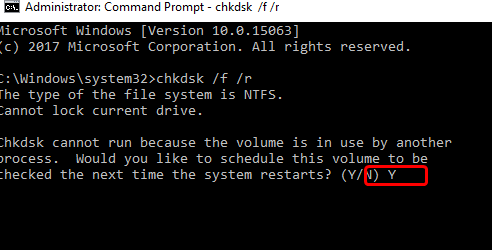
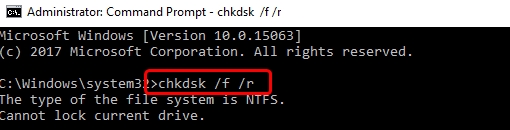
  • In the command prompt window, type chkdsk /f /r.
chkdsk command
  • Hit enter on the keyboard
  • Windows will prompt you question about scheduling chkdsk at next restart. Type Y for an answer
Press Y
  • Hit enter on the keyboard
  • Windows will run Chkdsk tool at next restart. The tool will report any errors it comes across and fix them

Note – Chkdsk can take a longer time to complete and you need to be patient

  • After the Chkdsk complete its operation, the system will reboot

Boot into Windows and see if you encounter “Page Fault in Nonpaged Area” error again. If the issue is not resolved, move to next solution.

Solution Two- Undo any recently made changes

There is a possibility some newly installed software or hardware is the cause of the “Page Fault in Nonpaged Area” error.  If you have made such changes to the system, you need to revert changes by uninstalling newly installed software  and removing any newly installed hardware

After you have reverted changes made recently, boot into Windows and see if the “Page Fault in Nonpaged Area” error is generated. If this solution has not resolved the issue, move to next solution.

Solution Three – Stop antivirus software temporarily

Some antivirus software tools are known to cause BSOD errors. It is very much possible that in your case, too, the antivirus might be causing the“Page Fault in Nonpaged Area” error. You can get your doubt cleared by temporarily disabling your antivirus software and running your computer for some time.

If the “Page Fault in Nonpaged Area” error is not generated when the antivirus software is turned off, you can conclude that the problem is occurring because of it.

In that case, you can either contact the antivirus manufacturer for a solution or use another antivirus tool. The steps to disable antivirus are different for every software tool. You need to read the software documentation to know exact steps to stop your antivirus.

(Note: Disabling antivirus permanently is not recommended as it puts your system at risk. You need to avoid visiting websites or surfing the Internet when your antivirus software is disabled.  Before moving to next solution, start the antivirus software.)

Solution Four – Stop automatic page file management

Since the error is related to memory and page file, the automatic page file management might be causing some problems which is resulting in the generation of  “Page Fault in Nonpaged Area” error. In that case, a simple solution to this problem is disabling automatic page file management. Here are the steps to follow.

  • Go to Desktop and right-click This PC
  • From the menu, select Properties
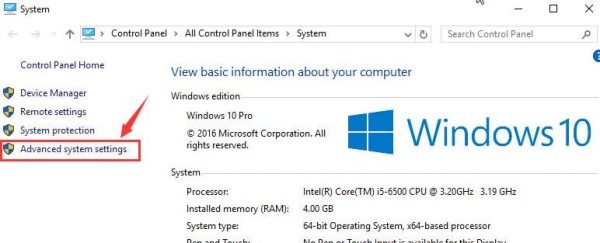
  • In the System window, click Advanced System settings in the left pane
adv system settings
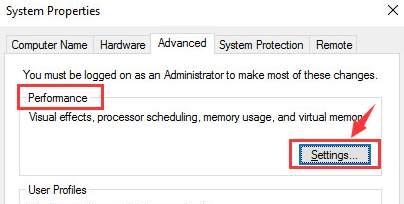
  • In the System properties window, go to the Advanced tab
  • Under Performance section, click Settings
Performance-settings
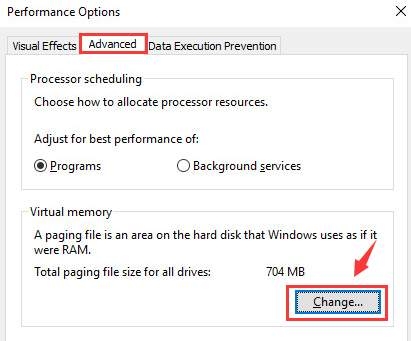
  • In the Performance Options window, go to the Advanced tab
advanced-change
  • Under the Virtual memory section, click Change
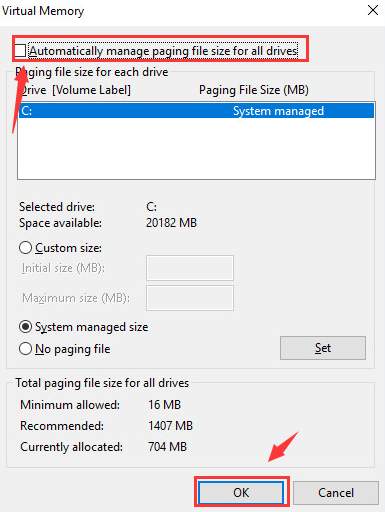
  • In the Virtual Memory window, look for Automatically manage paging file size for all drives option and remove the tick from the box
auto manage page file
  • Click Ok to save changes
  • Close all windows

Restart your computer and see if the problem is resolved. If you are still getting “Page Fault in Nonpaged Area” error, move to next solution.

Solution Five – Update Drivers

You might be getting this error because of outdated drivers. In that case, use a driver update tool to fix the issue.

Automatic driver update tools offer many benefits, the most important ones being:

  • You can update device drivers automatically
  • The software scans and updates all outdated or missing drivers at one go
  • The tool picks the right drivers for your device and operating system, so you won’t have to worry about installing an incorrect driver by mistake
  • Automatic driver updates are 100% safe

Driver Updater is one of the best driver update tools out there. Outbyte Driver Updater will give you access to a database of over 1 million drivers. It will regularly scan your PC, suggesting new driver versions to install. Driver Updater contains drivers for a variety of Windows devices. With just one click, you can update drivers in your system.

Step 1
Click here to Install and launch the app

Step 2
Scan all devices

Step 3
Install or update drivers automatically
 

Start Download


Filed Under: PC Fix Tips Tagged With: page fault BSOD

IDT High Definition Audio CODEC Driver Problem in Windows 10

By Susan C on August 29, 2018

IDT High Definition Audio CODEC Driver Problem in Windows 10

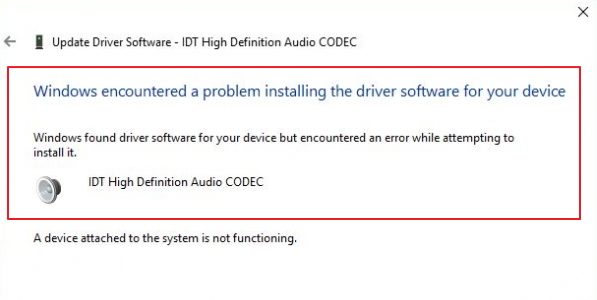
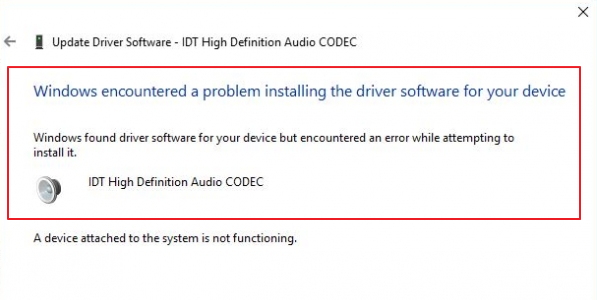
Windows 10 update does not always work as intended. Many users have found the Windows update fails to install this CODEC and the result is you get an error which look something similar to one below.

IDT-HD-Audio-Codec-Error

If you encounter this error while installing this codec, we have two solutions for you. The first solution requires you to install/update the IDT High definition Audio codec manually and other solution includes using a driver update tool.

Solution One- Manually installing driver

  • Click Start and type Device Manager in search box
  • Select Device Manager from the list of results
  • In the Device Manager window, go to Sound, video and game controllers category and expand it
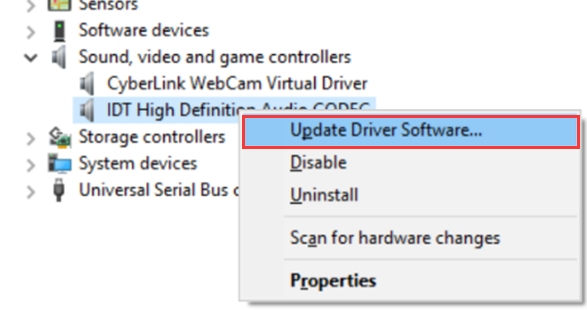
  • Look for this CODEC in the list and right-click on it
  • From the menu, select the first option which is Update Driver
update driver software
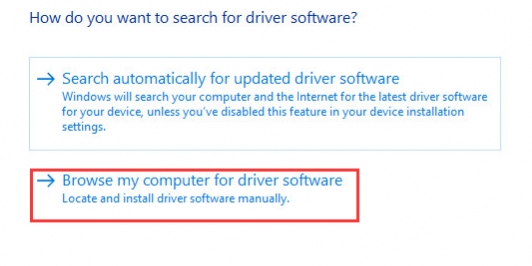
  • In the next window, select the second option in the list to locate and install driver manually
browse for software
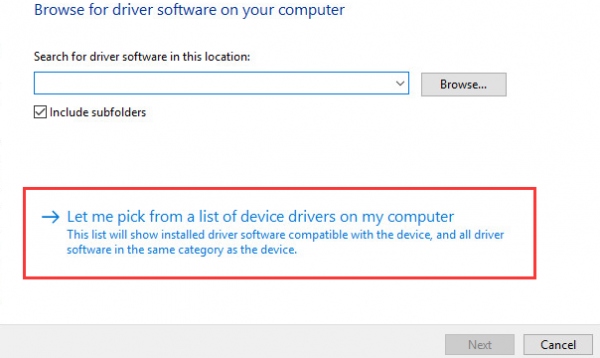
  • In the next window, you can either browse to the location of the driver or choose to pick the driver from the list of all installed drivers. Click the second option – Let me…
Let me pick
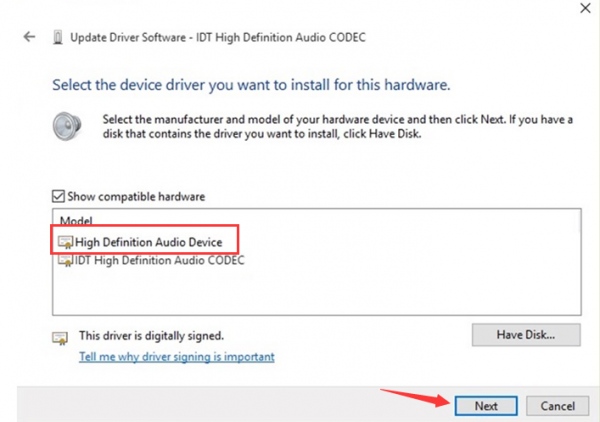
  • In the next window, choose High Definition Audio Device
HD audio device
  • After selecting the right option, click Next
  • You might see a warning message pop-up on the screen, select Yes for an answer. This will start the installation of the IDT driver. Wait for the process to complete.

The solution should fix this issue for you. If you get some error during installation, move to next solution.

Solution Two – Update Driver using Driver Update Tool

You can get this error if your audio drivers are outdated or corrupt. The simplest way to then resolve the issue is by updating your drivers.

There are two ways to update drivers—manually or automatically. Many people prefer the second method because it saves them a lot of time.

Automatic driver update tools offer many benefits, the most important ones being:

  • You can update device drivers automatically
  • The software scans and updates all outdated or missing drivers at one go
  • The tool picks the right drivers for your device and operating system, so you won’t have to worry about installing an incorrect driver by mistake
  • Automatic driver updates are 100% safe

Driver Updater is one of the best driver update tools out there. Outbyte Driver Updater will give you access to a database of over 1 million drivers. It will regularly scan your PC, suggesting new driver versions to install. Driver Updater contains drivers for a variety of Windows devices. With just one click, you can update drivers in your system.

Step 1
Click here to Install and launch the app

Step 2
Scan all devices

Step 3
Install or update drivers automatically
 

Start Download


Filed Under: PC Fix Tips

  • « Previous Page
  • 1
  • …
  • 150
  • 151
  • 152
  • 153
  • 154
  • …
  • 189
  • Next Page »


  • Recent Posts
  • Popular Posts
        

Read More Posts


Read More Posts

Drivers.com Sites

  • Software Drivers
  • Drivers Ed

About Us

  • Advertise
  • About Drivers
  • Drivers Support
  • Drivers.com Privacy Policy
  • Disclaimer
  • Software Drivers
  • Mac Fixes and Tips
  • PC Fix Tips
  • Security/ Backup
  • Tablets & Smartphones
  • Tech News

© Copyright 2026 PDE Publications Ltd. End User License Agreement (EULA)