Drivers.com

follow us:

facebook twitter
  • Home
  • Download Drivers
  • Drivers Help
  • PC/Mac Resources
  • Software Drivers
  • Mac Fixes and Tips
  • PC Fix Tips
  • Security/ Backup
  • Tablets & Smartphones
  • Tech News
  • Software Drivers
  • Mac Fixes and Tips
  • PC Fix Tips
  • Security/ Backup
  • Tablets & Smartphones
  • Tech News

ERR_NAME_NOT_RESOLVED Error in Chrome

By Susan C on August 21, 2018

ERR_NAME_NOT_RESOLVED Error in Chrome

err-name-not-resolved

The ERR_NAME_NOT_RESOLVED is one of the most common errors you might come across while surfing the Internet. The error is generally related to a domain name (website) or DNS server. When you get this error, the browser cannot the load the webpage you want to visit.

If you are getting this error, the first thing you need to do is check whether you have typed the website URL correctly. Ensure that there are no missing hyphens or backslashes in the URL.

If you have done everything correctly but are still getting the error, it is more likely that there is some problem with the website server.

The error may be temporary and vanish after some time. However, you cannot rule out the possibility of some problem with your computer or the browser. In that case, you need to try the solutions given below which would resolve the problem and help you access the website.

Here we have provided four easy solutions. You need not try all the solutions given in this post. The best way to start is to perform the steps given in the first solution, and if the error is not resolved, move on to the next solution and so on. Let’s get started.

Solution One – Delete browser cookies

The browser stores cookies (files related to the website) for every website you visit. If you are visiting the website for the second time, it will use the information stored (cookies) to speed up access and browsing. Over time a large number of files (browser cookies) get collected in your computer and the files may get corrupt. If the cookies are corrupted it might lead to ERR_NAME_NOT_RESOLVED error.

Also, there is a possibility that the DNS server of the website has changed but your browser is still using the old information for reference when you attempt to visit the website. This problem can be resolved by deleting cookies, which in turn would force the browser to collect the information afresh. Here are the steps to follow.

  • Open Chrome browser
  • In the address bar, type chrome://settings/clearBrowserData and press enter on the keyboard
  • You will see a Clear browsing data window pop-up on the screen.
  • Check the box “Cookies and other site and plugin data” and click Clear browsing history
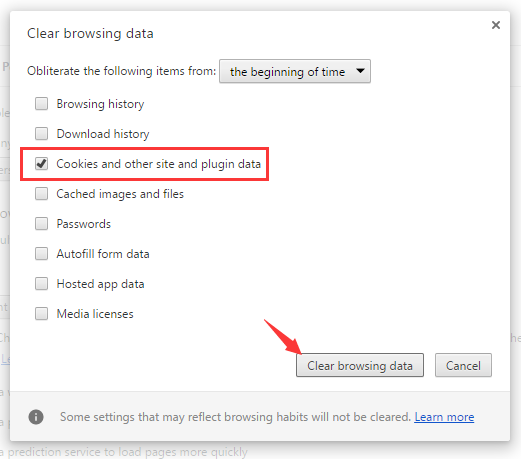
clear cookies

With all cookies cleared, the ERR_NAME_NOT_RESOLVED error should vanish. Try visiting the website which gave out the ERR_NAME_NOT_RESOLVED error. If you are still getting the error, move to next solution.

Solution Two – Flush and Renew DNS

The domain name server plays an important role in helping you access a website. Without the right DNS information, you are more likely to encounter an ERR_NAME_NOT_RESOLVED error.

Your computer stores DNS information of websites you visit frequently. There is a possibility the DNS server information has changed for the website you are trying to visit and your computer is still using old DNS information.

A simple solution to this problem is to force Windows to flush out the DNS cache and update the DNS records. Here are the steps to follow.

  • Press Windows logo key and R simultaneously on the keyboard to bring up the Run command console
  • Type cmd prompt and press enter on the keyboard
  • Right-click command prompt from the list of results and choose  Run as administrator
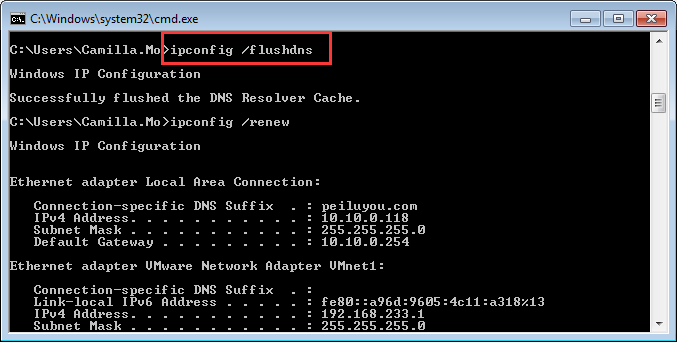
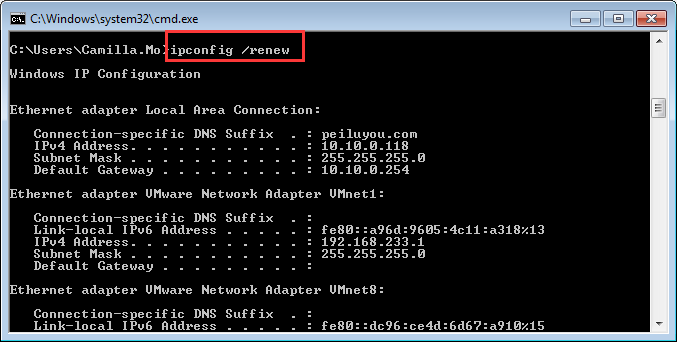
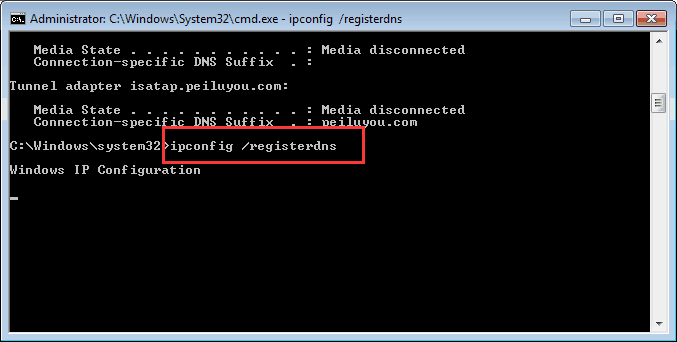
  • In the command prompt window, type the commands below in the same order and press Enter on the keyboard after each command. Wait until the command operation is completed  then type next command in line.
  • ipconfig /flushdns

flushdns

  • ipconfig /renew

ipconfig renew

  • ipconfig /registerdns

register dns

  • After all three commands are executed, close command prompt window

Try to visit the website that gave out the ERR_NAME_NOT_RESOLVED error. If the issue persists, move to next solution

Solution Three – Use Public DNS

There is a possibility the DNS server of your ISP is not functioning properly which is causing the ERR_NAME_NOT_RESOLVED error. In that case, you can use public DNS like Google DNS to resolve the error. Here are the steps to follow.

  • Press Windows logo key + R to invoke Run command box
  • In the Run command box, type control
  • Click OK
  • In the Control Panel window, scroll down and click Network and Sharing Center
  • In the Network and Sharing Center window, click Change adapter settings in the left pane
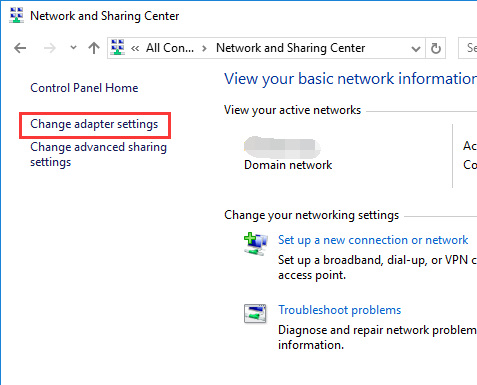
change adapter settings

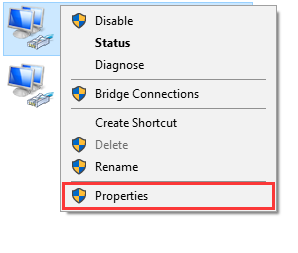
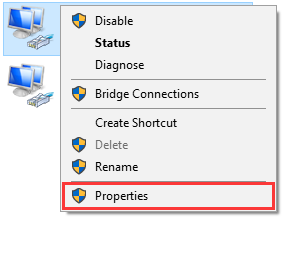
  • In the next window, right-click on the Network connection that is used by your computer to connect to the Internet
  • click Properties
  • properties


  • Choose Internet Protocol Version 4 (TCP/IPv4)
properties

  • With Internet Protocol Version 4 (TCP/IPv4) highlighted, click Properties
  • Click the option Use the following DNS server addresses
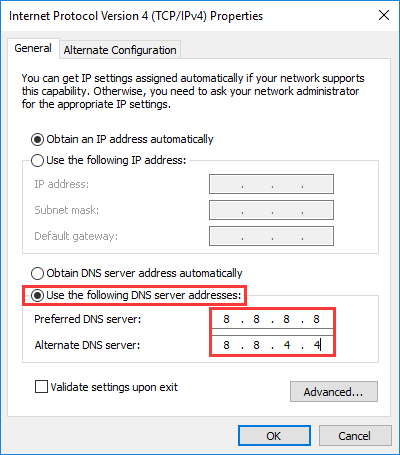
use DNS addresses

  • Type 8.8.8.8 in the Preferred DNS server box
  • Type 8.8.4.4 in the Alternate DNS server box
  • Click Ok when you are done
  • Close all windows

Now try visiting the website that gave out gave out the ERR_NAME_NOT_RESOLVED error. If you still encounter the same error, move to next solution.

Solution Four – Check your antivirus and firewall settings

You cannot rule out the possibility of the firewall or antivirus blocking Chrome that might result in an ERR_NAME_NOT_RESOLVED error.

You need to unblock Chrome and allow it unrestricted access in firewall settings. Similarly, you need to add Chrome to app exclusion list in your antivirus software. Here are the steps you need to follow.

Change Firewall settings

  • Click Start
  • Click Control Panel
  • In the Control Panel window, set the view by to small icons
  • Click Windows Firewall
  • In the Firewall settings window, click allow a program or feature through Windows firewall
  • In the Allowed Programs window, click Allow another program.
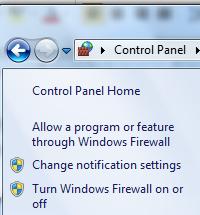
allow a program

  • You will see a – Add a program pop-up with a list of programs. Select Google Chrome from the list and click Add
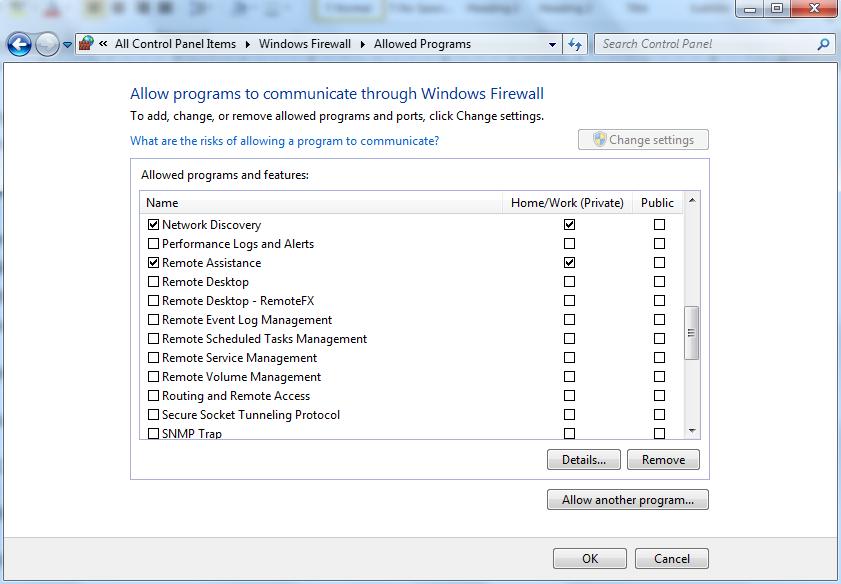
allow chrome

  • click Ok to close the window

Disable Antivirus software

(Note- The steps to disable antivirus software differs with each anti-virus software. You need to read the documentation provided with anti-virus software to know the exact steps to do so. Here we have provided steps to disable Panda Antivirus installed on our computer)

  • Right – click on antivirus icon in the system tray
  • click Stop antivirus

Now try visiting the website that gave out the ERR_NAME_NOT_RESOLVED error. If the issue persists, move to next solution.

(Note – If this solution did not work for you, start the anti-virus before moving to next solution)

Solution Five – Reboot your router

There is a possibility that there is some problem with the router, which in turn might be causing the ERR_NAME_NOT_RESOLVED error. In that case, you need to power cycle (reboot) your router to will clear the memory. Here are the steps to follow.

  • Switch off the router
  • Remove the power chord from the socket and let the router sit in the unplugged mode for a few minutes
  • Plug the power chord in the electrical socket and switch on the router
  • Wait for the router to establish a connection and stabilize.

Now try visiting the website that gave out the ERR_NAME_NOT_RESOLVED error. In most cases, the error should be resolved by now.
 

Filed Under: PC Fix Tips Tagged With: ERR NAME Error

PS4 Controller Not Connecting Issue

By Susan C on August 20, 2018

PS4 Controller Not Connecting Issue

If you want to play PS4 games, your PS4 controller should be connected to the P4 console. Many gamers have complained in various forums about connectivity problems between the PS4 controller and PS4 console.

If you are unable to connect the PS4 controller to PS4 and looking for easy to follow solutions, this post is for you.

Here we have presented three solutions to connect the PS4 controller to the console. You need not try all of them. Try the steps in the first solution and if it does not resolve the issue, move to next solution and so on. Let’s get started

Solution One – Connect the PS4 controller to the Console through USB cable

The PS4 controller can be connected to console in wireless mode but this mode of connection works only when both devices are paired. There is a possibility the pairing of the controller and console is not working as intended.

micro USB

To resolve this you need to connect the PS4 controller and console through a USB cable and see if it works. Here are the steps to follow.

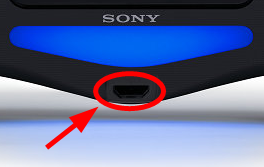
  • Take a USB cable (used for smartphones) that has a micro-USB connector at one end and regular USB connector at another end. You cannot use the original controller cable to resolve the issue.
  • Connect the PS4 controller and console using the USB cable and restart the PS4 console. If this method is successful, the PS4 console would automatically recognize the PS4 controller and you can start playing games
  • If the USB cable does not resolve the issue, you need to try different USB cables and see if they work. If this solution doesn’t work for you at all, move to the next

Solution Two – Reset PS4 Controller

One of the easiest ways to resolve this issue is to reset the PS4 controller. Here are the steps to follow

  • Switch off your PlayStation 4.
  • Grab the PS4 controller and turn it over to find a tiny reset button close to the L2 button
  • Take a small paper clip and unfold it and use it to push the reset button recessed in the case and hold it on for some time
  • Remove the clip to release the button
  • Connect your PS4 controller to PS4 console with USB and switch on the PS4 console

If this method does not work for, try the next solution

Solution Three – Reset PS4 console

There is a possibility some of the settings of the PS4 is corrupted that is resulting in connectivity problems with the PS4 controller. Resetting the PS4 console is a simple solution to get back default settings. Here are the steps to follow.

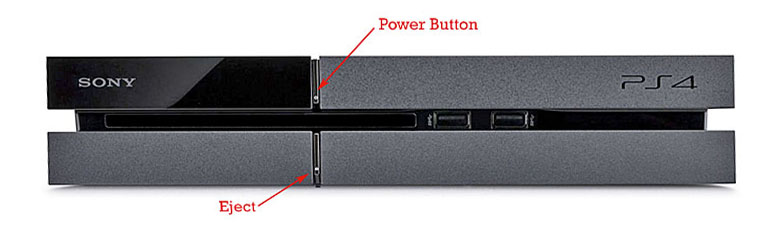
  • Press power button located on the front of the PS4 console
  • You need to continue holding the Power button until  the console gives out a second
Power-button
  • Release the power button
  • Remove the power cable from the PS4 console
  • Also, unplug the PS4 controller from the console that does not connect
  • Let the PS4 console sit unplugged for 2-3 minutes
  • Plug-in the power cable back in the console
  • Plug the PS4 connector back in the console
  • Switch on the PS4 console
  • Check whether the controller works with PS4 console

If you are looking to play your Playstation 4 on a Mac or PC then view our article here.

Filed Under: PC Fix Tips Tagged With: PS4 not connecting

How to block windows update in Windows 10

By Susan C on August 13, 2018

How to block windows update in Windows 10

One of the biggest controversies around Windows 10 is forced updates – that is, no choice policy. Unlike earlier Windows versions, users do not have much control over Windows update. Though updates are for good, the way the Windows updates process works causes inconvenience to many.

Windows 10 update works in the background using resources even when you don’t want it to. Regardless of how important work you are doing, Window 10 update is not going to stop and will proceed to disrupt your work.

Many users feel irritated and helpless when Windows 10 updates get stuck in between and the user is left stranded without a working computer for hours or even an entire day. Sometimes there is unexpected restart followed by unexpected update process which leaves no option but to stare at the screen while Windows 10 completes the update.

If you are facing inconvenience due to Windows update process and want to stop Windows update, this post is for you.

Why you cannot block Windows 10 from updating?

Unless you are an offline Windows user, there is no direct way to stop Windows 10 from updating. Until Windows 8.1, Microsoft gave user wide range of options in the way to install updates. Here are some of the Windows updates options that most of us are familiar with.

  • Install updates automatically (Recommended)
  • Download Updates but let me choose whether to install them
  • Check for updates but let me choose whether to download and install them
  • Never check for updates (Not Recommended)

You will not find these update options in Windows 10 and that is the main point of contention. Since there is no direct option to stop Windows update, you need to adopt evasive ways to stop Windows update.

We have provided you with four different ways that prevent Windows 10 from updating. You need not try all of them. Select the one you are comfortable with and perform troubleshooting steps. Let’s get started.

(Note- Though we have provided ways to stop Windows update, we do not recommend it nor encourage users to do it. Users can use these methods at their discretion and we are not responsible for any outcomes that may arise from not keeping your Windows OS updated. We strongly feel Windows update secures your computer from different online threats and keeps your computer safe from hackers)

Sometimes the methods given below might not work for you as Windows Update Assistant resets the settings to default to enable Window update process on your computer. To prevent this from happening you need to uninstall Windows Update Assistant completely from your computer. Here are the steps to follow

Steps to uninstall Windows Update Assistant

  • Click Start and then click Settings
  • In the Settings window, click Apps
  • Click Apps & features in the left pane
  • In the right pane, look for Windows Update Assistant program and click on it
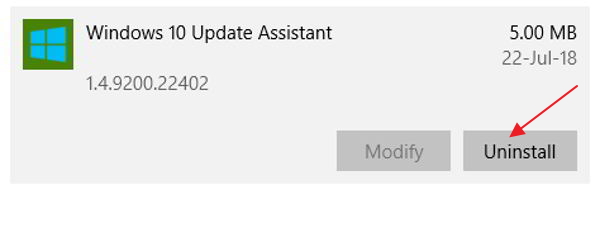
update assistant
  • click Uninstall

Once you have uninstalled Windows update assistant, you need to delete related folders as well. Here are the steps to follow.

Windows Update Assistant is generally deployed with Windows 10 and most of the time it will install by default. In that case, you need to follow the steps given below

  • Go to Desktop and double-click This PC
  • Navigate to following path in Windows Explorer- C Drive then go to Windows folder and then go to Windows10Upgrade
  • Delete the Windows10Upgrade folder completely

If Windows Update Assistant was installed separately while migrating to Windows 10, the location of Windows10Upgrade remains the same but there are other folders too where the Windows Update Assistant stores data. Here are the steps to follow.

  • Go to Desktop and double-click This PC
  • Navigate to the following path in Windows Explorer- click C Drive and then go to Windows folder
  • Delete the following folders – UpdateAssistantV2, Windows10Upgrade, and UpdateAssistant.

If you don’t want to uninstall Windows update assistant, you also have the option to disable it by following the steps given below

  • click Start
  • Type task scheduler in Cortana search box and select Task Scheduler from the list of results
  • In the Task Scheduler window, click in the following order – Task Scheduler Library > Microsoft > Windows > UpdateOrchestrator in the left pane
  • In the right pane look for Update Assistant and then go to Triggers tab
  • Disable each trigger in the list

Once you have uninstalled Windows Update Assistant completely, you can proceed to any methods given here to stop Windows Update.

Method One – Make your Internet connection a metered one

Though Windows 10 is set to update automatically, it has one setting that can work in your favor to stop Windows update. If you set the Internet connection as metered one, Windows 10 update process will not run automatically.

According to Windows 10, a metered connection is an Internet connection with limited data. In Windows 10, cellular data connections are set metered by default and Wi-Fi and Ethernet (wired) connection are set non-metered by default.

The trick here is to set the Wi-Fi/Ethernet connection as metered one that will prevent windows 10 update from running automatically. Here are the steps to follow.

  • Click Start -> Settings
  • In the Settings window, click Network & Internet
  • If you are using Wi-Fi, click on Wi-Fi in the left pane
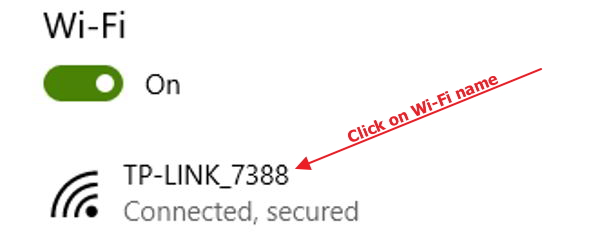
wi-fi
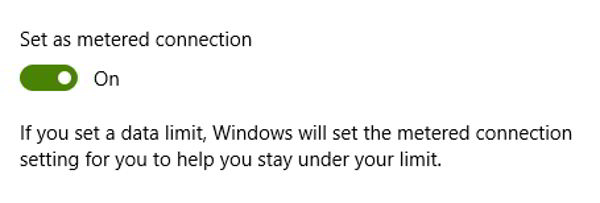
  • Now, click on the name of your Wi-Fi connection and click the grey toggle switch to turn metered connection on( the toggle switch color changes to blue which indicates the connection is set as metered
set metered connection
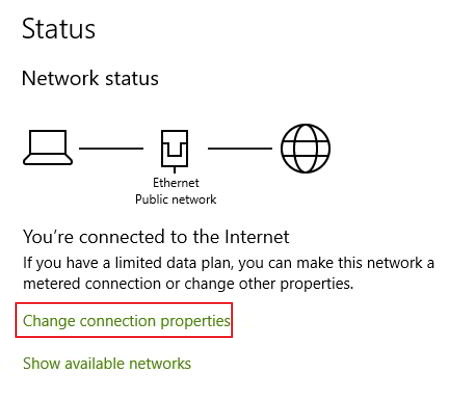
  • If you are using Ethernet, click on Ethernet in the left pane
ethernet
  • Now, click Change connection properties. Now click the grey toggle switch to turn metered connection on.

When you set your Wi-Fi or Ethernet connection as metered, it will assume these connections have limited data plan.  Then Windows 10 will not search or install updates until you connect to an Internet connection with an unlimited data plan (not set as a metered connection)

Method Two- Disable Windows update service to block Windows Update

The Windows update service is an important component of Windows which manages the download and installation of Windows update. In Windows 10, the Windows update service is set to start automatically whenever you log into Windows.

The Windows update service runs in the background and connects to Windows update server to check for updates. If it finds any new updates, it downloads and installs them. You can stop Windows update by disabling the Windows update service. Here are the steps to follow.

  • Press Windows logo and R keys simultaneously on the keyboard to bring up Run command box
  • In the run command box, type services.msc
  • Click OK
  • In the Services window, double-click Windows update
windows update service
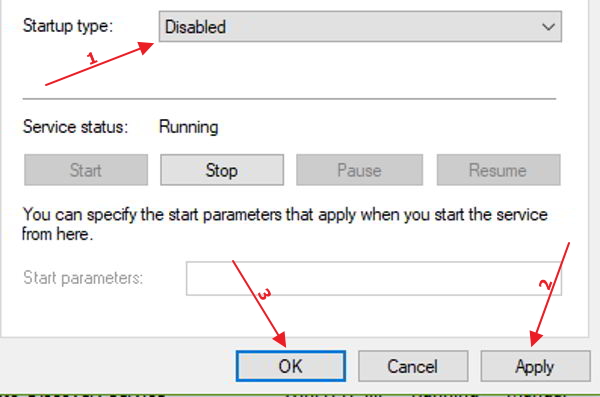
  • In the Windows update properties box, go to the general tab and set the Startup type to Disabled by selecting the option from the drop-down list
windows service disabled
  • Now click Apply and then click OK
  • If you are disabling Windows update service for the first time, you need to perform one more step to stop Windows update.
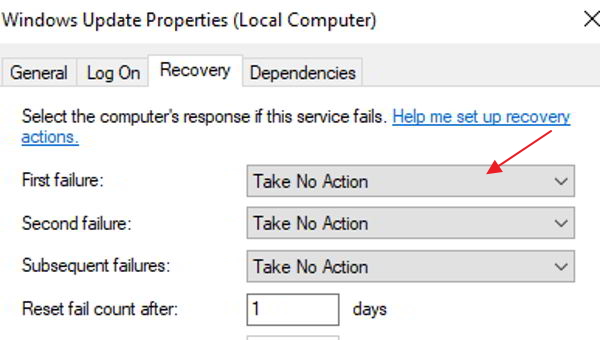
  • Go back Windows Update Properties dialog and go to Recovery tab
windows update recovery
  • Now click the drop-down list adjacent to the First failure and choose Take No Action
  • Click Apply->OK
  • Close all windows
  • Restart your computer to apply changes

Method Three – Modify Group Policy settings to block Windows update

Group Policy is a hierarchical infrastructure that allows network managers to implement specific configurations for certain users or computers. Windows 10 Home does not have a Group Policy feature so this method won’t work for Windows 10 Home edition users.

Here we are going to make changes to group policy settings to block Windows update. Here are the steps to follow.

  • Press Windows logo key and R simultaneously on the keyboard to invoke Run command console
  • In the run command box, type gpedit.msc
  • Hit Enter on the keyboard
  • In the Local Group Policy editor window, click Computer Configuration and then click Administrative Templates
  • Now click -> Windows Components and then click Windows Update.
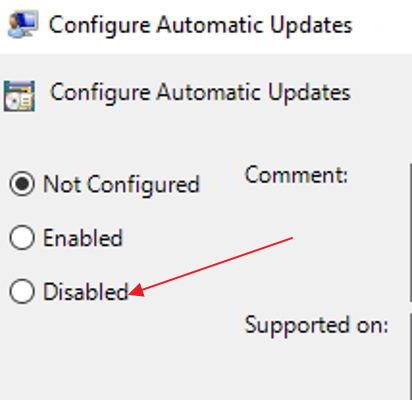
  • Double-click Windows update and then click Configure automatic updates
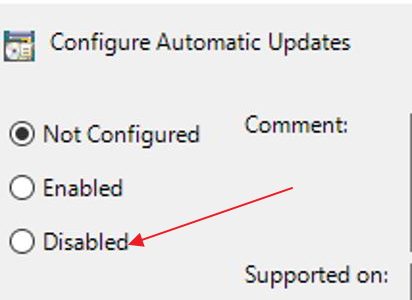
auto updates disabled
  • In the left, click Disabled
  • click Apply and then click OK

(Note- the above steps will prevent you from installing any Windows updates in the feature. you won’t be able to a newer version of Windows 10 that may have new features. you need to repeat the  troubleshooting steps mentioned above and click Enabled instead of Disabled in the 2nd the last step to let Windows update work again)

We do not recommend users to completely disable Windows update as you light some important security updates that keep your computer protected from security threats, viruses or malware. We suggest users to keep the Windows update enabled with following settings

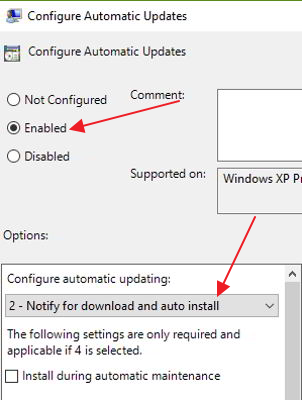
  • Click Enabled in the 2nd last step mentioned above
auto update enabled
  • Now go to the Options section and make some changes to configure automatic updating.
  • Choose Notify for download and auto install
  • Scroll down to find options like Scheduled install day, scheduled install time. click the drop-down list and select desired options as per your convenience
  • Windows 10 also offers weekly, bi-weekly, monthly scheduled update options; scroll down in the same section to use any options given there.
  • Once you are done with update settings, click Apply and then click OK
  • Close all windows
  • Restart your computer to let the changes take effect

Method Four – Change Device Installation settings

By default, Windows 10 also downloads updates for drivers and detailed info for devices automatically. If you do not want Windows to download driver updates, you need to change device installation settings by following steps given below

  • click Start and type control in the Cortana search box
  • click Control Panel from the list of results
  • In the Control Panel windows, click System
  • In the Systems window, click Advanced system settings in the left pane
  • In the System properties window, click Hardware tab
  • Now click Device Installation settings
  • In the Device Installation settings window, select No(your device might not work as expected)
  • click Save Changes
  • Close all windows and restart your computer.

Henceforth Windows 10 will not download driver automatically from device manufacturers.

Tip-  The Windows Update tool updates computer which enhances performance of the operating system and also fixes some  problems. Since you have stopped Windows update, you need to consider an alternative way to update drivers. With the right drivers, your Windows 10 would run smooth and you would experience lesser problems.

Over the time some drivers become outdated and might also get corrupt. This could lead to other problems that might make Windows unstable and also hinder its performance. So don’t ignore the importance of driver update. Always update drivers periodically to maintain optimal performance of Windows.

You can either download drivers- manually or use a Driver update software tool.

Updating Drivers Automatically

Automatic driver update tools offer many benefits, the most important ones being:

  • You can update device drivers automatically
  • The software scans and updates all outdated or missing drivers at one go
  • The tool picks the right drivers for your device and operating system, so you won’t have to worry about installing an incorrect driver by mistake
  • Automatic driver updates are 100% safe

Driver Updater is one of the best driver update tools out there. Outbyte Driver Updater will give you access to a database of over 1 million drivers. It will regularly scan your PC, suggesting new driver versions to install. Driver Updater contains drivers for a variety of Windows devices. With just one click, you can update drivers in your system.

Step 1
Click here to Install and launch the app

Step 2
Scan all devices

Step 3
Install or update drivers automatically


Start Download


Filed Under: PC Fix Tips Tagged With: block windows update

  • « Previous Page
  • 1
  • …
  • 152
  • 153
  • 154
  • 155
  • 156
  • …
  • 189
  • Next Page »


  • Recent Posts
  • Popular Posts
        

Read More Posts


Read More Posts

Drivers.com Sites

  • Software Drivers
  • Drivers Ed

About Us

  • Advertise
  • About Drivers
  • Drivers Support
  • Drivers.com Privacy Policy
  • Disclaimer
  • Software Drivers
  • Mac Fixes and Tips
  • PC Fix Tips
  • Security/ Backup
  • Tablets & Smartphones
  • Tech News

© Copyright 2026 PDE Publications Ltd. End User License Agreement (EULA)