Do you want to play games on your computer using a PS4 controller?
If the answer is yes, this post is for you. Many gamers think the PS4 controller can only be connected to PS4 gaming console. This is not true.
To play games on your computer using a PS4 controller, you are required to first connect the PS4 controller to your Windows system.
In this post, you will learn about different methods to connect PS4 controller to Windows PC.
You are free to choose any method of connecting but you might be limited by options due to hardware or functionality of Windows device you are using. The method of setting up the PS4 controller on Windows is quite easy and you don’t need to be a gaming or Windows expert to accomplish the task. All you need to do is follow the steps given here.
Step 1 – Connect PS4 controller
You can connect the PS4 controller either by USB (wired connection) and Bluetooth (wireless connection). A large number of desktops don’t have Bluetooth functionality and the USB option might seem convenient to many due to easy availability of micro USB cable.
Connect PS4 controller through USB
You can use the smartphone micro USB cable to connect the PS4 controller to your computer. Here are the steps to follow.
- Plug in the larger connector of micro USB cable in one of the USB ports of your PC
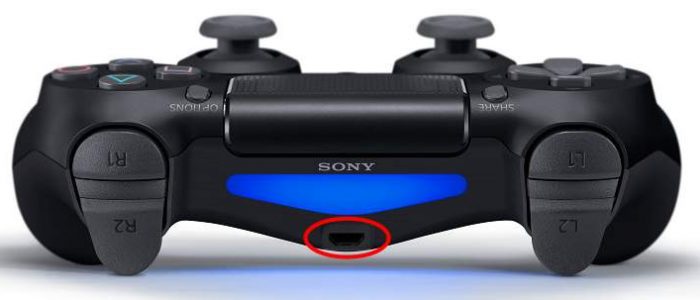
- Insert the smaller connector of micro USB cable in the front USB port of the PS4 controller. See the reference image below.
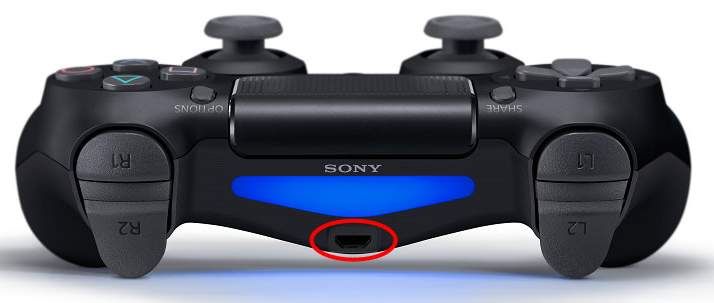
- The physical connection between both devices is complete and you can move to 2nd Windows 10 users can directly go to 3rd Step.
Connect PS4 controller through Bluetooth
If your Windows PC has Bluetooth functionality, you can use this option. Laptop users would find this method of connection a bit easier. If your Windows PC does not have in-built Bluetooth functionality, you would need a Bluetooth adapter to use this connection method.
You are free to use any Bluetooth adapter for this purpose. You also have the option of buying Bluetooth adapter sold by Sony Company. Once you have the Bluetooth adapter, you need to ensure it works perfectly with your PC.
Many users were required to install Bluetooth drivers on their PC to use the Bluetooth adapter. If you have never installed drivers manually, you can use a Driver Update Tool to find and install Bluetooth drivers.
Automatic driver update tools offer many benefits, the most important ones being:
- You can update device drivers automatically
- The software scans and updates all outdated or missing drivers at one go
- The tool picks the right drivers for your device and operating system, so you won’t have to worry about installing an incorrect driver by mistake
- Automatic driver updates are 100% safe
Driver Updater is one of the best driver update tools out there. Outbyte Driver Updater will give you access to a database of over 1 million drivers. It will regularly scan your PC, suggesting new driver versions to install. Driver Updater contains drivers for a variety of Windows devices. With just one click, you can update drivers in your system.
Step 1
Click here to Install and launch the app
Step 2
Scan all devices
Step 3
Install or update drivers automatically
Pairing PS4 controller
After Bluetooth adapter is installed on PC, the next step is pairing your PS4 controller with your PC. Press and hold PS and Share button simultaneously until you see white light flashing on your PS4 controller. When your PS4 controller enters pairing mode, follow the steps given below.
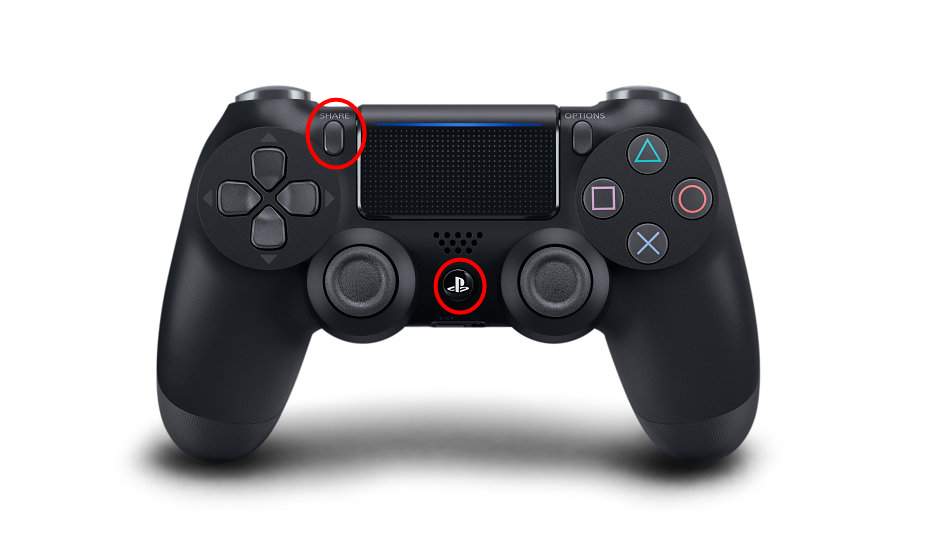
The steps to pair the PS4 controller with Windows 10 and older Windows versions are different. Follow the steps that are indicated for your Windows version.
For Windows 10 users
- Click Start
- Click Settings(gear icon)
- In the Settings window, select Devices
- In the Devices window, click Bluetooth and other devices in the left
- In the right pane, click wireless controller
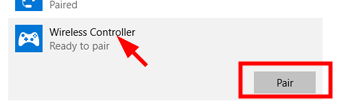
- Click Pair
- if you are prompted to enter pass key, type 0000
- The pairing between the PS4 controller and your Windows 10 PC is completed and you can move to the Step 3
For Windows 7 users
- Click Start button
- Select Devices and Printers
- In the Devices and Printers window, click Add device that appears on the top left corner of the window
- Select your PS4 controller and click Next
- if you are prompted to enter pass key, type 0000
- The pairing between the PS4 controller and your Windows 7 PC is completed and you can move Step 2
Step 2 – Install an Xbox 360 controller driver (for Windows 7 and older versions)
Just connecting PS4 controller to Windows 7 and older operating systems is not enough to use PS4 controller with Windows PC. Windows 7 and older Windows versions do not recognize your PS4 controller directly and you need to install an Xbox 360 controller driver to help Windows recognize the PS4 controller.
If Xbox 360 controller software is not installed on your PC, you need to get it from Microsoft website. Here are the steps to follow.
- Go to Xbox 360 controller for windows download page
- Under Software and Drivers, select your Windows operating system version. Make sure you select the right Windows version and bit-architecture(32-bit or 64-bit)
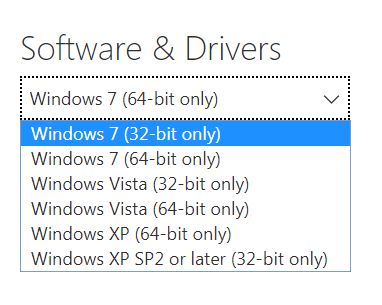
- Now click Xbox 360 accessories Software.
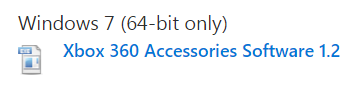
- The download is initiated. Click Save file
- Once the file is downloaded, double-click on it and install the Xbox 360 software on your PC
Users who have installed Xbox 360 software earlier are required to update the driver to the latest version. If you have never updated the driver manually, you can use a Driver Update Tool to get the latest Xbox 360 driver for your PC.
Just click the green button listed above (in the Connect PS4 controller through Bluetooth section) and follow the onscreen instructions.
Step 3 – Use 3rd party Xbox 360 emulator
To play games on Windows PC using PS4 connector, you require an Xbox 360 emulator that will take your PS4 controller as Xbox controller. The emulator is a necessary thing which allows you to use a PS4 controller with Windows PC.
You have two options in terms of 3rd party Xbox 360 emulators which includes DS4Windows and Steam. If you have a Steam client installed on your Windows PC, the thing would be a bit easy for you as Steam has rolled out support for DualShock 4 wireless PS4 controller. Here are the steps you need to follow to configure PS4 controller on Steam client.
Unplug the PS4 controller from your PC. If the PS4 controller is connected via Bluetooth, go to wireless settings and Unpair the PS4 controller
- Start Steam client on your Windows computer
- Log into your Steam account
- Click the Big Picture button
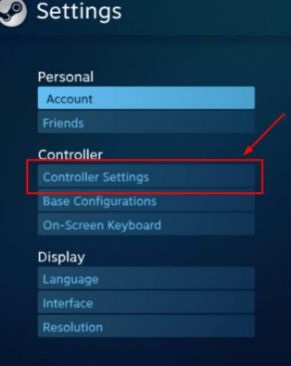
- Now click Settings(gear icon)
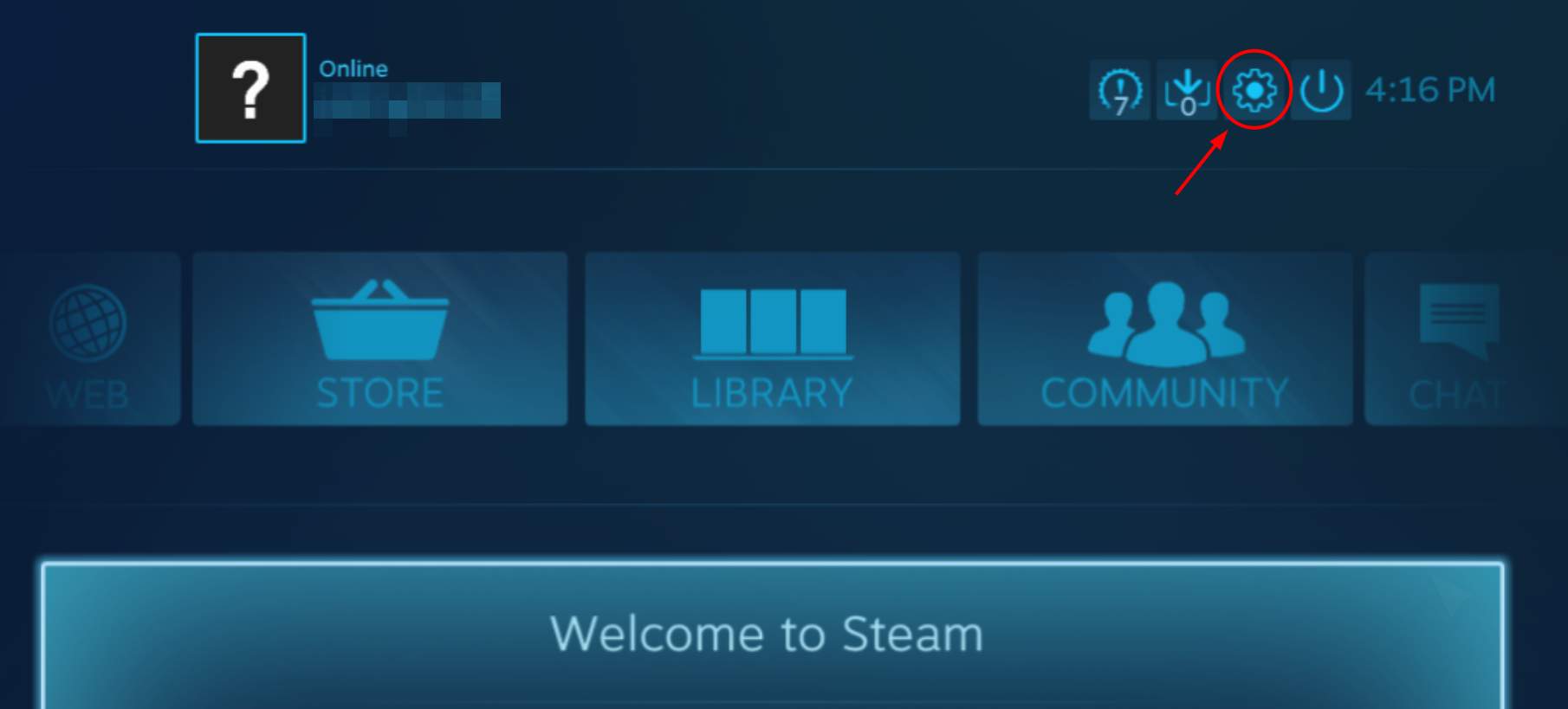
- Click Controller settings
- Check box for PS4 configuration support
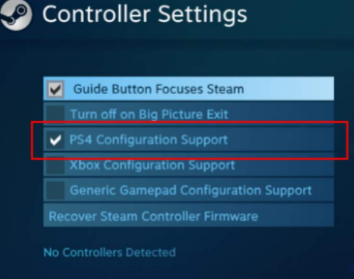
- Now connect your PS4 controller to your PC. The Steam client should detect the PS4 controller
- Start any game from Steam library that supports game controller. Press PS button on PS4 controller
- On the computer screen, click Controller configuration
- In the controller configuration window, modify the settings for the PS4 controller
- Quit Controller configuration.
Now you can enjoy games on your Windows PC using PS Controller. If you don’t want to use the Steam client, you can use DS4Windows which is also a good game controller emulator. You need to map your PS4 controller to the Xbox Controller driver on your PC. Here are the steps to follow.
- go to DS4Windows website and click Download Now
- In the next page, click zip and then click Save file
- Wait for the download to complete. After the file is downloaded, extract the contents of the folder
- Click on DS4Windows (Application) in the extracted folder
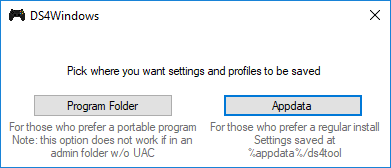
- You get two options to save Settings and Data for the DS4Windows emulator- Programs Folder and You will need administrative privileges to save settings and data of DS4Windows emulator to Programs folder. If you are using a restricted account, you need to select AppData option in this step.
- Click Step 1: Install the DS4 Driver
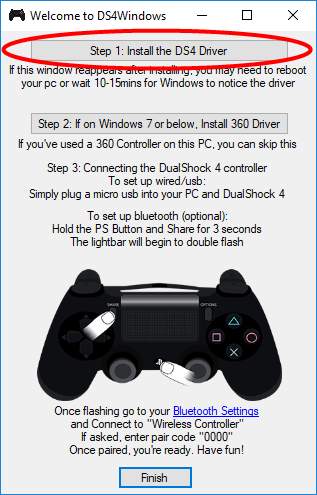
- If you are using Windows 7 or older version of Windows, click Step 2: if on Windows 7 or below, Install 360 driver
- In the Windows security pop-up, click Install
- After some time you will see Install complete message appear at the same place where you clicked earlier. It indicates the installation was successful and you are good to go. Click Finish at the bottom of the window to mark the completion of DS4Windows installation

- In the DS4Windows, select the Controllers You should see PS4 controller listed in the window of connected controllers
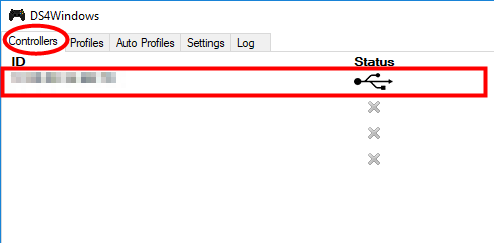
- If there is no PS4 controller in the list, restart your PC and perform the above step again
If you see the PS4 controller in the list of connected controllers, you can go ahead and play games on Windows PC using PS4 controller.
If you are looking to play your Playstation 4 on a Mac or PC then view our article here.