Drivers.com

follow us:

facebook twitter
  • Home
  • Download Drivers
  • Drivers Help
  • PC/Mac Resources
  • Software Drivers
  • Mac Fixes and Tips
  • PC Fix Tips
  • Security/ Backup
  • Tablets & Smartphones
  • Tech News
  • Software Drivers
  • Mac Fixes and Tips
  • PC Fix Tips
  • Security/ Backup
  • Tablets & Smartphones
  • Tech News

msvcr120.dll is missing error in Windows

By Susan C on July 23, 2018

msvcr120.dll is missing error in Windows

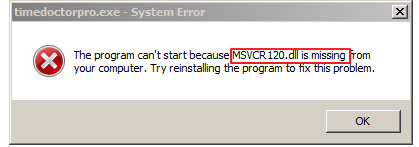
Are you getting a msvcr120.dll is missing error while running an application? If yes, this post is for you.

error image

Many Windows users don’t understand what to do when they get such an error and they often panic. However, the fact of the matter is that error is not so difficult to resolve. You don’t need a lot of technical knowledge to troubleshoot it.

You can fix this error yourself—and we’ll show you how. In this post, we have listed five solutions that could fix the “msvcr120.dll is missing” error.

What is msvcr120.dll and why programs need it?

Msvcr120.dll is DLL (Dynamic Linked Library) file known as Microsoft C Runtime Library. It is part of Microsoft Visual Studio 2013 program developed by Microsoft Corporation. It is an essential file in Windows operating system that is used to extract valuable resources at runtime by 3rd party applications.

You are more likely to see this error if the msvcr120.dll is missing from your computer and the application you are trying to run needs it. You won’t be able to run any programs written in C++ programming languages until your computer has msvcr120.dll file.

Though we have provided five different solutions to fix the issue, you are not required to try all of them. You can start by performing troubleshooting steps in Solution One. If that does not fix the issue, move to the next one and so on.

Let’s get started.

Solution One – Reinstall the Visual C++ Redistributable Packages

As mentioned earlier the msvcr120.dll is part of Visual C++ Redistributable Packages of Microsoft Visual Studio 2013 program. If the file has gone missing on your computer, it means there is something wrong with the Visual C++ Redistributable Packages on your computer.

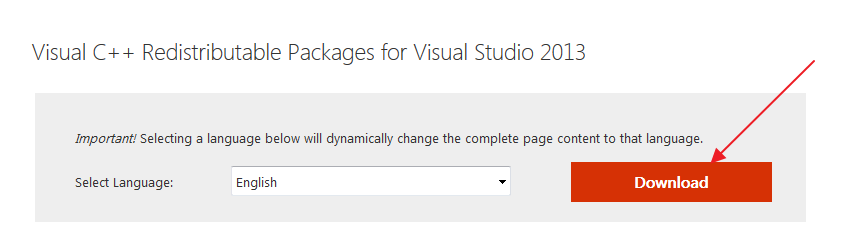
The easiest solution to get back the msvcr120.dll file is downloading the Microsoft Visual C++ Redistributable Package and install it on your computer. Here are the steps to follow.

Note- You need to download the Visual C++ Redistributable Packages from the official site and install them. Don’t download DLL files from unknown sources as you might end up downloading a virus camouflaged as an msvcr120.dll file.

Since the Visual C++ Redistributable Packages are offered in two versions – 32-bit and 64-bit. You need to find out the system type before proceeding to troubleshooting steps given below

For Windows 7 users

  • Click Start
  • Right-click My Computer and select Properties
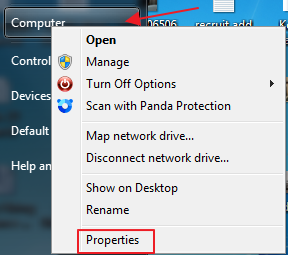
computer properties
  • In the System window, you can know about the system bit architecture- 32-bit or 64-bit
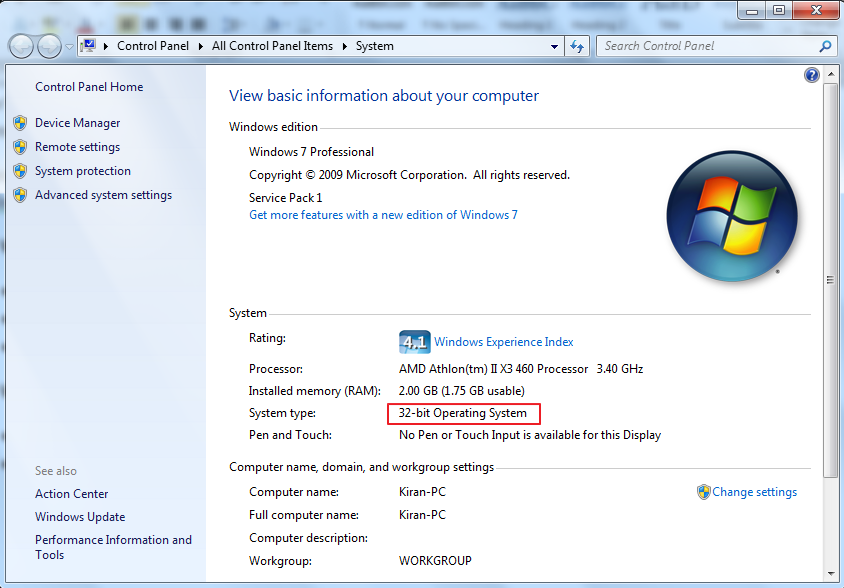
32-bit

For Windows 10 users

  • Open Windows Explorer
  • Right-click This PC and select Properties
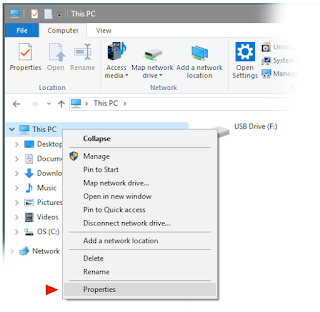
Properties
  • In the System window, check the System type entry to find out whether the operating system is 32-bit(x86 based) or 64-bit(x64 based)
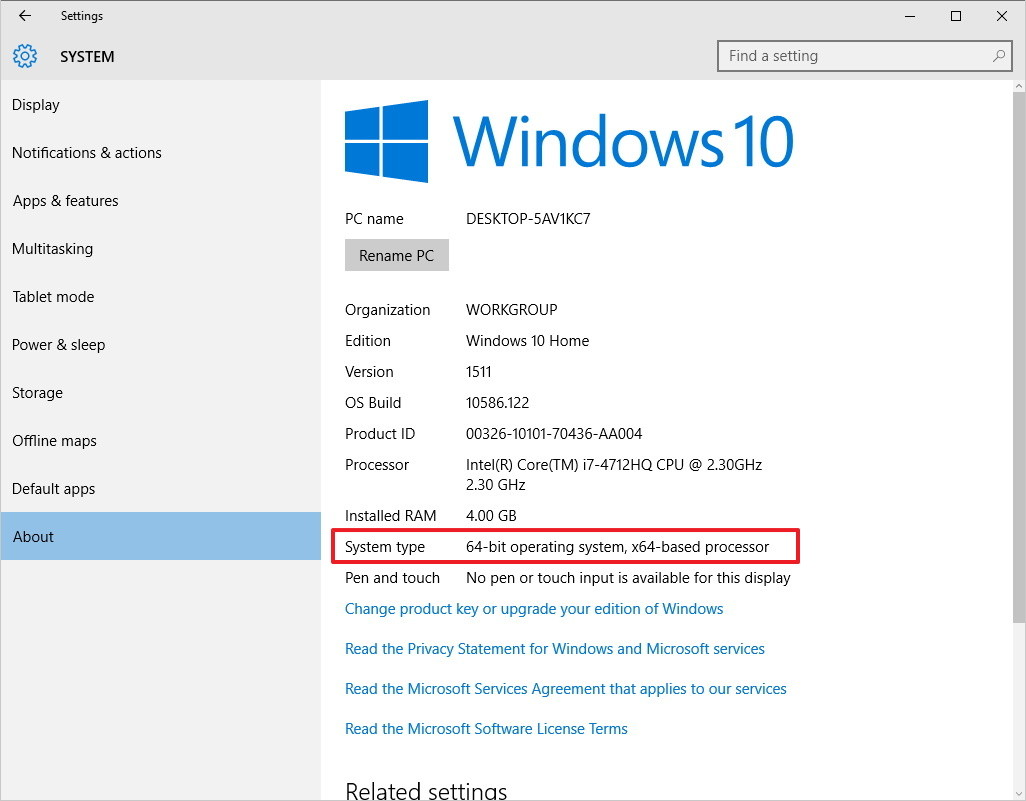
64- bit architecture

Once you have information about Windows operating system bit-architecture, you can proceed to trouble-shooting steps below.

  • Click Microsoft Download website link
  • Click Download
visual C++ download
  • Select the file as per your system type(x86 for 32-bit and x64 for 64-bit Windows)
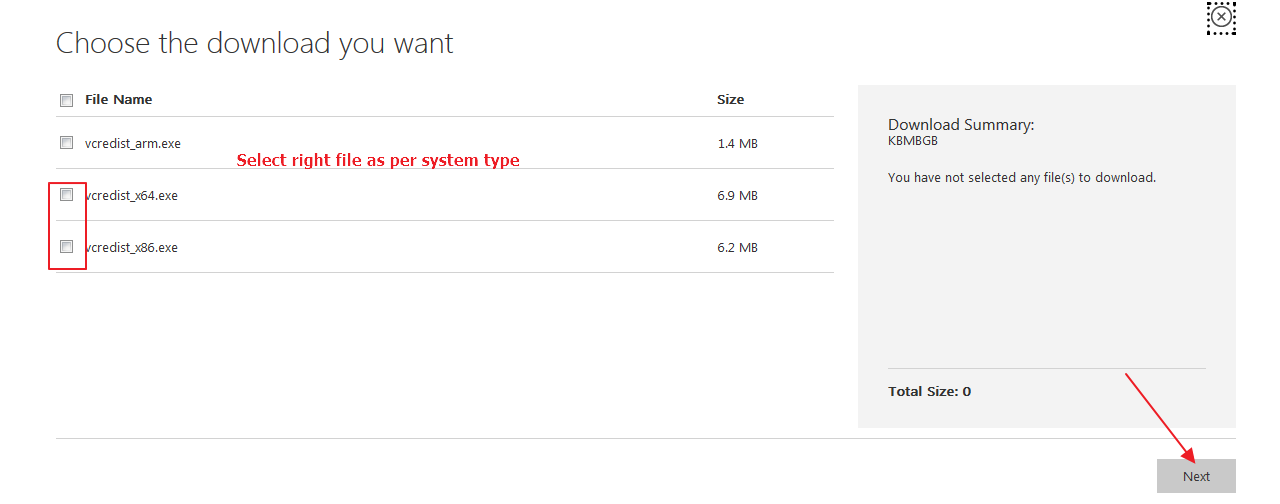
click next
  • After checking the box of right file type, click Next
  • The file download is initiated and you can see a pop-up dialog on the screen, click Save File
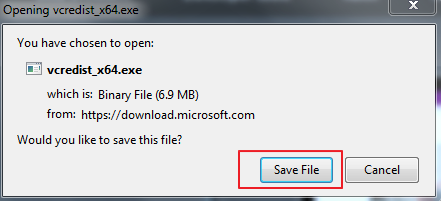
save file
  • Once the file is downloaded, double-click on the file to start the installation
  • Follow on-screen instructions to install Visual C++ Redistributable Packages
  • Restart computer

Try running the program and see if the “msvcr120.dll is missing” error is generated. If you still get the “msvcr120.dll is missing” error, try next solution

 Solution Two – Perform a clean installation of the program

Since the problem is not resolved even after reinstalling Visual C++ Redistributable Packages, the program files might be corrupted that is causing the error. A simple solution to this problem is performing a clean installation of the program which includes completely uninstalling the program first and then reinstalling the program again. Here are the steps to follow.

  • Press Windows logo key and R simultaneously on the keyboard to bring up the Run command console
  • In the Run command box, type cpl and click OK
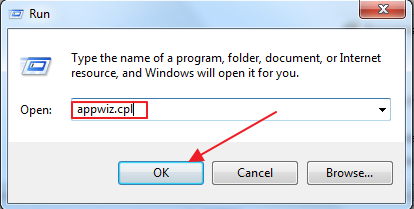
appwiz
  • Right-click the program that gives the error and click Uninstall/Change. In our case, it is Foxit Reader which is giving the error
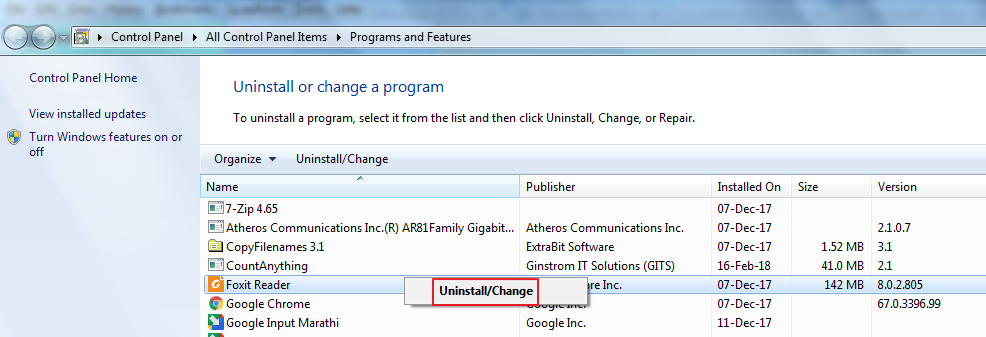
uninstall
  • Follow the instructions to uninstall the program
  • Once the problematic program is installed, restart your computer
  • Now, install the program and see if it works as intended

If you still encounter “Msvcr120.dll is missing” error while running the application, try next solution.

Solution Three – Update Drivers on your Windows computer

Outdated drivers can cause msvcr120.dll error. Therefore, update your drivers using a reliable and fast driver update tool software tool. Manual update is also possible but you might not want to go that way because it is not only time-consuming but also not hundred percent accurate.

Automatic driver update tools offer many benefits, the most important ones being:

  • You can update device drivers automatically
  • The software scans and updates all outdated or missing drivers at one go
  • The tool picks the right drivers for your device and operating system, so you won’t have to worry about installing an incorrect driver by mistake
  • Automatic driver updates are 100% safe

Driver Updater is one of the best driver update tools out there. Outbyte Driver Updater will give you access to a database of over 1 million drivers. It will regularly scan your PC, suggesting new driver versions to install. Driver Updater contains drivers for a variety of Windows devices. With just one click, you can update drivers in your system.

Step 1
Click here to Install and launch the app

Step 2
Scan all devices

Step 3
Install or update drivers automatically


Start Download


Solution Four-Run a Virus scan on your computer

If your Windows operating system is infected by virus or malware, it can prevent some DLL files from running and that could be the cause of the error. Some “Dll is missing” errors also occur due to Trojan programs posing as DLL files and preventing normal operation of other programs.

To ensure your system is not infected with any virus, malware or Trojan programs, you need to run a full scan of your system with a good anti-virus. If you are using Windows Defender, it might not be enough.  We suggest you to use a good anti-virus program to get rid of virus infections from your computer if any.

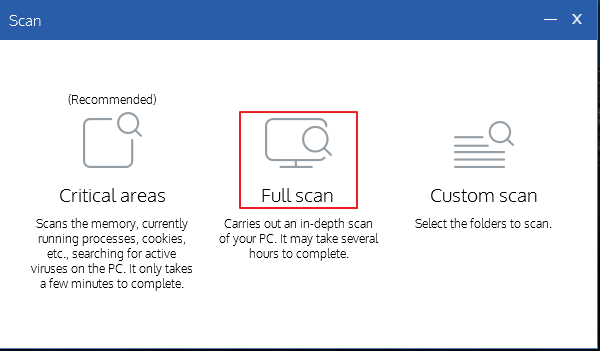
Once you have installed a good 3rd party anti-virus program, you need to run a full scan of your computer. The steps to run a full scan on your computer varies with each anti-virus program. Popular anti-virus programs offer different scan options such as Full Scan, Quick Scan, Custom Scan, or Critical Areas scan.

You need to select a Full Scan option which ensures every hard drive partition of your computer is scanned. If the anti-virus finds any virus or malware, it will offer you different options to get rid of the virus. Follow the instructions to get rid of the virus.

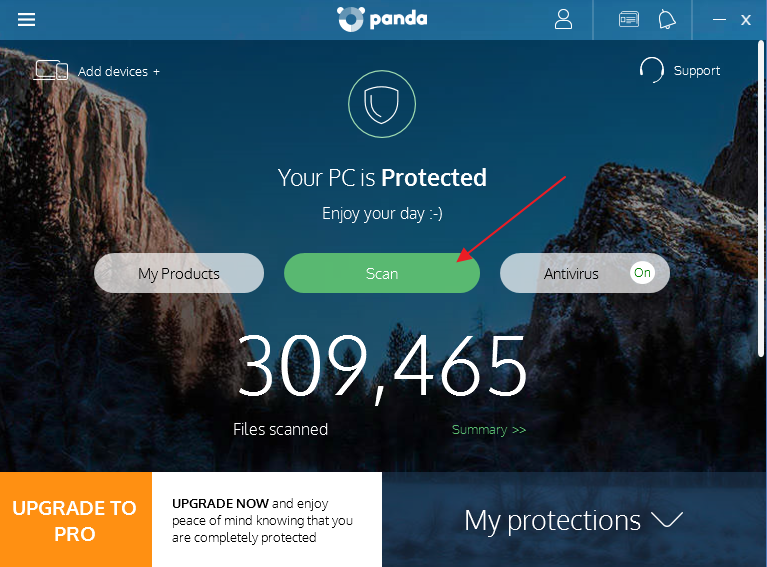
The steps given below are for reference purpose only. You need to refer your anti-virus documentation to know the exact steps to perform a full scan. Here we have Panda anti-virus installed on our computer.

  • Right-click on anti-virus scan icon to open the anti-virus user interface
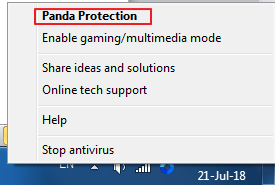
antivirus icons
  • Click Scan
anti-virus UI
  • Click Full Scan
full scan
  • Wait for the anti-virus scan to complete.

Once the anti-virus scan is completed, run the program that gave “msvcr120.dll is missing” error. If you still encounter the error while launching the program, move to the next solution.

Solution Five – Run SFC scan

One of the possibility is some system files are corrupt which is causing the “msvcr120.dll is missing” error. One simple solution to fix the problem with system files is running the SFC tool. SFC stands for System File Checker.

SFC is a command-line tool integrated into the Windows operating system. When you run the SFC tool, it scans system files for corruption and also detects any missing files. It then replaces missing and corrupt files with good cached file versions.

You can run SFC only through elevated command prompt that is a command prompt with admin rights. Here are the steps to run an SFC scan.

  • Click Start
  • Type cmd in the search box. Windows 10 users can type cmd in Cortana search box
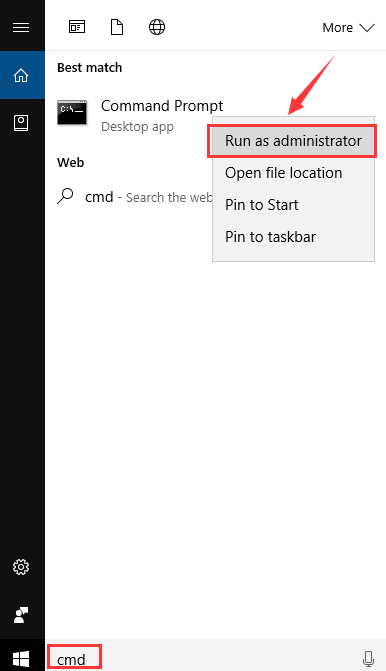
cmd run as admin
  • Right-click cmd from the list of search results and click Run as administrator
  • In the command prompt window, type sfc /scannow and press Enter on keyword
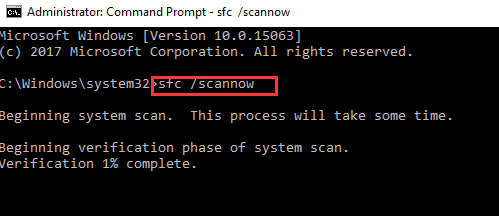
cmd sfc
  • The SFC scan process can take some time to complete. Wait for the command operation to complete and then close command prompt window

Now try to run the program that gave out “msvcr120.dll is missing” error. In most case, the “msvcr120.dll is missing” error should be resolved by now.
Filed Under: PC Fix Tips Tagged With: msvcr120 dll

DNS_PROBE_FINISHED_BAD_CONFIG error in Windows

By Susan C on July 21, 2018

DNS_PROBE_FINISHED_BAD_CONFIG error in Windows

DNS_PROBE_FINISHED_BAD_CONFIG is a common error that you may come across when surfing the Internet. The error is related to the IP address of the website(s) which may crop unexpectedly and prevent you from accessing a specific site or stop you from using the Internet altogether.

The error could occur if the DNS server is not responding properly or there is some problem with the Internet connection. The error is not dreadful as it might seem to many users and sometimes the problem is temporary.

Before you perform any troubleshooting steps given below, restart your router and see if the problem is resolved. If you are still getting a DNS_PROBE_FINISHED_BAD_CONFIG error, start with the first solution and if it does not work, try the next solution.

Solution One – Release and Renew IP address

Windows operating system stores the IP addresses of the websites you visit. The information is stored in DNS cache. In case, the IP address of the website changes the Window refers old IP address to access the website which leads to errors like DNS_PROBE_FINISHED_BAD_CONFIG.

To resolve such problem, you need to flush the DNS cache by releasing stored IP address. Windows will then store new IP address of the website(s) that would resolve the DNS_PROBE_FINISHED_BAD_CONFIG error. Here are the steps to follow.

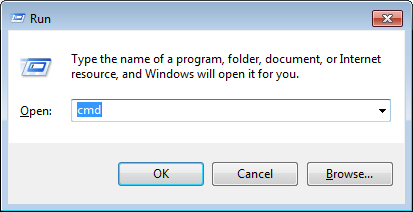
  • Press Windows logo key and R simultaneously on the keyboard to invoke Run command console
  • Type cmd in Run command box and click OK

cmd

  • In the command prompt window, type following commands and press Enter on the keyboard after each command. Before typing the next command, allow the previous command operation to complete
  • ipconfig /release
  • ipconfig /flushdns
  • ipconfig /renew
  • Close command prompt window

Launch any browser and try accessing the website which encountered DNS_PROBE_FINISHED_BAD_CONFIG error. If the error still persists, try next solution.

Solution Two – Change DNS settings

There is a possibility the DNS server of your Internet Service Provider is down or not functioning properly. A simple solution to this problem is using Public DNS server addresses that would help you access the problematic sites. Here are the steps to follow.

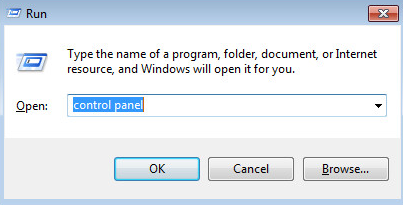
  • Press Windows logo key and R simultaneously on the keyboard to bring up the Run command console
  • Type control panel in Run command box and press Enter on the keyboard

control panel

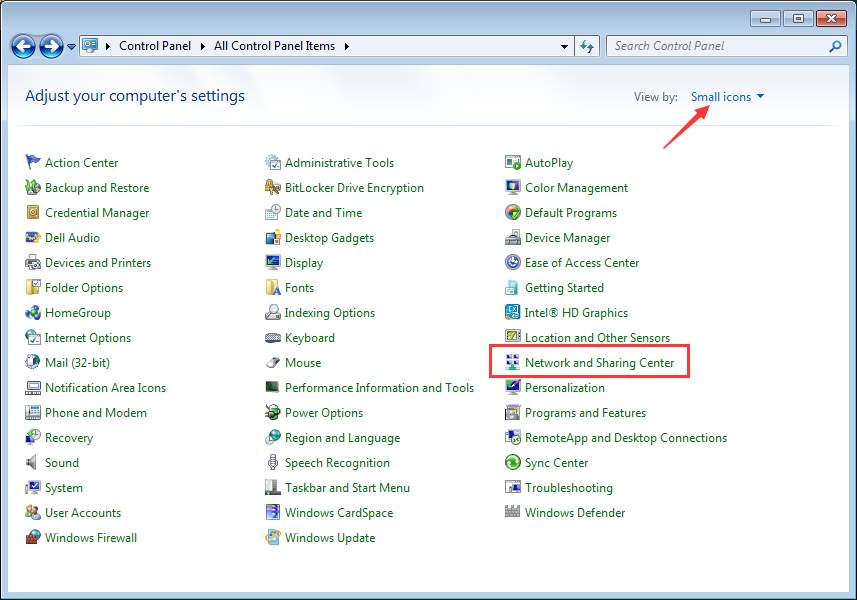
  • In the next window, set the View by –Small icons
  • Click Network and Sharing center

network and sharing

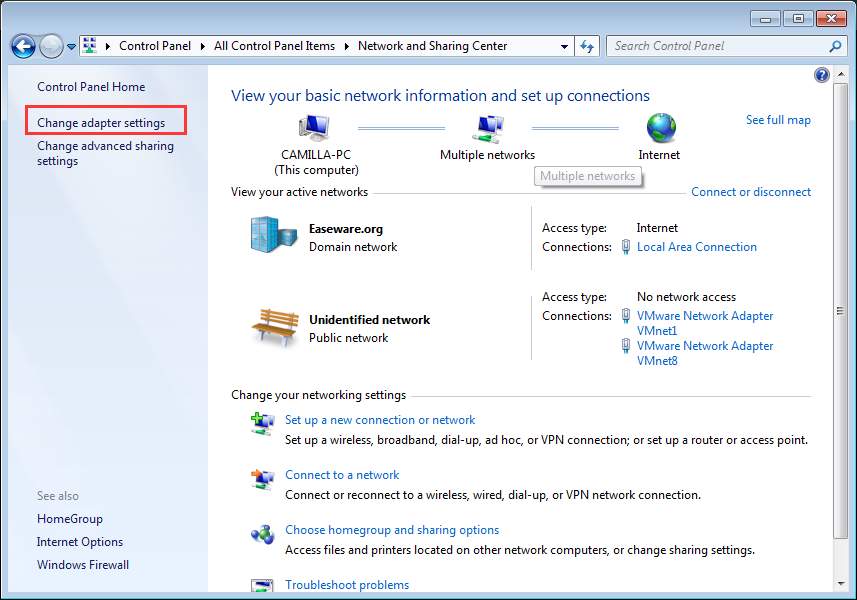
  • In the Network and Sharing Center, click Change adapter settings

change adapter settings

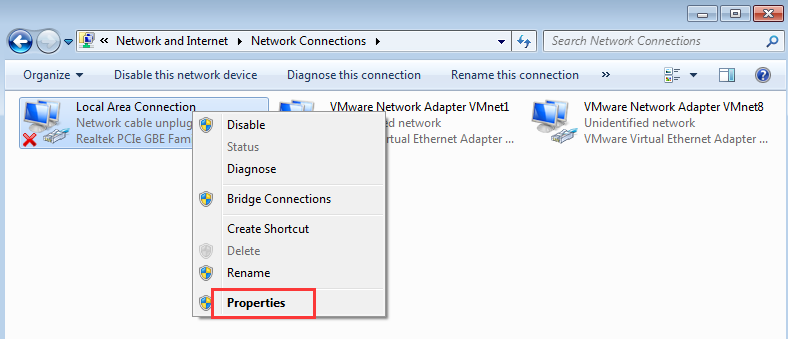
  • Right-click problem network generally indicated with a yellow exclamation mark or red mark icon and select Properties.
  • Note – In some cases, you may not find any problem with Internet connection but the steps remain same.

properties

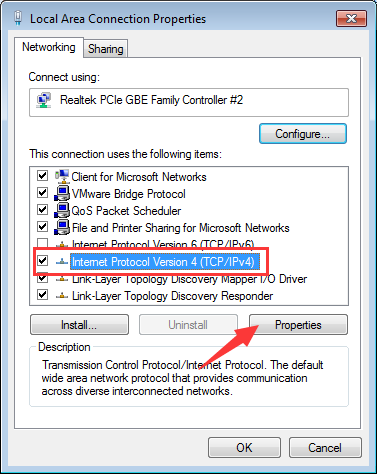
  • In the Properties windows, go to Networking tab and select item Internet Protocol Version 4 (TCP/IPv4) and then click the Properties button.

TCP-IPv4

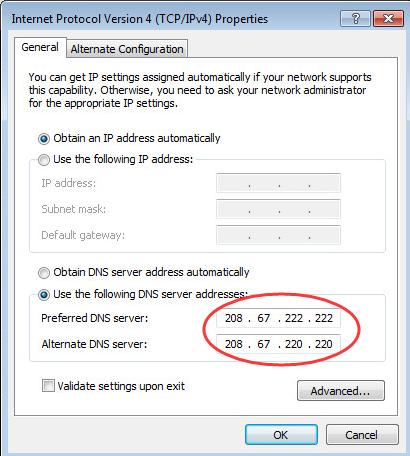
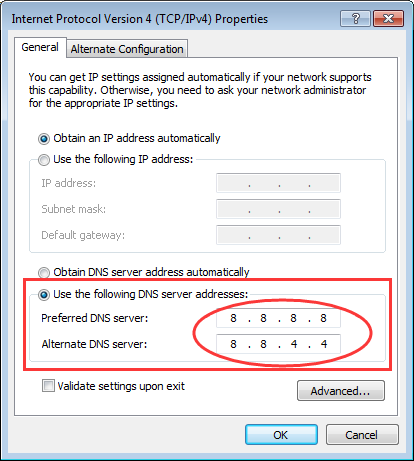
  • Click the option “Use the following DNS server addresses”, and enter the following values

DNS addresses 1

  • For Preferred DNS server type 8.8.8
  • For Alternate DNS Server, type 8.4.4
  • Click OK

Check if the problem is resolved. If the problem still persists, try the following DNS server addresses and see if it works.

DNS addresses 2

  • For Preferred DNS server type 67.222.222
  • For Alternate DNS Server, type 67.220.220
  • Click OK

Try accessing the website to see if the problem is resolved. In most cases, the DNS_PROBE_FINISHED_BAD_CONFIG error should be resolved by now.
 

Filed Under: PC Fix Tips Tagged With: dns error

iPhone Keeps Disconnecting from Wi-Fi issue

By Susan C on July 20, 2018

iPhone Keeps Disconnecting from Wi-Fi issue

Many iPhone users have complained about several Wi-Fi issues after upgrading to iOS 11/11.1/11.2/11.3.  One of the common Wi-Fi issues faced by iPhone users is Wi-Fi keeps dropping. If you are facing a similar problem, read this post as it offers several solutions to fix the issue in a few minutes.

We have provided five different solutions that would fix the issue.  You don’t have to try all the solutions. The best approach would be to start with the first solution. If the first solution does not work, move to the next solution and so on. We are confident that one of the listed solutions would definitely work for you.

Let’s get started.

Solution One – Check your Wi-Fi network for problems

There is a possibility that there is nothing wrong with your iPhone and the problem is with your Wi-Fi device/router. The first thing you need to do is ensure the iPhone is within range of the Wi-Fi network. A typical router with the antenna has a range of 50 meters, but that is reduced by obstacles like walls and other solid things.

Make sure your iPhone is within network range and your iPhone shows good Wi-Fi signal strength. Also, check if other devices are facing similar Wi-Fi issues. If you notice similar Wi-Fi connectivity problems with other devices as well, you can draw a conclusion that Wi-Fi device is to be blamed.

Restart your router and see if the problem is resolved. If Wi-Fi connectivity issues exist, refer router documentation to troubleshoot your Wi-Fi device for connectivity issues. You might be required to contact router manufacturer or ISP to fix any hardware or network issues that you can’t fix by yourself.

Solution Two – Enable Auto-Join for your Wi-Fi network

iPhone remembers login and network information so that your iPhone can automatically connect to Wi-Fi network whenever it is in the network range. However, for this feature to work, the Auto-Join option must be enabled for that specific Wi-Fi network. Here are the steps you need to follow.

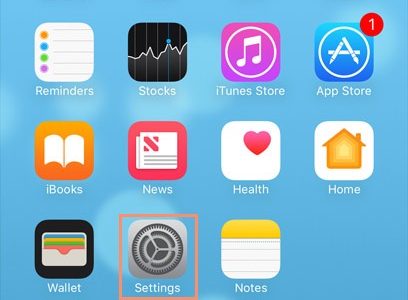
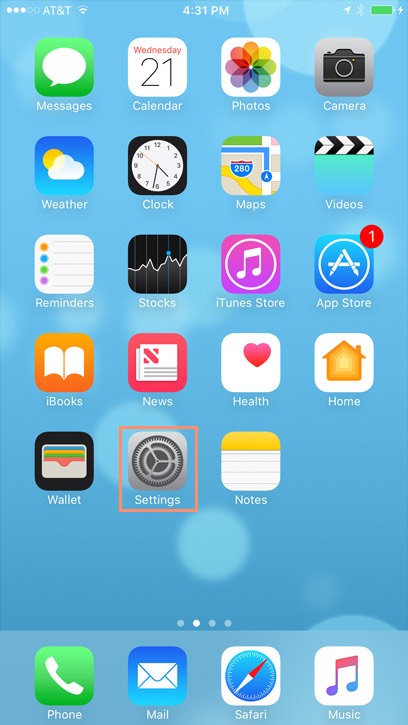
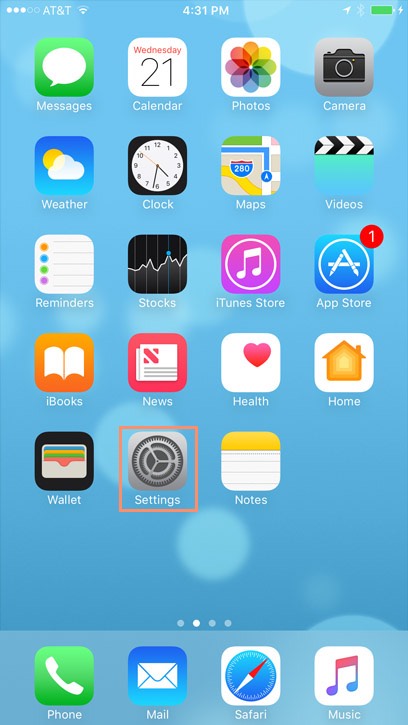
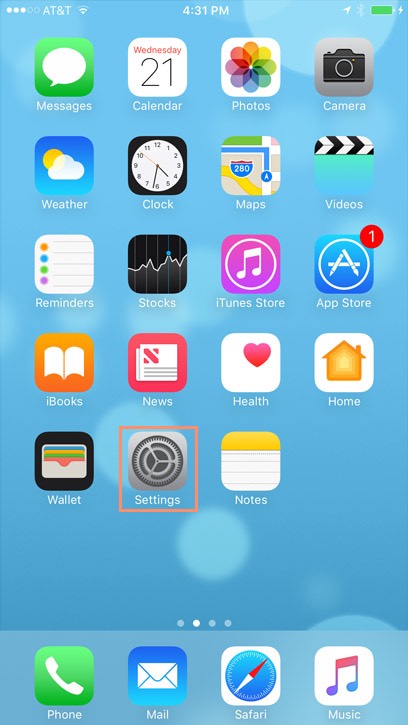
  • Launch Settings app from the Home Screen
settings
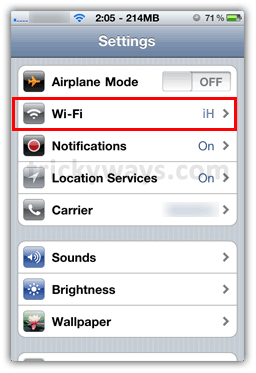
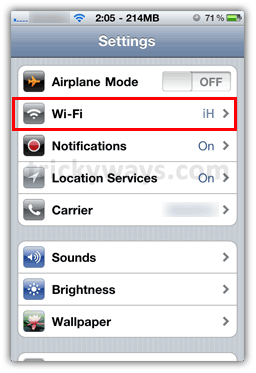
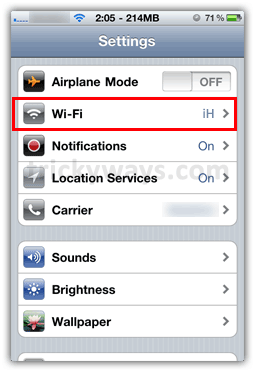
  • Tap Wi-Fi
wifi
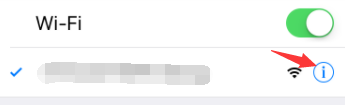
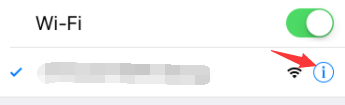
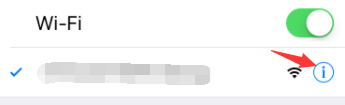
  • On the right side tap i (information mark) next to your Wi-Fi network name
information mark
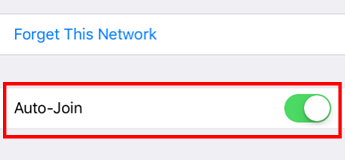
  • Enable Auto-Join
auto-join

Check whether this option works for you by taking your iPhone out of network range and again bringing it in network range. If the Auto-Join feature does not work for you, go to next solution.

Solution Three – Forget and Reconnect to Wi-Fi Network

Whenever your iPhone connects to a Wi-Fi network, a small handshake is performed and the iPhone stores information of the Wi-Fi network that is used for auto-join or connecting to the network in the future.

There is a possibility the handshake has become corrupted in some way which might be the main cause of the “iPhone keeps disconnecting from Wi-Fi” issue. One of the ways to fix this Wi-Fi connection issue is using the “Forget this network” option.

When you try to reconnect to a forgotten network, a fresh handshake will be initiated which could resolve the Wi-Fi issue. Here are the steps to follow.

  • Launch Settings app from the Home Screen
settings
  • Tap Wi-Fi
wifi
  • On the right side tap i (information mark) next to your Wi-Fi network name to bring up the settings for the Wi-Fi network
information mark
  • Tap Forget this Network
forget network
  • When the Wi-Fi network reappears in the Wi-Fi list, tap on it
  • Enter login information and connect to the network again

Check whether the iPhone keeps disconnecting from Wi-Fi issue is resolved. If it persists, try next solution.

Solution Four – Renew Lease

IP address conflicts are also known to cause issues like “iPhone keeps disconnecting from Wi-Fi”. If the wireless router finds two devices with the same IP address on its network, it will be too confused about to manage these devices on the network. To resolve the issue, the router might forcibly disconnect one of the wireless devices from the network.

The “Renew Lease” option in Wi-Fi is a perfect solution to deal with such a problem. When you use the “Renew Lease” option, the iPhone will disconnect from the network which will release the conflicting IP address. It will then try to connect with the Wi-Fi network through new IP address given by the router. Here are the steps to renew DHCP lease.

  • Tap Settings app on the Home Screen
settings
  • Tap Wi-Fi
wifi
  • Tap i (information mark) next to your Wi-Fi network name
information mark
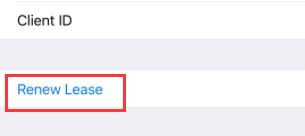
  • Tap blue colored Renew Lease button that appears at the bottom of the Settings pane.
renew lease
  • Try connecting the iPhone to the network, enter login information when prompted

After your iPhone is connected, try Internet browsing and check whether the Wi-Fi connection is dropped after some time. If the issue still persists, try next solution.

Solution Five – Reset iPhone’s Network Settings

Resetting Network settings on your iPhone means clearing all information related to network connections. It includes deleting all saved networks, erasing login and password information for various networks. The Network settings reset option will also erase any VPN related settings on your iPhone.

One good thing about this solution is it would erase any corrupted network information and settings from your iPhone that might be left even after performing solutions above. After this step, all your network connections will be established from scratch. Here are the steps you need to follow.

  • Tap Settings icon on Home Screen
settings
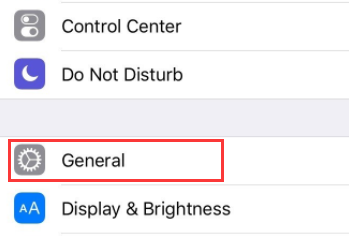
  • Tap General
general
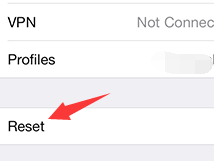
  • Tap Reset at the bottom
reset
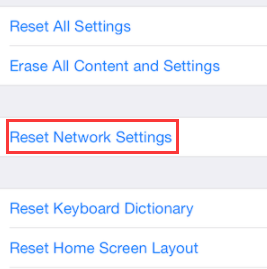
  • Tap Reset Network Settings
reset network settings 1
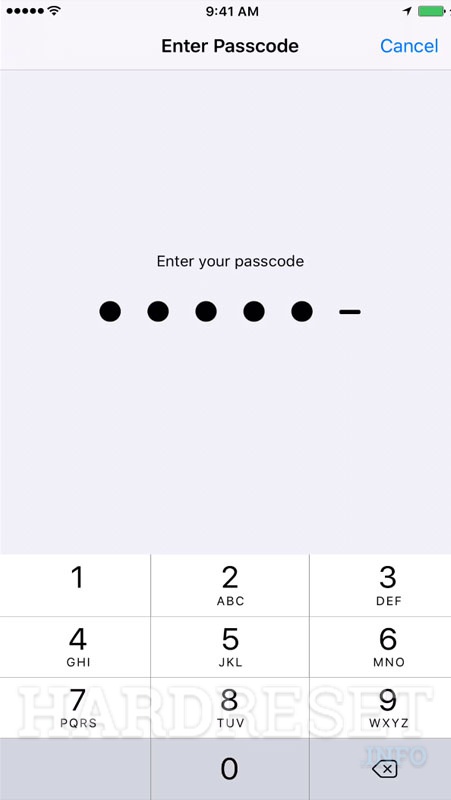
  • Enter the passcode when prompted
enter passcode
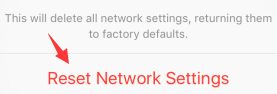
  • Tap Reset Network Settings again(Red colored)
reset network settings
  • Wait for the reset process to complete.
  • Restart your iPhone and connect to the Wi-Fi network by typing login information and password

Check whether the “iPhone keeps disconnecting from Wi-Fi” issue is resolved.

Filed Under: Tablets & Smartphones Tagged With: iPhone wi-fi issue

  • « Previous Page
  • 1
  • …
  • 156
  • 157
  • 158
  • 159
  • 160
  • …
  • 189
  • Next Page »


  • Recent Posts
  • Popular Posts
        

Read More Posts


Read More Posts

Drivers.com Sites

  • Software Drivers
  • Drivers Ed

About Us

  • Advertise
  • About Drivers
  • Drivers Support
  • Drivers.com Privacy Policy
  • Disclaimer
  • Software Drivers
  • Mac Fixes and Tips
  • PC Fix Tips
  • Security/ Backup
  • Tablets & Smartphones
  • Tech News

© Copyright 2026 PDE Publications Ltd. End User License Agreement (EULA)