Drivers.com

follow us:

facebook twitter
  • Home
  • Download Drivers
  • Drivers Help
  • PC/Mac Resources
  • Software Drivers
  • Mac Fixes and Tips
  • PC Fix Tips
  • Security/ Backup
  • Tablets & Smartphones
  • Tech News
  • Software Drivers
  • Mac Fixes and Tips
  • PC Fix Tips
  • Security/ Backup
  • Tablets & Smartphones
  • Tech News

Windows Modules Installer Worker high CPU usage in Windows 10

By Susan C on July 17, 2018

Windows Modules Installer Worker high CPU usage in Windows 10

One of the frequently encountered issues in Windows is high CPU usage issue, which typically occurs when a process hogs CPU resources. As a result, your computer becomes slow and unresponsive.

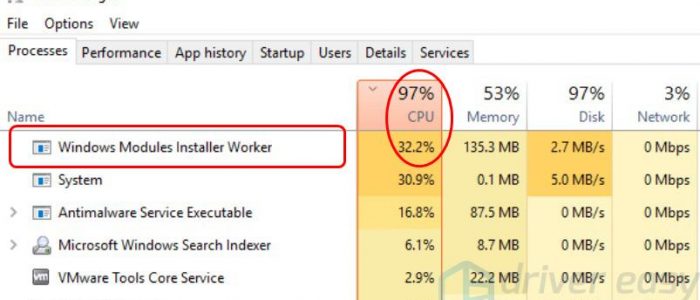
If you look inside the Task Manager, you can find which process/service is causing the issue.
task manager high cpu

Many Windows 10 users have complained about Windows Modules Installer Worker (TiWorker.exe) service using too much CPU resources (more than 90%). As a result not much is left, in terms of CPU resources, for other processes, and the computer’s speed drops to a snail’s.

If you are experiencing a similar problem, you’ll find this post helpful. It shares some simple solutions that could resolve the issue.

What is Windows Modules Installer Worker and why it is using too much CPU resources?

The Windows Modules Installer Worker is a Windows service that is responsible for automatic installation of Windows updates. It searches for Windows updates and installs them on your computer. Since the Windows 10 operating system is set by default to install updates automatically, the service is launched automatically by Windows operating system.

The Windows Modules Installer Worker process runs in background and it might put a heavy load on your system when you’re searching, downloading, and installing updates.

In such a scenario, restarting your computer does not resolve the issue as the process starts automatically.

Here are some solutions that might work for you.

Before Troubleshooting

As mentioned earlier, the Windows 10 operating system is set to update automatically. There is a possibility your Windows operating system is downloading and installing updates as per the set schedule. We suggest you give Windows Modules Installer Worker service some time to complete the update process.

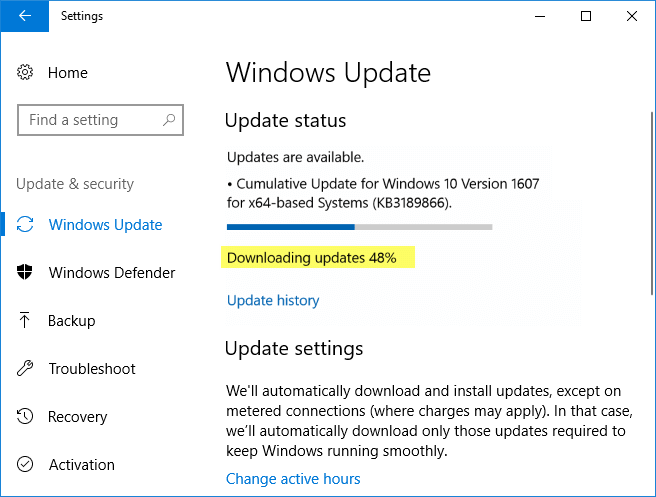
You can check the current status of Windows update by following the steps given below

  • Click Start
  • Click Settings(gear icon)
settings
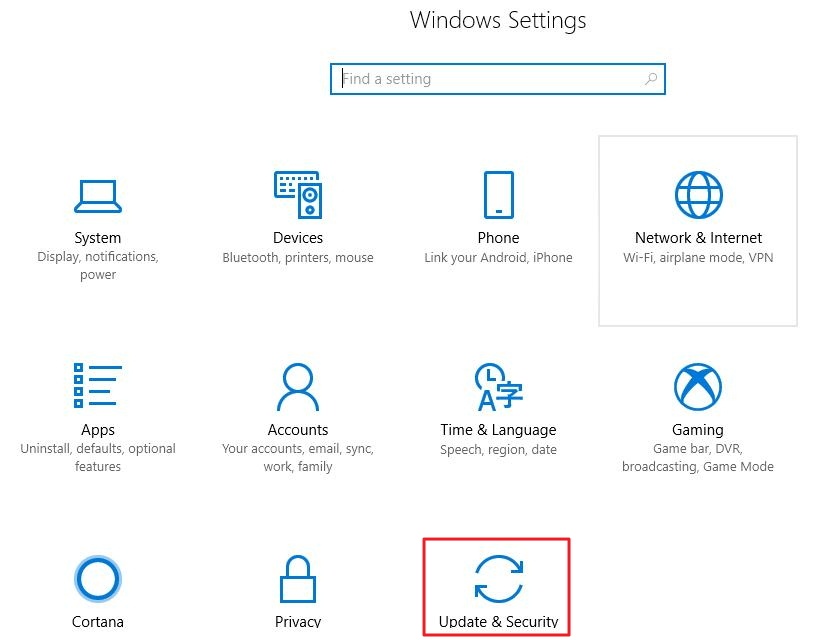
  • Click Update and Security
update and security
  • You can see the update progress like the image given below
windows update progress

If the Windows Update process takes forever to complete, you can draw a conclusion that there is some problem with the Windows update process.

In that case, you need to try the solutions given below. Listed below are six solutions to resolve the high CPU usage by Windows Modules Installer Worker process.

You are not required to try all solutions in the post. Start with the first solution. If that doesn’t bring the CPU usage to normal, try the next solution and so on, until the issue is resolved.

Solution One – Run Windows Update Troubleshooter

There is a possibility the Windows Update process is stuck due to some issue. In that case, the Windows Update Troubleshooter can be of great help. Windows 10 features a Windows Update Troubleshooter that can resolve any problems with the Windows update process.  Here are the steps to follow.

  • Click Start
  • Type troubleshooting in the Cortana search box
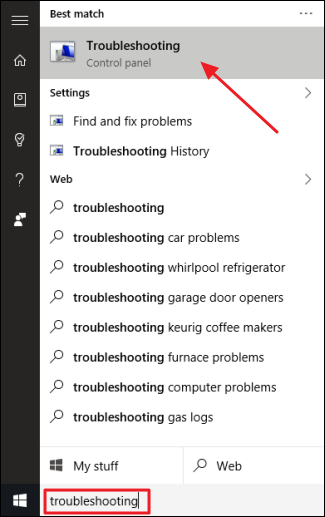
troubleshooting
  • Click Troubleshooting from the list of results
  • In the Troubleshooting window, click Fix problems with Windows update under System and Security
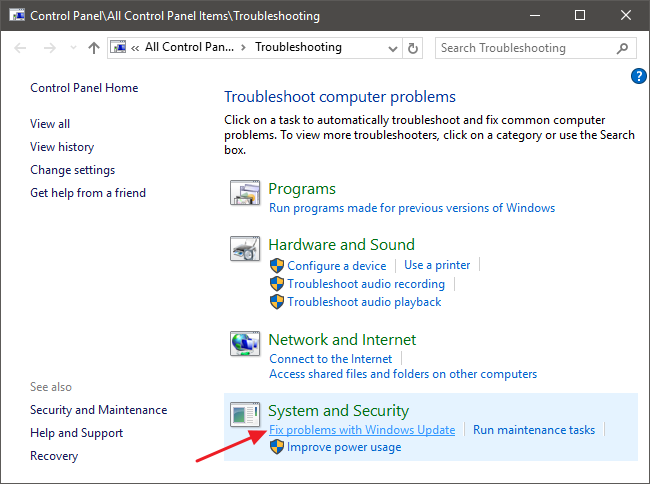
fix Windows Update
  • The Windows Update Troubleshooter starts and you see the Windows Update window. Click Advanced
  • In the next window, make sure the Apply repairs automatically box is checked then click Run as administrator
apply repair automatically
  • Click Next
  • The Windows Update Troubleshooter starts its process and gives you information about any errors and whether it can fix them
  • Wait for the Windows Update Troubleshooter to complete its process.
  • If it is able to fix the update errors, wait for the Windows Modules Installer Worker to complete the Windows update process. In most cases, you will see the CPU usage go down after the Windows update process is completed successfully
  • If the Windows Update Troubleshooter is not able to fix any issues, try next solution.

Solution Two – Run SFC commands

If the Windows Update Troubleshooter is unable to fix any problem with Windows update, you need to run the SFC tool. SFC is short for System File Checker. It is a command-line tool that scans your system for any missing or corrupted system files. It then replaces the corrupt/missing files with cached versions in good condition. Here are the steps you need to follow.

  • Click Start
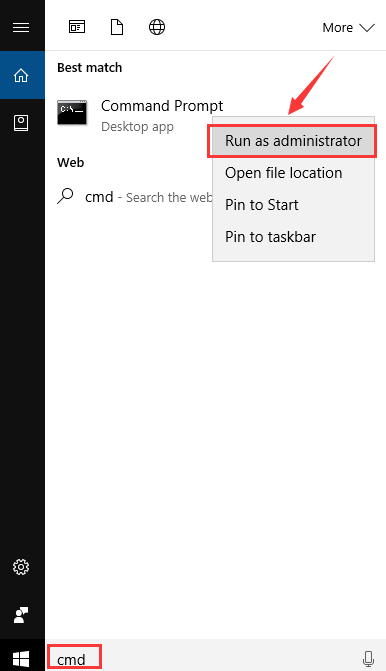
  • Type cmd in Cortana search box
cmd run as admin
  • Right-click Command Prompt from the list of results and click Run as administrator
  • In the User Account Control window, click Yes
  • In the command prompt window, type sfc /scannow and press Enter on the keyboard
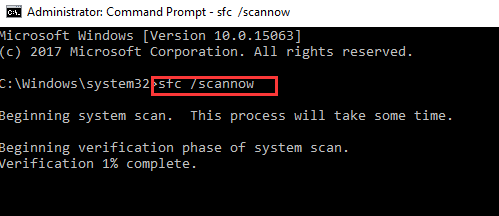
cmd sfc
  • Wait for the SFC to complete the scan and repair process.

Try updating the Windows and see if the CPU usage returns to normal after some time. If you see the Windows Update process is going to last forever, try next solution.

Solution Three-Run DISM tool

DISM is short for Deployment Image Servicing and Management. It is a nifty command line utility that is used to load service Windows images. Due to some reasons, SFC tool is not able to fix all errors in system files.

In that case, you need to run DISM commands that use Windows update to provide files that are needed to fix file corruptions. Here are the steps to run DISM tool

  • Open command prompt window with admin rights. You can refer to the steps given in Solution Two – Run SFC command to open an elevated command prompt
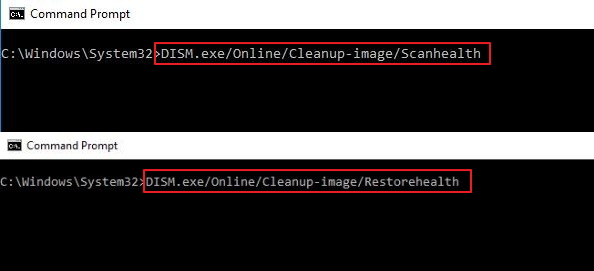
  • Type the following commands and hit Enter on the keyboard after each command.
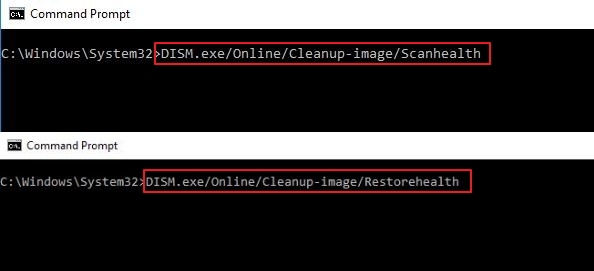
DISM
  • exe /Online /Cleanup-image /Scanhealth
  • exe /Online /Cleanup-image /Restorehealth
  • Wait for some time as it may take several minutes for the command operation to complete
  • When the command operation is completed, close command prompt window
  • Reboot Windows
  • Try updating Windows and wait for the update process to complete. If the Windows update process takes longer time than usual, try next solution

Solution Four – Disable Windows Modules Installer Worker

If none of the above solutions has worked for you, try disabling Windows Modules Installer Worker. This will automatically prevent the process from running and will solve the high CPU usage problem. Here are the steps to follow.

  • Press Windows logo key and R simultaneously to bring up the Run command console
services. msc
  • In the Run command box, type services.msc
  • In the Service window, double-click Windows Modules Installer
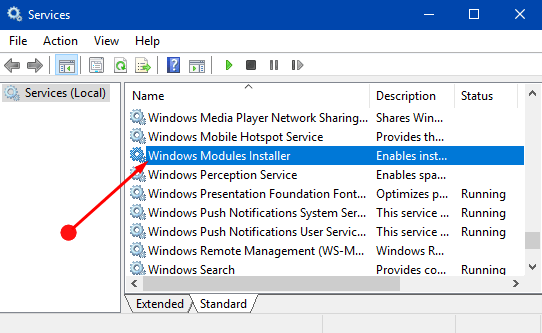
Installer service
  • In the Windows Modules Installer Properties window, go to Startup Type and select Manual from the drop-down list
select manual
  • Click Apply then click OK
  • Close all windows

Now open Task Manager and see if the CPU usage has returned to normal. In most cases, the high CPU usage by Windows Modules Installer worker problem should be resolved by now.  If you still see high CPU usage in Task Manager, you need to disable Windows update. This will prevent the Windows 10 operating system from downloading updates and it will fix the issue.

 Solution Five – Disable Windows Update

The Windows 10 can download and install updates in two ways; using Wi-Fi and using the Ethernet connection.  Windows 10 has an option to set Wi-Fi as a metered connection. When you set Wi-Fi as metered connection, it will delay downloading updates that would resolve the issue.

Case 1 – Using Wi-Fi for Internet connectivity

If your Windows 10 computer connects to the Internet through Wi-Fi, you need to perform steps below

  • Click Start and then click Settings(gear icon)
settings
  • In the Settings window, click Network and Internet
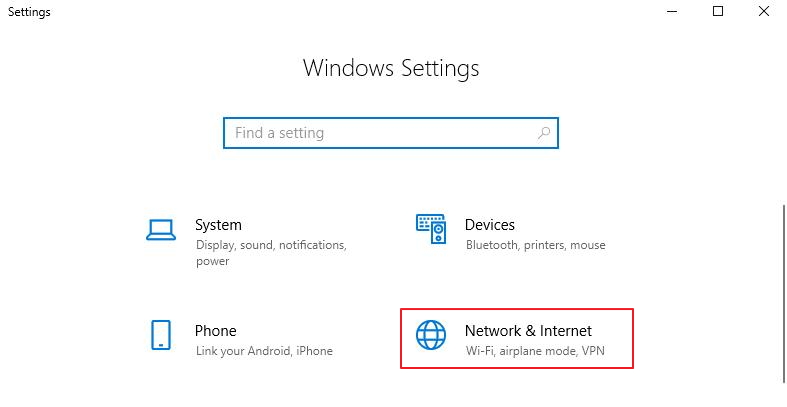
network and internet
  • In the next window, click Wi-Fi and then Advanced options
wi-fi adv options
  • In the Wi-Fi settings window, click the toggle switch “Set Metered connection” to turn it On
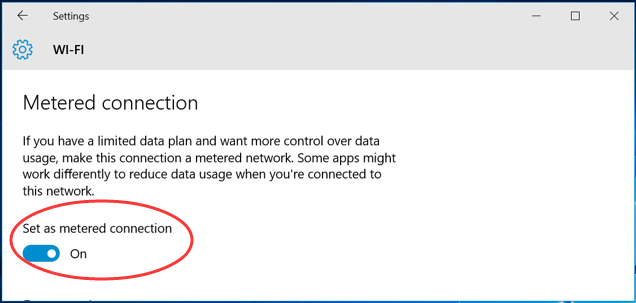
set metered connection

Case 2 – Using an Ethernet connection for Internet connectivity

If your Windows 10 computer uses a wired connection to connect to the Internet, you need to perform steps below

  • Press Windows logo key and R simultaneously on the keyboard to bring up the Run command console
  • In the Run command box, type regedit and click OK
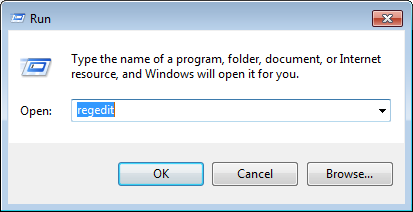
regedit
  • In the User Account Control pop-up, click Yes
  • In the Registry Editor window, go to HKEY_LOCAL_MACHINE > SOFTWARE > Microsoft > Windows NT > CurrentVersion > NetworkList > DefaultMediaCost
  • Right-click DefaultMediaCost and select Permissions
permissions
  • In the Permissions dialog pop-up, click Add. You will see a new window pop-up
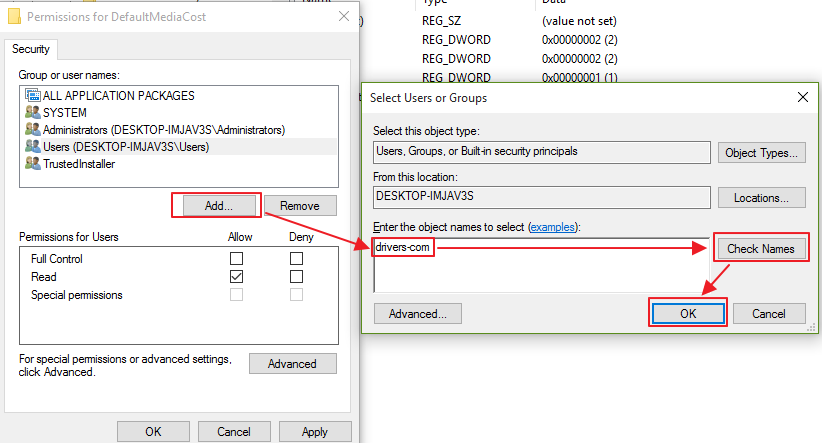
add check names
  • In the Select Users or Groups popup, go to “Enter the names to select” box and type your username
  • Select the username and click Check Names and click OK
  • Now return to Permissions dialog popup, you can see your username in the list
  • Select your username and check mark Full Control and Read options under Permissions for <username>
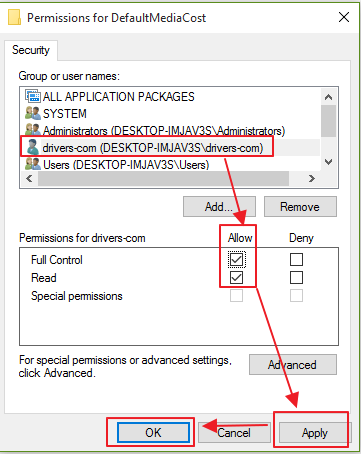
full control read
  • Click Apply and then click OK
  • Now go the Registry editor window and right-click Ethernet in the left column and then click Modify
  • In the Edit D-Word 32-bit value window, type 2 in the Value Data field and click OK
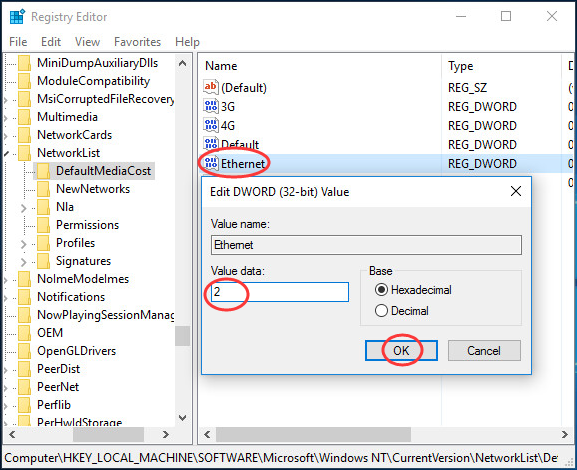
ethernet value data
  • Close all windows
  • Reboot your computer

The high CPU usage by Windows Modules Installer worker should be resolved after these troubleshooting steps.  If the high CPU usage still exists, you need to update drivers by following the steps given below.

Solution Six – Update Drivers

If nothing works, try updating drivers. Outdated drivers can cause much problem, including with Windows Modules Installer.

You can obviously update device drivers manually if you want, but as anybody who’s done it before will tell you, the whole process is time-consuming. A better approach is to use a reliable and fast driver update tool for this purpose.

We recommend you to use a Driver Update Tool. It is very quick and reliable.

Automatic driver update tools offer many benefits, the most important ones being:

  • You can update device drivers automatically
  • The software scans and updates all outdated or missing drivers at one go
  • The tool picks the right drivers for your device and operating system, so you won’t have to worry about installing an incorrect driver by mistake
  • Automatic driver updates are 100% safe

Driver Updater is one of the best driver update tools out there. Outbyte Driver Updater will give you access to a database of over 1 million drivers. It will regularly scan your PC, suggesting new driver versions to install. Driver Updater contains drivers for a variety of Windows devices. With just one click, you can update drivers in your system.

Step 1
Click here to Install and launch the app

Step 2
Scan all devices

Step 3
Install or update drivers automatically
 

Start Download


Filed Under: PC Fix Tips Tagged With: Windows Modules Installer

Wuauserv High CPU Usage Issue

By Susan C on July 17, 2018

Wuauserv High CPU Usage Issue
error image

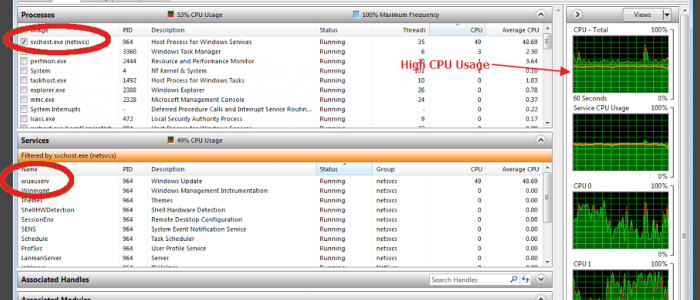
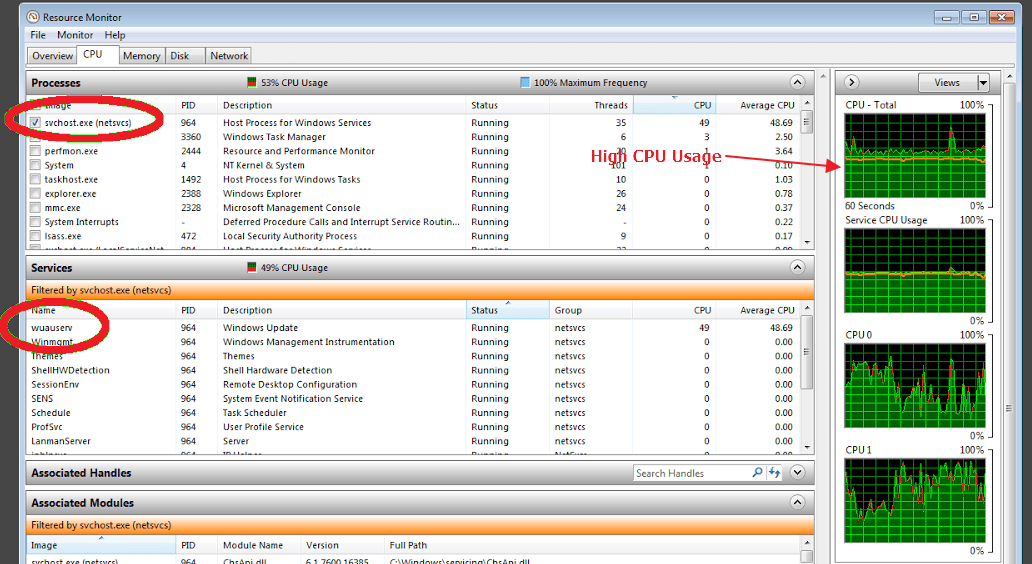
Do you see high CPU usage by wuauserv process in the Task Manager like what is shown in the image above? Has your PC become slow or unresponsive due to wuauserv using a lot of CPU resources?

If the answer is yes, this post is for you.

Many Windows users have mentioned that their computer has become slow or unresponsive due to high CPU usage by a svchost.exe process. When they narrowed down the process to separate services in Task Manager, the wuauserv process was identified as the cause of high CPU usage.

Users also mentioned that it was impossible for them to use their computer due to wuauserv utilizing 100% CPU for extended periods.

We have provided four solutions to resolve the high CPU usage by wuauserv. Before we look at the solutions, let’s try to know more about wuauserv and why it eats up your computer resources.

What is wuauserv and why it is using a lot of CPU resources?

Wuauserv stands for Windows Update Auto Update Service. As the name suggests, it is related to Windows Update functionality. Wuauserv is not an essential service for the normal operation of Windows and this service should be active only when the Windows operating system is downloading updates.

Though you can kill the service in the Task Manager to speed up Windows, we do not recommend it as it will affect the update process and it may lead to update error. The best approach to resolve this issue is to try the solutions given below

You don’t need to try every solution given in this post. Start with the first solution and go to the next solution only if the first solution did not work for you. You need to move to next solution only if the previous solution did not work for you.

Note- To see the high CPU usage and the related process, Windows 7 users need to go to Performance tab. Windows 10 users can see the high CPU usage and the related process in Processes tab.

Solution One – Allows Windows to complete the update process

As mentioned earlier, the wuauserv process might be active on your PC as Windows is downloading and installing updates. Installing updates is important to secure your computer and enhance its speed and functionality.

You need to wait for some time and allow the Windows operating system to complete the update process. It is very hard to determine the amount of time as it depends on many factors such as the number of updates that Windows is downloading, the file size, and the speed of your Internet connection.

The CPU usage should go down after Windows completes the updates process.

However, if the Windows Update is taking forever to search and install updates, you need to move on to next solution.

Solution Two – Uninstall recent Windows updates

Though Windows updates are intended to solve glitches, sometimes they don’t work as intended and that leads to various issues. Try to recall when this high CPU usage due to wuauserv started. If you notice this problem started after the last Windows update, you can uninstall recent updates and see if it resolves the issue. Here are the steps to follow.

  • Press Windows logo key and R simultaneously on the keyboard to invoke Run command console
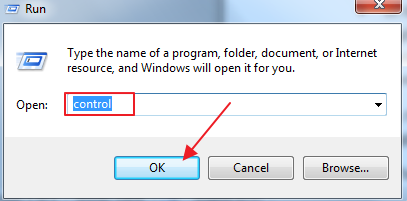
  • Type control in Run command box and click OK
control
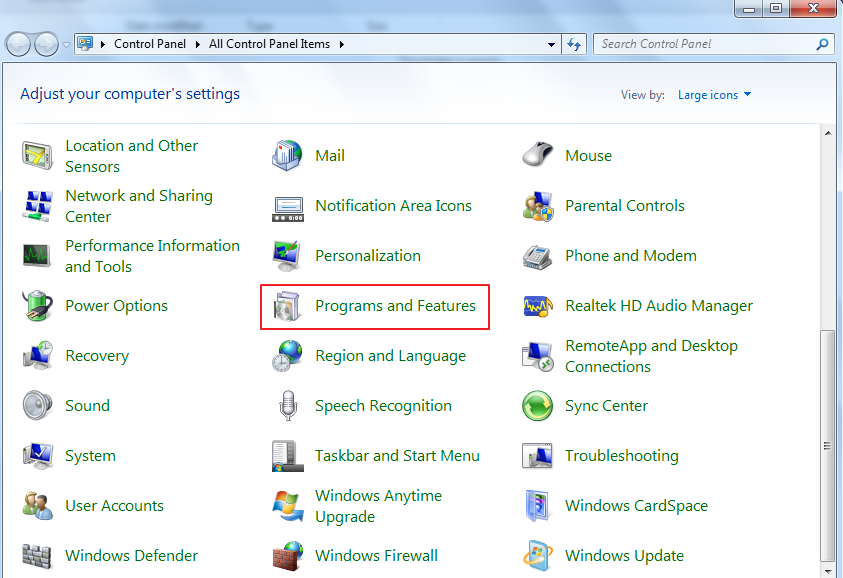
  • In the Control Panel window, set the View by – Large icons
programs and features
  • Click Program and Features
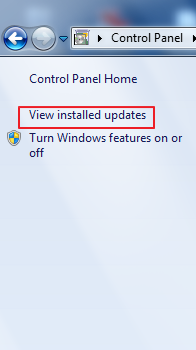
  • In the next window, click Installed updates
installed updates
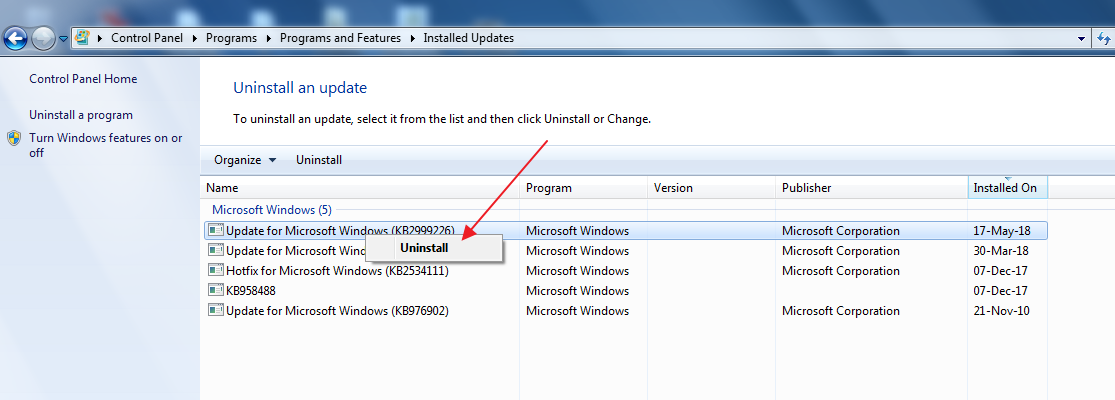
  • Right-click on the recent update and click Uninstall
uninstall
  • Wait for the process to complete
  • Restart your computer

Start Task Manager and go to Performance tab and see if the CPU usage has returned to normal. If you still see high CPU usage by svchost.exe process related to wuauserv, try next solution.

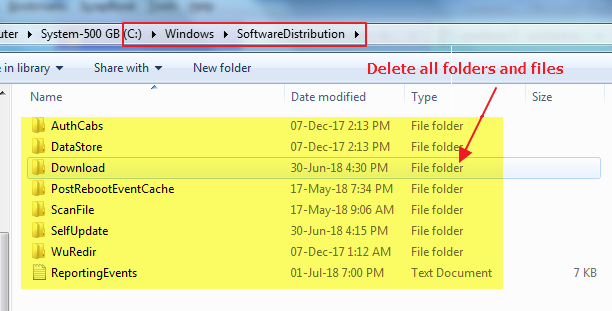
Solution Three – Delete all files from SoftwareDistribution folder

Located in C:\Windows\, the SoftwareDistribution folder is used to store temporary files need to install Windows update. There is a possibility the contents of the SoftwareDistribution folder are corrupted that is causing problems in Windows update process

Though it is not recommended to delete contents of SoftwareDistribution folder in normal conditions, it is quite safe to empty the folder if you are facing problems with Windows update or any issues related to Windows update.

After you delete all contents of the folder, Windows update will re-download files needed to complete the update process. Here are the steps to follow

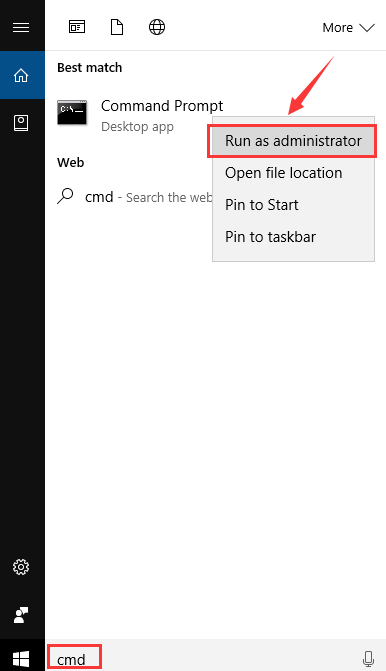
  • Click Start button and type cmd in Cortana search box
  • Right-click Command Prompt from the list of results and click Run as administrator
cmd run as admin
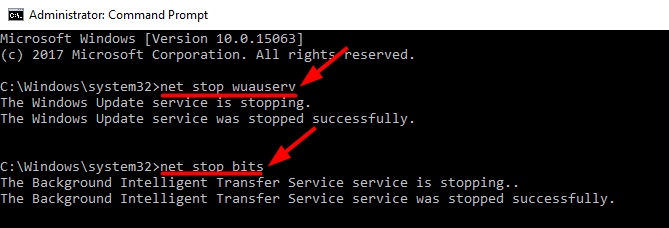
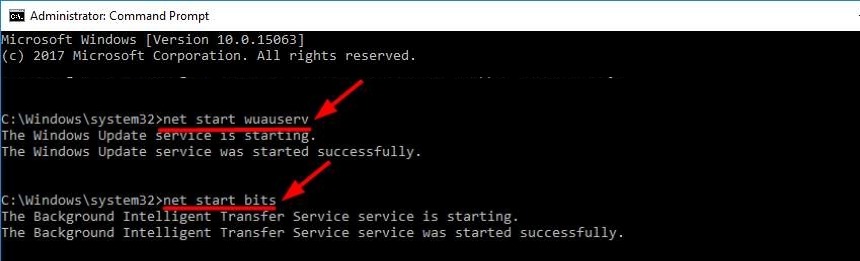
  • In the command window prompt type the following commands and hit Enter on the keyboard after each command.
net stop
  • net stop wuauserv
  • net stop bits
  • Minimize the command prompt window
  • Press Windows logo key and E simultaneously on the keyboard to open File Explorer
  • Go to C:\Windows\SoftwareDistribution
software distribution
  • Press Ctrl+A to select all files in the folder and press Delete on the keyboard
  • Restore the minimized command prompt window
  • In the command window prompt type the following commands and hit Enter on the keyboard after each command.
net start
  • net start wuauserv
  • net start bits

Check in the Task Manager if the CPU usage has returned to normal. If you still see high CPU usage due to wuauserv, try next solution

Solution Four – Stop Windows Update service

If none of the solutions have worked for you, the last thing you can do is stop the Windows Update Service that will stop and disable the wuauserv process and also prevent it from getting activated automatically.

You can start the Windows update service anytime in the future to download and install updates. Here are the steps to disable Windows Update service

  • Press Windows logo key and R simultaneously on the keyboard to bring up Run command box
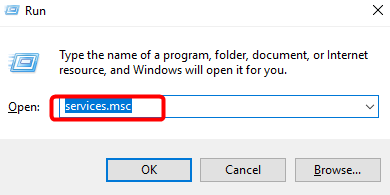
  • In the Run command box, type services.msc and click OK
services.msc
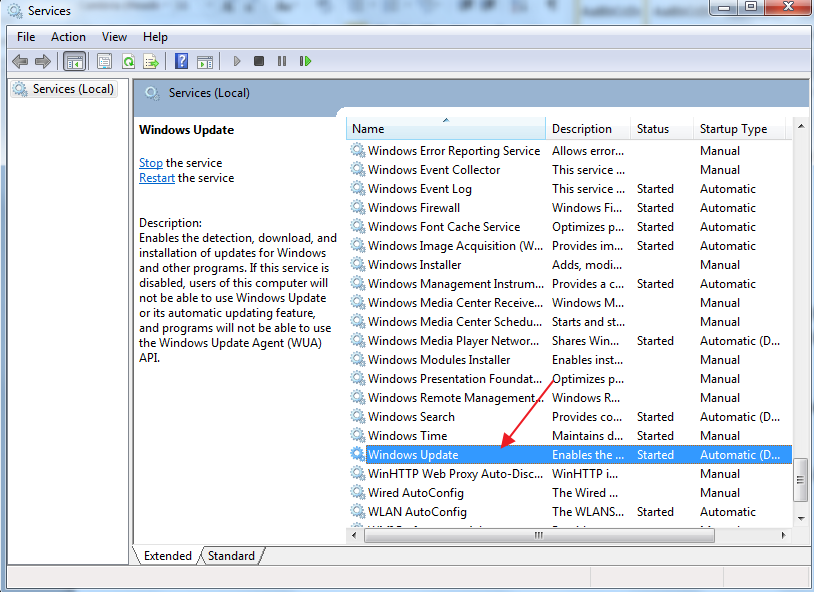
  • In the Services window, scroll down and double-click Windows update
windows update
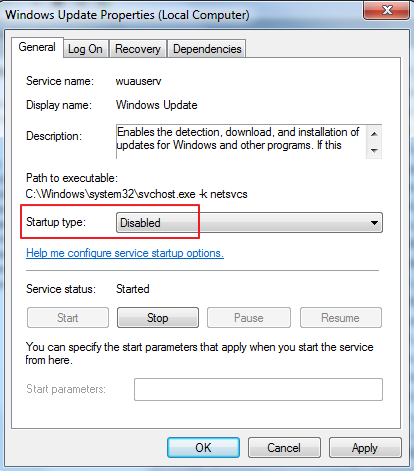
  • In the Windows Update properties window, under Startup type, select Disabled from the drop-down list
windows update disabled
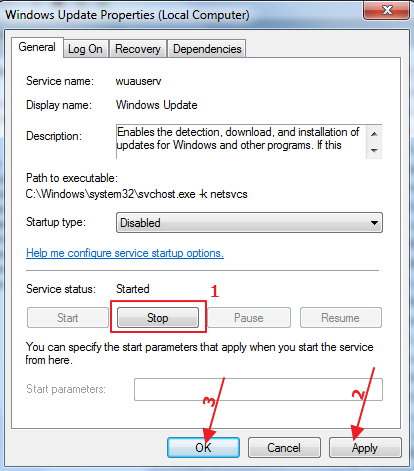
  • Click Stop and then click Apply -> OK
windows update stop
  • Close all windows

Open Task Manager and go to Performance tab  and see whether CPU usage has returned to normal. In most cases, the high CPU usage problem (due to wuauserv) should be resolved by now.

Filed Under: PC Fix Tips Tagged With: Wuauserv CPU Issue

“Application has been blocked from accessing Graphics hardware” error in Windows 10

By Susan C on July 15, 2018

“Application has been blocked from accessing Graphics hardware” error in Windows 10
error image

Are you unable to play or participate in an game online because Windows 10 is denying access to graphics hardware?

Are you getting an error message which says “application has been blocked from accessing graphics hardware”?

If yes, this post is just for you.

This, as you might be able to guess, is a graphics issue. Often it can be very difficult to ascertain any specific reason behind it.

In this post, we have provided three solutions that could resolve the error “application has been blocked from accessing graphics hardware”

You don’t have to try every solution given here. Start with the first solution. If that doesn’t work for you, try the next solution and so on.

Let’s get started.

Why are you seeing the “application has been blocked from accessing graphics hardware” error message?

One of the common scenarios that can lead to this error is your PC getting stuck while playing a game. This event leads to misconfiguration of the graphics driver, and when the application tries to access graphics driver next time, it just fails, and as a result you get an error message.

The problem may also occur due to non-compatibility of the graphics driver. Such compatibility issues usually crop up after installing a major Windows update.

In most scenarios, GPU takes longer time than usual to respond to operating system’s request and fails. This could be one of the reasons for such an error message.

Now let’s take a look at the solutions.

Solution One – Run System Maintenance Troubleshooter

Windows 10 has a System Maintenance Troubleshooter that is periodically run by the operating system to fix any issues that it detects.

Run the System Maintenance Troubleshooter tool and see if it helps. Here are the steps to follow.

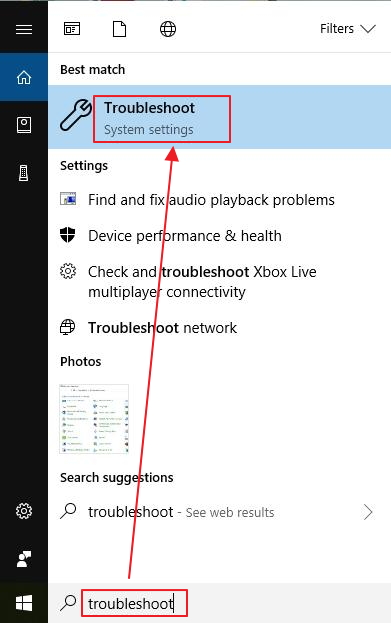
  • Click Start and type troubleshoot in the box and hit Enter on the keyboard
troubleshoot
  • Click Troubleshoot from the list of results
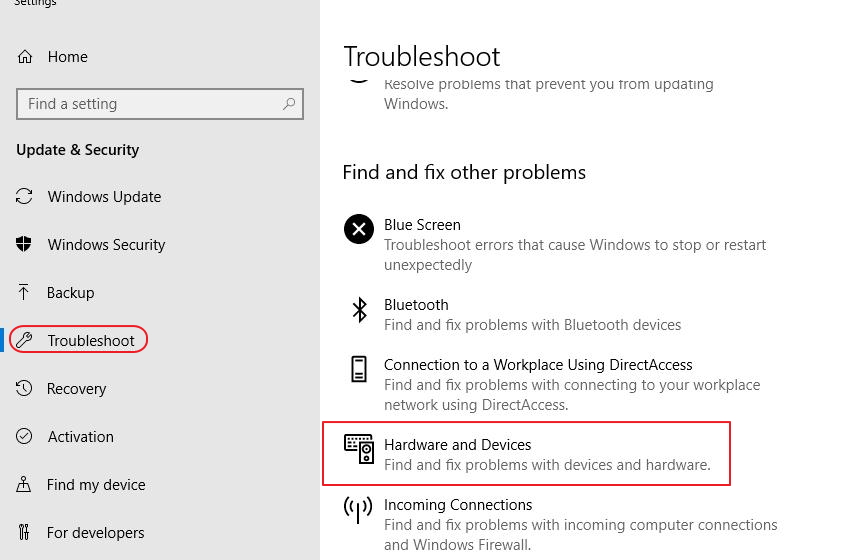
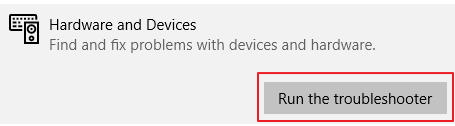
  • Click Hardware and Devices
hardware devices
  • Click Run the troubleshooter
run troubleshooter
  • Follow on-screen instructions

Try running the game or application which was denied access to graphics hardware. If the issue persists, try the next solution.

Solution Two – Uninstall and reinstall the graphics driver

As mentioned earlier, the graphics issue can arise due to incompatible drivers. A simple solution to this problem is downloading and installing the latest graphics driver. Here are the steps to follow.

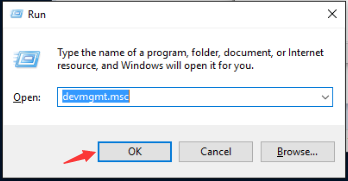
  • Press Windows logo key and R simultaneously on the keyboard to bring up command prompt window
  • In command prompt window, type devmgmt.msc and click OK
  • run devmgmt
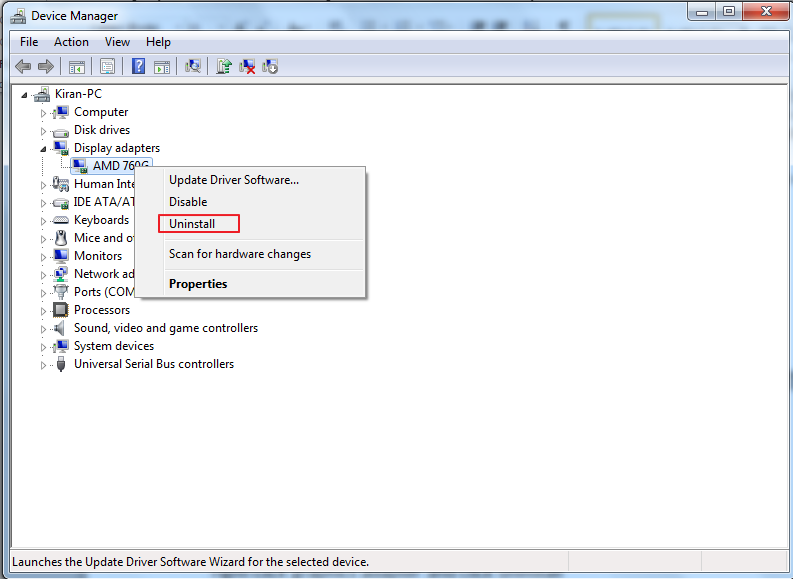
  • In the Device Manager window, click Display adapter to expand it
  • Right-click graphics adapter and click Uninstall
click uninstall
  • In next window, click OK
  • Restart your PC after the driver is uninstalled
  • Now go to the manufacturer website and download the latest drivers for your graphics adapter. You need to install the driver in the Windows 10 compatibility mode. here are the steps to follow.
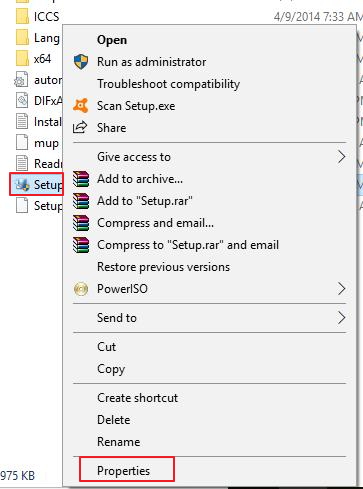
  • Right-click on driver setup file you just downloaded and click Properties
click properties
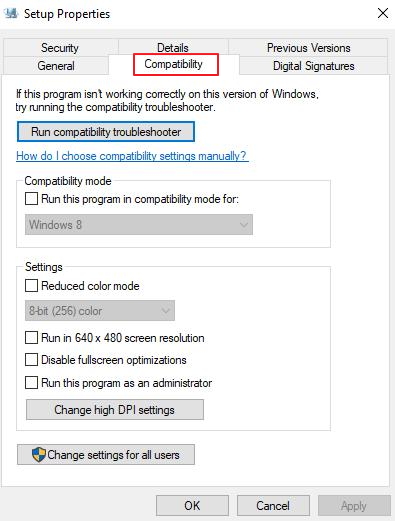
  • Click Compatibility tab and tick the option – Run this program in compatibility mode
click compatibility
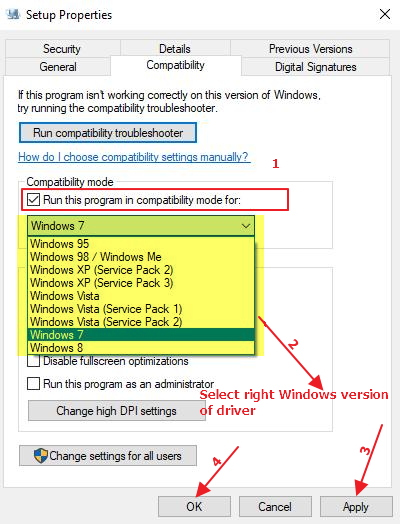
  • From the drop-down list, select right Windows version of the driver
windows version driver
  • Click Apply and then click OK to install the graphics driver in compatibility mode.
  • Restart your PC

Try to run the game or application which was denied access to graphics hardware. If the issue persists, you might want to update your graphics card driver using a reliable driver update tool. It is possible that the driver present on your PC might be a general one or an old one.

In such a case, updating your graphics driver would help. The easiest way to update your drivers is by using driver update tool.

Automatic driver update tools offer many benefits, the most important ones being:

  • You can update device drivers automatically
  • The software scans and updates all outdated or missing drivers at one go
  • The tool picks the right drivers for your device and operating system, so you won’t have to worry about installing an incorrect driver by mistake
  • Automatic driver updates are 100% safe

Driver Updater is one of the best driver update tools out there. Outbyte Driver Updater will give you access to a database of over 1 million drivers. It will regularly scan your PC, suggesting new driver versions to install. Driver Updater contains drivers for a variety of Windows devices. With just one click, you can update drivers in your system.

Step 1
Click here to Install and launch the app

Step 2
Scan all devices

Step 3
Install or update drivers automatically
 

Start Download


Solution Three-Run SFC tool and DISM commands

Step One – Run SFC tool

You can get the “application has been blocked from accessing graphics hardware” if the system files have become corrupted. A simple solution to this problem is to use the SFC tool to check the integrity of system files and allow it fix the issues.

SFC stands for System File Checker. It is a command-line tool built in Windows to resolve issues with system files. When you run the SFC tool, it scans the system file for any corruptions. If it finds any issues, it replaces the corrupt files with most recent cached versions.

Here are the steps to run an SFC scan.

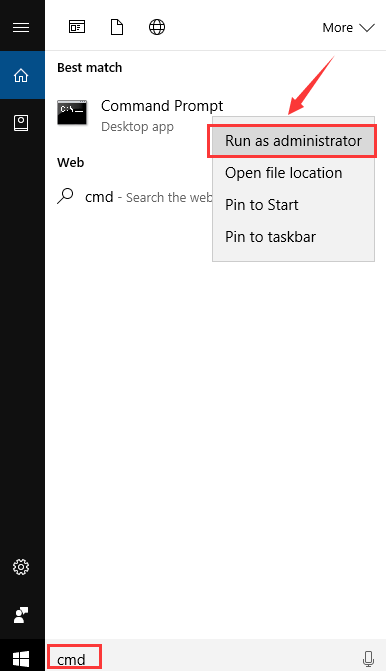
  • Click Start and type cmd in Cortana search box
  • Right-click Command Prompt from the list of results and click Run as administrator
cmd admin
  • In the user account control window, click Yes
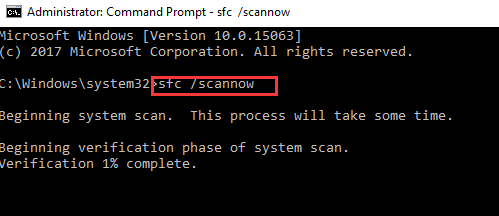
  • In the command prompt window, type sfc /scannow and hit Enter on the keyboard
cmd sfc
  • Wait for the SFC to complete the scan and repair process.

Step Two – Run DISM commands

DISM stands for Deployment Image Servicing and Management. It is a command-line tool that is used to service a Windows image. Sometimes the SFC tool is unable to fix some system files that have become corrupt or broken.

In such cases, the DISM can be used to repair Windows image(.wim) files, which will then allow the SFC tool to fix any issue that was not fixed in the earlier session. Here are the steps to follow.

  • Open command prompt window with admin rights. You can refer to the steps above to open an elevated command prompt
  • Type the following commands and press Enter on the keyboard after each command.
DISM
  • exe /Online /Cleanup-image /Scanhealth
  • exe /Online /Cleanup-image /Restorehealth
  • Close command prompt window
  • Reboot Windows

Note – You need to run the SFC tool again to allow Windows to fix system files that were not fixed in earlier SFC scan.

Filed Under: PC Fix Tips Tagged With: Graphics Card error

  • « Previous Page
  • 1
  • …
  • 157
  • 158
  • 159
  • 160
  • 161
  • …
  • 189
  • Next Page »


  • Recent Posts
  • Popular Posts
        

Read More Posts


Read More Posts

Drivers.com Sites

  • Software Drivers
  • Drivers Ed

About Us

  • Advertise
  • About Drivers
  • Drivers Support
  • Drivers.com Privacy Policy
  • Disclaimer
  • Software Drivers
  • Mac Fixes and Tips
  • PC Fix Tips
  • Security/ Backup
  • Tablets & Smartphones
  • Tech News

© Copyright 2026 PDE Publications Ltd. End User License Agreement (EULA)