Drivers.com

follow us:

facebook twitter
  • Home
  • Download Drivers
  • Drivers Help
  • PC/Mac Resources
  • Software Drivers
  • Mac Fixes and Tips
  • PC Fix Tips
  • Security/ Backup
  • Tablets & Smartphones
  • Tech News
  • Software Drivers
  • Mac Fixes and Tips
  • PC Fix Tips
  • Security/ Backup
  • Tablets & Smartphones
  • Tech News

How to disable or uninstall Microsoft Edge from Windows 10?

By Susan C on July 13, 2018

How to disable or uninstall Microsoft Edge from Windows 10?

Microsoft Edge is a successor to Internet Explorer and an inherent component of the Windows 10 operating system.

But many users find it annoying, even when they don’t use it. This is mostly due to the frequent pop-up screens from the browser.

If you are looking for freedom from these annoying pop-up ads from Microsoft Edge, you are not on your own! Many Windows 10 users are looking for easy ways to get rid of Microsoft Edge’s frequent pop-ups.

Below we have set out two solutions to resolve the Microsoft Edge problem.

One of the solutions is disabling the browser and the second one is getting rid of Microsoft Edge by uninstalling it. You may choose either solution depending on your requirements. Let’s get started.

Solution 1 – Disable Microsoft Edge browser

This is the easiest and safest way to get rid of those annoying pop-up screens from Microsoft Edge. Here are the steps to follow.

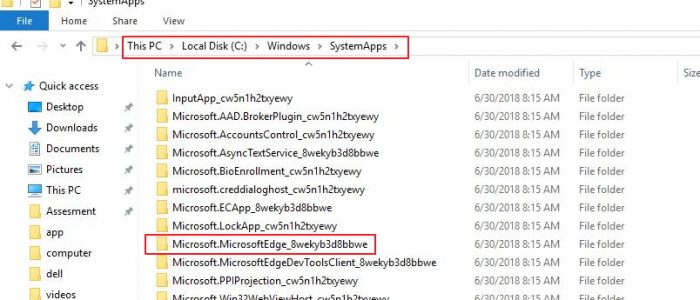
  • Click This PC on the desktop
  • Navigate to C:\Windows\SystemApps folder
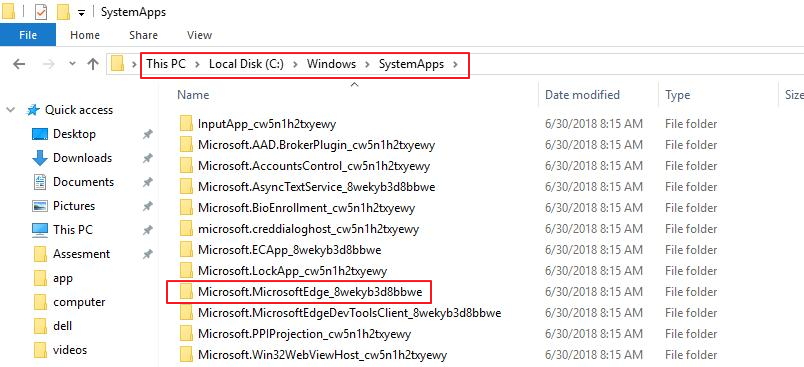
system apps folder
  • Look for a folder called MicrosoftEdge_8wekyb3d8bbwe and right-click on it
  • Select Rename from the right-click menu
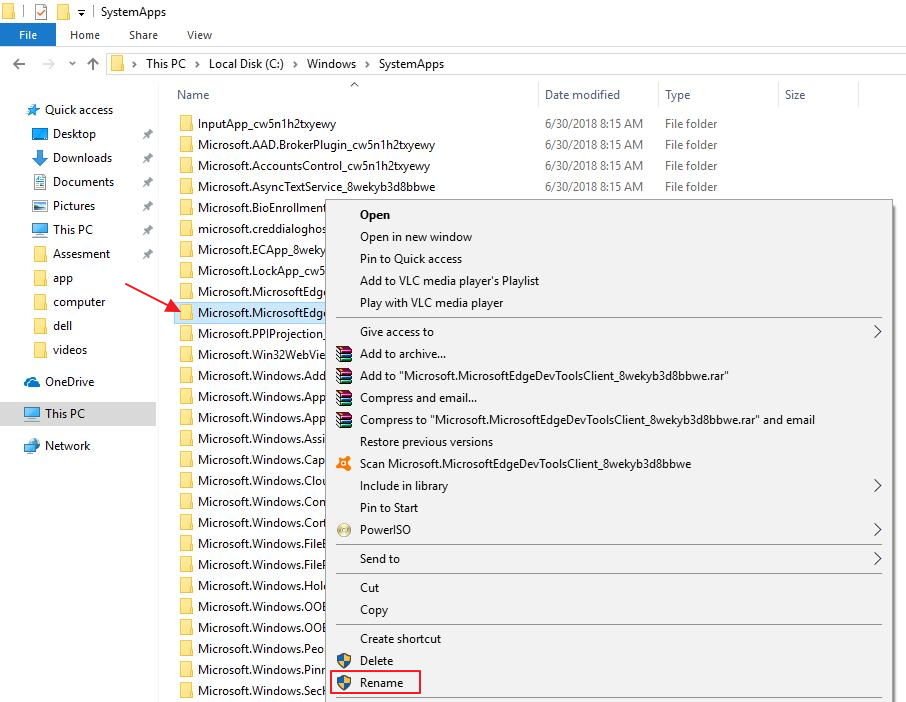
rename
  • Rename the folder as MicrosoftEdge_8wekyb3d8bbweold. You are free to rename the folder however you wish
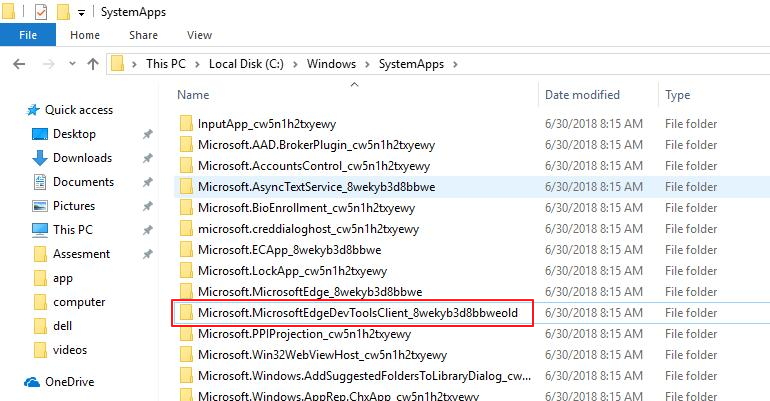
select old folder
  • When you are prompted to confirm your action or permission, click Continue
  • Now your Microsoft Edge browser has been disabled and you will not see the annoying pop-up screens from Microsoft Edge.
  • If you want the Microsoft Edge back for some reason in the near future, follow the first four steps and rename the folder as MicrosoftEdge_8wekyb3d8bbwe and Microsoft Edge will be back again.

Solution 2 – Uninstall Microsoft Edge

Microsoft Edge is an integral component of Windows 10 and it is more likely to be tied or integrated with important Windows services. Uninstalling Microsoft Edge might make your operating system unstable.

You should consider uninstalling Microsoft Edge only if you find it completely unbearable. Though we have provided steps to uninstall Microsoft Edge, it does not mean we recommend or encourage it. This is because disabling Microsoft Edge works just fine to resolve the issue and there’s no risk of making the system unstable, either.

However, if you do want to uninstall Microsoft Edge, these are the steps you need to perform.

  • Press Windows logo key and S on your keyboard simultaneously
  • In the Cortana search box, type powershell
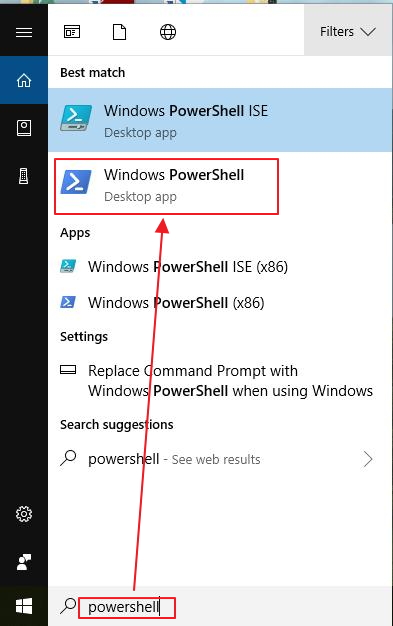
powershell
  • Click Windows Powershell from the list of results
  • In the blue pop-up window, type get-appxpackage *edge* and hit Enter on the keyboard
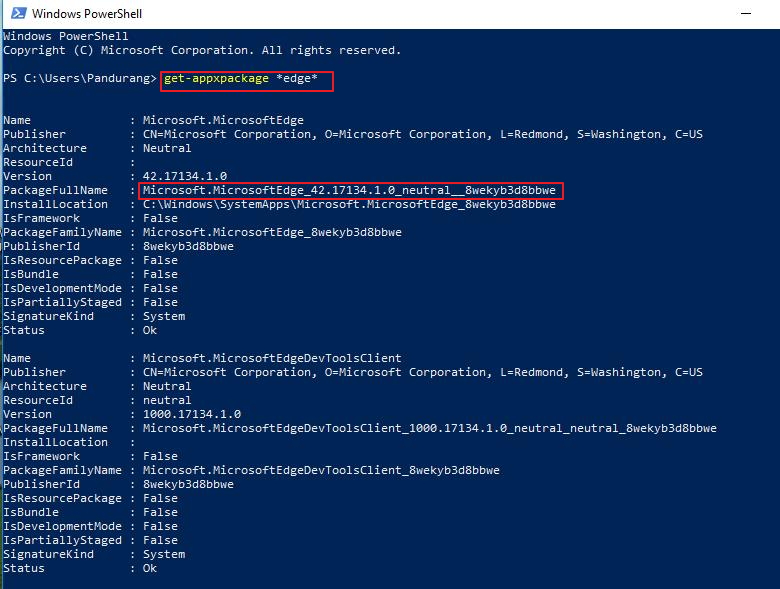
package name
  • The above command will give you details of the location and name of the Microsoft Edge package. You will need this information in next command
  • Type remove-appxpackage and press space bar on the keyboard. Now copy the address next to PackageFullName and paste it after the command you just typed in. Make no mistakes in this step. You can use the screenshot below as a reference if you are not sure of how to do it.
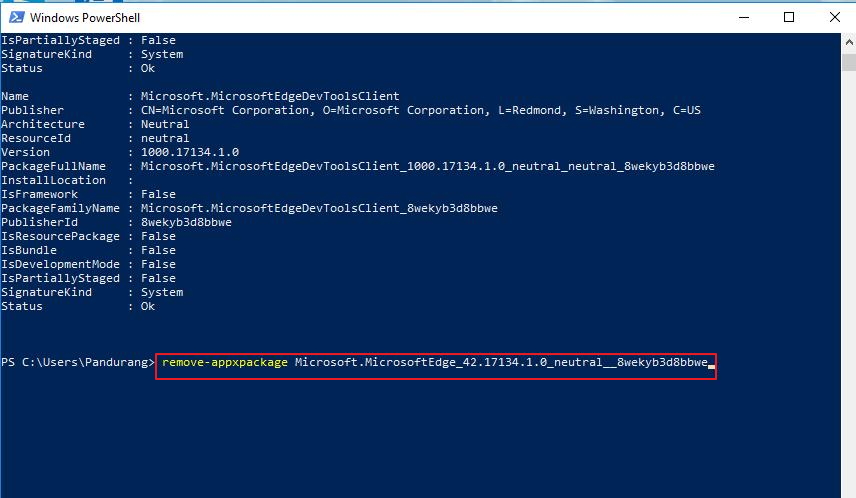
remove app package
  • After you have pasted the address after the command, hit Enter on the keyboard and wait for the process to begin and complete
  • After the uninstallation process is completed, close all windows.

For information on Microsoft Driver updates or other Microsoft issues, you can use our search function in the footer.
Filed Under: PC Fix Tips Tagged With: disable Microsoft Edge

Headphone not working issue in Windows 10

By Susan C on July 13, 2018

Headphone not working issue in Windows 10

“Headphone not working” is a common issue faced by Windows 10 users.  So what happens here is that you might find that after upgrading to Windows 10, your computer refuses to detect the headphones or it might detect the headphones but no sound comes from it.

While an irritating problem, it is nothing to lose sleep over. You can fix it yourself without breaking a sweat—and we’ll show you how.

7 top causes of ‘no sound’ on Computer

In this post, we have provided four solutions that could get your headphones working again.  You don’t have to try all solutions to fix the issue. For some users, the Solution One worked while some benefited from other solutions.

The best approach is to start with the first solution and if it does not work, try the next solution and so on, till your headphone starts working.

Solution One – Set headphone as the default device

Your computer has several sound/audio output devices installed and your headphone is one of them. In many cases, the speakers are set as the default device for sound/audio output. When you plug in the headphone, the Windows operating system should automatically switch to headphone and make it a default device.

Due to some problem, the switching does not happen. As a result, you cannot hear sound from the headphone.

The solution to this problem is to manually adjust the headphone as default device. Here are the steps to do this.

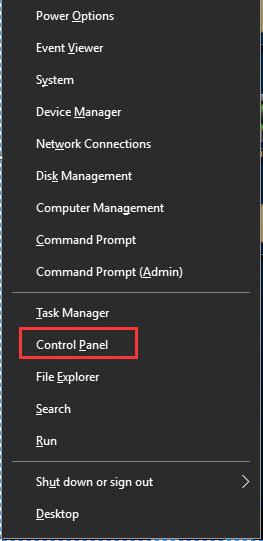
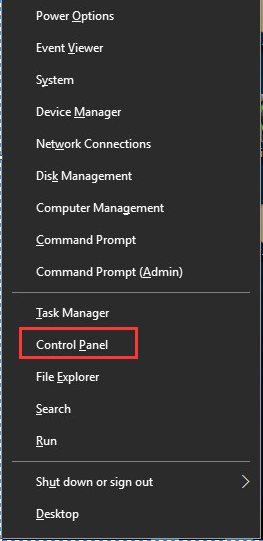
  • Press Windows logo key and X simultaneously on the keyboard
  • From the menu, click Control Panel
control panel
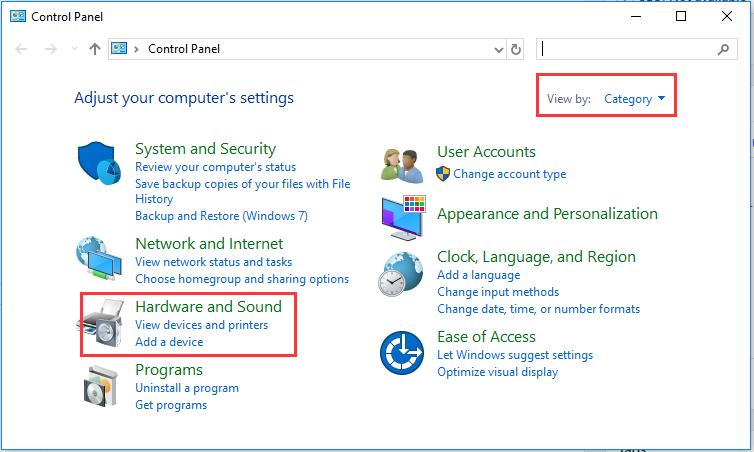
  • In the Control Panel window, set the view by Category and click Hardware and Sound
hardware and sound
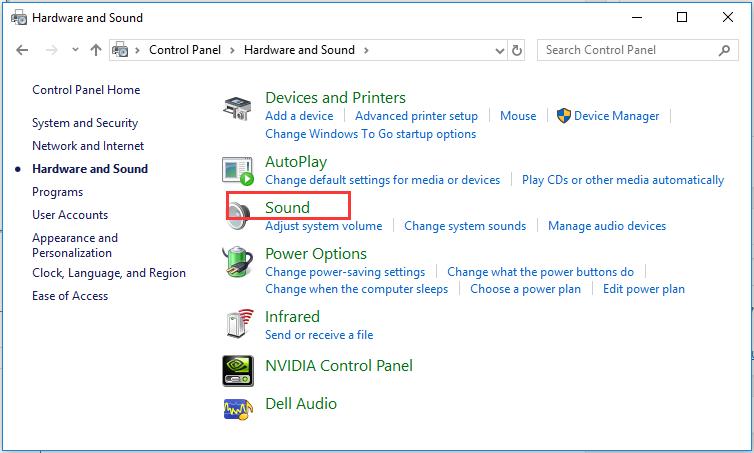
  • In the Hardware and Sound window, click Sound
sound
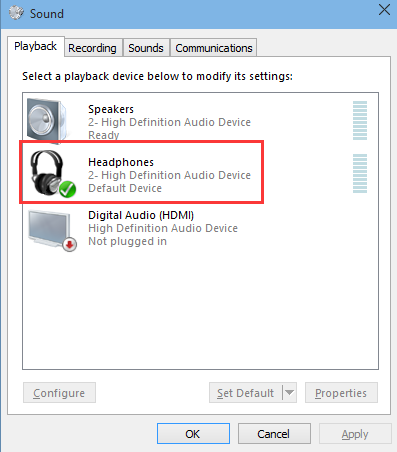
  • In the Sound properties window, click Headphones and then click Set Default
headphones set default
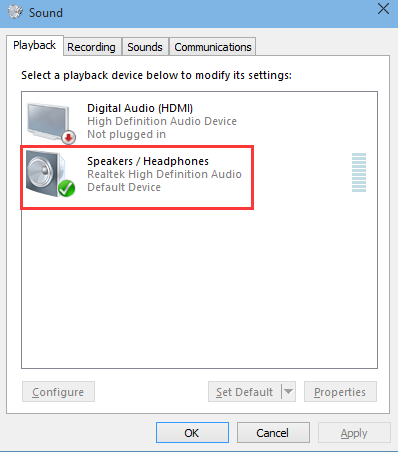
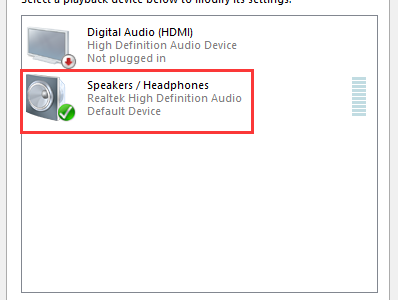
  • Note: you may also get the combined option- Speakers/Headphones. In that case, you need to click Speakers/Headphones and then click Set Default
speakers-headphones
  • Click OK
  • Play a song on your Windows 10 PC and check whether you are able to hear sound from headphones. If you find headphones are not working, try the next

Solution Two – Update Audio Drivers

Outdated audio drivers can prevent your system from detecting your headphone. Many users were able to resolve the issue by updating their audio drivers.

You can update drivers manually, but the best way to go about doing this is by using a driver update tool.

Automatic driver update tools offer many benefits, the most important ones being:

  • You can update device drivers automatically
  • The software scans and updates all outdated or missing drivers at one go
  • The tool picks the right drivers for your device and operating system, so you won’t have to worry about installing an incorrect driver by mistake
  • Automatic driver updates are 100% safe

Driver Updater is one of the best driver update tools out there. Outbyte Driver Updater will give you access to a database of over 1 million drivers. It will regularly scan your PC, suggesting new driver versions to install. Driver Updater contains drivers for a variety of Windows devices. With just one click, you can update drivers in your system.

Step 1
Click here to Install and launch the app

Step 2
Scan all devices

Step 3
Install or update drivers automatically


Start Download


Solution Three – Modify some settings in Realtek HD Audio Manager

There is a possibility the headphones are not properly configured in Realtek HD Audio Manager and hence your headphones are not working.  To resolve this issue, you need to modify some settings in Realtek HD Audio Manager. Here are the steps to follow.

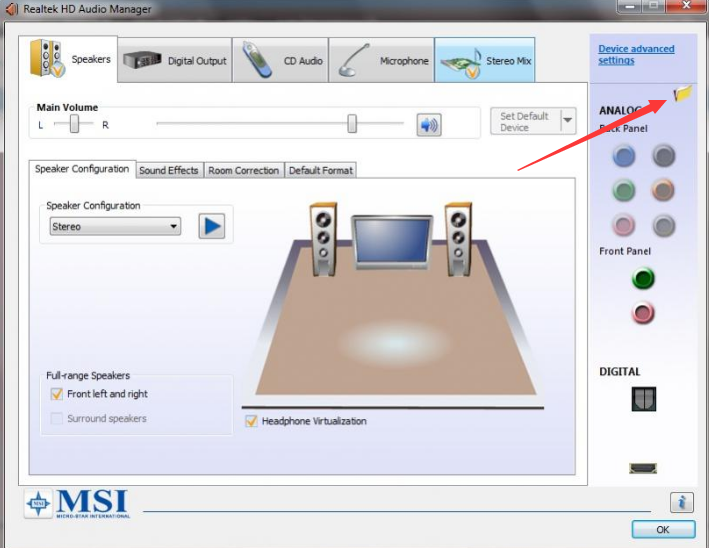
  • Go to System tray and look for Realtek icon(Red speaker) and click on it to open the Realtek HD Audio Manager interface
  • In the Realtek HD Audio Manager window, click the small folder icon(yellow colored) in the upper-right corner
folder
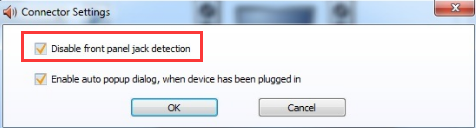
  • Check the box next to Disable front panel jack detection
disable front panel
  • Click OK

Check whether headphones are working now. If your headphones are still not working, move to the next solution.

Solution Four – Uninstall the IDT audio device

Note- You should perform these troubleshooting steps only if your computer has IDT device installed.

  • Press Windows logo key and X simultaneously on the keyboard to bring up Win X menu
  • Click Control Panel from the list
control panel
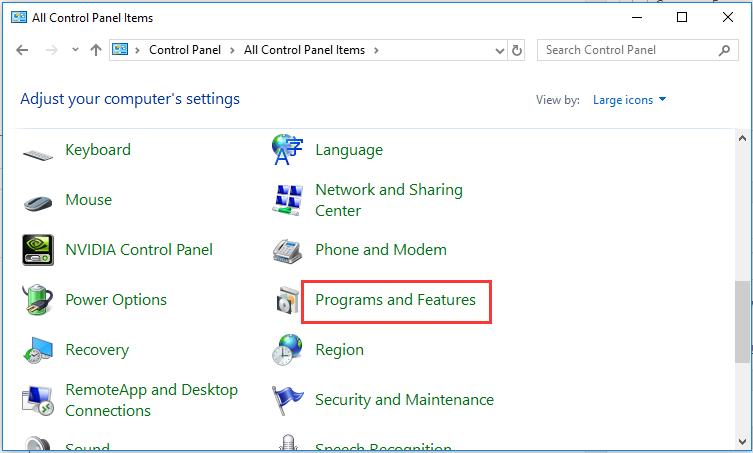
  • In the Control Panel window, set the view by Large icons
  • click Programs and Features
programs and features
  • select IDT Software and Driver from the list and click Uninstall
  • Restart your computer and see if the headphones are working.

In most cases, the headphones not working problem should be resolved by now.

Filed Under: PC Fix Tips Tagged With: headphones not working

Dell Keyboard Not Working Issue

By Susan C on July 11, 2018

Dell Keyboard Not Working Issue

The keyboard is an important input device for your laptop, and if it suddenly stops working, you are likely to face certain difficulties in using your laptop.

Such hardware issues usually come unannounced. Dell laptop users who have upgraded to Windows 10 often face this problem.

If you are facing a similar keyboard problem, you don’t need to worry. We have provided three simple solutions that can get your keyboard working once again.

Though we have listed three solutions in this post, you are not required to try every solution. Follow the troubleshooting steps given in Solution One. If that doesn’t resolve the keyboard issue, try next solution and so on.

Wireless keyboard not working

Solution One – Restart your laptop

Sometimes the problem with the keyboard is a minor one. A simple restart might be enough to resolve the issue. So just restart your Dell laptop and see if the keyboard problem is resolved. If your keyboard is still not working, try the next solution.

Solution Two – Uninstall keyboard driver

There is a possibility the keyboard driver has become corrupt, and because of which, your keyboard has stopped working. A simple solution to this problem is uninstalling the keyboard driver. The result will be Windows 10 will install a new keyboard driver from its database that would get the keyboard working.

Here are the steps to follow.

Since your keyboard is not working, you need to connect an external USB keyboard (wired) or wireless keyboard to perform the troubleshooting steps.  If you don’t have any of these, you can also use the on-screen keyboard that is built in the Windows operating system.

If you don’t have a physical keyboard to perform troubleshooting steps, follow the steps to access on-screen keyboard in Windows 10.

If you have a physical keyboard, you can skip the next part and move to Steps to uninstall keyboard driver.

How to access on-screen keyboard in Windows 10?

  • Click the Start button
  • Click Settings(gear icon)
settings
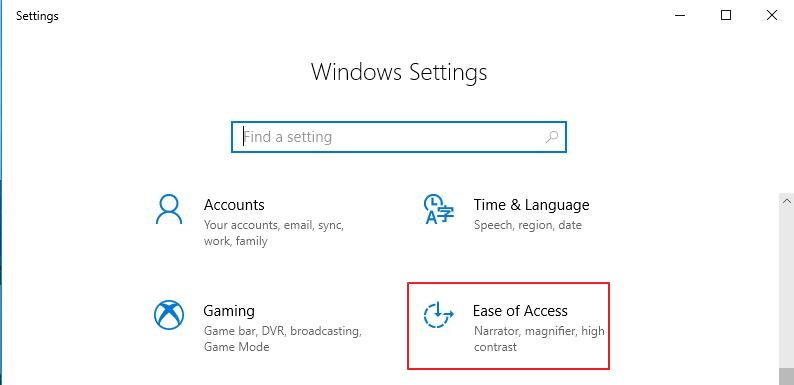
  • In the Settings window, click Ease of Access
ease of access
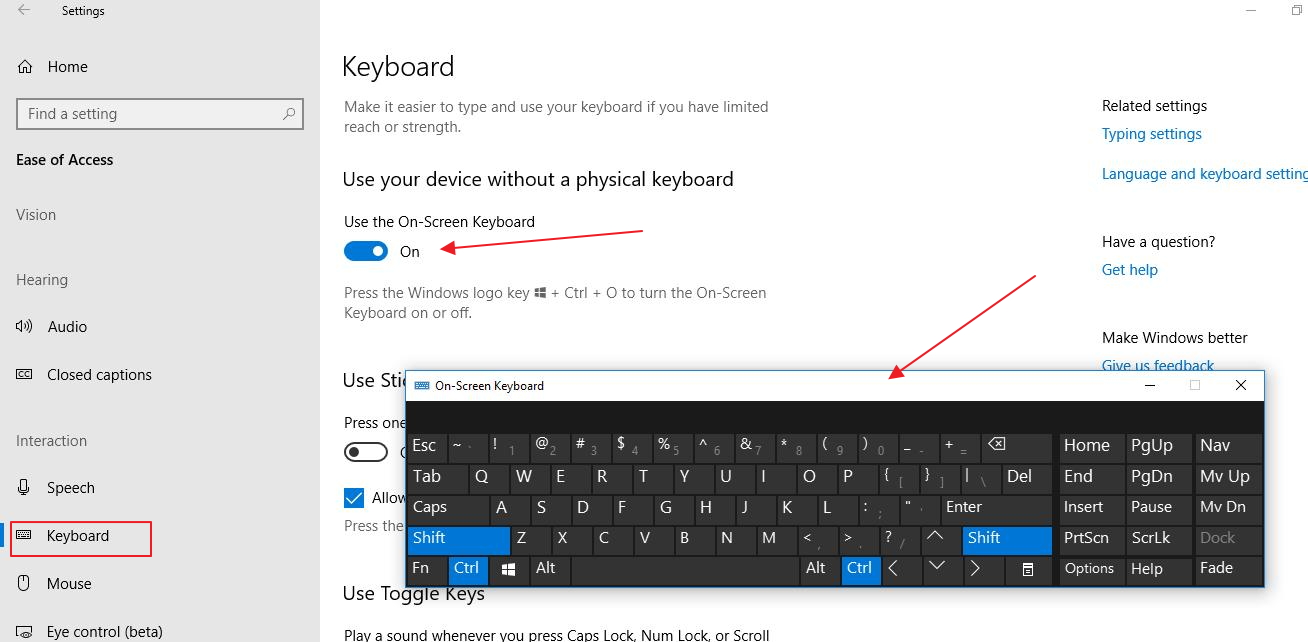
  • In the Ease of Access window, scroll down and click keyboard in the right pane
on-screen keyboard
  • In the left pane, click the toggle key Use the on-screen keyboard to turn the feature on
  • When the on-screen keyboard is activated, you can see a black on-screen keyboard displayed on the screen.

You can move this keyboard to any area of the screen and use it to type the commands in the solution given below.

Steps to uninstall keyboard driver

  • Press Windows logo key and R simultaneously on the keyboard to bring up the Run command console
  • In the Run command window, type devmgmt.msc and click OK
devmgmt
  • In the Device Manager window, click Keyboards to expand the category
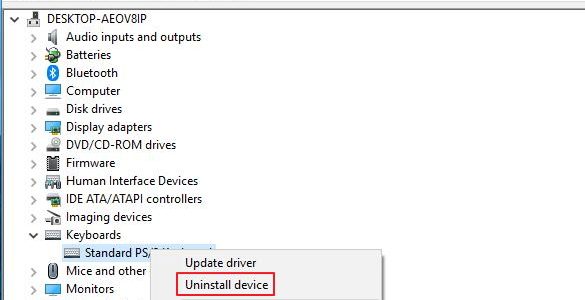
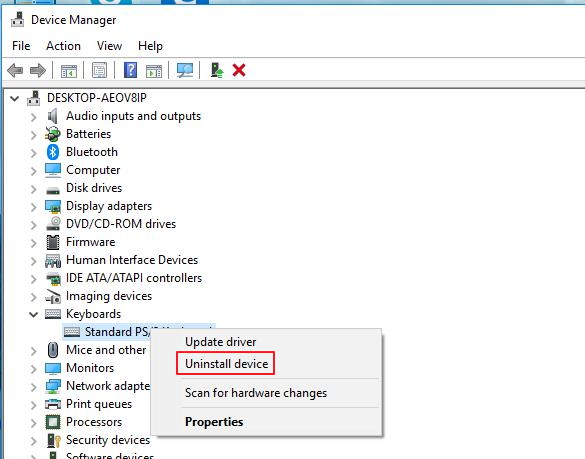
  • Right-click Standard PS/2 keyboard and click Uninstall device. You may also see HID keyboard as device name in the keyboard category. The steps to uninstall keyboard remains same irrespective of the keyboard device name in the category.
uninstall device
  • Close all windows and restart Dell laptop

During restart Windows 10 operating system will detect missing driver for keyboard and install a generic driver for a keyboard that would get the keyboard working again. If the keyboard is not working after these steps, try next solution.

Solution Three – Update Drivers

As you might know, you can update drivers in two ways—manually and automatically. The advantages the second method has over the first are many. For instance, when you update drivers automatically, there’s no risk of installing wrong drivers by mistake. No less importantly, the whole process takes no more than a few minutes whereas in case of manual update, the process can take a good half-an-hour, if not more, if you have to search the manufacturer’s website to locate the necessary.

We advise you to use a Driver Update Tool for updating your drivers.

Updating Drivers Automatically

Automatic driver update tools offer many benefits, the most important ones being:

  • You can update device drivers automatically
  • The software scans and updates all outdated or missing drivers at one go
  • The tool picks the right drivers for your device and operating system, so you won’t have to worry about installing an incorrect driver by mistake
  • Automatic driver updates are 100% safe

Driver Updater is one of the best driver update tools out there. Outbyte Driver Updater will give you access to a database of over 1 million drivers. It will regularly scan your PC, suggesting new driver versions to install. Driver Updater contains drivers for a variety of Windows devices. With just one click, you can update drivers in your system.

Step 1
Click here to Install and launch the app

Step 2
Scan all devices

Step 3
Install or update drivers automatically


Start Download


Filed Under: PC Fix Tips Tagged With: Dell Keyboard Issue

  • « Previous Page
  • 1
  • …
  • 158
  • 159
  • 160
  • 161
  • 162
  • …
  • 189
  • Next Page »


  • Recent Posts
  • Popular Posts
        

Read More Posts


Read More Posts

Drivers.com Sites

  • Software Drivers
  • Drivers Ed

About Us

  • Advertise
  • About Drivers
  • Drivers Support
  • Drivers.com Privacy Policy
  • Disclaimer
  • Software Drivers
  • Mac Fixes and Tips
  • PC Fix Tips
  • Security/ Backup
  • Tablets & Smartphones
  • Tech News

© Copyright 2026 PDE Publications Ltd. End User License Agreement (EULA)