Drivers.com

follow us:

facebook twitter
  • Home
  • Download Drivers
  • Drivers Help
  • PC/Mac Resources
  • Software Drivers
  • Mac Fixes and Tips
  • PC Fix Tips
  • Security/ Backup
  • Tablets & Smartphones
  • Tech News
  • Software Drivers
  • Mac Fixes and Tips
  • PC Fix Tips
  • Security/ Backup
  • Tablets & Smartphones
  • Tech News

“0x80070643” Windows Update or Installation Errors on Windows

By Susan C on July 9, 2018

“0x80070643” Windows Update or Installation Errors on Windows

0x80070643 is a generic error that happens with many operations such as when you install or update Windows Defender or other programs or when you download or install the latest Windows update.

As a Windows user you may encounter this error code several times, and if you are looking for a solution, this post is just for you.

In this post, we’ll discuss different methods to resolve the error.

Case 1 – 0x80070643 error while updating Windows

As mentioned earlier, the 0x80070643 error appears while Windows is installing updates. Here is the image of the error which you are more likely to see
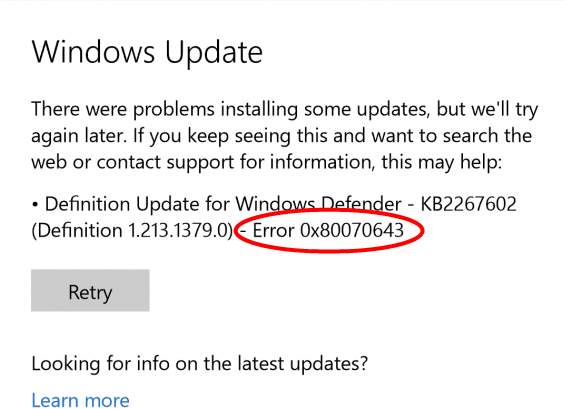
update error

 Case 2- 0x80070643 error while installing a program

You are more likely to see an error image like the one below while installing a program.

installation error

Now that you have seen two cases and error images of 0x80070643 errors, let’s look at the solutions for both cases.

For Case 1, we have presented you five different solutions and for Case 2, we have given three solutions.

You are not required to try all solutions. Start with the first solution applicable to your scenario and move on the next one and so on, until you are able to resolve the issue.

Fix for 0x80070643 error in Windows Update

 Solution One – Install latest .NET framework

The .NET Framework is an important component of the Windows operating system. If the .NET framework is missing or corrupted, you may face problems while installing Windows updates.

The simple solution to this problem is to install the latest .NET framework. Here are the steps to follow.

  • Go to Microsoft .NET Framework download website
  • Click Download .NET Framework 4.7.2 Runtime
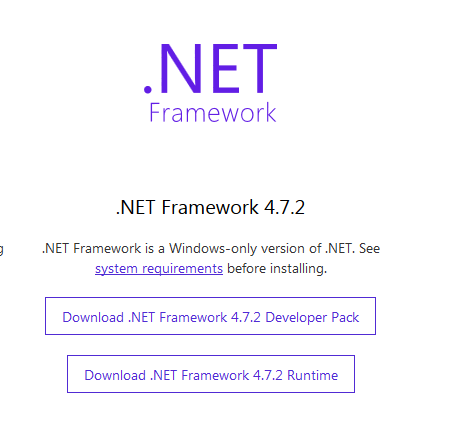
latest NET framework
  • Click Save File
  • After the file is downloaded, double-click on it to start the latest .NET framework installation
  • Follow on-screen instructions to install the .NET7.2 framework on your computer
  • After the installation is finished, restart the computer
  • After the restart, try installing Windows updates. If you still get the 0x80070643 error, try next solution

Solution Two- Run the SFC tool

There is a possibility that some of the Windows system files are corrupt or missing that is causing a problem in Windows update and resulting in the display of 0x80070643 error. A simple solution to this problem is using the SFC tool to fix the corrupt and missing system files.

The SFC (System File Checker) is a command line tool that scans for corruptions in Windows system files and replaces corrupted file with cached versions. Here are the steps to run the SFC tool.

  • Click the Start button
  • Type cmd in Cortana search box
  • Right-click command prompt in the list of results and select Run as administrator
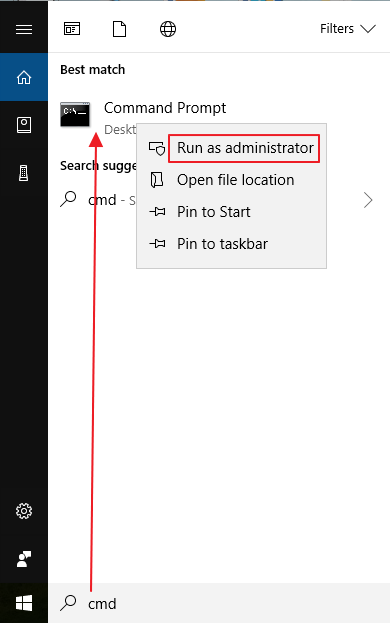
cmd admin
  • In the command prompt window, type sfc /scannow and hit Enter on the keyboard.
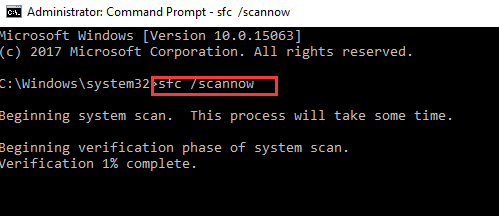
cmd sfc
  • Wait for the SFC scan to complete
  • Try installing Windows updates. If you still get the 0x80070643 error, try next solution

Solution Three – Install failed Windows updated manually

In many cases, Windows faces some problem while installing specific updates due to unknown reasons. One of the workaround this problem is manually installing failed Windows updates. Here are the steps to install Windows updates manually on your Windows 10 computer.

  • Open Windows Explorer
  • Right-click This PC and select Properties
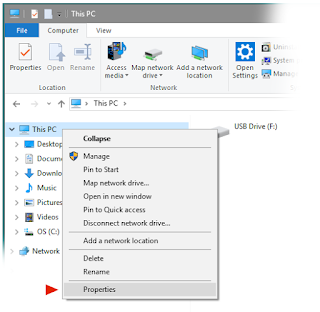
ThisPCProperties
  • In the System window, check the System type entry to find out whether the operating system is 32-bit(x86 based) or 64-bit(x64 based)
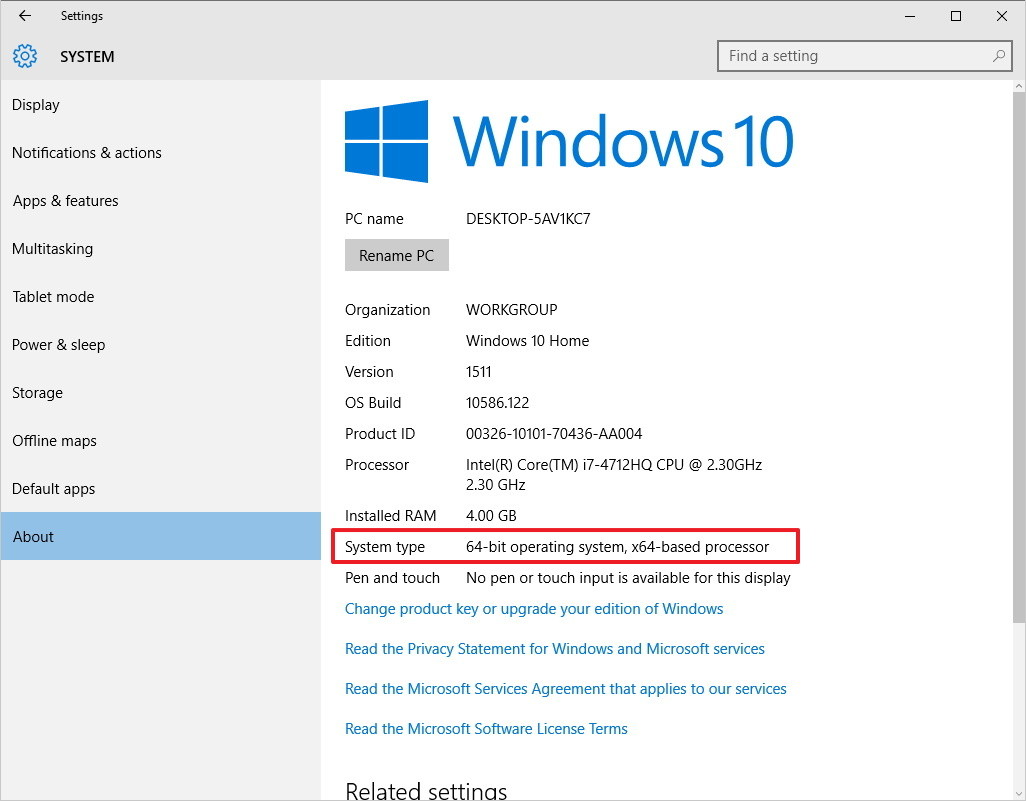
windows bit architecture
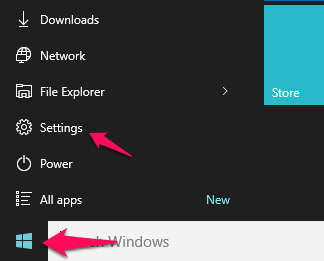
  • Open Start menu
  • click Settings(gear icon)
settings
  • In the Settings window, click Update & Security
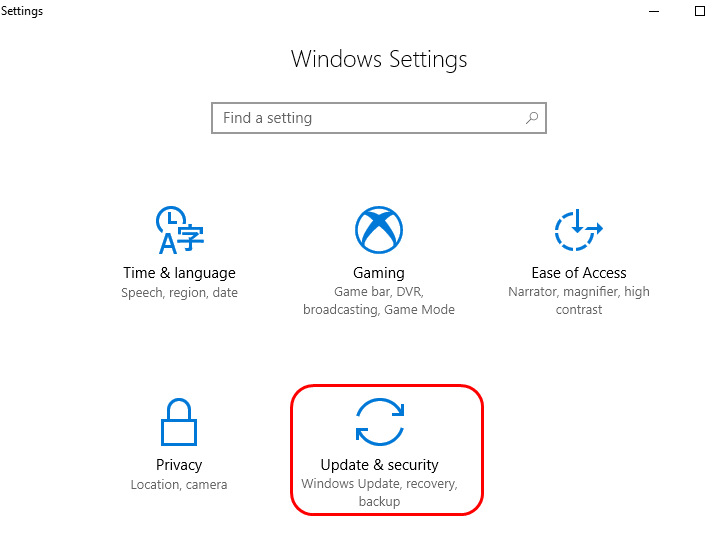
update & security
  • In the next window, click Windows Update
  • On the right side, you will see a blue link Update history, click on it
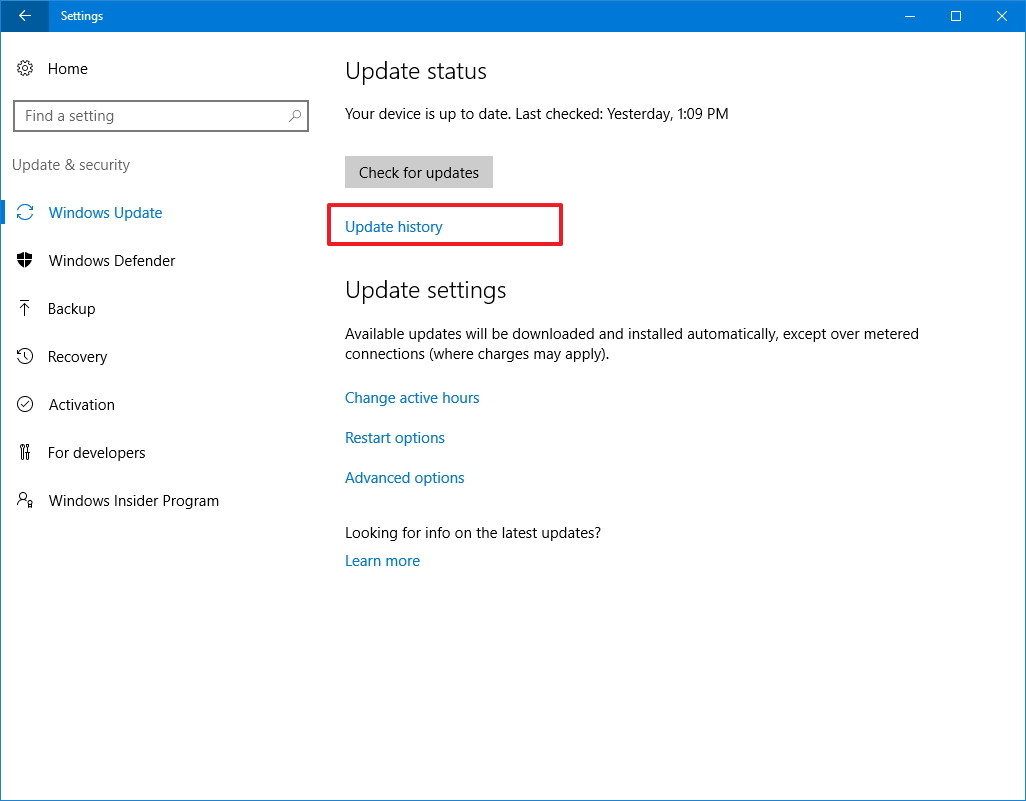
windows update history
  • Now, you can see the updates that failed and the ones which were successfully installed
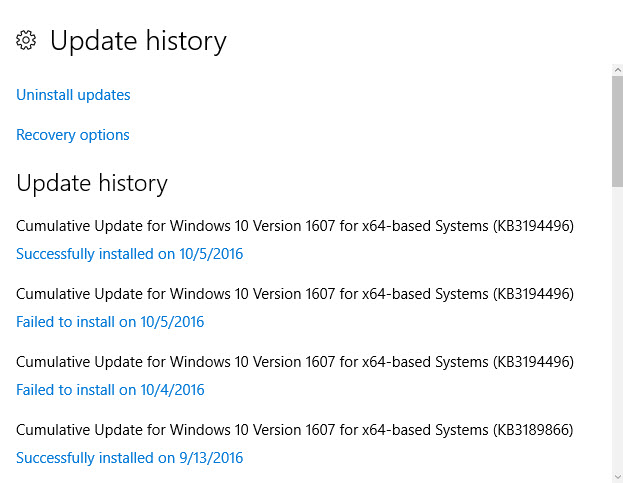
failed updates
  • Copy down the codes of failed updates (the codes start with KB)
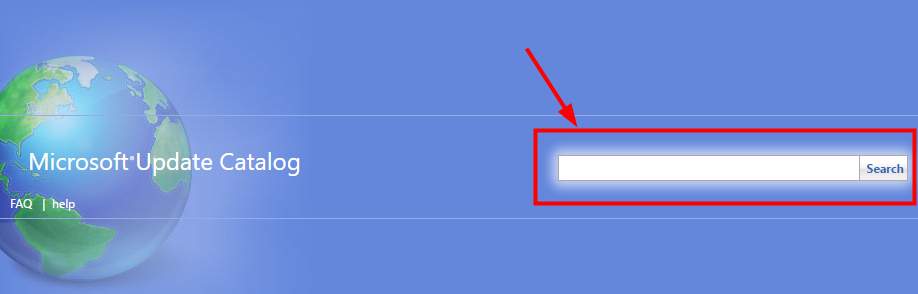
  • go to Microsoft Update Catalog site
microsoft update catalog
  • Type the update code in the search box and click Search
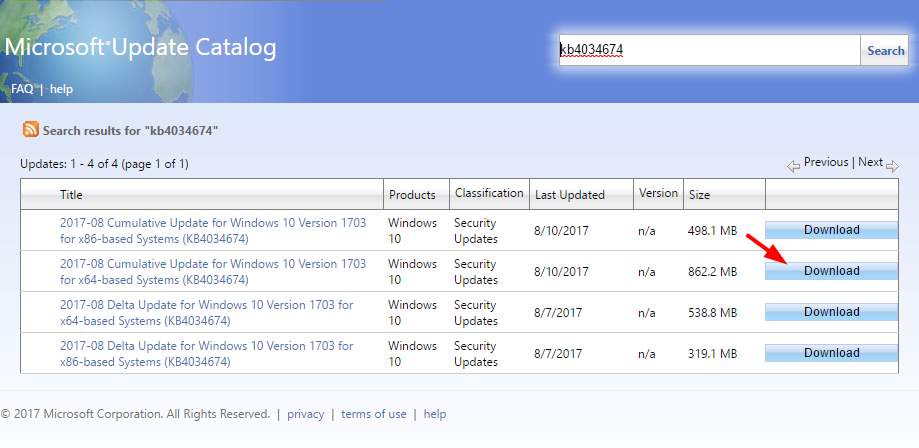
type update code
  • Find the right update( 32-bit/64bit) and click Download
  • Wait for the download to complete.
  • Once the update file is downloaded, double-click on it to install the update
  • Follow this procedure to install all failed windows update

Solution Four – Update Windows Defender manually

 Many times the error code 0x80070643 is related to failed Windows Defender update. If your Windows 10 computer shows any failed Windows Defender update, you need to install the update manually. Here are the steps to follow.

  • Go to Windows Defender Definitions website
  • Download the update file that matches your operating system type
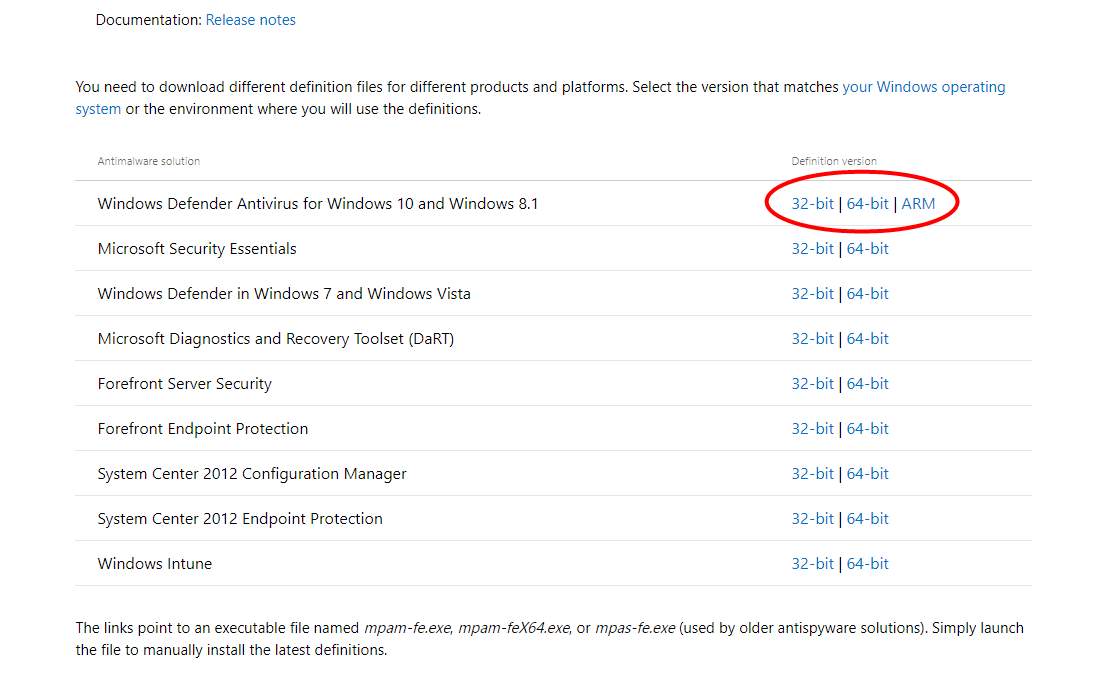
defender update
  • Double-click on the downloaded file to install the update
  • Restart your computer and try installing pending/failed windows updates. if you still get the 0x80070643 error, try next solution.

Solution Five – Disable antivirus software temporarily

Some antivirus software tools are known to create problems in Windows update. Due to unknown reasons, the antivirus software considers any automatic download or windows updates as a harmful program and blocks the download.

A simple solution to this problem is to temporarily disable your antivirus software, install all Windows updates and then enables the antivirus software again. The steps to disable antivirus software temporarily are unique for every antivirus software.

In this solution, we have shown general steps to disable antivirus temporarily. You need to refer the antivirus documentation to know the exact steps to do so.

Here are the steps to follow.

  • Go to system tray and click on anti-virus icon to launch it user interface
  • In the antivirus main window find options to temporarily disable the software for 30 minutes, 1 hour or until next restart
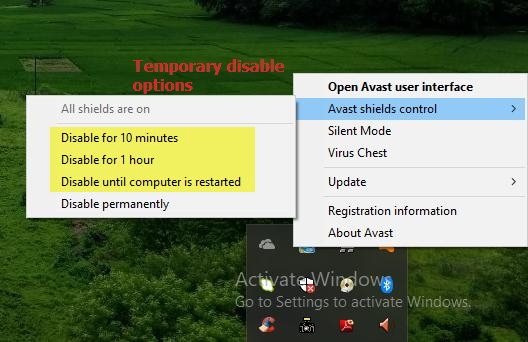
antivirus disable
  • For some anti-virus programs, you just need to right-click the antivirus icon in the system tray and select option like Stop<anti-virus software>
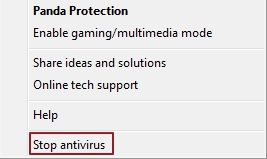
stop antivirus
  • After you have disabled the software, try installing the updates.

In most cases, the Windows update process should run smoothly. don’t forget to enable the antivirus after you have installed all Windows update.

Case 2 – Fix for 0x80070643 error while installing a program

Solution One – Restart your computer

Some newly installed applications need a restart as they cannot access some DLL or system files required for their operation in the current session. Until you restart the computer, the installation is not marked complete. There is a possibility a previous installation of the program is still in progress and might prevent installation of the new program.

A simple solution to this problem is restarting your computer that would complete all pending installation tasks. Restart your computer and then try installing the program.

Solution Two – Restart the Windows Installer service

Windows operating systems have a Windows installer (also known as Microsoft Installer) that is used for installation, uninstallation, and maintenance of software. The Windows installer service is an integral component of Windows operating system that centrally manages the configuration of applications.

There is a possibility that some changes in the Windows operating system have led to faulty configurations of the Windows Installer Service which can be rectified by the restart of Windows Installer service. Another possibility is the Windows Installer Service is not active that is causing the 0x80070643 error. Here are the steps to start Windows Installer Service.

  • Press Windows logo key and R simultaneously on the keyboard to invoke Run command console
  • In the Run command box, type services.msc and click OK
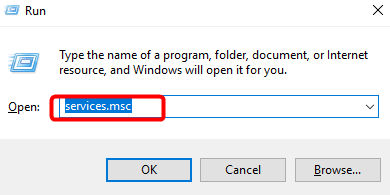
services.msc
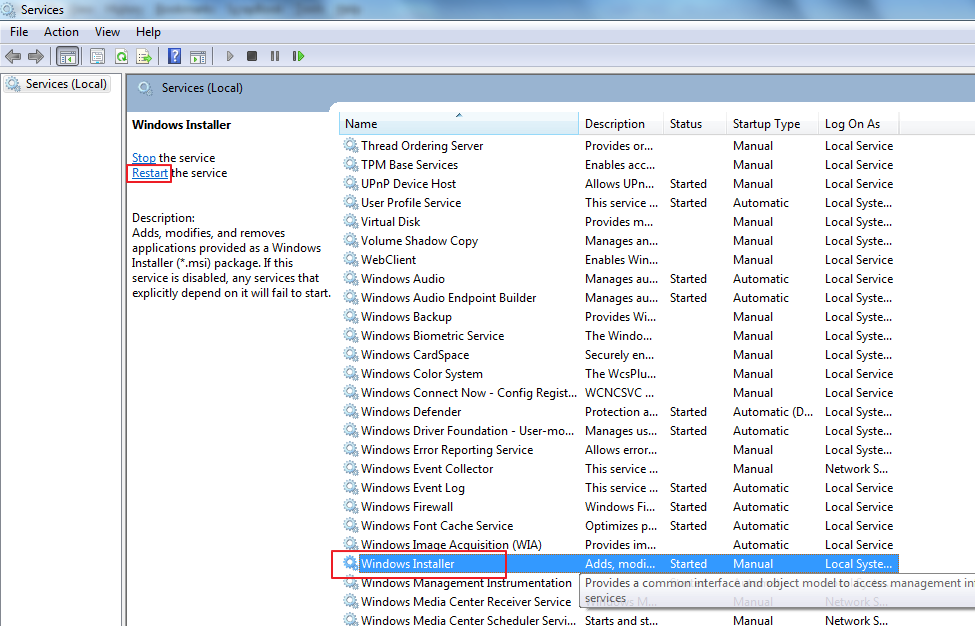
  • In the Services window, look for Windows Installer service and click on it(to select)
  • click Restart the service
windows installer service
  • Close all windows and try installing the program. if you still get a 0x80070643 error, try next solution

Solution Three – Repair and install .NET framework

The Microsoft .NET framework is used by many application developers to build their applications. the framework consists of a bunch of code that can be called for different functions and application developers need not write the code explicitly. this allows them to build application fast and also save time and efforts.

If the .NET framework needed by the application you are trying to install does not exist on your computer or the files are corrupt, it can lead to 0x80070643 error. the simple solution to the problem is repairing the .NET framework and then install latest .NET framework on your computer. Here are the steps to follow.

Step 1- Repair .NET framework

Microsoft offers a .NET framework repair tool that can automatically scan and detect issues with the .NET framework and fix them. Here are the steps to follow.

  • Visit Microsoft Download Center
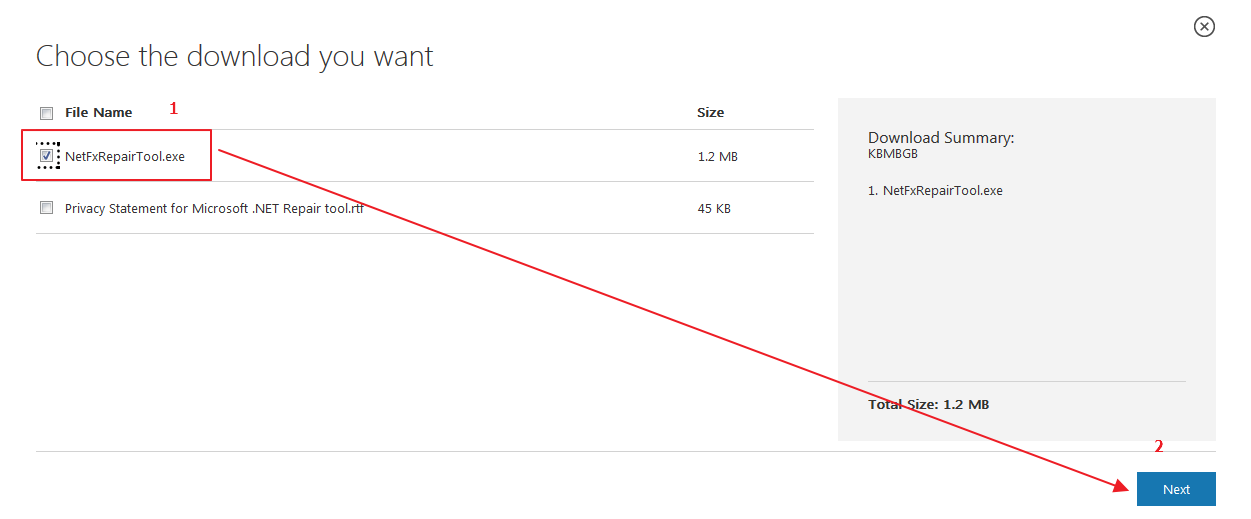
  • Go to Microsoft .NET Framework Repair Tool section and click Download
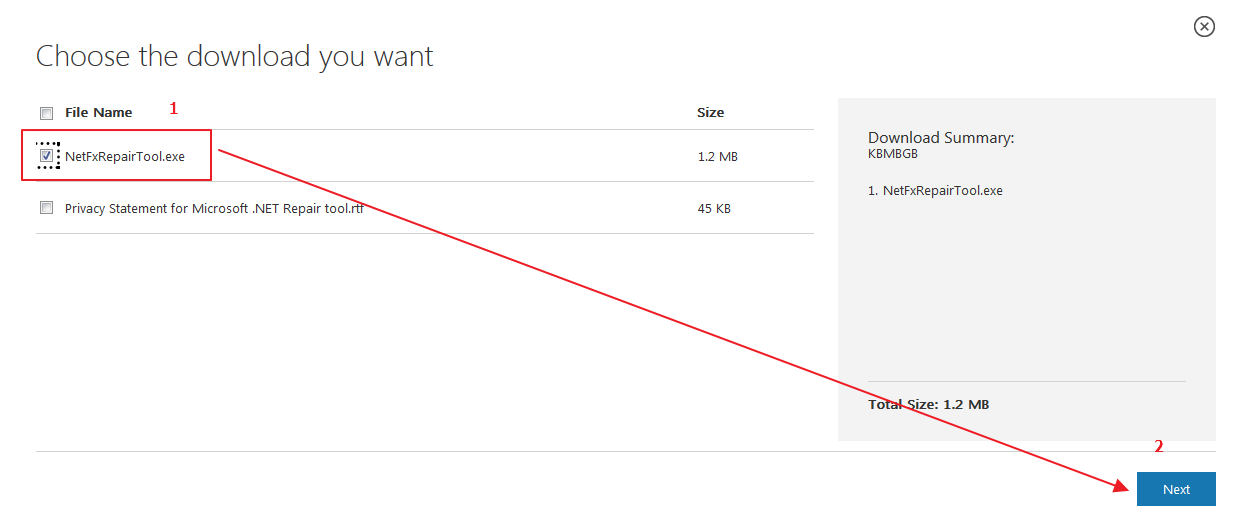
net framework repair
  • In the next window, check the box NetFxRepairTool.exe and click Next
  • When you see the download pop-up, click Save File
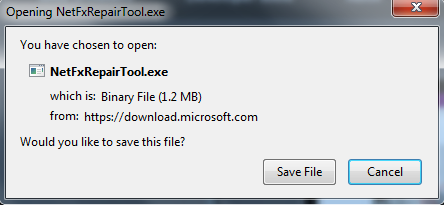
save net repair
  • Wait for the download to complete and then double-click on the file to run the .NET repair tool
  • In the User Account Control window, click Yes
  • Check the box I have read and accept the license terms and click Next
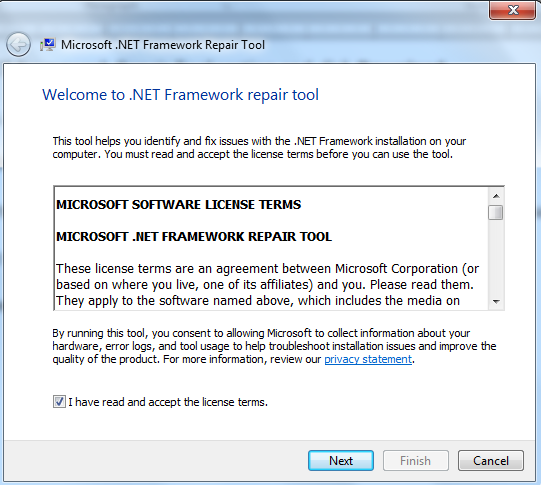
net repair license terms
  • The tool will start scanning and detecting issues.
  • Depending on what it detects, the NET Repair tool will recommend changes, click Next to Apply changes.
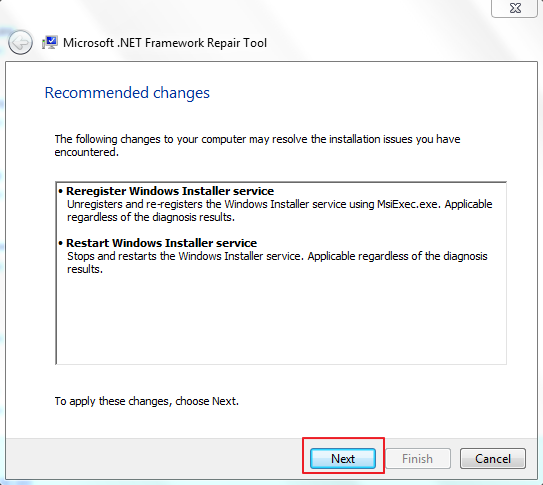
net repair recommendation
  • If the NET framework detects any damages to NET framework, it will also show Next button enabled near the Finish button.
  • Now keep this window open and try installing the updates. if you are able to install updates without any problem, close the .NET framework repair tool by clicking on Finish button
  • If you still get the 0x80070643 error, click Next to repair the NET framework
net framework repair
  • After the NET framework repair tool completes repair of NET framework, you will again see a window with Finish option
  • Now, you need to click Finish to close the tool
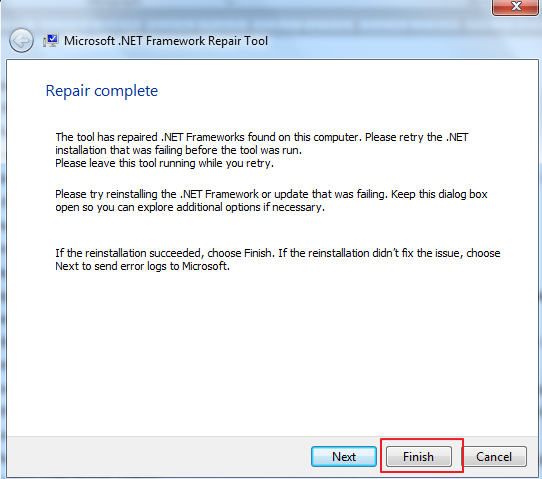
click finish

Step 2 – Install latest .NET framework or any .NET framework needed by the application
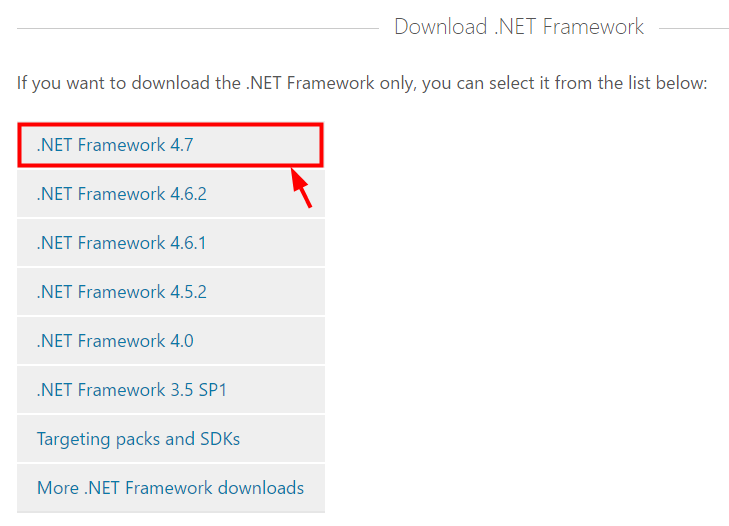
As mentioned earlier, application developers use the .NET framework to build applications. however, there are different versions of the .NET framework. if the application was developed using .NET framework 3.5, you need to install the .NET 3.5 framework runtime package.

Similarly, if the application was developed using .NET framework 4.5 or 4.6, you need to install latest .NET framework 4.7.2 version which also includes 4.5 and 4.6 components and features. here are the steps to follow.

  • Go to Microsoft .NET Framework download website
  • Click Download .NET Framework 4.7.2 Runtime or any .NET framework needed by the application
select net framework

(Note: During installation, the program will scan the system and detect whether the required .NET framework is installed. if the required .NET framework is not installed, it will show the message of missing .NET framework along with the version number)
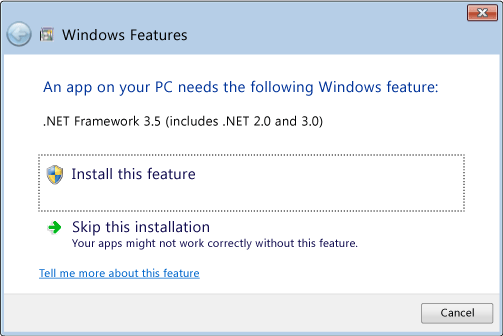
net framework required
  • Click Save File
  • After the file is downloaded, double-click on it to start the .NET framework installation
  • Follow on-screen instructions to install the .NET framework on your computer
  • After the installation is finished, restart the computer

Now try installing the application. In most cases, the application installation should go smoothly which is an indication that 0x80070643 error has been resolved.
Filed Under: PC Fix Tips Tagged With: 0x80070643

PS4 Controller Flashing White Light

By Susan C on July 8, 2018

PS4 Controller Flashing White Light

error image

Are you getting the white blinking light on your PS4 controller?

If yes, this post is just for you.

When you see PS4 controller flashing white light, it means the controller is not able to connect with the console and you won’t be able to play games until the issue is resolved. In this post, we have listed five solutions that could fix the PS4 controller flashing white light issue.

You don’t have to try all of them.  Start with the first one and move on to the next one and so on, till the issue is resolved.  And yes, don’t forget to tell us which one of these worked for you!

Solution to how to connect PS4 controller

Why your PS4 controller is flashing white light?

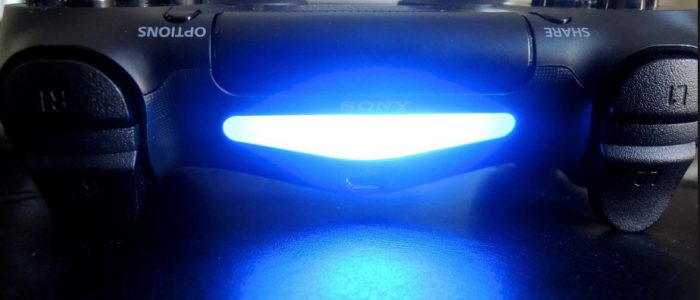
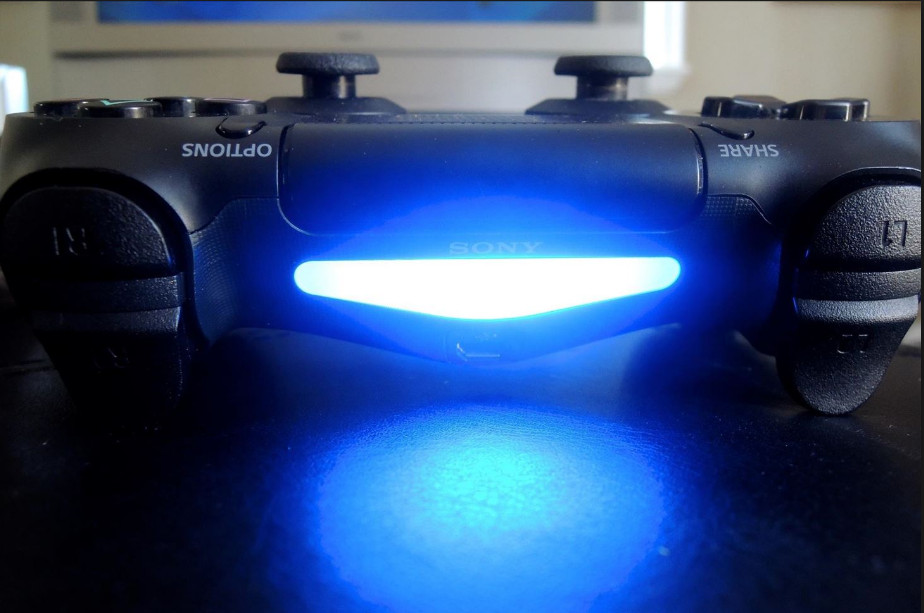
 The flashing lights are indicators of some activity or problems in the PS4 controller. There are two reasons for your PS4 controller’s white light flashing – the battery is low or the PS4 controller is trying to connect to the console but has failed to connect due to some reasons.

The first thing you need to do is charge your PS4 controller to supports it’s normal operation and then try connecting the PS4 controller to console. If you still see the white light flashing, you need to try the solutions given below.

Solution One- Check for any hardware issues

There is a possibility some hardware issue is causing a problem with the connectivity. Either the USB cable connecting the controller and console is loosely fitted or the USB cable is bad. Ensure the USB cable is seated firmly at both ends

If there is any problem with USB cable, the controller would not get charged nor connect with the console. The solution to this problem is using another USB cable. Here are the steps to follow

Step One- Try with another USB cable

  • Get another PS4 USB cable that works properly and connect the controller and console using that cable.
  • Make sure the USB cable is seated firmly at both ends
  • Turn on the PS4 console and controller and see if it works

If the PS4 works normally after replacing the cable, you can conclude the problem was in the cable. If you still see the white light flashing on your PS4 controller, you need to try the next step

Step Two-Try another controller

There is a possibility there is some hardware problem in the controller. You can try another controller to see if the earlier controller has some hardware problem. Here are the steps to follow.

  • Use another controller to switch on your PS4 console
  • Shut down the PS4 console completely
  • Unplug the USB cable connecting the PS4 console and connector and wait for 3 minutes
  • Re-plug the USB cable to the PS4 console
  • Plug the problematic PS4 controller to the other end of the USB cable so that connection between PS4 controller and console can be established
  • Turn on the PS4 console and see if it works properly. if you still see the PS4 controller flashing white light, try next solution

Solution Two- Reset PS4 Controller

Many problems with the PS4 controller can be resolved by resetting the PS4 controller.  Some of the problems you can resolve with reset are white flashing light, Bluetooth issue, PS4 controller not syncing or connecting issues. Here are the steps to reset PS4 controller.

  • Switch Off the PlayStation 4 console
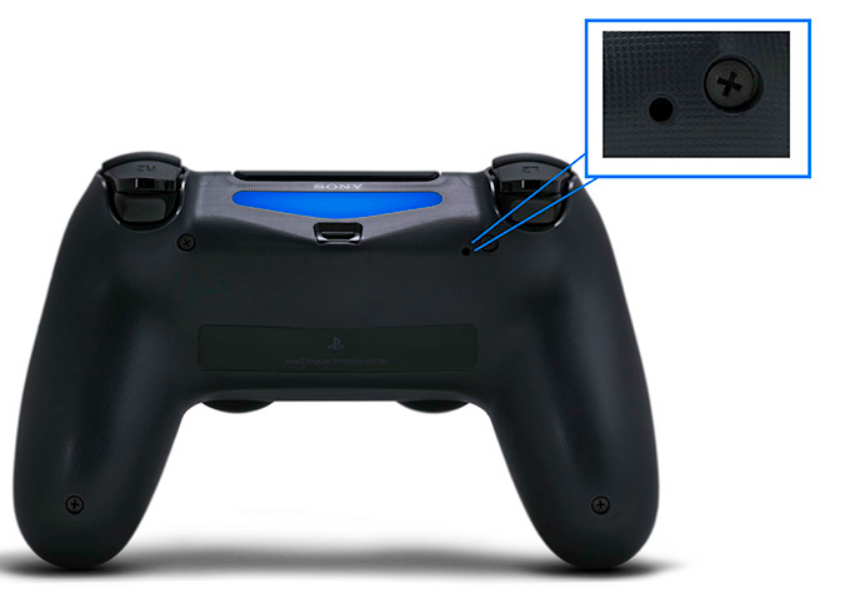
  • On the PS4 controller, locate the reset button. It is located on the back of the controller near the L2 shoulder button.
reset PS4
  • Take a small unfolded paper clip or something similar to push the reset button recessed into the case. Push the reset button with the clip and hold it on for few seconds and then release it.
  • After you have reset the PS4 controller, repair the PS4 controller with the console by connecting the USB cable correctly and then switch on the PS4 console.
  • Press the PS button on the controller to log into PS4
  • Your PS4 connector should be able to connect to your PS4 console and start to work.

If your PS4 controller is still flashing white light, you need to try next solution.

Solution Three – Update PS4 driver on your PC

If the PS4 driver on your computer is corrupt or outdated, it can result in operational problems with the PS4 controller. The simple solution to this problem is updating the PS4 driver on your PC.

You need to first uninstall the PS4 device and driver from your computer. The next step is reinstalling the PS4 device and then latest PS4 driver on your PC. Here are the steps to follow.

Step 1- Uninstall the PS4 device and driver on your Windows

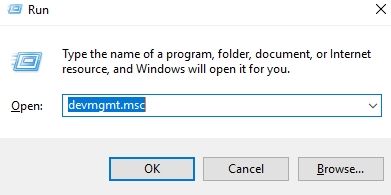
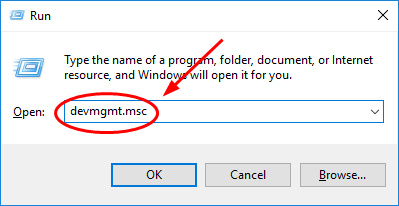
  • Press Windows logo key and R on your keyboard to bring up the Run command console
  • In the Run command box, type devmgmt.msc and click OK
devmgmt
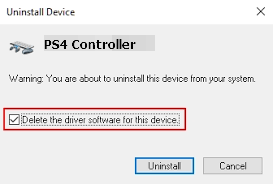
  • In the Device Manager window, right-click the PS4 device and click Uninstall device
  • In the Confirm Device Install pop-up, check the box Delete the driver software for this device and click OK
delete driver
  • Unplug the PS4 device from your computer and restart your computer

Step 2 – Reinstall Drivers

Automatic driver update tools offer many benefits, the most important ones being:

  • You can update device drivers automatically
  • The software scans and updates all outdated or missing drivers at one go
  • The tool picks the right drivers for your device and operating system, so you won’t have to worry about installing an incorrect driver by mistake
  • Automatic driver updates are 100% safe

Driver Updater is one of the best driver update tools out there. Outbyte Driver Updater will give you access to a database of over 1 million drivers. It will regularly scan your PC, suggesting new driver versions to install. Driver Updater contains drivers for a variety of Windows devices. With just one click, you can update drivers in your system.

Step 1
Click here to Install and launch the app

Step 2
Scan all devices

Step 3
Install or update drivers automatically


Start Download


Solution Four – Start PS4 device in Safe Mode

The Safe Mode option in PS4 is designed to fix problems with PS4 firmware so that it can function normally. In Safe Mode, only the basic functions of PS4 are active.

PS4 Safe Mode (All you wanted to know about it)

Note- Starting the PS4 system in Safe Mode might result in loss of data. Hence, you are advised to back up PS4 system data to external hard drive or online backup source before selecting any option in Safe Mode.

Step 1 – Rebuild Database in Safe Mode

  • Press the Power button on the front panel to turn off the PS4 The power indicator will blink a few minutes before the PS4 system turns off.
  • Once the PS4 system is turned off, press and hold the power button again. Release the power button after you hear the second beep. The first beep can be heard when you press the power button, the second beep comes a few seconds later.
  • Now connect the PS4 controller to the console with the USB cable and then press the PS button on the controller to switch on the PS4 system.
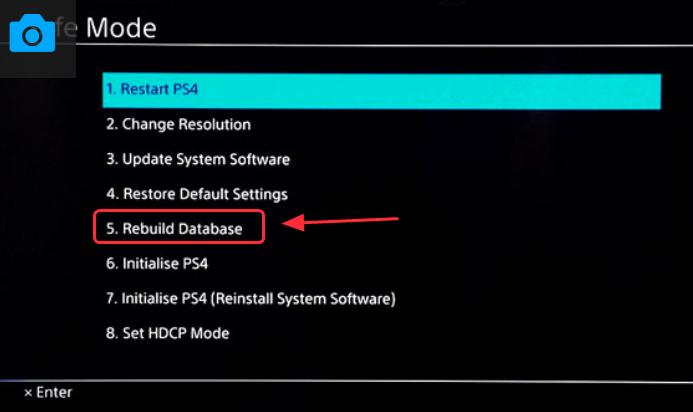
  • You will see the Safe Mode screen with 8 options. Select 5th option- Rebuild Database.
rebuild database
  • Wait for the process to complete

Information: The Rebuild Database option in PS4 Safe Mode is similar to defrag option in Windows. The defrag option does a clean-up of the data on the hard drives and also cleans up memory that helps in resolving issues with memory.

The Rebuild Database options perform same defrag action on the PS4 and can help resolve a host of issues on the PS4 system and also free space. It also fixes specific issues and speeds up the console. The Rebuild Database scans the hard drive of the PS4 system, removes unwanted files and builds a new database of all content.

  • Try using your PS4 system with the controller and see if the white flashing light issue on the controller has been resolved. If the issue still persists, try next step.

Step Two- Update PS4 software

There are different ways to update PS4 software which includes via Internet, USB drive and Disc. Updating PS4 software can fix a lot of issues and it might also resolve the PS4 controller blinking white problem.

Here are the steps to follow.

Update System Software using the Internet

  • Connect LAN(Ethernet) cable to your PS4 system
  • Select Settings -> Network -> Set up Internet connection
  • Follow-on screen instructions to configure network settings
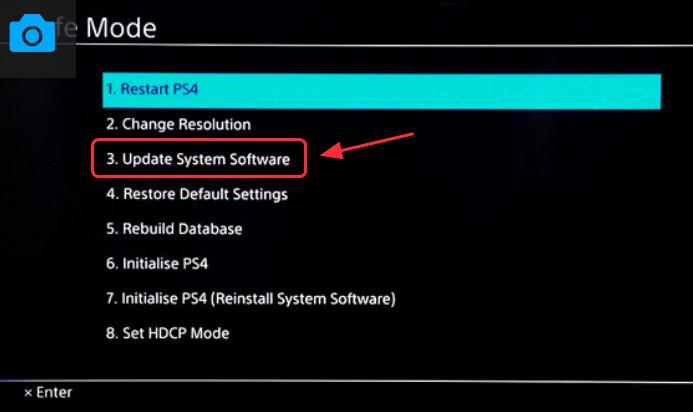
  • Once your PS4 system is connected to the Internet, go to the function screen again and select Settings –> System Software update
update system software
  • The PS4 system will check for updates and download any updates that are available and install them

If you don’t want to update PS4 system software using the above method, you can use the option to update through Disc

Update System Software via Disc

  • Download the PS4 update file to the disc
  • Insert the disc into the PS4 system. The system will recognize the update and you will see a screen appears to guide you through the update process.
  • Follow the on-screen instructions to update PS4 system software.

Update System Software via USB Drive/computer

You will need a computer connected to the Internet and a USB flash drive to update PS4 system software through this method. The USB drive should have 46 MB of free space. Here are the steps to follow.

  • On USB flash drive, create a folder named PS4 to save the update file
  • Inside the PS4 folder, create a folder named UPDATE
  • Click on Download Now to download the update file
  • Save the file in the UPDATE folder. You need to save the file with the file name “PS4UPDATE.PUP”.
  • Once the update file is downloaded, plug-in the USB drive to your PS4 system
  • Go to function screen, select Settings -> System Software Update
  • Follow on-screen instructions to complete the update.

If none of the above solutions have worked for you, you can try the simple trick given below that have helped many PS4 users fix the controller white blinking light issue.

Solution Five – Easy trick to fix the controller white flashing light issue

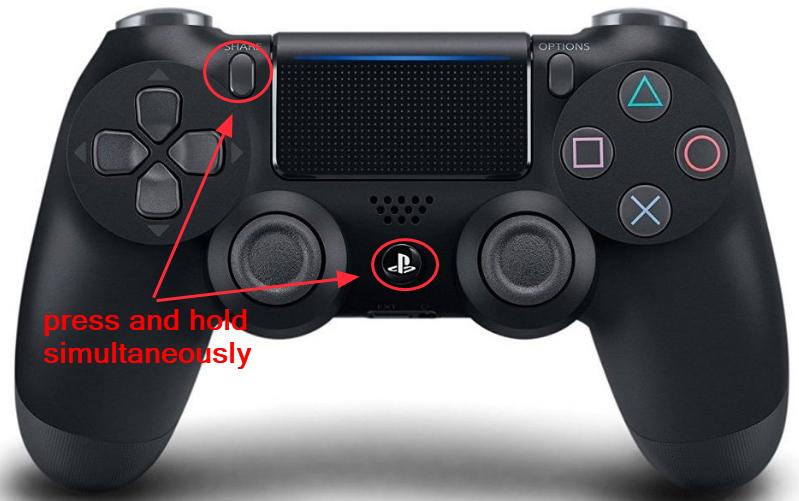
This trick will reset all connection of the controller and initiate a fresh pairing mode. Here are the steps to follow

  • Press and hold Share and PS button on the controller simultaneously
PS and share button
  • Wait until the PS4 system turns On
  • Try to use the PS4 now and see if the white flashing light issue on the controller has been resolved.

If you are looking to play your Playstation 4 on a Mac or PC then view our article here.

Filed Under: PC Fix Tips Tagged With: PS4 Controller issue

Second Monitor Not Detected on Windows 10 issue

By Susan C on July 5, 2018

Second Monitor Not Detected on Windows 10 issue

A second monitor can be great in terms of general computing productivity.  The expanded screen real estate is great for work activities like general multi-tasking, writing emails, research, and comparing documents.

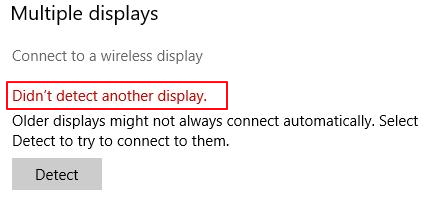
Sometimes your second monitor is not detected by Windows 10 even though the monitor and the video adapter are working fine. If you are facing a similar problem, don’t lose hope as the problem might not be severe as you think it to be. The reason behind such problem could be wrong settings or drivers.

error img

In this post, we have provided four solutions to the “second monitor not detected” problem. You are not required to try all solutions given in this post. Start with the first solution. If the second monitor is not detected after trying Solution One, try the next solution. Keep on trying next solution in the post until the second monitor is detected.

Let’s get started.

Solution One – Roll back to a previously installed video driver

Sometimes latest drivers don’t work properly with Windows 10 for unknown reasons. In such cases, rolling back to previously installed video driver is the easiest solution available. Here are the steps to roll back video drivers.

  • Press Windows logo key and R simultaneously on the keyboard to bring up the Run command console
  • In the Run command box, type devmgmt.msc and click OK
devmgmt-msc
  • In the Device Manager window, go to Display adapters category and expand it
  • Right-click on your display adapter and click Properties
adapter properties
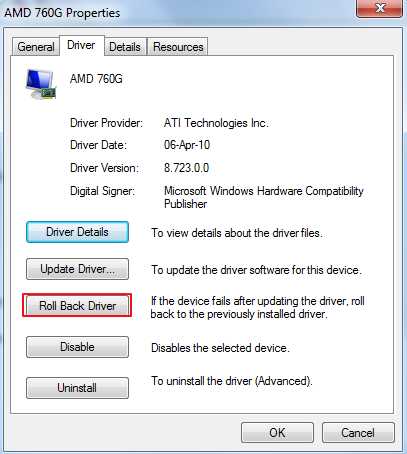
  • In the Properties window, go to Driver tab and click Roll back driver
roll back driver
  • Follow on-screen instructions to roll back driver

If the Rollback option is grayed out, note down the driver version and follow the steps given below

  • Go to the display adapter manufacturer website and look for earlier driver version for your display adapter
  • Download and install the older driver and see if the second monitor is detected. If you are still facing problems with the second monitor, try next solution.

Solution Two – Update Drivers

Outdated video driver can cause this issue. The best way to update your outdated drivers is by using a reliable and fast driver update tool.

Automatic driver update tools offer many benefits, the most important ones being:

  • You can update device drivers automatically
  • The software scans and updates all outdated or missing drivers at one go
  • The tool picks the right drivers for your device and operating system, so you won’t have to worry about installing an incorrect driver by mistake
  • Automatic driver updates are 100% safe

Driver Updater is one of the best driver update tools out there. Outbyte Driver Updater will give you access to a database of over 1 million drivers. It will regularly scan your PC, suggesting new driver versions to install. Driver Updater contains drivers for a variety of Windows devices. With just one click, you can update drivers in your system.

Step 1
Click here to Install and launch the app

Step 2
Scan all devices

Step 3
Install or update drivers automatically


Start Download


Solution Three – Ensure the refresh rates for both monitors are set same

The refresh rate is an important setting for a monitor that refers to a number of times per second the images refreshes on the screen. The refresh rate is measured in Hertz (Hz). When you connect two monitors to Windows 10, the refresh rate of the monitors plays an important role.

Some display adapters don’t support different refresh rates for dual monitor setup and this could be the underlying reason for the second monitor not getting detected. To resolve the issue, you need to set the same refresh rates for both monitors and see if it resolves the issue. Here are the steps you need to follow.

  • Press Windows logo key and I simultaneously to open the Settings window
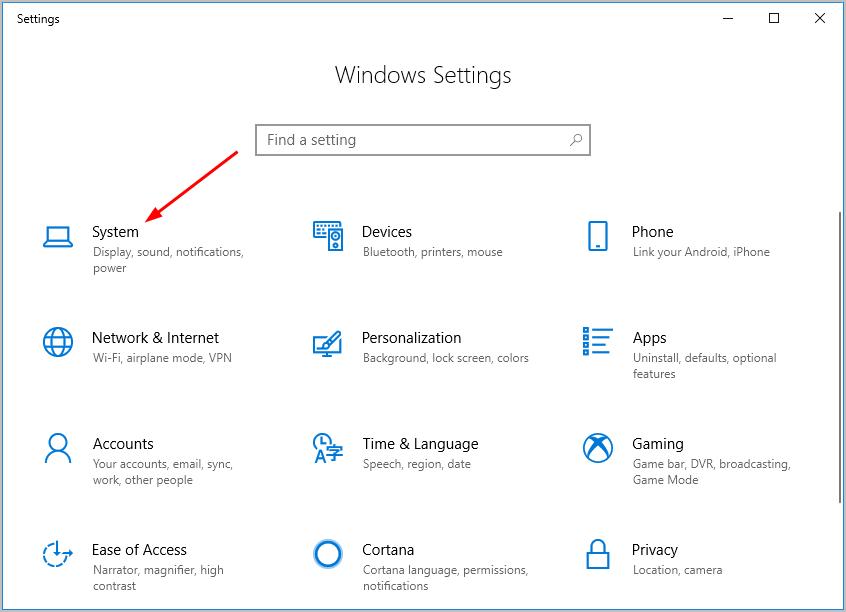
  • In the Settings window, click System
system
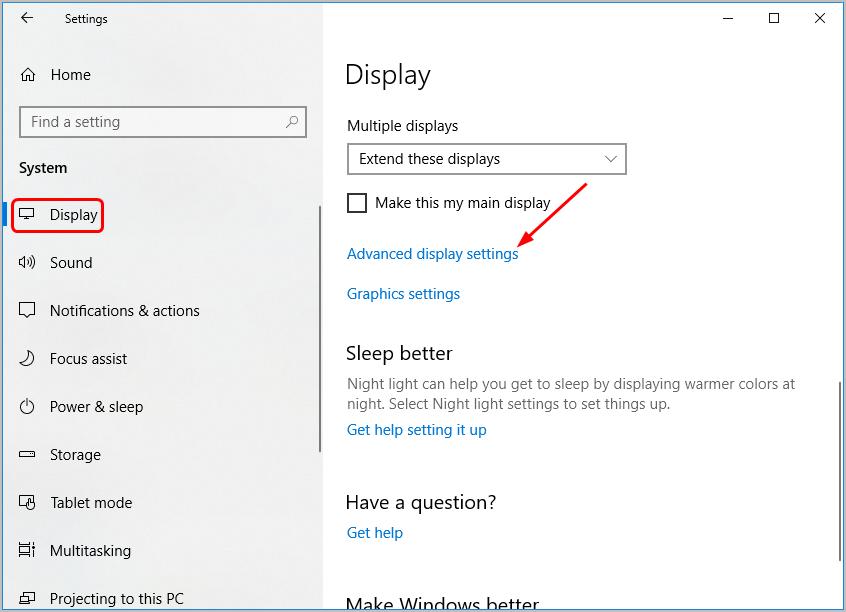
  • Click Display in the left pane and then click Advanced display settings
adv display settings
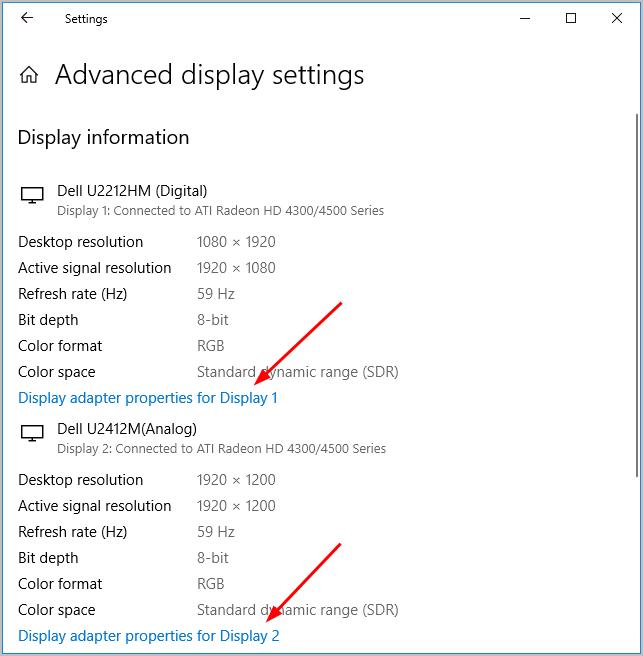
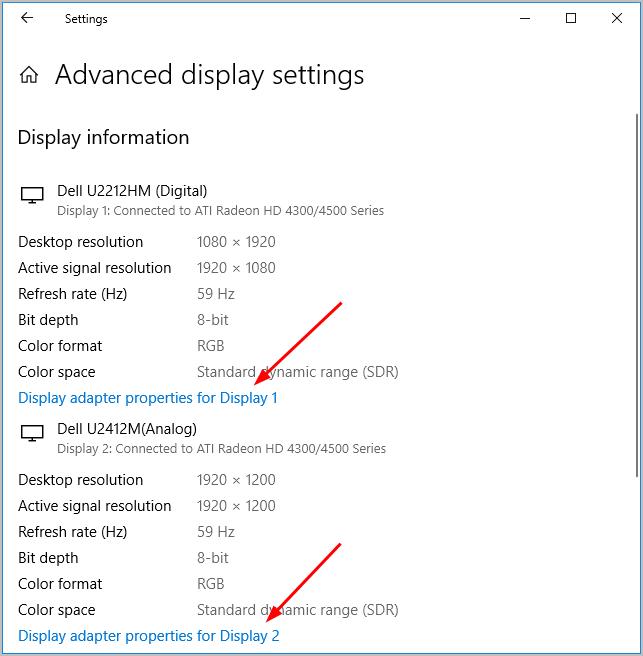
  • In the Advanced display settings window, click Display adapter properties for Display 1 and then click Display adapter properties for Display 2
adapter properties
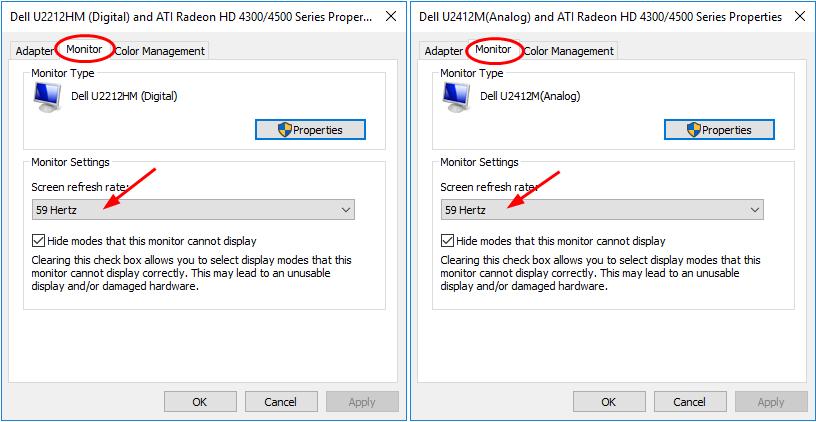
  • Now you have Display adapter properties of both displays in front of you. Click Monitor tab in each display property window and look for the screen refresh rate under Monitor settings.
screen refresh rate
  • If the refresh rates are different, change the refresh rate of any one display to make it same as other display. Click Apply followed by OK
  • Close all windows and see if the second monitor is detected now. If you are still facing a problem with the second monitor, try next solution.

Solution Four – Change your project mode

Windows 10 offers different presentation modes where you can duplicate your desktop to another screen or extend your desktop area. The project mode selected by default is PC screen only and this could be the reason the second monitor is not detected. The simple solution to this problem is selecting the right project mode by following the steps given below.

  • Press Windows logo key and P simultaneously on the keyboard to access Project Mode settings
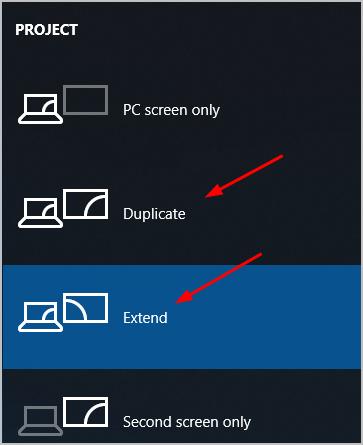
  • In the Project Mode menu, you will find options like Duplicate, Extend, and Second Screen only options
project mode
  • If you select the Duplicate project mode, the desktop area would be duplicated on the second monitor
  • If you select the Extend mode, the desktop area is extended to the second screen and you will have additional screen space
  • Click the right project mode as per your requirements

In most cases, the second monitor should get detected which resolves the issue.

Filed Under: PC Fix Tips

  • « Previous Page
  • 1
  • …
  • 159
  • 160
  • 161
  • 162
  • 163
  • …
  • 189
  • Next Page »


  • Recent Posts
  • Popular Posts
        

Read More Posts


Read More Posts

Drivers.com Sites

  • Software Drivers
  • Drivers Ed

About Us

  • Advertise
  • About Drivers
  • Drivers Support
  • Drivers.com Privacy Policy
  • Disclaimer
  • Software Drivers
  • Mac Fixes and Tips
  • PC Fix Tips
  • Security/ Backup
  • Tablets & Smartphones
  • Tech News

© Copyright 2026 PDE Publications Ltd. End User License Agreement (EULA)