


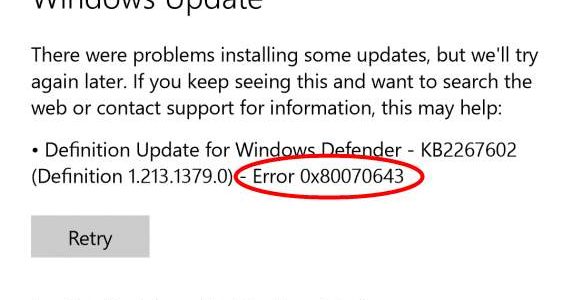
0x80070643 is a generic error that happens with many operations such as when you install or update Windows Defender or other programs or when you download or install the latest Windows update.
As a Windows user you may encounter this error code several times, and if you are looking for a solution, this post is just for you.
In this post, we’ll discuss different methods to resolve the error.
Case 1 – 0x80070643 error while updating Windows
As mentioned earlier, the 0x80070643 error appears while Windows is installing updates. Here is the image of the error which you are more likely to see
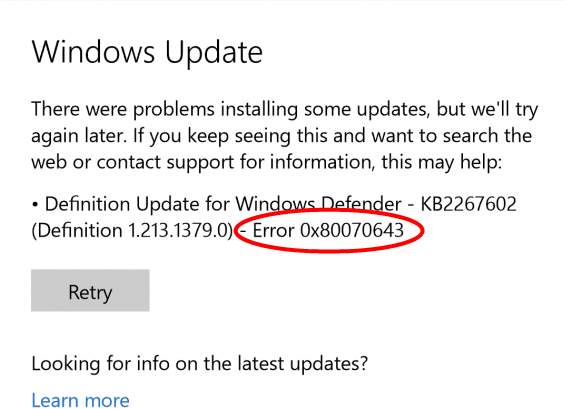
Case 2- 0x80070643 error while installing a program
You are more likely to see an error image like the one below while installing a program.

Now that you have seen two cases and error images of 0x80070643 errors, let’s look at the solutions for both cases.
For Case 1, we have presented you five different solutions and for Case 2, we have given three solutions.
You are not required to try all solutions. Start with the first solution applicable to your scenario and move on the next one and so on, until you are able to resolve the issue.
Fix for 0x80070643 error in Windows Update
Solution One – Install latest .NET framework
The .NET Framework is an important component of the Windows operating system. If the .NET framework is missing or corrupted, you may face problems while installing Windows updates.
The simple solution to this problem is to install the latest .NET framework. Here are the steps to follow.
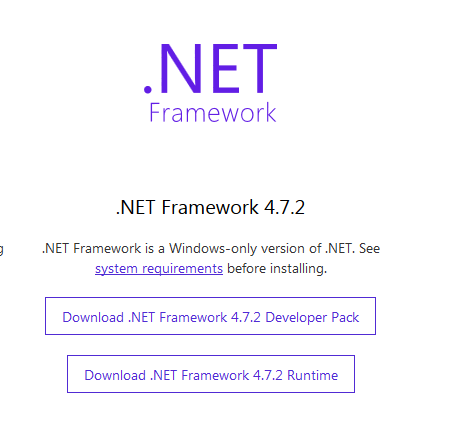
- Go to Microsoft .NET Framework download website
- Click Download .NET Framework 4.7.2 Runtime
- Click Save File
- After the file is downloaded, double-click on it to start the latest .NET framework installation
- Follow on-screen instructions to install the .NET7.2 framework on your computer
- After the installation is finished, restart the computer
- After the restart, try installing Windows updates. If you still get the 0x80070643 error, try next solution
Solution Two- Run the SFC tool
There is a possibility that some of the Windows system files are corrupt or missing that is causing a problem in Windows update and resulting in the display of 0x80070643 error. A simple solution to this problem is using the SFC tool to fix the corrupt and missing system files.
The SFC (System File Checker) is a command line tool that scans for corruptions in Windows system files and replaces corrupted file with cached versions. Here are the steps to run the SFC tool.
- Click the Start button
- Type cmd in Cortana search box
- Right-click command prompt in the list of results and select Run as administrator
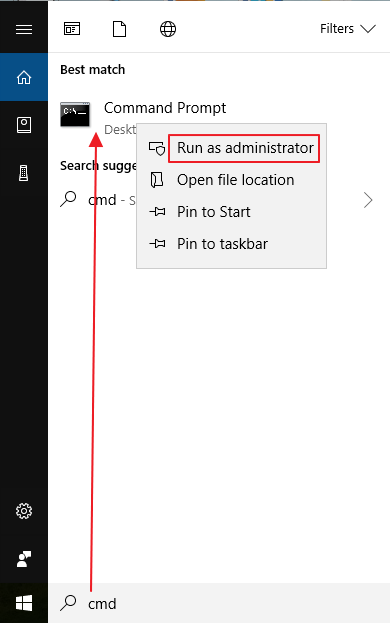
- In the command prompt window, type sfc /scannow and hit Enter on the keyboard.
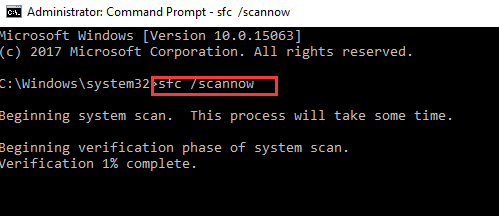
- Wait for the SFC scan to complete
- Try installing Windows updates. If you still get the 0x80070643 error, try next solution
Solution Three – Install failed Windows updated manually
In many cases, Windows faces some problem while installing specific updates due to unknown reasons. One of the workaround this problem is manually installing failed Windows updates. Here are the steps to install Windows updates manually on your Windows 10 computer.
- Open Windows Explorer
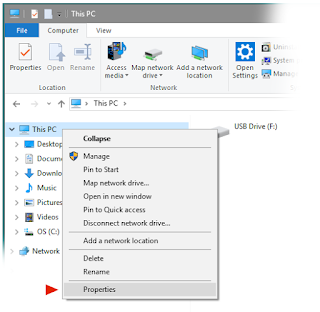
- Right-click This PC and select Properties
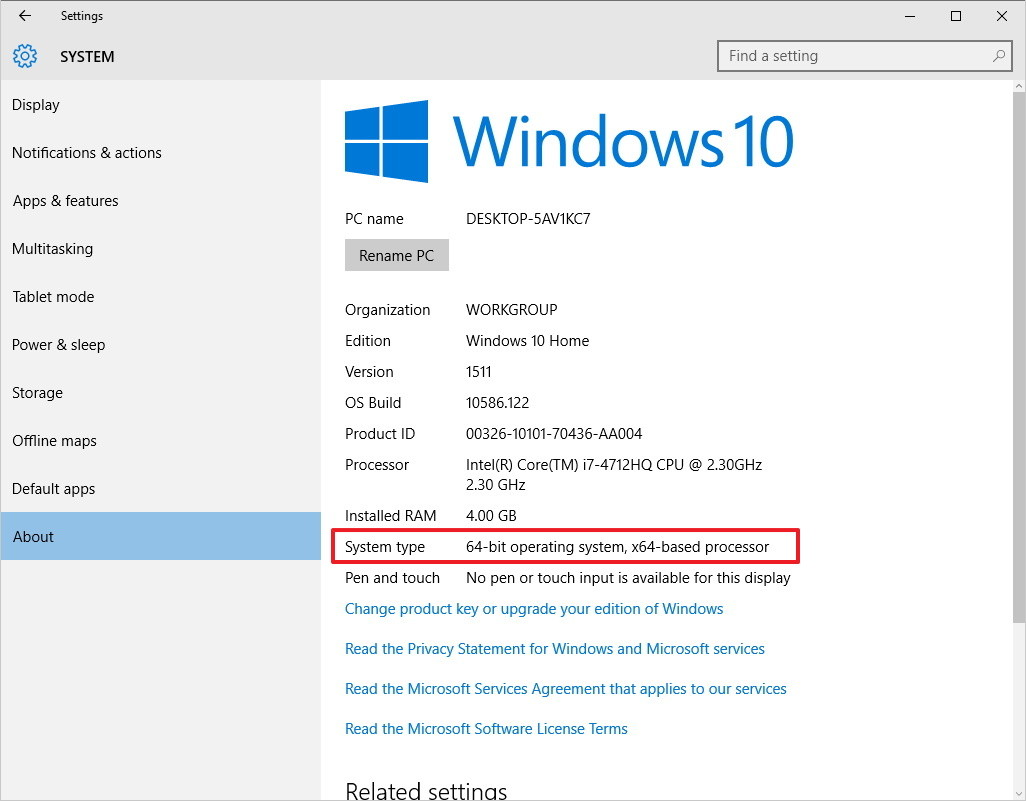
- In the System window, check the System type entry to find out whether the operating system is 32-bit(x86 based) or 64-bit(x64 based)
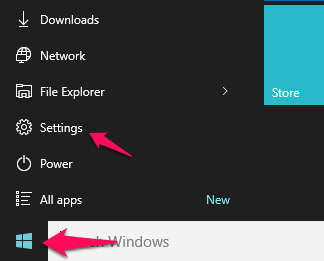
- Open Start menu
- click Settings(gear icon)
- In the Settings window, click Update & Security
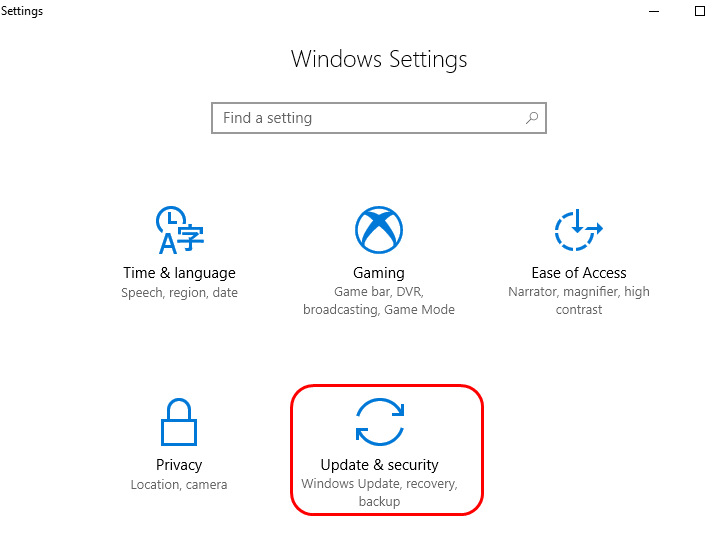
- In the next window, click Windows Update
- On the right side, you will see a blue link Update history, click on it
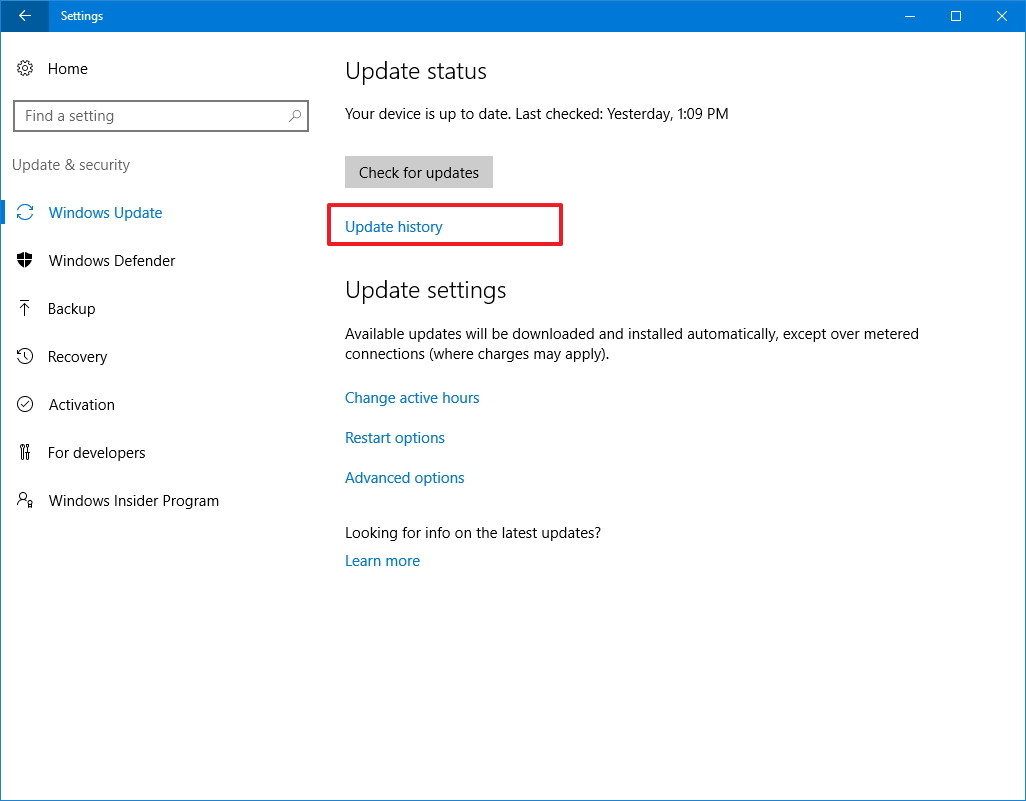
- Now, you can see the updates that failed and the ones which were successfully installed
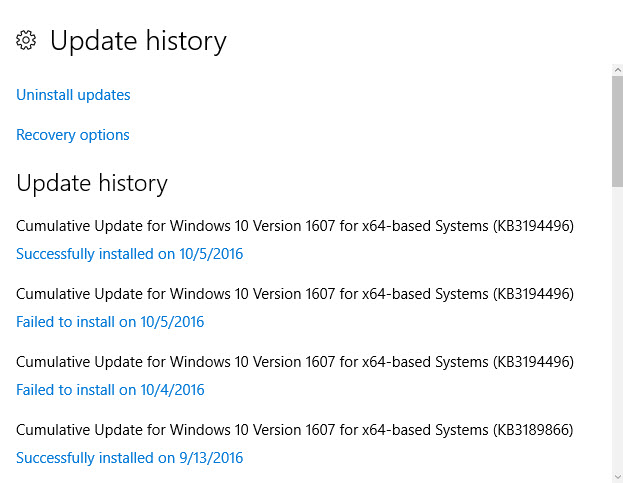
- Copy down the codes of failed updates (the codes start with KB)
- go to Microsoft Update Catalog site
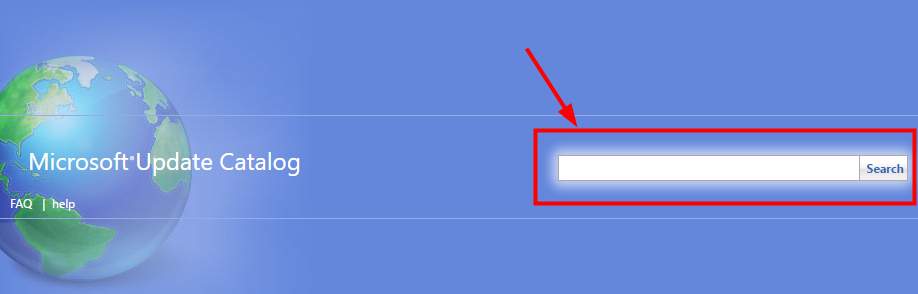
- Type the update code in the search box and click Search
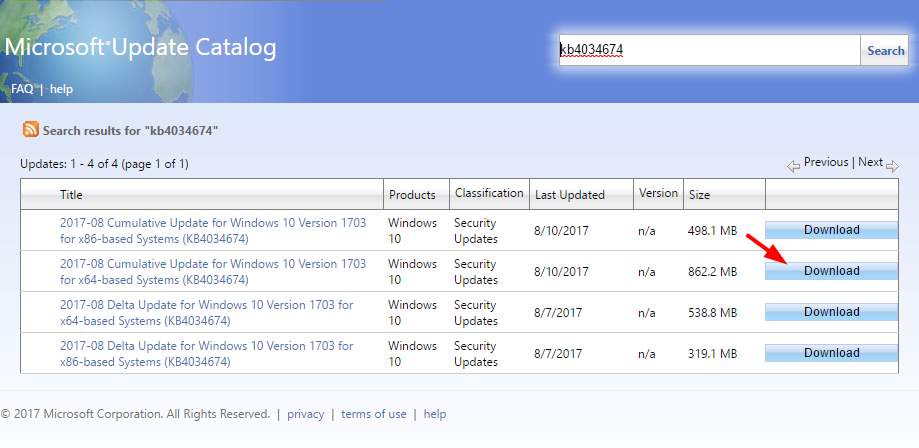
- Find the right update( 32-bit/64bit) and click Download
- Wait for the download to complete.
- Once the update file is downloaded, double-click on it to install the update
- Follow this procedure to install all failed windows update
Solution Four – Update Windows Defender manually
Many times the error code 0x80070643 is related to failed Windows Defender update. If your Windows 10 computer shows any failed Windows Defender update, you need to install the update manually. Here are the steps to follow.
- Go to Windows Defender Definitions website
- Download the update file that matches your operating system type
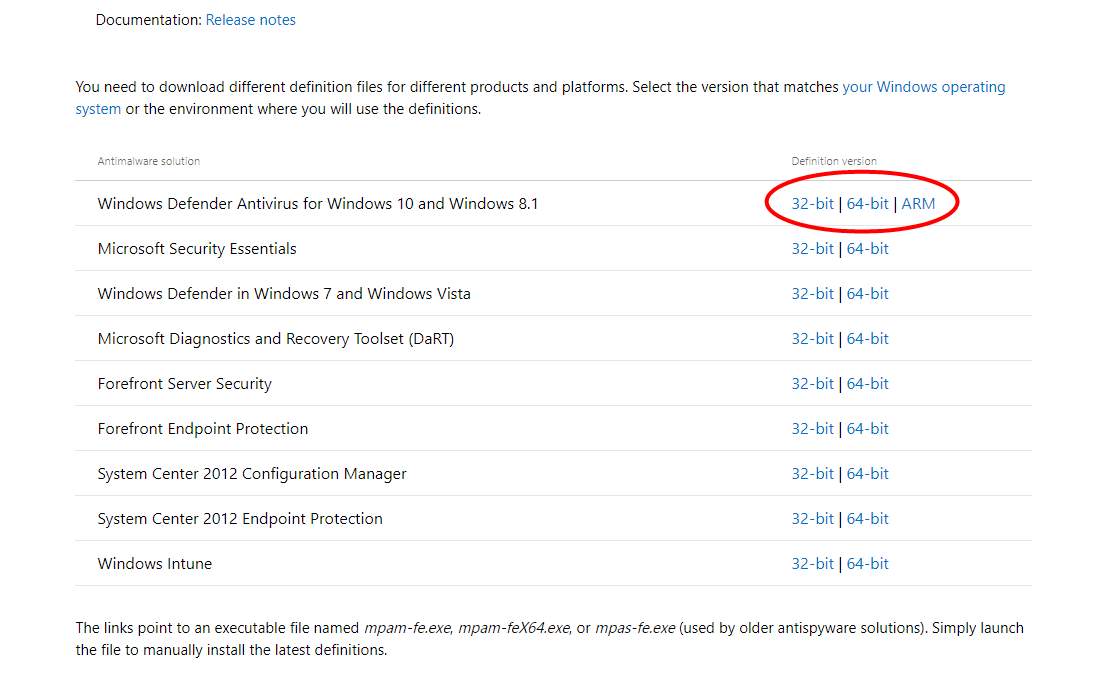
- Double-click on the downloaded file to install the update
- Restart your computer and try installing pending/failed windows updates. if you still get the 0x80070643 error, try next solution.
Solution Five – Disable antivirus software temporarily
Some antivirus software tools are known to create problems in Windows update. Due to unknown reasons, the antivirus software considers any automatic download or windows updates as a harmful program and blocks the download.
A simple solution to this problem is to temporarily disable your antivirus software, install all Windows updates and then enables the antivirus software again. The steps to disable antivirus software temporarily are unique for every antivirus software.
In this solution, we have shown general steps to disable antivirus temporarily. You need to refer the antivirus documentation to know the exact steps to do so.
Here are the steps to follow.
- Go to system tray and click on anti-virus icon to launch it user interface
- In the antivirus main window find options to temporarily disable the software for 30 minutes, 1 hour or until next restart
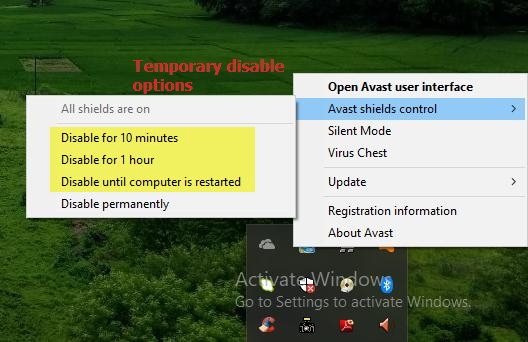
- For some anti-virus programs, you just need to right-click the antivirus icon in the system tray and select option like Stop<anti-virus software>
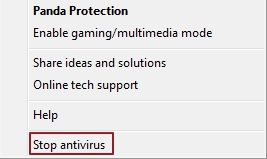
- After you have disabled the software, try installing the updates.
In most cases, the Windows update process should run smoothly. don’t forget to enable the antivirus after you have installed all Windows update.
Case 2 – Fix for 0x80070643 error while installing a program
Solution One – Restart your computer
Some newly installed applications need a restart as they cannot access some DLL or system files required for their operation in the current session. Until you restart the computer, the installation is not marked complete. There is a possibility a previous installation of the program is still in progress and might prevent installation of the new program.
A simple solution to this problem is restarting your computer that would complete all pending installation tasks. Restart your computer and then try installing the program.
Solution Two – Restart the Windows Installer service
Windows operating systems have a Windows installer (also known as Microsoft Installer) that is used for installation, uninstallation, and maintenance of software. The Windows installer service is an integral component of Windows operating system that centrally manages the configuration of applications.
There is a possibility that some changes in the Windows operating system have led to faulty configurations of the Windows Installer Service which can be rectified by the restart of Windows Installer service. Another possibility is the Windows Installer Service is not active that is causing the 0x80070643 error. Here are the steps to start Windows Installer Service.
- Press Windows logo key and R simultaneously on the keyboard to invoke Run command console
- In the Run command box, type services.msc and click OK
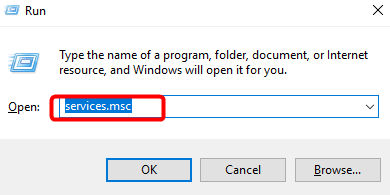
- In the Services window, look for Windows Installer service and click on it(to select)
- click Restart the service
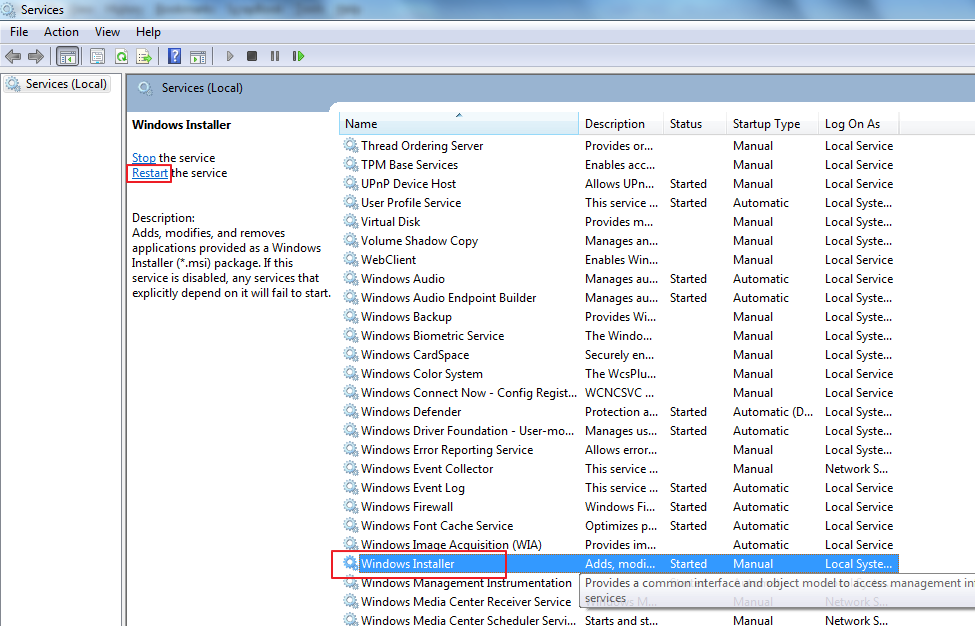
- Close all windows and try installing the program. if you still get a 0x80070643 error, try next solution
Solution Three – Repair and install .NET framework
The Microsoft .NET framework is used by many application developers to build their applications. the framework consists of a bunch of code that can be called for different functions and application developers need not write the code explicitly. this allows them to build application fast and also save time and efforts.
If the .NET framework needed by the application you are trying to install does not exist on your computer or the files are corrupt, it can lead to 0x80070643 error. the simple solution to the problem is repairing the .NET framework and then install latest .NET framework on your computer. Here are the steps to follow.
Step 1- Repair .NET framework
Microsoft offers a .NET framework repair tool that can automatically scan and detect issues with the .NET framework and fix them. Here are the steps to follow.
- Visit Microsoft Download Center
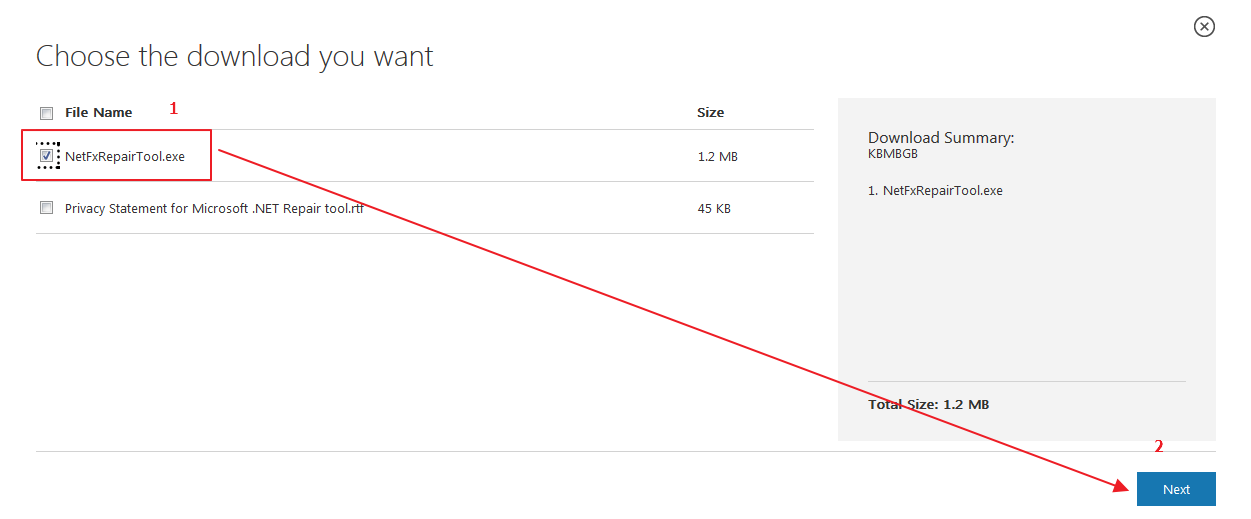
- Go to Microsoft .NET Framework Repair Tool section and click Download
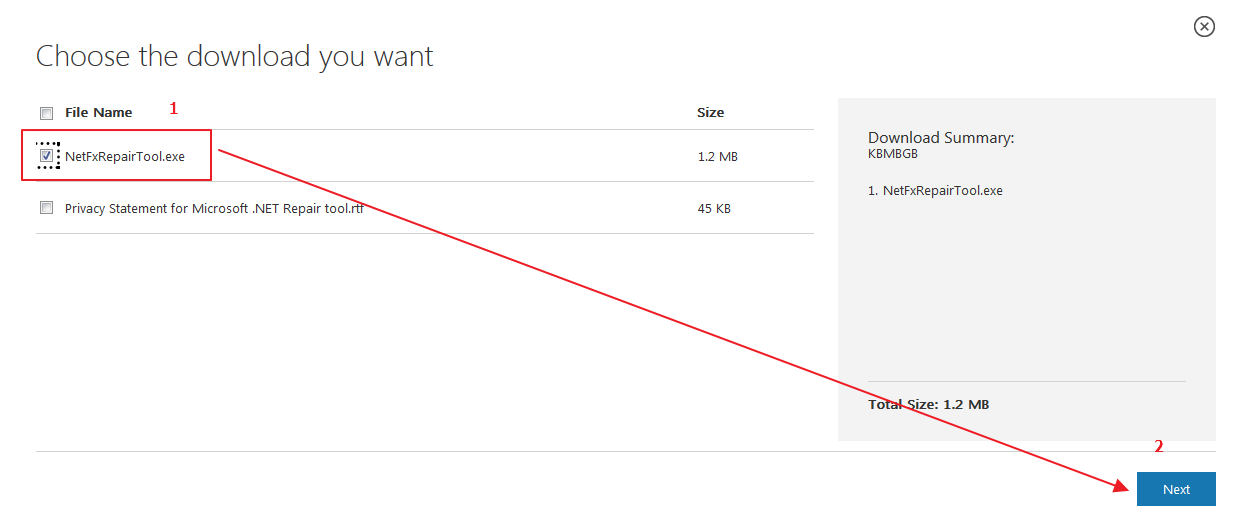
- In the next window, check the box NetFxRepairTool.exe and click Next
- When you see the download pop-up, click Save File
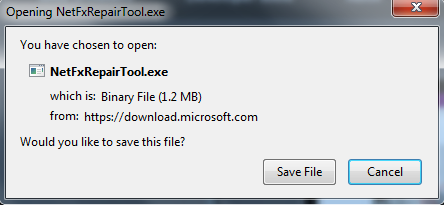
- Wait for the download to complete and then double-click on the file to run the .NET repair tool
- In the User Account Control window, click Yes
- Check the box I have read and accept the license terms and click Next
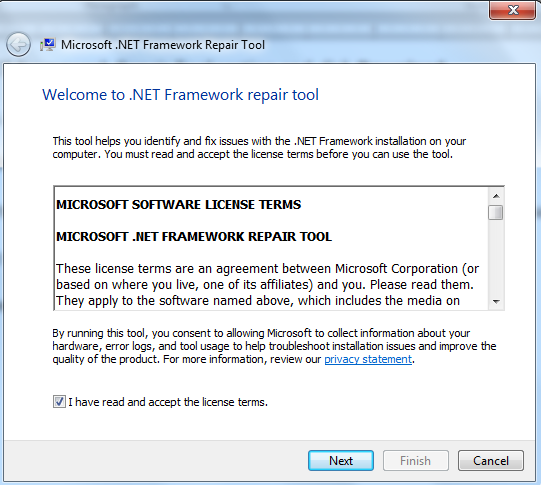
- The tool will start scanning and detecting issues.
- Depending on what it detects, the NET Repair tool will recommend changes, click Next to Apply changes.
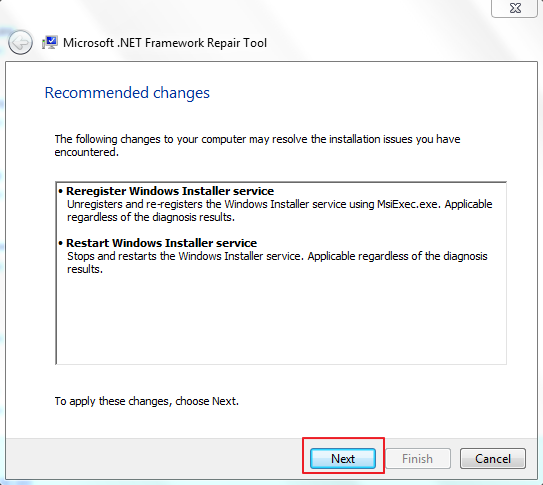
- If the NET framework detects any damages to NET framework, it will also show Next button enabled near the Finish button.
- Now keep this window open and try installing the updates. if you are able to install updates without any problem, close the .NET framework repair tool by clicking on Finish button
- If you still get the 0x80070643 error, click Next to repair the NET framework
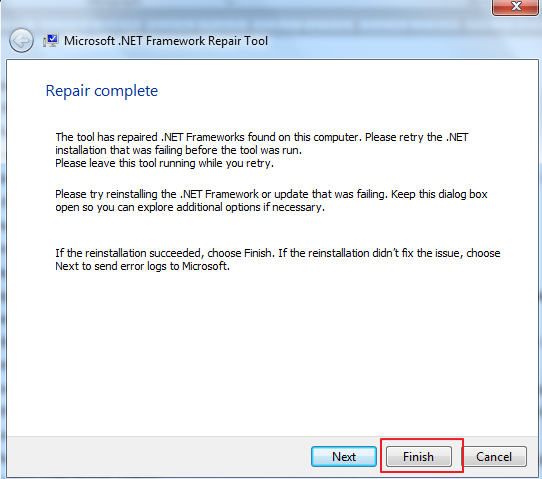
- After the NET framework repair tool completes repair of NET framework, you will again see a window with Finish option
- Now, you need to click Finish to close the tool
Step 2 – Install latest .NET framework or any .NET framework needed by the application
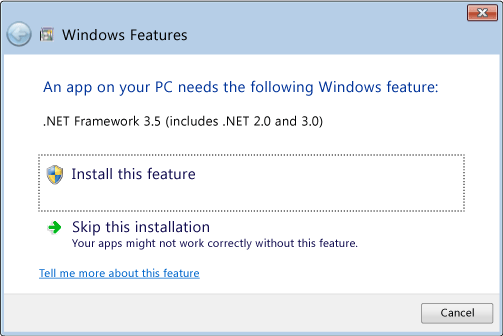
As mentioned earlier, application developers use the .NET framework to build applications. however, there are different versions of the .NET framework. if the application was developed using .NET framework 3.5, you need to install the .NET 3.5 framework runtime package.
Similarly, if the application was developed using .NET framework 4.5 or 4.6, you need to install latest .NET framework 4.7.2 version which also includes 4.5 and 4.6 components and features. here are the steps to follow.
- Go to Microsoft .NET Framework download website
- Click Download .NET Framework 4.7.2 Runtime or any .NET framework needed by the application
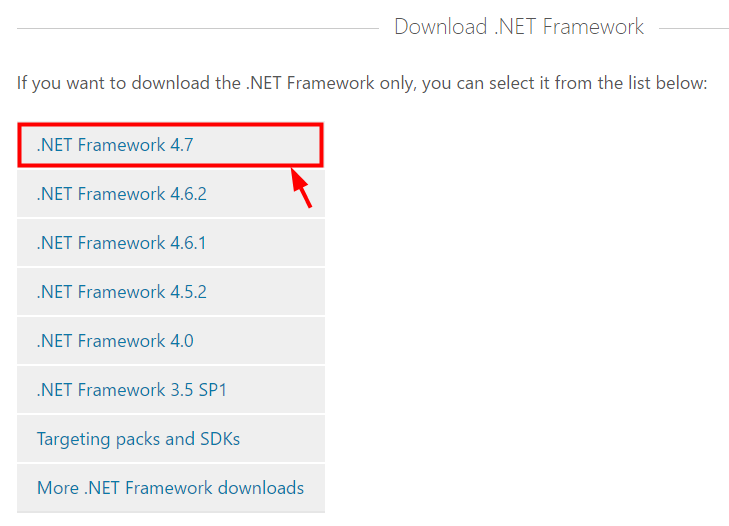
(Note: During installation, the program will scan the system and detect whether the required .NET framework is installed. if the required .NET framework is not installed, it will show the message of missing .NET framework along with the version number)
- Click Save File
- After the file is downloaded, double-click on it to start the .NET framework installation
- Follow on-screen instructions to install the .NET framework on your computer
- After the installation is finished, restart the computer
Now try installing the application. In most cases, the application installation should go smoothly which is an indication that 0x80070643 error has been resolved.